2018 FORD FIESTA change time
[x] Cancel search: change timePage 281 of 449
Sunday, 10:30am-7:30pm EST.
In the United States, call 1-800-392-3673.
In Canada, call 1-800-565-3673.
Times are subject to change due to
holidays.
SYNC Owner Account
Why do I need a SYNC owner account?
•
Essential for keeping up with the latest
software downloads available for
SYNC.
• Access to customer support for any
questions you may have.
Driving Restrictions
For your safety, certain features are
speed-dependent and restricted when your
vehicle is traveling over 3 mph (5 km/h).
Safety Information WARNING:
Driving while distracted
can result in loss of vehicle control, crash
and injury. We strongly recommend that
you use extreme caution when using any
device that may take your focus off the
road. Your primary responsibility is the safe
operation of your vehicle. We recommend
against the use of any hand-held device
while driving and encourage the use of
voice-operated systems when possible.
Make sure you are aware of all applicable
local laws that may affect the use of
electronic devices while driving. When using SYNC:
•
Do not operate playing devices if the
power cords or cables are broken, split
or damaged. Place cords and cables
out of the way, so they do not interfere
with the operation of pedals, seats,
compartments or safe driving abilities.
• Do not leave playing devices in your
vehicle during extreme conditions as it
could cause them damage. See your
device's manual for further information.
• Do not attempt to service or repair the
system. See an authorized dealer.
Privacy Information
When a cellular phone is connected to
SYNC, the system creates a profile within
your vehicle that is linked to that cellular
phone. This profile is created in order to
offer you more cellular features and to
operate more efficiently. Among other
things, this profile may contain data about
your cellular phone book, text messages
(read and unread), and call history,
including history of calls when your cellular
phone was not connected to the system.
In addition, if you connect a media device,
the system creates and retains an index of
supported media content. The system also
records a short development log of
approximately 10 minutes of all recent
system activity. The log profile and other
system data may be used to improve the
system and help diagnose any problems
that may occur.
The cellular profile, media device index,
and development log will remain in the
vehicle unless you delete them and are
generally accessible only in the vehicle
when the cellular phone or media player
is connected. If you no longer plan to use
the system or the vehicle, we recommend
you perform a Master Reset to erase all
stored information.
278
2018 Fiesta (CCT) Canada/United States of America, JE8J 19A321 AB enUSA, Edition date: 201706, First-Printing SYNC™
(If Equipped)
Page 283 of 449
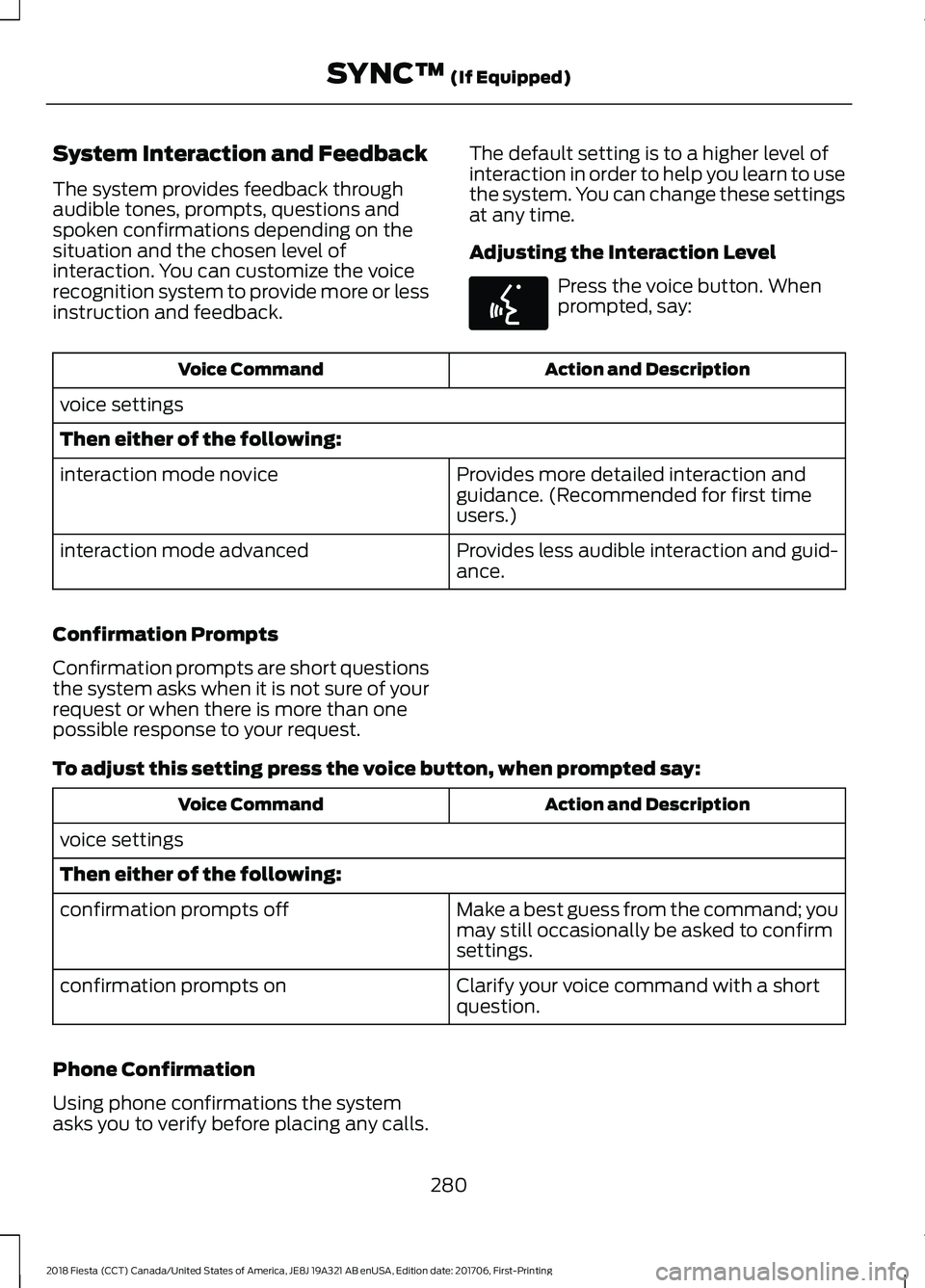
System Interaction and Feedback
The system provides feedback through
audible tones, prompts, questions and
spoken confirmations depending on the
situation and the chosen level of
interaction. You can customize the voice
recognition system to provide more or less
instruction and feedback.
The default setting is to a higher level of
interaction in order to help you learn to use
the system. You can change these settings
at any time.
Adjusting the Interaction Level Press the voice button. When
prompted, say:
Action and Description
Voice Command
voice settings
Then either of the following: Provides more detailed interaction and
guidance. (Recommended for first time
users.)
interaction mode novice
Provides less audible interaction and guid-
ance.
interaction mode advanced
Confirmation Prompts
Confirmation prompts are short questions
the system asks when it is not sure of your
request or when there is more than one
possible response to your request.
To adjust this setting press the voice button, when prompted say: Action and Description
Voice Command
voice settings
Then either of the following: Make a best guess from the command; you
may still occasionally be asked to confirm
settings.
confirmation prompts off
Clarify your voice command with a short
question.
confirmation prompts on
Phone Confirmation
Using phone confirmations the system
asks you to verify before placing any calls. 280
2018 Fiesta (CCT) Canada/United States of America, JE8J 19A321 AB enUSA, Edition date: 201706, First-Printing SYNC™ (If Equipped)E142599
Page 292 of 449
Sending a Text Message
Note:
You can only send a text message to
one recipient at a time.
1. Select the send option when the desired selection highlights in the audio
display.
2. Select the confirmation option when the contact appears.
3. Press the OK button again to confirm when the system asks if you want to
send the message. A pre-defined
signature appears on each text
message. Note:
You can send text messages either
by choosing a contact from the phonebook
and selecting the text option from the audio
display or by replying to a received message
in the inbox.
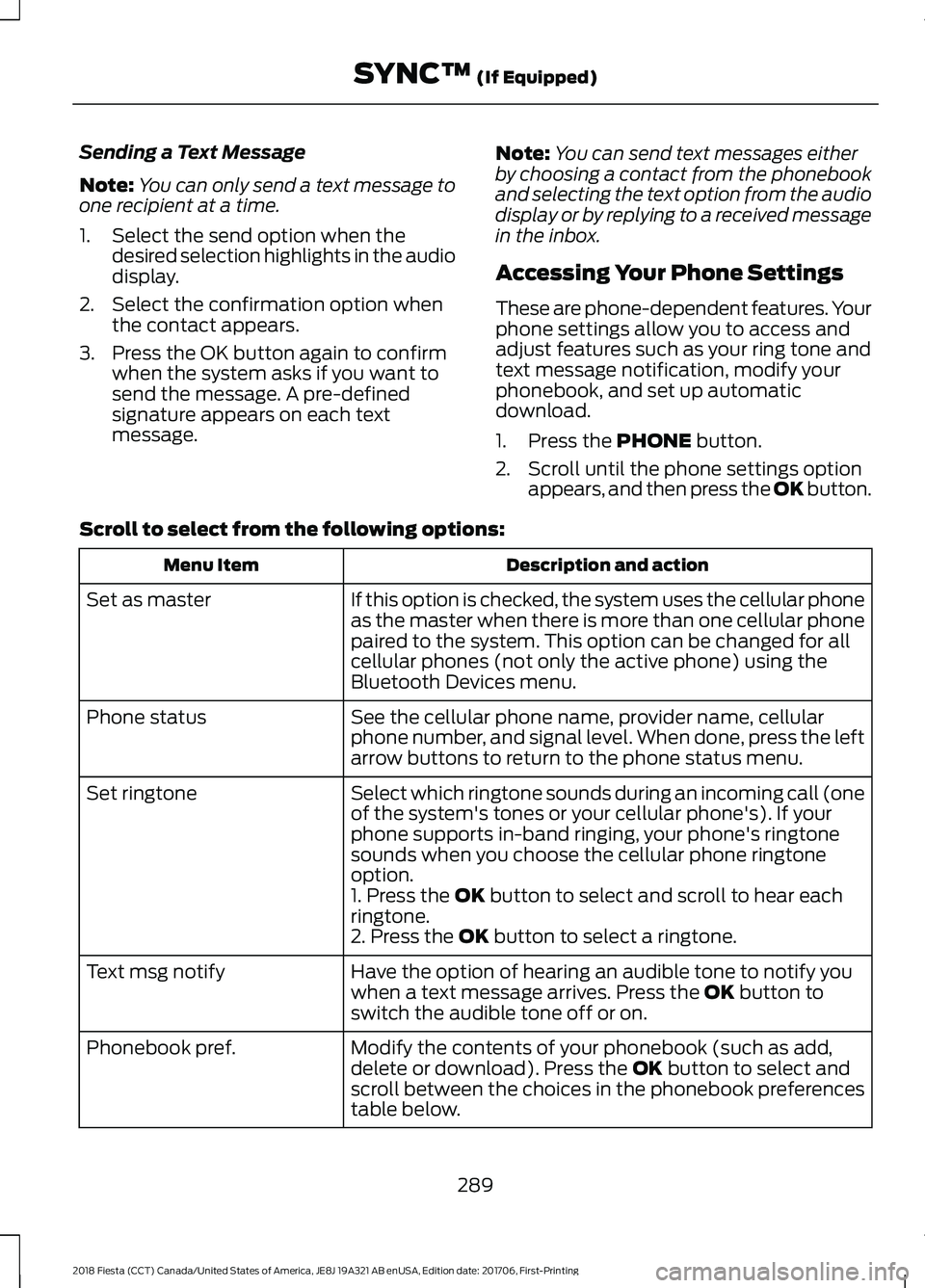
Accessing Your Phone Settings
These are phone-dependent features. Your
phone settings allow you to access and
adjust features such as your ring tone and
text message notification, modify your
phonebook, and set up automatic
download.
1. Press the PHONE button.
2. Scroll until the phone settings option appears, and then press the OK button.
Scroll to select from the following options: Description and action
Menu Item
If this option is checked, the system uses the cellular phone
as the master when there is more than one cellular phone
paired to the system. This option can be changed for all
cellular phones (not only the active phone) using the
Bluetooth Devices menu.
Set as master
See the cellular phone name, provider name, cellular
phone number, and signal level. When done, press the left
arrow buttons to return to the phone status menu.
Phone status
Select which ringtone sounds during an incoming call (one
of the system's tones or your cellular phone's). If your
phone supports in-band ringing, your phone's ringtone
sounds when you choose the cellular phone ringtone
option.
Set ringtone
1. Press the
OK button to select and scroll to hear each
ringtone.
2. Press the
OK button to select a ringtone.
Have the option of hearing an audible tone to notify you
when a text message arrives. Press the
OK button to
switch the audible tone off or on.
Text msg notify
Modify the contents of your phonebook (such as add,
delete or download). Press the
OK button to select and
scroll between the choices in the phonebook preferences
table below.
Phonebook pref.
289
2018 Fiesta (CCT) Canada/United States of America, JE8J 19A321 AB enUSA, Edition date: 201706, First-Printing SYNC™
(If Equipped)
Page 293 of 449
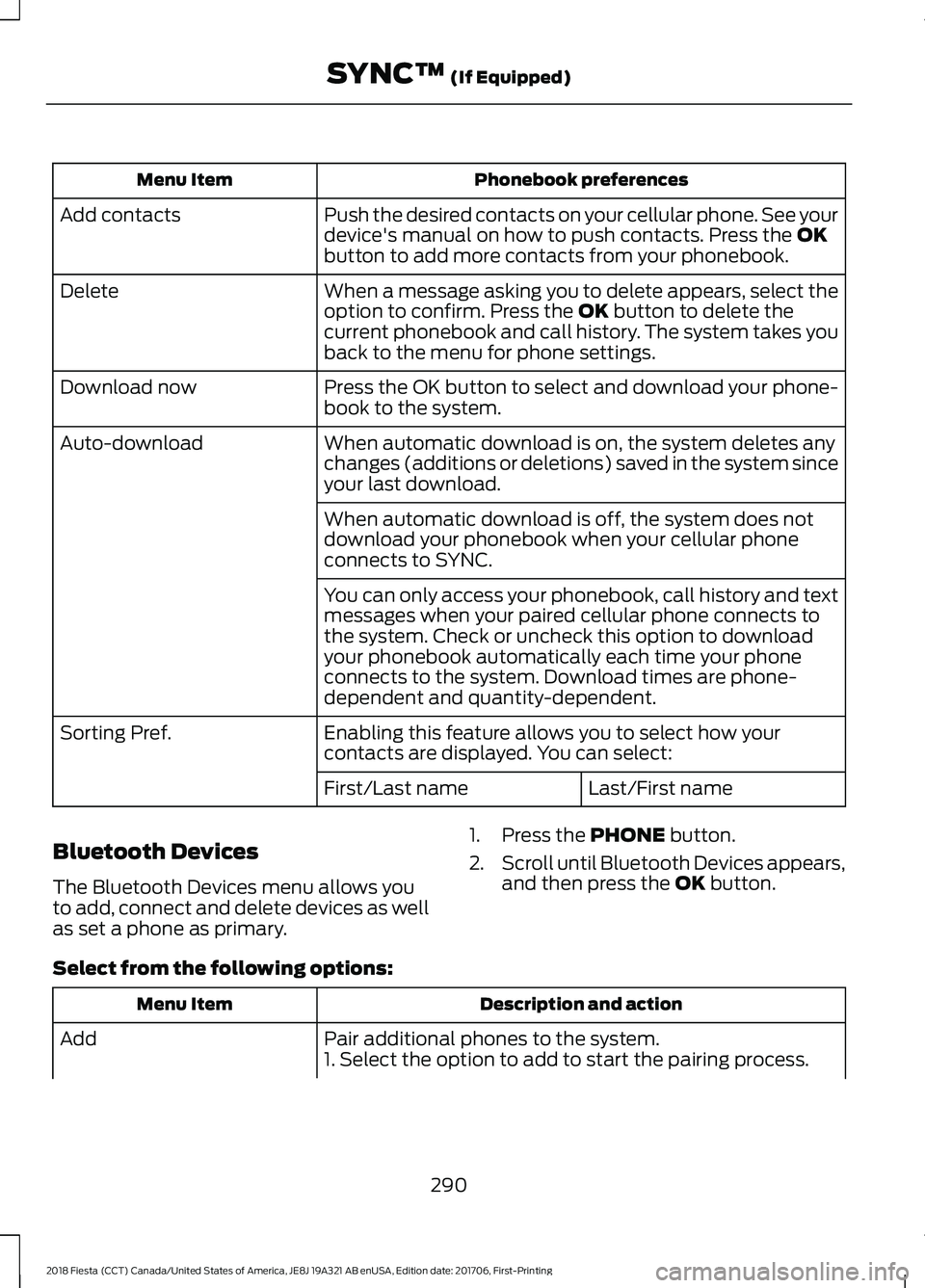
Phonebook preferences
Menu Item
Push the desired contacts on your cellular phone. See your
device's manual on how to push contacts. Press the OK
button to add more contacts from your phonebook.
Add contacts
When a message asking you to delete appears, select the
option to confirm. Press the
OK button to delete the
current phonebook and call history. The system takes you
back to the menu for phone settings.
Delete
Press the OK button to select and download your phone-
book to the system.
Download now
When automatic download is on, the system deletes any
changes (additions or deletions) saved in the system since
your last download.
Auto-download
When automatic download is off, the system does not
download your phonebook when your cellular phone
connects to SYNC.
You can only access your phonebook, call history and text
messages when your paired cellular phone connects to
the system. Check or uncheck this option to download
your phonebook automatically each time your phone
connects to the system. Download times are phone-
dependent and quantity-dependent.
Enabling this feature allows you to select how your
contacts are displayed. You can select:
Sorting Pref.
Last/First name
First/Last name
Bluetooth Devices
The Bluetooth Devices menu allows you
to add, connect and delete devices as well
as set a phone as primary. 1. Press the
PHONE button.
2. Scroll until Bluetooth Devices appears,
and then press the
OK button.
Select from the following options: Description and action
Menu Item
Pair additional phones to the system.
Add
1. Select the option to add to start the pairing process.
290
2018 Fiesta (CCT) Canada/United States of America, JE8J 19A321 AB enUSA, Edition date: 201706, First-Printing SYNC™
(If Equipped)
Page 299 of 449

To Access Using Voice Commands
Press the voice button then when prompted say:
Action and Description
Menu Item
Say the name of the application after the tone.
The app should start. When an app is running through SYNC, you can press the voice button and speak commands specific to the app, for example "Play Playlist Road Trip".
mobile (apps |
applications)
Use this command to discover the available voice commands.
help
SYNC Mobile App Voice Commands
The following voice commands are always available: Action and Description
Menu Item
SYNC prompts you to say the name of an
app to start it on SYNC.
mobile (apps | applications)
SYNC lists all of the currently available
mobile apps.
list [mobile] (apps | applications)
Searches your connected mobile device for
SYNC-compatible mobile apps.
find [new] [mobile] (apps | applications)
help
You can say the name of a mobile app at any time to start the mobile app on SYNC.
App Permissions
App permissions are organized by groups.
You can grant these group permissions
individually. You can change a permission
group status any time when not driving, by
using the settings menu. When you launch an app using SYNC, the
system may ask you to grant certain
permissions, for example:
•
To allow your vehicle to provide vehicle
information to the app such as, but not
limited to: Fuel level, fuel economy, fuel
consumption, engine speed, rain
sensor, odometer, VIN, external
temperature, gear position, tire
pressure, and head lamp status.
• To allow your vehicle to provide driving
characteristic information such as, but
not limited to: MyKey, seat belt status,
engine revolutions per minute, gear
position, braking events, steering wheel
angle, and accelerator pedal position.
296
2018 Fiesta (CCT) Canada/United States of America, JE8J 19A321 AB enUSA, Edition date: 201706, First-Printing SYNC™ (If Equipped)
Page 313 of 449
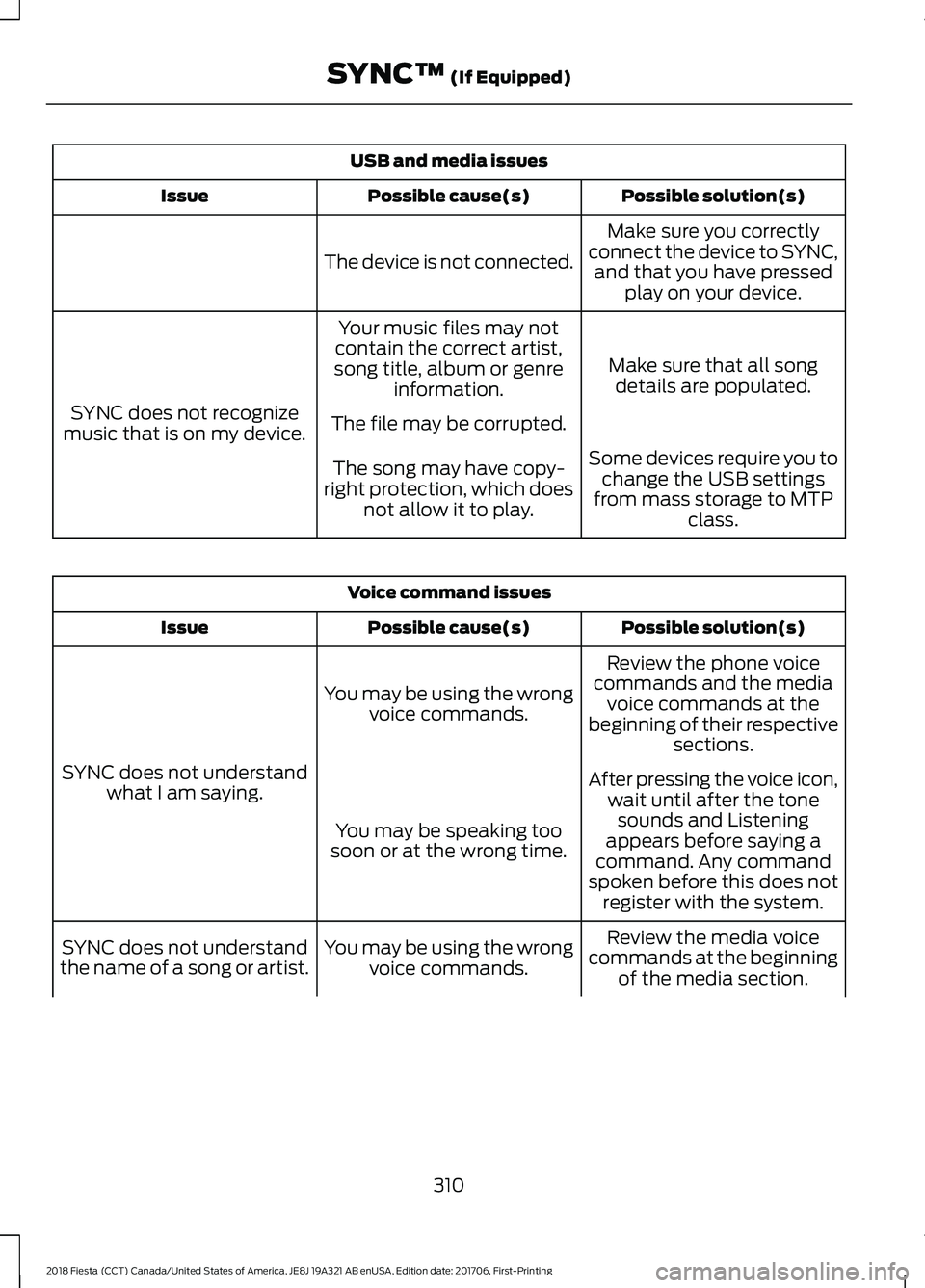
USB and media issues
Possible solution(s)
Possible cause(s)
Issue
Make sure you correctly
connect the device to SYNC, and that you have pressed play on your device.
The device is not connected.
Make sure that all songdetails are populated.
Your music files may not
contain the correct artist,
song title, album or genre information.
SYNC does not recognize
music that is on my device. The file may be corrupted.
Some devices require you tochange the USB settings
from mass storage to MTP class.
The song may have copy-
right protection, which does not allow it to play. Voice command issues
Possible solution(s)
Possible cause(s)
Issue
Review the phone voice
commands and the media voice commands at the
beginning of their respective sections.
You may be using the wrong
voice commands.
SYNC does not understand what I am saying. After pressing the voice icon,
wait until after the tonesounds and Listening
appears before saying a
command. Any command
spoken before this does not register with the system.
You may be speaking too
soon or at the wrong time.
Review the media voice
commands at the beginning of the media section.
You may be using the wrong
voice commands.
SYNC does not understand
the name of a song or artist.
310
2018 Fiesta (CCT) Canada/United States of America, JE8J 19A321 AB enUSA, Edition date: 201706, First-Printing SYNC™ (If Equipped)
Page 327 of 449

The installation of most files occurs in the
background, and does not interrupt your
use of the system. Navigation updates
cannot be installed in the background,
because the files are too large.
Please refer to the website for any further
actions.
Updating Over Wi-Fi
To update your System over Wi-Fi your
vehicle must be within the range of a Wi-Fi
access point. Data rates may apply.
To enable automatic updates using
Wi-Fi, select:
Menu Item
Settings
Wi-Fi You can then select your
Wi-Fi network. You may
have to enter the security
code if the network is
secured. The system
confirms when it has
connected to the network.
Available
Wi-Fi
Networks
You must also give the system permission
to update automatically. Upon vehicle
delivery, the System asks you if you would
like to use the automatic update feature.
If you agree to automatic updates, you can
press OK to confirm. If this selection does
not appear upon vehicle delivery you can
access it through the General Settings. See
Settings (page 359). You can also perform
a master reset. See SYNC™ 3
Troubleshooting (page 373). If you would like to switch this feature
on later, select: Menu Item
Settings
General From this menu, you can
enable automatic updates.
If you have not done so
already, the system
prompts you to set up a
Wi-Fi connection when you
enable this feature.
Automatic
System
Updates
When Wi-Fi and automatic updates are
enabled, your system checks for software
updates periodically. If a new version is
available, it downloads at that time.
Software downloads can take place for up
to 30 minutes after you have switched your
vehicle off. The updates do not interrupt
the normal use of your SYNC 3 system. If
a download does not complete for any
reason, the download continues where it
left off at the next Wi-Fi connected
opportunity. Upon activation of an update,
a banner displays on the touchscreen
indicating the system update. Select the
icon to see more detail. This icon displays
for two ignition cycles.
To switch this feature off: Menu Item
Settings
General In this menu selection, you
can change the selection
for automatic updates to
OFF.
Automatic
System
Updates
324
2018 Fiesta (CCT) Canada/United States of America, JE8J 19A321 AB enUSA, Edition date: 201706, First-Printing SYNC™ 3
Page 328 of 449
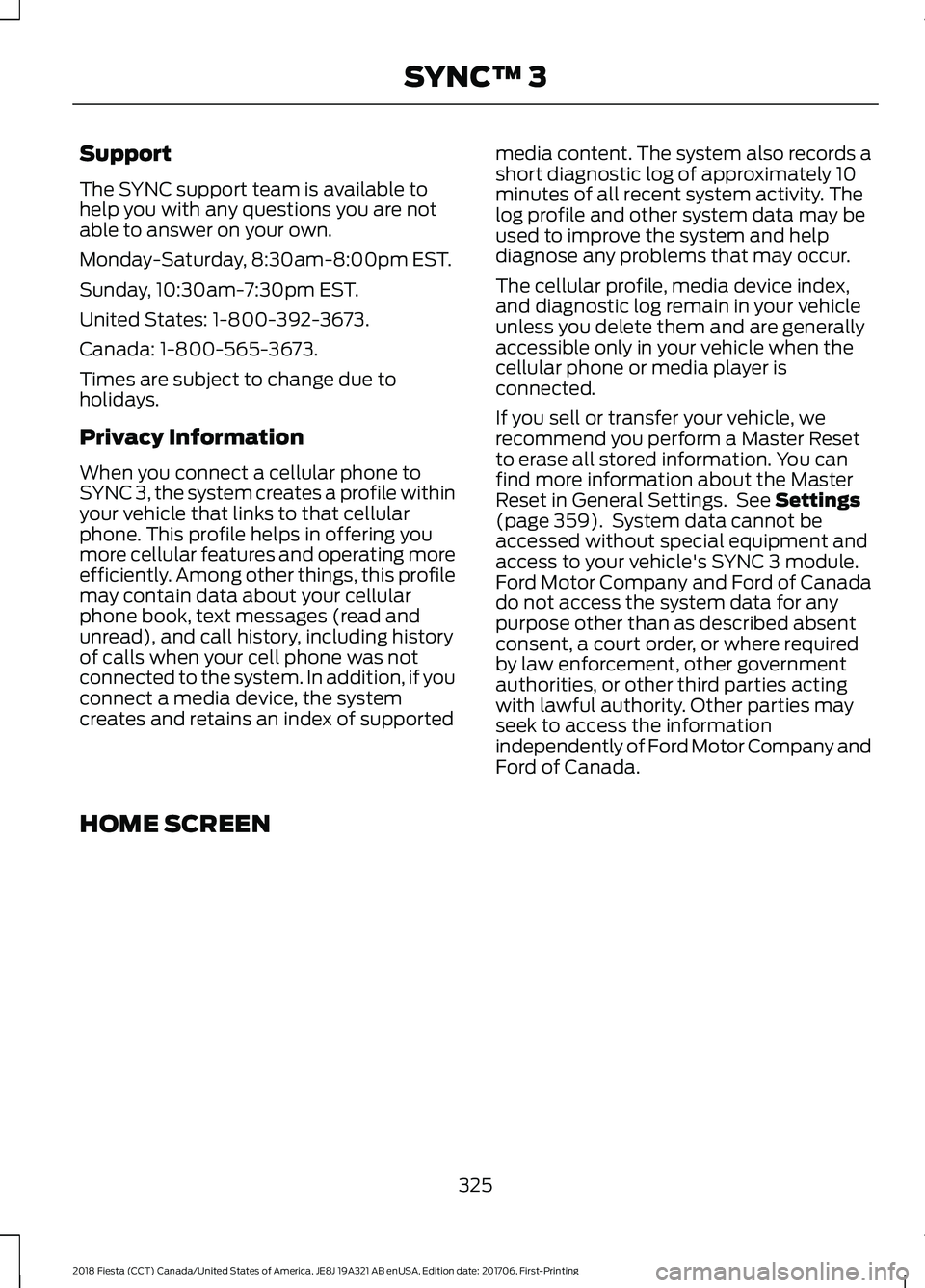
Support
The SYNC support team is available to
help you with any questions you are not
able to answer on your own.
Monday-Saturday, 8:30am-8:00pm EST.
Sunday, 10:30am-7:30pm EST.
United States: 1-800-392-3673.
Canada: 1-800-565-3673.
Times are subject to change due to
holidays.
Privacy Information
When you connect a cellular phone to
SYNC 3, the system creates a profile within
your vehicle that links to that cellular
phone. This profile helps in offering you
more cellular features and operating more
efficiently. Among other things, this profile
may contain data about your cellular
phone book, text messages (read and
unread), and call history, including history
of calls when your cell phone was not
connected to the system. In addition, if you
connect a media device, the system
creates and retains an index of supported
media content. The system also records a
short diagnostic log of approximately 10
minutes of all recent system activity. The
log profile and other system data may be
used to improve the system and help
diagnose any problems that may occur.
The cellular profile, media device index,
and diagnostic log remain in your vehicle
unless you delete them and are generally
accessible only in your vehicle when the
cellular phone or media player is
connected.
If you sell or transfer your vehicle, we
recommend you perform a Master Reset
to erase all stored information. You can
find more information about the Master
Reset in General Settings. See Settings
(page 359). System data cannot be
accessed without special equipment and
access to your vehicle's SYNC 3 module.
Ford Motor Company and Ford of Canada
do not access the system data for any
purpose other than as described absent
consent, a court order, or where required
by law enforcement, other government
authorities, or other third parties acting
with lawful authority. Other parties may
seek to access the information
independently of Ford Motor Company and
Ford of Canada.
HOME SCREEN
325
2018 Fiesta (CCT) Canada/United States of America, JE8J 19A321 AB enUSA, Edition date: 201706, First-Printing SYNC™ 3