2018 FORD F-550 reverse
[x] Cancel search: reversePage 367 of 660
5.
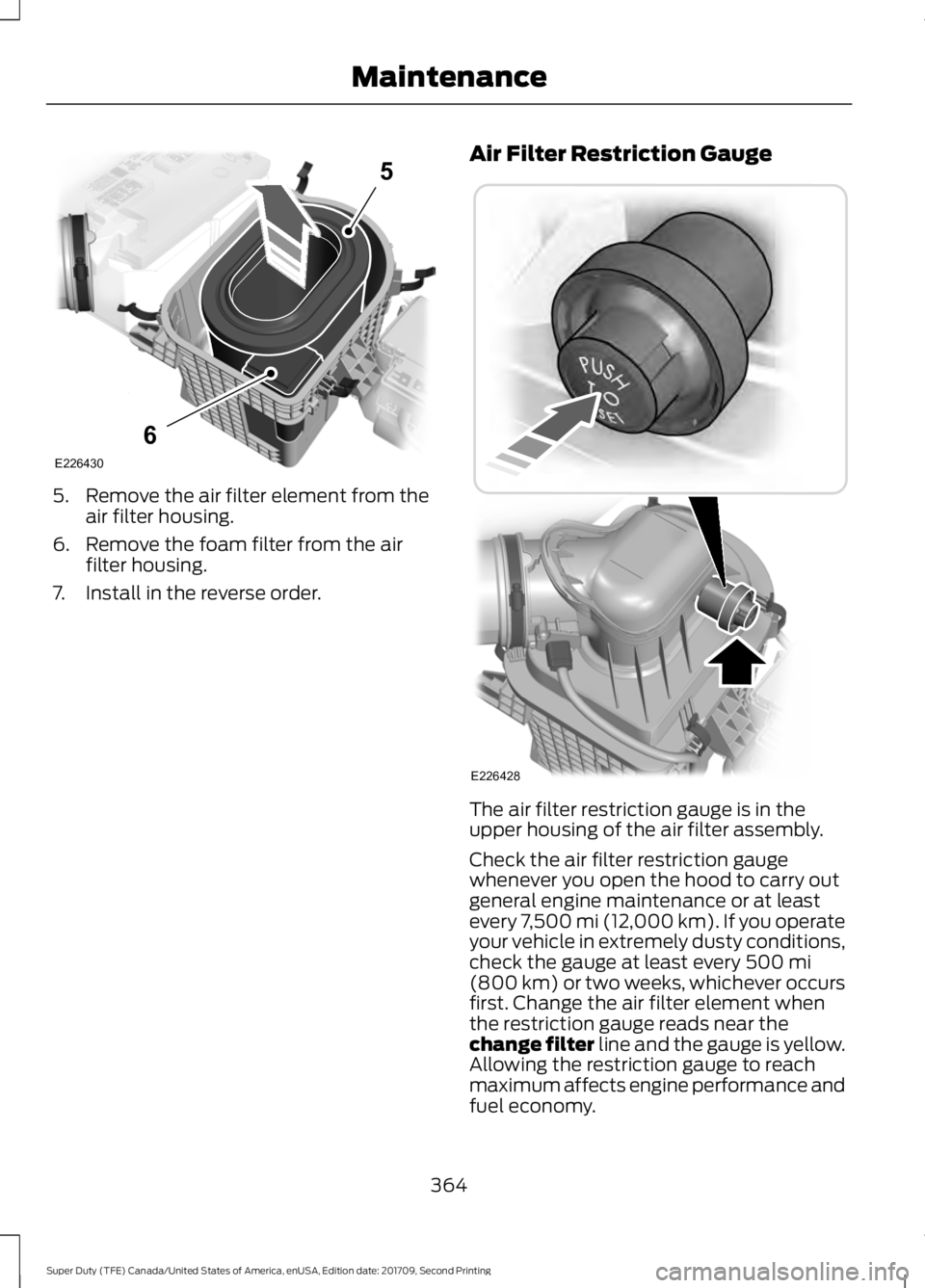
Remove the air filter element from the
air filter housing.
6. Remove the foam filter from the air filter housing.
7. Install in the reverse order. Air Filter Restriction Gauge
The air filter restriction gauge is in the
upper housing of the air filter assembly.
Check the air filter restriction gauge
whenever you open the hood to carry out
general engine maintenance or at least
every 7,500 mi (12,000 km). If you operate
your vehicle in extremely dusty conditions,
check the gauge at least every 500 mi
(800 km) or two weeks, whichever occurs
first. Change the air filter element when
the restriction gauge reads near the
change filter line and the gauge is yellow.
Allowing the restriction gauge to reach
maximum affects engine performance and
fuel economy.
364
Super Duty (TFE) Canada/United States of America, enUSA, Edition date: 201709, Second Printing MaintenanceE226430
5
6 E226428
Page 450 of 660
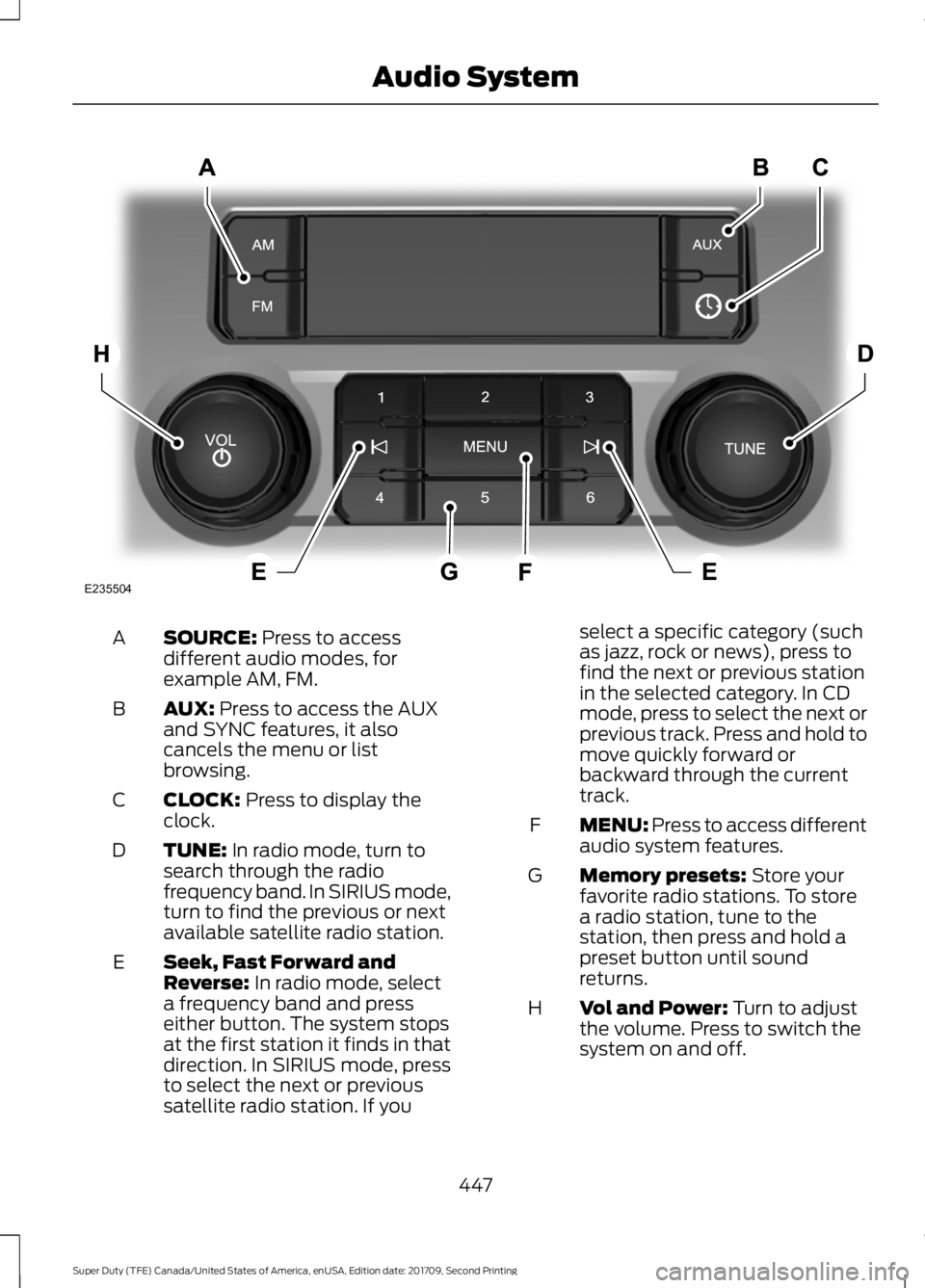
SOURCE: Press to access
different audio modes, for
example AM, FM.
A
AUX:
Press to access the AUX
and SYNC features, it also
cancels the menu or list
browsing.
B
CLOCK:
Press to display the
clock.
C
TUNE:
In radio mode, turn to
search through the radio
frequency band. In SIRIUS mode,
turn to find the previous or next
available satellite radio station.
D
Seek, Fast Forward and
Reverse:
In radio mode, select
a frequency band and press
either button. The system stops
at the first station it finds in that
direction. In SIRIUS mode, press
E
to select the next or previous
satellite radio station. If you select a specific category (such
as jazz, rock or news), press to
find the next or previous station
in the selected category. In CD
mode, press to select the next or
previous track. Press and hold to
move quickly forward or
backward through the current
track.
MENU: Press to access different
audio system features.
F
Memory presets:
Store your
favorite radio stations. To store
a radio station, tune to the
station, then press and hold a
preset button until sound
returns.
G
Vol and Power:
Turn to adjust
the volume. Press to switch the
system on and off.
H
447
Super Duty (TFE) Canada/United States of America, enUSA, Edition date: 201709, Second Printing Audio SystemE235504
Page 452 of 660
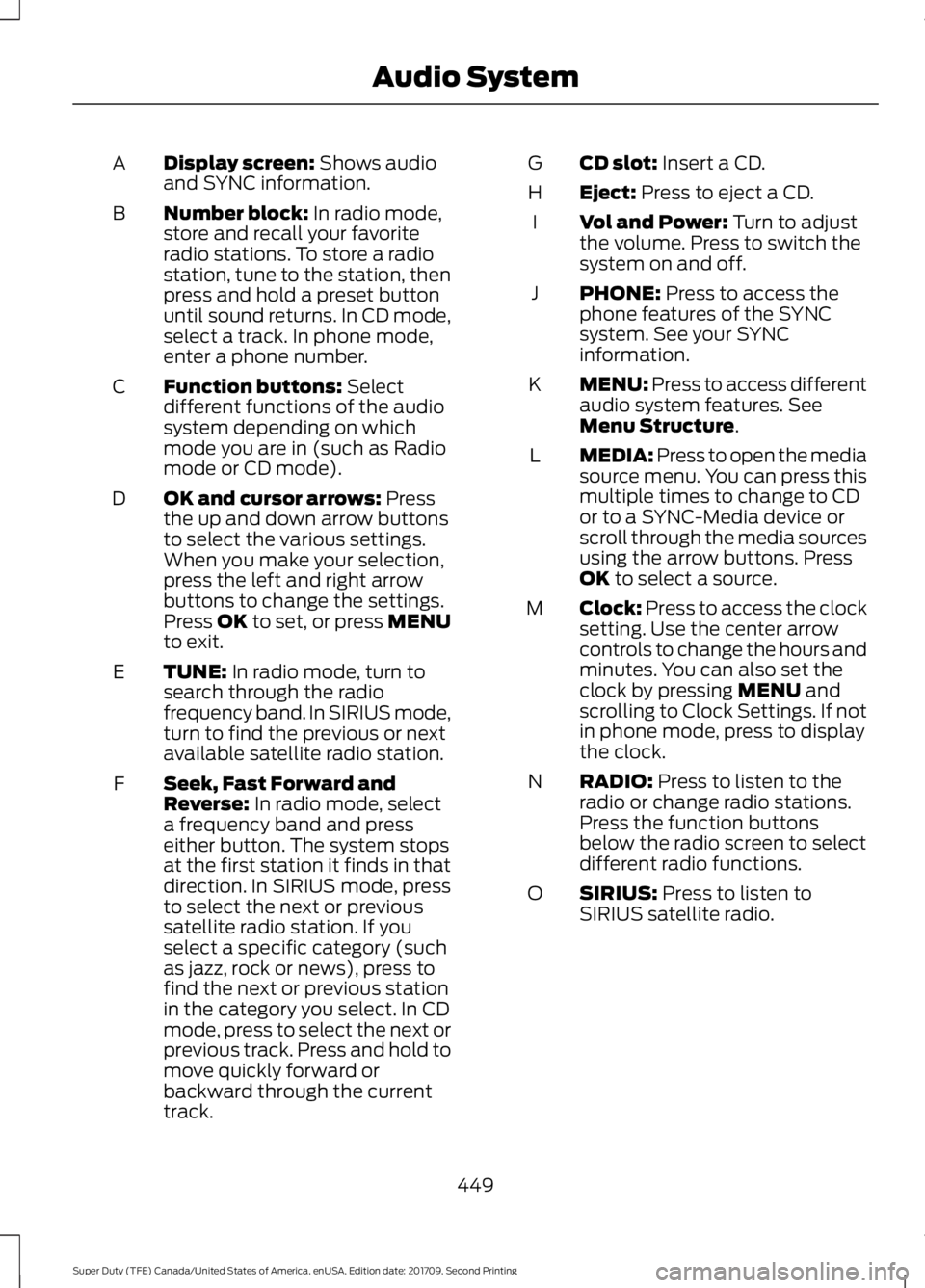
Display screen: Shows audio
and SYNC information.
A
Number block:
In radio mode,
store and recall your favorite
radio stations. To store a radio
station, tune to the station, then
press and hold a preset button
until sound returns. In CD mode,
select a track. In phone mode,
enter a phone number.
B
Function buttons:
Select
different functions of the audio
system depending on which
mode you are in (such as Radio
mode or CD mode).
C
OK and cursor arrows:
Press
the up and down arrow buttons
to select the various settings.
When you make your selection,
press the left and right arrow
buttons to change the settings.
Press OK to set, or press MENU
to exit.
D
TUNE:
In radio mode, turn to
search through the radio
frequency band. In SIRIUS mode,
turn to find the previous or next
available satellite radio station.
E
Seek, Fast Forward and
Reverse:
In radio mode, select
a frequency band and press
either button. The system stops
at the first station it finds in that
direction. In SIRIUS mode, press
F
to select the next or previous
satellite radio station. If you
select a specific category (such
as jazz, rock or news), press to
find the next or previous station
in the category you select. In CD
mode, press to select the next or
previous track. Press and hold to
move quickly forward or
backward through the current
track. CD slot:
Insert a CD.
G
Eject:
Press to eject a CD.
H
Vol and Power:
Turn to adjust
the volume. Press to switch the
system on and off.
I
PHONE:
Press to access the
phone features of the SYNC
system. See your SYNC
information.
J
MENU: Press to access different
audio system features. See
Menu Structure
.
K
MEDIA: Press to open the media
source menu. You can press this
multiple times to change to CD
or to a SYNC-Media device or
scroll through the media sources
using the arrow buttons. Press
OK
to select a source.
L
Clock:
Press to access the clock
setting. Use the center arrow
controls to change the hours and
minutes. You can also set the
clock by pressing
MENU and
scrolling to Clock Settings. If not
in phone mode, press to display
the clock.
M
RADIO:
Press to listen to the
radio or change radio stations.
Press the function buttons
below the radio screen to select
different radio functions.
N
SIRIUS:
Press to listen to
SIRIUS satellite radio.
O
449
Super Duty (TFE) Canada/United States of America, enUSA, Edition date: 201709, Second Printing Audio System
Page 457 of 660
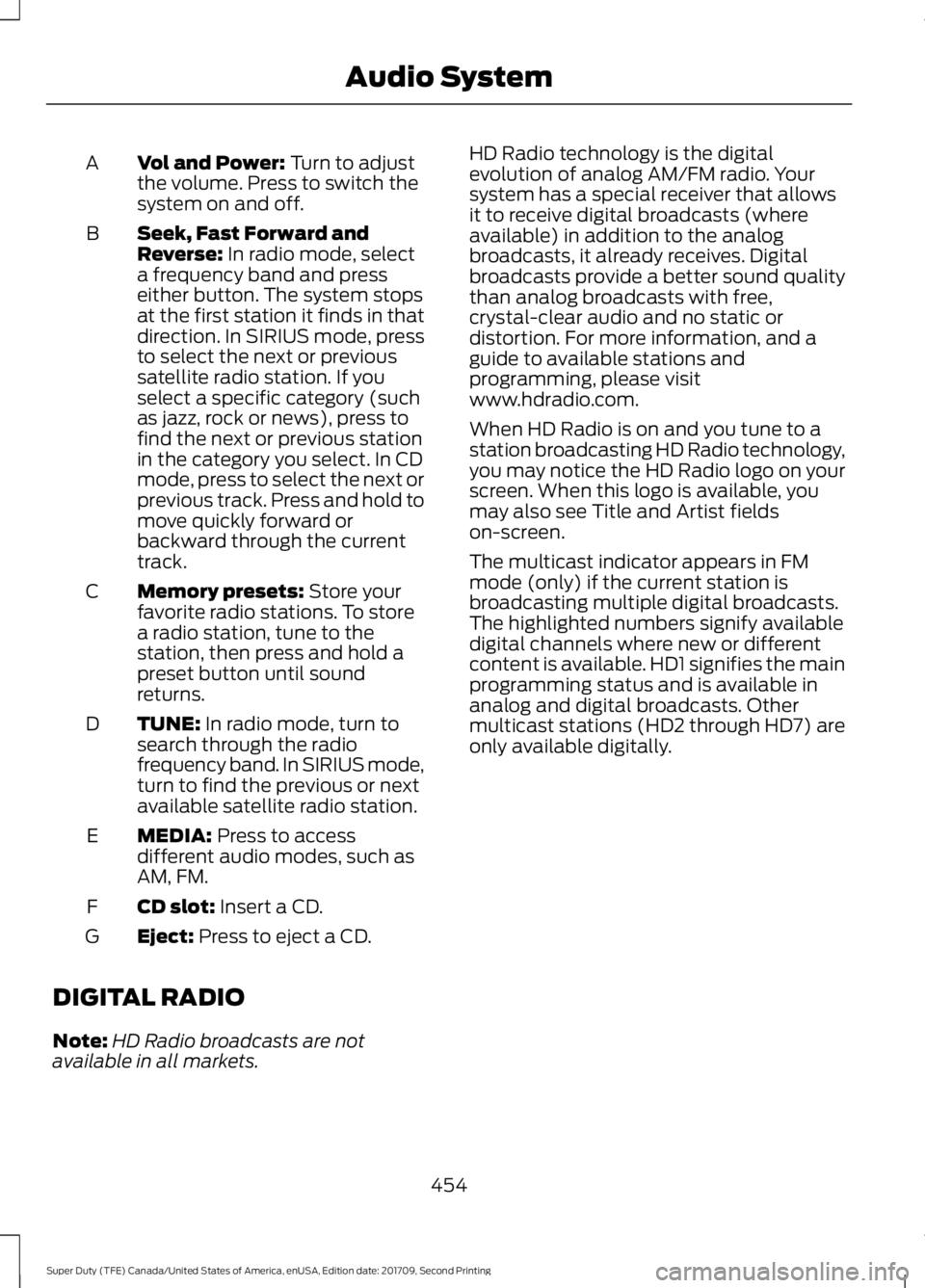
Vol and Power: Turn to adjust
the volume. Press to switch the
system on and off.
A
Seek, Fast Forward and
Reverse:
In radio mode, select
a frequency band and press
either button. The system stops
at the first station it finds in that
direction. In SIRIUS mode, press
B
to select the next or previous
satellite radio station. If you
select a specific category (such
as jazz, rock or news), press to
find the next or previous station
in the category you select. In CD
mode, press to select the next or
previous track. Press and hold to
move quickly forward or
backward through the current
track.
Memory presets:
Store your
favorite radio stations. To store
a radio station, tune to the
station, then press and hold a
preset button until sound
returns.
C
TUNE:
In radio mode, turn to
search through the radio
frequency band. In SIRIUS mode,
turn to find the previous or next
available satellite radio station.
D
MEDIA:
Press to access
different audio modes, such as
AM, FM.
E
CD slot:
Insert a CD.
F
Eject:
Press to eject a CD.
G
DIGITAL RADIO
Note: HD Radio broadcasts are not
available in all markets. HD Radio technology is the digital
evolution of analog AM/FM radio. Your
system has a special receiver that allows
it to receive digital broadcasts (where
available) in addition to the analog
broadcasts, it already receives. Digital
broadcasts provide a better sound quality
than analog broadcasts with free,
crystal-clear audio and no static or
distortion. For more information, and a
guide to available stations and
programming, please visit
www.hdradio.com.
When HD Radio is on and you tune to a
station broadcasting HD Radio technology,
you may notice the HD Radio logo on your
screen. When this logo is available, you
may also see Title and Artist fields
on-screen.
The multicast indicator appears in FM
mode (only) if the current station is
broadcasting multiple digital broadcasts.
The highlighted numbers signify available
digital channels where new or different
content is available. HD1 signifies the main
programming status and is available in
analog and digital broadcasts. Other
multicast stations (HD2 through HD7) are
only available digitally.
454
Super Duty (TFE) Canada/United States of America, enUSA, Edition date: 201709, Second Printing Audio System
Page 528 of 660
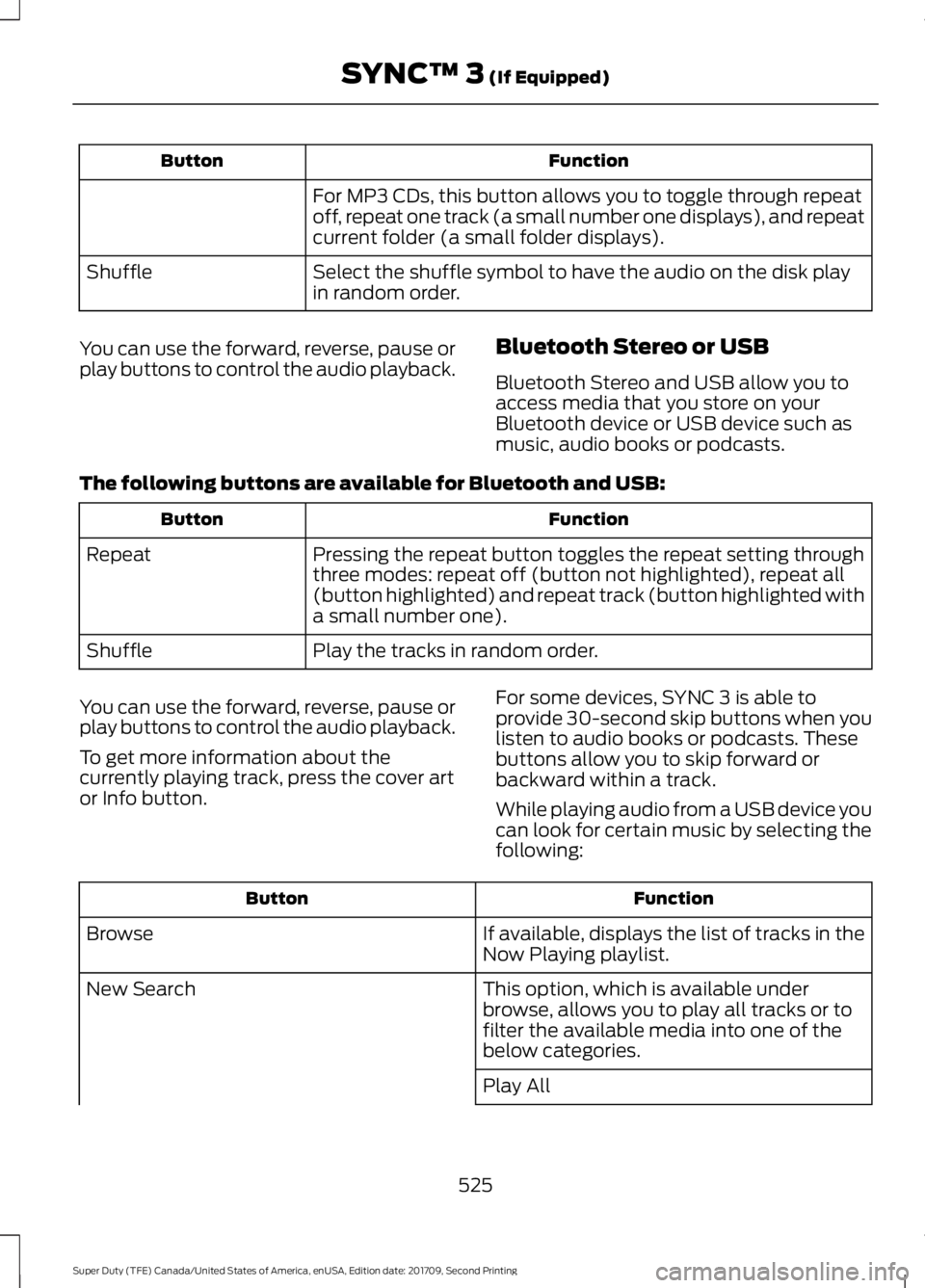
Function
Button
For MP3 CDs, this button allows you to toggle through repeat
off, repeat one track (a small number one displays), and repeat
current folder (a small folder displays).
Select the shuffle symbol to have the audio on the disk play
in random order.
Shuffle
You can use the forward, reverse, pause or
play buttons to control the audio playback. Bluetooth Stereo or USB
Bluetooth Stereo and USB allow you to
access media that you store on your
Bluetooth device or USB device such as
music, audio books or podcasts.
The following buttons are available for Bluetooth and USB: Function
Button
Pressing the repeat button toggles the repeat setting through
three modes: repeat off (button not highlighted), repeat all
(button highlighted) and repeat track (button highlighted with
a small number one).
Repeat
Play the tracks in random order.
Shuffle
You can use the forward, reverse, pause or
play buttons to control the audio playback.
To get more information about the
currently playing track, press the cover art
or Info button. For some devices, SYNC 3 is able to
provide 30-second skip buttons when you
listen to audio books or podcasts. These
buttons allow you to skip forward or
backward within a track.
While playing audio from a USB device you
can look for certain music by selecting the
following: Function
Button
If available, displays the list of tracks in the
Now Playing playlist.
Browse
This option, which is available under
browse, allows you to play all tracks or to
filter the available media into one of the
below categories.
New Search
Play All
525
Super Duty (TFE) Canada/United States of America, enUSA, Edition date: 201709, Second Printing SYNC™ 3 (If Equipped)
Page 561 of 660
Note:
: Data, e.g. the Vehicle Identification
Number (VIN), SIM Card ID, and data plan
usage, is shared between Ford and the
vehicle network carrier to provide the
Vehicle Hotspot service in accordance with
your vehicle network carrier agreement,
coverage and availability, and may be used
to enable a seamless transition from an old
to new embedded modem and to confirm
any updates are successfully delivered.
Note: : For your convenience data usage
may be available for monitoring under
Settings but may not reflect actual or
current usage. The vehicle network carrier
is responsible for providing information
about your account. Please contact the
vehicle network carrier for more information.
Note: : Ford may need to update operating
system software on your vehicle, including
security updates and bug fixes, to keep
connected services current, like Vehicle
Hotspot, without prior notice to you.
Note: If you do not have an active vehicle
hotspot data plan, open your web browser
and go to a website using the HTTP protocol
to be automatically redirected to the vehicle
network carrier landing page where you can
purchase data. Websites using HTTPS will
not automatically redirect. Ambient Lighting (If Equipped)
Tap a color once to active ambient lighting.
This sets the color to the highest intensity.
You can drag the colors up and down to
increase or decrease the intensity.
To switch ambient lighting off, press the
active color once or drag the active color
all the way down to zero intensity.
Vehicle
Note: Your vehicle may not have all of
these features.
You can select the following features to
update their settings.
Door Keypad Code (If equipped)
Select this button to add or erase a
personal door keypad code. To add or
erase a personal code, you first need to
enter the five-digit factory set code. You
can find this code on the owner's wallet
card in the glove box or from your
authorized dealer.
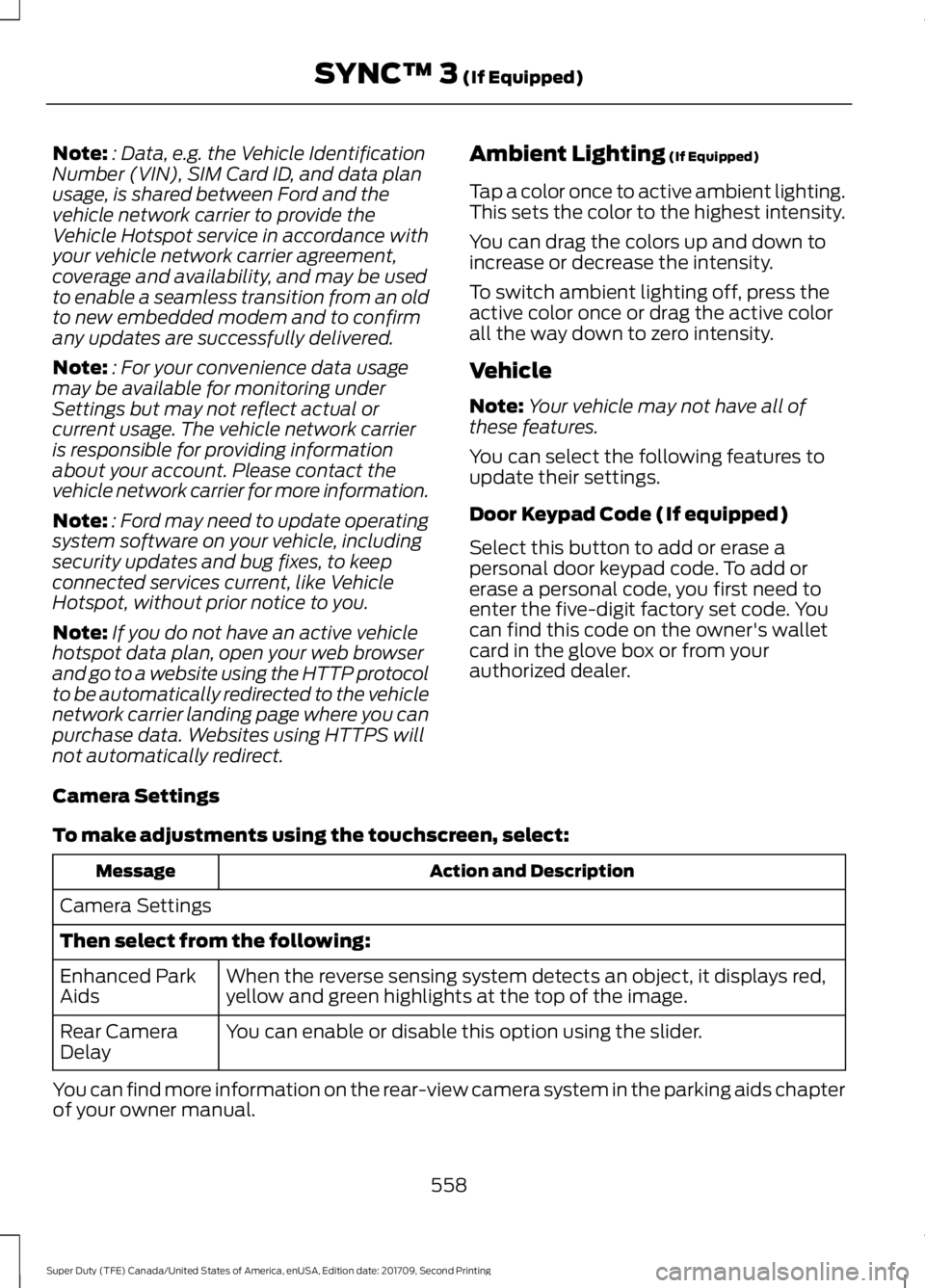
Camera Settings
To make adjustments using the touchscreen, select: Action and Description
Message
Camera Settings
Then select from the following: When the reverse sensing system detects an object, it displays red,
yellow and green highlights at the top of the image.
Enhanced Park
Aids
You can enable or disable this option using the slider.
Rear Camera
Delay
You can find more information on the rear-view camera system in the parking aids chapter
of your owner manual.
558
Super Duty (TFE) Canada/United States of America, enUSA, Edition date: 201709, Second Printing SYNC™ 3
(If Equipped)
Page 615 of 660
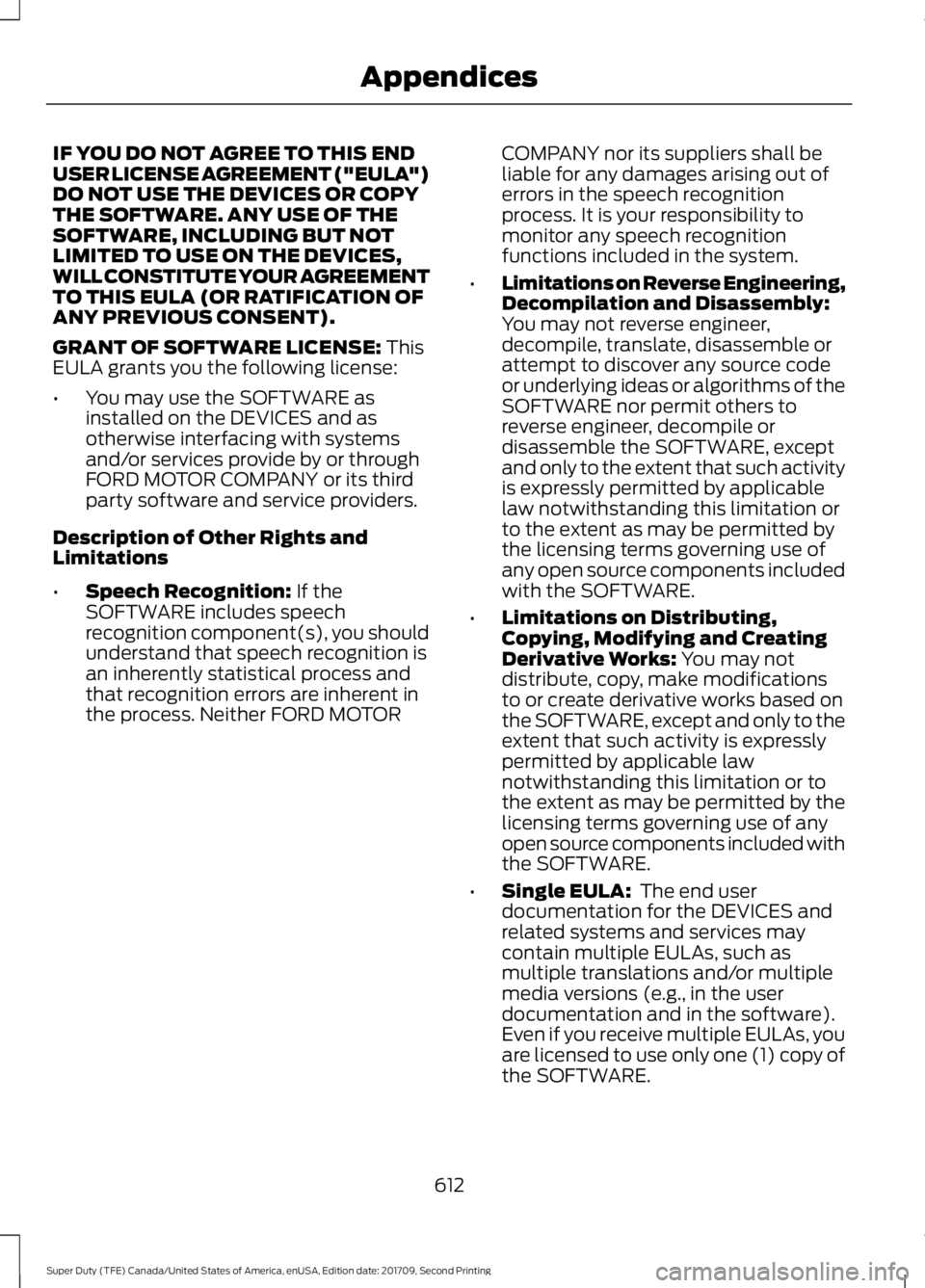
IF YOU DO NOT AGREE TO THIS END
USER LICENSE AGREEMENT ("EULA")
DO NOT USE THE DEVICES OR COPY
THE SOFTWARE. ANY USE OF THE
SOFTWARE, INCLUDING BUT NOT
LIMITED TO USE ON THE DEVICES,
WILL CONSTITUTE YOUR AGREEMENT
TO THIS EULA (OR RATIFICATION OF
ANY PREVIOUS CONSENT).
GRANT OF SOFTWARE LICENSE: This
EULA grants you the following license:
• You may use the SOFTWARE as
installed on the DEVICES and as
otherwise interfacing with systems
and/or services provide by or through
FORD MOTOR COMPANY or its third
party software and service providers.
Description of Other Rights and
Limitations
• Speech Recognition:
If the
SOFTWARE includes speech
recognition component(s), you should
understand that speech recognition is
an inherently statistical process and
that recognition errors are inherent in
the process. Neither FORD MOTOR COMPANY nor its suppliers shall be
liable for any damages arising out of
errors in the speech recognition
process. It is your responsibility to
monitor any speech recognition
functions included in the system.
• Limitations on Reverse Engineering,
Decompilation and Disassembly:
You may not reverse engineer,
decompile, translate, disassemble or
attempt to discover any source code
or underlying ideas or algorithms of the
SOFTWARE nor permit others to
reverse engineer, decompile or
disassemble the SOFTWARE, except
and only to the extent that such activity
is expressly permitted by applicable
law notwithstanding this limitation or
to the extent as may be permitted by
the licensing terms governing use of
any open source components included
with the SOFTWARE.
• Limitations on Distributing,
Copying, Modifying and Creating
Derivative Works:
You may not
distribute, copy, make modifications
to or create derivative works based on
the SOFTWARE, except and only to the
extent that such activity is expressly
permitted by applicable law
notwithstanding this limitation or to
the extent as may be permitted by the
licensing terms governing use of any
open source components included with
the SOFTWARE.
• Single EULA:
The end user
documentation for the DEVICES and
related systems and services may
contain multiple EULAs, such as
multiple translations and/or multiple
media versions (e.g., in the user
documentation and in the software).
Even if you receive multiple EULAs, you
are licensed to use only one (1) copy of
the SOFTWARE.
612
Super Duty (TFE) Canada/United States of America, enUSA, Edition date: 201709, Second Printing Appendices
Page 623 of 660
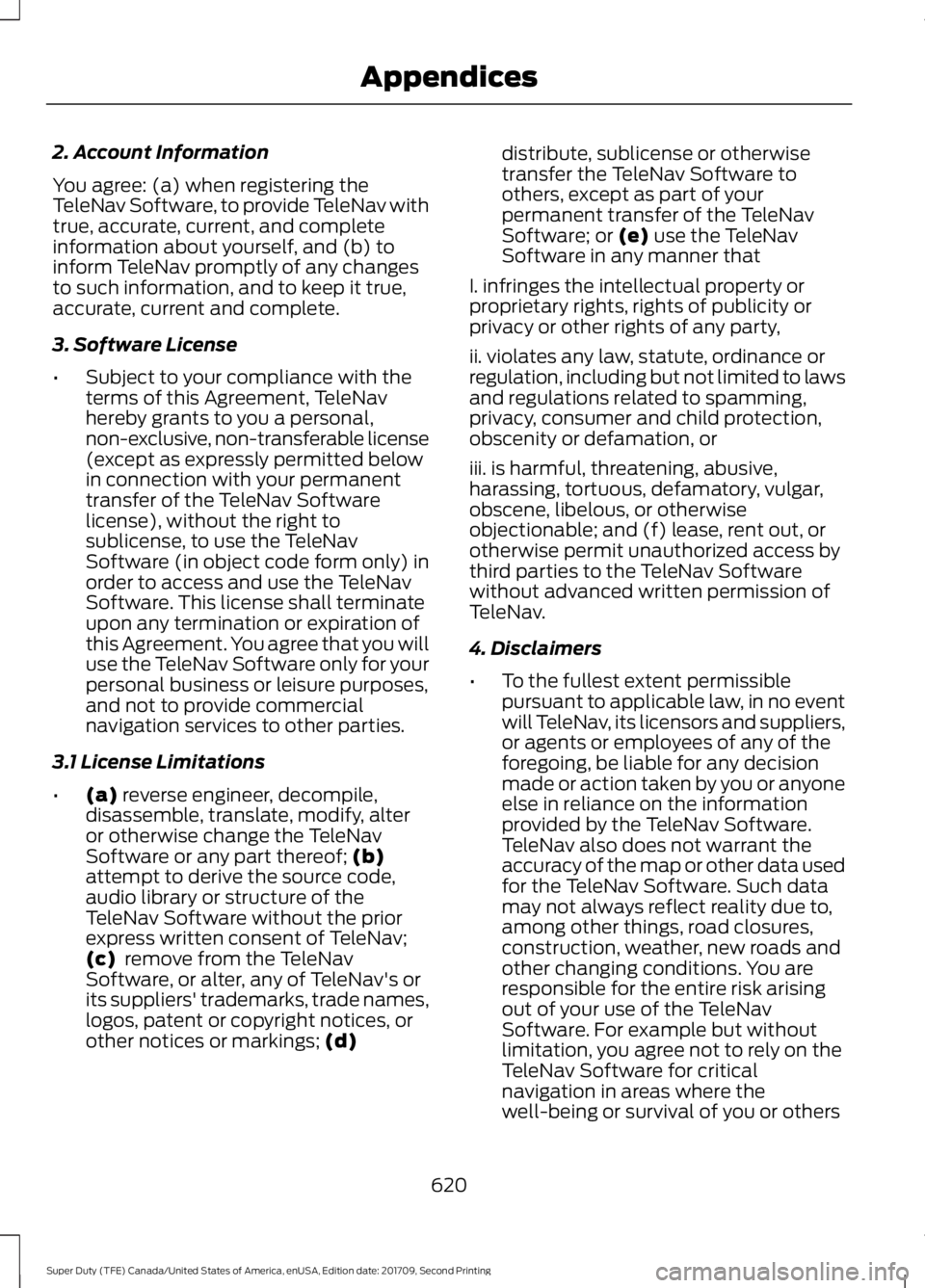
2. Account Information
You agree: (a) when registering the
TeleNav Software, to provide TeleNav with
true, accurate, current, and complete
information about yourself, and (b) to
inform TeleNav promptly of any changes
to such information, and to keep it true,
accurate, current and complete.
3. Software License
•
Subject to your compliance with the
terms of this Agreement, TeleNav
hereby grants to you a personal,
non-exclusive, non-transferable license
(except as expressly permitted below
in connection with your permanent
transfer of the TeleNav Software
license), without the right to
sublicense, to use the TeleNav
Software (in object code form only) in
order to access and use the TeleNav
Software. This license shall terminate
upon any termination or expiration of
this Agreement. You agree that you will
use the TeleNav Software only for your
personal business or leisure purposes,
and not to provide commercial
navigation services to other parties.
3.1 License Limitations
• (a) reverse engineer, decompile,
disassemble, translate, modify, alter
or otherwise change the TeleNav
Software or any part thereof;
(b)
attempt to derive the source code,
audio library or structure of the
TeleNav Software without the prior
express written consent of TeleNav;
(c)
remove from the TeleNav
Software, or alter, any of TeleNav's or
its suppliers' trademarks, trade names,
logos, patent or copyright notices, or
other notices or markings;
(d) distribute, sublicense or otherwise
transfer the TeleNav Software to
others, except as part of your
permanent transfer of the TeleNav
Software; or
(e) use the TeleNav
Software in any manner that
I. infringes the intellectual property or
proprietary rights, rights of publicity or
privacy or other rights of any party,
ii. violates any law, statute, ordinance or
regulation, including but not limited to laws
and regulations related to spamming,
privacy, consumer and child protection,
obscenity or defamation, or
iii. is harmful, threatening, abusive,
harassing, tortuous, defamatory, vulgar,
obscene, libelous, or otherwise
objectionable; and (f) lease, rent out, or
otherwise permit unauthorized access by
third parties to the TeleNav Software
without advanced written permission of
TeleNav.
4. Disclaimers
• To the fullest extent permissible
pursuant to applicable law, in no event
will TeleNav, its licensors and suppliers,
or agents or employees of any of the
foregoing, be liable for any decision
made or action taken by you or anyone
else in reliance on the information
provided by the TeleNav Software.
TeleNav also does not warrant the
accuracy of the map or other data used
for the TeleNav Software. Such data
may not always reflect reality due to,
among other things, road closures,
construction, weather, new roads and
other changing conditions. You are
responsible for the entire risk arising
out of your use of the TeleNav
Software. For example but without
limitation, you agree not to rely on the
TeleNav Software for critical
navigation in areas where the
well-being or survival of you or others
620
Super Duty (TFE) Canada/United States of America, enUSA, Edition date: 201709, Second Printing Appendices