2018 FORD F-550 iphone
[x] Cancel search: iphonePage 535 of 660
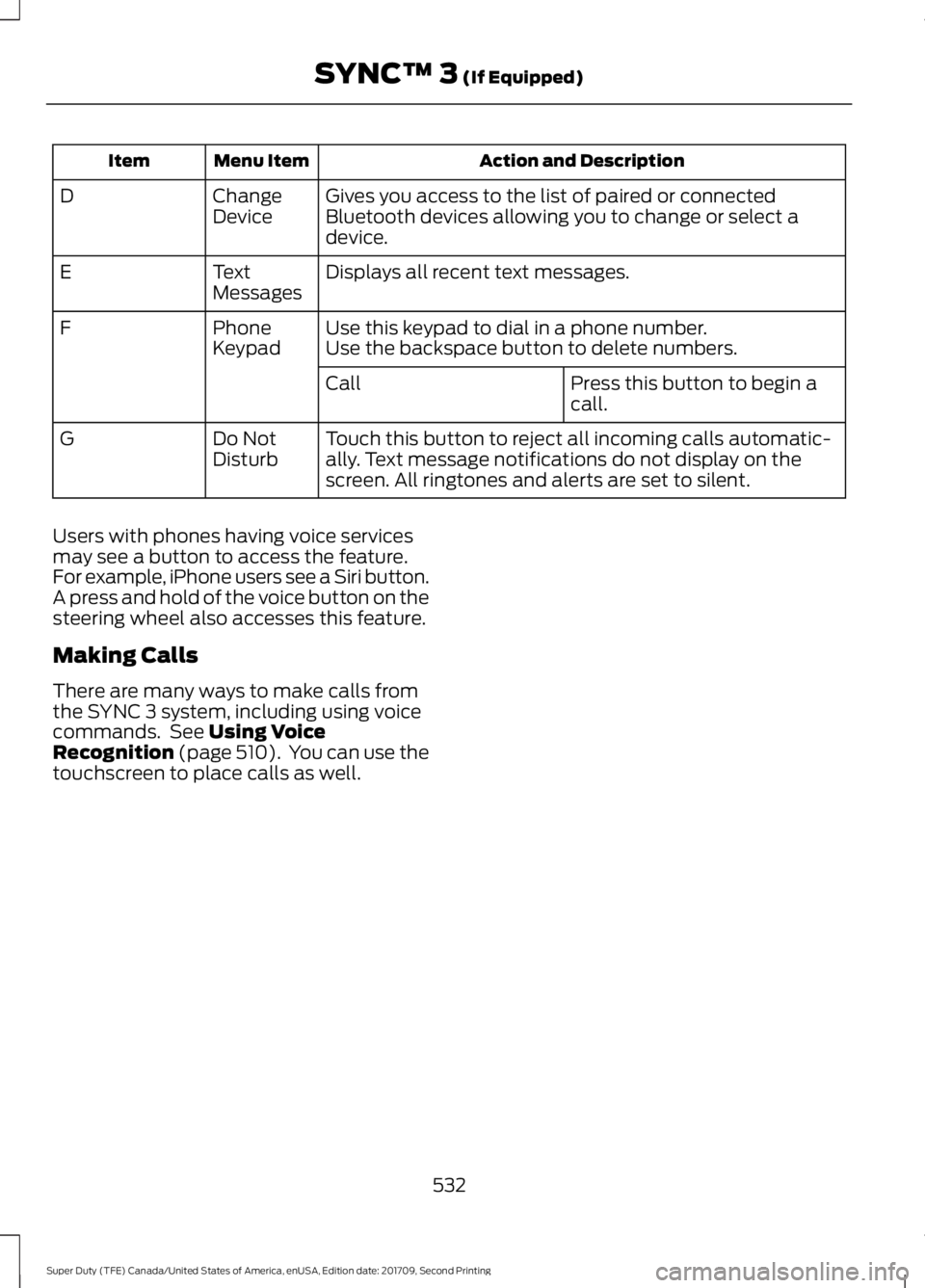
Action and Description
Menu Item
Item
Gives you access to the list of paired or connected
Bluetooth devices allowing you to change or select a
device.
Change
Device
D
Displays all recent text messages.
Text
Messages
E
Use this keypad to dial in a phone number.
Phone
Keypad
F
Use the backspace button to delete numbers.
Press this button to begin a
call.
Call
Touch this button to reject all incoming calls automatic-
ally. Text message notifications do not display on the
screen. All ringtones and alerts are set to silent.
Do Not
Disturb
G
Users with phones having voice services
may see a button to access the feature.
For example, iPhone users see a Siri button.
A press and hold of the voice button on the
steering wheel also accesses this feature.
Making Calls
There are many ways to make calls from
the SYNC 3 system, including using voice
commands. See Using Voice
Recognition (page 510). You can use the
touchscreen to place calls as well.
532
Super Duty (TFE) Canada/United States of America, enUSA, Edition date: 201709, Second Printing SYNC™ 3
(If Equipped)
Page 537 of 660
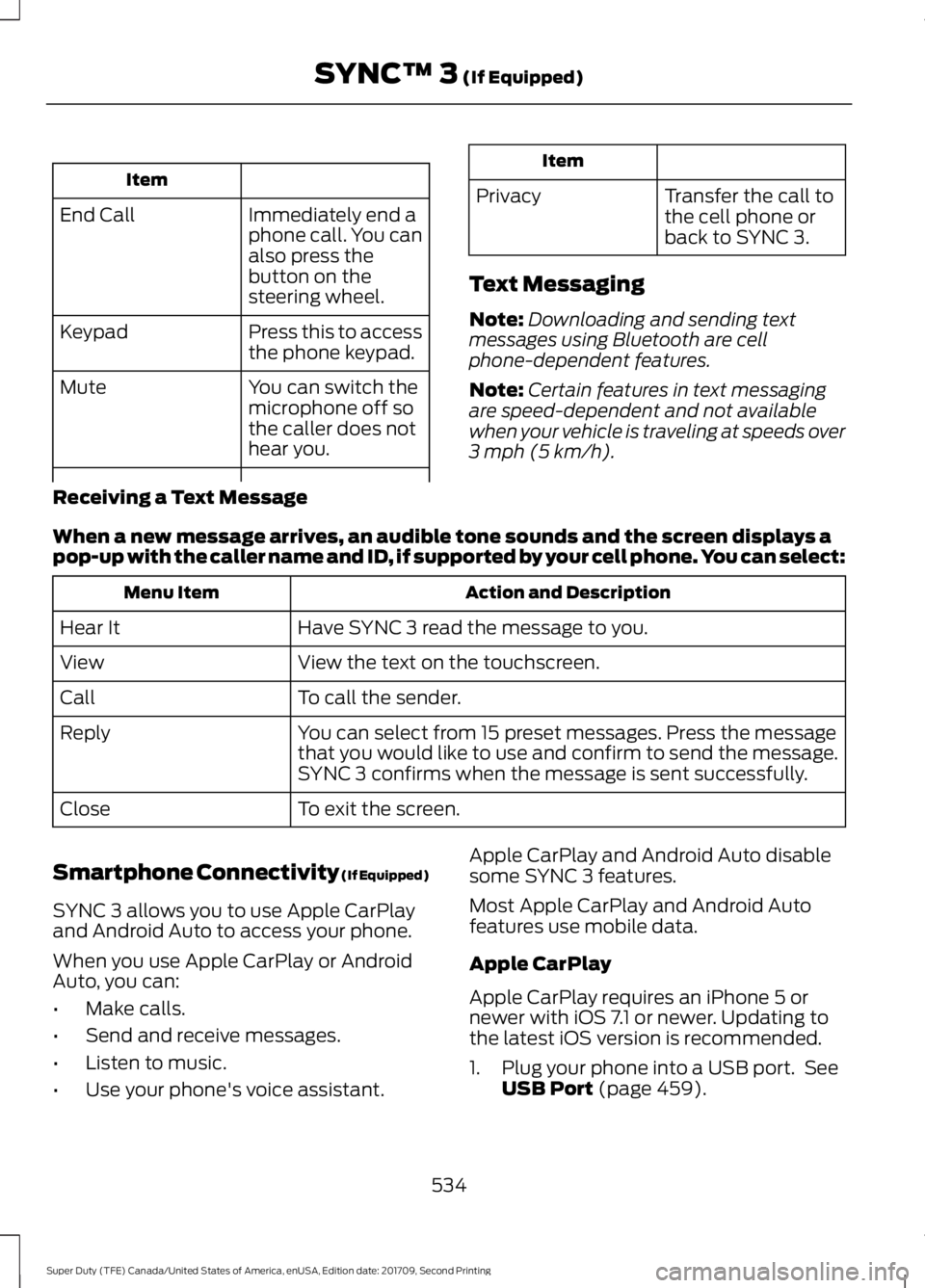
Item
Immediately end a
phone call. You can
also press the
button on the
steering wheel.
End Call
Press this to access
the phone keypad.
Keypad
You can switch the
microphone off so
the caller does not
hear you.
Mute Item
Privacy Transfer the call to
the cell phone or
back to SYNC 3.
Text Messaging
Note: Downloading and sending text
messages using Bluetooth are cell
phone-dependent features.
Note: Certain features in text messaging
are speed-dependent and not available
when your vehicle is traveling at speeds over
3 mph (5 km/h).
Receiving a Text Message
When a new message arrives, an audible tone sounds and the screen displays a
pop-up with the caller name and ID, if supported by your cell phone. You can select: Action and Description
Menu Item
Have SYNC 3 read the message to you.
Hear It
View the text on the touchscreen.
View
To call the sender.
Call
You can select from 15 preset messages. Press the message
that you would like to use and confirm to send the message.
SYNC 3 confirms when the message is sent successfully.
Reply
To exit the screen.
Close
Smartphone Connectivity (If Equipped)
SYNC 3 allows you to use Apple CarPlay
and Android Auto to access your phone.
When you use Apple CarPlay or Android
Auto, you can:
• Make calls.
• Send and receive messages.
• Listen to music.
• Use your phone's voice assistant. Apple CarPlay and Android Auto disable
some SYNC 3 features.
Most Apple CarPlay and Android Auto
features use mobile data.
Apple CarPlay
Apple CarPlay requires an iPhone 5 or
newer with iOS 7.1 or newer. Updating to
the latest iOS version is recommended.
1. Plug your phone into a USB port. See
USB Port
(page 459).
534
Super Duty (TFE) Canada/United States of America, enUSA, Edition date: 201709, Second Printing SYNC™ 3
(If Equipped)
Page 547 of 660
Note:
Available AppLink enabled apps will
vary by market.
Note: You must pair and connect your
smartphone via Bluetooth to SYNC 3 to
access AppLink.
Note: iPhone users need to connect the
phone to the USB port.
Note: For information on available apps,
supported smartphone devices and
troubleshooting tips please visit: Websites
owner.ford.com
www.syncmyride.ca
www.syncmaroute.ca
Note: Make sure you have an active account
for the app that you have downloaded.
Some apps will work automatically with no
setup. Other apps will want you to configure
your personal settings and personalize your
experience by creating stations or favorites.
We recommend you do this at home or
outside of your vehicle.
Note: We encourage you to review the
smartphone app ’s terms of service and
privacy policies because Ford is not
responsible for your app or its use of data.
Note: AppLink is a native SYNC system
feature. Accessing mobile apps through
AppLink is only possible when Android Auto
or Apple CarPlay are disabled. Some apps
may only be accessible in the car through
AppLink and others only through Android
Auto or Apple CarPlay. Please refer to the
Smartphone Connectivity information to
disable Android Auto or Apple CarPlay.
Note: In order to use an app with SYNC 3,
the app needs to be running in the
background of your phone. If you shut down
the app on your phone, it shuts down the
app on SYNC 3 as well. Note:
If a SYNC 3 AppLink compatible app
is not shown in the Apps Domain, make sure
the required app is running on the mobile
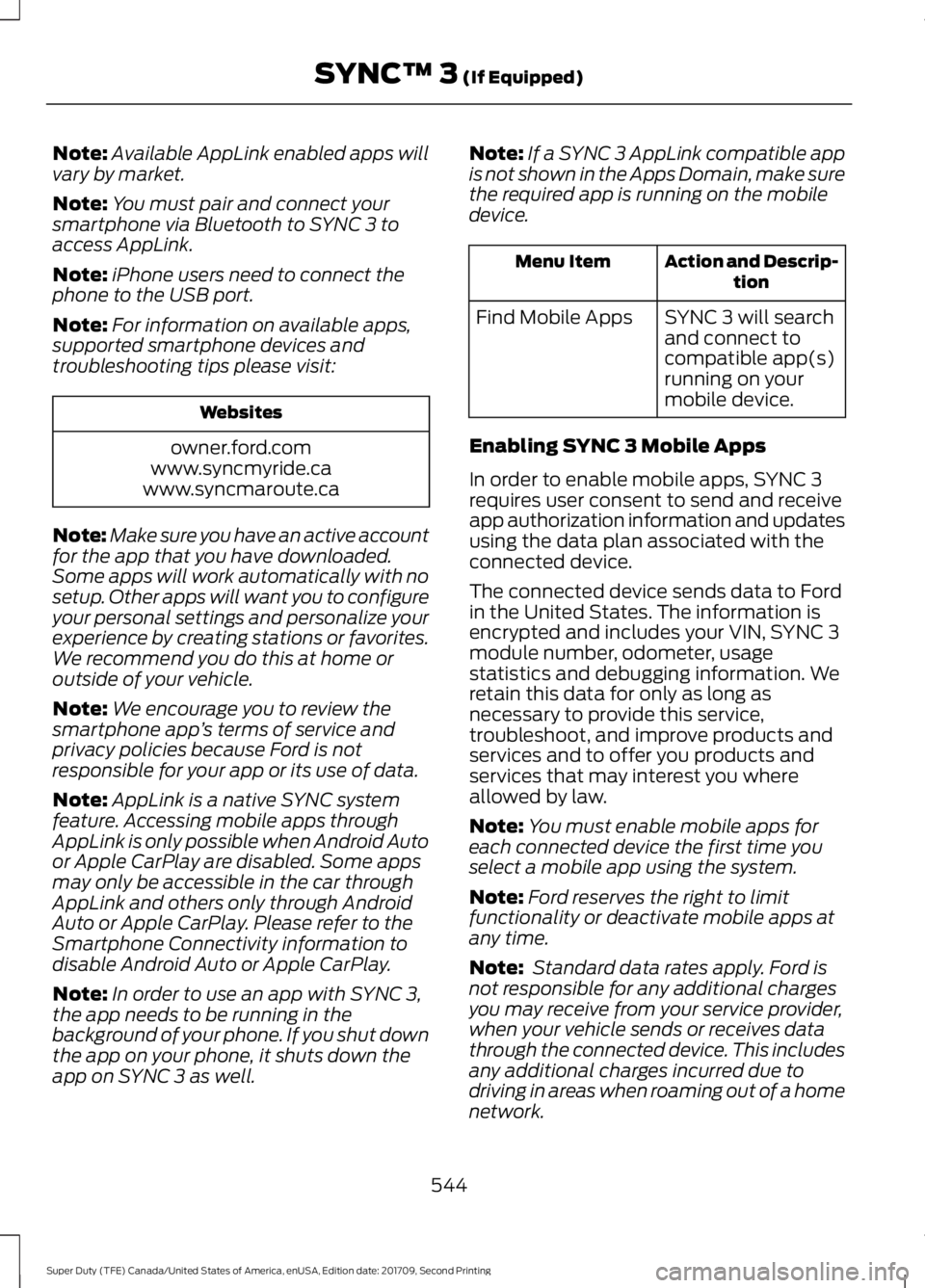
device. Action and Descrip-
tion
Menu Item
SYNC 3 will search
and connect to
compatible app(s)
running on your
mobile device.
Find Mobile Apps
Enabling SYNC 3 Mobile Apps
In order to enable mobile apps, SYNC 3
requires user consent to send and receive
app authorization information and updates
using the data plan associated with the
connected device.
The connected device sends data to Ford
in the United States. The information is
encrypted and includes your VIN, SYNC 3
module number, odometer, usage
statistics and debugging information. We
retain this data for only as long as
necessary to provide this service,
troubleshoot, and improve products and
services and to offer you products and
services that may interest you where
allowed by law.
Note: You must enable mobile apps for
each connected device the first time you
select a mobile app using the system.
Note: Ford reserves the right to limit
functionality or deactivate mobile apps at
any time.
Note: Standard data rates apply. Ford is
not responsible for any additional charges
you may receive from your service provider,
when your vehicle sends or receives data
through the connected device. This includes
any additional charges incurred due to
driving in areas when roaming out of a home
network.
544
Super Duty (TFE) Canada/United States of America, enUSA, Edition date: 201709, Second Printing SYNC™ 3 (If Equipped)
Page 564 of 660
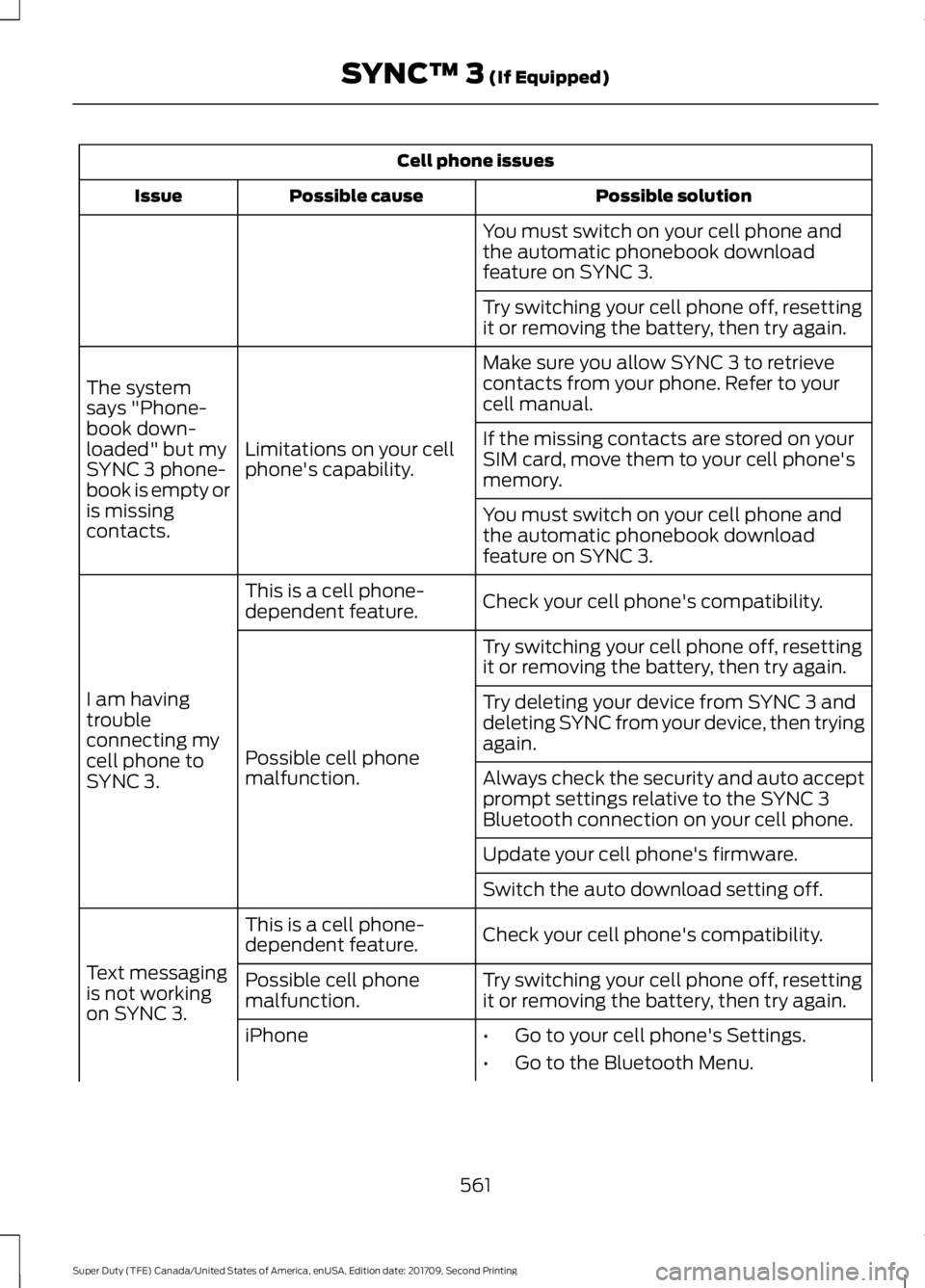
Cell phone issues
Possible solution
Possible cause
Issue
You must switch on your cell phone and
the automatic phonebook download
feature on SYNC 3.
Try switching your cell phone off, resetting
it or removing the battery, then try again.
Make sure you allow SYNC 3 to retrieve
contacts from your phone. Refer to your
cell manual.
Limitations on your cell
phone's capability.
The system
says "Phone-
book down-
loaded" but my
SYNC 3 phone-
book is empty or
is missing
contacts. If the missing contacts are stored on your
SIM card, move them to your cell phone's
memory.
You must switch on your cell phone and
the automatic phonebook download
feature on SYNC 3.
Check your cell phone's compatibility.
This is a cell phone-
dependent feature.
I am having
trouble
connecting my
cell phone to
SYNC 3. Try switching your cell phone off, resetting
it or removing the battery, then try again.
Possible cell phone
malfunction. Try deleting your device from SYNC 3 and
deleting SYNC from your device, then trying
again.
Always check the security and auto accept
prompt settings relative to the SYNC 3
Bluetooth connection on your cell phone.
Update your cell phone's firmware.
Switch the auto download setting off.
Check your cell phone's compatibility.
This is a cell phone-
dependent feature.
Text messaging
is not working
on SYNC 3. Try switching your cell phone off, resetting
it or removing the battery, then try again.
Possible cell phone
malfunction.
iPhone
•Go to your cell phone's Settings.
• Go to the Bluetooth Menu.
561
Super Duty (TFE) Canada/United States of America, enUSA, Edition date: 201709, Second Printing SYNC™ 3 (If Equipped)
Page 565 of 660
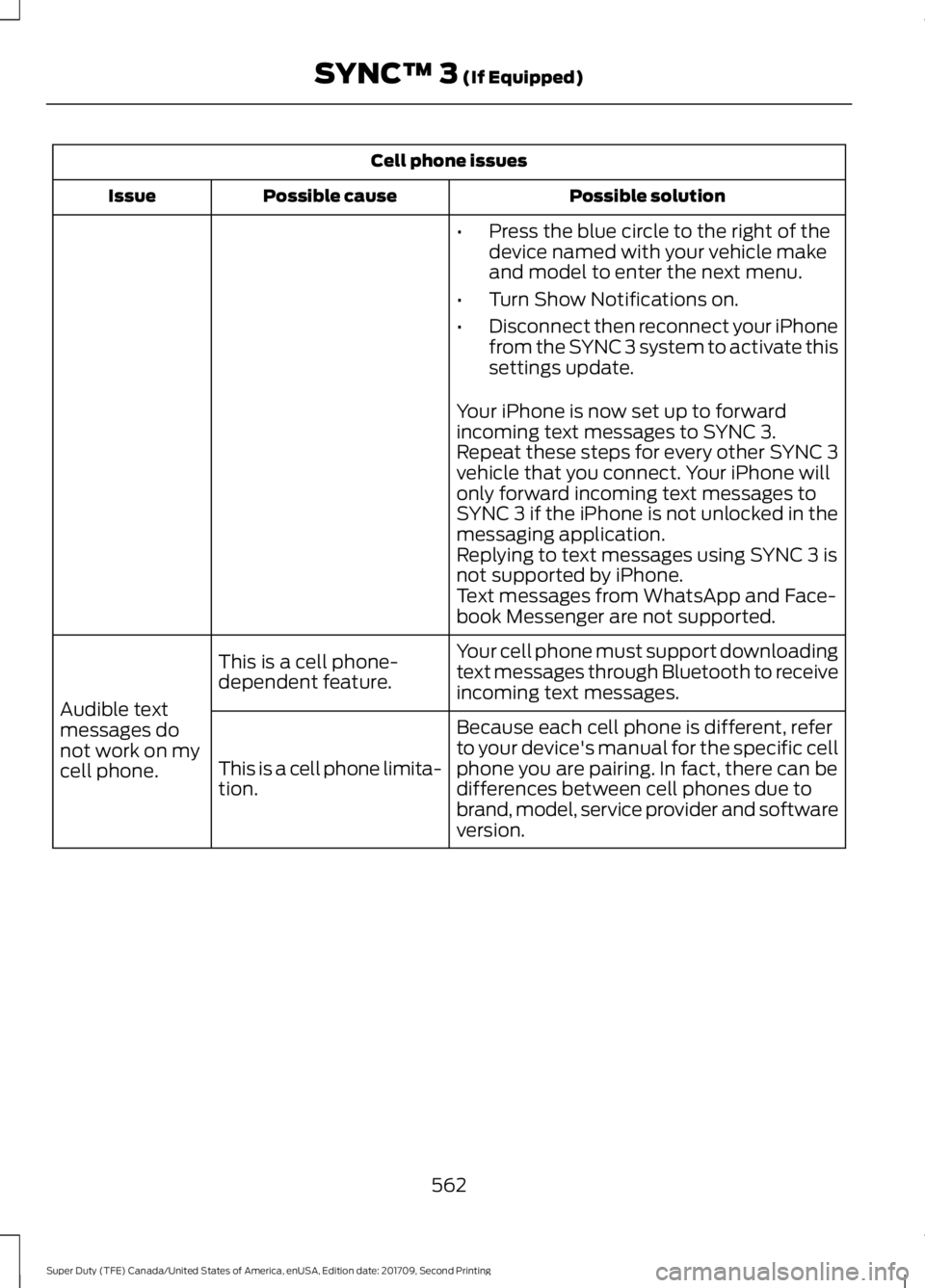
Cell phone issues
Possible solution
Possible cause
Issue
•Press the blue circle to the right of the
device named with your vehicle make
and model to enter the next menu.
• Turn Show Notifications on.
• Disconnect then reconnect your iPhone
from the SYNC 3 system to activate this
settings update.
Your iPhone is now set up to forward
incoming text messages to SYNC 3.
Repeat these steps for every other SYNC 3
vehicle that you connect. Your iPhone will
only forward incoming text messages to
SYNC 3 if the iPhone is not unlocked in the
messaging application.
Replying to text messages using SYNC 3 is
not supported by iPhone.
Text messages from WhatsApp and Face-
book Messenger are not supported.
Your cell phone must support downloading
text messages through Bluetooth to receive
incoming text messages.
This is a cell phone-
dependent feature.
Audible text
messages do
not work on my
cell phone. Because each cell phone is different, refer
to your device's manual for the specific cell
phone you are pairing. In fact, there can be
differences between cell phones due to
brand, model, service provider and software
version.
This is a cell phone limita-
tion.
562
Super Duty (TFE) Canada/United States of America, enUSA, Edition date: 201709, Second Printing SYNC™ 3 (If Equipped)
Page 570 of 660
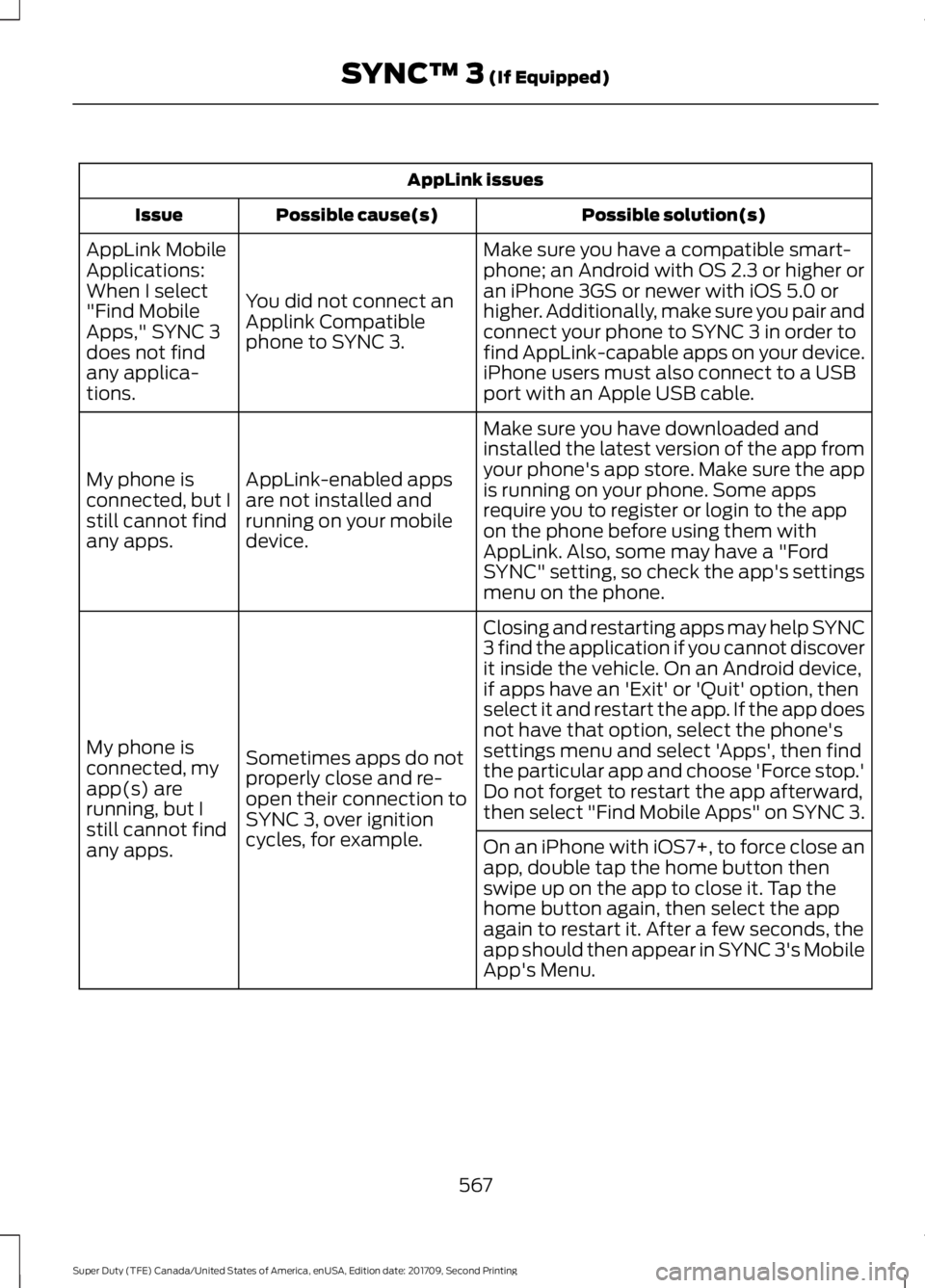
AppLink issues
Possible solution(s)
Possible cause(s)
Issue
Make sure you have a compatible smart-
phone; an Android with OS 2.3 or higher or
an iPhone 3GS or newer with iOS 5.0 or
higher. Additionally, make sure you pair and
connect your phone to SYNC 3 in order to
find AppLink-capable apps on your device.
iPhone users must also connect to a USB
port with an Apple USB cable.
You did not connect an
Applink Compatible
phone to SYNC 3.
AppLink Mobile
Applications:
When I select
"Find Mobile
Apps," SYNC 3
does not find
any applica-
tions.
Make sure you have downloaded and
installed the latest version of the app from
your phone's app store. Make sure the app
is running on your phone. Some apps
require you to register or login to the app
on the phone before using them with
AppLink. Also, some may have a "Ford
SYNC" setting, so check the app's settings
menu on the phone.
AppLink-enabled apps
are not installed and
running on your mobile
device.
My phone is
connected, but I
still cannot find
any apps.
Closing and restarting apps may help SYNC
3 find the application if you cannot discover
it inside the vehicle. On an Android device,
if apps have an 'Exit' or 'Quit' option, then
select it and restart the app. If the app does
not have that option, select the phone's
settings menu and select 'Apps', then find
the particular app and choose 'Force stop.'
Do not forget to restart the app afterward,
then select "Find Mobile Apps" on SYNC 3.
Sometimes apps do not
properly close and re-
open their connection to
SYNC 3, over ignition
cycles, for example.
My phone is
connected, my
app(s) are
running, but I
still cannot find
any apps.
On an iPhone with iOS7+, to force close an
app, double tap the home button then
swipe up on the app to close it. Tap the
home button again, then select the app
again to restart it. After a few seconds, the
app should then appear in SYNC 3's Mobile
App's Menu.
567
Super Duty (TFE) Canada/United States of America, enUSA, Edition date: 201709, Second Printing SYNC™ 3 (If Equipped)
Page 571 of 660
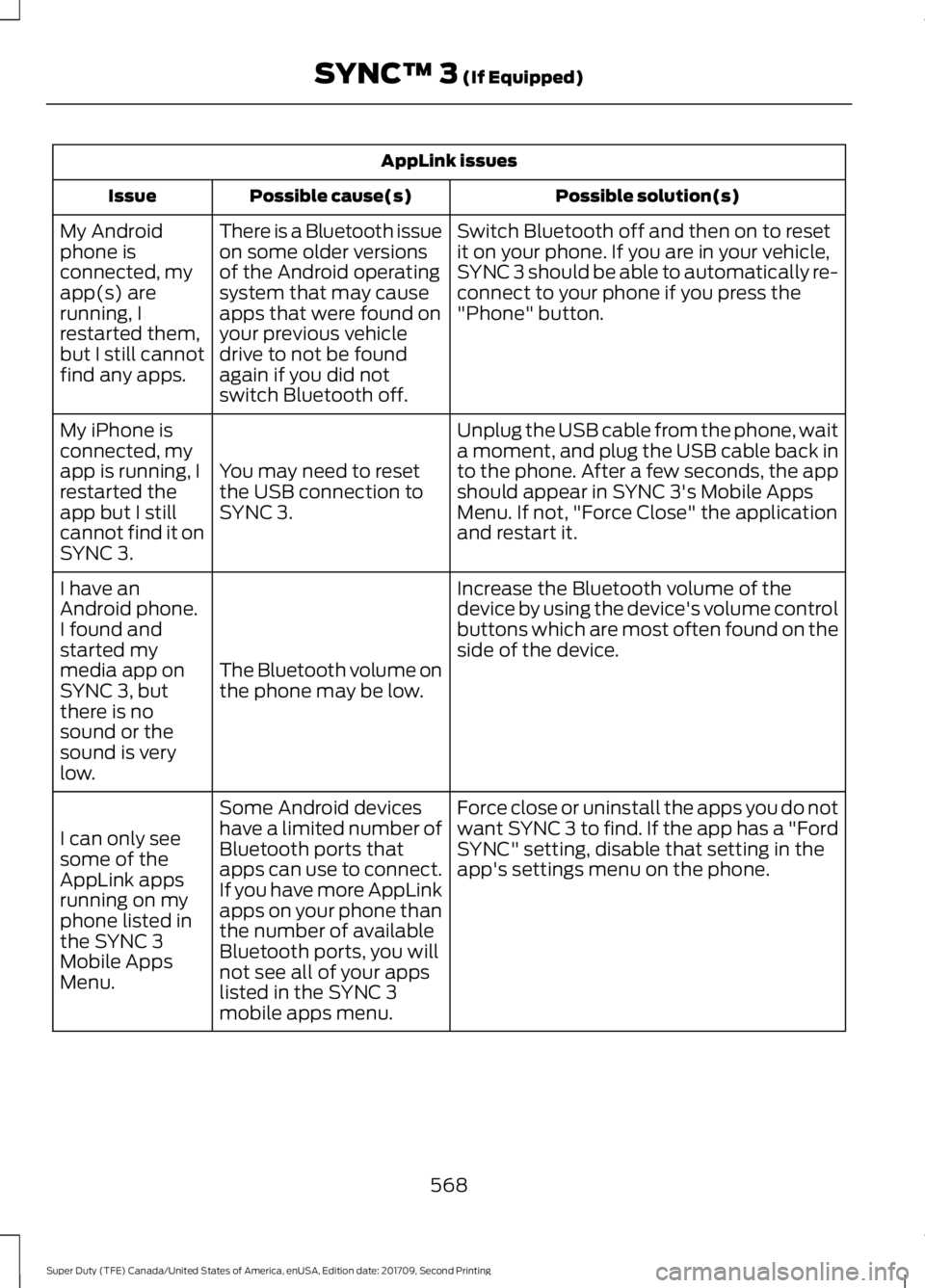
AppLink issues
Possible solution(s)
Possible cause(s)
Issue
Switch Bluetooth off and then on to reset
it on your phone. If you are in your vehicle,
SYNC 3 should be able to automatically re-
connect to your phone if you press the
"Phone" button.
There is a Bluetooth issue
on some older versions
of the Android operating
system that may cause
apps that were found on
your previous vehicle
drive to not be found
again if you did not
switch Bluetooth off.
My Android
phone is
connected, my
app(s) are
running, I
restarted them,
but I still cannot
find any apps.
Unplug the USB cable from the phone, wait
a moment, and plug the USB cable back in
to the phone. After a few seconds, the app
should appear in SYNC 3's Mobile Apps
Menu. If not, "Force Close" the application
and restart it.
You may need to reset
the USB connection to
SYNC 3.
My iPhone is
connected, my
app is running, I
restarted the
app but I still
cannot find it on
SYNC 3.
Increase the Bluetooth volume of the
device by using the device's volume control
buttons which are most often found on the
side of the device.
The Bluetooth volume on
the phone may be low.
I have an
Android phone.
I found and
started my
media app on
SYNC 3, but
there is no
sound or the
sound is very
low.
Force close or uninstall the apps you do not
want SYNC 3 to find. If the app has a "Ford
SYNC" setting, disable that setting in the
app's settings menu on the phone.
Some Android devices
have a limited number of
Bluetooth ports that
apps can use to connect.
If you have more AppLink
apps on your phone than
the number of available
Bluetooth ports, you will
not see all of your apps
listed in the SYNC 3
mobile apps menu.
I can only see
some of the
AppLink apps
running on my
phone listed in
the SYNC 3
Mobile Apps
Menu.
568
Super Duty (TFE) Canada/United States of America, enUSA, Edition date: 201709, Second Printing SYNC™ 3 (If Equipped)