2018 FORD EXPEDITION ECO mode
[x] Cancel search: ECO modePage 453 of 571
Recirculated air: Touch to
switch the recirculated air on or
off. When recirculated air is on,
it may reduce the amount of
time needed to cool down the
interior (when used with A/C)
and help reduce odors from
reaching the interior.
Note:
Recirculatied air may turn
off automatically (or the system
may preventit from turning on)
in all airflow modes except MAX
A/C to reduce risk of fogging. It
may also turn on and off
automatically in Panel or
Panel/Floor airflow modes
during hot weather in order to
improve cooling efficiency.
PHONE WARNING:
Driving while
distracted can result in loss of vehicle
control, crash and injury. We strongly
recommend that you use extreme
caution when using any device that may
take your focus off the road. Your
primary responsibility is the safe
operation of your vehicle. We
recommend against the use of any
hand-held device while driving and
encourage the use of voice-operated
systems when possible. Make sure you
are aware of all applicable local laws
that may affect the use of electronic
devices while driving.
Hands-free calling is one of the main
features of the system. Once you pair your
cell phone, you can access many options
using the touchscreen or voice commands.
While the system supports a variety of
features, many are dependent on your cell
phone ’s functionality. Pairing Your Cell Phone for the
First Time
Pair your Bluetooth enabled phone with
the system before using the functions in
hands-free mode.
Switch on Bluetooth on your device to
begin pairing. See your phone
’s manual if
necessary.
To add a phone, select: Menu Item
Add Phone
1. Follow the on-screen instructions.
2. A prompt alerts you to search for the system on your phone.
3. Select your vehicle's make and model as it displays on your phone.
4. Confirm that the six-digit number appearing on your phone matches the
six-digit number on the touchscreen.
5. The touchscreen indicates when the pairing is successful.
6. Your phone may prompt you to give the system permission to access
information. To check your phone ’s
compatibility, see your phone ’s manual
or visit the website.
Alternatively, to add a phone, select: Menu Item
Add Phone
Then select:
Discover Other Bluetooth Devices
1. Follow the on-screen instructions.
2. Select your phone's name when it appears on the touchscreen.
450
Expedition (TB8) Canada/United States of America, enUSA, Edition date: 201708, Third-Printing- SYNC™ 3
Page 458 of 571
2. Follow the prompts on the
touchscreen.
3. Follow the prompts that appear on your phone to allow access to Apple
CarPlay.
After completing the setup, your phone
connects to CarPlay automatically when
plugged into a USB port.
To disable this feature from the
Settings screen, select: Menu Item
Apple CarPlay Preferences
Your device is listed if SYNC detects
Apple CarPlay. Select the name of your
device and select:
Disable
To return to SYNC 3, go to the Apple
CarPlay home screen and select the SYNC
app.
Note: Contact Apple for Apple CarPlay
support.
Android Auto
Android Auto is compatible with most
devices with Android 5.0 or newer.
1. Download the Android Auto app to your device from Google Play to
prepare your device (this may require
mobile data usage).
Note: The Android Auto App may not be
available within your current market.
2. Plug your device into a USB Port. See USB Port (page 398).
3. Follow the prompt on the touchscreen.
4. Follow the prompts that appear on your device.
Note: You may be prompted to update
additional apps on your device. This may
require mobile data usage. To disable this feature from the
Settings screen, select: Menu Item
Android Auto Preferences
Your device is listed if SYNC detects
Android Auto. Select the name of your
device and select:
Disable
Note: You may need to slide your Settings
screen to the left to select
Apple CarPlay
Preferences or Android Auto Preferences.
To return to SYNC 3, select the
speedometer icon in the Android Auto
menu bar at the bottom of the
touchscreen, and then touch the option to
return to SYNC.
Note: Contact Google for Android Auto
support.
NAVIGATION
Your navigation system is comprised of
two main features, destination mode and
map mode.
Map Mode
Map mode shows advanced viewing
comprised of 2D city maps, 3D landmarks
and 3D city models (when available). 2D
city maps show detailed outlines of
buildings, visible land use, landscape
features, and detailed railroad
infrastructure for the most essential cities
around the globe.
3D landmarks appear as clear, visible
objects that are typically recognizable and
have a certain tourism value.
455
Expedition (TB8) Canada/United States of America, enUSA, Edition date: 201708, Third-Printing- SYNC™ 3
Page 462 of 571
Description
Menu Item
Fuel
Hotel
ATMPress to view additional categories. Once you have selected
a category, follow the menus to find what you are looking
for.
See All
Inside of these categories you can search by:
Nearby
Along Route
Near Destination
In a City
Once you have chosen your destination, press: Action and Description
Menu Item
This saves the destination to your favorites.
Save
This shows you a map of your entire route. You can then choose your
route from three different options.
Start
Uses the fastest moving roads
possible.
Fastest
Uses the shortest distance possible.
Shortest
Uses the most fuel-efficient route.
Economical Route
The time and distance for each route also displays.
On the route screen, you can choose to cancel the current navigation.
The system asks for confirmation then returns you to the map mode
screen.
Cancel
Once you have chosen your destination, press: Action and Description
Menu Item
The system uses a variety of screens and prompts to guide you to your
destination.
Start
459
Expedition (TB8) Canada/United States of America, enUSA, Edition date: 201708, Third-Printing- SYNC™ 3
Page 483 of 571
Voice Control
You can adjust the voice control settings
by selecting the following options.Menu Item
Enable this option to remove
additional voice prompts
and confirmations.
Advanced Mode
Enable this option to have
the system confirm a
contact's name with you
before making a call.
Phone Confirmation
Enable this option to have
the system display a list of
available voice commands
when you press the voice.
Voice Command List
Valet Mode
Valet mode allows you to lock the system.
No information is accessible until the
system is unlocked with the correct PIN.
When you select valet mode, a pop up
appears informing you that a four digit
code must be entered to enable and
disable valet mode. You can use any PIN
you chose but you must use the same PIN
to disable valet mode. The system asks
you to input the code.
Note: If the system is locked and you
cannot remember the PIN, please contact
the Customer Relationship Center.
For Lincoln
United States: 1-800-521-4140
Canada: 1-800-387-9333 Lincoln
Ford
United States: 1-800-521-4140
United States and
Canada: 1-800- 392-3673 Canada: 1-800-
387-9333
To enable valet mode, enter your chosen
PIN. The system then asks to confirm your
PIN by reentering it. The system then locks.
To unlock the system, enter the same pin
number. The system reconnects to your
phone and all of your options are available
again.
SYNC™ 3 TROUBLESHOOTING
Your SYNC 3 system is easy to use.
However, should questions arise, please
refer to the tables below.
To check your cell phone's compatibility,
refer to the regional Ford or Lincoln
website.
480
Expedition (TB8) Canada/United States of America, enUSA, Edition date: 201708, Third-Printing- SYNC™ 3
Page 485 of 571
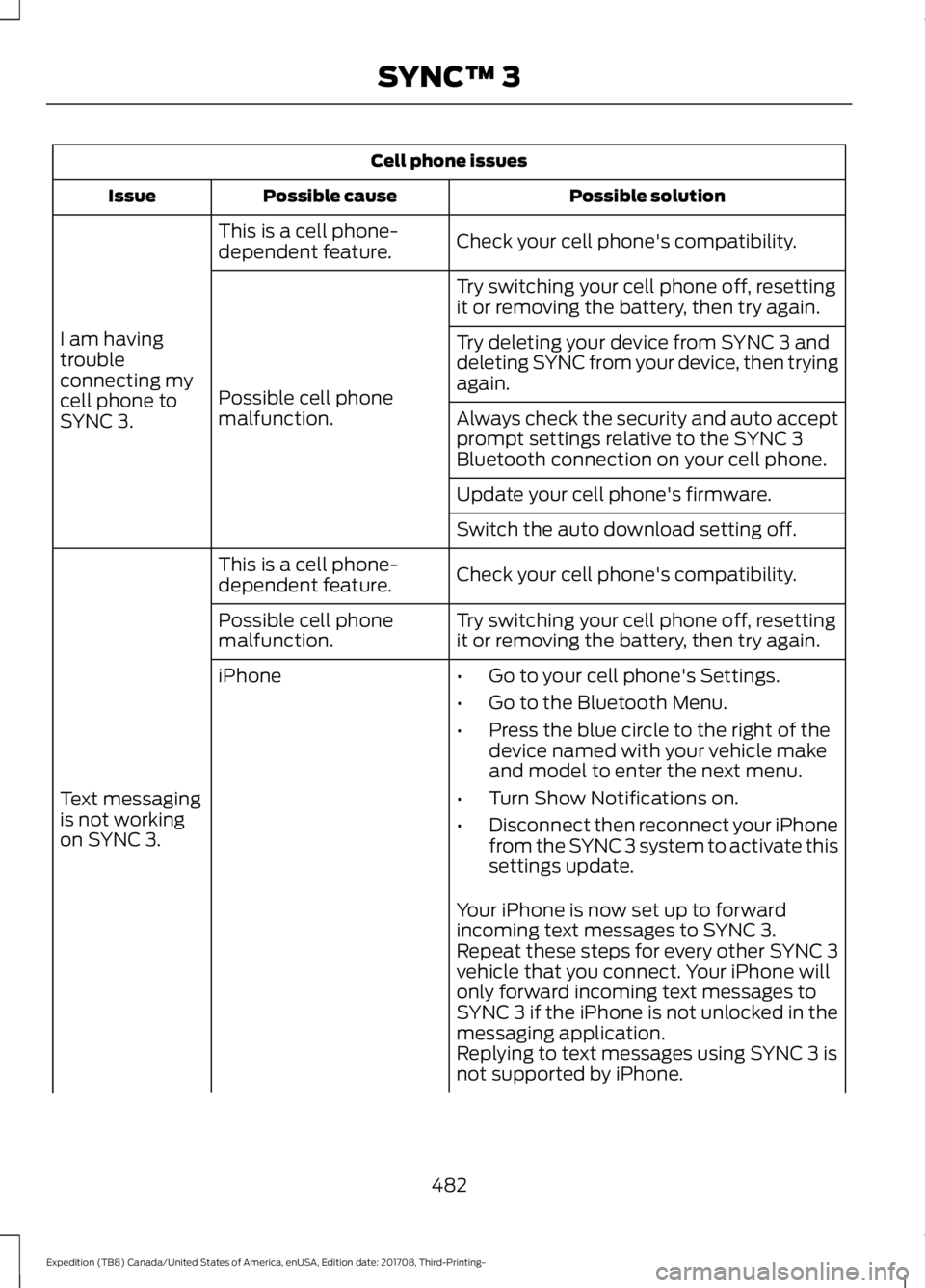
Cell phone issues
Possible solution
Possible cause
Issue
Check your cell phone's compatibility.
This is a cell phone-
dependent feature.
I am having
trouble
connecting my
cell phone to
SYNC 3. Try switching your cell phone off, resetting
it or removing the battery, then try again.
Possible cell phone
malfunction. Try deleting your device from SYNC 3 and
deleting SYNC from your device, then trying
again.
Always check the security and auto accept
prompt settings relative to the SYNC 3
Bluetooth connection on your cell phone.
Update your cell phone's firmware.
Switch the auto download setting off.
Check your cell phone's compatibility.
This is a cell phone-
dependent feature.
Text messaging
is not working
on SYNC 3. Try switching your cell phone off, resetting
it or removing the battery, then try again.
Possible cell phone
malfunction.
iPhone
•Go to your cell phone's Settings.
• Go to the Bluetooth Menu.
• Press the blue circle to the right of the
device named with your vehicle make
and model to enter the next menu.
• Turn Show Notifications on.
• Disconnect then reconnect your iPhone
from the SYNC 3 system to activate this
settings update.
Your iPhone is now set up to forward
incoming text messages to SYNC 3.
Repeat these steps for every other SYNC 3
vehicle that you connect. Your iPhone will
only forward incoming text messages to
SYNC 3 if the iPhone is not unlocked in the
messaging application.
Replying to text messages using SYNC 3 is
not supported by iPhone.
482
Expedition (TB8) Canada/United States of America, enUSA, Edition date: 201708, Third-Printing- SYNC™ 3
Page 486 of 571
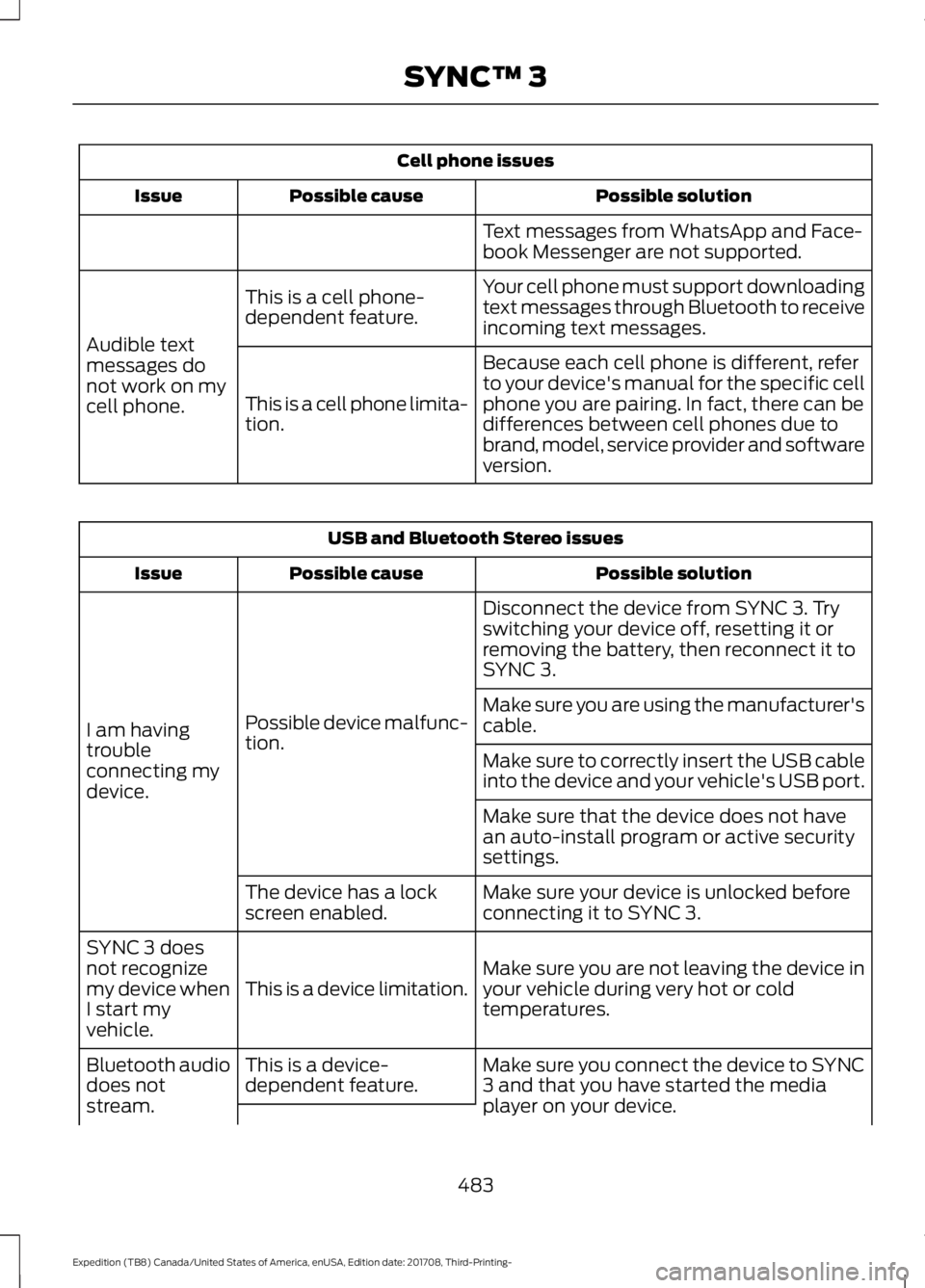
Cell phone issues
Possible solution
Possible cause
Issue
Text messages from WhatsApp and Face-
book Messenger are not supported.
Your cell phone must support downloading
text messages through Bluetooth to receive
incoming text messages.
This is a cell phone-
dependent feature.
Audible text
messages do
not work on my
cell phone. Because each cell phone is different, refer
to your device's manual for the specific cell
phone you are pairing. In fact, there can be
differences between cell phones due to
brand, model, service provider and software
version.
This is a cell phone limita-
tion. USB and Bluetooth Stereo issues
Possible solution
Possible cause
Issue
Disconnect the device from SYNC 3. Try
switching your device off, resetting it or
removing the battery, then reconnect it to
SYNC 3.
Possible device malfunc-
tion.
I am having
trouble
connecting my
device. Make sure you are using the manufacturer's
cable.
Make sure to correctly insert the USB cable
into the device and your vehicle's USB port.
Make sure that the device does not have
an auto-install program or active security
settings.
Make sure your device is unlocked before
connecting it to SYNC 3.
The device has a lock
screen enabled.
Make sure you are not leaving the device in
your vehicle during very hot or cold
temperatures.
This is a device limitation.
SYNC 3 does
not recognize
my device when
I start my
vehicle.
Make sure you connect the device to SYNC
3 and that you have started the media
player on your device.
This is a device-
dependent feature.
Bluetooth audio
does not
stream.
483
Expedition (TB8) Canada/United States of America, enUSA, Edition date: 201708, Third-Printing- SYNC™ 3
Page 505 of 571
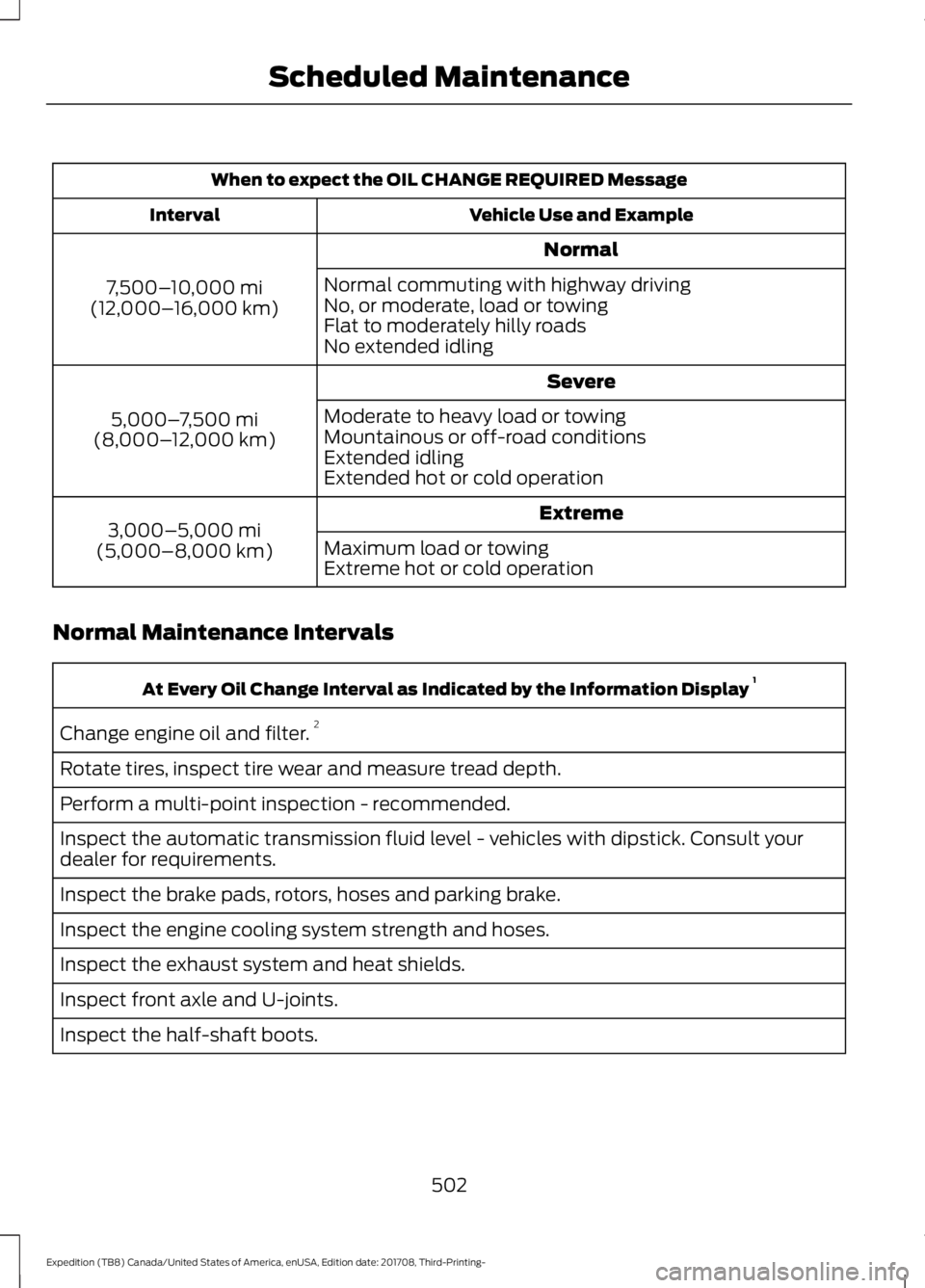
When to expect the OIL CHANGE REQUIRED Message
Vehicle Use and Example
Interval
Normal
7,500– 10,000 mi
(12,000– 16,000 km) Normal commuting with highway driving
No, or moderate, load or towing
Flat to moderately hilly roads
No extended idling
Severe
5,000– 7,500 mi
(8,000– 12,000 km) Moderate to heavy load or towing
Mountainous or off-road conditions
Extended idling
Extended hot or cold operation
Extreme
3,000–5,000 mi
(5,000–8,000 km) Maximum load or towing
Extreme hot or cold operation
Normal Maintenance Intervals At Every Oil Change Interval as Indicated by the Information Display
1
Change engine oil and filter. 2
Rotate tires, inspect tire wear and measure tread depth.
Perform a multi-point inspection - recommended.
Inspect the automatic transmission fluid level - vehicles with dipstick. Consult your
dealer for requirements.
Inspect the brake pads, rotors, hoses and parking brake.
Inspect the engine cooling system strength and hoses.
Inspect the exhaust system and heat shields.
Inspect front axle and U-joints.
Inspect the half-shaft boots.
502
Expedition (TB8) Canada/United States of America, enUSA, Edition date: 201708, Third-Printing- Scheduled Maintenance
Page 546 of 571
IMPLIED WARRANTIES OF
MERCHANTABILITY, FITNESS FOR A
PARTICULAR PURPOSE, TITLE, AND
NON-INFRINGEMENT. NEITHER
GRACENOTE WARRANTS THE RESULTS
THAT WILL BE OBTAINED BY YOUR USE
OF THE GRACENOTE SOFTWARE OR ANY
GRACENOTE SERVER. IN NO CASE WILL
GRACENOTE BE LIABLE FOR ANY
CONSEQUENTIAL OR INCIDENTAL
DAMAGES OR FOR ANY LOST PROFITS
OR LOST REVENUES FOR ANY REASON
WHATSOEVER. © Gracenote 2007.
Radio Frequency Statement
FCC ID: ACJ-SYNCG3-L
IC: 216B-SYNCG3-L
This device complies with Part 15 of the
FCC Rules and with RSS-210 of Industry
Canada. Operation is subject to the
following two conditions:
(1) This device may not cause harmful
interference, and
(2)
this device must accept any
interference received, including
interference that may cause undesired
operation. WARNING:
Changes or
modifications not expressively approved
by the party responsible for compliance
could void the user's authority to operate
the equipment. The term "IC:" before the
radio certification number only signifies
that Industry Canada technical
specifications were met.
The antenna used for this transmitter must
not be co-located or operating in
conjunction with any other antenna or
transmitter. Taiwan Territory
Note: In accordance with the management
approach of low-power radio wave
radiation motors:
Article 12: For approved and certified
low-power radiation motor models,
companies, firms or users must not alter
the frequency, increase the power or
change the characteristics and functions
of the original design without authorization.
Article 14: The usage of low-power
radio-frequency motors must not affect
aviation safety and interfere with legal
telecommunications. Should interference
be detected, immediately stop using the
device and only resume usage after
ensuring that there is no longer any
interference. For the legal
telecommunication and wireless
telecommunication of the telco, the
low-power radio frequency motor must be
able to tolerate legal limits of interference
from telecommunication, industrial,
scientific and radio wave equipment.
SUNA TRAFFIC CHANNEL – TERMS
AND CONDITIONS
By activating, using and/or accessing the
SUNA Traffic Channel, SUNA Predictive or
other content or material provided by
Intelematics (together,
SUNA Products
and/or Services
), you must accept
certain terms and conditions. The following
is a brief summary of the terms and
conditions that apply to you. To view the
full terms and conditions relevant to your
use of the SUNA Products and/or Services,
please consult: Website
www.sunatraffic.com.au/termsandcon- ditions/
1. Acceptance
543
Expedition (TB8) Canada/United States of America, enUSA, Edition date: 201708, Third-Printing- Appendices