2018 FORD ESCAPE audio system
[x] Cancel search: audio systemPage 407 of 517

Potential station issues
Action
Cause
Issues
No action required. The station
is not available in your current
location.
The previously stored multicast
preset or direct tune is not
available in your current recep-
tion area.
Cannot access HD2 or
HD3 multicast channel
when recalling a preset
or from a direct tune.
Fill out the station issue form.
*
Data service issue by the radio
broadcaster.
Text information does
not match currently
playing audio.
Fill out the station issue form.
*
Data service issue by the radio
broadcaster.
There is no text
information shown for
currently selected
frequency.
HD Radio Technology manufactured under
license from DTS Inc. U.S. and foreign
patents. HD Radio and the HD and HD
Radio logos are proprietary trademarks of
DTS Inc. Ford Motor Company and DTS
Inc. are not responsible for the content sent
using HD Radio technology. Content may
be changed, added or deleted at any time
at the station owner's discretion.
* You can find the form here: Website
http://hdradio.com/stations/feedback
CD
Once you select this option, the system
returns you to the main audio screen.
The current audio information appears on
the screen.
The following buttons are also available: Function
Button
You can use the browse button to select a track.
Browse
Select this button and a small number one displays to indicate
the track is set to repeat.
Repeat
For MP3 CDs, this button allows you to toggle through repeat
off, repeat one track (a small number one displays), and repeat
current folder (a small folder displays).
Select the shuffle symbol to have the audio on the disk play
in random order.
Shuffle
You can use the forward, reverse, pause or
play buttons to control the audio playback.
404
Escape (TM2) Canada/United States of America, JJ5J 19A321 AC enUSA, Edition date: 201706, Fourth-Printing SYNC™ 3
Page 409 of 517

Function
Button
Composers
This button allows you to choose a specific
letter to view within the category you are
browsing.
A-Z Jump
If available, this allows you to browse the
folders and files on your USB device.
Explore Device
USB Ports The USB ports are in the center console or
behind a small access door in the
instrument panel.
This feature allows you to plug in USB
media devices, memory sticks, flash drives
or thumb drives, and charge devices if they
support this feature.
Select this option to play audio from your
USB device.
Apps
The system supports the use of certain
audio apps such as Pandora or iHeartRadio
through a USB or Bluetooth enabled
device.
Each app gives you different on-screen
options depending on the app's content.
See Apps (page 420). Supported Media Players, Formats
and Metadata Information
The system is capable of hosting nearly
any digital media player, including iPod,
iPhone, and most USB drives.
Supported audio formats include MP3,
WMA, WAV, AAC, and FLAC.
Supported audio file extensions include
MP3, WMA, WAV, M4A, M4B, AAC, and
FLAC.
Supported USB file systems include: FAT,
exFAT, and NTFS.
SYNC 3 is also able to organize the media
from your USB device by metadata tags.
Metadata tags, which are descriptive
software identifiers embedded in the
media files, provide information about the
file.
If your indexed media files contain no
information embedded in these metadata
tags, SYNC 3 may classify the empty
metadata tags as unknown.
SYNC 3 is capable of indexing up to
50,000 songs per USB device, for up to 10
devices.
406
Escape (TM2) Canada/United States of America, JJ5J 19A321 AC enUSA, Edition date: 201706, Fourth-Printing SYNC™ 3E211463
Page 427 of 517
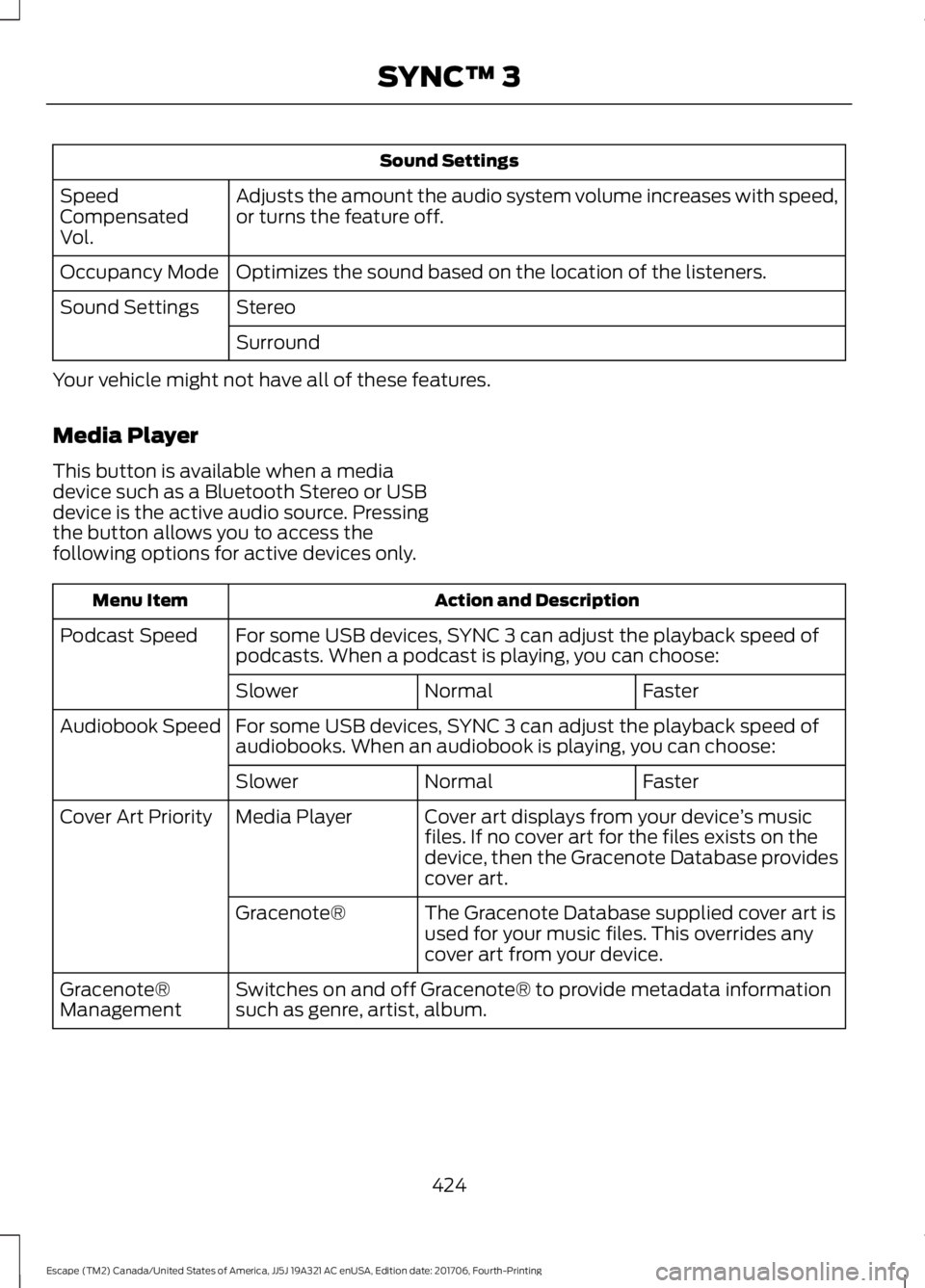
Sound Settings
Adjusts the amount the audio system volume increases with speed,
or turns the feature off.
Speed
Compensated
Vol.
Optimizes the sound based on the location of the listeners.
Occupancy Mode
Stereo
Sound Settings
Surround
Your vehicle might not have all of these features.
Media Player
This button is available when a media
device such as a Bluetooth Stereo or USB
device is the active audio source. Pressing
the button allows you to access the
following options for active devices only. Action and Description
Menu Item
For some USB devices, SYNC 3 can adjust the playback speed of
podcasts. When a podcast is playing, you can choose:
Podcast Speed
Faster
Normal
Slower
For some USB devices, SYNC 3 can adjust the playback speed of
audiobooks. When an audiobook is playing, you can choose:
Audiobook Speed
Faster
Normal
Slower
Cover art displays from your device ’s music
files. If no cover art for the files exists on the
device, then the Gracenote Database provides
cover art.
Media Player
Cover Art Priority
The Gracenote Database supplied cover art is
used for your music files. This overrides any
cover art from your device.
Gracenote®
Switches on and off Gracenote® to provide metadata information
such as genre, artist, album.
Gracenote®
Management
424
Escape (TM2) Canada/United States of America, JJ5J 19A321 AC enUSA, Edition date: 201706, Fourth-Printing SYNC™ 3
Page 440 of 517

Valet Mode
Valet mode allows you to lock the system.
No information is accessible until the
system is unlocked with the correct PIN.
When you select valet mode a pop up
appears informing you that a four digit
code must be entered to enable and
disable valet mode. You can use any PIN
you chose but you must use the same PIN
to disable valet mode. The system asks
you to input the code.
Note:
If the system is locked and you
cannot remember the PIN, please contact
the Customer Relationship Center.
United States: 1-800-392-3673
Canada: 1-800-565-3673 To enable valet mode, enter your chosen
PIN. The system then asks to confirm your
PIN by reentering it. The system then locks.
To unlock the system, enter the same pin
number. The system reconnects to your
phone and all of your options are available
again.
SYNC™ 3 TROUBLESHOOTING
Your SYNC 3 system is easy to use.
However, should questions arise, please
refer to the tables below.
To check your cell phone's compatibility,
refer to the regional Ford or Lincoln
website.Cell phone issues
Possible solution
Possible cause
Issue
Refer to your device's manual about audio
adjustments.
The audio control
settings on your cell
phone may be affecting
SYNC 3 performance.
There is back-
ground noise
during a phone
call.
Try switching your cell phone off, resetting
it or removing the battery, then try again.
Possible cell phone
malfunction.
During a call, I
can hear the
other person
but they cannot
hear me.
Make sure that the microphone for SYNC
3 is not set to off. Look for the microphone
icon on the phone screen.
To restart your system, shut down the
engine, open and close the door, and then
lock the door and wait for 2-3 minutes.
Make sure that your SYNC 3 screen is black
and the lighted USB port is off.
The system may need to
be restarted.
During a call, I
cannot hear the
other person
and they cannot
hear me.
Check your cell phone's compatibility.
This is a cell phone-
dependent feature.
SYNC 3 is not
able to down-
load my phone-
book. Make sure you allow SYNC 3 to retrieve
contacts from your phone. Refer to your
cell manual.
Possible cell phone
malfunction.
437
Escape (TM2) Canada/United States of America, JJ5J 19A321 AC enUSA, Edition date: 201706, Fourth-Printing SYNC™ 3
Page 449 of 517
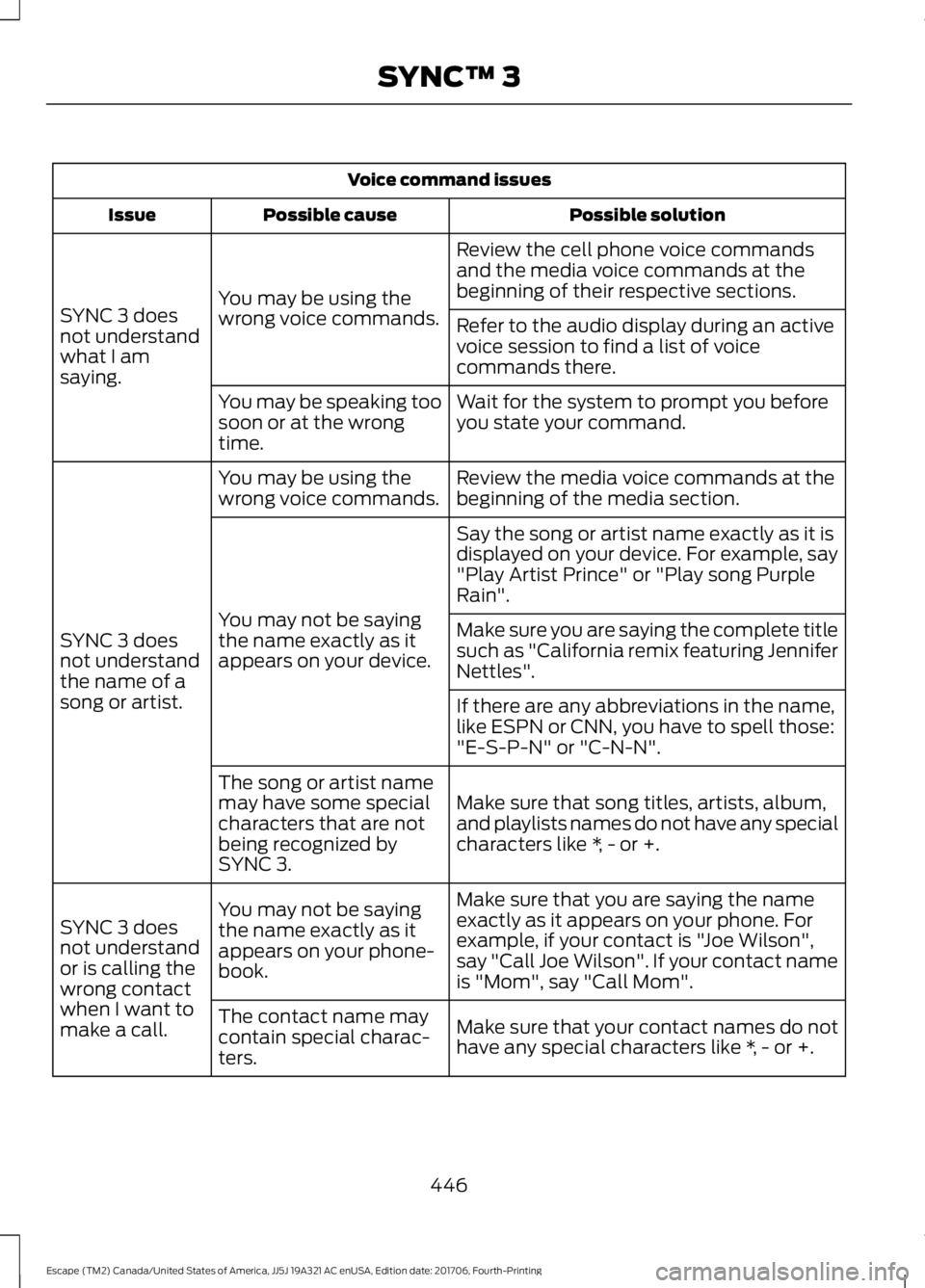
Voice command issues
Possible solution
Possible cause
Issue
Review the cell phone voice commands
and the media voice commands at the
beginning of their respective sections.
You may be using the
wrong voice commands.
SYNC 3 does
not understand
what I am
saying. Refer to the audio display during an active
voice session to find a list of voice
commands there.
Wait for the system to prompt you before
you state your command.
You may be speaking too
soon or at the wrong
time.
Review the media voice commands at the
beginning of the media section.
You may be using the
wrong voice commands.
SYNC 3 does
not understand
the name of a
song or artist. Say the song or artist name exactly as it is
displayed on your device. For example, say
"Play Artist Prince" or "Play song Purple
Rain".
You may not be saying
the name exactly as it
appears on your device. Make sure you are saying the complete title
such as "California remix featuring Jennifer
Nettles".
If there are any abbreviations in the name,
like ESPN or CNN, you have to spell those:
"E-S-P-N" or "C-N-N".
Make sure that song titles, artists, album,
and playlists names do not have any special
characters like *, - or +.
The song or artist name
may have some special
characters that are not
being recognized by
SYNC 3.
Make sure that you are saying the name
exactly as it appears on your phone. For
example, if your contact is "Joe Wilson",
say "Call Joe Wilson". If your contact name
is "Mom", say "Call Mom".
You may not be saying
the name exactly as it
appears on your phone-
book.
SYNC 3 does
not understand
or is calling the
wrong contact
when I want to
make a call.
Make sure that your contact names do not
have any special characters like *, - or +.
The contact name may
contain special charac-
ters.
446
Escape (TM2) Canada/United States of America, JJ5J 19A321 AC enUSA, Edition date: 201706, Fourth-Printing SYNC™ 3
Page 453 of 517

General
Possible solution
Possible cause
Issue
SYNC 3 only supports four languages in a
single module for text display, voice control
and voice prompts. The country where you
bought your vehicle dictates the four
languages based on the most popular
languages spoken. If the selected language
is not available, SYNC 3 remains in the
current active language.
SYNC 3 does not support
the currently selected
language for the instru-
ment cluster and inform-
ation and entertainment
display.
The language
selected for the
instrument
cluster and
information and
entertainment
display does not
match the
SYNC 3
SYNC 3 offers several new voice control
features for a wide range of languages.
Dialing a contact name directly from the
phonebook without pre-recording (for
example,
“call John Smith ”) or selecting a
track, artist, album, genre or playlist directly
from your media player (for example, "play
artist Madonna").
language
(phone, USB,
Bluetooth
audio, voice
control and
voice prompts). SYNC 3 System Reset
The system has a System Reset feature that can be performed if the function of a SYNC
3 feature is lost. This reset is intended to restore functionality and will not erase any
information previously stored in the system (such as paired devices, phonebook, call
history, text messages, or user settings). To perform a System Reset, press and hold
the Seek Up (>>|) button while pressing and holding the Radio Power button. After
approximately 5 seconds the screen will go black. Allow 1-2 minutes for the system
reset to complete. You may then resume using the SYNC 3 system.
For additional assistance with SYNC 3
troubleshooting, refer to the regional Ford
or Lincoln website.
450
Escape (TM2) Canada/United States of America, JJ5J 19A321 AC enUSA, Edition date: 201706, Fourth-Printing SYNC™ 3
Page 506 of 517

4
4WD
See: Four-Wheel Drive...................................... 155
A
A/C See: Climate Control......................................... 108
About This Manual...........................................7
ABS See: Brakes........................................................... 160
ABS driving hints See: Hints on Driving With Anti-Lock
Brakes................................................................ 160
Accessories.....................................................451 Exterior Style........................................................ 451
Interior Style......................................................... 451
Lifestyle.................................................................. 451
Peace of Mind...................................................... 451
Accessories See: Replacement Parts
Recommendation............................................ 12
ACC See: Using Adaptive Cruise Control.............183
Active Park Assist
..........................................172
Using Active Park Assist................................... 173
Adjusting the Headlamps........................258 Horizontal Aim Adjustment.......................... 260
Vertical Aim Adjustment................................ 258
Adjusting the Steering Wheel.....................71
Airbag Disposal...............................................47
Air Conditioning See: Climate Control......................................... 108
Air Filter See: Changing the Engine Air Filter............266
Alarm See: Anti-Theft Alarm........................................ 70
Ambient Lighting.............................................81 Adjusting the Brightness................................... 82
Changing the Color.............................................. 82
Switching Ambient Lighting Off..................... 82
Switching Ambient Lighting On...................... 82
Anti-Theft Alarm............................................70 Arming the Alarm................................................. 70
Disarming the Alarm........................................... 70
Appendices....................................................474 Apps
.................................................................420
........................................................................\
.......... 420
SiriusXM Traffic and Travel Link................... 422
At a Glance........................................................16
Audible Warnings and Indicators.............92 Automatic Transmission Warning
Chime................................................................... 92
Engine On Warning Chime................................ 92
Headlamps On Warning Chime...................... 92
Key in Ignition Warning Chime........................ 92
Keyless Warning Alert ........................................ 92
Parking Brake On Warning Chime.................. 92
Audio Control....................................................71 Type One................................................................... 71
Type Two.................................................................. 72
Audio System
.................................................321
General Information........................................... 321
Audio Unit - Vehicles With: AM/FM/CD/ SYNC/Touchscreen Display
.................324
Audio Unit - Vehicles With: AM/FM/CD/ SYNC..............................................................322
Audio Unit - Vehicles With: AM/FM/ CD....................................................................327
Menu Structure................................................... 329
Audio Unit - Vehicles With: Sony Audio System..........................................................326
Autolamps........................................................78 Windshield Wiper Activated
Headlamps........................................................ 78
Automatic Climate Control......................109 Dual Zone Temperature Control..................... 111
Single Zone Temperature Control.................. 111
Smart Zone............................................................. 111
Switching Back to Single Zone Temperature Control...................................... 111
Automatic High Beam Control..................79 Automatic High Beam Indicator.................... 80
Switching the System On and Off................80
Automatic Transmission.............................151 Brake-Shift Interlock Override....................... 153
If Your Vehicle Gets Stuck In Mud or Snow.................................................................. 154
SelectShift Automatic ™
Transmission................................................... 152
Understanding the Positions of Your Automatic Transmission.............................. 151
Automatic Transmission Fluid Check
............................................................254
503
Escape (TM2) Canada/United States of America, JJ5J 19A321 AC enUSA, Edition date: 201706, Fourth-Printing Index
Page 515 of 517

Towing a Trailer............................................209
Load Placement................................................ 209
Towing the Vehicle on Four Wheels...........................................................214
Emergency Towing............................................. 214
Recreational Towing.......................................... 214
Towing.............................................................209
Traction Control
............................................165
Principle of Operation....................................... 165
Trailer Sway Control
....................................210
Transmission Code Designation............307
Transmission...................................................151
Transporting the Vehicle
...........................223
Trip Computer.................................................96
All Value.................................................................. 96
Average Fuel.......................................................... 96
Digital Speedo...................................................... 96
Distance to E.......................................................... 96
Instantaneous Fuel............................................. 96
Resetting the Trip Computer........................... 96
Trip Odometer....................................................... 96
Trip Timer................................................................ 96
U
Under Hood Overview - 1.5L EcoBoost™.................................................244
Under Hood Overview - 2.0L EcoBoost™
.................................................245
Under Hood Overview - 2.5L...................246
Unique Driving Characteristics
.................137
Universal Garage Door Opener................124 HomeLink Wireless Control System............124
USB Port..........................................................337
Using Adaptive Cruise Control................183 Automatic Cancellation................................... 186
Blocked Sensor.................................................... 187
Canceling the Set Speed................................. 185
Changing the Set Speed.................................. 185
Detection Issues................................................. 186
Following a Vehicle............................................ 184
Hilly Condition Usage....................................... 186
Overriding the Set Speed................................ 185
Resuming the Set Speed................................. 185
Setting the Adaptive Cruise Speed.............184
Setting the Gap Distance................................ 184
Switching Adaptive Cruise Control Off....................................................................... 186Switching Adaptive Cruise Control
On........................................................................\
183
Switching to Normal Cruise Control...........188
System Not Available........................................ 187
Using Cruise Control....................................182 Switching Cruise Control Off.......................... 182
Switching Cruise Control On.......................... 182
Using Four-Wheel Drive.............................155 Driving in Special Conditions With
Four-Wheel Drive........................................... 155
Using MyKey With Remote Start Systems
...........................................................57
Using Snow Chains......................................291
Using Stability Control................................167
Using SYNC™ With Your Media Player............................................................359
Accessing Your USB Song Library...............363
Bluetooth Devices and System Settings............................................................ 365
Connecting Your Digital Media Player to the USB Port.......................................................... 359
Media Menu Features...................................... 362
Media Voice Commands................................ 360
USB 2..................................................................... 365
Voice Commands for Audio Sources.........366
Using SYNC™ With Your Phone............342 Accessing Features through the Phone
Menu.................................................................. 347
Accessing Your Phone Settings................... 350
Bluetooth Devices.............................................. 351
Making Calls........................................................ 346
Pairing a Phone for the First Time...............343
Pairing Subsequent Phones.......................... 344
Phone Options during an Active Call.........346
Phone Voice Commands................................ 344
Receiving Calls................................................... 346
System Settings................................................. 352
Text Messaging.................................................. 348
Using Traction Control
................................165
Switching the System Off............................... 165
System Indicator Lights and Messages.......................................................... 165
Using a Switch..................................................... 165
Using the Information Display Controls............................................................. 165
Using Voice Recognition...........................340 Audio Voice Commands................................. 390
512
Escape (TM2) Canada/United States of America, JJ5J 19A321 AC enUSA, Edition date: 201706, Fourth-Printing Index