2018 FORD ESCAPE volume
[x] Cancel search: volumePage 386 of 517

•
Power: Switch the audio system on
and off.
• VOL:
Control the volume of playing
audio.
• Seek
and Tune: Use as you normally
would in audio modes.
• Eject:
Eject a CD from the audio
system.
• SOURCE
or MEDIA: Press repeatedly
to advance through available media
modes.
• SOUND:
Press to access the Sound
menu where you can adjust sound and
other audio settings.
• 1-6:
Press and hold to store or press to
select an AM, FM or SIRIUS memory
preset. See Audio System (page 321).
• DISP:
Switch the display on or off. You
can also touch the screen to switch the
display back on.
• Temperature, fan and climate
control buttons:
Control the
temperature, fan speed or settings of
the climate control system. See
Climate Control
(page 108).
911 Assist WARNING:
Unless the 911 Assist
setting is set on before a crash, the system
will not dial for help which could delay
response time, potentially increasing the
risk of serious injury or death after a crash. WARNING: Do not wait for 911 Assist
to make an emergency call if you can do it
yourself. Dial emergency services
immediately to avoid delayed response
time which could increase the risk of
serious injury or death after a crash. If you
do not hear 911 Assist within five seconds
of the crash, the system or phone may be
damaged or non-functional. WARNING: Always place your phone
in a secure location in your vehicle so it
does not become a projectile or get
damaged in a crash. Failure to do so may
cause serious injury to someone or damage
the phone which could prevent 911 Assist
from working properly.
Note: The SYNC 911 Assist feature must be
set on before the incident.
Note: The SYNC 911 Assist feature only
operates in the U.S., Canada or in a territory
in which 911 is the emergency number.
Note: Before setting this feature on, make
sure that you read the 911 Assist Privacy
Notice later in this section for important
information.
Note: If any user sets 911 Assist to on or off,
that setting applies for all paired phones. If
911 Assist is switched off and the phone is
connected to SYNC, an icon displays on the
status bar.
Note: Every phone operates differently.
While SYNC 911 Assist works with most
cellular phones, some may have trouble
using this feature.
If a crash deploys an airbag (excluding
knee airbags and rear inflatable safety
belts [if equipped]) or activates the fuel
pump shut-off, your SYNC-equipped
vehicle may be able to contact emergency
services by dialing 911 through a paired and
connected Bluetooth-enabled phone. You
can learn more about the 911 Assist
feature, by visiting: Website
www.owner.ford.com
www.syncmyride.ca
383
Escape (TM2) Canada/United States of America, JJ5J 19A321 AC enUSA, Edition date: 201706, Fourth-Printing SYNC™ 3
Page 399 of 517

Description
Voice command
The system does not confirm before placing a call.
Call Confirmation Off
The system displays a short list of available commands.
Voice Command Lists On
The system does not display the list of commands.
Voice Command Lists Off
You can use the volume control to adjust
the volume of the system voice prompts.
While prompt is active, adjust the volume
control up or down to your desired setting.
Note: Depending on the current climate
control settings, the fan speed may
automatically go down while issuing voice
commands or while making and receiving
phone calls via SYNC to reduce the amount
of background noise in the vehicle. The fan
speed will automatically return to normal
operation once the voice session ends. You
can adjust the fan speed during a voice
session, simply press the fan buttons (or
turn the fan knob) to increase or decrease
the fan speed to the setting you prefer. To disable this automatic fan speed
reduction feature during voice sessions,
press and hold the climate control AC and
Recirculated air buttons simultaneously,
release and then increase fan speed within
2 seconds. To re-enable this feature, repeat
the above sequence.
ENTERTAINMENT
396
Escape (TM2) Canada/United States of America, JJ5J 19A321 AC enUSA, Edition date: 201706, Fourth-Printing SYNC™ 3
Page 406 of 517
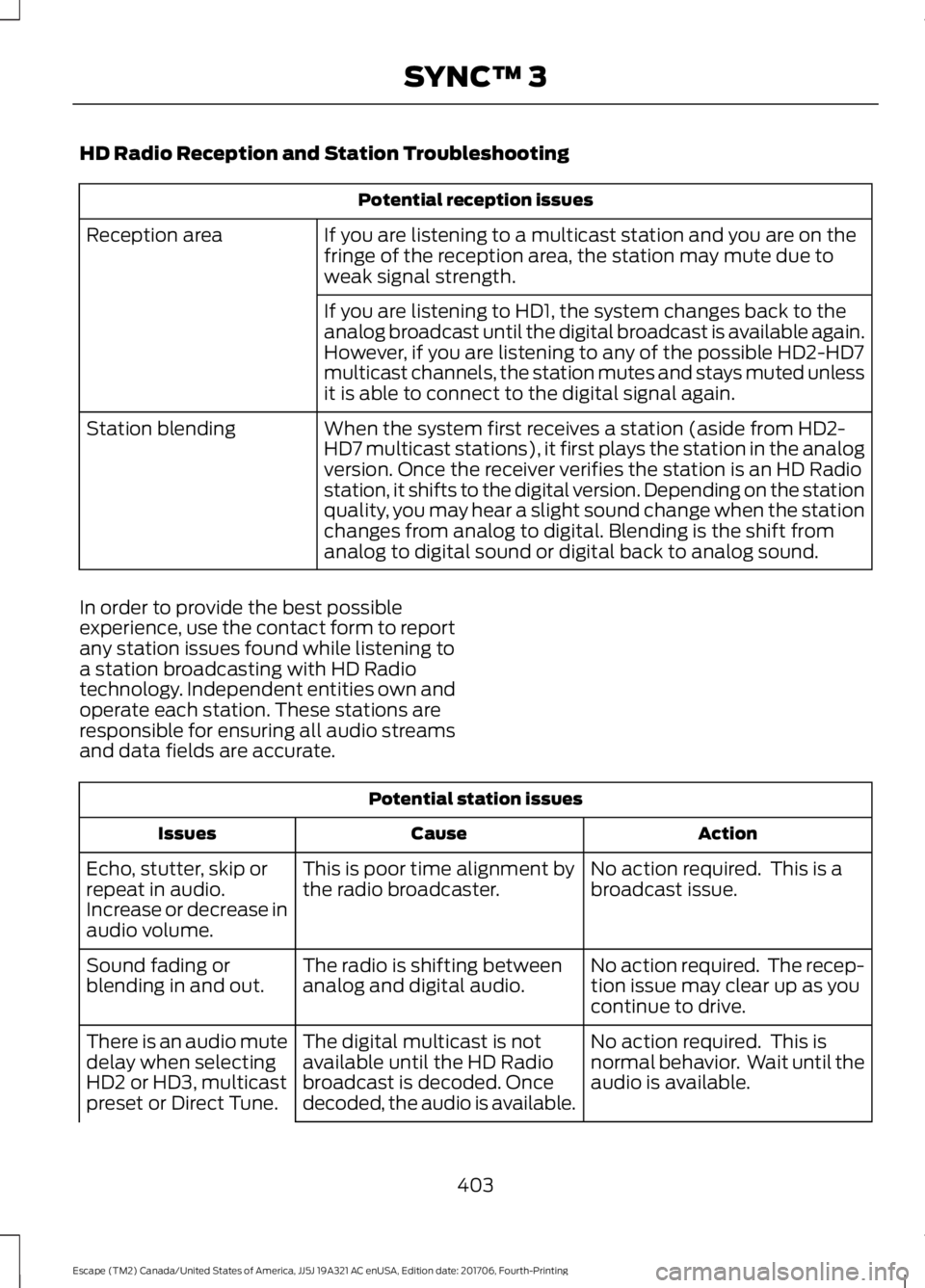
HD Radio Reception and Station Troubleshooting
Potential reception issues
If you are listening to a multicast station and you are on the
fringe of the reception area, the station may mute due to
weak signal strength.
Reception area
If you are listening to HD1, the system changes back to the
analog broadcast until the digital broadcast is available again.
However, if you are listening to any of the possible HD2-HD7
multicast channels, the station mutes and stays muted unless
it is able to connect to the digital signal again.
When the system first receives a station (aside from HD2-
HD7 multicast stations), it first plays the station in the analog
version. Once the receiver verifies the station is an HD Radio
station, it shifts to the digital version. Depending on the station
quality, you may hear a slight sound change when the station
changes from analog to digital. Blending is the shift from
analog to digital sound or digital back to analog sound.
Station blending
In order to provide the best possible
experience, use the contact form to report
any station issues found while listening to
a station broadcasting with HD Radio
technology. Independent entities own and
operate each station. These stations are
responsible for ensuring all audio streams
and data fields are accurate. Potential station issues
Action
Cause
Issues
No action required. This is a
broadcast issue.
This is poor time alignment by
the radio broadcaster.
Echo, stutter, skip or
repeat in audio.
Increase or decrease in
audio volume.
No action required. The recep-
tion issue may clear up as you
continue to drive.
The radio is shifting between
analog and digital audio.
Sound fading or
blending in and out.
No action required. This is
normal behavior. Wait until the
audio is available.
The digital multicast is not
available until the HD Radio
broadcast is decoded. Once
decoded, the audio is available.
There is an audio mute
delay when selecting
HD2 or HD3, multicast
preset or Direct Tune.
403
Escape (TM2) Canada/United States of America, JJ5J 19A321 AC enUSA, Edition date: 201706, Fourth-Printing SYNC™ 3
Page 427 of 517
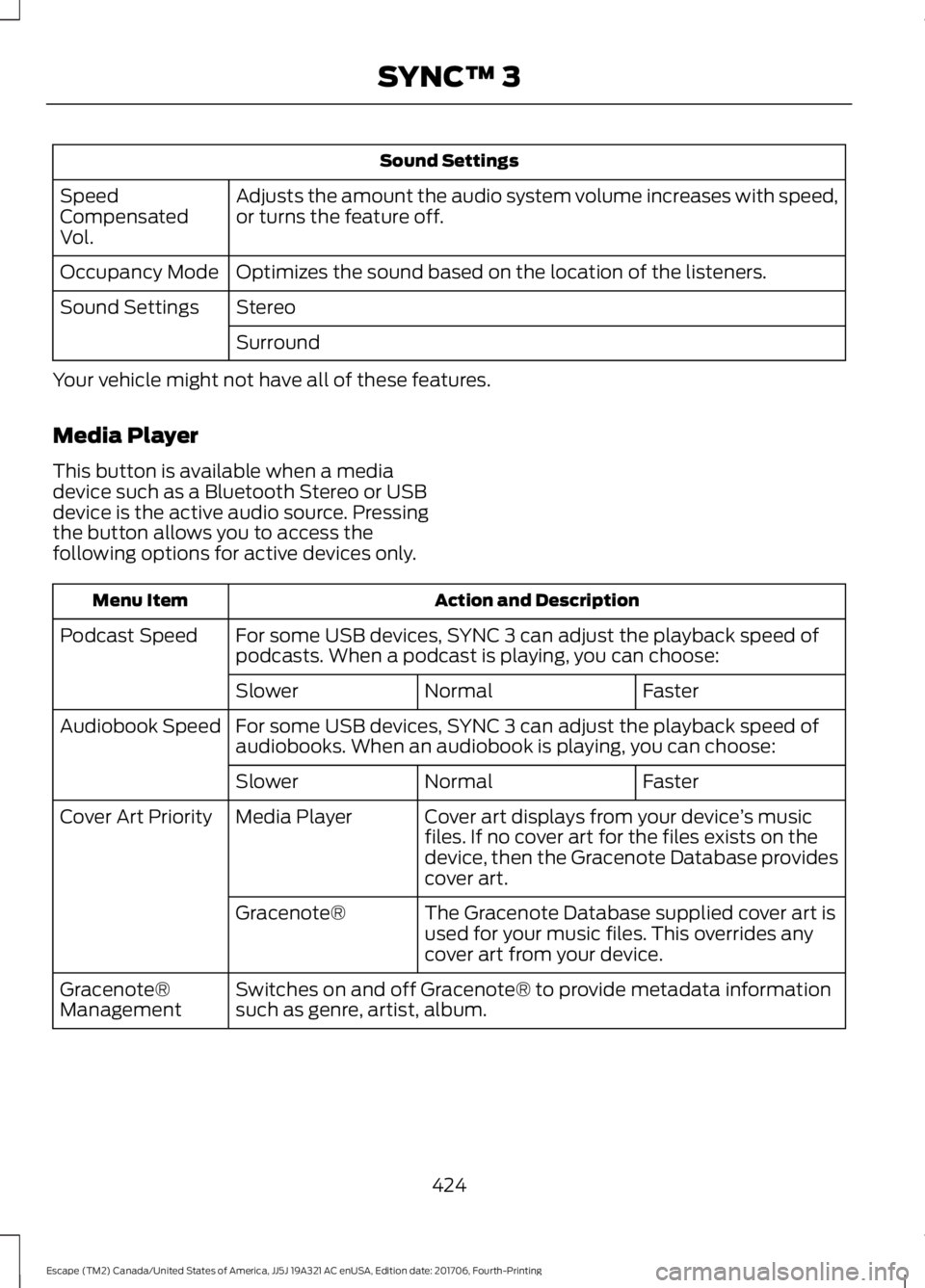
Sound Settings
Adjusts the amount the audio system volume increases with speed,
or turns the feature off.
Speed
Compensated
Vol.
Optimizes the sound based on the location of the listeners.
Occupancy Mode
Stereo
Sound Settings
Surround
Your vehicle might not have all of these features.
Media Player
This button is available when a media
device such as a Bluetooth Stereo or USB
device is the active audio source. Pressing
the button allows you to access the
following options for active devices only. Action and Description
Menu Item
For some USB devices, SYNC 3 can adjust the playback speed of
podcasts. When a podcast is playing, you can choose:
Podcast Speed
Faster
Normal
Slower
For some USB devices, SYNC 3 can adjust the playback speed of
audiobooks. When an audiobook is playing, you can choose:
Audiobook Speed
Faster
Normal
Slower
Cover art displays from your device ’s music
files. If no cover art for the files exists on the
device, then the Gracenote Database provides
cover art.
Media Player
Cover Art Priority
The Gracenote Database supplied cover art is
used for your music files. This overrides any
cover art from your device.
Gracenote®
Switches on and off Gracenote® to provide metadata information
such as genre, artist, album.
Gracenote®
Management
424
Escape (TM2) Canada/United States of America, JJ5J 19A321 AC enUSA, Edition date: 201706, Fourth-Printing SYNC™ 3
Page 448 of 517

AppLink Issues
Possible solution(s)
Possible cause(s)
Issue
Switch Bluetooth off and then on to reset
it on your phone. If you are in your vehicle,
SYNC 3 should be able to automatically re-
connect to your phone if you press the
"Phone" button.
There is a Bluetooth issue
on some older versions
of the Android operating
system that may cause
apps that were found on
your previous vehicle
drive to not be found
again if you did not
switch Bluetooth off.
My Android
phone is
connected, my
app(s) are
running, I
restarted them,
but I still cannot
find any apps.
Unplug the USB cable from the phone, wait
a moment, and plug the USB cable back in
to the phone. After a few seconds, the app
should appear in SYNC 3's Mobile Apps
Menu. If not, "Force Close" the application
and restart it.
You may need to reset
the USB connection to
SYNC 3.
My iPhone is
connected, my
app is running, I
restarted the
app but I still
cannot find it on
SYNC 3.
Increase the Bluetooth volume of the
device by using the device's volume control
buttons which are most often found on the
side of the device.
The Bluetooth volume on
the phone may be low.
I have an
Android phone.
I found and
started my
media app on
SYNC 3, but
there is no
sound or the
sound is very
low.
Force close or uninstall the apps you do not
want SYNC 3 to find. If the app has a "Ford
SYNC" setting, disable that setting in the
app's settings menu on the phone.
Some Android devices
have a limited number of
Bluetooth ports that
apps can use to connect.
If you have more AppLink
apps on your phone than
the number of available
Bluetooth ports, you will
not see all of your apps
listed in the SYNC 3
mobile apps menu.
I can only see
some of the
AppLink apps
running on my
phone listed in
the SYNC 3
Mobile Apps
Menu.
445
Escape (TM2) Canada/United States of America, JJ5J 19A321 AC enUSA, Edition date: 201706, Fourth-Printing SYNC™ 3
Page 483 of 517

SYNC® Automotive Important Safety
Information Read and follow
instructions:
•
Before using your SYNC® system, read
and follow all instructions and safety
information provided in this end user
manual ("Owner Guide".) Not
following precautions found in the
Owner Guide can lead to an accident
or other serious injuries.
General Operation
• Voice Command Control: Certain
functions within the SYNC® system
may be accomplished using voice
commands. Using voice commands
while driving helps you to operate the
system without removing your hands
from the wheel or eyes from the road.
• Prolonged Views of Screen:
Do not
access any function requiring a
prolonged view of the screen while you
are driving. Pull over in a safe and legal
manner before attempting to access a
function of the system requiring
prolonged attention.
• Volume Setting:
Do not raise the
volume excessively. Keep the volume
at a level where you can still hear
outside traffic and emergency signals
while driving. Driving while unable to
hear these sounds could cause an
accident.
• Navigation Features:
Any navigation
features included in the system are
intended to provide turn by turn
instructions to get you to a desired
destination. Please make certain all
persons using this system carefully
read and follow instructions and safety
information fully. •
Distraction Hazard:
Any navigation
features may require manual
(non-verbal) setup. Attempting to
perform such set-up or insert data
while driving can distract your attention
and could cause an accident or other
serious injury. Stop the vehicle in a safe
and legal manner before attempting
these operations.
• Let Your Judgment Prevail:
Any
navigation features are provided only
as an aid. Make your driving decisions
based on your observations of local
conditions and existing traffic
regulations. Any such feature is not a
substitute for your personal judgment.
Any route suggestions made by this
system should never replace any local
traffic regulations or your personal
judgment or knowledge of safe driving
practices.
• Route Safety: Do not follow the route
suggestions if doing so would result in
an unsafe or illegal maneuver, if you
would be placed in an unsafe situation,
or if you would be directed into an area
that you consider unsafe. The driver is
ultimately responsible for the safe
operation of the vehicle and therefore,
must evaluate whether it is safe to
follow the suggested directions.
• Potential Map Inaccuracy:
Maps
used by this system may be inaccurate
because of changes in roads, traffic
controls or driving conditions. Always
use good judgment and common sense
when following the suggested routes.
• Emergency Services:
Do not rely on
any navigation features included in the
system to route you to emergency
services. Ask local authorities or an
emergency services operator for these
locations. Not all emergency services
such as police, fire stations, hospitals
and clinics are likely to be contained in
the map database for such navigation
features.
480
Escape (TM2) Canada/United States of America, JJ5J 19A321 AC enUSA, Edition date: 201706, Fourth-Printing Appendices
Page 484 of 517
Your Responsibilities and Assumptions of
Risk
•
You agree to each of the following:(a)
Any use of the SOFTWARE while
driving an automobile or other vehicle
in violation of applicable law or
otherwise driving in an unsafe manner
presents a significant risk of distracted
driving and should not be attempted
under any circumstances;(b) Use of
the SOFTWARE at excessive volume
poses a significant risk of hearing
damage and should not be attempted
under any circumstances;(c) The
SOFTWARE may not be compatible
with new or different versions of an
operating system, third party software,
or third party services, and the
SOFTWARE may potentially cause a
critical failure of an operating system,
third party software, or third party
service.(d) Any third party service
accessed by or third party software
used with the SOFTWARE (I) may
charge an additional fee for access, (ii)
may not work correctly, on an
uninterrupted basis, or error free, (iii)
may change streaming formats or
discontinue operation, (iv) may contain
adult, profane or offensive content; and
(v) may contain inaccurate, false or
misleading traffic, weather, financial
or safety information or other content;
and (e) Use of the SOFTWARE may
cause you to incur additional charges
from your wireless service provider
(WSP) and any data or minute
calculators that may be included in the
software program are for reference
only, are not warranted in any way and
should not be relied upon in anyway.
• When using the SOFTWARE, you agree
to be responsible for and assume the
entire risk to the items set forth in
Section (a) – (e) above. Disclaimer of Warranty
YOU EXPRESSLY ACKNOWLEDGE AND
AGREE THAT USE OF THE DEVICES AND
SOFTWARE IS AT YOUR SOLE RISK AND
THAT THE ENTIRE RISK AS TO
SATISFACTORY QUALITY,
PERFORMANCE, COMPATIBILITY,
ACCURACY AND EFFORT IS WITH YOU.
TO THE MAXIMUM EXTENT PERMITTED
BY APPLICABLE LAW, THE SOFTWARE
AND ANY THIRD PARTY SOFTWARE OR
THIRD-PARTY SERVICES ARE PROVIDED
"AS IS" AND
“AS AVAILABLE” , WITH ALL
FAULTS AND WITHOUT WARRANTY OF
ANY KIND, AND FORD MOTOR COMPANY
HEREBY DISCLAIMS ALL WARRANTIES
AND CONDITIONS WITH RESPECT TO
THE SOFTWARE, THIRD PARTY
SOFTWARE, AND THIRD-PARTY
SERVICES, EITHER EXPRESS, IMPLIED OR
STATUTORY, INCLUDING, BUT NOT
LIMITED TO, THE IMPLIED WARRANTIES
AND/OR CONDITIONS OF
MERCHANTABILITY, OF SATISFACTORY
QUALITY, OF FITNESS FOR AN
ARTICULAR PURPOSE, OF ACCURACY,
OF QUIET ENJOYMENT, AND
NON-INFRINGEMENT OF THIRD-PARTY
RIGHTS. FORD MOTOR COMPANY DOES
NOT WARRANT (a) AGAINST
INTERFERENCE WITH YOUR ENJOYMENT
OF THE SOFTWARE, THIRD PARTY
SOFTWARE, OR THIRD-PARTY SERVICES,
(b) THAT THE SOFTWARE, THIRD PARTY
SOFTWARE, OR THIRD-PARTY SERVICES
WILL MEET YOUR REQUIREMENTS, (c)
THAT THE OPERATION OF THE
SOFTWARE, THIRD PARTY SOFTWARE,
OR THIRD-PARTY SERVICES WILL BE
UNINTERRUPTED OR ERROR-FREE, (d)
OR THAT DEFECTS IN THE SOFTWARE,
THIRD PARTY SOFTWARE, OR
THIRD-PARTY SERVICES WILL BE
CORRECTED. NO ORAL OR WRITTEN
INFORMATION OR ADVICE GIVEN BY
FORD MOTOR COMPANY OR ITS
AUTHORIZED REPRESENTATIVE SHALL
481
Escape (TM2) Canada/United States of America, JJ5J 19A321 AC enUSA, Edition date: 201706, Fourth-Printing Appendices