2018 FORD ESCAPE storage
[x] Cancel search: storagePage 277 of 517

•
Cover interior trim to prevent fading.
• Keep all rubber parts free from oil and
solvents.
Engine
• Change the engine oil and filter prior to
storage because used engine oil
contains contaminates which may
cause engine damage.
• Start the engine every 15 days for a
minimum of 15 minutes. Run at fast idle
with the climate controls set to defrost
until the engine reaches normal
operating temperature.
• With your foot on the brake, shift
through all the gears while the engine
is running.
• We recommend that you change the
engine oil before you use your vehicle
again.
Fuel system
• Fill the fuel tank with high-quality fuel
until the first automatic shutoff of the
fuel pump nozzle.
Cooling system
• Protect against freezing temperatures.
• When removing your vehicle from
storage, check coolant fluid level.
Confirm that there are no cooling
system leaks and that fluid is at the
recommended level.
Battery
• Check and recharge as necessary. Keep
connections clean.
• If storing your vehicle for more than 30
days without recharging the battery,
we recommend that you disconnect
the battery cables to maintain battery
charge for quick starting. Note:
It is necessary to reset memory
features if battery cables are disconnected.
Brakes
• Make sure the brakes and parking brake
release fully.
Tires
• Maintain recommended air pressure.
Miscellaneous
• Make sure all linkages, cables, levers
and pins under your vehicle are covered
with grease to prevent rust.
• Move vehicles at least 25 ft (7.5 m)
every 15 days to lubricate working parts
and prevent corrosion.
Removing Vehicle From Storage
When your vehicle is ready to come out of
storage, do the following:
• Wash your vehicle to remove any dirt
or grease film build-up on window
surfaces.
• Check windshield wipers for any
deterioration.
• Check under the hood for any foreign
material that may have collected
during storage such as mice or squirrel
nests.
• Check the exhaust for any foreign
material that may have collected
during storage.
• Check tire pressures and set tire
inflation per the Tire Label.
• Check brake pedal operation. Drive
your vehicle
15 ft (4.5 m) back and
forth to remove rust build-up.
274
Escape (TM2) Canada/United States of America, JJ5J 19A321 AC enUSA, Edition date: 201706, Fourth-Printing Vehicle Care
Page 290 of 517
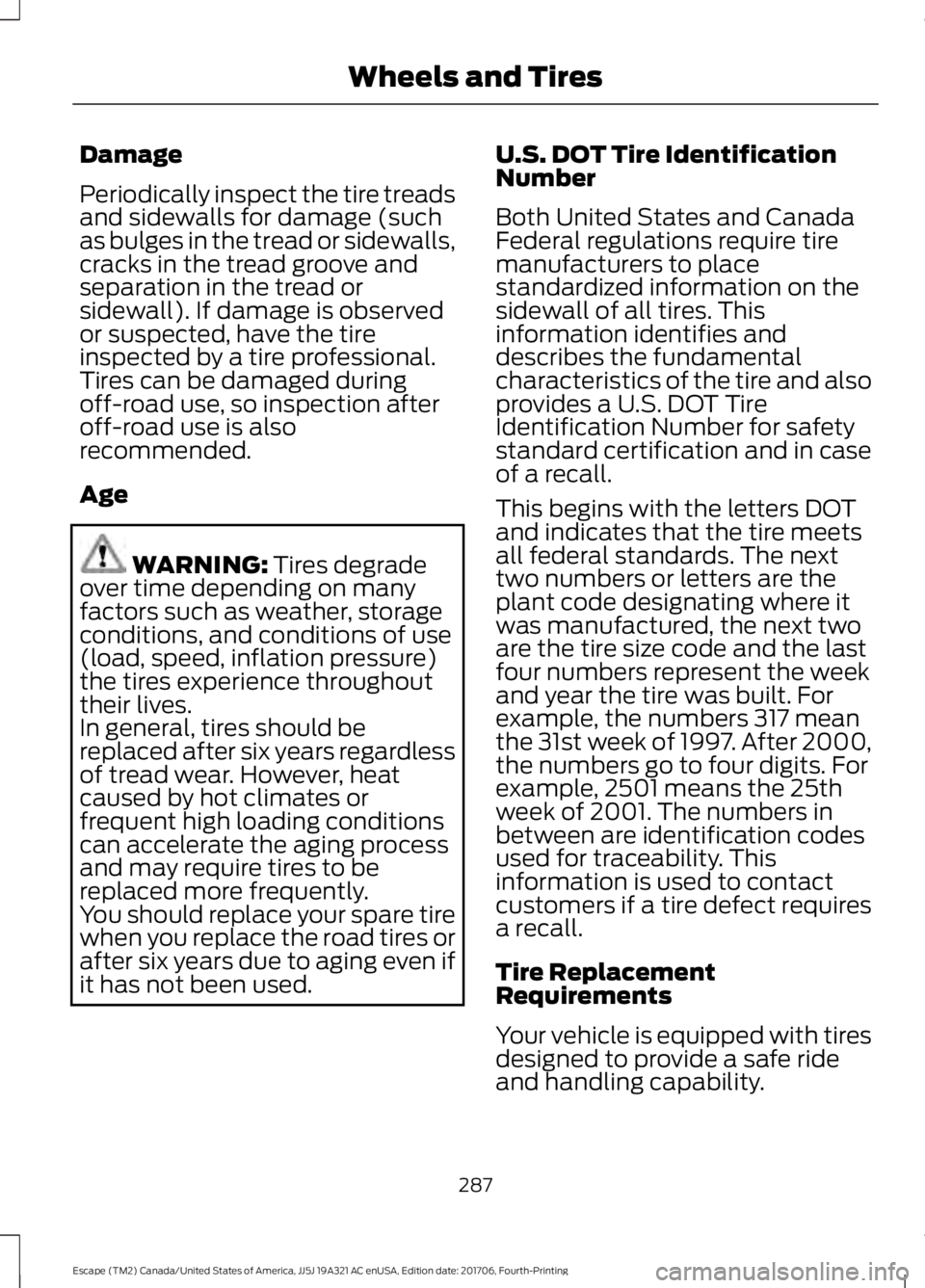
Damage
Periodically inspect the tire treads
and sidewalls for damage (such
as bulges in the tread or sidewalls,
cracks in the tread groove and
separation in the tread or
sidewall). If damage is observed
or suspected, have the tire
inspected by a tire professional.
Tires can be damaged during
off-road use, so inspection after
off-road use is also
recommended.
Age
WARNING: Tires degrade
over time depending on many
factors such as weather, storage
conditions, and conditions of use
(load, speed, inflation pressure)
the tires experience throughout
their lives.
In general, tires should be
replaced after six years regardless
of tread wear. However, heat
caused by hot climates or
frequent high loading conditions
can accelerate the aging process
and may require tires to be
replaced more frequently.
You should replace your spare tire
when you replace the road tires or
after six years due to aging even if
it has not been used. U.S. DOT Tire Identification
Number
Both United States and Canada
Federal regulations require tire
manufacturers to place
standardized information on the
sidewall of all tires. This
information identifies and
describes the fundamental
characteristics of the tire and also
provides a U.S. DOT Tire
Identification Number for safety
standard certification and in case
of a recall.
This begins with the letters DOT
and indicates that the tire meets
all federal standards. The next
two numbers or letters are the
plant code designating where it
was manufactured, the next two
are the tire size code and the last
four numbers represent the week
and year the tire was built. For
example, the numbers 317 mean
the 31st week of 1997. After 2000,
the numbers go to four digits. For
example, 2501 means the 25th
week of 2001. The numbers in
between are identification codes
used for traceability. This
information is used to contact
customers if a tire defect requires
a recall.
Tire Replacement
Requirements
Your vehicle is equipped with tires
designed to provide a safe ride
and handling capability.
287
Escape (TM2) Canada/United States of America, JJ5J 19A321 AC enUSA, Edition date: 201706, Fourth-Printing Wheels and Tires
Page 300 of 517

WARNING: It is recommended that
the wheels of the vehicle be chocked, and
that no person should remain in a vehicle
that is being jacked. WARNING:
The jack supplied with
this vehicle is only intended for changing
wheels. Do not use the vehicle jack other
than when you are changing a wheel in an
emergency. WARNING:
Check that the vehicle
jack is not damaged or deformed and the
thread is lubricated and clean. WARNING:
The jack should be used
on level firm ground wherever possible. WARNING:
Use only the specified
jacking points. If you use other positions,
you may damage the body, steering,
suspension, engine, braking system or the
fuel lines. WARNING: No person should place
any portion of their body under a vehicle
that is supported by a jack.
Note: The jack does not require
maintenance or additional lubrication over
the service life of your vehicle. 1.
Park on a level surface, set the parking
brake and activate the hazard flashers. 2.
Place the transmission in park (P) and
turn the engine off.
3. Lift and remove the carpeted cargo area floor to access the spare tire and
jack.
4. Remove the wing nut that secures the spare tire by turning it
counterclockwise. Remove the spare
tire. 5.
Remove the jack from the foam holder.
Remove the flat tire retainer strap from
the jack base. The lug wrench is in the
left side storage foam next to the spare
tire. 6. Unfold the lug wrench for use.
297
Escape (TM2) Canada/United States of America, JJ5J 19A321 AC enUSA, Edition date: 201706, Fourth-Printing Wheels and TiresE166722 E160855 E159432
Page 366 of 517

Description and Action
Message
This will enter the media menu.
Options
Then any of the following: Description and Action
Message
Choose to shuffle or repeat your music. Once you make your
choice, it remains on until you switch it off.
Shuffle
Choose to shuffle or repeat your music. Once you make your
choice, it remains on until you switch it off.
Repeat track
You can play similar types of music to the current playlist
from the USB port. The system uses the metadata informa-
tion of each track to compile a playlist. The system then
creates a new list of similar tracks and then begins playing.
Each track must have the metadata tags populated for this
feature. With certain playing devices, if your metadata tags
Similar music
are not populated, the tracks will not be available in voice
recognition, the play menu or this option. However, if you
place these tracks onto your playing device in mass storage
device mode they are available in voice recognition, the play
menu or this option. The system places unknowns into any
unpopulated metadata tag.
Resets the USB index. After the new indexing is complete
you can choose what to play from the USB song library.
Reset USB
Accessing Your USB Song Library
1. Plug the device into your vehicle's USB
port. 2. Press the MEDIA button (next to the
audio display) to select USB playback. Description and Action
Message
This menu allows you to select and play your media files by
artist, album, genre, playlist or track.
Browse USB
If there are no media files to access, the
display indicates there is no media.
363
Escape (TM2) Canada/United States of America, JJ5J 19A321 AC enUSA, Edition date: 201706, Fourth-Printing SYNC™
(If Equipped)
Page 368 of 517

Description and Action
Display
2. Scroll to browse indexed media files on the device, and
then press the OK button.
Resets the USB index. After the new indexing is complete,
you can choose what to play from the USB song library.
Reset USB
* You can use the buttons at the bottom of the audio display to jump to a certain
alphabetical category quickly. You can also use the letters on the audio system's numeric
keypad to jump in the list.
Using Voice Commands
You can access and view your USB songs
using voice commands.
Plug the device into your vehicle's USB
port.
Press the voice button and when
prompted, say any of the following
commands: Accessing and Viewing USB Media
(browse | search | show) all (album |
albums)
(browse | search | show) all (artist |
artists)
(browse | search | show) all (genre |
genres)
(browse | search | show) all (playlist |
playlists)
(browse | search | show) all (song | songs
| title | titles | file | files | track | tracks)
(browse | search | show) album ___
(browse | search | show) artist ___
(browse | search | show) genre ___
(browse | search | show) playlist ___ USB 2
(If Equipped)
Your vehicle may come equipped with an
additional USB port. If so, USB 1 is located
at the front of the vehicle at the bottom of
the instrument panel. USB 2 is located
inside the storage compartment of the
vehicle's center console.
You can plug in an additional USB device
into the second USB port.
You can access both USB devices by using
voice commands.
To access a USB device press the voice
button and when prompted say: Voice command
USB 1
USB 2
Note: SYNC only supports one connected
iOS (Apple) devices at a time (whichever
one you plug in first). When you connect a
second iOS device, the systems charges it,
but does not support playback from it.
Bluetooth Devices and System
Settings
You can access these menus using the
audio display. See
Using SYNC™ With
Your Phone (page 342).
365
Escape (TM2) Canada/United States of America, JJ5J 19A321 AC enUSA, Edition date: 201706, Fourth-Printing SYNC™
(If Equipped)
Page 374 of 517
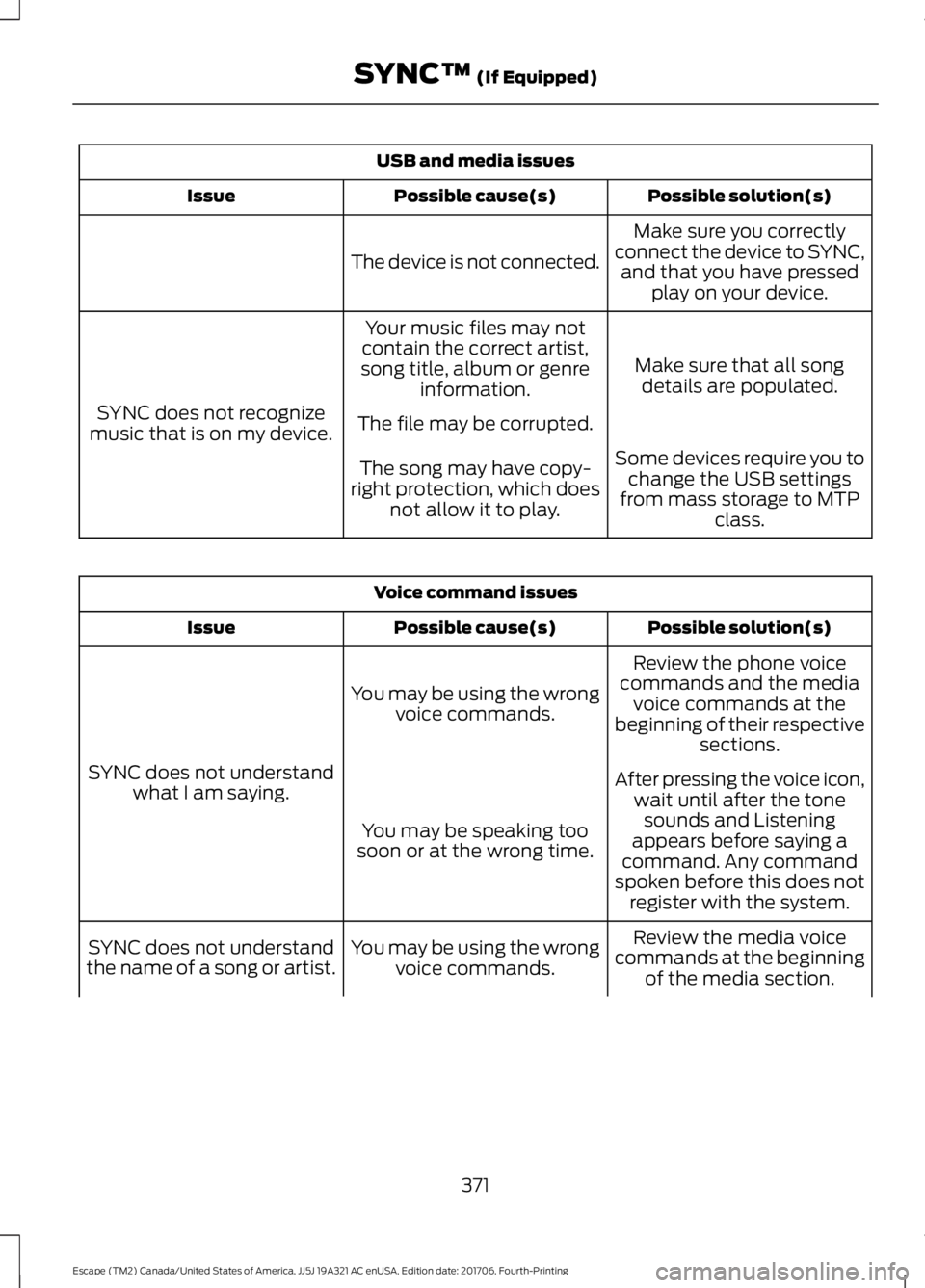
USB and media issues
Possible solution(s)
Possible cause(s)
Issue
Make sure you correctly
connect the device to SYNC, and that you have pressed play on your device.
The device is not connected.
Make sure that all songdetails are populated.
Your music files may not
contain the correct artist,
song title, album or genre information.
SYNC does not recognize
music that is on my device. The file may be corrupted.
Some devices require you tochange the USB settings
from mass storage to MTP class.
The song may have copy-
right protection, which does not allow it to play. Voice command issues
Possible solution(s)
Possible cause(s)
Issue
Review the phone voice
commands and the media voice commands at the
beginning of their respective sections.
You may be using the wrong
voice commands.
SYNC does not understand what I am saying. After pressing the voice icon,
wait until after the tonesounds and Listening
appears before saying a
command. Any command
spoken before this does not register with the system.
You may be speaking too
soon or at the wrong time.
Review the media voice
commands at the beginning of the media section.
You may be using the wrong
voice commands.
SYNC does not understand
the name of a song or artist.
371
Escape (TM2) Canada/United States of America, JJ5J 19A321 AC enUSA, Edition date: 201706, Fourth-Printing SYNC™ (If Equipped)
Page 443 of 517
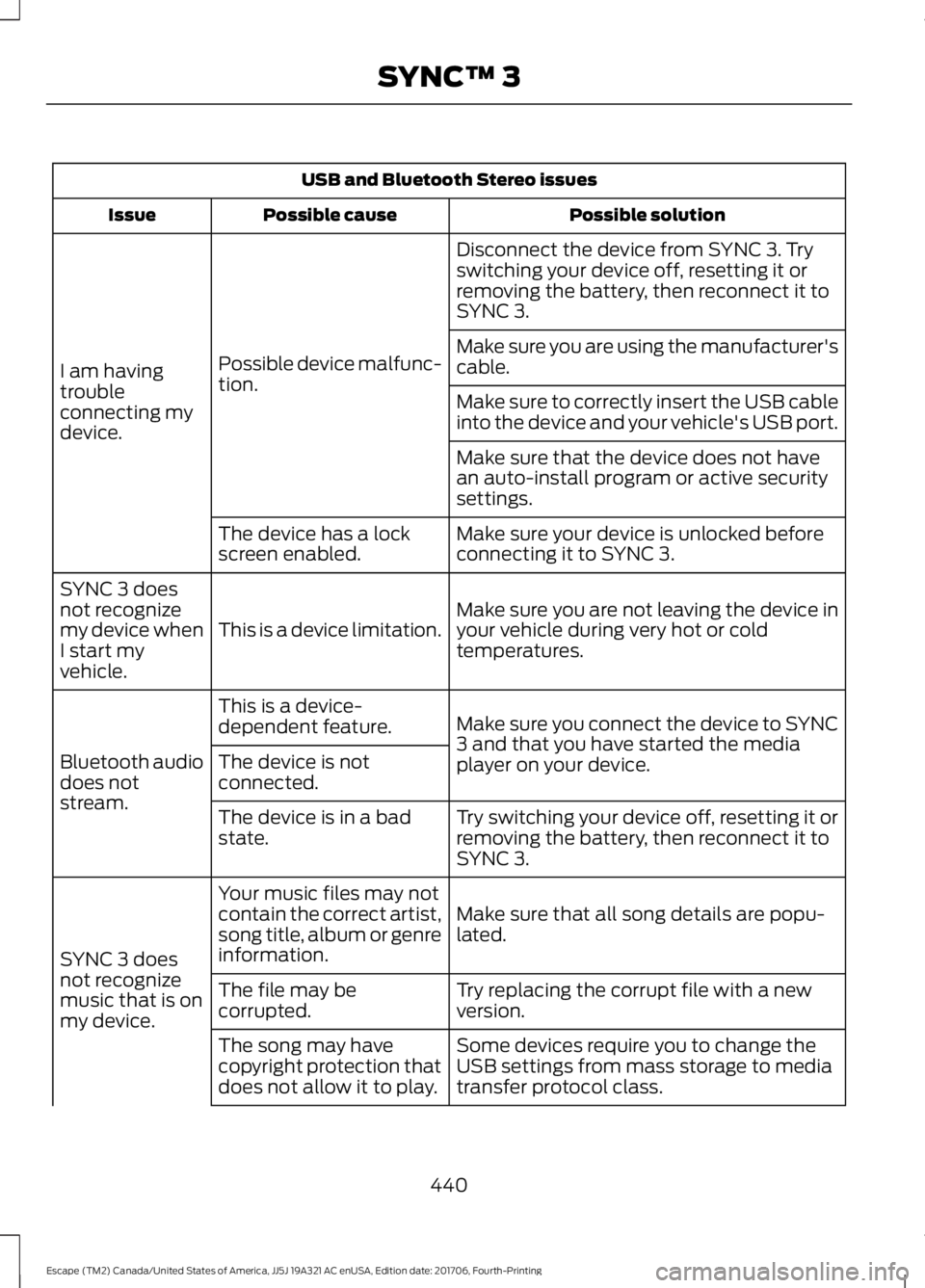
USB and Bluetooth Stereo issues
Possible solution
Possible cause
Issue
Disconnect the device from SYNC 3. Try
switching your device off, resetting it or
removing the battery, then reconnect it to
SYNC 3.
Possible device malfunc-
tion.
I am having
trouble
connecting my
device. Make sure you are using the manufacturer's
cable.
Make sure to correctly insert the USB cable
into the device and your vehicle's USB port.
Make sure that the device does not have
an auto-install program or active security
settings.
Make sure your device is unlocked before
connecting it to SYNC 3.
The device has a lock
screen enabled.
Make sure you are not leaving the device in
your vehicle during very hot or cold
temperatures.
This is a device limitation.
SYNC 3 does
not recognize
my device when
I start my
vehicle.
Make sure you connect the device to SYNC
3 and that you have started the media
player on your device.
This is a device-
dependent feature.
Bluetooth audio
does not
stream. The device is not
connected.
Try switching your device off, resetting it or
removing the battery, then reconnect it to
SYNC 3.
The device is in a bad
state.
Make sure that all song details are popu-
lated.
Your music files may not
contain the correct artist,
song title, album or genre
information.
SYNC 3 does
not recognize
music that is on
my device. Try replacing the corrupt file with a new
version.
The file may be
corrupted.
Some devices require you to change the
USB settings from mass storage to media
transfer protocol class.
The song may have
copyright protection that
does not allow it to play.
440
Escape (TM2) Canada/United States of America, JJ5J 19A321 AC enUSA, Edition date: 201706, Fourth-Printing SYNC™ 3
Page 494 of 517
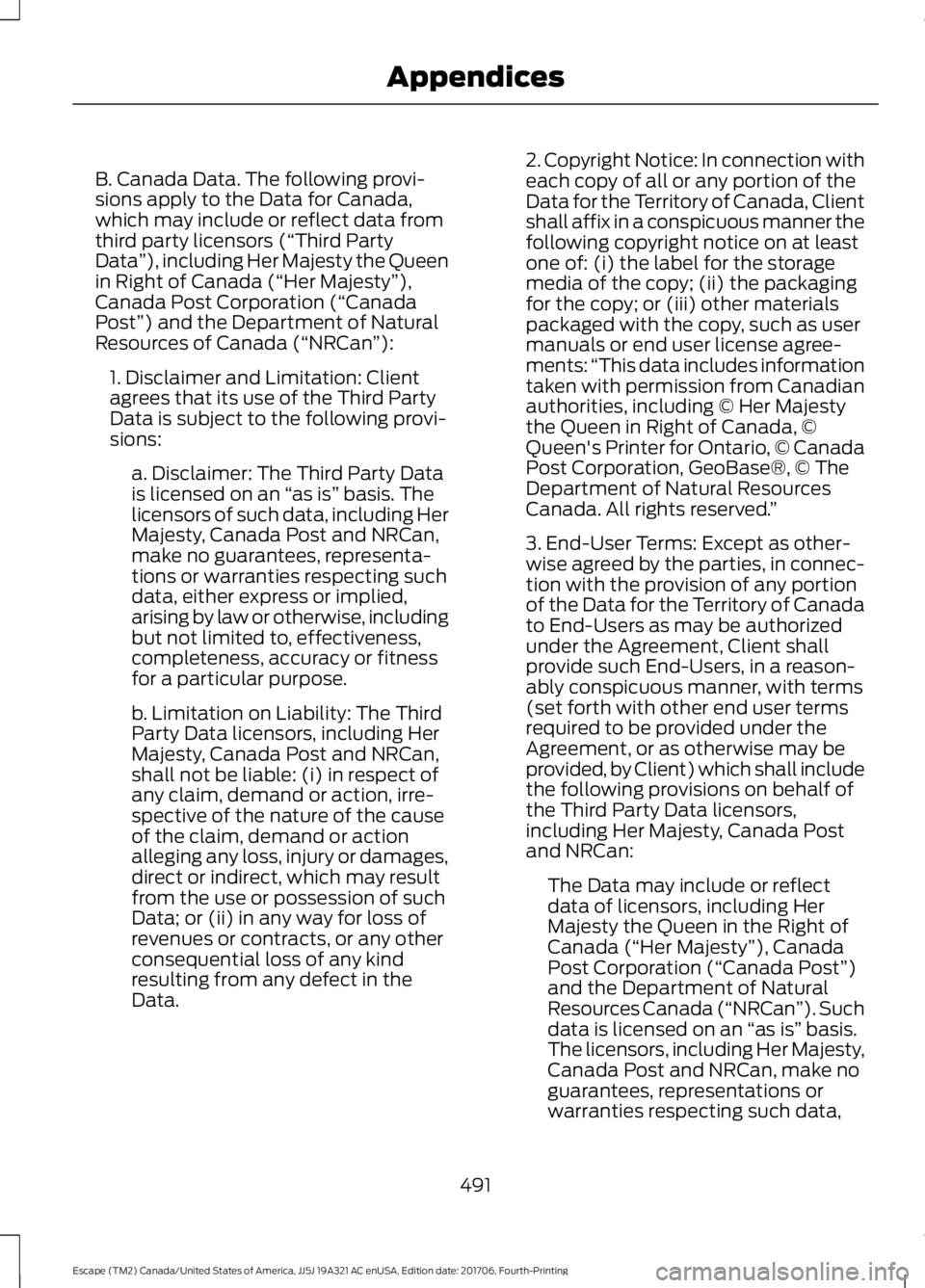
B. Canada Data. The following provi-
sions apply to the Data for Canada,
which may include or reflect data from
third party licensors (“Third Party
Data
”), including Her Majesty the Queen
in Right of Canada (“Her Majesty ”),
Canada Post Corporation (“Canada
Post”) and the Department of Natural
Resources of Canada (“NRCan ”):
1. Disclaimer and Limitation: Client
agrees that its use of the Third Party
Data is subject to the following provi-
sions: a. Disclaimer: The Third Party Data
is licensed on an “as is” basis. The
licensors of such data, including Her
Majesty, Canada Post and NRCan,
make no guarantees, representa-
tions or warranties respecting such
data, either express or implied,
arising by law or otherwise, including
but not limited to, effectiveness,
completeness, accuracy or fitness
for a particular purpose.
b. Limitation on Liability: The Third
Party Data licensors, including Her
Majesty, Canada Post and NRCan,
shall not be liable: (i) in respect of
any claim, demand or action, irre-
spective of the nature of the cause
of the claim, demand or action
alleging any loss, injury or damages,
direct or indirect, which may result
from the use or possession of such
Data; or (ii) in any way for loss of
revenues or contracts, or any other
consequential loss of any kind
resulting from any defect in the
Data. 2. Copyright Notice: In connection with
each copy of all or any portion of the
Data for the Territory of Canada, Client
shall affix in a conspicuous manner the
following copyright notice on at least
one of: (i) the label for the storage
media of the copy; (ii) the packaging
for the copy; or (iii) other materials
packaged with the copy, such as user
manuals or end user license agree-
ments:
“This data includes information
taken with permission from Canadian
authorities, including © Her Majesty
the Queen in Right of Canada, ©
Queen's Printer for Ontario, © Canada
Post Corporation, GeoBase®, © The
Department of Natural Resources
Canada. All rights reserved. ”
3. End-User Terms: Except as other-
wise agreed by the parties, in connec-
tion with the provision of any portion
of the Data for the Territory of Canada
to End-Users as may be authorized
under the Agreement, Client shall
provide such End-Users, in a reason-
ably conspicuous manner, with terms
(set forth with other end user terms
required to be provided under the
Agreement, or as otherwise may be
provided, by Client) which shall include
the following provisions on behalf of
the Third Party Data licensors,
including Her Majesty, Canada Post
and NRCan: The Data may include or reflect
data of licensors, including Her
Majesty the Queen in the Right of
Canada (“Her Majesty ”), Canada
Post Corporation (“Canada Post”)
and the Department of Natural
Resources Canada (“NRCan ”). Such
data is licensed on an “as is” basis.
The licensors, including Her Majesty,
Canada Post and NRCan, make no
guarantees, representations or
warranties respecting such data,
491
Escape (TM2) Canada/United States of America, JJ5J 19A321 AC enUSA, Edition date: 201706, Fourth-Printing Appendices