Page 13 of 568
INTERIOR
Interior
1 — Door Locks4 — Seats
2 — Window Switches 5 — Gear Selector
3 — Door Handles 6 — USB/AUX Media Hub
2
GRAPHICAL TABLE OF CONTENTS 11
Page 169 of 568

SAFETY
CONTENTS
�SAFETY FEATURES ..................... .168
▫ Anti-Lock Brake System (ABS) .............168
▫ Electronic Brake Control System ............169
� AUXILIARY DRIVING SYSTEMS .............179
▫ Blind Spot Monitoring (BSM) — If Equipped . . .179
▫ Forward Collision Warning (FCW) With
Mitigation .......................... .186
▫ Tire Pressure Monitor System (TPMS) ........190
� OCCUPANT RESTRAINT SYSTEMS ..........196
▫ Occupant Restraint Systems Features .........196
▫ Important Safety Precautions ..............197▫
Seat Belt Systems ..................... .198
▫ Supplemental Restraint Systems (SRS) ........211
▫ Child Restraints .......................224
▫ Transporting Pets ..................... .247
� SAFETY TIPS .......................... .248
▫ Transporting Passengers ..................248
▫ Exhaust Gas ..........................248
▫ Safety Checks You Should Make Inside The
Vehicle ............................. .249
▫ Periodic Safety Checks You Should Make
Outside The Vehicle ....................251
5
Page 181 of 568

AUXILIARY DRIVING SYSTEMS
Blind Spot Monitoring (BSM) — If Equipped
The Blind Spot Monitoring (BSM) system uses two radar sensors,
located inside the rear bumper fascia, to detect highway licensable
vehicles (automobiles, trucks, motorcycles, etc.) that enter the
blind spot zones from the rear/front/side of the vehicle.
When the vehicle is started, the BSM warning light will be
momentarily illuminated in both outside rear view mirrors
to let the driver know that the system is operational. The
BSM system sensors operate when the vehicle is in any
forward gear or REVERSE.The BSM detection zone covers approximately one lane on
both sides of the vehicle 12 ft (3.8 m). The zone length starts
at the outside rear view mirror and extends approximately
10 ft (3 m) beyond the rear bumper of the vehicle. The BSM
system monitors the detection zones on both sides of the
vehicle when the vehicle speed has reached approximately
6 mph (10 km/h) or higher and will alert the driver of
vehicles in these areas.
NOTE:
•
The BSM system DOES NOT alert the driver about
rapidly approaching vehicles that are outside the detec-
tion zones.
•
The BSM system detection zone DOES NOT change if your
vehicle is towing a trailer. Therefore, visually verify the
adjacent lane is clear for both your vehicle and trailer before
making a lane change. If the trailer or other object (i.e.,
bicycle, sports equipment) extends beyond the side of your
vehicle, this may result in the BSM warning light remaining
illuminated or the alert chime remaining on the entire time
the vehicle is in a forward gear. Refer to “Uconnect Set-
tings” in “Multimedia” for more information.
Rear Detection Zones
5
SAFETY 179
Page 482 of 568
Setting NameSelectable Options
AUX Volume Offset — If Equipped +-
NOTE:
This feature provides the ability to tune the audio level for portable devices connected through the AUX input. Auto Play On Off
Phone/Bluetooth Settings
After pressing the “Phone/Bluetooth Settings” button on
the touchscreen, the following settings will be available:
Setting Name Selectable Options
Do Not Disturb List of Settings
NOTE:
Press “Do Not Disturb” to access the available settings. The following settings are: Auto Reply (both, text, call), Auto
Reply Message (custom, default) and Custom Auto Reply Message (create message). Paired Phones and Audio Sources List Of Paired Phones and Audio Sources
NOTE:
The “Paired Phones and Audio Sources” feature shows which phones and audio sources are paired to the Phone and
Audio Sources Settings system. For further information, refer to the Uconnect Owner ’s Manual Supplement.
480 MULTIMEDIA
Page 508 of 568
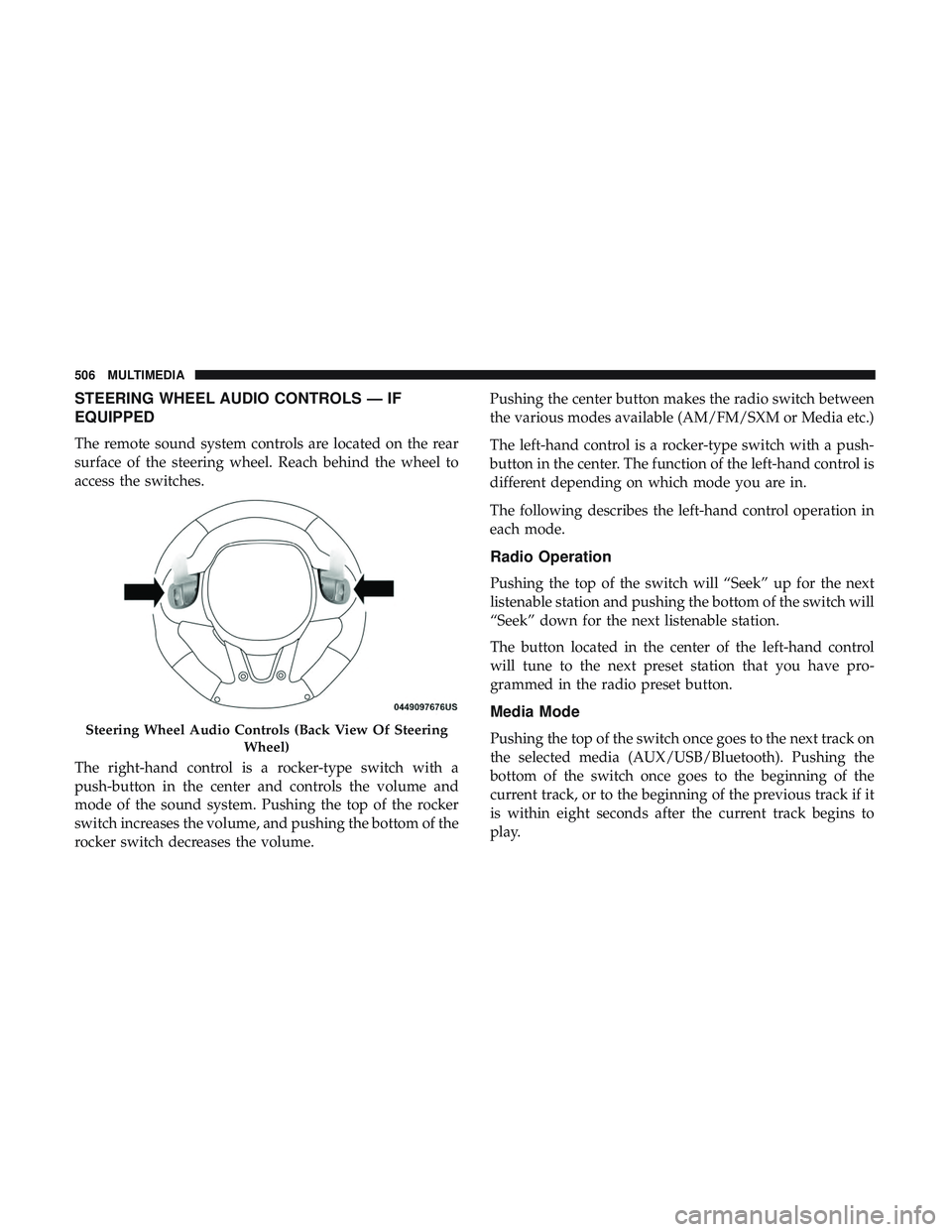
STEERING WHEEL AUDIO CONTROLS — IF
EQUIPPED
The remote sound system controls are located on the rear
surface of the steering wheel. Reach behind the wheel to
access the switches.
The right-hand control is a rocker-type switch with a
push-button in the center and controls the volume and
mode of the sound system. Pushing the top of the rocker
switch increases the volume, and pushing the bottom of the
rocker switch decreases the volume.Pushing the center button makes the radio switch between
the various modes available (AM/FM/SXM or Media etc.)
The left-hand control is a rocker-type switch with a push-
button in the center. The function of the left-hand control is
different depending on which mode you are in.
The following describes the left-hand control operation in
each mode.
Radio Operation
Pushing the top of the switch will “Seek” up for the next
listenable station and pushing the bottom of the switch will
“Seek” down for the next listenable station.
The button located in the center of the left-hand control
will tune to the next preset station that you have pro-
grammed in the radio preset button.
Media Mode
Pushing the top of the switch once goes to the next track on
the selected media (AUX/USB/Bluetooth). Pushing the
bottom of the switch once goes to the beginning of the
current track, or to the beginning of the previous track if it
is within eight seconds after the current track begins to
play.Steering Wheel Audio Controls (Back View Of Steering
Wheel)
506 MULTIMEDIA
Page 509 of 568

IPOD/USB/MP3 CONTROL — IF EQUIPPED
This feature allows an iPod or external USB device to be
plugged into the USB port, located in the lower section of
the front integrated center stack, in front of the rotary
transmission gear selector.
iPod control supports Mini, 4G, Photo, Nano, 5G iPod and
iPhone devices. Some iPod software versions may not fully
support the iPod control features. Please visit Apple’s
website for software updates.
For further information, refer to the Uconnect Owner ’s
Manual Supplement.
Connecting The iPod Or External USB Device
Use the connection cable to connect an iPod or external
USB device to the vehicles USB/AUX connector port which
is located in the center console.
The USB ports on the Media Hub are equipped with a
Smart Electronic Voltage Regulator (Smart Charge) feature.
This feature allows a device to charge for up to one hour
after the vehicle is powered off.Once the audio device is connected and synchronized to
the vehicles iPod/USB/MP3 control system (iPod or exter-
nal USB device may take a few minutes to connect), the
audio device starts charging and is ready for use.
NOTE:
If the audio device battery is completely dis-
charged, it may not communicate with the iPod/USB/MP3
control system until a minimum charge is attained. Leav-
ing the audio device connected to the iPod/USB/MP3
control system may charge it to the required level.
Integrated Center Console USB/AUX Media HUB
10
MULTIMEDIA 507
Page 510 of 568
Using This Feature
By using an iPod cable, or an external USB device to
connect to the USB port:
•The audio device can be played on the vehicle’s sound
system, providing metadata (artist, track title, album,
etc.) information on the radio display.
• The audio device can be controlled using the radio
buttons to Play, Browse, and List the iPod contents.
• The audio device battery charges when plugged into the
USB/AUX connector (if supported by the specific audio
device).
NOTE: For further information, refer to the Uconnect
Owner ’s Manual Supplement.
Second Row USB Charging Port
Second row USB connector ports can be used for charging
purposes only. Use the connection cable to connect an iPod
or external USB device to the vehicle’s USB charging ports
which are located either on the rear of the front center
console and/or in the second row center console.
Front Center Console Rear USB Ports
508 MULTIMEDIA
Page 516 of 568

Play Video Games
Connect the video game console to the Audio/Video
RCA/HDMI input jacks located on the side of each seat.
Audio/Video RCA/HDMI Jacks (AUX/HDMI Jacks) on
the side of each seat enable the monitor to display video
directly from a video camera, connect video games for
display on the screen, or play music directly from an MP3
player.
When connecting an external source to the AUX/HDMI
input, ensure to follow the standard color coding for the
audio/video jacks:1. HDMI Input.
2. Right audio in (red).
3. Left audio in (white).
4. Video in (yellow).
NOTE:
Certain high-end video games consoles may exceed
the power limit of the vehicle’s Power Inverter.
Play A DVD/Blu-ray Disc Using The Touchscreen
Radio
1. Insert the DVD/Blu-ray Disc with the label facing as indicated on the DVD/Blu-ray Disc player. The radio
automatically selects the appropriate mode after the disc
is recognized and displays the menu screen or starts
playing the first track.
2. To watch a DVD/Blu-ray Disc on Rear 1 (driver ’s side rear passenger), ensure the Remote Control and Head-
phone channel selector switch is on Rear 1.
3. To watch a DVD/Blu-ray Disc on Rear 2 (passenger ’s side rear passenger), ensure the Remote Control and
Headphone channel selector switch is on Rear 2.
Audio/Video RCA/HDMI Input Jacks
514 MULTIMEDIA


