Page 370 of 568
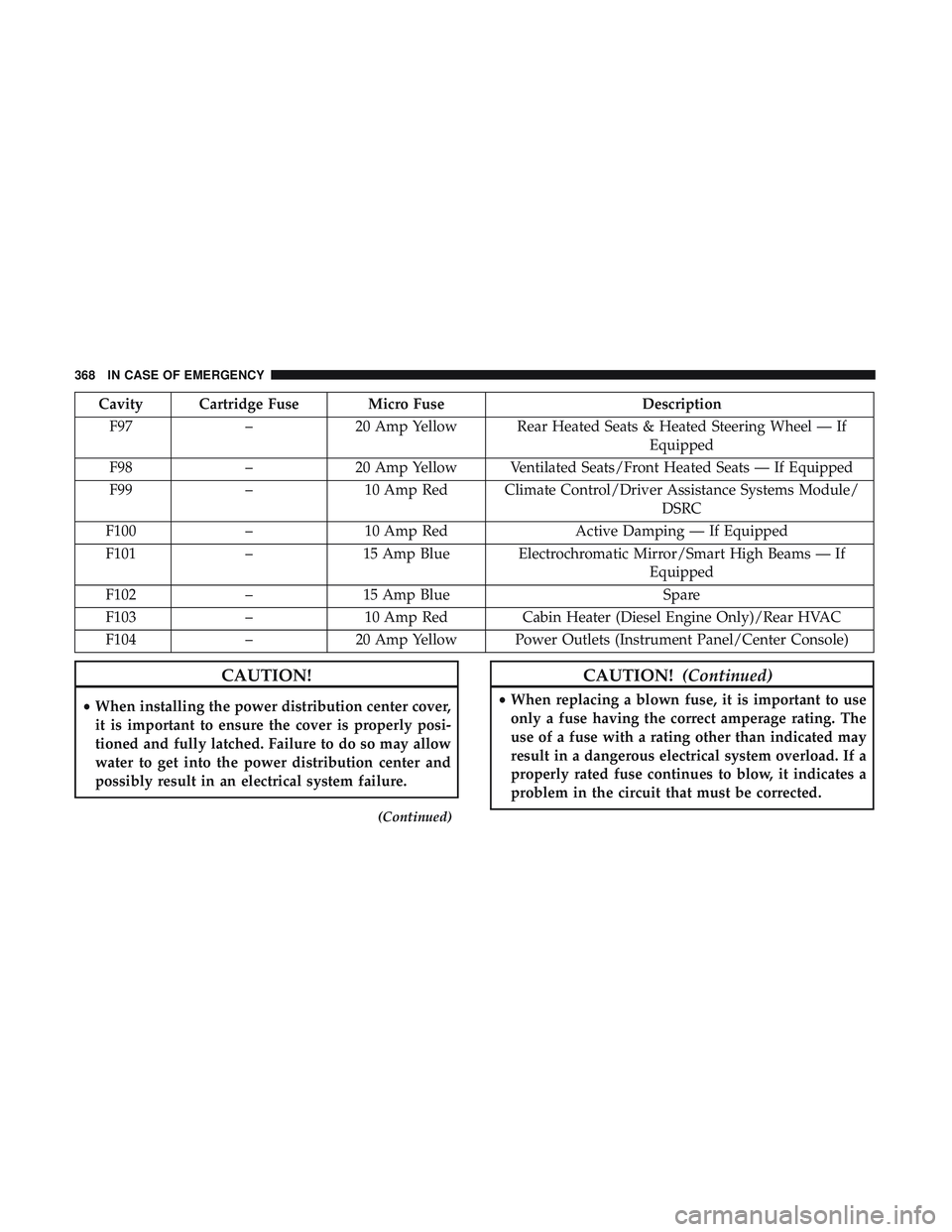
Cavity Cartridge Fuse Micro FuseDescription
F97 –20 Amp Yellow Rear Heated Seats & Heated Steering Wheel — If
Equipped
F98 –20 Amp Yellow Ventilated Seats/Front Heated Seats — If Equipped
F99 –10 Amp Red Climate Control/Driver Assistance Systems Module/
DSRC
F100 –10 Amp Red Active Damping — If Equipped
F101 –15 Amp Blue Electrochromatic Mirror/Smart High Beams — If
Equipped
F102 –15 Amp Blue Spare
F103 –10 Amp Red Cabin Heater (Diesel Engine Only)/Rear HVAC
F104 –20 Amp Yellow Power Outlets (Instrument Panel/Center Console)
CAUTION!
•When installing the power distribution center cover,
it is important to ensure the cover is properly posi-
tioned and fully latched. Failure to do so may allow
water to get into the power distribution center and
possibly result in an electrical system failure.
(Continued)
CAUTION! (Continued)
•When replacing a blown fuse, it is important to use
only a fuse having the correct amperage rating. The
use of a fuse with a rating other than indicated may
result in a dangerous electrical system overload. If a
properly rated fuse continues to blow, it indicates a
problem in the circuit that must be corrected.
368 IN CASE OF EMERGENCY
Page 467 of 568
Customer Programmable Features — Uconnect
4C/4C NAV Settings
Press the “Apps” button, then press the “Settings”
button on the touchscreen to display the menu setting
screen. In this mode the Uconnect system allows you to
access programmable features that may be equipped
such as Display, Units, Voice, Clock, Safety & Driving
Assistance, Lights, Doors & Locks, Auto-On Comfort,
Engine Off Options, Audio, Phone/Bluetooth, SiriusXM
Setup, Restore Settings, Clear Personal Data, and Sys-
tem Information.
NOTE: Depending on the vehicles options, feature settings
may vary.
When making a selection, press the button on the touch-
screen to enter the desired mode. Once in the desired mode, press and release the preferred setting “option” until
a check-mark appears next to the setting, showing that
setting has been selected. Once the setting is complete,
either press the “Back” Arrow button on the touchscreen to
return to the previous menu, or press the “X” button on the
touchscreen to close out of the settings screen. Pressing the
“Up” or “Down” Arrow button on the right side of the
screen will allow you to toggle up or down through the
available settings.
Display
After pressing the “Display” button on the touchscreen, the
following settings will be available:
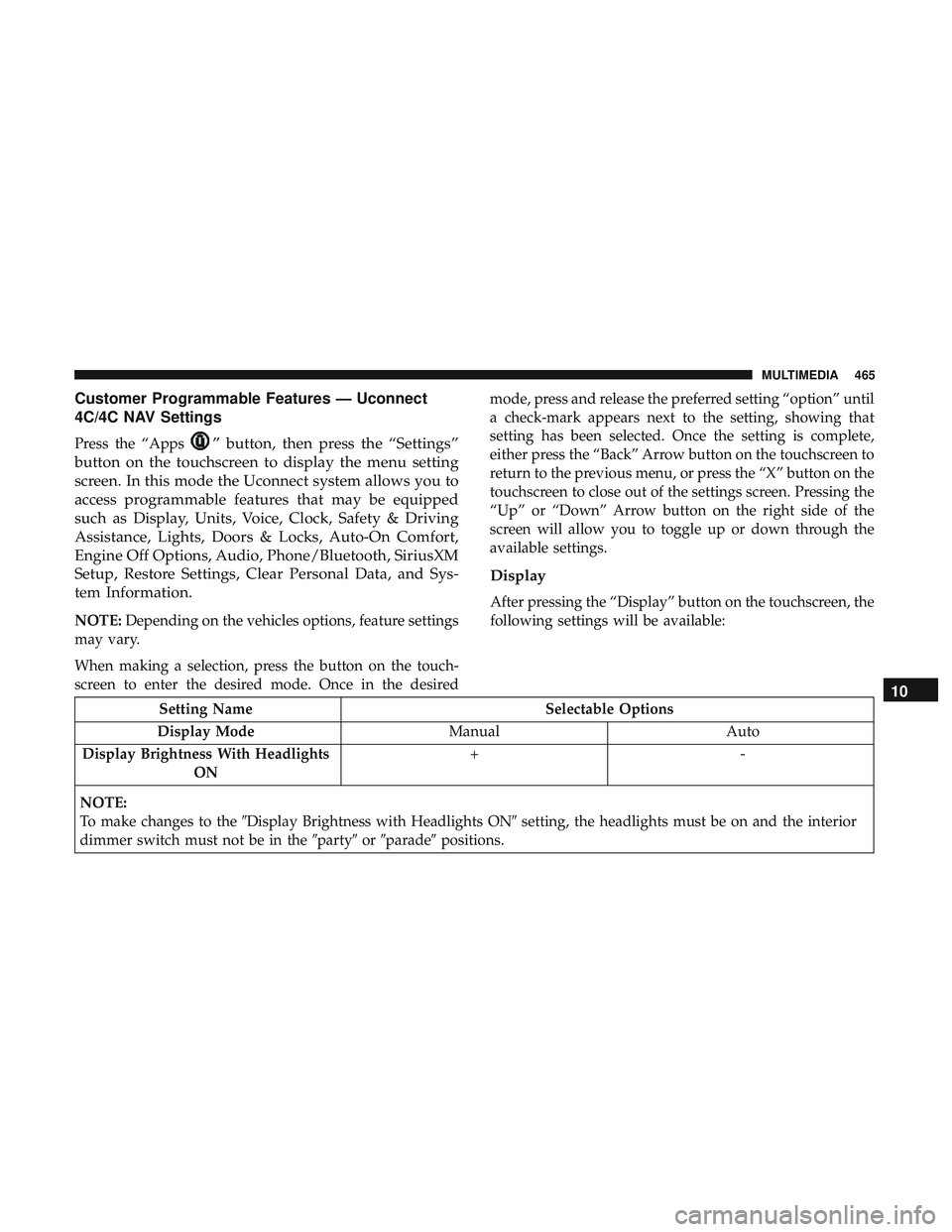
Setting Name
Selectable Options
Display Mode ManualAuto
Display Brightness With Headlights ON +-
NOTE:
To make changes to the �Display Brightness with Headlights ON� setting, the headlights must be on and the interior
dimmer switch must not be in the �party�or�parade� positions.
10
MULTIMEDIA 465
Page 482 of 568
Setting NameSelectable Options
AUX Volume Offset — If Equipped +-
NOTE:
This feature provides the ability to tune the audio level for portable devices connected through the AUX input. Auto Play On Off
Phone/Bluetooth Settings
After pressing the “Phone/Bluetooth Settings” button on
the touchscreen, the following settings will be available:
Setting Name Selectable Options
Do Not Disturb List of Settings
NOTE:
Press “Do Not Disturb” to access the available settings. The following settings are: Auto Reply (both, text, call), Auto
Reply Message (custom, default) and Custom Auto Reply Message (create message). Paired Phones and Audio Sources List Of Paired Phones and Audio Sources
NOTE:
The “Paired Phones and Audio Sources” feature shows which phones and audio sources are paired to the Phone and
Audio Sources Settings system. For further information, refer to the Uconnect Owner ’s Manual Supplement.
480 MULTIMEDIA
Page 485 of 568
Reset
After pressing the “Reset” button on the touchscreen, the
following settings will be available:
Setting NameSelectable Options
Reset App Drawer to De- fault Ok
Cancel
Restore Apps Ok Cancel
Restore Settings to Default OkCancel X
NOTE:
When this feature is selected, it will reset all of the radio features to their default settings. To restore the settings to
their default setting, press the “Restore Settings” button on the touchscreen. A pop-up will appear asking �Are you
sure you want to reset your settings to default?”
Clear Personal Data OKCancel X
NOTE:
When this feature is selected, it will remove all personal data including Bluetooth devices and presets. To remove per-
sonal information, press the “Clear Personal Data” button and a pop-up will appear asking �Are you sure you want
to clear all personal data?”
Modem Reset OK Cancel
10
MULTIMEDIA 483
Page 494 of 568
•Steering Wheel Angle
Steering Wheel Angle utilizes the steering angle sensor to
measure the degree of the steering wheel relative to zero.
The zero degree measurement indicates a steering wheel
straight ahead position. When the steering angle value is
negative, a turn to the left is indicated, and when the
steering angle value is positive, a turn to the right is
indicated.
The friction circle display shows instantaneous G-Force as
a highlight and previous G-Force as dots within the circle.
The system records previous G-Force for three minutes. If
there are multiple samples at a given point, the color of the
dot will darken from blue to red. Vectors more frequent
will show in red; infrequent vectors will show in blue.Engine
When selected, this screen displays the following values:
• Vehicle Speed
Shows the actual vehicle speed.
• Instantaneous Power
Shows the instantaneous power.
Engine
492 MULTIMEDIA
Page 497 of 568

The Drive Modes feature is controlled through the head unit
and may be accessed by performing any of the following:
•Selecting “Drive Modes” from the “Apps” menu.
• Selecting “Drive Modes” from within the Performance
Pages menu.
The SRT Drive Modes main screen displays the current
drive mode and real-time status of the vehicle’s perfor-
mance configuration. The selectable Drive Modes are
Track, Sport, Auto, Snow, Tow, or Custom. Information
shown will indicate the actual status of each system, along
with a vehicle graphic that displays the active drive mode
status. The color red indicates “Track,” orange indicates
“Sport,” yellow indicates “Street”, and blue indicates
“Snow.” These features will reset to AUTO upon an igni-
tion cycle. If the system status shown does not match the
current drive mode set up, a message will be displayed
indicating which values are not matching the current
mode. Listed below are the available Drive Modes:Track Mode
Selecting “Track” with the head unit will activate the
configuration for typical track driving. The Transmission,
Stability Control, All-Wheel Drive, Steering, and Suspen-
sion systems are all set to their “Track” settings, high-
lighted in red. The Paddle Shifters are enabled.
Drive Modes (Track)
10
MULTIMEDIA 495
Page 498 of 568
NOTE:Electronic Stability Control (ESC) Full-Off can be
activated by pushing and holding the ESC Off button on
the instrument panel switch bank for five seconds.
Sport Mode
Selecting “Sport” within the head unit activates the configu-
ration for typical enthusiast driving. The Transmission, Stabil-
ity Control, All-Wheel Drive, Steering, and Suspension sys-
tems are all set to their “Sport” settings highlighted in orange.
The Paddle Shifters are enabled.
Tow Mode
Selecting “Tow” within the head unit will activate the configu-
ration for towing a trailer. Once in this mode, trailer sway
control is enabled in the ESC system. The Transmission is set
to “Tow” setting highlighted in purple. Stability Control is set
to “Full” highlighted in blue. All-Wheel Drive is set to “50/50”
highlighted in blue. Steering is set to “Street” highlighted in
yellow. Suspension is set to “Sport” highlighted in orange.
Drive Modes (Sport)
Drive Modes (Tow)
496 MULTIMEDIA
Page 499 of 568
Snow ModeSelecting “Snow” within the head unit will activate snow
mode for use on loose traction surfaces. When in Snow
mode (depending on certain operating conditions), the
transmission may use second gear (rather than first gear)
during launches, to minimize wheel slippage. The Trans-
mission is set to “Snow” setting highlighted in blue.
Stability Control is set to “Full” highlighted in blue.
All-Wheel Drive is set to “50/50” highlighted in blue.
Steering is set to “Street” highlighted in yellow. Suspension
is set to “Street” highlighted in yellow.
Paddle shifters can be enabled or disabled by pressing the
“Snow Set-up” button on the touchscreen.
Drive Mode (Snow)
10
MULTIMEDIA 497


