Page 456 of 490
Voice Text Reply
Uconnect announcesincomingtext messages. Push the
Phone button
and say “ Listen.” (Must have compat-
ible mobile phone paired to Uconnect system.)
1. Once an incoming text message is read to you, push the
Phone button
. After the beep, say: “ Reply.”
2. Listen to the Uconnect prompts. After the beep, repeat
one of the pre-defined messages and follow the system
prompts.
PRE-DEFINED VOICE TEXT REPLY RESPONSES
Yes. Stuck in traffic. See you later.No. Start without
me. I’ll be late.
Okay. Where are you? I will be minuteslate.
Call me. Are you there
yet?
I’ll call you later. I need direc- tions.See you in
of minutes.
I’m on my way. Can’t talk right
now.
I’m lost. Thanks.TIP:
Your mobile phone must have the full implementation
of the Message Access Profile (MAP) to take advantage of
this feature. For details about MAP, visit
UconnectPhone.com.
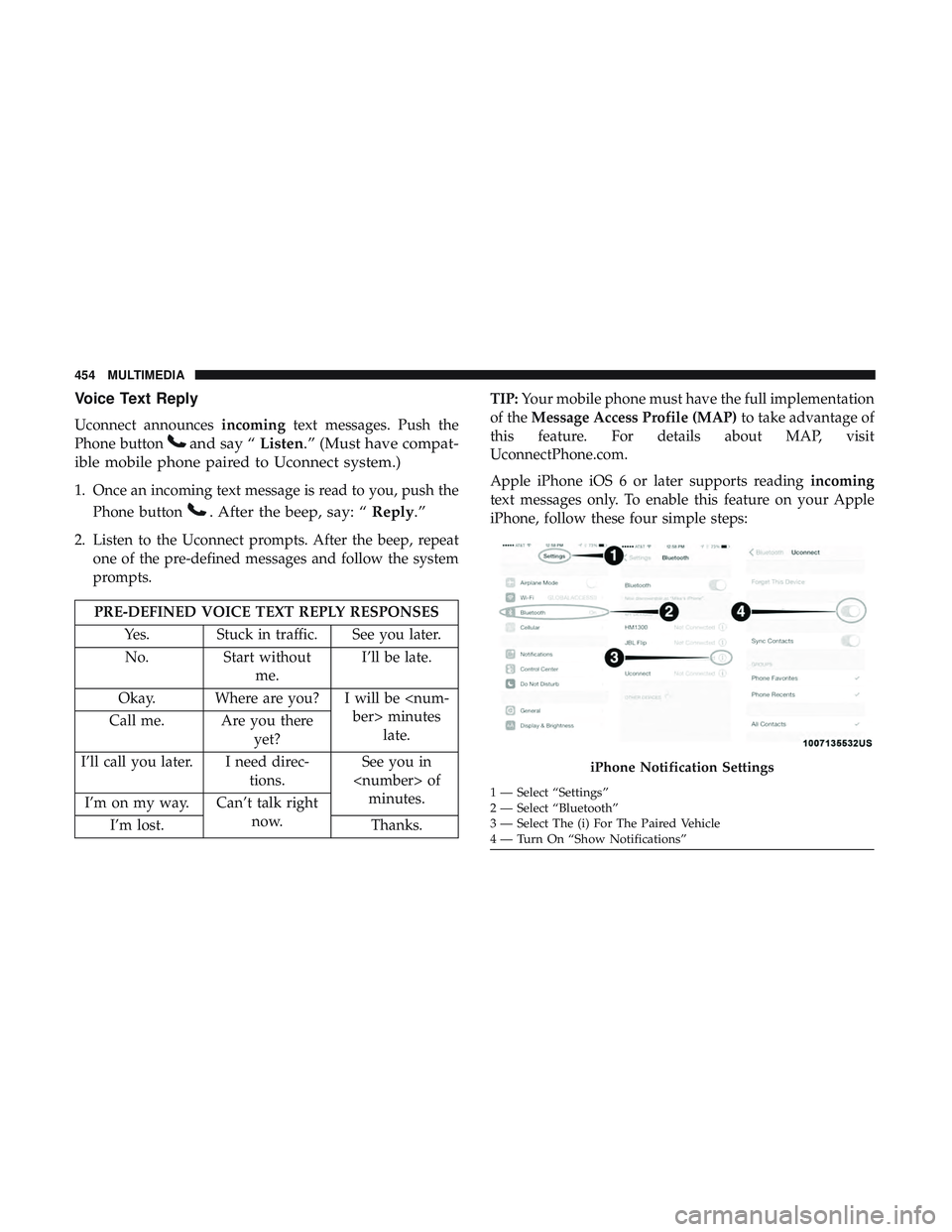
Apple iPhone iOS 6 or later supports reading incoming
text messages only. To enable this feature on your Apple
iPhone, follow these four simple steps:
iPhone Notification Settings
1 — Select “Settings”
2 — Select “Bluetooth”
3 — Select The (i) For The Paired Vehicle
4 — Turn On “Show Notifications”
454 MULTIMEDIA
Page 457 of 490
TIP:Voice Text Reply is not compatible with iPhone, but if
your vehicle is equipped with Siri Eyes Free, you can use
your voice to send a text message.
Climate
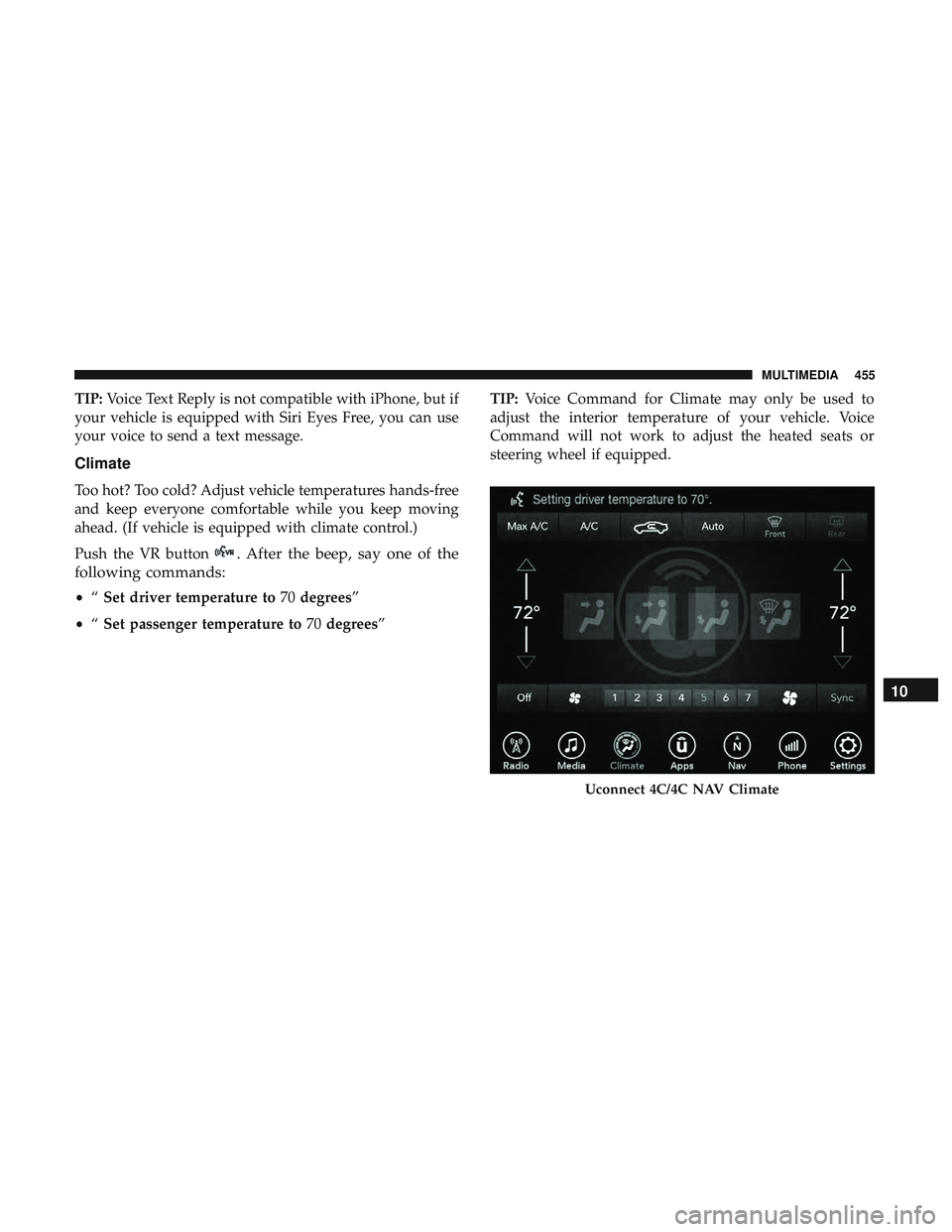
Too hot? Too cold? Adjust vehicle temperatures hands-free
and keep everyone comfortable while you keep moving
ahead. (If vehicle is equipped with climate control.)
Push the VR button
. After the beep, say one of the
following commands:
• “Set driver temperature to 70degrees”
• “Set passenger temperature to 70degrees” TIP:
Voice Command for Climate may only be used to
adjust the interior temperature of your vehicle. Voice
Command will not work to adjust the heated seats or
steering wheel if equipped.
Uconnect 4C/4C NAV Climate
10
MULTIMEDIA 455
Page 460 of 490

3. Select “Customer Care” to speak with a SiriusXMGuardian Customer Care agent who will activate ser-
vices in your vehicle, or select “Enter Email” to activate
on the web.
• U.S. residents visit: www.siriusxm.com/guardian.
• Canadian residents visit: www.siriusxm.ca/guardian.
Vehicle Health Report/Alert (4C/4C NAV)
Your vehicle will send you a monthly email report, which
summarizes the performance of your vehicle’s key systems
so you can stay on top of your vehicle’s maintenance needs
if you are registered for SiriusXM Guardian. Your vehicle
will also send you Vehicle Health Alerts when it detects
issues with its key systems that need your attention. For
further information, refer to your Uconnect Owner ’s
Manual Supplement.
Mobile App (4C/4C NAV)
You’re only a few steps away from using remote com-
mands and sending a destination from your phone to your
vehicle.
To use the Uconnect Mobile App:
•
Once you have registered your SiriusXM Guardian services,
download the Uconnect App to your mobile device. Use
your Owner Account login and password to open the app.
•Once on the “Remote” screen, you can begin using
Remote Door Lock/Unlock, Remote Vehicle Start, and
activate your horn and lights remotely, if equipped.
Mobile App
458 MULTIMEDIA
Page 461 of 490

•Press the “Location” button on the bottom menu bar of
the app to bring up a map to locate your vehicle or send
a location to your Uconnect Navigation using Vehicle
Finder and Send & Go , if equipped.
• Press the “Settings” side menu in the upper left corner of
the app to bring up app settings.
NOTE: For further information please visit
DriveUconnect.com (U.S. Residents) or DriveUconnect.ca
(Canadian Residents).
SiriusXM Travel Link (4C NAV)
Need to find a gas station, view local movie listings, check
a sports score or the 5 - day weather forecast? SiriusXM
Travel Link is a suite of services that brings a wealth of
information right to your Uconnect 4C NAV system. (Not
available for Uconnect 4 system.)
Push the VR button
. After the beep, say one of the
following commands:
• “Show fuel prices”
• “Show 5 - day weather forecast”
• “Show extended weather”
TIP: Traffic alerts are not accessible with Voice Command.
Siri Eyes Free — If Equipped
Siri lets you use your voice to send text messages, select
media, place phone calls and much more. Siri uses your
natural language to understand what you mean and re-
sponds back to confirm your requests. The system is
designed to keep your eyes on the road and your hands on
the wheel by letting Siri help you perform useful tasks.
SiriusXM Travel Link10
MULTIMEDIA 459
Page 463 of 490

NOTE:
•Reply with text message is not compatible with iPhones.
• Auto reply with text message is only available on
phones that support Bluetooth MAP.
Android Auto — If Equipped
NOTE: Feature availability depends on your carrier and
mobile phone manufacturer. Some Android Auto features
may or may not be available in every region and/or
language.
Android Auto allows you to use your voice to interact with
Android’s best-in-class speech technology through your ve-
hicle’s voice recognition system, and use your smartphone’s
data plan to project your Android powered smartphone and
a number of its apps onto your Uconnect touchscreen.
Connect your Android 5.0 (Lollipop), or higher, to one of the
media USB ports, using the factory-provided USB cable, and
press the new Android Auto icon that replaces your “Phone”
icon on the main menu bar to begin Android Auto. Push and
hold the VR button on the steering wheel, or press and hold
the “Microphone” icon within Android Auto, to activate
Android’s VR, which recognizes natural voice commands, to
use a list of your smartphone’s features:
• Maps •
Music
• Phone
• Text Messages
• Additional Apps
Refer to your Uconnect Owner ’s Manual Supplement for
further information.
Android Auto On 8.4-inch Display
10
MULTIMEDIA 461
Page 464 of 490

NOTE:Requires compatible smartphone running
Android™ 5.0 Lollipop or higher and download app on
Google Play. Android, Android Auto, and Google Play are
trademarks of Google Inc.
Apple CarPlay — If Equipped
NOTE: Feature availability depends on your carrier and
mobile phone manufacturer. Some Apple CarPlay features
may or may not be available in every region and/or
language.
Apple CarPlay allows you to use your voice to interact
with Siri through your vehicle’s voice recognition system,
and use your smartphone’s data plan to project your
iPhone and a number of its apps onto your Uconnect
touchscreen. Connect your iPhone 5, or higher, to one of
the media USB ports, using the factory-provided Lightning
cable, and press the new CarPlay icon that replaces your
“Phone” icon on the main menu bar to begin Apple
CarPlay. Press and hold the VR button on the steering
wheel, or press and hold the “Home” button within Apple
CarPlay, to activate Siri, which recognizes natural voice
commands to use a list of your iPhone’s features:
• Phone
• Music •
Messages
• Maps
• Additional Apps
Refer to your Uconnect Owner ’s Manual Supplement for
further information.
Apple CarPlay On 8.4-inch Display
462 MULTIMEDIA
Page 465 of 490

NOTE:Requires compatible iPhone. See dealer for phone
compatibility. Data plan rates apply. Vehicle user interface
is a product of Apple®. Apple CarPlay is a trademark of
Apple Inc. iPhone is a trademark of Apple Inc., registered
in the US and other countries. Apple terms of use and
privacy statements apply.
General Information
The following regulatory statement applies to all Radio
Frequency (RF) devices equipped in this vehicle:
This device complies with Part 15 of the FCC Rules and
with Industry Canada license-exempt RSS standard(s).
Operation is subject to the following two conditions:
1. This device may not cause harmful interference, and
2. This device must accept any interference received, in- cluding interference that may cause undesired opera-
tion.
NOTE: Changes or modifications not expressly approved
by the party responsible for compliance could void the
user ’s authority to operate the equipment.
Additional Information
© 2018 FCA US LLC. All rights reserved. Mopar and
Uconnect are registered trademarks and Mopar Owner
Connect is a trademark of FCA US LLC. Android is a
trademark of Google Inc. SiriusXM and all related marks
and logos are trademarks of SiriusXM Radio Inc.
Uconnect System Support:
• U.S. residents visit DriveUconnect.com or call:
1-877-855-8400 (24 hours a day 7 days a week)
• Canadian residents visit DriveUconnect.ca or call:
1-800-465-2001 (English) or 1-800-387-9983 (French)
SiriusXM Guardian services support:
• U.S. residents visit www.siriusxm.com/guardian or call:
1-844-796-4827
• Canadian residents visit www.siriusxm.ca/guardian or
call: 1-877-324-9091
10
MULTIMEDIA 463
Page 469 of 490
Any communication to the manufacturer’s customer center
should include the following information:
•Owner’s name and address
• Owner’s telephone number (home and office)
• Authorized dealer name
• Vehicle Identification Number (VIN)
• Vehicle delivery date and mileage
FCA US LLC Customer Center
P.O. Box 21–8004
Auburn Hills, MI 48321–8004
Phone: (800) 423-6343
FCA Canada Inc. Customer Center
P.O. Box 1621
Windsor, Ontario N9A 4H6
Phone: (800) 465-2001 English / (800) 387-9983 French
In Mexico Contact
Av. Prolongacion Paseo de la Reforma, 1240
Sante Fe C.P. 05109
Mexico, D. F.
In Mexico City: 800-505-1300
Outside Mexico City: +(52)55 50817568
Puerto Rico And U.S. Virgin Islands
FCA Caribbean LLC
P.O. Box 191857
San Juan 00919-1857
Phone: (800) 423-6343
Fax: (787) 782-3345
11
CUSTOMER ASSISTANCE 467