Page 435 of 516
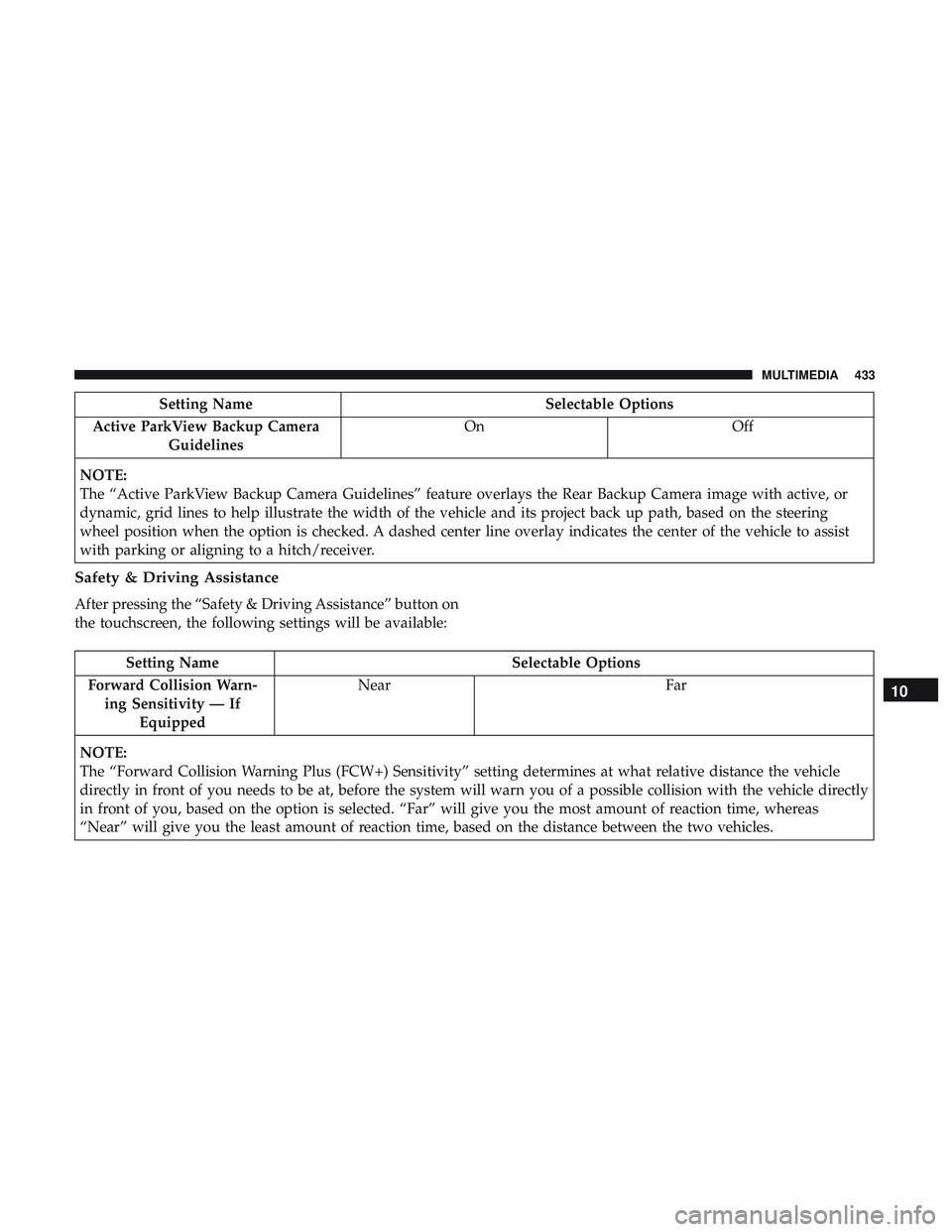
Setting NameSelectable Options
Active ParkView Backup Camera Guidelines On
Off
NOTE:
The “Active ParkView Backup Camera Guidelines” feature overlays the Rear Backup Camera image with active, or
dynamic, grid lines to help illustrate the width of the vehicle and its project back up path, based on the steering
wheel position when the option is checked. A dashed center line overlay indicates the center of the vehicle to assist
with parking or aligning to a hitch/receiver.
Safety & Driving Assistance
After pressing the “Safety & Driving Assistance” button on
the touchscreen, the following settings will be available:
Setting Name Selectable Options
Forward Collision Warn- ing Sensitivity — If Equipped Near
Far
NOTE:
The “Forward Collision Warning Plus (FCW+) Sensitivity” setting determines at what relative distance the vehicle
directly in front of you needs to be at, before the system will warn you of a possible collision with the vehicle directly
in front of you, based on the option is selected. “Far” will give you the most amount of reaction time, whereas
“Near” will give you the least amount of reaction time, based on the distance between the two vehicles.
10
MULTIMEDIA 433
Page 443 of 516
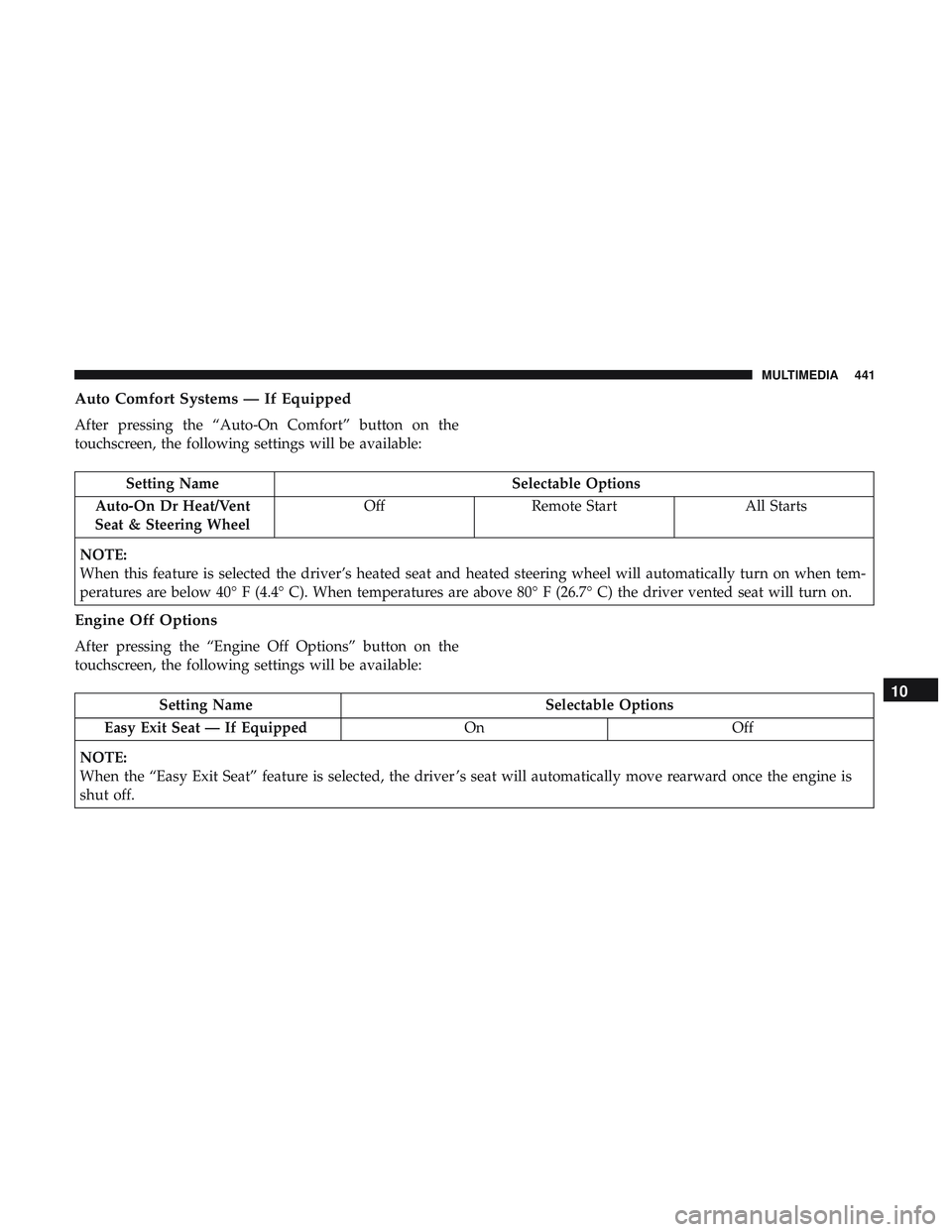
Auto Comfort Systems — If Equipped
After pressing the “Auto-On Comfort” button on the
touchscreen, the following settings will be available:
Setting NameSelectable Options
Auto-On Dr Heat/Vent
Seat & Steering Wheel Off
Remote Start All Starts
NOTE:
When this feature is selected the driver’s heated seat and heated steering wheel will automatically turn on when tem-
peratures are below 40° F (4.4° C). When temperatures are above 80° F (26.7° C) the driver vented seat will turn on.
Engine Off Options
After pressing the “Engine Off Options” button on the
touchscreen, the following settings will be available:
Setting Name Selectable Options
Easy Exit Seat — If Equipped OnOff
NOTE:
When the “Easy Exit Seat” feature is selected, the driver ’s seat will automatically move rearward once the engine is
shut off.10
MULTIMEDIA 441
Page 458 of 516

When G-Force is selected, the following features will be
available:
•Vehicle Speed:
Measures the current speed of the vehicle in either mph
or km/h, starting at zero with no maximum value.
• Front G-Force:
Measures the braking force.
• Right G-Force:
Measures the left turn force.
• Left G-Forces:
Measures the right turn force.
• Rear G-Forces:
Measures the acceleration force.
NOTE: Front, Right, Left, and Rear G-Forces are all peak
values. These readings can be reset by clearing peak
G-Force on the instrument cluster. •
Steering Wheel Angle
Steering Wheel Angle utilizes the steering angle sensor to
measure the degree of the steering wheel relative to zero.
The zero degree measurement indicates a steering wheel
straight ahead position. When the steering angle value is
negative, a turn to the left is indicated, and when the
steering angle value is positive, a turn to the right is
indicated.
The friction circle display shows instantaneous G-Force as
a highlight and previous G-Force as dots within the circle.
The system records previous G-Force for three minutes. If
there are multiple samples at a given point, the color of the
dot will darken from blue to red. Vectors more frequent
will show in red; infrequent vectors will show in blue.
456 MULTIMEDIA
Page 464 of 516
The Paddle Shifters may be enabled or disabled while in
this mode.SPORT MODE
Sport Mode is a configuration set-up for typical enthusiast
driving. The Transmission and Steering are both set to their
Sport settings. The steering wheel paddle switches are
enabled. The Traction Control defaults to Normal. Any of
these four settings may be changed to the driver ’s prefer-
ences by pressing the buttons on the touchscreen. Push the
Default Mode Set-UpSport Mode
462 MULTIMEDIA
Page 467 of 516
•SPORT
Press the “Sport” button on the touchscreen for improved
throttle response and modified shifting for an enhanced
driving experience.
• NORMAL
Press the “Norm” button on the touchscreen for a balance
of throttle response, shift comfort and economy for normal
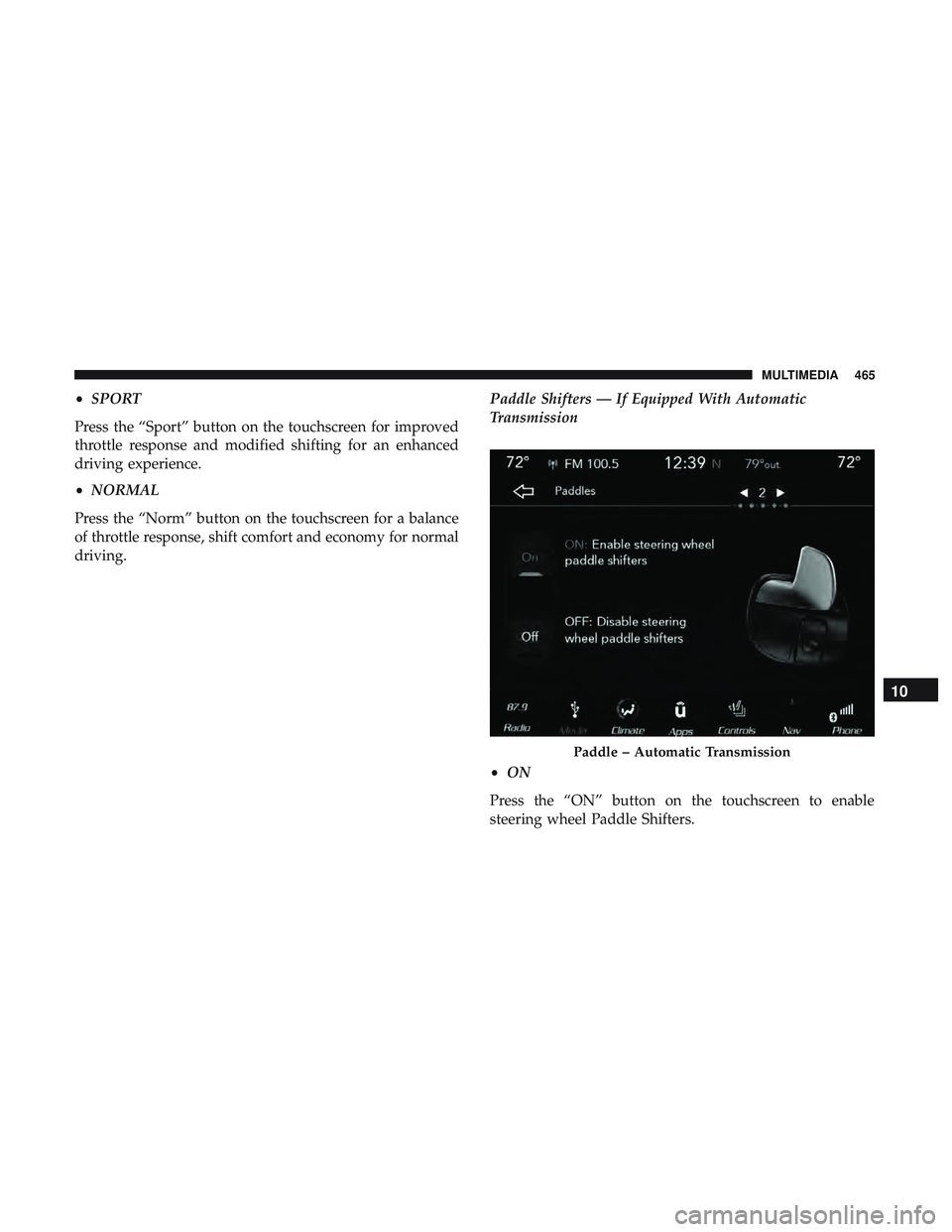
driving. Paddle Shifters — If Equipped With Automatic
Transmission
•
ON
Press the “ON” button on the touchscreen to enable
steering wheel Paddle Shifters.
Paddle – Automatic Transmission
10
MULTIMEDIA 465
Page 468 of 516
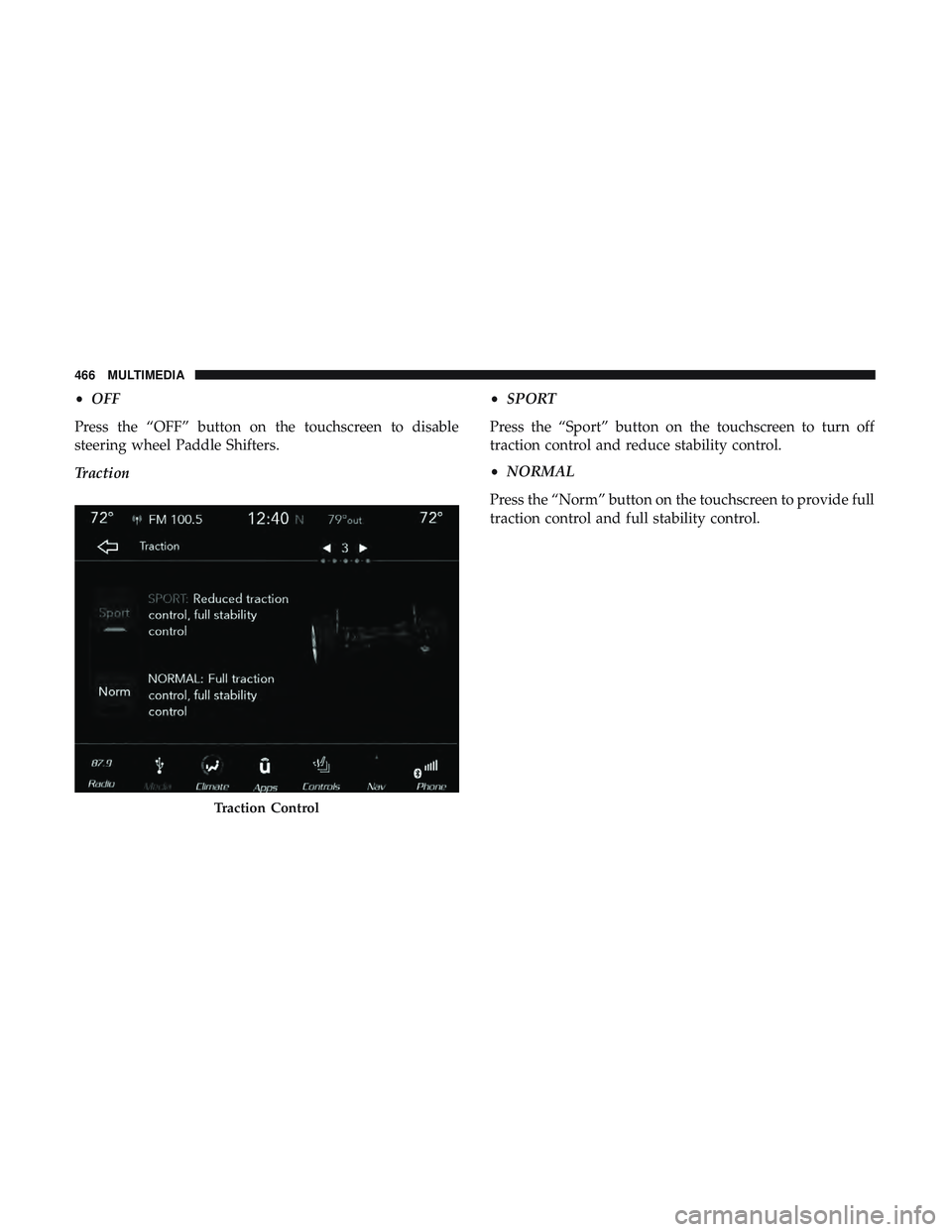
•OFF
Press the “OFF” button on the touchscreen to disable
steering wheel Paddle Shifters.
Traction •
SPORT
Press the “Sport” button on the touchscreen to turn off
traction control and reduce stability control.
• NORMAL
Press the “Norm” button on the touchscreen to provide full
traction control and full stability control.
Traction Control
466 MULTIMEDIA
Page 470 of 516

STEERING WHEEL AUDIO CONTROLS — IF
EQUIPPED
The remote sound system controls are located on the rear
surface of the steering wheel. Reach behind the wheel to
access the switches.
The right-hand control is a rocker-type switch with a
push-button in the center and controls the volume and
mode of the sound system. Pushing the top of the rocker
switch will increase the volume, and pushing the bottom of
the rocker switch will decrease the volume.Pushing the center button will make the radio switch
between the various modes available (AM/FM/SAT/
AUX, etc.).
The left-hand control is a rocker-type switch with a push-
button in the center. The function of the left-hand control is
different depending on which mode you are in.
The following describes the left-hand control operation in
each mode.
Radio Operation
Pushing the top of the switch will “Seek” up for the next
listenable station and pushing the bottom of the switch will
“Seek” down for the next listenable station.
The button located in the center of the left-hand control
will tune to the next preset station that you have pro-
grammed in the radio preset button.
Media Mode
Pushing the top of the switch once goes to the next track on
the selected media (AUX/USB/Bluetooth). Pushing the
bottom of the switch once goes to the beginning of the
current track, or to the beginning of the previous track if it
is within eight seconds after the current track begins to
play.
Steering Wheel Audio Controls (Back View Of Steering
Wheel)
468 MULTIMEDIA
Page 474 of 516
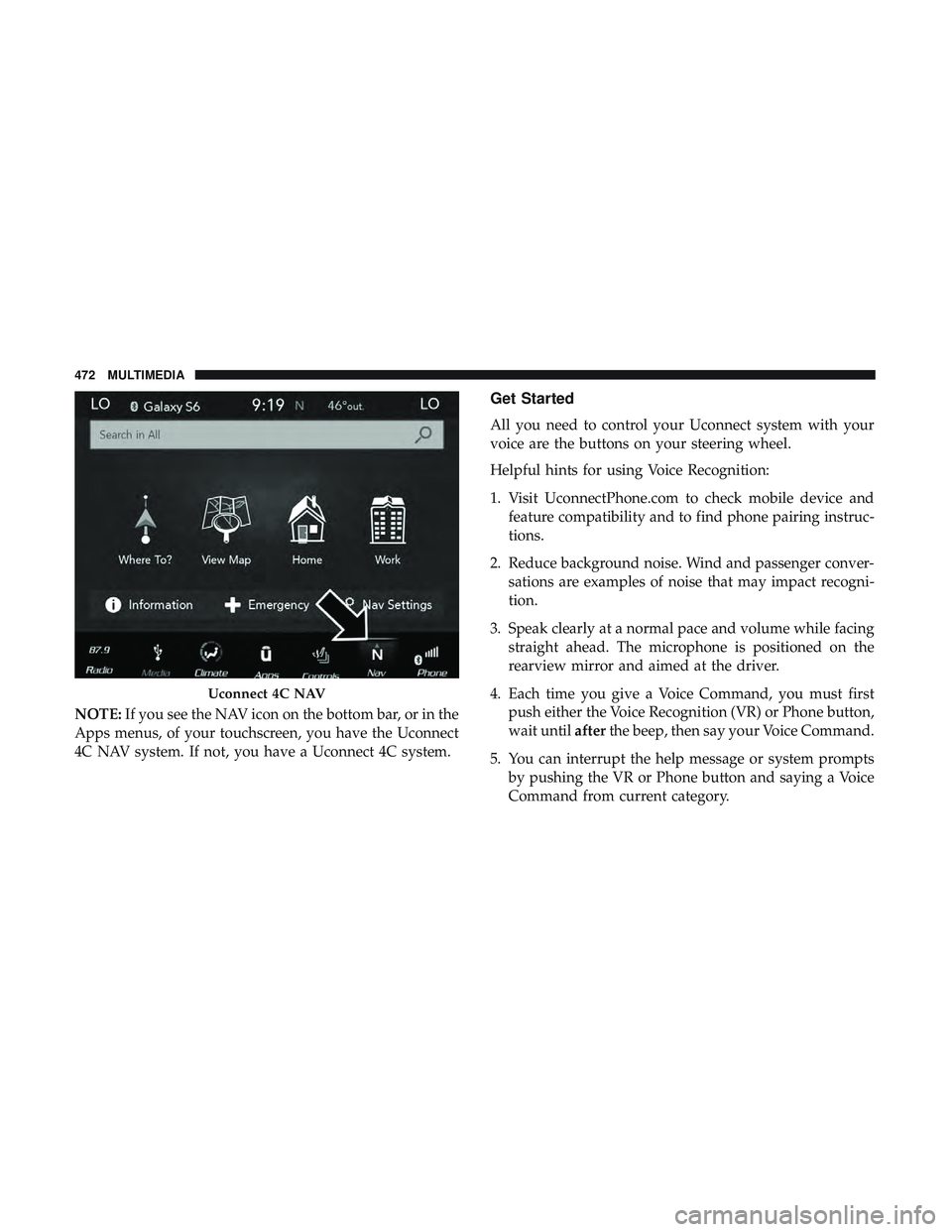
NOTE:If you see the NAV icon on the bottom bar, or in the
Apps menus, of your touchscreen, you have the Uconnect
4C NAV system. If not, you have a Uconnect 4C system.
Get Started
All you need to control your Uconnect system with your
voice are the buttons on your steering wheel.
Helpful hints for using Voice Recognition:
1. Visit UconnectPhone.com to check mobile device and feature compatibility and to find phone pairing instruc-
tions.
2. Reduce background noise. Wind and passenger conver- sations are examples of noise that may impact recogni-
tion.
3. Speak clearly at a normal pace and volume while facing straight ahead. The microphone is positioned on the
rearview mirror and aimed at the driver.
4. Each time you give a Voice Command, you must first push either the Voice Recognition (VR) or Phone button,
wait until afterthe beep, then say your Voice Command.
5. You can interrupt the help message or system prompts by pushing the VR or Phone button and saying a Voice
Command from current category.
Uconnect 4C NAV
472 MULTIMEDIA