Page 518 of 696

Automatic Transmission
Selection Of Lubricant
It is important to use the proper transmission fluid to
ensure optimum transmission performance and life. Use
only the manufacturer’s specified transmission fluid. Refer
to “Fluids And Lubricants” in “Technical Specifications”
for fluid specifications. It is important to maintain the
transmission fluid at the correct level using the recom-
mended fluid.
NOTE:No chemical flushes should be used in any trans-
mission; only the approved lubricant should be used.
CAUTION!
Using a transmission fluid other than the manufactur-
er ’s recommended fluid may cause deterioration in
transmission shift quality and/or torque converter
shudder. Refer to “Fluids And Lubricants” in “Techni-
cal Specifications” for fluid specifications.
Special Additives
The manufacturer strongly recommends against using any
special additives in the transmission. Automatic Transmis-
sion Fluid (ATF) is an engineered product and its perfor-
mance may be impaired by supplemental additives. There-
fore, do not add any fluid additives to the transmission.
Avoid using transmission sealers as they may adversely
affect seals.
CAUTION!
Do not use chemical flushes in your transmission as
the chemicals can damage your transmission compo-
nents. Such damage is not covered by the New Vehicle
Limited Warranty.
Fluid Level Check
The fluid level is preset at the factory and does not require
adjustment under normal operating conditions. Routine
fluid level checks are not required; therefore the transmis-
sion has no dipstick. An authorized dealer can check your
transmission fluid level using special service tools. If you
notice fluid leakage or transmission malfunction, visit an
authorized dealer immediately to have the transmission
516 SERVICING AND MAINTENANCE
Page 568 of 696
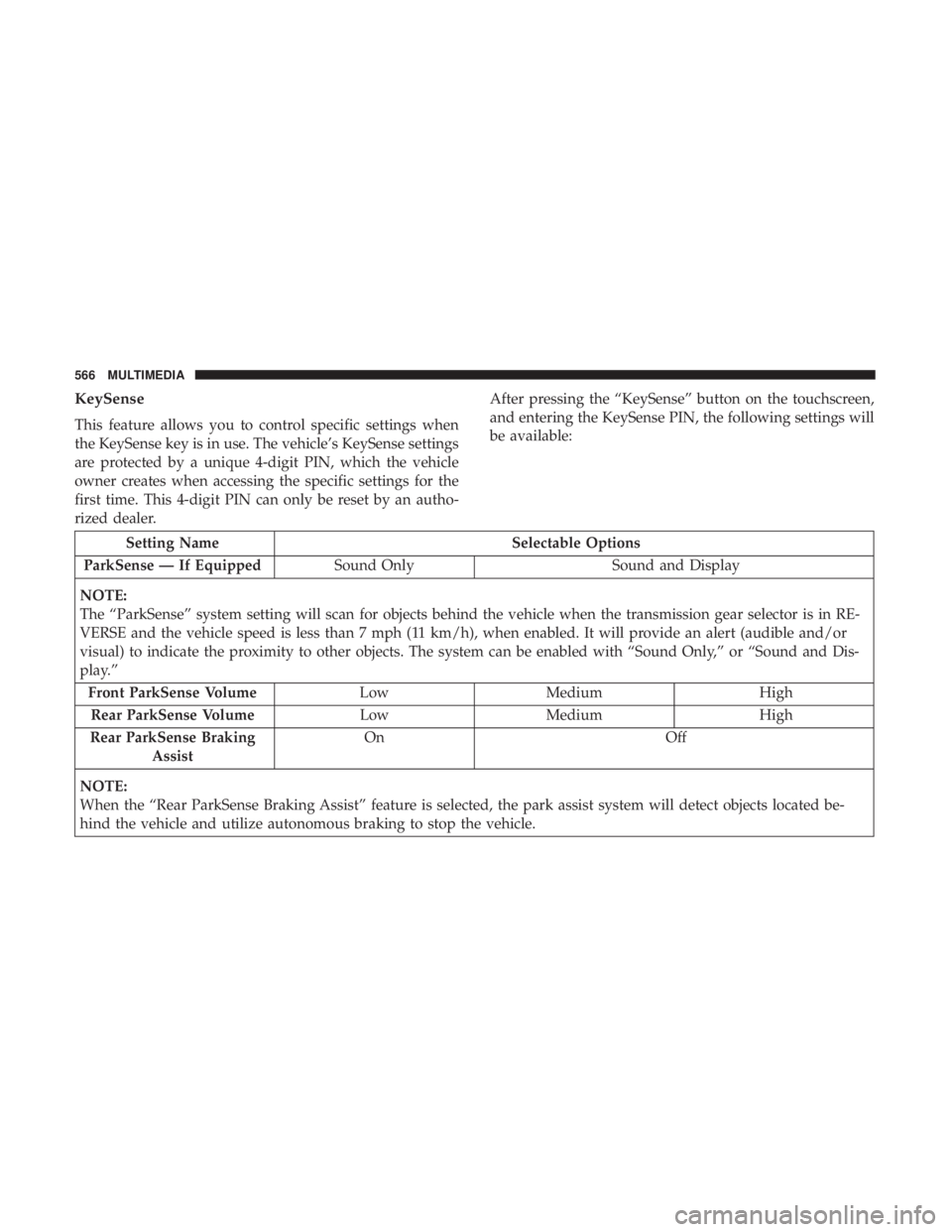
KeySense
This feature allows you to control specific settings when
the KeySense key is in use. The vehicle’s KeySense settings
are protected by a unique 4-digit PIN, which the vehicle
owner creates when accessing the specific settings for the
first time. This 4-digit PIN can only be reset by an autho-
rized dealer.After pressing the “KeySense” button on the touchscreen,
and entering the KeySense PIN, the following settings will
be available:
Setting Name
Selectable Options
ParkSense — If Equipped Sound Only Sound and Display
NOTE:
The “ParkSense” system setting will scan for objects behind the vehicle when the transmission gear selector is in RE-
VERSE and the vehicle speed is less than 7 mph (11 km/h), when enabled. It will provide an alert (audible and/or
visual) to indicate the proximity to other objects. The system can be enabled with “Sound Only,” or “Sound and Dis-
play.” Front ParkSense Volume LowMedium High
Rear ParkSense Volume LowMedium High
Rear ParkSense Braking Assist On
Off
NOTE:
When the “Rear ParkSense Braking Assist” feature is selected, the park assist system will detect objects located be-
hind the vehicle and utilize autonomous braking to stop the vehicle.
566 MULTIMEDIA
Page 586 of 696
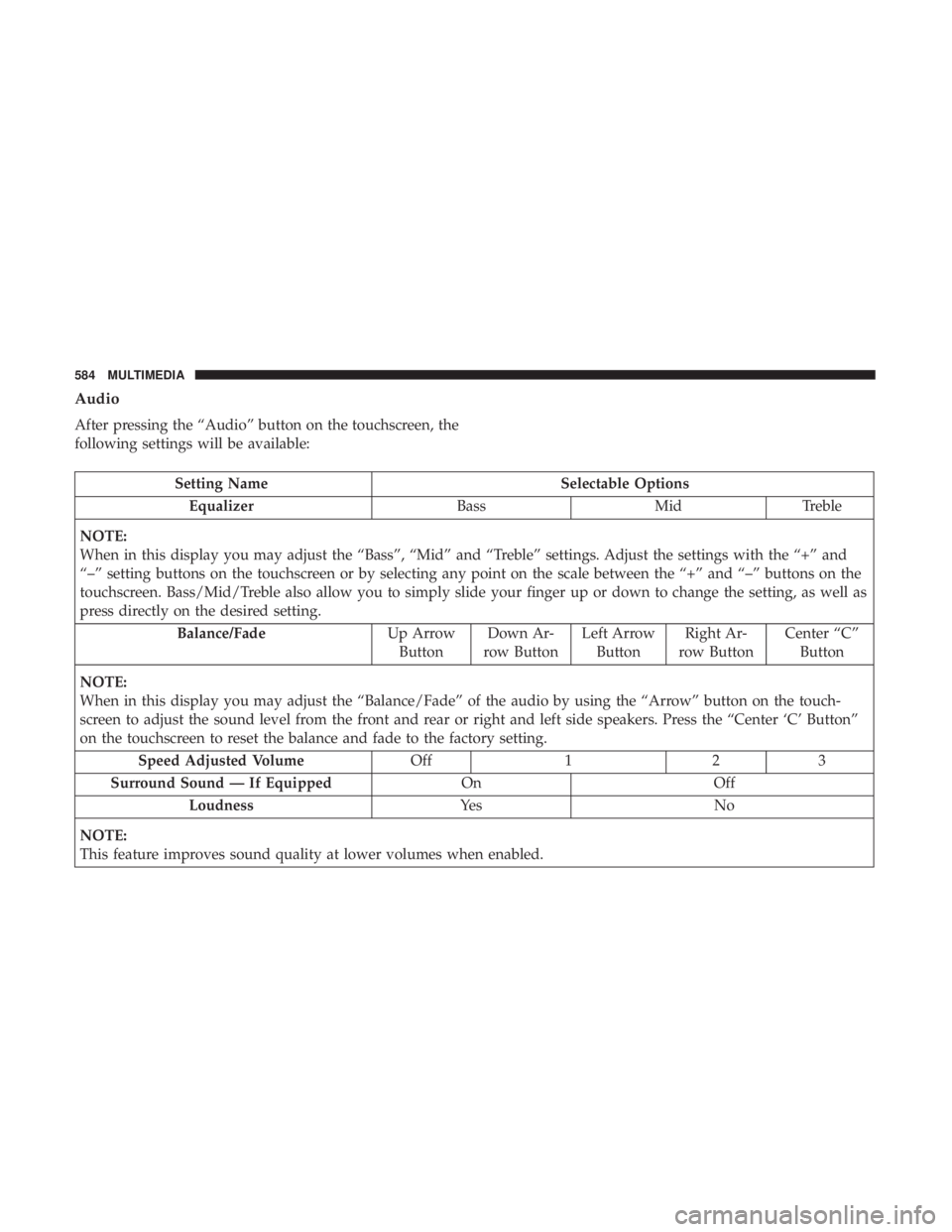
Audio
After pressing the “Audio” button on the touchscreen, the
following settings will be available:
Setting NameSelectable Options
Equalizer BassMidTreble
NOTE:
When in this display you may adjust the “Bass”, “Mid” and “Treble” settings. Adjust the settings with the “+” and
“–” setting buttons on the touchscreen or by selecting any point on the scale between the “+” and “–” buttons on the
touchscreen. Bass/Mid/Treble also allow you to simply slide your finger up or down to change the setting, as well as
press directly on the desired setting. Balance/Fade Up Arrow
Button Down Ar-
row Button Left Arrow
Button Right Ar-
row Button Center “C”
Button
NOTE:
When in this display you may adjust the “Balance/Fade” of the audio by using the “Arrow” button on the touch-
screen to adjust the sound level from the front and rear or right and left side speakers. Press the “Center ‘C’ Button”
on the touchscreen to reset the balance and fade to the factory setting. Speed Adjusted Volume Off123
Surround Sound — If Equipped OnOff
Loudness Ye sN o
NOTE:
This feature improves sound quality at lower volumes when enabled.
584 MULTIMEDIA
Page 592 of 696
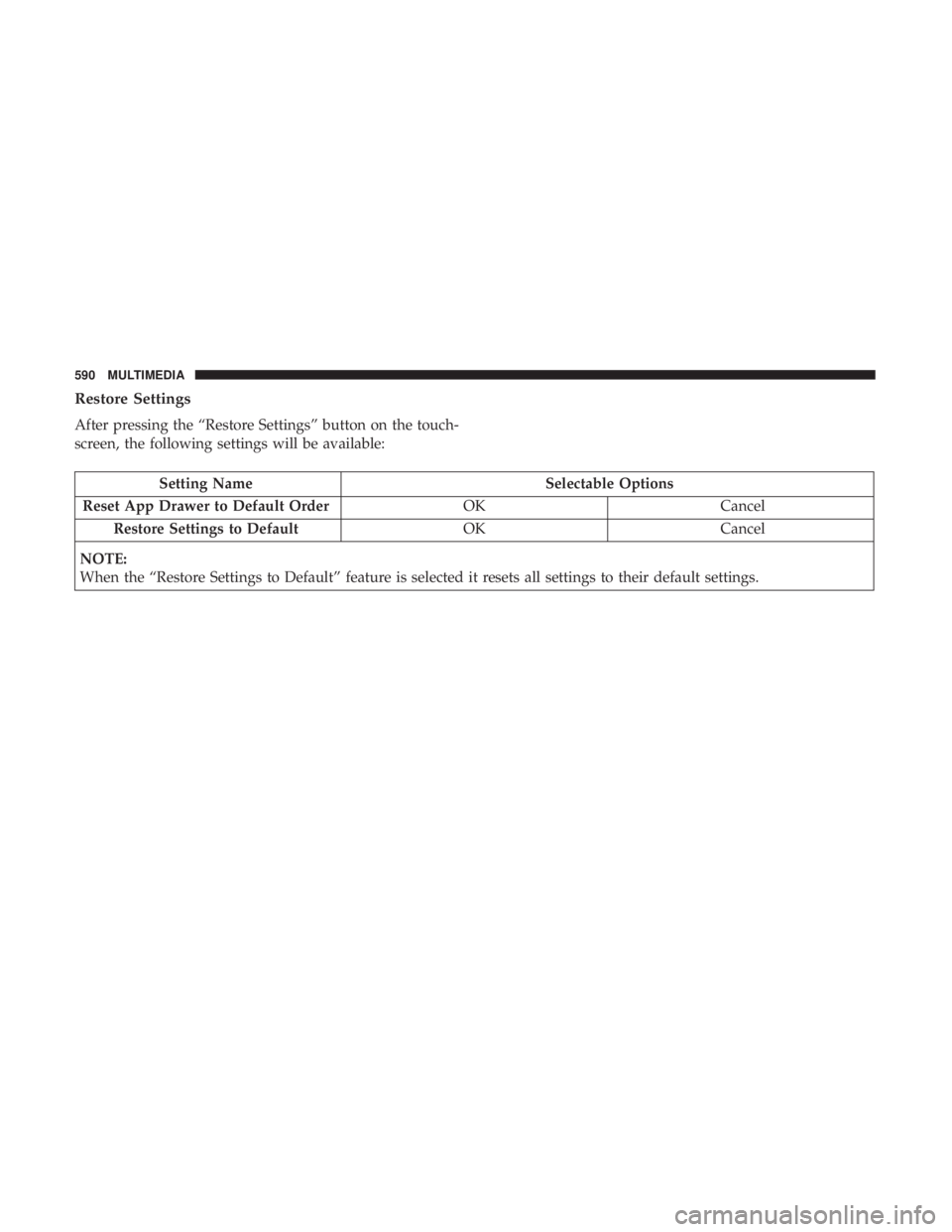
Restore Settings
After pressing the “Restore Settings” button on the touch-
screen, the following settings will be available:
Setting NameSelectable Options
Reset App Drawer to Default Order OKCancel
Restore Settings to Default OKCancel
NOTE:
When the “Restore Settings to Default” feature is selected it resets all settings to their default settings.
590 MULTIMEDIA
Page 593 of 696
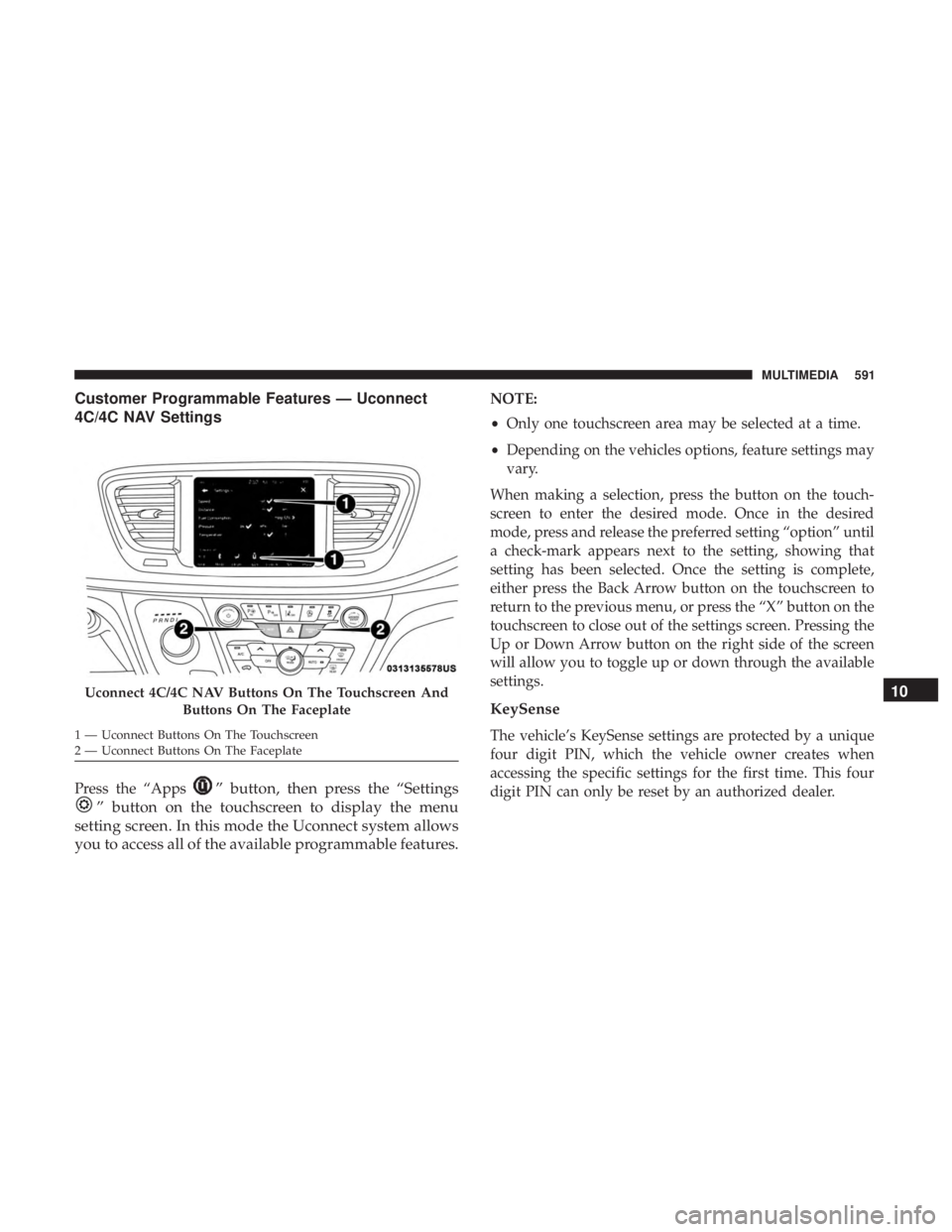
Customer Programmable Features — Uconnect
4C/4C NAV Settings
Press the “Apps” button, then press the “Settings
” button on the touchscreen to display the menu
setting screen. In this mode the Uconnect system allows
you to access all of the available programmable features.
NOTE:
• Only one touchscreen area may be selected at a time.
• Depending on the vehicles options, feature settings may
vary.
When making a selection, press the button on the touch-
screen to enter the desired mode. Once in the desired
mode, press and release the preferred setting “option” until
a check-mark appears next to the setting, showing that
setting has been selected. Once the setting is complete,
either press the Back Arrow button on the touchscreen to
return to the previous menu, or press the “X” button on the
touchscreen to close out of the settings screen. Pressing the
Up or Down Arrow button on the right side of the screen
will allow you to toggle up or down through the available
settings.
KeySense
The vehicle’s KeySense settings are protected by a unique
four digit PIN, which the vehicle owner creates when
accessing the specific settings for the first time. This four
digit PIN can only be reset by an authorized dealer.
Uconnect 4C/4C NAV Buttons On The Touchscreen And Buttons On The Faceplate
1 — Uconnect Buttons On The Touchscreen
2 — Uconnect Buttons On The Faceplate
10
MULTIMEDIA 591
Page 615 of 696
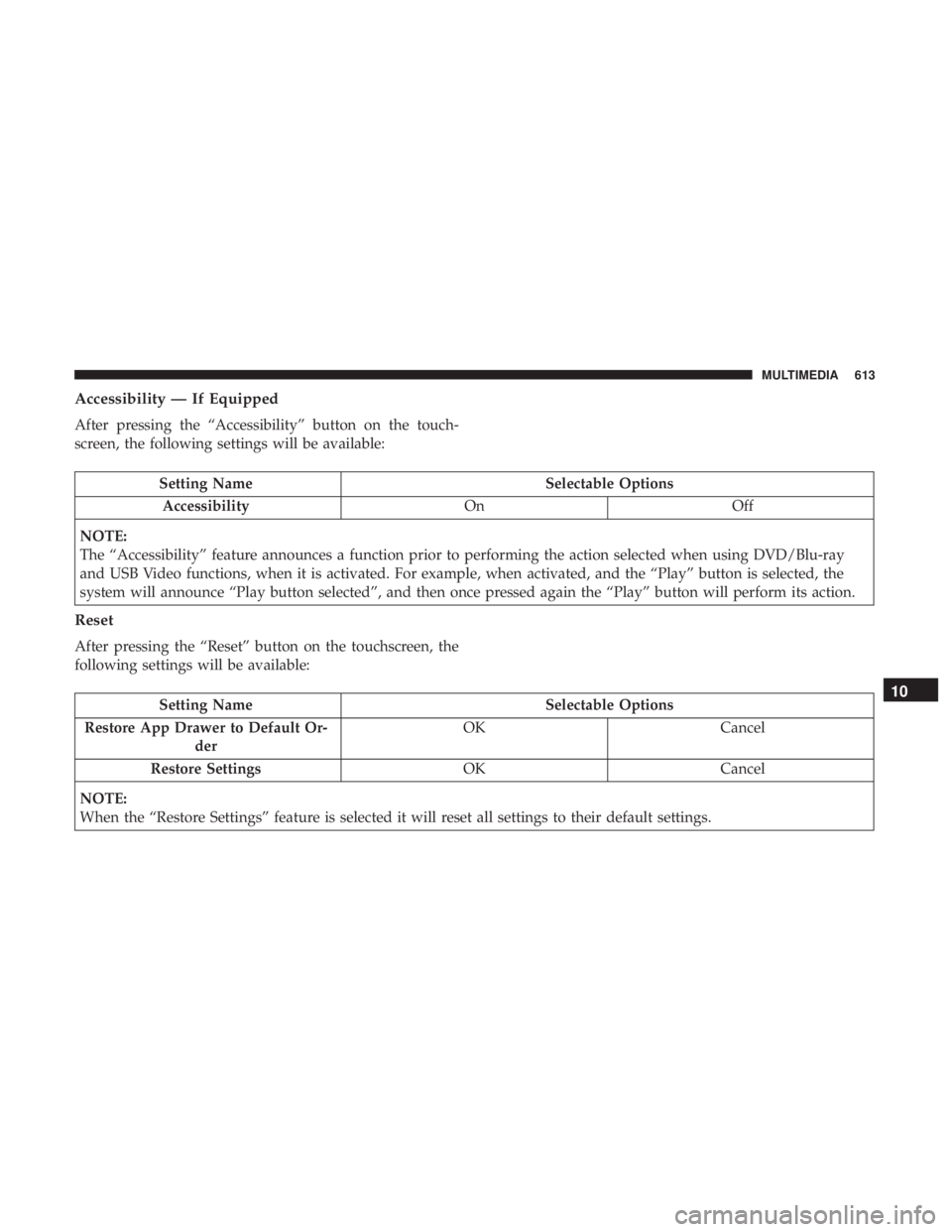
Accessibility — If Equipped
After pressing the “Accessibility” button on the touch-
screen, the following settings will be available:
Setting NameSelectable Options
Accessibility OnOff
NOTE:
The “Accessibility” feature announces a function prior to performing the action selected when using DVD/Blu-ray
and USB Video functions, when it is activated. For example, when activated, and the “Play” button is selected, the
system will announce “Play button selected”, and then once pressed again the “Play” button will perform its action.
Reset
After pressing the “Reset” button on the touchscreen, the
following settings will be available:
Setting Name Selectable Options
Restore App Drawer to Default Or- der OK
Cancel
Restore Settings OKCancel
NOTE:
When the “Restore Settings” feature is selected it will reset all settings to their default settings.10
MULTIMEDIA 613
Page 616 of 696
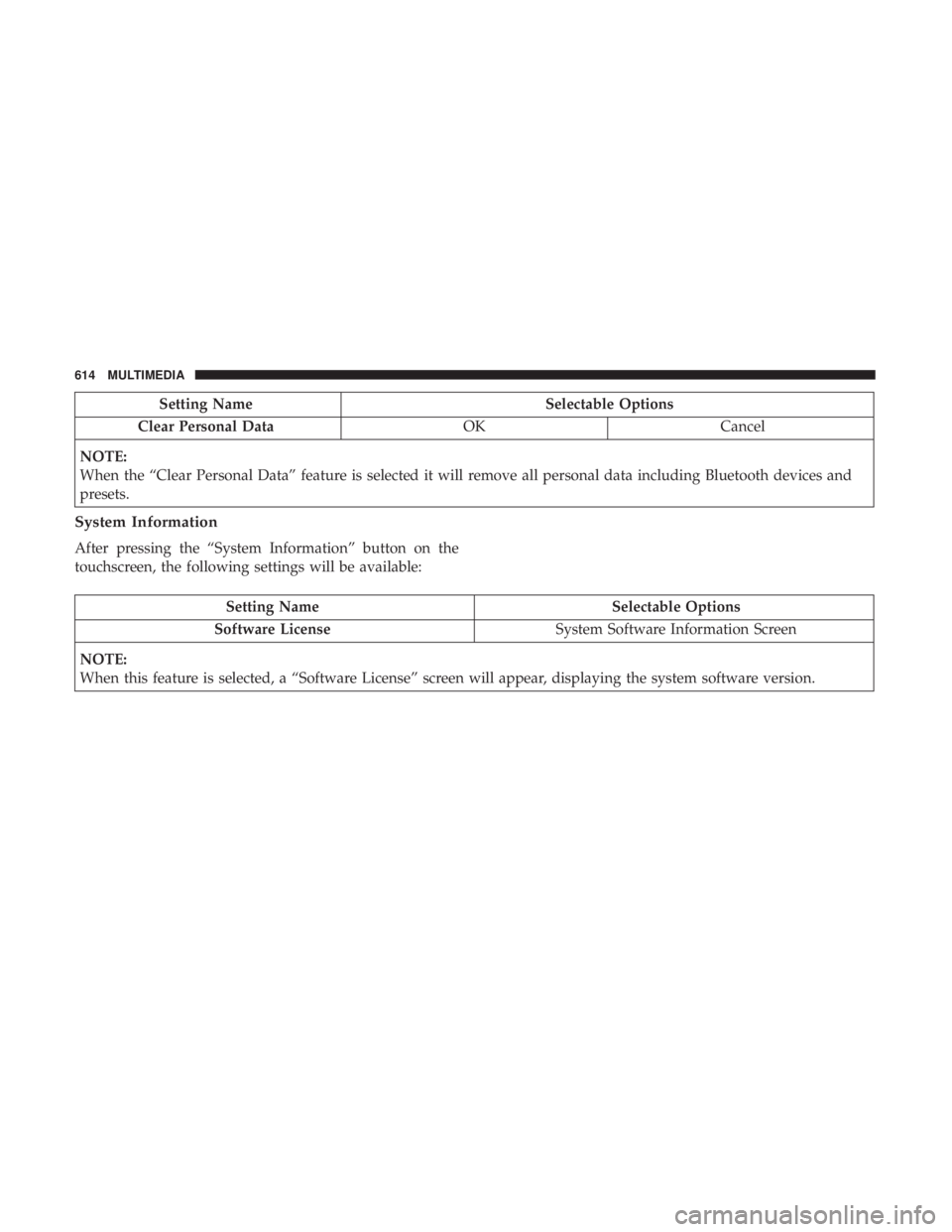
Setting NameSelectable Options
Clear Personal Data OKCancel
NOTE:
When the “Clear Personal Data” feature is selected it will remove all personal data including Bluetooth devices and
presets.
System Information
After pressing the “System Information” button on the
touchscreen, the following settings will be available:
Setting Name Selectable Options
Software License System Software Information Screen
NOTE:
When this feature is selected, a “Software License” screen will appear, displaying the system software version.
614 MULTIMEDIA
Page 617 of 696
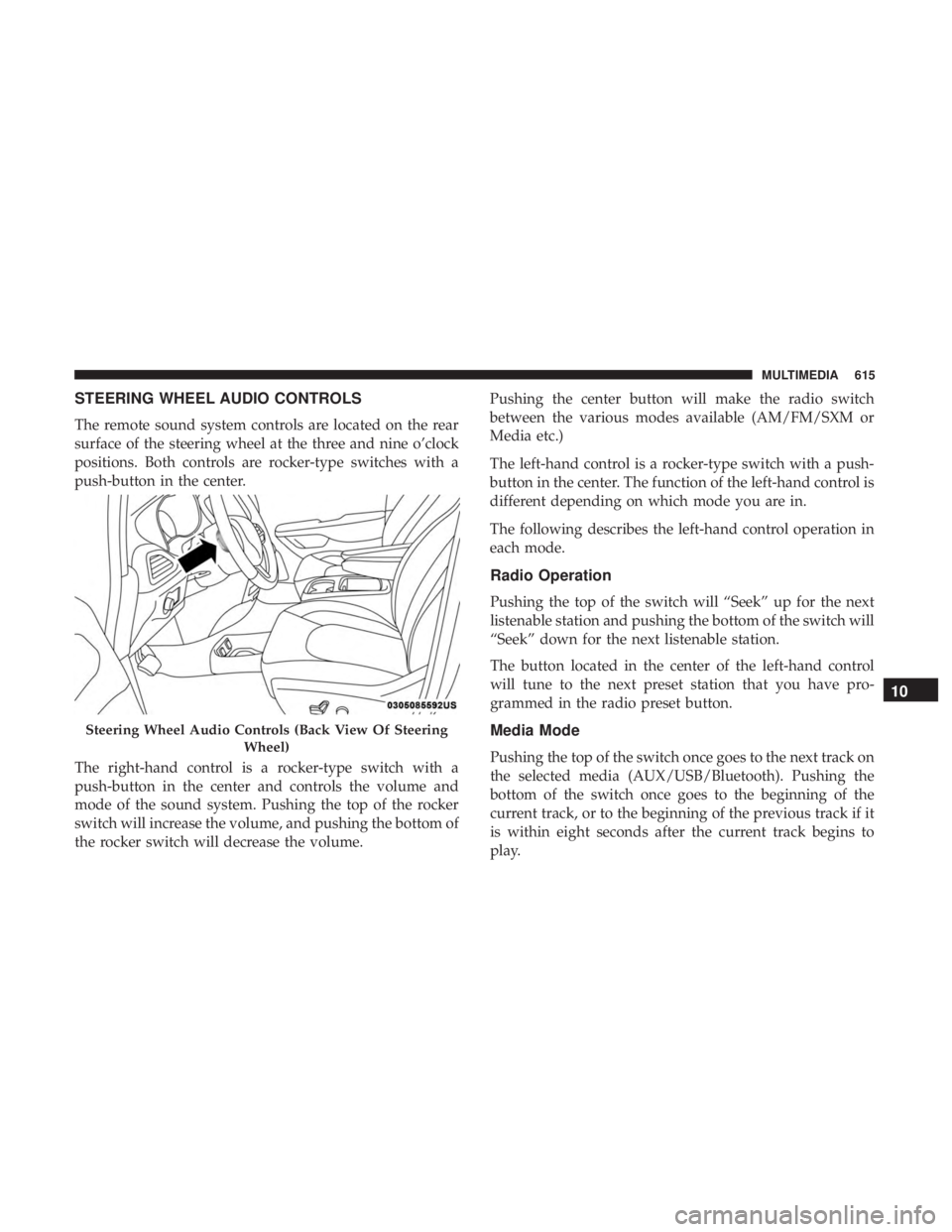
STEERING WHEEL AUDIO CONTROLS
The remote sound system controls are located on the rear
surface of the steering wheel at the three and nine o’clock
positions. Both controls are rocker-type switches with a
push-button in the center.
The right-hand control is a rocker-type switch with a
push-button in the center and controls the volume and
mode of the sound system. Pushing the top of the rocker
switch will increase the volume, and pushing the bottom of
the rocker switch will decrease the volume.Pushing the center button will make the radio switch
between the various modes available (AM/FM/SXM or
Media etc.)
The left-hand control is a rocker-type switch with a push-
button in the center. The function of the left-hand control is
different depending on which mode you are in.
The following describes the left-hand control operation in
each mode.
Radio Operation
Pushing the top of the switch will “Seek” up for the next
listenable station and pushing the bottom of the switch will
“Seek” down for the next listenable station.
The button located in the center of the left-hand control
will tune to the next preset station that you have pro-
grammed in the radio preset button.
Media Mode
Pushing the top of the switch once goes to the next track on
the selected media (AUX/USB/Bluetooth). Pushing the
bottom of the switch once goes to the beginning of the
current track, or to the beginning of the previous track if it
is within eight seconds after the current track begins to
play.
Steering Wheel Audio Controls (Back View Of Steering
Wheel)
10
MULTIMEDIA 615