Page 374 of 696

NOTE:When KeySense feature is present, the ParkSense
System will reject customer input to turn the system off via
the hard switch. The instrument cluster display will show
�KeySense in Use Selected Feature Cannot be Disabled �
message.
Service The ParkSense Park Assist System
During vehicle start up, when the ParkSense System has
detected a faulted condition, the instrument cluster will
actuate a single chime, once per ignition cycle, and it will
display the �PARKSENSE UNAVAILABLE WIPE REAR
SENSORS�, �PARKSENSE UNAVAILABLE WIPE FRONT
SENSORS�,orthe�PARKSENSE UNAVAILABLE SERVICE
REQUIRED� message for five seconds. When the gear
selector is moved to REVERSE and the system has detected
a faulted condition, the instrument cluster display will
show a �PARKSENSE UNAVAILABLE WIPE REAR SEN-
SORS�, �PARKSENSE UNAVAILABLE WIPE FRONT SEN-
SORS� or�PARKSENSE UNAVAILABLE SERVICE RE-
QUIRED� pop up message for five seconds. After five
seconds, a vehicle graphic will be displayed with �OFF�at
either the front or rear sensor location depending on where
the fault is detected. The system will continue to provide
arc alerts for the side that is functioning properly. These arc
alerts will interrupt the �PARKSENSE UNAVAILABLE
WIPE REAR SENSORS�, �PARKSENSE UNAVAILABLE WIPE FRONT SENSORS�,or�PARKSENSE UNAVAIL-
ABLE SERVICE REQUIRED�
messages if an object is
detected within the five second pop-up duration. The
vehicle graphic will remain displayed for as long as the
vehicle is in REVERSE.
Refer to “Instrument Cluster Display” in “Getting To Know
Your Instrument Panel” for further information.
If �PARKSENSE UNAVAILABLE WIPE REAR SENSORS�
or �PARKSENSE UNAVAILABLE WIPE FRONT SEN-
SORS� appears in the instrument cluster display make sure
the outer surface and the underside of the rear fascia/
bumper and/or front fascia/bumper is clean and clear of
snow, ice, mud, dirt or other obstruction and then cycle the
ignition. If the message continues to appear see an autho-
rized dealer.
If the �PARKSENSE UNAVAILABLE SERVICE RE-
QUIRED� message appears in the instrument cluster dis-
play, see an authorized dealer.
Cleaning The ParkSense System
Clean the ParkSense sensors with water, car wash soap and
a soft cloth. Do not use rough or hard cloths. Do not scratch
or poke the sensors. Otherwise, you could damage the
sensors.
372 STARTING AND OPERATING
Page 375 of 696

ParkSense System Usage Precautions
NOTE:
•Ensure that the front and rear bumper are free of snow,
ice, mud, dirt and debris to keep the ParkSense system
operating properly.
• Construction equipment, large trucks, and other vibra-
tions could affect the performance of ParkSense.
• When you turn ParkSense off, the instrument cluster
will display “PARKSENSE OFF.” Furthermore, once you
turn ParkSense off, it remains off until you turn it on
again, even if you cycle the ignition key.
• When you move the gear selector to the REVERSE
position and ParkSense is turned off, the instrument
cluster will display “PARKSENSE OFF” for five seconds
while the vehicle is in REVERSE.
• ParkSense, when on, will reduce the volume of the radio
when it is sounding a tone.
• Clean the ParkSense sensors regularly, taking care not to
scratch or damage them. The sensors must not be
covered with ice, snow, slush, mud, dirt or debris.
Failure to do so can result in the system not working
properly. The ParkSense system might not detect an
obstacle behind or in front of the appropriate fascia/ bumper, or it could provide a false indication that an
obstacle is behind or in front of the appropriate fascia/
bumper.
• Use the ParkSense switch to turn the ParkSense system
off if objects such as bicycle carriers, trailer hitches, etc.
are placed within 12 inches (30 cm) from the rear
fascia/bumper. Failure to do so can result in the system
misinterpreting a close object as a sensor problem,
causing the “PARKSENSE UNAVAILABLE SERVICE
REQUIRED” message to be displayed in the instrument
cluster.
• ParkSense should be disabled when the liftgate is in the
open position.
• There may be a delay in the object detection rate if the
object is moving. This may cause the automatic braking
application to be delayed.
WARNING!
•Drivers must be careful when backing up even when
using ParkSense. Always check carefully behind
your vehicle, look behind you, and be sure to check
for pedestrians, animals, other vehicles, obstructions,
(Continued)
6
STARTING AND OPERATING 373
Page 395 of 696
The system will then instruct the driver to check their
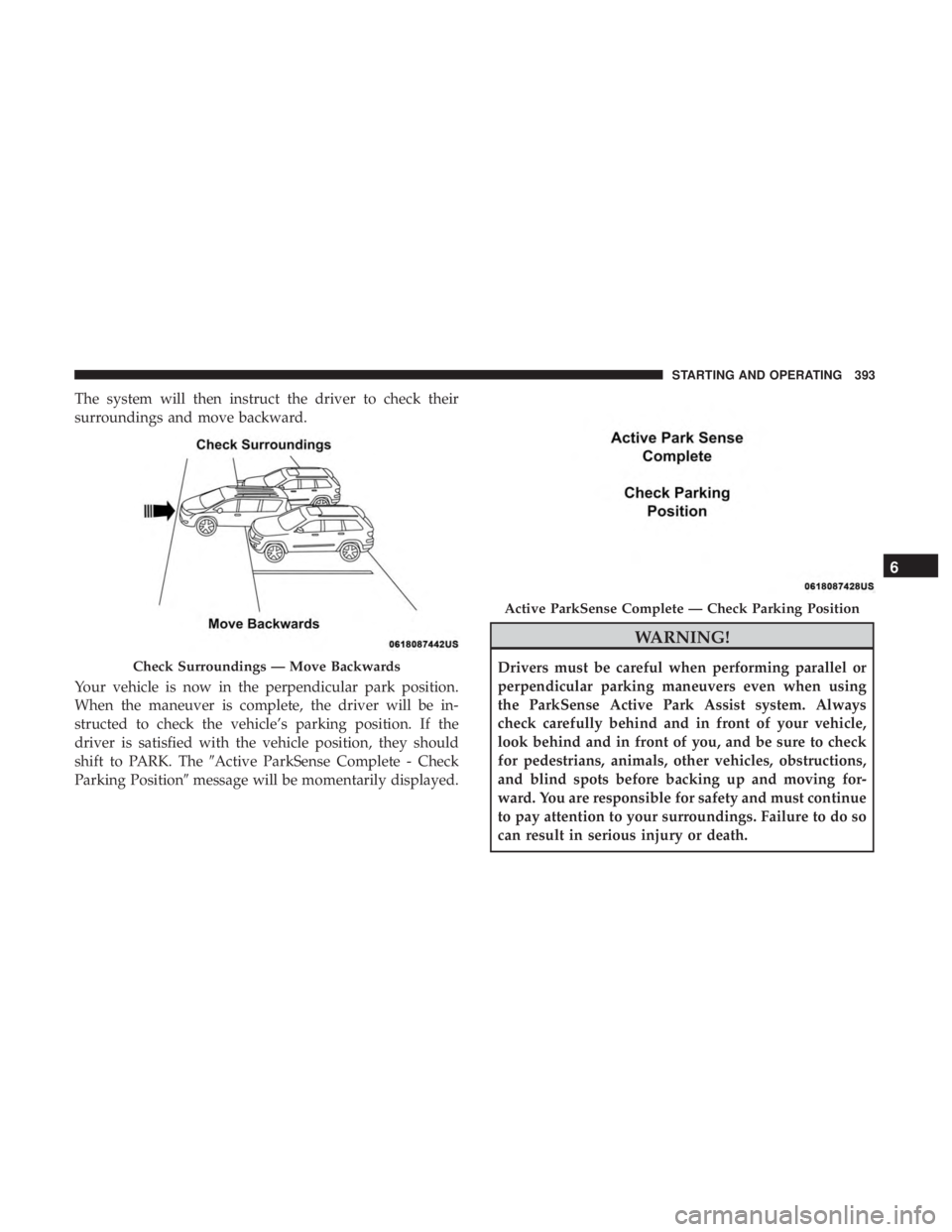
surroundings and move backward.
Your vehicle is now in the perpendicular park position.
When the maneuver is complete, the driver will be in-
structed to check the vehicle’s parking position. If the
driver is satisfied with the vehicle position, they should
shift to PARK. The�Active ParkSense Complete - Check
Parking Position� message will be momentarily displayed.
WARNING!
Drivers must be careful when performing parallel or
perpendicular parking maneuvers even when using
the ParkSense Active Park Assist system. Always
check carefully behind and in front of your vehicle,
look behind and in front of you, and be sure to check
for pedestrians, animals, other vehicles, obstructions,
and blind spots before backing up and moving for-
ward. You are responsible for safety and must continue
to pay attention to your surroundings. Failure to do so
can result in serious injury or death.Check Surroundings — Move Backwards
Active ParkSense Complete — Check Parking Position
6
STARTING AND OPERATING 393
Page 402 of 696

A touch screen button to disable display of the camera
image is made available when the vehicle is not in RE-
VERSE gear. Display of the camera image after shifting out
of REVERSE can be disabled via a touch screen button
personalization entry in the camera settings menu.
When enabled, active guide lines are overlaid on the image
to illustrate the width of the vehicle and its projected
backup path based on the steering wheel position.
Different colored zones indicate the distance to the rear of
the vehicle.
The following table shows the approximate distances for
each zone:
Zone Distance To The Rear Of The VehicleRed 0 - 1 ft (0 - 30 cm)
Yellow 1 ft - 6.5 ft (30 cm - 2 m)
Green 6.5 ft or greater (2 m or greater)
NOTE: If snow, ice, mud, or any foreign substance builds
up on the camera lens, clean the lens, rinse with water, and
dry with a soft cloth. Do not cover the lens.
WARNING!
Drivers must be careful when backing up even when
using the ParkView Rear Back Up Camera. Always
check carefully behind your vehicle, and be sure to
check for pedestrians, animals, other vehicles, obstruc-
tions, or blind spots before backing up. You are re-
sponsible for the safety of your surroundings and must
continue to pay attention while backing up. Failure to
do so can result in serious injury or death.
CAUTION!
• To avoid vehicle damage, ParkView should only be
used as a parking aid. The ParkView camera is
unable to view every obstacle or object in your drive
path.
• To avoid vehicle damage, the vehicle must be driven
slowly when using ParkView to be able to stop in
time when an obstacle is seen. It is recommended
that the driver look frequently over his/her shoulder
when using ParkView.
400 STARTING AND OPERATING
Page 563 of 696
▫Android Auto — If Equipped ..............665
▫ Apple CarPlay — If Equipped ..............667
▫ General Information .....................668 ▫
Additional Information ...................668
� CD/DVD DISC MAINTENANCE ............669
10
MULTIMEDIA 561
Page 590 of 696
Phone/Bluetooth
After pressing the “Phone/Bluetooth” button on the touch-
screen, the following settings will be available:
Setting NameSelectable Options
Phone Pop-ups Displayed in Cluster OnOff
Do Not Disturb List of Settings
NOTE:
The “Do Not Disturb” feature allows the paired phone to send a predetermined call, text, or both, to any incoming
call, or text, before sending it directly to voicemail. It also keeps a counter of all missed calls and texts while on the
road. Paired Phones and Audio Devices List of Paired Phones
NOTE:
This feature shows which phones are paired to the Phone/Bluetooth system. For further information, refer to the
Uconnect Owner ’s Manual Supplement. Smartphone Projection Manager List Of Connected Phones
NOTE:
Pressing “Smartphone Projection Manager” feature allows you to see a list of all connected phones and gives you the
option to determine which phone will be used for projection (Apple CarPlay or Android Auto).
588 MULTIMEDIA
Page 628 of 696

You can choose sources such as HDMI, USB, Apps, or
Blu-ray. You may also view content of the opposite screen
in one step by choosing the “View Screen” source card.
NOTE:
•Source card order can be changed by pressing the
Settings button on the touchscreen and scrolling down
to �Source Card Order�.
• Use the “View Screen” function to pull content from one
screen to the other in a single press of a button. Doing
this however will disable and gray out certain player
controls on the screen viewing the other screen’s content. General Settings
To change source card order, select “Source Card Reorder”,
then press and hold source card on the touchscreen, and
drag and drop in desired order.
You can also adjust settings such as:
•
Brightness
• Media port lighting on and off
• Clock on and off
NOTE: System information can also be displayed under
General Settings.
Remote Settings
Under this setting, you can access the following:
• Manage Remotes (this allows you to unpair remotes)
• Pair Remote
• Remote sensitivity (This adjusts the speed and sensi-
tivity of cursor on screen when using gesture pad)
Source Card Selection
626 MULTIMEDIA
Page 633 of 696
Uconnect Theater Apps
Select the Apps source card to play pre-loaded games.
Pressing the “Help” button teaches users how to play each
game. Pick from games:
•Back Seat Bingo
• Checkers
• Hanging Fruit
• License Plate Game
• Math Flash Cards
• Solitaire
• Sudoku
• Tic Tac Toe
Apps Home Screen
Sudoku App Home Screen
10
MULTIMEDIA 631