Page 602 of 696
Clock
After pressing the “Clock” button on the touchscreen, the
following settings will be available:
Setting NameSelectable Options
Sync Time With GPS — If Equipped OnOff
Set Time Hours +-
NOTE:
The “Set Time Hours” feature will allow you to adjust the hours. The “Sync time with GPS” button on the touch-
screen must be unchecked. Set Time Minutes +-
NOTE:
The “Set Time Minutes” feature will allow you to adjust the minutes. The “Sync time with GPS” button on the touch-
screen must be unchecked. Time Format 12hrs24hrs
AM PM
600 MULTIMEDIA
Page 607 of 696
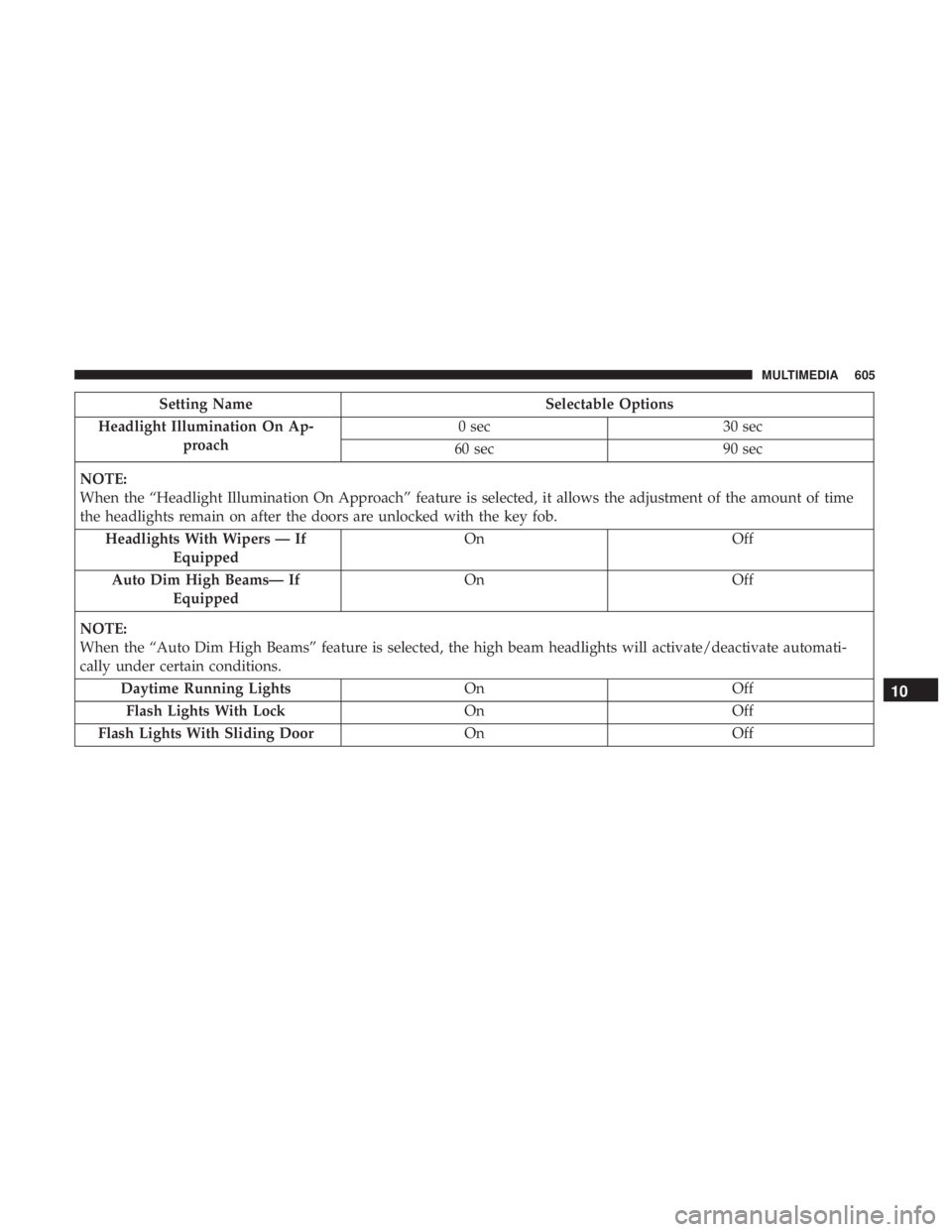
Setting NameSelectable Options
Headlight Illumination On Ap- proach 0 sec
30 sec
60 sec 90 sec
NOTE:
When the “Headlight Illumination On Approach” feature is selected, it allows the adjustment of the amount of time
the headlights remain on after the doors are unlocked with the key fob. Headlights With Wipers — If Equipped On
Off
Auto Dim High Beams— If Equipped On
Off
NOTE:
When the “Auto Dim High Beams” feature is selected, the high beam headlights will activate/deactivate automati-
cally under certain conditions. Daytime Running Lights OnOff
Flash Lights With Lock OnOff
Flash Lights With Sliding Door OnOff
10
MULTIMEDIA 605
Page 608 of 696
Doors & Locks
After pressing the “Doors & Locks” button on the touch-
screen, the following settings will be available:
NOTE:The auto door lock feature default condition is
enabled. When enabled, the door locks will lock automati-
cally when the vehicle’s speed exceeds 12 mph (20 km/h).
The auto door lock feature can be enabled or disabled by
your authorized dealer per written request of the customer.
Please see your authorized dealer for service.
Setting Name Selectable Options
Auto Unlock On Exit On Off
NOTE:
When the “Auto Unlock On Exit” feature is selected, all doors will unlock when the vehicle is stopped and the trans-
mission is in the PARK or NEUTRAL position and the driver’s door is opened. Flash Lights With Lock OnOff
Sound Horn With Lock — If Equipped Off
1st Press 2nd Press
Sound Horn With Remote Start — If Equipped On
Off
606 MULTIMEDIA
Page 609 of 696
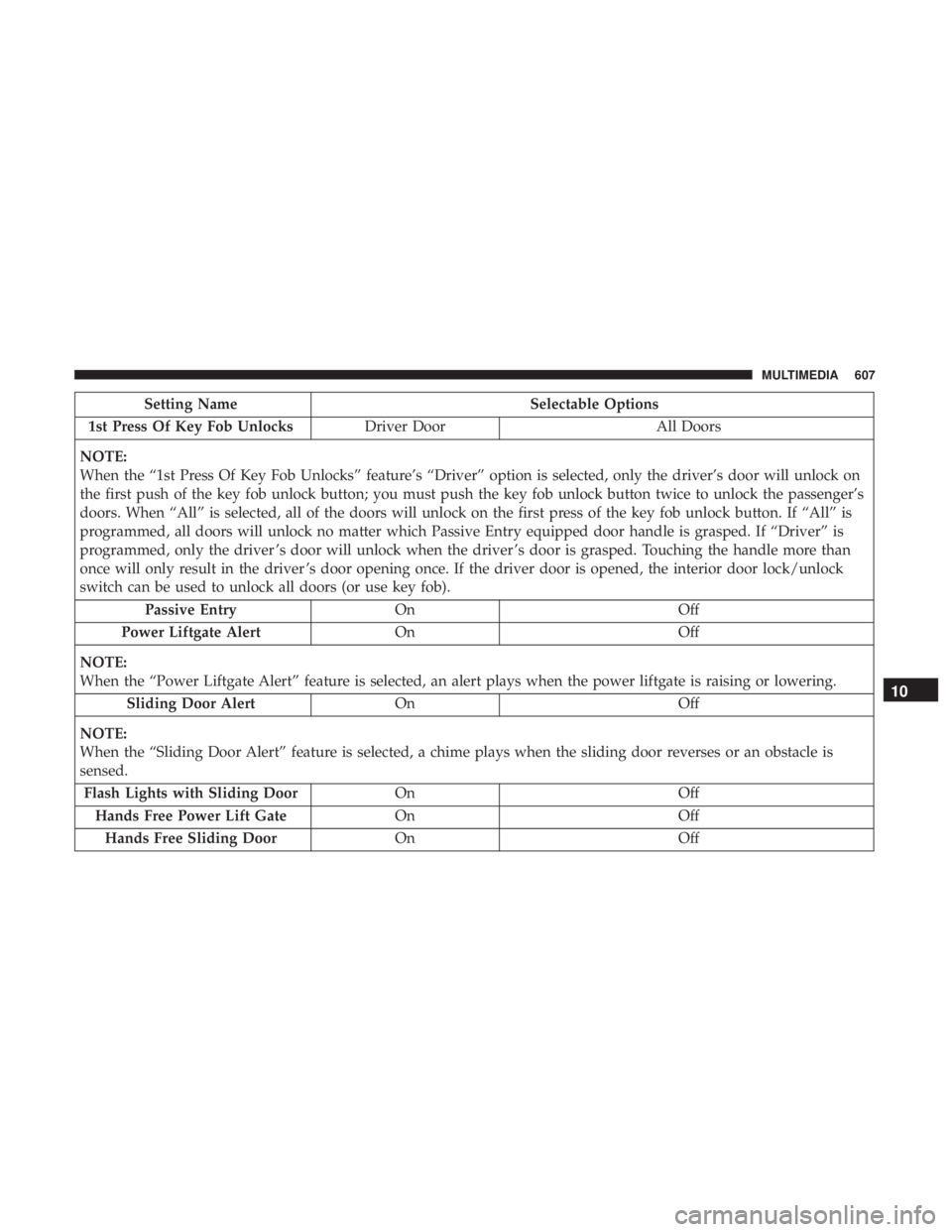
Setting NameSelectable Options
1st Press Of Key Fob Unlocks Driver Door All Doors
NOTE:
When the “1st Press Of Key Fob Unlocks” feature’s “Driver” option is selected, only the driver’s door will unlock on
the first push of the key fob unlock button; you must push the key fob unlock button twice to unlock the passenger’s
doors. When “All” is selected, all of the doors will unlock on the first press of the key fob unlock button. If “All” is
programmed, all doors will unlock no matter which Passive Entry equipped door handle is grasped. If “Driver” is
programmed, only the driver ’s door will unlock when the driver ’s door is grasped. Touching the handle more than
once will only result in the driver ’s door opening once. If the driver door is opened, the interior door lock/unlock
switch can be used to unlock all doors (or use key fob). Passive Entry On Off
Power Liftgate Alert On Off
NOTE:
When the “Power Liftgate Alert” feature is selected, an alert plays when the power liftgate is raising or lowering. Sliding Door Alert On Off
NOTE:
When the “Sliding Door Alert” feature is selected, a chime plays when the sliding door reverses or an obstacle is
sensed. Flash Lights with Sliding Door OnOff
Hands Free Power Lift Gate OnOff
Hands Free Sliding Door OnOff
10
MULTIMEDIA 607
Page 610 of 696
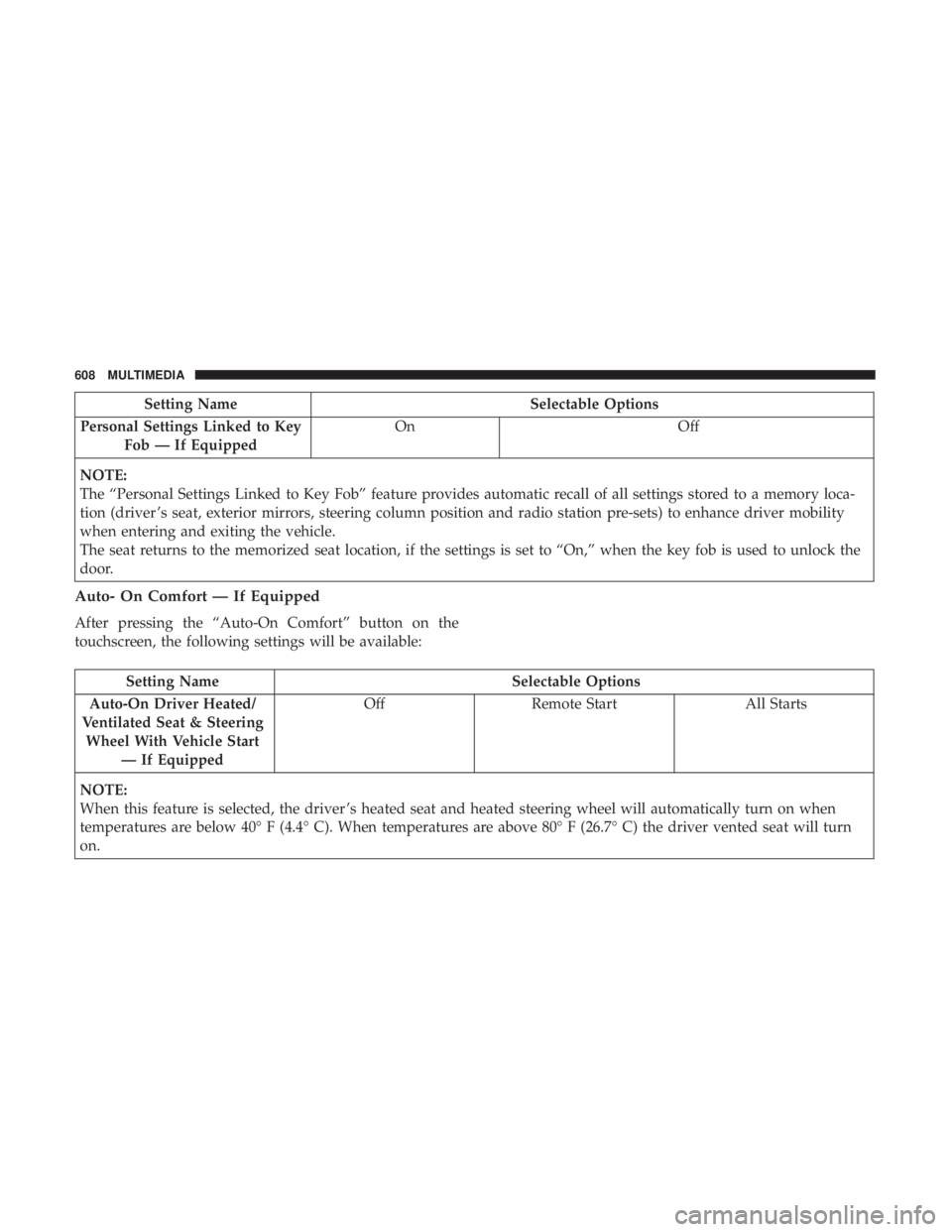
Setting NameSelectable Options
Personal Settings Linked to Key Fob — If Equipped On
Off
NOTE:
The “Personal Settings Linked to Key Fob” feature provides automatic recall of all settings stored to a memory loca-
tion (driver ’s seat, exterior mirrors, steering column position and radio station pre-sets) to enhance driver mobility
when entering and exiting the vehicle.
The seat returns to the memorized seat location, if the settings is set to “On,” when the key fob is used to unlock the
door.
Auto- On Comfort — If Equipped
After pressing the “Auto-On Comfort” button on the
touchscreen, the following settings will be available:
Setting Name Selectable Options
Auto-On Driver Heated/
Ventilated Seat & Steering Wheel With Vehicle Start — If Equipped Off
Remote Start All Starts
NOTE:
When this feature is selected, the driver ’s heated seat and heated steering wheel will automatically turn on when
temperatures are below 40° F (4.4° C). When temperatures are above 80° F (26.7° C) the driver vented seat will turn
on.
608 MULTIMEDIA
Page 617 of 696
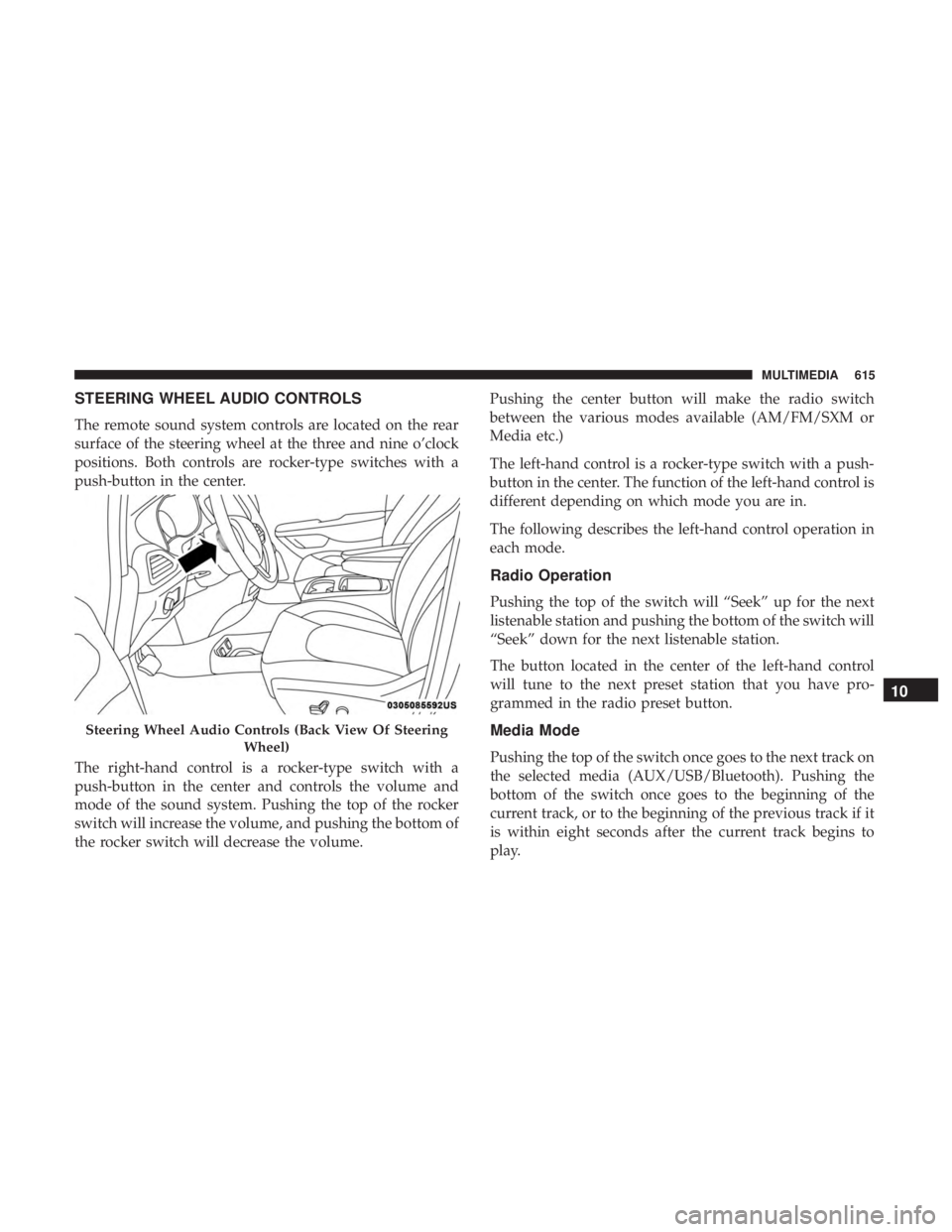
STEERING WHEEL AUDIO CONTROLS
The remote sound system controls are located on the rear
surface of the steering wheel at the three and nine o’clock
positions. Both controls are rocker-type switches with a
push-button in the center.
The right-hand control is a rocker-type switch with a
push-button in the center and controls the volume and
mode of the sound system. Pushing the top of the rocker
switch will increase the volume, and pushing the bottom of
the rocker switch will decrease the volume.Pushing the center button will make the radio switch
between the various modes available (AM/FM/SXM or
Media etc.)
The left-hand control is a rocker-type switch with a push-
button in the center. The function of the left-hand control is
different depending on which mode you are in.
The following describes the left-hand control operation in
each mode.
Radio Operation
Pushing the top of the switch will “Seek” up for the next
listenable station and pushing the bottom of the switch will
“Seek” down for the next listenable station.
The button located in the center of the left-hand control
will tune to the next preset station that you have pro-
grammed in the radio preset button.
Media Mode
Pushing the top of the switch once goes to the next track on
the selected media (AUX/USB/Bluetooth). Pushing the
bottom of the switch once goes to the beginning of the
current track, or to the beginning of the previous track if it
is within eight seconds after the current track begins to
play.
Steering Wheel Audio Controls (Back View Of Steering
Wheel)
10
MULTIMEDIA 615
Page 621 of 696
Option 2
1. Press the “Apps” button on the bottom of the touch-screen.
2. Press the Uconnect Theater button on the touchscreen. You may need to navigate to different pages in the Apps
drawer to find the Uconnect Theater button.
NOTE: The Uconnect Theater icon may be dragged and
dropped down from the Apps drawer to the drag & drop
menu to create an App/shortcut. Refer to “Drag & Drop
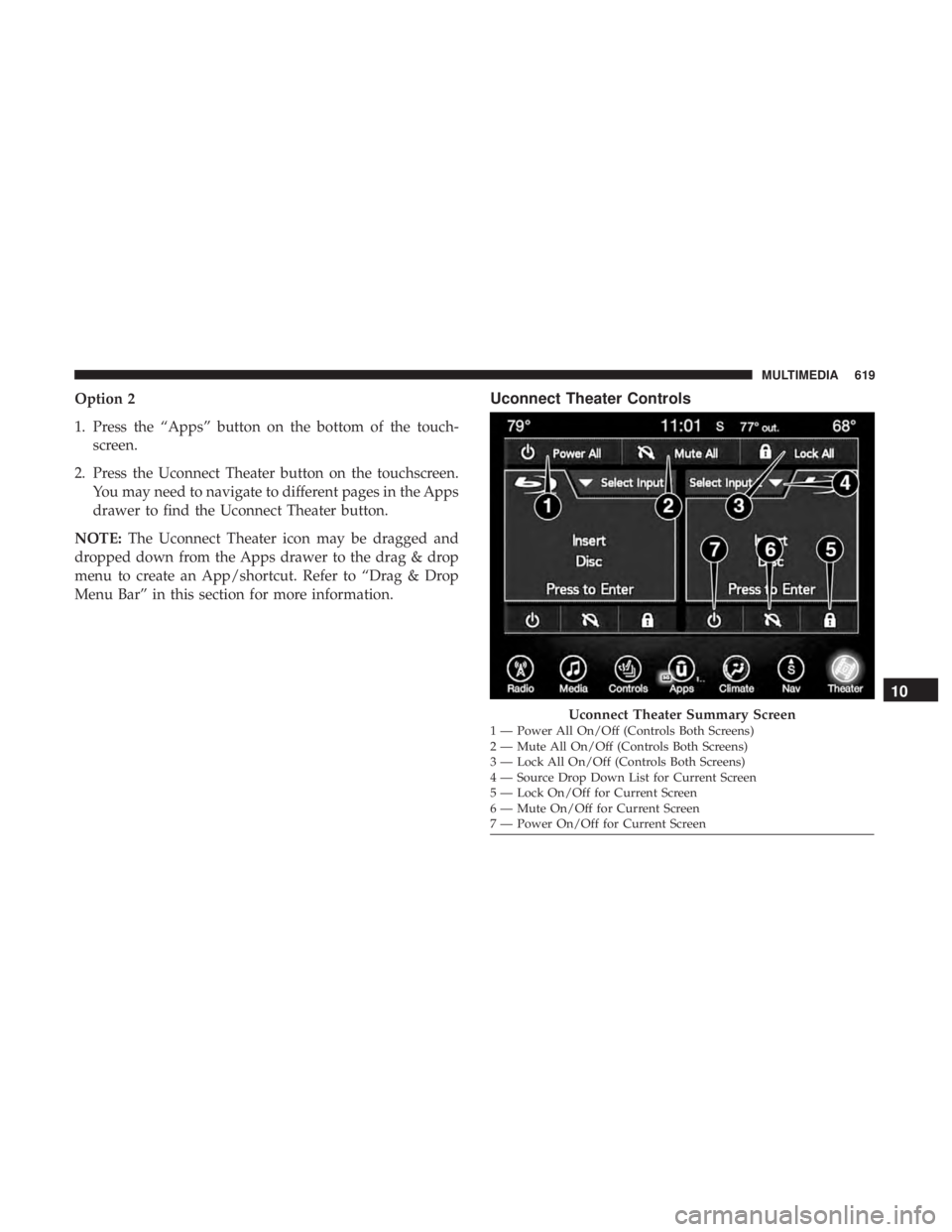
Menu Bar” in this section for more information.Uconnect Theater Controls
Uconnect Theater Summary Screen1 — Power All On/Off (Controls Both Screens)
2 — Mute All On/Off (Controls Both Screens)
3 — Lock All On/Off (Controls Both Screens)
4 — Source Drop Down List for Current Screen
5 — Lock On/Off for Current Screen
6 — Mute On/Off for Current Screen
7 — Power On/Off for Current Screen
10
MULTIMEDIA 619
Page 622 of 696
Parents can control certain features of the system with the
“Uconnect Theater Controls” screens, right from the
Uconnect touchscreen radio. Options include:
•Change media sources or select APPS by using the drop
down list
• Lock one or both screens
• Mute an individual screen or both screens
• Turn on/off one or both screens
• View media showing on a specific screen while gear
selector is in PARK
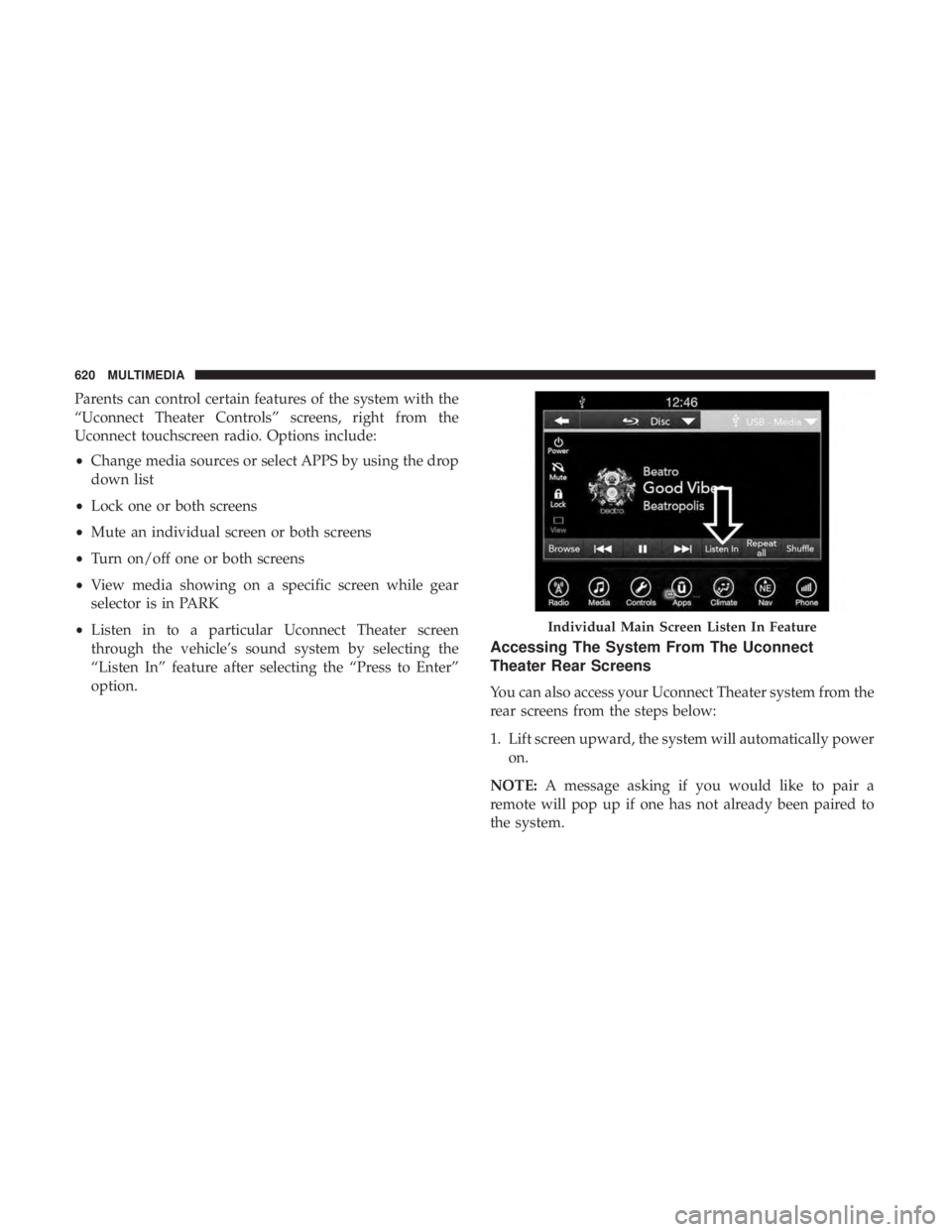
• Listen in to a particular Uconnect Theater screen
through the vehicle’s sound system by selecting the
“Listen In” feature after selecting the “Press to Enter”
option.
Accessing The System From The Uconnect
Theater Rear Screens
You can also access your Uconnect Theater system from the
rear screens from the steps below:
1. Lift screen upward, the system will automatically power
on.
NOTE: A message asking if you would like to pair a
remote will pop up if one has not already been paired to
the system.
Individual Main Screen Listen In Feature
620 MULTIMEDIA