2018 CHEVROLET TRAVERSE infotainment
[x] Cancel search: infotainmentPage 258 of 419
Chevrolet Traverse Owner Manual (GMNA-Localizing-U.S./Canada/Mexico-
10603118) - 2018 - CRC - 1/29/18
Driving and Operating 257
{Warning
The Surround Vision cameras
have blind spots and will not
display all objects near the
corners of the vehicle. Folding
side mirrors that are out of
position may not display surround
view correctly. Always check
around the vehicle when parking
or backing.
1. Views Displayed by theSurround Vision Cameras
2. Area Not Shown
1. Views Displayed by the Surround Vision Cameras
2. Area Not Shown
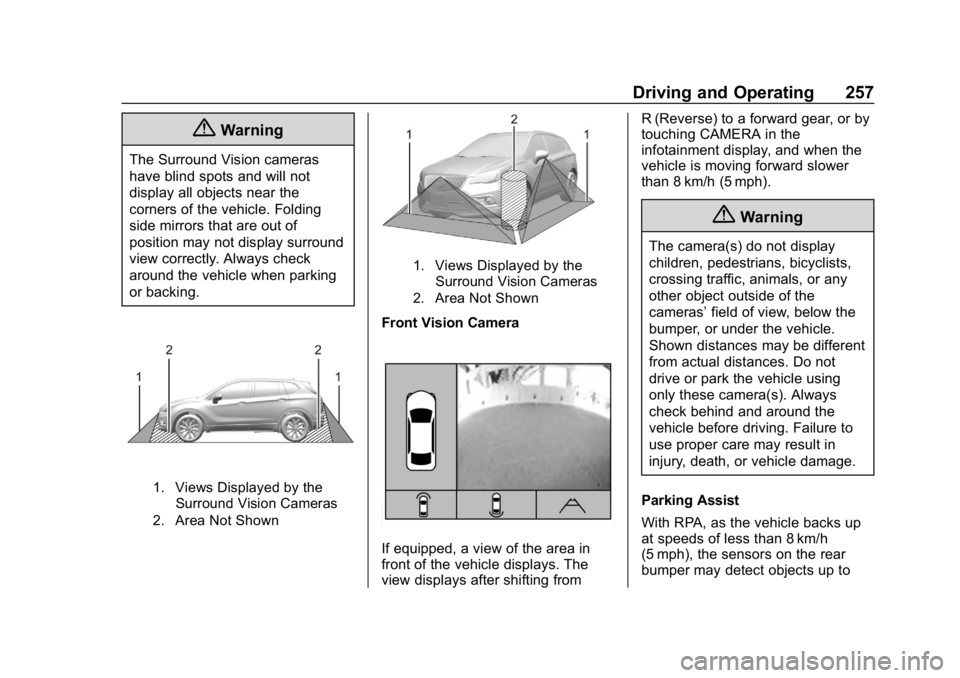
Front Vision Camera
If equipped, a view of the area in
front of the vehicle displays. The
view displays after shifting from R (Reverse) to a forward gear, or by
touching CAMERA in the
infotainment display, and when the
vehicle is moving forward slower
than 8 km/h (5 mph).
{Warning
The camera(s) do not display
children, pedestrians, bicyclists,
crossing traffic, animals, or any
other object outside of the
cameras’
field of view, below the
bumper, or under the vehicle.
Shown distances may be different
from actual distances. Do not
drive or park the vehicle using
only these camera(s). Always
check behind and around the
vehicle before driving. Failure to
use proper care may result in
injury, death, or vehicle damage.
Parking Assist
With RPA, as the vehicle backs up
at speeds of less than 8 km/h
(5 mph), the sensors on the rear
bumper may detect objects up to
Page 259 of 419

Chevrolet Traverse Owner Manual (GMNA-Localizing-U.S./Canada/Mexico-
10603118) - 2018 - CRC - 1/29/18
258 Driving and Operating
2.5 m (8 ft) behind the vehicle within
a zone 25 cm (10 in) high off the
ground and below bumper level.
These detection distances may be
shorter during warmer or humid
weather.
Blocked sensors will not detect
objects and can also cause false
detections. Keep the sensors clean
of mud, dirt, snow, ice, and slush;
and clean sensors after a car wash
in freezing temperatures.
{Warning
The Parking Assist system does
not detect children, pedestrians,
bicyclists, animals, or objects
located below the bumper or that
are too close or too far from the
vehicle. It is not available at
speeds greater than 8 km/h
(5 mph). To prevent injury, death,
or vehicle damage, even with
Parking Assist, always check the
area around the vehicle and
check all mirrors before moving
forward or backing.
The instrument cluster may have a
parking assist display with bars that
show“distance to object” and object
location information for RPA. As the
object gets closer, more bars light
up and the bars change color from
yellow to amber to red.
When an object is first detected in
the rear, one beep will be heard
from the rear. When an object is
very close, <0.6 m (2 ft) in the
vehicle rear, five beeps will sound
from the rear.
Rear Cross Traffic Alert (RCTA)
If equipped, RCTA shows a red
warning triangle with a left or right
pointing arrow on the infotainment
display to warn of traffic coming
from the left or right. This system detects objects coming from up to
20 m (65 ft) from the left or right side
of the vehicle. When an object is
detected, three beeps sound from
the left or right, depending on the
direction of the detected vehicle.
Use caution while backing up when
towing a trailer, as the RCTA
detection zones that extend out
from the back of the vehicle do not
move further back when a trailer is
towed.
Turning the Features On or Off
RPA can be turned on and off
through vehicle personalization. See
Vehicle Personalization
0154.
Turn off RPA when towing a trailer.
To turn the rear parking assist
symbols or guidance lines on or off
(on some models), see “Rear
Camera” underVehicle
Personalization 0154.
RCTA can also be turned on or off
through vehicle personalization. see
“Collision/Detection Systems” under
Vehicle Personalization 0154.
Page 316 of 419

Chevrolet Traverse Owner Manual (GMNA-Localizing-U.S./Canada/Mexico-
10603118) - 2018 - CRC - 1/29/18
Vehicle Care 315
FusesUsage
F14 Left front heated seat
F15 –
F16 Sunroof
F17 Communication gateway module (if
equipped)
F18 Instrument cluster
F19 Body control module 1
F20 Wireless charger module
F21 Body control module 4
F22 Infotainment
F23 Body control module 2
F24 –
F25 Parking assist
F26 Communications integration module
F27 Video Fuses
Usage
F28 Radio/Heating, ventilation, and air
conditioning
display
F29 Radio
F30 Steering wheel controls
F31 Front blower
F32 DC AC inverter
F33 Driver power seat
F34 Passenger power seat
F35 Feed/Body control module 4
F36 Electric power steering
F37 Power outlet/ Wireless charger/
Accessory
F38 Body control module 8 Fuses
Usage
F39 Steering wheel controls
backlighting
Circuit
Breakers Usage
F40 –
F41 –
F42 Auxiliary power outlet/Lighter
Page 381 of 419

Chevrolet Traverse Owner Manual (GMNA-Localizing-U.S./Canada/Mexico-
10603118) - 2018 - CRC - 1/29/18
380 Customer Information
Customer
Information
Customer Information
Customer SatisfactionProcedure . . . . . . . . . . . . . . . . . . . 380
Customer Assistance Offices . . . . . . . . . . . . . . . . . . . . . . 382
Customer Assistance for Text Telephone (TTY) Users . . . . . 383
Online Owner Center . . . . . . . . . 383
GM Mobility Reimbursement Program . . . . . . . . . . . . . . . . . . . . 384
Roadside Assistance Program . . . . . . . . . . . . . . . . . . . . 384
Scheduling Service Appointments . . . . . . . . . . . . . . . 386
Courtesy Transportation Program . . . . . . . . . . . . . . . . . . . . 386
Collision Damage Repair . . . . . 387
Service Publications Ordering Information . . . . . . . . . . . . . . . . . . 389
Radio Frequency Statement . . . . . . . . . . . . . . . . . . . 390
Reporting Safety Defects
Reporting Safety Defects tothe United States
Government . . . . . . . . . . . . . . . . . 391
Reporting Safety Defects to the Canadian
Government . . . . . . . . . . . . . . . . . 391
Reporting Safety Defects to General Motors . . . . . . . . . . . . . 392
Vehicle Data Recording and
Privacy
Vehicle Data Recording andPrivacy . . . . . . . . . . . . . . . . . . . . . . 392
Event Data Recorders . . . . . . . . 392
OnStar . . . . . . . . . . . . . . . . . . . . . . . 393
Infotainment System . . . . . . . . . . 393
Customer Information
Customer Satisfaction
Procedure
Your satisfaction and goodwill are
important to your dealer and to
Chevrolet. Normally, any concerns
with the sales transaction or the
operation of the vehicle will be
resolved by your dealer's sales or
service departments. Sometimes,
however, despite the best intentions
of all concerned, misunderstandings
can occur. If your concern has not
been resolved to your satisfaction,
the following steps should be taken:
STEP ONE : Discuss your concern
with a member of dealership
management. Normally, concerns
can be quickly resolved at that level.
If the matter has already been
reviewed with the sales, service,
or parts manager, contact the owner
of your dealership or the general
manager.
STEP TWO : If after contacting a
member of dealership management,
it appears your concern cannot be
Page 394 of 419

Chevrolet Traverse Owner Manual (GMNA-Localizing-U.S./Canada/Mexico-
10603118) - 2018 - CRC - 1/29/18
Customer Information 393
These data can help provide a
better understanding of the
circumstances in which crashes and
injuries occur.
Note
EDR data are recorded by your
vehicle only if a non-trivial crash
situation occurs; no data are
recorded by the EDR under normal
driving conditions and no personal
data (e.g., name, gender, age, and
crash location) are recorded.
However, other parties, such as law
enforcement, could combine the
EDR data with the type of
personally identifying data routinely
acquired during a crash
investigation.
To read data recorded by an EDR,
special equipment is required, and
access to the vehicle or the EDR is
needed. In addition to the vehicle
manufacturer, other parties, such as
law enforcement, that have the
special equipment, can read the
information if they have access to
the vehicle or the EDR.GM will not access these data or
share it with others except: with the
consent of the vehicle owner or,
if the vehicle is leased, with the
consent of the lessee; in response
to an official request by police or
similar government office; as part of
GM's defense of litigation through
the discovery process; or, as
required by law. Data that GM
collects or receives may also be
used for GM research needs or may
be made available to others for
research purposes, where a need is
shown and the data is not tied to a
specific vehicle or vehicle owner.
OnStar
If the vehicle is equipped with
OnStar and has an active service
plan, additional data may be
collected through the OnStar
system. This includes information
about the vehicle’s operation;
collisions involving the vehicle; the
use of the vehicle and its features;
and, in certain situations, the
location and approximate GPS
speed of the vehicle. Refer to theOnStar Terms and Conditions and
Privacy Statement on the OnStar
website.
See
OnStar Additional Information
0 400.
Infotainment System
If the vehicle is equipped with a
navigation system as part of the
infotainment system, use of the
system may result in the storage of
destinations, addresses, telephone
numbers, and other trip information.
See the infotainment manual for
information on stored data and for
deletion instructions.
Page 396 of 419

Chevrolet Traverse Owner Manual (GMNA-Localizing-U.S./Canada/Mexico-
10603118) - 2018 - CRC - 1/29/18
OnStar 395
Press=to:
. Open the OnStar app on the
infotainment display. See the
infotainment manual for
information on how to use the
OnStar app.
Or
. Make a call, end a call,
or answer an incoming call.
. Give OnStar Hands-Free Calling
voice commands.
. Give OnStar Turn-by-Turn
Navigation voice commands.
. Obtain and customize the Wi-Fi
hotspot name or SSID and
password, if equipped. PressQto connect to an
Advisor to:
. Verify account information or
update contact information.
. Get driving directions.
. Receive a Diagnostic check of
the vehicle's key operating
systems.
. Receive Roadside Assistance.
. Manage Wi-Fi Settings,
if equipped.
Press
>to get a priority connection
to an OnStar Advisor available
24/7 to:
. Get help for an emergency.
. Be a Good Samaritan or
respond to an AMBER Alert.
. Get assistance in severe
weather or other crisis situations
and find evacuation routes.
OnStar Services
Emergency
Emergency Services require an
active, OnStar service plan
(excludes Basic Plan). With
Automatic Crash Response, built-in
sensors can automatically alert a
specially trained OnStar Advisor
who is immediately connected in to
the vehicle to help.
Press
>for a priority connection to
an OnStar Advisor who can contact
emergency service providers, direct
them to your exact location, and
relay important information.
With OnStar Crisis Assist, specially
trained Advisors are available
24 hours a day, 7 days a week, to
provide a central point of contact,
assistance, and information during a
crisis.
With Roadside Assistance, Advisors
can locate a nearby service provider
to help with a flat tire, a battery
jump, or an empty gas tank.
Page 397 of 419

Chevrolet Traverse Owner Manual (GMNA-Localizing-U.S./Canada/Mexico-
10603118) - 2018 - CRC - 1/29/18
396 OnStar
Security
If equipped, OnStar provides these
services:
.With Stolen Vehicle Assistance,
OnStar Advisors can use GPS to
pinpoint the vehicle and help
authorities quickly recover it.
. With Remote Ignition Block,
if equipped, OnStar can block
the engine from being restarted.
. With Stolen Vehicle Slowdown,
if equipped, OnStar can work
with law enforcement to
gradually slow the vehicle down.
Theft Alarm Notification
If equipped, if the doors are locked
and the vehicle alarm sounds, a
notification by text, e-mail, or phone
call will be sent. If the vehicle is
stolen, an OnStar Advisor can work
with authorities to recover the
vehicle.
Navigation
OnStar navigation requires a
specific OnStar service plan. Press
Qto receive Turn-by-Turn
directions or have them sent to the
vehicle’s navigation screen,
if equipped.
Turn-by-Turn Navigation
1. PressQto connect to an
Advisor.
2. Request directions to be downloaded to the vehicle.
3. Follow the voice-guided commands.
Using Voice Commands
During a Planned Route
Functionality of the Voice Command
button may vary by vehicle and
region. For some vehicles,
press
=to open the OnStar app on
the infotainment display. For other
vehicles press
=as follows.
Cancel Route
1. Press
=. System responds:
“OnStar ready,” then a tone. 2. Say
“Cancel route.” System
responds: “Do you want to
cancel directions?”
3. Say “Yes.”System responds:
“OK, request completed, thank
you, goodbye.”
Route Preview
1. Press
=. System responds:
“OnStar ready,” then a tone.
2. Say “Route preview.” System
responds with the next three
maneuvers.
Repeat
1. Press
=. System responds:
“OnStar ready,” then a tone.
2. Say “Repeat.” System
responds with the last direction
given, then responds with
“OnStar ready,” then a tone.
Get My Destination
1. Press
=. System responds:
“OnStar ready,” then a tone.
Page 398 of 419

Chevrolet Traverse Owner Manual (GMNA-Localizing-U.S./Canada/Mexico-
10603118) - 2018 - CRC - 1/29/18
OnStar 397
2. Say“Get my destination.”
System responds with the
address and distance to the
destination, then responds with
“OnStar ready,” then a tone.
Send Destination to Vehicle
Directions can be sent to the
vehicle’s navigation screen,
if equipped.
Press
Q, then ask the Advisor to
download directions to the vehicle’s
navigation system, if equipped. After
the call ends, the navigation screen
will provide prompts to begin driving
directions. Routes that are sent to
the navigation screen can only be
canceled through the navigation
system.
See www.onstar.com (U.S.) or
www.onstar.ca (Canada).
Connections
The following OnStar services help
with staying connected.
For coverage maps, see
www.onstar.com (U.S.) or
www.onstar.ca (Canada). Ensuring Security
.
Change the default passwords
for the Wi-Fi hotspot and
myChevrolet mobile application.
Make these passwords different
from each other and use a
combination of letters, numbers,
and symbols to increase the
security.
. Change the default name of the
SSID (Service Set Identifier).
This is your network’s name that
is visible to other wireless
devices. Choose a unique name
and avoid family names or
vehicle descriptions.
OnStar Wi-Fi Hotspot (If Equipped)
The vehicle may have a built-in
Wi-Fi hotspot that provides access
to the Internet and web content at
4G LTE speed. Up to seven mobile
devices can be connected. A data
plan is required. Use the in-vehicle
controls only when it is safe to
do so. 1. To retrieve Wi-Fi hotspot
information, press
=to open
the OnStar app on the
infotainment display, then
select Wi-Fi Hotspot. On some
vehicles, touch Wi-Fi or Wi-Fi
Settings on the screen.
2. The Wi-Fi settings will display the Wi-Fi hotspot name (SSID),
password, and on some
vehicles, the connection type
(no Internet connection, 3G,
4G, 4G LTE), and signal quality
(poor, good, excellent).
3. To change the SSID or password, press
Qor call
1-888-4ONSTAR to connect
with an Advisor. On some
vehicles, the SSID and
password can be changed in
the Wi-Fi Hotspot menu.
After initial set-up, your vehicle’s
Wi-Fi hotspot will connect
automatically to your mobile
devices. Manage data usage by
turning Wi-Fi on or off on your
mobile device, using the
myChevrolet mobile app, or by