2018 CHEVROLET TRAVERSE Rear view
[x] Cancel search: Rear viewPage 125 of 419

Chevrolet Traverse Owner Manual (GMNA-Localizing-U.S./Canada/Mexico-
10603118) - 2018 - CRC - 1/29/18
124 Instruments and Controls
Controls
Steering Wheel
Adjustment
To adjust the steering wheel:1. Pull the lever down.
2. Move the steering wheel up or down.
3. Pull or push the steering wheel closer or away from you.
4. Pull the lever up to lock the steering wheel in place. Do not adjust the steering wheel
while driving.
Power Tilt and Telescoping
Steering WheelIf equipped, the control is on the left
side of the steering column.
.
Push the control up or down to
tilt the steering wheel up
or down.
. Push the control forward or
rearward to move the steering
wheel toward the front or rear of
the vehicle.
Do not adjust the steering wheel
while driving.
Steering Wheel Controls
If equipped, some audio controls
can be adjusted at the steering
wheel.
g: For vehicles with OnStar or a
Bluetooth system, press to interact
with those systems. See OnStar
Overview 0394, Bluetooth
(Overview) 0191 orBluetooth
(Infotainment Controls) 0192,
or “Bluetooth (Overview)” in the
infotainment manual.
Page 179 of 419

Chevrolet Traverse Owner Manual (GMNA-Localizing-U.S./Canada/Mexico-
10603118) - 2018 - CRC - 1/29/18
178 Infotainment System
.Turn to decrease or
increase the volume.
4.
d
. Radio: Press and release to
go to the next strongest
station or channel. Press
and hold to fast seek the
next strongest station or
channel.
. USB/Bluetooth Music/
Pictures: Press to go to the
next content. Press and
hold to fast forward.
5.
5
. Press and release to
access the phone screen,
answer an incoming call,
or access the device home
screen.
Home Page
Infotainment Display Controls
Controls show on the infotainment
display when available. When a
function is unavailable, the item may
gray out. When a function is selected, the item may highlight.
Press and hold to rearrange icons
on the screen.
Home Page Features
Press{to go to the Home Page.
Audio : Touch to select AM, FM,
SiriusXM (if equipped), USB/iPod/
Bluetooth Audio, or AUX.
Gallery : Touch to view a picture or
movie.
Phone : Touch to activate the
phone features (if equipped). Press
and hold to start a Voice session
with a paired device. See Bluetooth
(Overview) 0191 orBluetooth
(Infotainment Controls) 0192. Projection :
Touch to access
supported devices when connected.
See USB Port 0184.
Settings : Touch to access the
Personalization menu. See Vehicle
Personalization 0154.
Climate : If equipped, touch to
access the Climate menu. See Dual
Automatic Climate Control System
0 200 orRear Climate Control
System 0203.
OnStar : If equipped, touch to
access the OnStar menu. See
OnStar Overview 0394.
Operation
Radio Controls
The infotainment system is operated
by using the center stack controls,
menus shown on the infotainment
display, and steering wheel controls.
Turning the System On or Off
O:Press to turn the radio on.
Press and hold to turn the radio off.
Page 186 of 419

Chevrolet Traverse Owner Manual (GMNA-Localizing-U.S./Canada/Mexico-
10603118) - 2018 - CRC - 1/29/18
Infotainment System 185
charging only USB ports on the rear
of the center console and in the
third row seating area.
USB Supported Devices
.USB Flash Drives
. Portable USB Hard Drives
Not all iPods and USB drives are
compatible with the USB port.
Make sure the iPod has the latest
firmware from Apple for proper
operation. iPod firmware can be
updated using the latest iTunes
application. See www.apple.com/
itunes.
For help with identifying your iPod,
go to www.apple.com/support.
The USB port can play both lower
and upper case .mp3, .wma, .ogg,
and .wav files stored on a USB
storage device.
Supported Apple Devices
To view supported devices in U.S.,
see www.my.chevrolet.com\learned. To view supported devices in
Canada, see
www.chevroletowner.ca.
To view supported devices in
Mexico, see your dealer for details.
USB Supported File and Folder
Structure
The infotainment system supports:
.
FAT16
. FAT32
. exFAT
Connecting a USB Storage
Device or iPod/iPhone
To connect a USB storage device,
connect the device to the USB port.
To connect an iPod/iPhone, connect
one end of the device’ s cable to the
iPod/iPhone and the other end to
the USB port.
The iPod/iPhone charges while it is
connected to the vehicle if the
ignition is on or in ACC/
ACCESSORY. See Ignition
Positions 0224. When the vehicle is
turned off, the iPod/iPhone automatically powers off and will not
charge or draw power from the
vehicle's battery.
For more information on USB
usage, see
“Audio System
Information” following.
Audio System Information
The infotainment system can play
the music files contained in the USB
storage device or iPod/iPhone
products.
Using MP3/WMA/OGG/WAV Files
.
Music files with .mp3, .wma,
.ogg, and .wav file name
extensions can be played.
. MP3 files that can be played: Bit
rate: 8 kbps to 320 kbps.
Sampling frequency: 48 kHz,
44.1 kHz, 32 kHz, 24 kHz, 22.05
kHz, and 16 kHz.
. Files with a bit rate above
128 kbps will result in higher
quality sound.
. ID3 Tag information for MP3
files, such as the album name
and the artist, can be played.
Page 255 of 419

Chevrolet Traverse Owner Manual (GMNA-Localizing-U.S./Canada/Mexico-
10603118) - 2018 - CRC - 1/29/18
254 Driving and Operating
Other Vehicle Lane Changes
ACC will not detect a vehicle ahead
until it is completely in the lane. The
brakes may need to be manually
applied.
Do Not Use ACC on Hills and
When Towing a Trailer
Do not use ACC when driving on
steep hills or when towing a trailer.
ACC will not detect a vehicle in the
lane while driving on steep hills. The
driver will often need to take over
acceleration and braking on steep
hills, especially when towing a
trailer. If the brakes are applied, the
ACC disengages.
Disengaging ACC
There are three ways to
disengage ACC:
.Step lightly on the brake pedal.
. Press
*.
. Press
J.
Erasing Speed Memory
The cruise control set speed is
erased from memory if
Jis
pressed or if the ignition is
turned off. Cleaning the Sensing System
The camera sensor on the
windshield behind the rearview
mirror and the radar sensors on the
front of the vehicle can become
blocked by snow, ice, dirt, or mud.
These areas need to be cleaned for
ACC to operate properly.
If ACC will not operate, regular
cruise control may be available. See
“Switching Between ACC and
Regular Cruise Control”
previously
in this section. Always consider
driving conditions before using
either cruise control system.
For cleaning instructions, see
“Washing the Vehicle” under
Exterior Care 0353.
System operation may also be
limited under snow, heavy rain,
or road spray conditions.
Page 257 of 419

Chevrolet Traverse Owner Manual (GMNA-Localizing-U.S./Canada/Mexico-
10603118) - 2018 - CRC - 1/29/18
256 Driving and Operating
Assistance Systems for
Parking or Backing
If equipped, the Rear Vision Camera
(RVC), Rear Parking Assist (RPA),
Surround Vision, and Rear Cross
Traffic Alert (RCTA) may help the
driver park or avoid objects. Always
check around the vehicle when
parking or backing.
Rear Vision Camera (RVC)
When the vehicle is shifted into
R (Reverse), the RVC displays an
image of the area behind the vehicle
in the infotainment display. The
previous screen displays when the
vehicle is shifted out of R (Reverse)
after a short delay. To return to the
previous screen sooner, press any
button on the infotainment display,
shift into P (Park), or reach a vehicle
speed of approximately 12 km/h
(8 mph). Select Guidance Lines on
the infotainment display to enable or
disable the guidance lines.
1. View Displayed by the RearVision Camera
1. View Displayed by the RearVision Camera
2. Corners of the Rear Bumper
Displayed images may be farther or
closer than they appear. The area
displayed is limited and objects that
are close to either corner of the
bumper or under the bumper do not
display.
A warning triangle may display to
show that Rear Parking Assist
(RPA) has detected an object. This
triangle changes from amber to red
and increases in size the closer the
object.
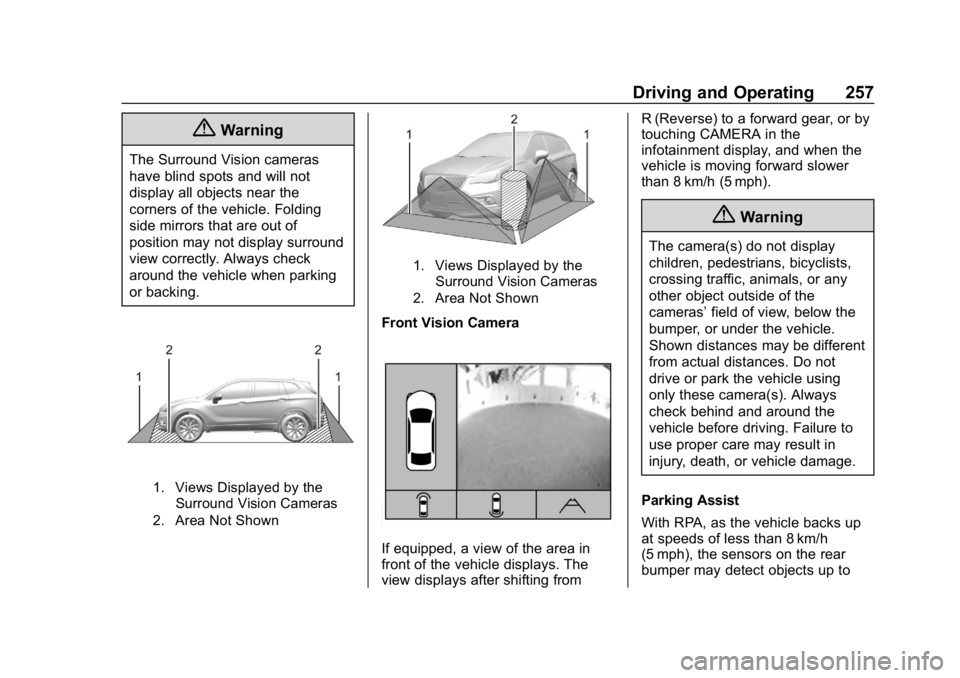
Surround Vision
If equipped, Surround Vision
displays an image of the area
surrounding the vehicle, along with
the front or rear camera views in the
infotainment display. The front
camera is in the grille or near the
front emblem, the side cameras are
on the bottom of the outside
rearview mirrors, and the rear
camera is above the license plate.
Page 258 of 419
Chevrolet Traverse Owner Manual (GMNA-Localizing-U.S./Canada/Mexico-
10603118) - 2018 - CRC - 1/29/18
Driving and Operating 257
{Warning
The Surround Vision cameras
have blind spots and will not
display all objects near the
corners of the vehicle. Folding
side mirrors that are out of
position may not display surround
view correctly. Always check
around the vehicle when parking
or backing.
1. Views Displayed by theSurround Vision Cameras
2. Area Not Shown
1. Views Displayed by the Surround Vision Cameras
2. Area Not Shown
Front Vision Camera
If equipped, a view of the area in
front of the vehicle displays. The
view displays after shifting from R (Reverse) to a forward gear, or by
touching CAMERA in the
infotainment display, and when the
vehicle is moving forward slower
than 8 km/h (5 mph).
{Warning
The camera(s) do not display
children, pedestrians, bicyclists,
crossing traffic, animals, or any
other object outside of the
cameras’
field of view, below the
bumper, or under the vehicle.
Shown distances may be different
from actual distances. Do not
drive or park the vehicle using
only these camera(s). Always
check behind and around the
vehicle before driving. Failure to
use proper care may result in
injury, death, or vehicle damage.
Parking Assist
With RPA, as the vehicle backs up
at speeds of less than 8 km/h
(5 mph), the sensors on the rear
bumper may detect objects up to
Page 262 of 419

Chevrolet Traverse Owner Manual (GMNA-Localizing-U.S./Canada/Mexico-
10603118) - 2018 - CRC - 1/29/18
Driving and Operating 261
Following Distance Indication
The following distance to a moving
vehicle you are following is
indicated in following time in
seconds on the DIC. SeeDriver
Information Center (DIC) 0150. The
minimum following time is
0.5 seconds away. If there is no
vehicle detected ahead, or the
vehicle ahead is out of sensor
range, dashes will be displayed.
Unnecessary Alerts
FCA may provide unnecessary
alerts for turning vehicles, vehicles
in other lanes, objects that are not
vehicles, or shadows. These alerts
are normal operation and the
vehicle does not need service.
Cleaning the System
If the FCA system does not seem to
operate properly, this may correct
the issue:
. Clean the outside of the
windshield in front of the
rearview mirror. .
Clean the entire front of the
vehicle.
. Clean the headlamps.
Forward Automatic
Braking (FAB)
If the vehicle has Forward Collision
Alert (FCA), it also has FAB, which
includes Intelligent Brake
Assist (IBA). When the system
detects a vehicle ahead in your path
that is traveling in the same
direction that you may be about to
crash into, it can provide a boost to
braking or automatically brake the
vehicle. This can help avoid or
lessen the severity of crashes when
driving in a forward gear. Depending
on the situation, the vehicle may
automatically brake moderately or
hard. This forward automatic
braking can only occur if a vehicle is
detected. This is shown by the FCA
vehicle ahead indicator being lit.
See Forward Collision Alert (FCA)
System 0259. The system works when driving in a
forward gear between 8 km/h
(5 mph) and 80 km/h (50 mph),
or on vehicles with Adaptive Cruise
Control (ACC), above 4 km/h
(2 mph). It can detect vehicles up to
approximately 60 m (197 ft).{Warning
FAB is an emergency crash
preparation feature and is not
designed to avoid crashes. Do
not rely on FAB to brake the
vehicle. FAB will not brake
outside of its operating speed
range and only responds to
detected vehicles.
FAB may not:
. Detect a vehicle ahead on
winding or hilly roads.
. Detect all vehicles,
especially vehicles with a
trailer, tractors, muddy
vehicles, etc.
(Continued)
Page 266 of 419

Chevrolet Traverse Owner Manual (GMNA-Localizing-U.S./Canada/Mexico-
10603118) - 2018 - CRC - 1/29/18
Driving and Operating 265
{Warning
Using the Front Pedestrian
Braking system while towing a
trailer could cause you to lose
control of the vehicle and crash.
Turn the system to Alert or Off
when towing a trailer.
Cleaning the System
If FPB does not seem to operate
properly, cleaning the outside of the
windshield in front of the rearview
mirror may correct the issue.
Side Blind Zone
Alert (SBZA)
If equipped, the SBZA system is a
lane-changing aid that assists
drivers with avoiding crashes that
occur with moving vehicles in the
side blind zone (or spot) areas.
When the vehicle is in a forward
gear, the left or right side mirror
display will light up if a moving
vehicle is detected in that blind
zone. If the turn signal is activatedand a vehicle is also detected on
the same side, the display will flash
as an extra warning not to change
lanes. Since this system is part of
the Lane Change Alert (LCA)
system, read the entire LCA section
before using this feature.
Lane Change Alert (LCA)
If equipped, the LCA system is a
lane-changing aid that assists
drivers with avoiding lane change
crashes that occur with moving
vehicles in the side blind zone (or
spot) areas or with vehicles rapidly
approaching these areas from
behind. The LCA warning display
will light up in the corresponding
outside side mirror and will flash if
the turn signal is on.
{Warning
LCA does not alert the driver to
vehicles outside of the system
detection zones, pedestrians,
bicyclists, or animals. It may not
(Continued)
Warning (Continued)
provide alerts when changing
lanes under all driving conditions.
Failure to use proper care when
changing lanes may result in
injury, death, or vehicle damage.
Before making a lane change,
always check mirrors, glance over
your shoulder, and use the turn
signals.
LCA Detection Zones
1. SBZA Detection Zone
2. LCA Detection Zone
The LCA sensor covers a zone of
approximately one lane over from
both sides of the vehicle, or 3.5 m