2018 CHEVROLET SONIC infotainment
[x] Cancel search: infotainmentPage 161 of 349

Chevrolet Sonic Owner Manual (GMNA-Localizing-U.S./Canada-11373973) -
2018 - crc - 10/9/17
160 Infotainment System
Settings
The settings menu may be
organized into three categories.
Select the desired category by
touching System, Apps, or Vehicle.
To access the menus:1. Touch the Settings icon on the Home Page on the
infotainment display.
2. Touch the desired category to display a list of available
options.
3. Touch to select the desired feature setting.
4. Touch
9orRto turn off or on a
feature.
5. Touch
zto go to the top level
of the SETTINGS menu.
The menu may contain the
following:
System
The menu may contain the
following:
Time / Date
Use the following features to set the
clock:
. Automatic Time and Date: Touch
on to have the time and date
automatically set. When this
feature is off, the time and date
can be manually set.
. Set Time: Touch to manually set
the time using the controls on
the infotainment display.
. Set Date: Touch to manually set
the date using the controls on
the infotainment display.
. Use 24-hour Format: Touch to
specify the clock format shown.
Touch Off or On.
Language
This will set the display language
used on the infotainment display.
Touch Language and select the
appropriate language. Phones
Touch to connect to a different cell
phone or mobile device source,
disconnect a cell phone or media
device, or delete a cell phone or
media device.
Wi-Fi Networks
This will show connected and
available Wi-Fi networks.
If a 4G LTE data package is not
active on the vehicle, the
infotainment system can be
connected to an external protected
Wi-Fi network, such as a mobile
device or home hotspot, to utilize
connected services.
Wi-Fi Hotspot
Touch and the following may
display:
.
Wi-Fi Services: This allows
devices to use the vehicle
hotspot.
Touch the controls on the
infotainment display to disable or
enable.
Page 162 of 349
Chevrolet Sonic Owner Manual (GMNA-Localizing-U.S./Canada-11373973) -
2018 - crc - 10/17/17
Infotainment System 161
.Wi-Fi Name: Touch to change
the vehicle Wi-Fi name.
. Wi-Fi Password: Touch to
change the vehicle Wi-Fi
password.
. Connected Devices: Touch to
show connected devices.
. Share Hotspot Data: Touch
Enable to allow devices to use
the vehicle hotspot and its data
or Touch Disable to allow
devices to only use the vehicle
hotspot.
Display
Touch and Turn Display Off
displays.
Touch to turn the display off. Touch
anywhere on the display area or any
infotainment control on the center
stack again to turn the display on. Sounds
Touch and the following may
display:
.
Maximum Startup Volume: This
feature adjusts the maximum
volume of the infotainment
system when you start the
vehicle. Use the controls on the
infotainment display to set the
desired startup volume.
. Audio Cues: This setting
determines if sounds play when
the infotainment system starts
up and shuts down. Touch Off
or On.
. Set Audio Cue Volume: This
setting controls the volume of
Audio Cues played on startup
and shut down. Use the controls
on the infotainment display to
set the desired volume. .
Audbile Touch Feedback: This
setting determines if sounds play
when you touch the infotainment
display or press any
infotainment control on the
center stack.
Favorites
Touch and the following may
display:
. Manage Favorites: Touch to
display a list of Audio or Mobile
Devices favorites.
Favorites can be moved,
renamed, or deleted.
To move, touch and hold on the
favorite, and then drag up or
down to rearrange the position.
Page 163 of 349

Chevrolet Sonic Owner Manual (GMNA-Localizing-U.S./Canada-11373973) -
2018 - crc - 10/9/17
162 Infotainment System
.Set Number of Audio Favorites:
Touch to select how many
favorites pages can be viewed
from the audio application.
Select Auto for the system to
automatically adjust this number
based on the number of favorites
you have saved. Select Auto, 5,
10, 15, 20, 25, 30, 35, or 40.
About
Touch to view the infotainment
system software information.
Return to Factory Settings
Touch and the following may
display:
. Reset Vehicle Settings: Resets
all vehicle settings for the
current user.
Touch Cancel or Reset.
. Erase Settings and Personal
Data: Erases app data settings,
user profiles, and personal data
including mobile device data.
Touch Cancel or Erase.Apps
The menu may contain the
following:
Android Auto
This feature allows you to interact
directly with your phone on the
infotainment display. See Apple
CarPlay and Android Auto 0158.
Touch Off or On.
Apple CarPlay
This feature allows you to interact
directly with your phone on the
infotainment display. See Apple
CarPlay and Android Auto 0158.
Touch Off or On.
Audio
Depending on the current audio
source, different options will be
available.
Touch and the following may
display: .
Tone Settings: Touch to adjust
Equalizer, Fade/Balance,
or Sound Mode. See
“Infotainment System Sound
Menu” inAM-FM Radio 0144.
. Auto Volume: This feature
adjusts the volume based on the
vehicle speed.
Touch Off, Low, Medium-Low,
Medium, Medium-High, or High.
. Manage Favorites: Touch to
display a list of Audio or Mobile
Devices favorites.
Favorites can be moved,
renamed, or deleted.
To move, touch and hold on the
favorite, and then drag up or
down to rearrange the position.
. Set Number of Audio Favorites:
Touch to select how many
favorites pages can be viewed
from the audio application. The
auto setting will automatically
adjust this number based on the
number of favorites you have
saved. Touch Auto, 5, 10, 15,
20, 25, 30, 35, or 40.
Page 164 of 349
Chevrolet Sonic Owner Manual (GMNA-Localizing-U.S./Canada-11373973) -
2018 - crc - 10/9/17
Infotainment System 163
.RDS: This allows RDS to be
turned off or on.
Touch Off or On
. Explicit Content Filter: This
allows Explicit Content Filter to
be turned off or on.
Touch Off or On
. Manage Phones: Select to
connect to a different phone
source, disconnect a phone,
or delete a phone.
. Reset Music Index: This allows
the music index to be reset if
you are having difficulty
accessing all of the media
content on your device.
Touch YES or NO.
Phone
Touch and the following may
display:
. My Number: Displays the cell
phone number of the Bluetooth
connected device.
. Privacy: Only show call alerts in
cluster. Touch Off or On.
. Sort Contacts: Touch to sort by
first or last name.
. Re-sync Device Contacts:
This allows the device contacts
to re-sync if you are having
difficulty accessing all of the
contacts on your cell phone.
. Delete All Vehicle Contacts:
Touch to delete all vehicle stored
contacts.
. OnStar Phone TTY Mode: This
enables OnStar cell phone
TTY mode.
Touch Disable or Enable.
Vehicle
This menu allows adjustment of
different vehicle features. See
Vehicle Personalization 0129.
Trademarks and
License Agreements
FCC Information
See Radio Frequency Statement
0 321.
Bluetooth
The Bluetooth word mark and logos
are owned by the Bluetooth
®SIG,
Inc. and any use of such marks by
General Motors is under license.
Other trademarks and trade names
are those of their respective owners.
“Made for iPod” and“Made for
iPhone” mean that an electronic
accessory has been designed to
connect specifically to iPod or
iPhone and has been certified by
the developer to meet Apple
performance standards.
Page 165 of 349
Chevrolet Sonic Owner Manual (GMNA-Localizing-U.S./Canada-11373973) -
2018 - crc - 10/9/17
164 Infotainment System
iPod and iPhone are trademarks of
Apple Computer, Inc., registered in
the U.S. and other countries.
Fees and Taxes: Subscription fee,
taxes, one time activation fee, and
other fees may apply. Subscription
fee is consumer only. All fees and
programming subject to change.
Subscriptions subject to Customer
Agreement available at
www.siriusxm.com or
www.siriusxm.ca. SiriusXM service
only available in the 48 contiguous
United States and Canada.
In Canada: Some deterioration of
service may occur in extreme
northern latitudes. This is beyond
the control of SiriusXM Satellite
Radio.It is prohibited to copy, decompile,
disassemble, reverse engineer,
hack, manipulate, or otherwise
make available any technology or
software incorporated in receivers
compatible with the SiriusXM
Satellite Radio System or that
support the SiriusXM website, the
Online Service or any of its content.
Furthermore, the AMBER voice
compression software included in
this product is protected by
intellectual property rights including
patent rights, copyrights, and trade
secrets of Digital Voice
Systems, Inc.
General Requirements:
1. A License Agreement from SiriusXM is required for any
product that incorporates
SiriusXM Technology and/or for
use of any of the SiriusXM
marks to be manufactured,
distributed, or marketed in the
SiriusXM Service Area. 2. For products to be distributed,
marketed, and/or sold in
Canada, a separate agreement
is required with Canadian
Satellite Radio Inc. (operating
as SiriusXM Canada).
FreeType 2
Portions of this software are
copyright 2007-2012 The FreeType
Project (www.freetype.org). All rights
reserved.
Page 172 of 349

Chevrolet Sonic Owner Manual (GMNA-Localizing-U.S./Canada-11373973) -
2018 - crc - 10/9/17
Driving and Operating 171
Driving Information
Distracted Driving
Distraction comes in many forms
and can take your focus from the
task of driving. Exercise good
judgment and do not let other
activities divert your attention away
from the road. Many local
governments have enacted laws
regarding driver distraction. Become
familiar with the local laws in
your area.
To avoid distracted driving, keep
your eyes on the road, keep your
hands on the steering wheel, and
focus your attention on driving.
.Do not use a phone in
demanding driving situations.
Use a hands-free method to
place or receive necessary
phone calls.
. Watch the road. Do not read,
take notes, or look up
information on phones or other
electronic devices. .
Designate a front seat
passenger to handle potential
distractions.
. Become familiar with vehicle
features before driving, such as
programming favorite radio
stations and adjusting climate
control and seat settings.
Program all trip information into
any navigation device prior to
driving.
. Wait until the vehicle is parked
to retrieve items that have fallen
to the floor.
. Stop or park the vehicle to tend
to children.
. Keep pets in an appropriate
carrier or restraint.
. Avoid stressful conversations
while driving, whether with a
passenger or on a cell phone.
{Warning
Taking your eyes off the road too
long or too often could cause a
crash resulting in injury or death.
Focus your attention on driving.
Refer to the infotainment section for
more information on using that
system and the navigation system,
if equipped, including pairing and
using a cell phone.
Defensive Driving
Defensive driving means “always
expect the unexpected.” The first
step in driving defensively is to wear
the seat belt. See Seat Belts061.
. Assume that other road users
(pedestrians, bicyclists, and
other drivers) are going to be
careless and make mistakes.
Anticipate what they might do
and be ready.
. Allow enough following distance
between you and the driver in
front of you.
Page 188 of 349

Chevrolet Sonic Owner Manual (GMNA-Localizing-U.S./Canada-11373973) -
2018 - crc - 10/9/17
Driving and Operating 187
Check the heater cord for
damage. If it is damaged, do
not use it. See your dealer for
a replacement. Inspect the
cord for damage yearly.
3. Plug it into a normal, grounded 110-volt AC outlet.
{Warning
Improper use of the heater cord
or an extension cord can damage
the cord and may result in
overheating and fire.
. Plug the cord into a
three-prong electrical utility
receptacle that is protected
by a ground fault detection
function. An ungrounded
outlet could cause an
electric shock.
. Use a weatherproof,
heavy-duty, 15 amp-rated
extension cord if needed.
Failure to use the
recommended extension
cord in good operating
(Continued)
Warning (Continued)
condition, or using a
damaged heater or
extension cord, could make
it overheat and cause a fire,
property damage, electric
shock, and injury.
. Do not operate the vehicle
with the heater cord
permanently attached to the
vehicle. Possible heater
cord and thermostat
damage could occur.
. While in use, do not let the
heater cord touch vehicle
parts or sharp edges. Never
close the hood on the
heater cord.
. Before starting the vehicle,
unplug the cord, reattach
the cover to the plug, and
securely fasten the cord.
Keep the cord away from
any moving parts. 4. Before starting the engine, be
sure to unplug and store the
cord as it was before to keep it
away from moving engine
parts. If you do not it could be
damaged.
The length of time the heater should
remain plugged in depends on
several factors. Ask a dealer in the
area where you will be parking the
vehicle for the best advice on this.
Retained Accessory
Power (RAP)
Some vehicle accessories may be
used after the ignition is turned off.
The power windows and sunroof,
if equipped, will continue to work for
up to 10 minutes or until any door is
opened.
The infotainment system will
continue to work for 10 minutes,
until the driver door is opened,
or until the ignition is turned on or
placed in ACC/ACCESSORY.
Page 204 of 349
Chevrolet Sonic Owner Manual (GMNA-Localizing-U.S./Canada-11373973) -
2018 - crc - 10/9/17
Driving and Operating 203
Driver Assistance
Systems
Rear Vision
Camera (RVC)
If equipped, the RVC may help the
driver park or avoid objects. Always
check around the vehicle when
parking or backing.
When the vehicle is shifted into
R (Reverse), the RVC shows an
image of the area behind the vehicle
in the infotainment display. The
previous screen displays when the
vehicle is shifted out of R (Reverse)
after a short delay. To return to the
previous screen sooner, press any
button on the infotainment system,
shift into P (Park), or reach a vehicle
speed of approximately 12 km/h (8
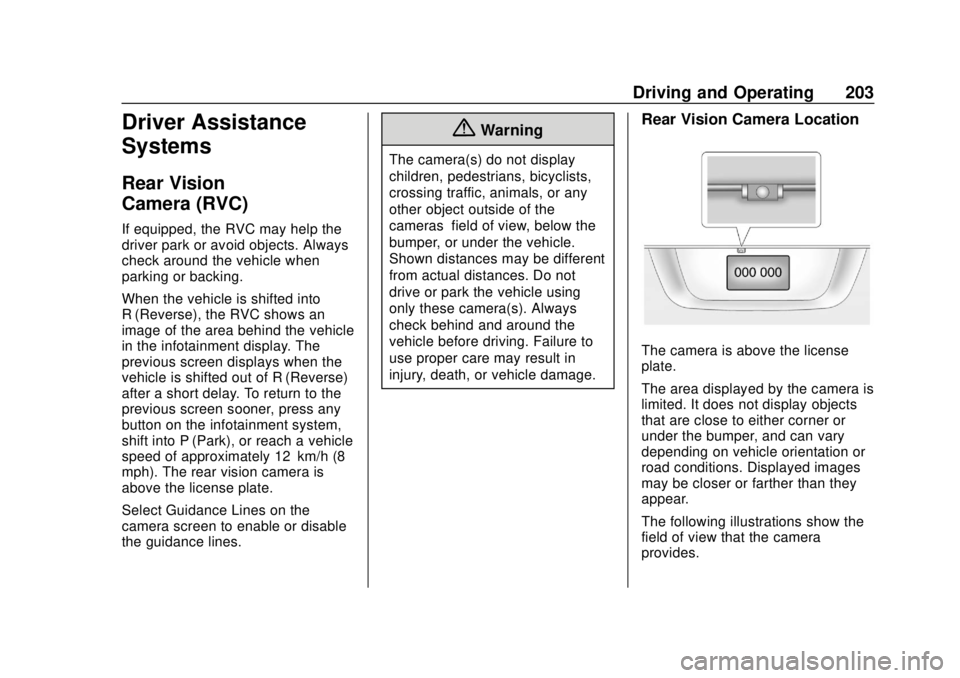
mph). The rear vision camera is
above the license plate.
Select Guidance Lines on the
camera screen to enable or disable
the guidance lines.
{Warning
The camera(s) do not display
children, pedestrians, bicyclists,
crossing traffic, animals, or any
other object outside of the
cameras’field of view, below the
bumper, or under the vehicle.
Shown distances may be different
from actual distances. Do not
drive or park the vehicle using
only these camera(s). Always
check behind and around the
vehicle before driving. Failure to
use proper care may result in
injury, death, or vehicle damage.
Rear Vision Camera Location
The camera is above the license
plate.
The area displayed by the camera is
limited. It does not display objects
that are close to either corner or
under the bumper, and can vary
depending on vehicle orientation or
road conditions. Displayed images
may be closer or farther than they
appear.
The following illustrations show the
field of view that the camera
provides.