2018 CHEVROLET SILVERADO jack
[x] Cancel search: jackPage 26 of 501

Chevrolet Silverado Owner Manual (GMNA-Localizing-U.S./Canada/Mexico-
11349200) - 2018 - CRC - 2/27/18
In Brief 25
Setting the Clock
SeeClock 0131.
Satellite Radio
Vehicles with a SiriusXM satellite
radio tuner and a valid SiriusXM
satellite radio subscription can
receive SiriusXM programming.
SiriusXM Satellite Radio
Service
SiriusXM is a satellite radio service
based in the 48 contiguous United
States and 10 Canadian provinces.
SiriusXM satellite radio has a wide
variety of programming and
commercial-free music, coast to
coast, and in digital-quality sound.
A fee is required to receive the
SiriusXM service.
For more information refer to:
.
www.siriusxm.com or call
1-888-601-6296 (U.S.).
. www.siriusxm.ca or call
1-877-438-9677 (Canada).
See Satellite Radio 0187.
Portable Audio Devices
This vehicle may have a 3.5 mm
(1/8 in) auxiliary input jack and USB
ports in the center console or
armrest. There may be a USB port
in the upper glove box. External
devices such as iPods, laptop
computers, MP3 players, and USB
storage devices may be connected,
depending on the audio system.
See USB Port 0190 andAuxiliary
Jack 0195.
Bluetooth
The Bluetooth system allows users
with a Bluetooth-enabled cell phone
to make and receive hands-free
calls using the vehicle audio system
and controls.
The Bluetooth-enabled cell phone
must be paired with the in-vehicle
Bluetooth system before it can be
used in the vehicle. Not all phones
will support all functions.
See Bluetooth (Overview) 0203 or
Bluetooth (Infotainment Controls)
0 205.
Steering Wheel Controls
If equipped, some audio controls
can be adjusted at the steering
wheel.
g:If equipped with OnStar®or a
Bluetooth®system, press to interact
with those systems. See OnStar
Overview 0475, Bluetooth
(Overview) 0203 orBluetooth
(Infotainment Controls) 0205,
or “Bluetooth (Overview)” in the
infotainment manual.
Page 126 of 501
Chevrolet Silverado Owner Manual (GMNA-Localizing-U.S./Canada/Mexico-
11349200) - 2018 - CRC - 2/27/18
Storage 125
Cupholders
Front
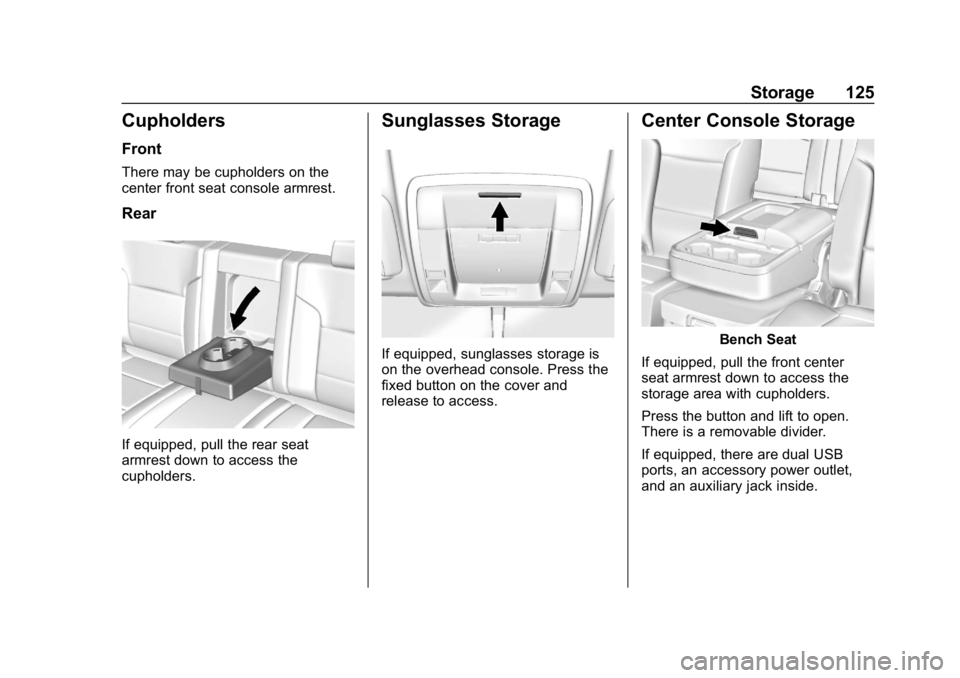
There may be cupholders on the
center front seat console armrest.
Rear
If equipped, pull the rear seat
armrest down to access the
cupholders.
Sunglasses Storage
If equipped, sunglasses storage is
on the overhead console. Press the
fixed button on the cover and
release to access.
Center Console Storage
Bench Seat
If equipped, pull the front center
seat armrest down to access the
storage area with cupholders.
Press the button and lift to open.
There is a removable divider.
If equipped, there are dual USB
ports, an accessory power outlet,
and an auxiliary jack inside.
Page 127 of 501

Chevrolet Silverado Owner Manual (GMNA-Localizing-U.S./Canada/Mexico-
11349200) - 2018 - CRC - 2/27/18
126 Storage
Bucket Seat
If equipped, press the latch and lift
to open. Depending on the options
there may be a tote compartment,
accessory power outlet, auxiliary
jack, and USB port(s) inside. There
are openings for power cords on the
edge of the storage area.
See Power Outlets 0132, USB Port
0 190, and Auxiliary Jack 0195.
If equipped with the uplevel radio,
see the infotainment manual.
Floor Console Storage
If equipped with front seat floor
console storage, unlock with the
ignition key, press the button, and
lift to open.
Additional Storage
Features
Cargo Tie-Downs
The vehicle may be equipped with
cargo tie-downs.
Any of the nine holes inside the
truck bed can be used for tie-downs.
The maximum load is 113 kg
(250 lb) per tie-down.
Page 182 of 501

Chevrolet Silverado Owner Manual (GMNA-Localizing-U.S./Canada/Mexico-
11349200) - 2018 - CRC - 2/27/18
Infotainment System 181
Infotainment
System
Introduction
Infotainment . . . . . . . . . . . . . . . . . . 181
Theft-Deterrent Feature . . . . . . 182
Overview . . . . . . . . . . . . . . . . . . . . . 183
Home Page . . . . . . . . . . . . . . . . . . 184
Software Updates . . . . . . . . . . . . 185
Radio
AM-FM Radio . . . . . . . . . . . . . . . . 185
Satellite Radio . . . . . . . . . . . . . . . . 187
Radio Reception . . . . . . . . . . . . . . 188
Fixed Mast Antenna . . . . . . . . . . 189
Multi-Band Antenna . . . . . . . . . . 189
Audio Players
Avoiding Untrusted MediaDevices . . . . . . . . . . . . . . . . . . . . . 190
USB Port . . . . . . . . . . . . . . . . . . . . . 190
Auxiliary Jack . . . . . . . . . . . . . . . . 195
Bluetooth Audio . . . . . . . . . . . . . . 196
Voice Recognition
Voice Recognition . . . . . . . . . . . . 197
Phone
Bluetooth (Overview) . . . . . . . . . 203
Bluetooth (Infotainment Controls) . . . . . . . . . . . . . . . . . . . . 205
Apple CarPlay and Android Auto . . . . . . . . . . . . . . . . 209
Trademarks and License
Agreements
Trademarks and License
Agreements . . . . . . . . . . . . . . . . . 210
Introduction
Infotainment
Base radio information is included in
this manual. See the infotainment
manual for information on other
available infotainment systems.
Read the following pages to
become familiar with the features.
{Warning
Taking your eyes off the road for
too long or too often while using
any infotainment feature can
cause a crash. You or others
could be injured or killed. Do not
give extended attention to
infotainment tasks while driving.
Limit your glances at the vehicle
displays and focus your attention
on driving. Use voice commands
whenever possible.
Page 196 of 501

Chevrolet Silverado Owner Manual (GMNA-Localizing-U.S./Canada/Mexico-
11349200) - 2018 - CRC - 2/27/18
Infotainment System 195
2. Touch the desired music.
Tone Settings
. Touch Tone Settings. The Tone
Settings menu is displayed. See
“Tone Settings” inAM-FM Radio
0 185.
Auto Volume
. Touch Auto Volume. The Auto
Volume menu is displayed. See
“Auto Volume” inAM-FM Radio
0 185.
Picture System Information
The infotainment system can view
picture files stored on a USB
storage device and devices that
support Media Transfer
Protocol (MTP).
.
Supported file extensions: .jpg,
.bmp, .png, .gif.
. Animated GIF files are not
supported.
. Some files may not operate due
to a different recording format or
the condition of the file. Viewing Pictures
1. Connect the USB device to the USB port.
2. Touch the screen to open to full screen. Touch the screen again
to return to the previous
screen.
If the USB device is already
connected:
1. Press
{.
2. Touch GALLERY.
Some features are disabled while
the vehicle is in motion.
Viewing a Slide Show
1. Touch
zfrom the picture
screen.
2. Touch the screen to cancel the slide show during the slide
show playback.
Viewing a Previous or Next
Picture
Touch
SorTfrom the picture
screen. Rotating a Picture
Touch
wfrom the picture screen.
Enlarging a Picture
Touch
xfrom the picture screen.
Using the USB Picture Menu 1. Touch MENU from the picture screen.
2. Touch the appropriate menu: .Slide Show Time: Allows
selection of the slide show
interval.
. Clock, Temp. Display:
Allows selection of On or
Off to show the clock and
temperature on the full
screen.
. Display Settings: Adjusts
for Brightness and Contrast.
3. Touch
0to exit.
Auxiliary Jack
This vehicle may have an AUX jack
in the center console or armrest.
See Center Console Storage 0125.
Page 197 of 501
Chevrolet Silverado Owner Manual (GMNA-Localizing-U.S./Canada/Mexico-
11349200) - 2018 - CRC - 2/27/18
196 Infotainment System
Possible auxiliary audio sources
include:
.Laptop computer
. Audio music player
This jack is not an audio output. Do
not plug headphones into the
auxiliary input jack. Auxiliary
devices should be set up while the
vehicle is in P (Park).
Connect a 3.5 mm (1/8 in) cable
from the auxiliary device to the
auxiliary input jack.
If an auxiliary device has already
been connected, but a different
source is currently active, touch
Source repeatedly to scroll through
all of the available audio source
screens, until the AUX source
screen is shown.
Playing from the AUX Jack
An auxiliary device is played
through the audio system and
controlled through the device itself.
Play will begin when the system has
finished reading the information on
the device. Playing Music
To play the music from the device,
if the device is already connected:
1. Press
{.
2. Touch AUDIO.
3. Touch Source.
4. Touch AUX.
To adjust the tone settings. See
“Audio Settings” in“System
Settings” underAM-FM Radio
0 185.
Bluetooth Audio
If equipped, music may be played
from a paired Bluetooth device. See
“Pairing” underBluetooth
(Overview) 0203 orBluetooth
(Infotainment Controls) 0205 for
help pairing a device.
Volume and song selection may be
controlled by using the infotainment
controls or the phone/device. If Bluetooth Audio is selected and
nothing is heard, check the volume
setting on both the phone/device
and the infotainment system.
Launch music by touching MEDIA
on the Home Page.
To play music via Bluetooth:
1. Power on the device, and pair to connect the device.
2. Once paired, go into the audio application from the Home
Page or via the application tray.
Select MEDIA until Bluetooth
displays.
Bluetooth Audio Menu
Touch MENU to display the
Bluetooth Audio menu. The
following may be available:
Tone: Use the infotainment controls
to adjust the tone settings.
Press
oBACK to go back to the
previous menu.
Page 410 of 501
Chevrolet Silverado Owner Manual (GMNA-Localizing-U.S./Canada/Mexico-
11349200) - 2018 - CRC - 2/27/18
Vehicle Care 409
If a front tire fails, the flat tire
creates a drag that pulls the vehicle
toward that side. Take your foot off
the accelerator pedal and grip the
steering wheel firmly. Steer to
maintain lane position, and then
gently brake to a stop, well off the
road, if possible.
A rear blowout, particularly on a
curve, acts much like a skid and
may require the same correction as
used in a skid. Stop pressing the
accelerator pedal and steer to
straighten the vehicle. It may be
very bumpy and noisy. Gently brake
to a stop, well off the road,
if possible.
{Warning
Driving on a flat tire will cause
permanent damage to the tire.
Re-inflating a tire after it has been
driven on while severely
underinflated or flat may cause a
blowout and a serious crash.
Never attempt to re-inflate a tire(Continued)
Warning (Continued)
that has been driven on while
severely underinflated or flat.
Have your dealer or an authorized
tire service center repair or
replace the flat tire as soon as
possible.
{Warning
Lifting a vehicle and getting under
it to do maintenance or repairs is
dangerous without the
appropriate safety equipment and
training. If a jack is provided with
the vehicle, it is designed only for
changing a flat tire. If it is used for
anything else, you or others could
be badly injured or killed if the
vehicle slips off the jack. If a jack
is provided with the vehicle, only
use it for changing a flat tire. If a tire goes flat, avoid further tire
and wheel damage by driving slowly
to a level place, well off the road,
if possible. Turn on the hazard
warning flashers. See
Hazard
Warning Flashers 0175.
{Warning
Changing a tire can be
dangerous. The vehicle can slip
off the jack and roll over or fall
causing injury or death. Find a
level place to change the tire. To
help prevent the vehicle from
moving:
1. Set the parking brake firmly.
2. Put an automatictransmission in P (Park) or a
manual transmission in
1 (First) or R (Reverse).
3. For four-wheel-drive vehicles, be sure the
transfer case is in a drive
gear– not in N (Neutral).
(Continued)
Page 411 of 501
Chevrolet Silverado Owner Manual (GMNA-Localizing-U.S./Canada/Mexico-
11349200) - 2018 - CRC - 2/27/18
410 Vehicle Care
Warning (Continued)
4. Turn off the engine and donot restart while the vehicle
is raised.
5. Do not allow passengers to remain in the vehicle.
6. Place wheel blocks, if equipped, on both sides of
the tire at the opposite
corner of the tire being
changed.
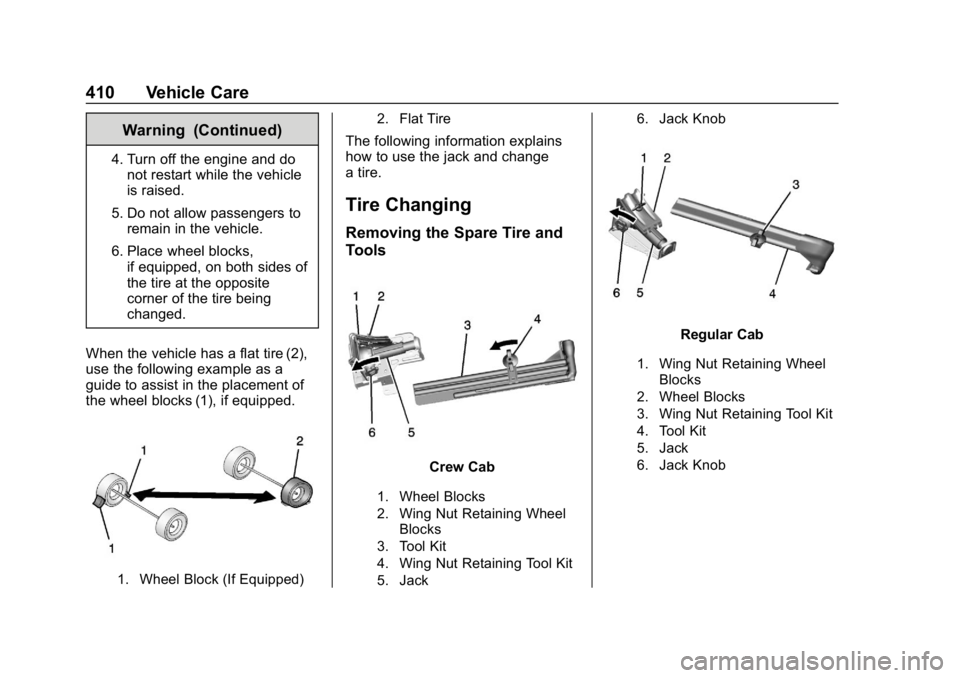
When the vehicle has a flat tire (2),
use the following example as a
guide to assist in the placement of
the wheel blocks (1), if equipped.
1. Wheel Block (If Equipped) 2. Flat Tire
The following information explains
how to use the jack and change
a tire.
Tire Changing
Removing the Spare Tire and
Tools
Crew Cab
1. Wheel Blocks
2. Wing Nut Retaining Wheel
Blocks
3. Tool Kit
4. Wing Nut Retaining Tool Kit
5. Jack 6. Jack Knob
Regular Cab
1. Wing Nut Retaining Wheel
Blocks
2. Wheel Blocks
3. Wing Nut Retaining Tool Kit
4. Tool Kit
5. Jack
6. Jack Knob