2018 CHEVROLET CRUZE phone
[x] Cancel search: phonePage 22 of 404
Chevrolet Cruze Owner Manual (GMNA-Localizing-U.S./Canada/Mexico-
11348462) - 2018 - crc - 5/15/17
In Brief 21
Vehicle Features
Infotainment System
Base radio information is included in
this manual. See the infotainment
manual for information on other
available infotainment systems.
Read the following pages to
become familiar with the features.
{Warning
Taking your eyes off the road for
too long or too often while using
any infotainment feature can
cause a crash. You or others
could be injured or killed. Do not
give extended attention to
infotainment tasks while driving.
Limit your glances at the vehicle
displays and focus your attention
on driving. Use voice commands
whenever possible.The infotainment system has built-in
features intended to help avoid
distraction by disabling some
functions when driving. These
functions may gray out when they
are unavailable. Many infotainment
features are also available through
the instrument cluster and steering
wheel controls.
Before driving:
.
Become familiar with the
operation, center stack controls,
and infotainment display
controls.
. Set up the audio by presetting
favorite stations, setting the
tone, and adjusting the
speakers.
. Set up phone numbers in
advance so they can be called
easily by pressing a single
control or by using a single voice
command if equipped with
Bluetooth phone capability.
See Defensive Driving 0197.
To play the infotainment system with
the ignition off, see Retained
Accessory Power (RAP) 0215.
Radio(s)
O
:
. Press to turn the power on.
. Press and hold to turn the
power off.
. Press to mute/unmute the
system when on.
. Turn to decrease or increase the
volume.
g:
. Radio: Press and release to fast
seek the strongest previous
station or channel.
. USB/Music/Pictures: Press to go
to the previous content. Press
and hold to fast rewind.
d:
. Radio: Press and release to fast
seek the next strongest station
or channel.
. USB/Music/Pictures: Press to go
to the next content. Press and
hold to fast forward.
Page 23 of 404
Chevrolet Cruze Owner Manual (GMNA-Localizing-U.S./Canada/Mexico-
11348462) - 2018 - crc - 5/15/17
22 In Brief
5:
. Press and release to access the
phone screen, answer an
incoming call, or access the
device home screen.
See Overview 0163.
Satellite Radio
If equipped, a SiriusXM satellite
radio tuner and a valid SiriusXM
satellite radio subscription can
receive SiriusXM programming.
SiriusXM Satellite Radio
Service
SiriusXM is a satellite radio service
based in the 48 contiguous United
States and 10 Canadian provinces.
SiriusXM satellite radio has a wide
variety of programming and
commercial-free music, coast to
coast, and in digital-quality sound.
A fee is required to receive the
SiriusXM service.
Refer to:
.
www.siriusxm.com or call
1-888-601-6296 (U.S.). .
www.siriusxm.ca or call
1-877-438-9677 (Canada).
See Satellite Radio (If Equipped)
0 167.
Portable Audio Devices
This vehicle has a USB port on the
center stack for data and charging
and may have a USB charge port
on the rear of the center console.
External devices such as iPhones/
iPods and USB storage devices
may be connected.
See USB Port 0169.
Bluetooth
The Bluetooth system allows users
with a Bluetooth-enabled cell phone
to make and receive hands-free
calls using the vehicle audio system
and controls.
The Bluetooth-enabled cell phone
must be paired with the in-vehicle
Bluetooth system before it can be
used in the vehicle. Not all phones
will support all functions. See
Bluetooth (Infotainment
Controls) 0177 orBluetooth
(Overview) 0176.
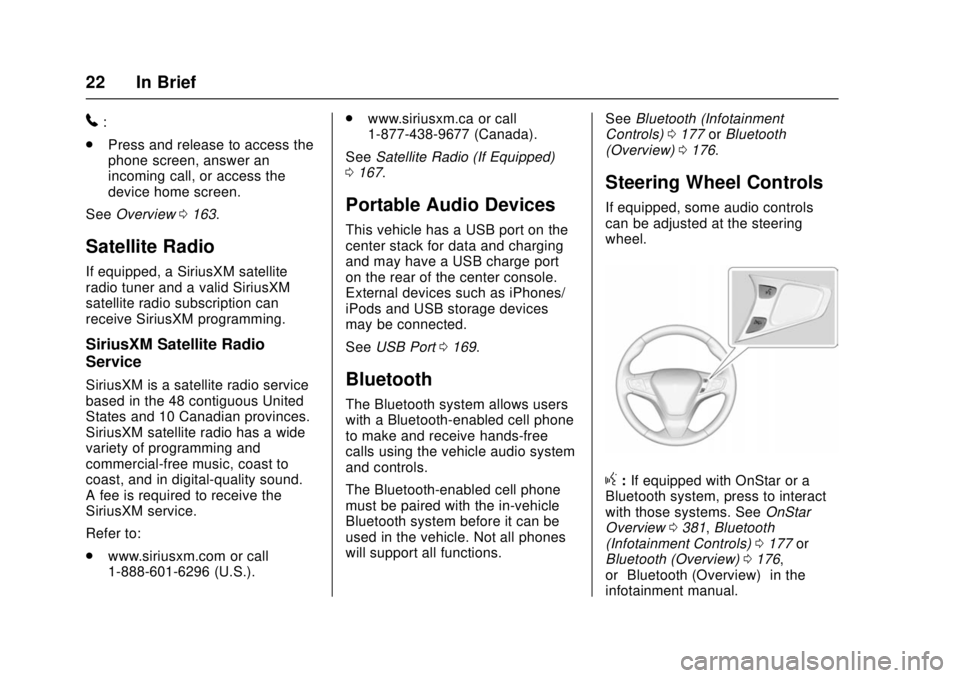
Steering Wheel Controls
If equipped, some audio controls
can be adjusted at the steering
wheel.
g:If equipped with OnStar or a
Bluetooth system, press to interact
with those systems. See OnStar
Overview 0381, Bluetooth
(Infotainment Controls) 0177 or
Bluetooth (Overview) 0176,
or “Bluetooth (Overview)” in the
infotainment manual.
Page 26 of 404
Chevrolet Cruze Owner Manual (GMNA-Localizing-U.S./Canada/Mexico-
11348462) - 2018 - crc - 5/15/17
In Brief 25
Rear Cross Traffic Alert
(RCTA) System
If equipped, the RCTA system uses
a triangle with an arrow on the
infotainment display to warn of
traffic behind your vehicle that may
cross your vehicle's path while in
R (Reverse). In addition, beeps will
sound.
SeeAssistance Systems for Parking
or Backing 0236.
Parking Assist
If equipped, Rear Parking Assist
(RPA) uses sensors on the rear
bumper to assist with parking and
avoiding objects while in
R (Reverse). It operates at speeds
less than 8 km/h (5 mph). RPA may
show a warning triangle on the
infotainment display and/or a
graphic on the instrument cluster to
provide the object distance. In
addition, multiple beeps may occur
if very close to an object.
See Assistance Systems for Parking
or Backing 0236.
Power Outlets
The 12-volt accessory power outlet
can be used to plug in electrical
equipment, such as a cell phone or
MP3 player.
There is an accessory power outlet
on the center console in front of the
shift lever. This outlet is powered
when the ignition is on or in ACC/
ACCESSORY, or until the driver
door is opened within 10 minutes of
turning off the vehicle. See Retained
Accessory Power (RAP) 0215.
See Power Outlets 0115.
Sunroof
If equipped, the sunroof only
operates with the ignition on or in
ACC/ACCESSORY, or when
Retained Accessory Power (RAP) is
active. See Retained Accessory
Power (RAP) 0215.
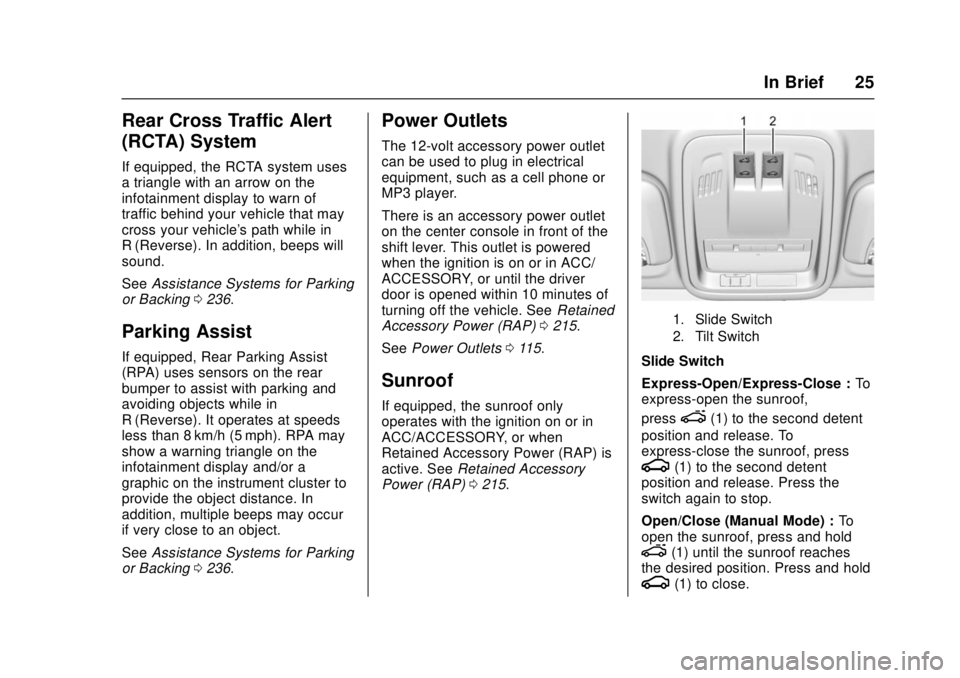
1. Slide Switch
2. Tilt Switch
Slide Switch
Express-Open/Express-Close : To
express-open the sunroof,
press
e(1) to the second detent
position and release. To
express-close the sunroof, press
g(1) to the second detent
position and release. Press the
switch again to stop.
Open/Close (Manual Mode) : To
open the sunroof, press and hold
e(1) until the sunroof reaches
the desired position. Press and hold
g(1) to close.
Page 30 of 404
Chevrolet Cruze Owner Manual (GMNA-Localizing-U.S./Canada/Mexico-
11348462) - 2018 - crc - 5/15/17
In Brief 29
If the vehicle continues to be driven
in a manner that prevents effective
DPF cleaning, the DPF will become
plugged with particulates. If this
occurs, the engine computer will
turn on the service engine soon light
in the instrument cluster and a DIC
message will display. SeeDiesel
Particulate Filter 0218, Engine
Power Messages 0144, and Diesel
Exhaust Fluid (DEF) Warning Light
0 136.
Fuel
Use Ultra-Low Sulfur Diesel
Fuel (ULSD)
Use Ultra-Low Sulfur Diesel Fuel
(ULSD) only. The emission control
hardware used on the vehicle may
be damaged by using fuel with high
sulfur levels. Use only fuel that is
dispensed from pumps bearing the
ULSD label.
Do Not Use Low Sulfur Diesel
Fuel (LSD)
Do not use fuel that is dispensed
from pumps bearing the LSD label. Do Not Use Non-Highway Fuel
Fuel labeled as off road or
non-highway is typically very high in
sulfur content and will damage the
emission control system.
Non-highway fuel is not intended for
use in on-highway vehicles.
In addition:
.
Use the correct engine oil.
. Do not add gasoline to
diesel fuel.
. Do not modify the induction or
exhaust systems.
See Fuel for Diesel Engines 0246
and Engine Oil 0265.
Diesel Exhaust Fluid
Diesel Exhaust Fluid (DEF) is used
with diesel engines to reduce the
amount of regulated emissions
produced. The DEF system must be
maintained for the vehicle to run
properly. It is normal to hear the
DEF system purge fluid back into
the tank after the vehicle is shut off. Locating Diesel Exhaust Fluid
DEF can be purchased at a
Chevrolet dealer. It can also be
purchased at authorized vehicle
dealerships. Additionally, some
diesel fueling stations or retailers
may have DEF for purchase. For
vehicles with an active OnStar
service plan, OnStar can help to
locate a DEF retailer. See
Customer
Assistance Offices 0369 for phone
numbers to assist you in contacting
a GM dealer. See Recommended
Fluids and Lubricants 0359.
As the DEF tank becomes low on
fluid, warnings begin with
approximately 1 600 km (1,000 mi)
of remaining range. These warnings
will increase in intensity as the tank
becomes empty. Once the tank is
empty, the vehicle speed will be
limited. If there is an issue with the
quality of the fluid or the exhaust
fluid system, warnings will be
displayed in the Driver Information
Center (DIC). See Diesel Exhaust
Fluid 0219.
Page 116 of 404

Chevrolet Cruze Owner Manual (GMNA-Localizing-U.S./Canada/Mexico-
11348462) - 2018 - crc - 5/15/17
Instruments and Controls 115
2. Touch Set Time and touch«
orªto increase or decrease
hours, minutes, and AM or PM.
Touch 12–24 Hr for 12 or
24 hour clock.
3. Touch
}to go back to the
previous menu.
Auto Set requires an OnStar
service plan.
If auto timing is set, the time
displayed on the clock may not
update immediately when driving
into a new time zone.
To set the date: 1. Touch SETTINGS from the Home Page, then touch Time
and Date.
2. Touch Set Date and touch
«
orªto increase or decrease
month, day, or year.
3. Touch
}to go back to the
previous menu.
To set the clock display: 1. Touch SETTINGS and touch Time and Date. 2. Touch Clock Display and touch
OFF or ON to turn the clock
display off or on.
3. Touch
}to go back to the
previous menu.
The clock settings can also be
accessed by touching the time
display, then touching Set.
Power Outlets
Power Outlet 12-Volt Direct
Current
The accessory power outlet can be
used to plug in electrical equipment,
such as a cell phone or MP3 player.
There is an accessory power outlet
on the center console in front of the
shift lever. This outlet is powered
when the ignition is on or in ACC/
ACCESSORY, or until the driver
door is opened within 10 minutes of
turning off the vehicle. See Retained
Accessory Power (RAP) 0215.
Open the cover to access.
Caution
Leaving electrical equipment
plugged in for an extended period
of time while the vehicle is off will
drain the battery. Always unplug
electrical equipment when not in
use and do not plug in equipment
that exceeds the maximum
20 amp rating.
Certain electrical accessories may
not be compatible with the
accessory power outlet and could
overload vehicle or adapter fuses.
If a problem is experienced, see
your dealer.
When adding electrical equipment,
be sure to follow the installation
instructions included with the
equipment. See Add-On Electrical
Equipment 0257.
Page 117 of 404
Chevrolet Cruze Owner Manual (GMNA-Localizing-U.S./Canada/Mexico-
11348462) - 2018 - crc - 5/15/17
116 Instruments and Controls
Caution
Hanging heavy equipment from
the power outlet can cause
damage not covered by the
vehicle warranty. The power
outlets are designed for
accessory power plugs only, such
as cell phone charge cords.
Power Outlet 110/120V Volt
Alternating Current
If equipped with this power outlet it
can be used to plug in electrical
equipment that uses a maximum
limit of 150 watts.
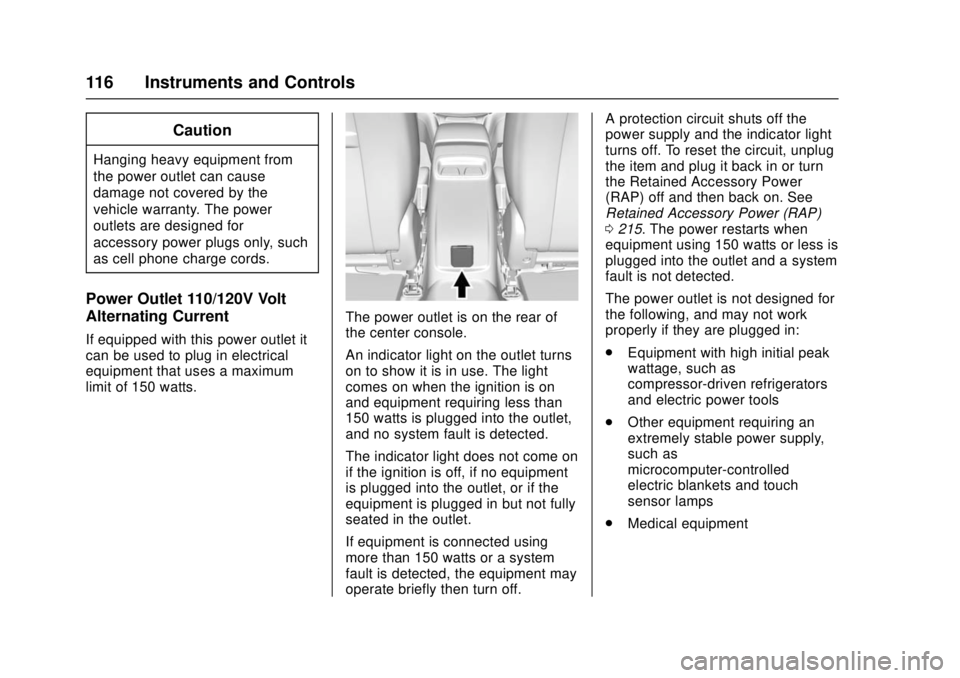
The power outlet is on the rear of
the center console.
An indicator light on the outlet turns
on to show it is in use. The light
comes on when the ignition is on
and equipment requiring less than
150 watts is plugged into the outlet,
and no system fault is detected.
The indicator light does not come on
if the ignition is off, if no equipment
is plugged into the outlet, or if the
equipment is plugged in but not fully
seated in the outlet.
If equipment is connected using
more than 150 watts or a system
fault is detected, the equipment may
operate briefly then turn off.A protection circuit shuts off the
power supply and the indicator light
turns off. To reset the circuit, unplug
the item and plug it back in or turn
the Retained Accessory Power
(RAP) off and then back on. See
Retained Accessory Power (RAP)
0
215. The power restarts when
equipment using 150 watts or less is
plugged into the outlet and a system
fault is not detected.
The power outlet is not designed for
the following, and may not work
properly if they are plugged in:
. Equipment with high initial peak
wattage, such as
compressor-driven refrigerators
and electric power tools
. Other equipment requiring an
extremely stable power supply,
such as
microcomputer-controlled
electric blankets and touch
sensor lamps
. Medical equipment
Page 118 of 404
Chevrolet Cruze Owner Manual (GMNA-Localizing-U.S./Canada/Mexico-
11348462) - 2018 - crc - 5/15/17
Instruments and Controls 117
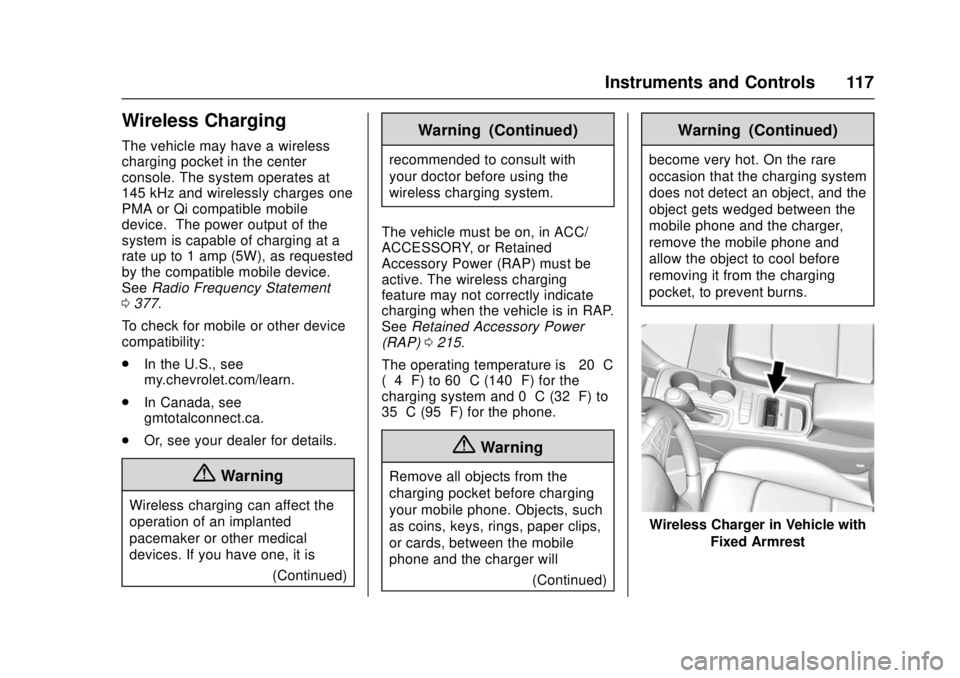
Wireless Charging
The vehicle may have a wireless
charging pocket in the center
console. The system operates at
145 kHz and wirelessly charges one
PMA or Qi compatible mobile
device. The power output of the
system is capable of charging at a
rate up to 1 amp (5W), as requested
by the compatible mobile device.
SeeRadio Frequency Statement
0 377.
To check for mobile or other device
compatibility:
. In the U.S., see
my.chevrolet.com/learn.
. In Canada, see
gmtotalconnect.ca.
. Or, see your dealer for details.
{Warning
Wireless charging can affect the
operation of an implanted
pacemaker or other medical
devices. If you have one, it is
(Continued)
Warning (Continued)
recommended to consult with
your doctor before using the
wireless charging system.
The vehicle must be on, in ACC/
ACCESSORY, or Retained
Accessory Power (RAP) must be
active. The wireless charging
feature may not correctly indicate
charging when the vehicle is in RAP.
See Retained Accessory Power
(RAP) 0215.
The operating temperature is −20 °C
(−4 °F) to 60 °C (140 °F) for the
charging system and 0 °C (32 °F) to
35 °C (95 °F) for the phone.
{Warning
Remove all objects from the
charging pocket before charging
your mobile phone. Objects, such
as coins, keys, rings, paper clips,
or cards, between the mobile
phone and the charger will
(Continued)
Warning (Continued)
become very hot. On the rare
occasion that the charging system
does not detect an object, and the
object gets wedged between the
mobile phone and the charger,
remove the mobile phone and
allow the object to cool before
removing it from the charging
pocket, to prevent burns.
Wireless Charger in Vehicle withFixed Armrest
Page 125 of 404
Chevrolet Cruze Owner Manual (GMNA-Localizing-U.S./Canada/Mexico-
11348462) - 2018 - crc - 5/15/17
124 Instruments and Controls
Cluster Menu
There is an interactive display area
in the center of the instrument
cluster.
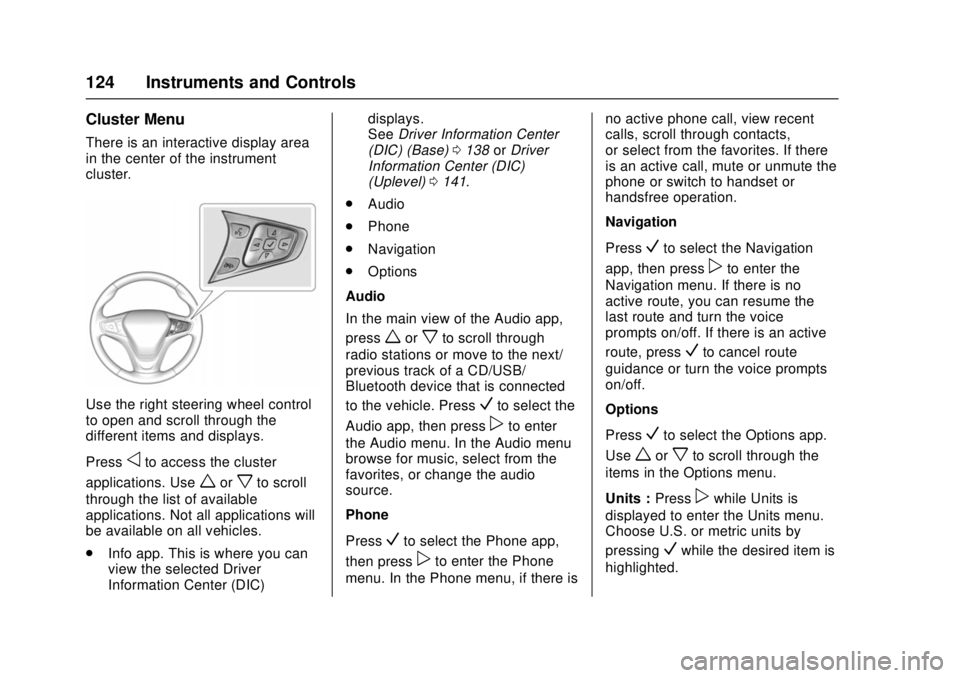
Use the right steering wheel control
to open and scroll through the
different items and displays.
Press
oto access the cluster
applications. Use
worxto scroll
through the list of available
applications. Not all applications will
be available on all vehicles.
. Info app. This is where you can
view the selected Driver
Information Center (DIC) displays.
See
Driver Information Center
(DIC) (Base) 0138 orDriver
Information Center (DIC)
(Uplevel) 0141.
. Audio
. Phone
. Navigation
. Options
Audio
In the main view of the Audio app,
press
worxto scroll through
radio stations or move to the next/
previous track of a CD/USB/
Bluetooth device that is connected
to the vehicle. Press
Vto select the
Audio app, then press
pto enter
the Audio menu. In the Audio menu
browse for music, select from the
favorites, or change the audio
source.
Phone
Press
Vto select the Phone app,
then press
pto enter the Phone
menu. In the Phone menu, if there is no active phone call, view recent
calls, scroll through contacts,
or select from the favorites. If there
is an active call, mute or unmute the
phone or switch to handset or
handsfree operation.
Navigation
Press
Vto select the Navigation
app, then press
pto enter the
Navigation menu. If there is no
active route, you can resume the
last route and turn the voice
prompts on/off. If there is an active
route, press
Vto cancel route
guidance or turn the voice prompts
on/off.
Options
Press
Vto select the Options app.
Use
worxto scroll through the
items in the Options menu.
Units : Press
pwhile Units is
displayed to enter the Units menu.
Choose U.S. or metric units by
pressing
Vwhile the desired item is
highlighted.