2018 CHEVROLET CRUZE infotainment
[x] Cancel search: infotainmentPage 298 of 404
Chevrolet Cruze Owner Manual (GMNA-Localizing-U.S./Canada/Mexico-
11348462) - 2018 - crc - 5/15/17
Vehicle Care 297
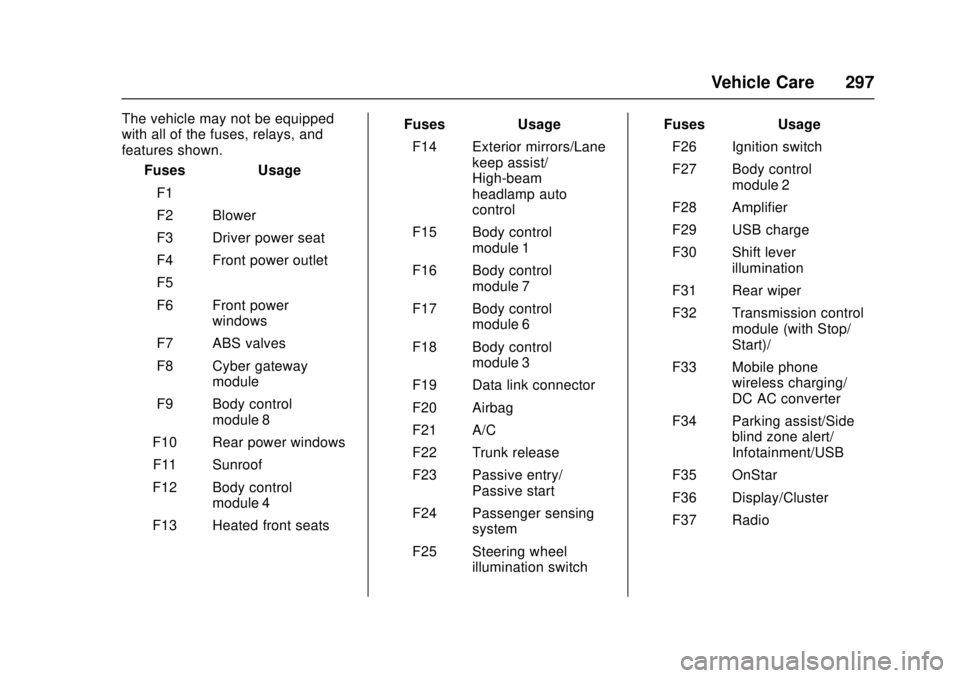
The vehicle may not be equipped
with all of the fuses, relays, and
features shown.Fuses Usage
F1 –
F2 Blower
F3 Driver power seat
F4 Front power outlet
F5 –
F6 Front power windows
F7 ABS valves
F8 Cyber gateway module
F9 Body control module 8
F10 Rear power windows
F11 Sunroof
F12 Body control module 4
F13 Heated front seats Fuses Usage
F14 Exterior mirrors/Lane keep assist/
High-beam
headlamp auto
control
F15 Body control module 1
F16 Body control module 7
F17 Body control module 6
F18 Body control module 3
F19 Data link connector
F20 Airbag
F21 A/C
F22 Trunk release
F23 Passive entry/ Passive start
F24 Passenger sensing system
F25 Steering wheel illumination switch Fuses Usage
F26 Ignition switch
F27 Body control module 2
F28 Amplifier
F29 USB charge
F30 Shift lever illumination
F31 Rear wiper
F32 Transmission control module (with Stop/
Start)/–
F33 Mobile phone wireless charging/
DC AC converter
F34 Parking assist/Side blind zone alert/
Infotainment/USB
F35 OnStar
F36 Display/Cluster
F37 Radio
Page 368 of 404
Chevrolet Cruze Owner Manual (GMNA-Localizing-U.S./Canada/Mexico-
11348462) - 2018 - crc - 5/15/17
Customer Information 367
Customer
Information
Customer Information
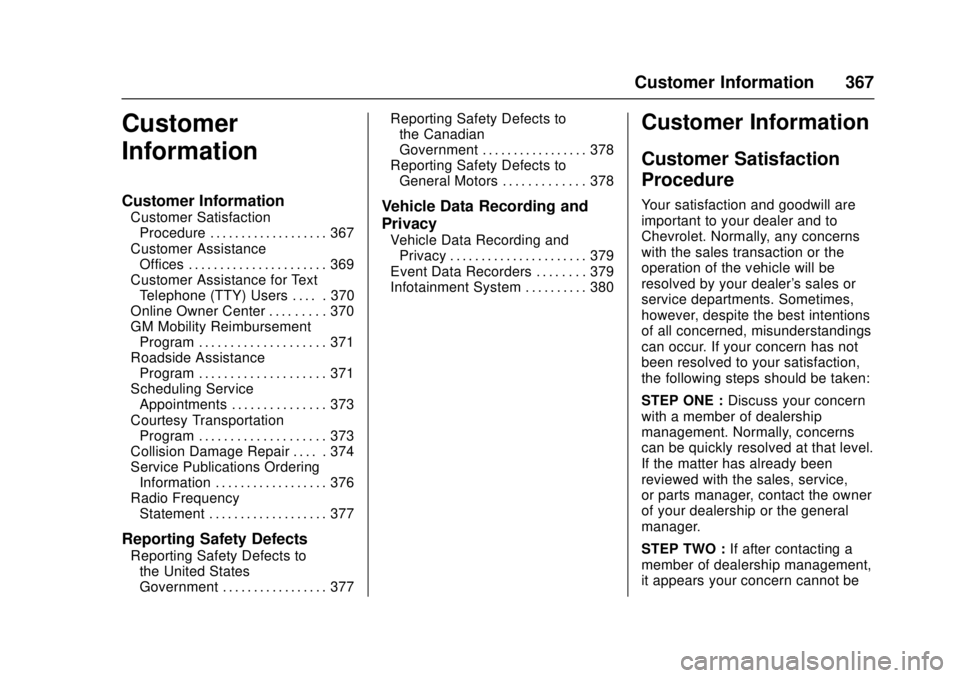
Customer SatisfactionProcedure . . . . . . . . . . . . . . . . . . . 367
Customer Assistance Offices . . . . . . . . . . . . . . . . . . . . . . 369
Customer Assistance for Text Telephone (TTY) Users . . . . . 370
Online Owner Center . . . . . . . . . 370
GM Mobility Reimbursement Program . . . . . . . . . . . . . . . . . . . . 371
Roadside Assistance Program . . . . . . . . . . . . . . . . . . . . 371
Scheduling Service Appointments . . . . . . . . . . . . . . . 373
Courtesy Transportation Program . . . . . . . . . . . . . . . . . . . . 373
Collision Damage Repair . . . . . 374
Service Publications Ordering Information . . . . . . . . . . . . . . . . . . 376
Radio Frequency Statement . . . . . . . . . . . . . . . . . . . 377
Reporting Safety Defects
Reporting Safety Defects tothe United States
Government . . . . . . . . . . . . . . . . . 377 Reporting Safety Defects to
the Canadian
Government . . . . . . . . . . . . . . . . . 378
Reporting Safety Defects to General Motors . . . . . . . . . . . . . 378
Vehicle Data Recording and
Privacy
Vehicle Data Recording and
Privacy . . . . . . . . . . . . . . . . . . . . . . 379
Event Data Recorders . . . . . . . . 379
Infotainment System . . . . . . . . . . 380
Customer Information
Customer Satisfaction
Procedure
Your satisfaction and goodwill are
important to your dealer and to
Chevrolet. Normally, any concerns
with the sales transaction or the
operation of the vehicle will be
resolved by your dealer's sales or
service departments. Sometimes,
however, despite the best intentions
of all concerned, misunderstandings
can occur. If your concern has not
been resolved to your satisfaction,
the following steps should be taken:
STEP ONE : Discuss your concern
with a member of dealership
management. Normally, concerns
can be quickly resolved at that level.
If the matter has already been
reviewed with the sales, service,
or parts manager, contact the owner
of your dealership or the general
manager.
STEP TWO : If after contacting a
member of dealership management,
it appears your concern cannot be
Page 381 of 404

Chevrolet Cruze Owner Manual (GMNA-Localizing-U.S./Canada/Mexico-
11348462) - 2018 - crc - 5/15/17
380 Customer Information
GM will not access these data or
share it with others except: with the
consent of the vehicle owner or,
if the vehicle is leased, with the
consent of the lessee; in response
to an official request by police or
similar government office; as part of
GM's defense of litigation through
the discovery process; or, as
required by law. Data that GM
collects or receives may also be
used for GM research needs or may
be made available to others for
research purposes, where a need is
shown and the data is not tied to a
specific vehicle or vehicle owner.
Infotainment System
If the vehicle is equipped with a
navigation system as part of the
infotainment system, use of the
system may result in the storage of
destinations, addresses, telephone
numbers, and other trip information.
See the infotainment manual for
information on stored data and for
deletion instructions.
Page 382 of 404

Chevrolet Cruze Owner Manual (GMNA-Localizing-U.S./Canada/Mexico-
11348462) - 2018 - crc - 5/15/17
OnStar 381
OnStar
OnStar Overview
OnStar Overview . . . . . . . . . . . . . 381
OnStar Services
Emergency . . . . . . . . . . . . . . . . . . . 382
Security . . . . . . . . . . . . . . . . . . . . . . 383
Navigation . . . . . . . . . . . . . . . . . . . . 383
Connections . . . . . . . . . . . . . . . . . . 384
Diagnostics . . . . . . . . . . . . . . . . . . . 386
OnStar Additional Information
OnStar AdditionalInformation . . . . . . . . . . . . . . . . . . 387
OnStar Overview
=Voice Command Button
QBlue OnStar Button
>Red Emergency Button
This vehicle may be equipped with a
comprehensive, in-vehicle system
that can connect to an OnStar
Advisor for Emergency, Security,
Navigation, Connections, and
Diagnostics Services. OnStar
services may require a paid service
plan and data plan. OnStar requires
the vehicle battery and electrical
system, cellular service, and GPS
satellite signals to be available and
operating. OnStar acts as a link to
existing emergency service
providers. OnStar may collect
information about you and your
vehicle, including location
information. See OnStar User Terms, Privacy Statement, and
Software Terms for more details
including system limitations at
www.onstar.com (U.S.) or
www.onstar.ca (Canada).
The OnStar system status light is
next to the OnStar buttons. If the
status light is:
.
Solid Green: System is ready.
. Flashing Green: On a call.
. Red: Indicates a problem.
. Off: System is active. Press
Q
twice to speak with an OnStar
Advisor.
Press
Qor call 1-888-4ONSTAR
(1-888-466-7827) to speak to an
Advisor.
Functionality of the Voice Command
button may vary by vehicle and
region.
Press
=to:
. Open the OnStar app on the
infotainment display. See the
infotainment manual for
information on how to use the
OnStar app.
Page 384 of 404

Chevrolet Cruze Owner Manual (GMNA-Localizing-U.S./Canada/Mexico-
11348462) - 2018 - crc - 5/15/17
OnStar 383
Security
If equipped, OnStar provides these
services:
.With Stolen Vehicle Assistance,
OnStar Advisors can use GPS to
pinpoint the vehicle and help
authorities quickly recover it.
. With Remote Ignition Block,
if equipped, OnStar can block
the engine from being restarted.
. With Stolen Vehicle Slowdown,
if equipped, OnStar can work
with law enforcement to
gradually slow the vehicle down.
Theft Alarm Notification
If equipped, if the doors are locked
and the vehicle alarm sounds, a
notification by text, e-mail, or phone
call will be sent. If the vehicle is
stolen, an OnStar Advisor can work
with authorities to recover the
vehicle.
Navigation
OnStar navigation requires a
specific OnStar service plan. Press
Qto receive Turn-by-Turn
directions or have them sent to the
vehicle’s navigation screen,
if equipped.
Turn-by-Turn Navigation
1. PressQto connect to an
Advisor.
2. Request directions to be downloaded to the vehicle.
3. Follow the voice-guided commands.
Using Voice Commands
During a Planned Route
Functionality of the Voice Command
button may vary by vehicle and
region. For some vehicles, press
=
to open the OnStar app on the
infotainment display. For other
vehicles press
=as follows.
Cancel Route
1. Press
=. System responds:
“OnStar ready,” then a tone. 2. Say
“Cancel route.” System
responds: “Do you want to
cancel directions?”
3. Say “Yes.”System responds:
“OK, request completed, thank
you, goodbye.”
Route Preview
1. Press
=. System responds:
“OnStar ready,” then a tone.
2. Say “Route preview.” System
responds with the next three
maneuvers.
Repeat
1. Press
=. System responds:
“OnStar ready,” then a tone.
2. Say “Repeat.” System
responds with the last direction
given, then responds with
“OnStar ready,” then a tone.
Get My Destination
1. Press
=. System responds:
“OnStar ready,” then a tone.
Page 385 of 404

Chevrolet Cruze Owner Manual (GMNA-Localizing-U.S./Canada/Mexico-
11348462) - 2018 - crc - 5/15/17
384 OnStar
2. Say“Get my destination.”
System responds with the
address and distance to the
destination, then responds with
“OnStar ready,” then a tone.
Send Destination to Vehicle
Directions can be sent to the
vehicle’s navigation screen,
if equipped.
Press
Q, then ask the Advisor to
download directions to the vehicle’s
navigation system, if equipped. After
the call ends, the navigation screen
will provide prompts to begin driving
directions. Routes that are sent to
the navigation screen can only be
canceled through the navigation
system.
See www.onstar.com (U.S.) or
www.onstar.ca (Canada).
Connections
The following OnStar services help
with staying connected.
For coverage maps, see
www.onstar.com (U.S.) or
www.onstar.ca (Canada). Ensuring Security
.
Change the default passwords
for the Wi-Fi hotspot and
myChevrolet mobile application.
Make these passwords different
from each other and use a
combination of letters, numbers,
and symbols to increase the
security.
. Change the default name of the
SSID (Service Set Identifier).
This is your network’s name that
is visible to other wireless
devices. Choose a unique name
and avoid family names or
vehicle descriptions.
OnStar Wi-Fi Hotspot (If Equipped)
The vehicle may have a built-in
Wi-Fi hotspot that provides access
to the Internet and web content at
4G LTE speed. Up to seven mobile
devices can be connected. A data
plan is required. Use the in-vehicle
controls only when it is safe to
do so. 1. To retrieve Wi-Fi hotspot information, press
=to open
the OnStar app on the infotainment display, then
select Wi-Fi Hotspot. On some
vehicles, touch Wi-Fi or Wi-Fi
Settings on the screen.
2. The Wi-Fi settings will display the Wi-Fi hotspot name (SSID),
password, and on some
vehicles, the connection type
(no Internet connection, 3G,
4G, 4G LTE), and signal quality
(poor, good, excellent).
3. To change the SSID or password, press
Qor call
1-888-4ONSTAR to connect
with an Advisor. On some
vehicles, the SSID and
password can be changed in
the Wi-Fi Hotspot menu.
After initial set-up, your vehicle’s
Wi-Fi hotspot will connect
automatically to your mobile
devices. Manage data usage by
turning Wi-Fi on or off on your
mobile device, using the
myChevrolet mobile app, or by
contacting an OnStar Advisor. On
some vehicles, Wi-Fi can also be
managed from the Wi-Fi
Hotspot menu.
Page 386 of 404
Chevrolet Cruze Owner Manual (GMNA-Localizing-U.S./Canada/Mexico-
11348462) - 2018 - crc - 5/15/17
OnStar 385
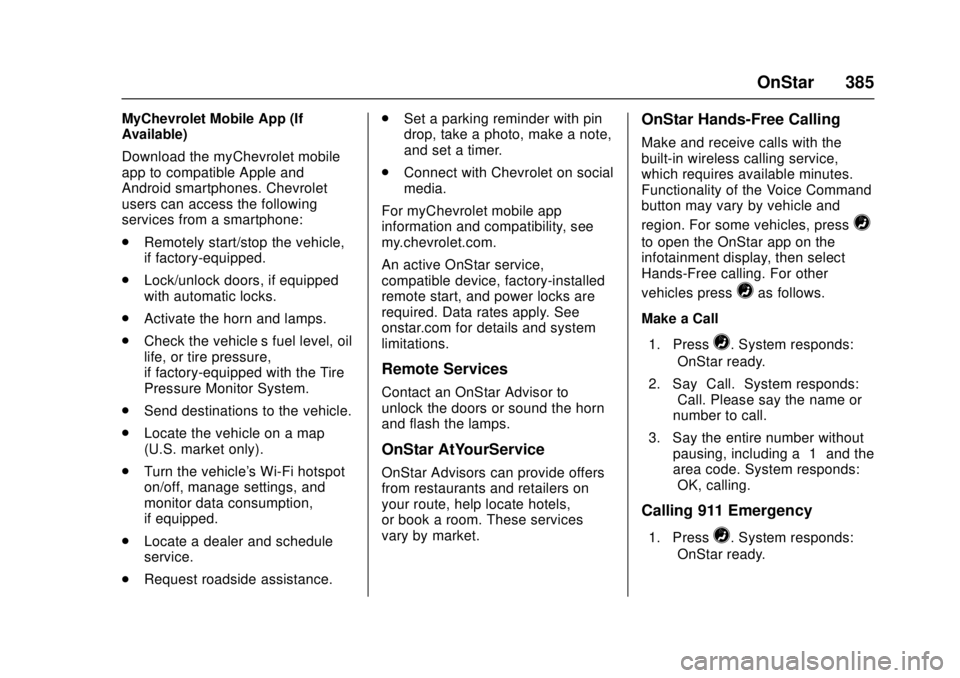
MyChevrolet Mobile App (If
Available)
Download the myChevrolet mobile
app to compatible Apple and
Android smartphones. Chevrolet
users can access the following
services from a smartphone:
.Remotely start/stop the vehicle,
if factory-equipped.
. Lock/unlock doors, if equipped
with automatic locks.
. Activate the horn and lamps.
. Check the vehicle’s fuel level, oil
life, or tire pressure,
if factory-equipped with the Tire
Pressure Monitor System.
. Send destinations to the vehicle.
. Locate the vehicle on a map
(U.S. market only).
. Turn the vehicle's Wi-Fi hotspot
on/off, manage settings, and
monitor data consumption,
if equipped.
. Locate a dealer and schedule
service.
. Request roadside assistance. .
Set a parking reminder with pin
drop, take a photo, make a note,
and set a timer.
. Connect with Chevrolet on social
media.
For myChevrolet mobile app
information and compatibility, see
my.chevrolet.com.
An active OnStar service,
compatible device, factory-installed
remote start, and power locks are
required. Data rates apply. See
onstar.com for details and system
limitations.
Remote Services
Contact an OnStar Advisor to
unlock the doors or sound the horn
and flash the lamps.
OnStar AtYourService
OnStar Advisors can provide offers
from restaurants and retailers on
your route, help locate hotels,
or book a room. These services
vary by market.
OnStar Hands-Free Calling
Make and receive calls with the
built-in wireless calling service,
which requires available minutes.
Functionality of the Voice Command
button may vary by vehicle and
region. For some vehicles, press
=
to open the OnStar app on the
infotainment display, then select
Hands-Free calling. For other
vehicles press
=as follows.
Make a Call
1. Press
=. System responds:
“OnStar ready.”
2. Say “Call.”System responds:
“Call. Please say the name or
number to call.”
3. Say the entire number without pausing, including a “1”and the
area code. System responds:
“OK, calling.”
Calling 911 Emergency
1. Press=. System responds:
“OnStar ready.”
Page 387 of 404
Chevrolet Cruze Owner Manual (GMNA-Localizing-U.S./Canada/Mexico-
11348462) - 2018 - crc - 5/15/17
386 OnStar
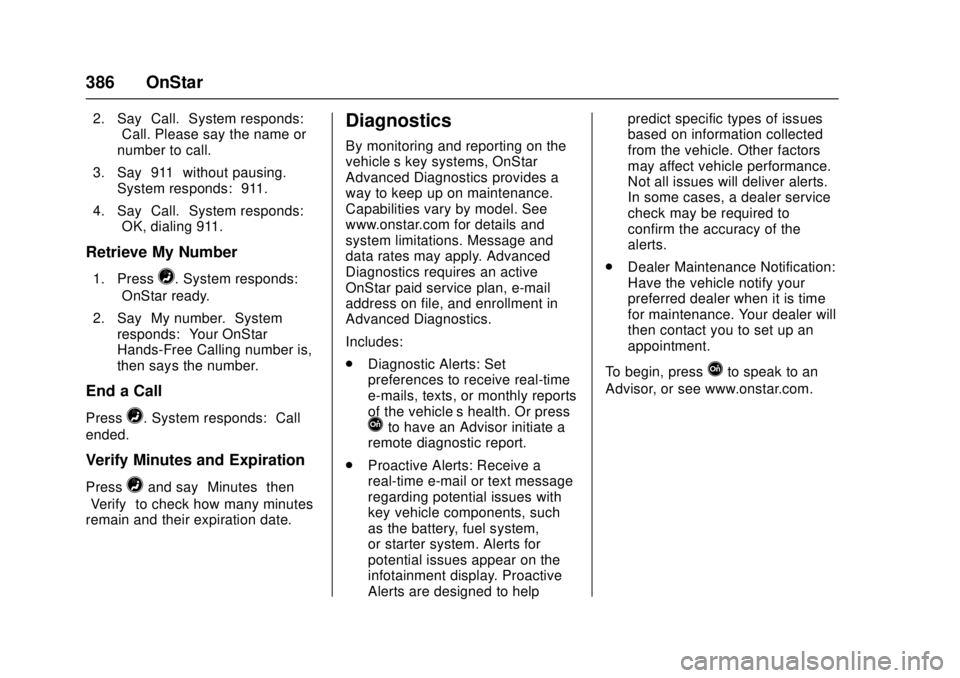
2. Say“Call.”System responds:
“Call. Please say the name or
number to call.”
3. Say “911”without pausing.
System responds: “911.”
4. Say “Call.”System responds:
“OK, dialing 911.”
Retrieve My Number
1. Press=. System responds:
“OnStar ready.”
2. Say “My number.” System
responds: “Your OnStar
Hands-Free Calling number is,”
then says the number.
End a Call
Press=. System responds: “Call
ended.”
Verify Minutes and Expiration
Press=and say “Minutes” then
“Verify” to check how many minutes
remain and their expiration date.
Diagnostics
By monitoring and reporting on the
vehicle’s key systems, OnStar
Advanced Diagnostics provides a
way to keep up on maintenance.
Capabilities vary by model. See
www.onstar.com for details and
system limitations. Message and
data rates may apply. Advanced
Diagnostics requires an active
OnStar paid service plan, e-mail
address on file, and enrollment in
Advanced Diagnostics.
Includes:
. Diagnostic Alerts: Set
preferences to receive real-time
e-mails, texts, or monthly reports
of the vehicle’s health. Or press
Qto have an Advisor initiate a
remote diagnostic report.
. Proactive Alerts: Receive a
real-time e-mail or text message
regarding potential issues with
key vehicle components, such
as the battery, fuel system,
or starter system. Alerts for
potential issues appear on the
infotainment display. Proactive
Alerts are designed to help predict specific types of issues
based on information collected
from the vehicle. Other factors
may affect vehicle performance.
Not all issues will deliver alerts.
In some cases, a dealer service
check may be required to
confirm the accuracy of the
alerts.
. Dealer Maintenance Notification:
Have the vehicle notify your
preferred dealer when it is time
for maintenance. Your dealer will
then contact you to set up an
appointment.
To begin, press
Qto speak to an
Advisor, or see www.onstar.com.