2018 CHEVROLET CRUZE radio
[x] Cancel search: radioPage 170 of 404
Chevrolet Cruze Owner Manual (GMNA-Localizing-U.S./Canada/Mexico-
11348462) - 2018 - crc - 5/15/17
Infotainment System 169
things like storms and power lines
interfere with radio reception. When
this happens, try reducing the treble
on the radio.
SiriusXM Satellite Radio
Service
SiriusXM Satellite Radio Service
gives digital radio reception from
coast to coast in the 48 contiguous
United States, and in Canada. Just
as with FM, tall buildings or hills can
interfere with satellite radio signals,
causing the sound to fade in and
out. In addition, traveling or standing
under heavy foliage, bridges,
garages, or tunnels may cause loss
of the SiriusXM signal for a period
of time.
Cell Phone Usage
Cell phone usage, such as making
or receiving phone calls, charging,
or just having the phone on may
cause static interference in the
radio. Unplug the phone or turn it off
if this happens.
Multi-Band Antenna
The multi-band antenna is on the
roof of the vehicle. The antenna is
used for OnStar, the SiriusXM
Satellite Radio Service System, and
GPS (Global Positioning System),
if the vehicle has these features.
Keep the antenna clear of
obstructions for clear reception.
If the vehicle has a sunroof, and it is
open, reception can also be
affected.
Audio Players
Avoiding Untrusted Media
Devices
When using media devices such as
CDs, DVDs, Blu-ray Discs, SD
cards, USB devices, and mobile
devices, consider the source.
Untrusted media devices could
contain files that affect system
operation or performance. Avoid use
if the content or origin cannot be
trusted.
USB Port
Using the USB Port
The infotainment system can play
music by connecting an auxiliary
device to the USB port.
USB Support
This vehicle has a USB port on the
center stack for data and charging
and may have a USB charge port
on the rear of the center console.
External devices such as iPhones/
iPods and USB storage devices
may be connected.
Page 174 of 404
Chevrolet Cruze Owner Manual (GMNA-Localizing-U.S./Canada/Mexico-
11348462) - 2018 - crc - 5/15/17
Infotainment System 173
Changing to the Next/Previous
Music File
.Touch
lto change to the next
music file.
. Touch
gwithin five seconds of
the playback time to play the
previous music file.
Returning to the Beginning of the
Current Music File
Touch
gafter five seconds of the
playback time.
Scanning Forward or Backward
Touch and hold
gorlduring
playback to rewind or fast forward.
Release the button to resume
playback at normal speed.
Playing a Music File Randomly
Touch
Zduring playback.
. ON: Plays all music files
randomly.
. OFF: Returns to normal
playback.
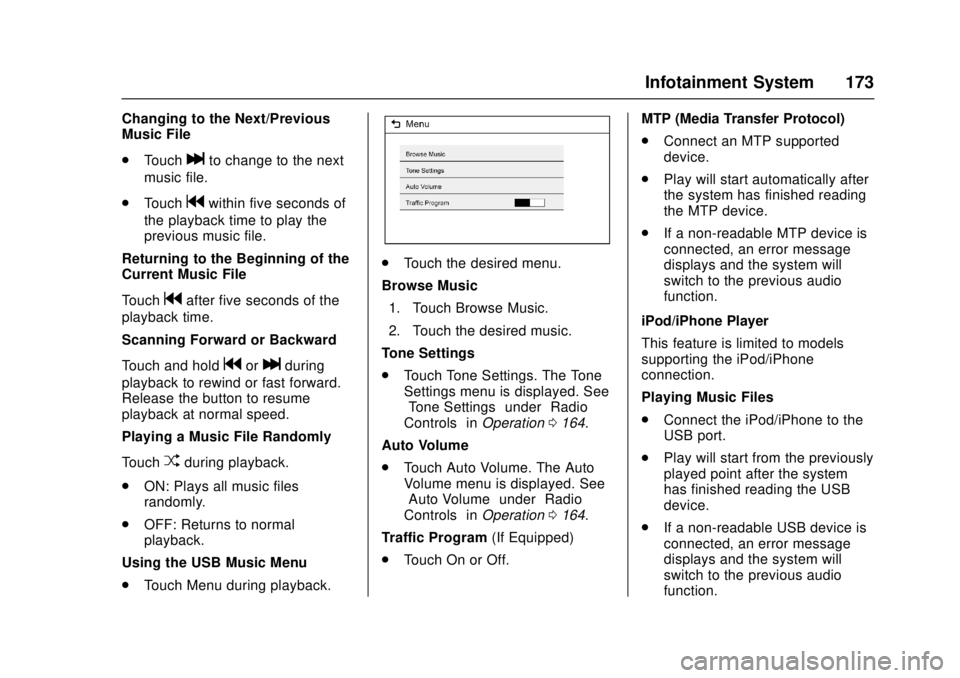
Using the USB Music Menu
. Touch Menu during playback.
.Touch the desired menu.
Browse Music 1. Touch Browse Music.
2. Touch the desired music.
Tone Settings
. Touch Tone Settings. The Tone
Settings menu is displayed. See
“Tone Settings” under“Radio
Controls” inOperation 0164.
Auto Volume
. Touch Auto Volume. The Auto
Volume menu is displayed. See
“Auto Volume” under“Radio
Controls” inOperation 0164.
Traffic Program (If Equipped)
. Touch On or Off. MTP (Media Transfer Protocol)
.
Connect an MTP supported
device.
. Play will start automatically after
the system has finished reading
the MTP device.
. If a non-readable MTP device is
connected, an error message
displays and the system will
switch to the previous audio
function.
iPod/iPhone Player
This feature is limited to models
supporting the iPod/iPhone
connection.
Playing Music Files
. Connect the iPod/iPhone to the
USB port.
. Play will start from the previously
played point after the system
has finished reading the USB
device.
. If a non-readable USB device is
connected, an error message
displays and the system will
switch to the previous audio
function.
Page 175 of 404
Chevrolet Cruze Owner Manual (GMNA-Localizing-U.S./Canada/Mexico-
11348462) - 2018 - crc - 5/15/17
174 Infotainment System
If the iPod/iPhone is already
connected:1. Press
{.
2. Touch AUDIO.
3. Touch Source.
4. Touch iPod.
To stop the device and select
another media source, touch
Source, then select the other
source.
To remove the device, select
another function, then remove the
device.
Pause
. Touch
jto pause.
. Touch
rto resume.
Changing to the Next/Previous
Music File
. Touch
lto change to the next
music file.
. Touch
gwithin two seconds of
the playback time to play the
previous music file. Returning to the Beginning of the
Current Music File
Touch
gafter two seconds of the
playback time.
Scanning Forward or Backward
Touch and hold
gorlduring
playback to rewind or fast forward.
Release the button to resume
playback at normal speed.
Playing a Music File Randomly
Touch
Zduring playback.
. ON: Plays all music files
randomly.
. OFF: Returns to normal
playback.
Using the iPod Menu
. Touch Menu during playback.
. Touch the appropriate
play mode.
Browse Music 1. Touch Browse Music.
2. Touch the desired music. Tone Settings
.
Touch Tone Settings. The Tone
Settings menu is displayed. See
“Tone Settings” under“Radio
Controls” inOperation 0164.
Auto Volume
. Touch Auto Volume. The Auto
Volume menu is displayed. See
“Auto Volume” under“Radio
Controls” inOperation 0164.
Picture System Information
The infotainment system can view
picture files stored on a USB
storage device and devices that
support Media Transfer
Protocol (MTP).
.
Supported file extensions: .jpg,
.bmp, .png, .gif.
. Animated GIF files are not
supported.
. Some picture files may not
operate due to a different
recording format or the condition
of the picture file.
Page 185 of 404
Chevrolet Cruze Owner Manual (GMNA-Localizing-U.S./Canada/Mexico-
11348462) - 2018 - crc - 5/15/17
184 Infotainment System
Trademarks and
License Agreements
FCC Information
SeeRadio Frequency Statement
0 377.
Bluetooth
The Bluetooth word mark and logos
are owned by the Bluetooth SIG,
Inc. and any use of such marks by
General Motors is under license.
Other trademarks and trade names
are those of their respective owners.
“Made for iPod” and“Made for
iPhone” mean that an electronic
accessory has been designed to
connect specifically to iPod or
iPhone and has been certified by
the developer to meet Apple
performance standards. iPod and iPhone are trademarks of
Apple Computer, Inc., registered in
the U.S. and other countries.
Fees and Taxes: Subscription fee,
taxes, one time activation fee, and
other fees may apply. Subscription
fee is consumer only. All fees and
programming subject to change.
Subscriptions subject to Customer
Agreement available at
www.siriusxm.com or
www.siriusxm.ca. SiriusXM service
only available in the 48 contiguous
United States and Canada.
In Canada: Some deterioration of
service may occur in extreme
northern latitudes. This is beyond
the control of SiriusXM Satellite
Radio.
It is prohibited to copy, decompile,
disassemble, reverse engineer,
hack, manipulate, or otherwisemake available any technology or
software incorporated in receivers
compatible with the SiriusXM
Satellite Radio System or that
support the SiriusXM website, the
Online Service or any of its content.
Furthermore, the AMBER voice
compression software included in
this product is protected by
intellectual property rights including
patent rights, copyrights, and trade
secrets of Digital Voice
Systems, Inc.
General Requirements:
1. A License Agreement from SiriusXM is required for any
product that incorporates
SiriusXM Technology and/or for
use of any of the SiriusXM
marks to be manufactured,
distributed, or marketed in the
SiriusXM Service Area.
2. For products to be distributed, marketed, and/or sold in
Canada, a separate agreement
is required with Canadian
Satellite Radio Inc. (operating
as SiriusXM Canada).
Page 193 of 404
Chevrolet Cruze Owner Manual (GMNA-Localizing-U.S./Canada/Mexico-
11348462) - 2018 - crc - 5/15/17
192 Climate Controls
compared to the comfort air
conditioning setting. This setting
allows higher humidity inside the
vehicle and window fogging before
the engine restarts. Pressing
0
during an Auto Stop will restart the
engine to prevent window fogging.
L:Press to turn on
recirculation. An indicator light
comes on. Air is recirculated to
quickly cool the inside of the vehicle
and reduce the entry of outside air
and odors.
Automatic Air Recirculation :
When the AUTO indicator light is
on, the air is automatically
recirculated as needed to help
quickly cool the inside of the
vehicle.
Auto Defog : The climate control
system may have a sensor to
automatically detect high humidity
inside the vehicle. When high
humidity is detected, the climate
control system may adjust to
outside air supply and turn on the
air conditioner. If the climate control
system does not detect possible
window fogging, it returns to normal operation. To turn Auto Defog off or
on, see
“Climate and Air Quality”
under Vehicle Personalization
0 145.
Rear Window Defogger
=:Press to turn the rear window
defogger on or off. An indicator light
on the button comes on to show that
the rear window defogger is on.
The defogger only works when the
ignition is on. The defogger turns off
if the ignition is off or in ACC/
ACCESSORY.
The rear window defogger can be
set to automatic operation. See
“Climate and Air Quality” under
Vehicle Personalization 0145.
When Auto Rear Defog is selected,
the rear window defogger turns on
automatically when the interior
temperature is cold and the outside
temperature is about 5 °C (40 °F)
and below. The auto rear defogger
turns off automatically. At higher
speeds, the rear window defogger
may stay on continuously. If equipped with heated outside
mirrors, they turn on when the rear
window defogger button is on and
help to clear fog or frost from the
surface of the mirrors. See
Heated
Mirrors 055.
Caution
Do not try to clear frost or other
material from the inside of the
front windshield and rear window
with a razor blade or anything
else that is sharp. This may
damage the rear window
defogger grid and affect the
radio's ability to pick up stations
clearly. The repairs would not be
covered by the vehicle warranty.
MorL:If equipped, press to turn
the heated seats on or off. See
Heated Front Seats 064.
Remote Start Climate Control
Operation : If the vehicle is
equipped with the remote vehicle
start feature, the climate control
system may run when the vehicle is
started remotely with settings
Page 197 of 404
Chevrolet Cruze Owner Manual (GMNA-Localizing-U.S./Canada/Mexico-
11348462) - 2018 - crc - 5/15/17
196 Driving and Operating
What Fuel to Use in Canada(Diesel) . . . . . . . . . . . . . . . . . . . . . 248
Biodiesel . . . . . . . . . . . . . . . . . . . . . 249
Cold Weather Operation (Diesel) . . . . . . . . . . . . . . . . . . . . . 250
Water in Fuel (Diesel) . . . . . . . . 250
Running Out of Fuel (Diesel) . . . . . . . . . . . . . . . . . . . . . 253
Fuel Filter Replacement (Diesel) . . . . . . . . . . . . . . . . . . . . . 254
Filling the Tank . . . . . . . . . . . . . . . 254
Filling a Portable Fuel Container . . . . . . . . . . . . . . . . . . . 256
Trailer Towing
General TowingInformation . . . . . . . . . . . . . . . . . . 257
Conversions and Add-Ons
Add-On Electrical
Equipment . . . . . . . . . . . . . . . . . . 257
Driving Information
Distracted Driving
Distraction comes in many forms
and can take your focus from the
task of driving. Exercise good
judgment and do not let other
activities divert your attention away
from the road. Many local
governments have enacted laws
regarding driver distraction. Become
familiar with the local laws in
your area.
To avoid distracted driving, keep
your eyes on the road, keep your
hands on the steering wheel, and
focus your attention on driving.
. Do not use a phone in
demanding driving situations.
Use a hands-free method to
place or receive necessary
phone calls.
. Watch the road. Do not read,
take notes, or look up
information on phones or other
electronic devices. .
Designate a front seat
passenger to handle potential
distractions.
. Become familiar with vehicle
features before driving, such as
programming favorite radio
stations and adjusting climate
control and seat settings.
Program all trip information into
any navigation device prior to
driving.
. Wait until the vehicle is parked
to retrieve items that have fallen
to the floor.
. Stop or park the vehicle to tend
to children.
. Keep pets in an appropriate
carrier or restraint.
. Avoid stressful conversations
while driving, whether with a
passenger or on a cell phone.
{Warning
Taking your eyes off the road too
long or too often could cause a
crash resulting in injury or death.
Focus your attention on driving.
Page 209 of 404
Chevrolet Cruze Owner Manual (GMNA-Localizing-U.S./Canada/Mexico-
11348462) - 2018 - crc - 5/15/17
208 Driving and Operating
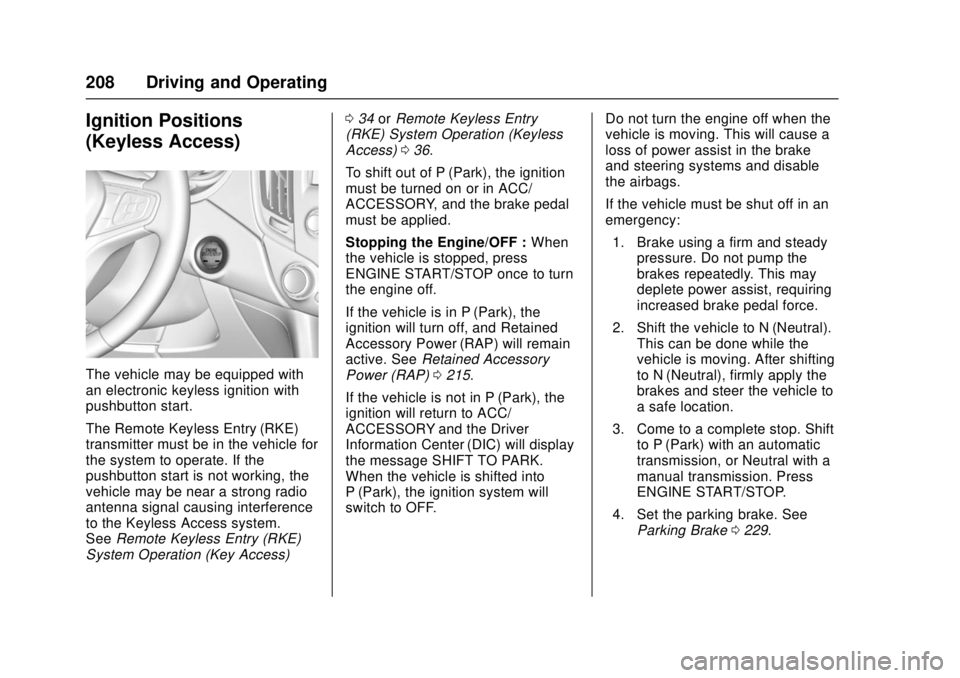
Ignition Positions
(Keyless Access)
The vehicle may be equipped with
an electronic keyless ignition with
pushbutton start.
The Remote Keyless Entry (RKE)
transmitter must be in the vehicle for
the system to operate. If the
pushbutton start is not working, the
vehicle may be near a strong radio
antenna signal causing interference
to the Keyless Access system.
SeeRemote Keyless Entry (RKE)
System Operation (Key Access) 0
34 orRemote Keyless Entry
(RKE) System Operation (Keyless
Access) 036.
To shift out of P (Park), the ignition
must be turned on or in ACC/
ACCESSORY, and the brake pedal
must be applied.
Stopping the Engine/OFF : When
the vehicle is stopped, press
ENGINE START/STOP once to turn
the engine off.
If the vehicle is in P (Park), the
ignition will turn off, and Retained
Accessory Power (RAP) will remain
active. See Retained Accessory
Power (RAP) 0215.
If the vehicle is not in P (Park), the
ignition will return to ACC/
ACCESSORY and the Driver
Information Center (DIC) will display
the message SHIFT TO PARK.
When the vehicle is shifted into
P (Park), the ignition system will
switch to OFF. Do not turn the engine off when the
vehicle is moving. This will cause a
loss of power assist in the brake
and steering systems and disable
the airbags.
If the vehicle must be shut off in an
emergency:
1. Brake using a firm and steady pressure. Do not pump the
brakes repeatedly. This may
deplete power assist, requiring
increased brake pedal force.
2. Shift the vehicle to N (Neutral). This can be done while the
vehicle is moving. After shifting
to N (Neutral), firmly apply the
brakes and steer the vehicle to
a safe location.
3. Come to a complete stop. Shift to P (Park) with an automatic
transmission, or Neutral with a
manual transmission. Press
ENGINE START/STOP.
4. Set the parking brake. See Parking Brake 0229.
Page 243 of 404
Chevrolet Cruze Owner Manual (GMNA-Localizing-U.S./Canada/Mexico-
11348462) - 2018 - crc - 5/15/17
242 Driving and Operating
LCA displays may not come on
when passing a vehicle quickly, for
a stopped vehicle, or when towing a
trailer. The LCA detection zones
that extend back from the side of
the vehicle do not move further back
when a trailer is towed. Use caution
while changing lanes when towing a
trailer. LCA may alert to objects
attached to the vehicle, such as a
trailer, bicycle, or object extending
out to either side of the vehicle.
Attached objects may also interfere
with the detection of vehicles. This
is normal system operation; the
vehicle does not need service.
LCA may not always alert the driver
to vehicles in the next lane over,
especially in wet conditions or when
driving on sharp curves. The system
does not need to be serviced. The
system may light up due to
guardrails, signs, trees, shrubs, and
other non-moving objects. This is
normal system operation; the
vehicle does not need service.
LCA may not operate when the LCA
sensors in the left or right corners of
the rear bumper are covered with
mud, dirt, snow, ice, or slush, or inheavy rainstorms. For cleaning
instructions, see "Washing the
Vehicle" under
Exterior Care0339.
If the DIC still displays the system
unavailable message after cleaning
both sides of the vehicle toward the
rear corners of the vehicle, see your
dealer.
If the LCA displays do not light up
when moving vehicles are in the
side blind zone or rapidly
approaching this zone and the
system is clean, the system may
need service. Take the vehicle to
your dealer.
When LCA is disabled for any
reason other than the driver turning
it off, the Lane Change Alert On
option will not be available on the
personalization menu.
Radio Frequency Information
See Radio Frequency Statement
0 377.
Lane Departure
Warning (LDW)
If equipped, LDW may help avoid
crashes due to unintentional lane
departures. It may provide a
warning if the vehicle is crossing a
detected lane marking without using
a turn signal in the lane departure
direction. Since this system is part
of the Lane Keep Assist (LKA)
system, read the entire LKA section
before using this feature.
Lane Keep Assist (LKA)
If equipped, LKA may help avoid
crashes due to unintentional lane
departures. It may assist by gently
turning the steering wheel if the
vehicle approaches a detected lane
marking without using a turn signal
in that direction. It may also provide
a Lane Departure Warning (LDW)
system alert as the lane marking is
crossed. The LKA system will not
assist or provide an LDW alert if it
detects that you are actively
steering. Override LKA by turning
the steering wheel. LKA uses a