2018 CHEVROLET COLORADO automatic
[x] Cancel search: automaticPage 146 of 421

Chevrolet Colorado Owner Manual (GMNA-Localizing-U.S./Canada/Mexico-
11349743) - 2018 - crc - 10/12/17
Lighting 145
is in the full bright position. See
Instrument Panel Illumination
Control0147.
When it is bright enough outside,
the headlamps will turn off or may
change to Daytime Running
Lamps (DRL).
The automatic headlamp system
turns off when the exterior lamp
control is turned to
Oor the ignition
is off.
Lights On with Wipers
If the windshield wipers are
activated in daylight with the engine
on, and the exterior lamp control is
in AUTO, the headlamps, parking
lamps, and other exterior lamps
come on. The transition time for the
lamps coming on varies based on
wiper speed. When the wipers are
not operating, these lamps turn off.
Move the exterior lamp control to
O
or;to disable this feature.
Hazard Warning Flashers
|: Press to make the front and
rear turn signal lamps flash on and
off. Press again to turn the
flashers off.
When the hazard warning flashers
are on, the vehicle's turn signals will
not work.
Turn and Lane-Change
Signals
An arrow on the instrument cluster
flashes in the direction of the turn or
lane change.
Move the turn signal lever all the
way up or down to signal a turn.
Raise or lower the lever for less
than one second until the arrow
starts to flash to signal a lane
change. This causes the turn
signals to automatically flash three
times. Holding the turn signal lever
for more than one second will cause
the turn signals to flash until the
lever is released.
The lever returns to its starting
position whenever it is released.
Page 147 of 421

Chevrolet Colorado Owner Manual (GMNA-Localizing-U.S./Canada/Mexico-
11349743) - 2018 - crc - 10/12/17
146 Lighting
If after signaling a turn or a lane
change the arrows flash rapidly or
do not come on, a signal bulb could
be burned out.
Replace any burned out bulbs. If a
bulb is not burned out, check the
fuse. SeeFuses and Circuit
Breakers 0305.
Turn Signal On Chime
If the turn signal is left on for more
than 1.2 km (0.75 mi), a chime
sounds at each flash of the turn
signal. The message TURN
SIGNAL ON will also appear in the
Driver Information Center (DIC). To
turn the chime and message off,
move the turn signal lever to the off
position.Fog Lamps
If equipped, the control is on the
center of the exterior lamp control,
to the left of the steering column.
The ignition must be on for the fog
lamps to come on.
#: Press to turn the fog lamps on
or off. A light will come on in the
instrument cluster.
When the fog lamps are turned on,
the parking lamps automatically
turn on. When the headlamps are changed
to high beam, the fog lamps go off.
When the high-beam headlamps are
turned off, the fog lamps will come
on again.
Some localities have laws that
require the headlamps to be on with
the fog lamps.
Page 148 of 421
Chevrolet Colorado Owner Manual (GMNA-Localizing-U.S./Canada/Mexico-
11349743) - 2018 - crc - 10/12/17
Lighting 147
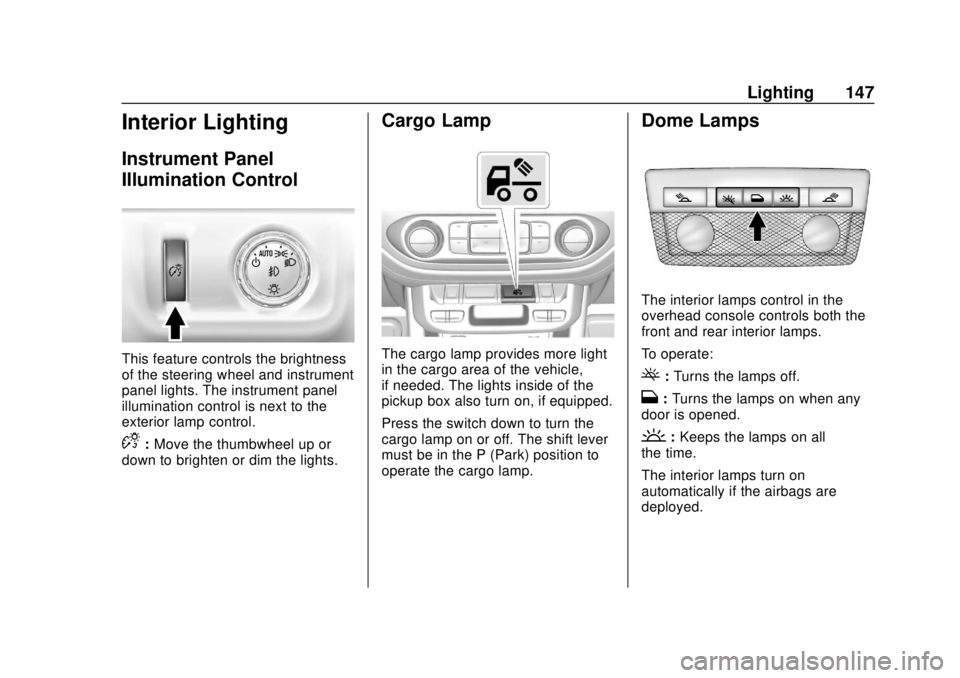
Interior Lighting
Instrument Panel
Illumination Control
This feature controls the brightness
of the steering wheel and instrument
panel lights. The instrument panel
illumination control is next to the
exterior lamp control.
D:Move the thumbwheel up or
down to brighten or dim the lights.
Cargo Lamp
The cargo lamp provides more light
in the cargo area of the vehicle,
if needed. The lights inside of the
pickup box also turn on, if equipped.
Press the switch down to turn the
cargo lamp on or off. The shift lever
must be in the P (Park) position to
operate the cargo lamp.
Dome Lamps
The interior lamps control in the
overhead console controls both the
front and rear interior lamps.
To operate:
(: Turns the lamps off.
H: Turns the lamps on when any
door is opened.
': Keeps the lamps on all
the time.
The interior lamps turn on
automatically if the airbags are
deployed.
Page 149 of 421
Chevrolet Colorado Owner Manual (GMNA-Localizing-U.S./Canada/Mexico-
11349743) - 2018 - crc - 10/12/17
148 Lighting
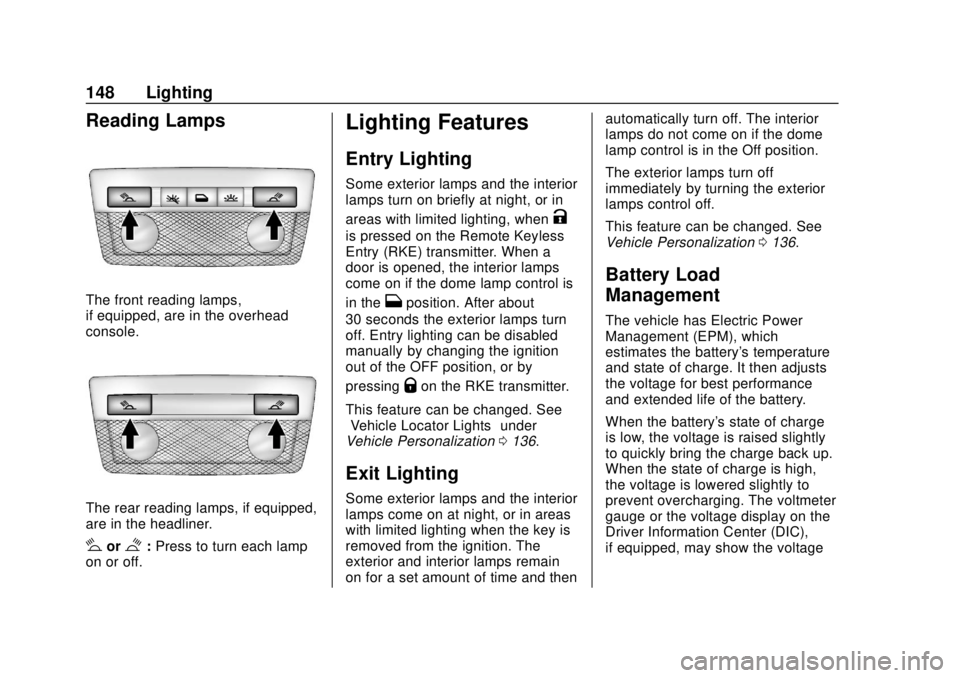
Reading Lamps
The front reading lamps,
if equipped, are in the overhead
console.
The rear reading lamps, if equipped,
are in the headliner.
#or$:Press to turn each lamp
on or off.
Lighting Features
Entry Lighting
Some exterior lamps and the interior
lamps turn on briefly at night, or in
areas with limited lighting, when
K
is pressed on the Remote Keyless
Entry (RKE) transmitter. When a
door is opened, the interior lamps
come on if the dome lamp control is
in the
Hposition. After about
30 seconds the exterior lamps turn
off. Entry lighting can be disabled
manually by changing the ignition
out of the OFF position, or by
pressing
Qon the RKE transmitter.
This feature can be changed. See
“Vehicle Locator Lights” under
Vehicle Personalization 0136.
Exit Lighting
Some exterior lamps and the interior
lamps come on at night, or in areas
with limited lighting when the key is
removed from the ignition. The
exterior and interior lamps remain
on for a set amount of time and then automatically turn off. The interior
lamps do not come on if the dome
lamp control is in the Off position.
The exterior lamps turn off
immediately by turning the exterior
lamps control off.
This feature can be changed. See
Vehicle Personalization
0136.
Battery Load
Management
The vehicle has Electric Power
Management (EPM), which
estimates the battery's temperature
and state of charge. It then adjusts
the voltage for best performance
and extended life of the battery.
When the battery's state of charge
is low, the voltage is raised slightly
to quickly bring the charge back up.
When the state of charge is high,
the voltage is lowered slightly to
prevent overcharging. The voltmeter
gauge or the voltage display on the
Driver Information Center (DIC),
if equipped, may show the voltage
Page 154 of 421

Chevrolet Colorado Owner Manual (GMNA-Localizing-U.S./Canada/Mexico-
11349743) - 2018 - crc - 10/12/17
Infotainment System 153
4.6
.Radio: Press and release to
go to the next station or
channel. Press and hold to
fast seek the next strongest
station or channel.
. USB/BT Music/Pictures:
Press and hold to go to the
next content. Press and
hold to fast forward.
5.
#
. Press and release to
access the phone screen,
answer an incoming call,
or access the device home
screen. Press and hold to
access Press to Talk.
Home Page
Infotainment Display Buttons
Infotainment display buttons show
on the screen when available. When
a function is unavailable, the button
may gray out. When a function is
selected, the button may highlight.
Home Page Features
Press{to go to the Home Page.
Audio : Touch to select AM, FM,
SXM (if equipped), USB/iPod/
Bluetooth Audio, or AUX. See
AM-FM Radio 0154, Satellite Radio
0 156, USB Port 0159, Bluetooth
Audio 0165, or Auxiliary Jack
0 165.
Gallery : Touch to view a picture.
See USB Port 0159.
Phone : Touch to activate the
phone features (if equipped).
See Bluetooth (Infotainment
Controls) 0178 orBluetooth
(Overview) 0172 orBluetooth
(Voice Recognition) 0174. Projection :
Touch to access
supported devices when connected.
See USB Port 0159.
Settings : Touch to access the
Personalization menu. See Vehicle
Personalization 0136.
Climate : Touch to access the
Climate menu.
See Climate Control Systems 0191
or Automatic Climate Control
System 0193.
OnStar : If equipped, touch to
access the OnStar menu. See
OnStar Overview 0396.
Software Updates
Over-the-Air Software Updates
If equipped, the infotainment system
can download and install select
software updates over a wireless
connection. The system will prompt
for certain updates to be
downloaded and installed. There is
also an option to check for updates
manually.
Page 155 of 421
Chevrolet Colorado Owner Manual (GMNA-Localizing-U.S./Canada/Mexico-
11349743) - 2018 - crc - 10/12/17
154 Infotainment System
To manually check for updates,
touch SETTINGS on the Home
Page, followed by Software
Information, and then System
Update. Follow the on-screen
prompts. The steps to check for,
download and install updates may
vary by vehicle.
Downloading Over-the-Air vehicle
software updates requires Internet
connectivity, which can be accessed
through the vehicle’s built-in OnStar
4G LTE connection, if equipped and
active. If required, data plans are
provided by a third party. Optionally,
a secure Wi-Fi hotspot such as a
compatible mobile device hotspot,
home hotspot, or public hotspot can
be used. Applicable data rates may
apply.
To connect the infotainment system
to a secured mobile device hotspot,
home hotspot, or public hotspot,
touch SETTINGS on the Home
Page, followed by Wi-Fi, and then
Manage Wi-Fi Networks. Select the
appropriate Wi-Fi network, and
follow the on-screen prompts.
Download speeds may vary. On most compatible mobile devices,
activation of the Wi-Fi hotspot is in
the Settings menu under Mobile
Network Sharing, Personal Hotspot,
Mobile Hotspot, or similar.
Availability of Over-the-Air vehicle
software updates varies by vehicle
and country. For more information
on this feature, see
www.my.chevrolet.com/learn.Radio
AM-FM Radio
Playing the Radio
Audio Source Menu
{:
Press to go to the Home Page.
O:Press to turn on, mute,
or unmute the system. Press and
hold to turn off the system.
Selecting a Band
Press{, then touch AUDIO,
Source, then select AM, FM,
or SXM (if equipped). The last
station that was playing starts
playing again.
System Settings
Auto Volume
This feature automatically adjusts
the radio volume to compensate for
road and wind noise.
The level of volume compensation
can be selected, or the feature can
be turned off.
Page 156 of 421
Chevrolet Colorado Owner Manual (GMNA-Localizing-U.S./Canada/Mexico-
11349743) - 2018 - crc - 10/12/17
Infotainment System 155
1. Touch MENU from a sourcescreen.
2. Select Auto Volume.
3. Select the desired setting.
4. Touch
3to go back to the
source screen.
Tone Settings
The tone settings can be set for
each radio band and each audio
player source.
Preset Tone Settings 1. Touch MENU.
2. Touch Tone Settings.
3. Select a preset tone setting. .Bass, Midrange, or Treble:
Touch −or +.
. Fade or Balance: Adjust the
front/rear or left/right
speakers by dragging the
dot in the vehicle image on
the screen. Custom Tone Settings
1. Touch MENU.
2. Touch Tone Settings.
3. Touch Custom. .Bass, Midrange, or Treble:
Touch −or +.
. Fade or Balance: Adjust the
front/rear or left/right
speakers by dragging the
dot in the vehicle image on
the screen.
Touch
3to go back to the source
screen.
Selecting an Auxiliary Device
Connect the auxiliary device to the
AUX input terminal. Play will begin
when the system has finished
reading the information on the
device.
If the AUX device is already
connected, press
{, AUDIO,
Source, then select the device.
Selecting a Station
Seek Tuning
If the radio station is not known:
Press
7or6to automatically
search for available radio stations.
Manual Tuning
Continue touching
toruto
manually change the radio station.
Direct Tune
From the AM or FM menu:
1. Touch Tune.
2. Enter the station number.
3. Touch Go or
toruto go to
the previous or next station.
Favorite
1. Touch
SorTto scroll through
the favorites.
2. Touch the station to select it.
Station List 1. From the AM or FM menu, touch MENU.
Page 159 of 421
Chevrolet Colorado Owner Manual (GMNA-Localizing-U.S./Canada/Mexico-
11349743) - 2018 - crc - 10/12/17
158 Infotainment System
accessories, and external electronic
devices are plugged into the
accessory power outlet. If there is
interference or static, unplug the
item from the accessory power
outlet.
FM
FM signals only reach about 16 to
65 km (10 to 40 mi). Although the
radio has a built-in electronic circuit
that automatically works to reduce
interference, some static can occur,
especially around tall buildings or
hills, causing the sound to fade in
and out.
AM
The range for most AM stations is
greater than for FM, especially at
night. The longer range can cause
station frequencies to interfere with
each other. Static can occur when
things like storms and power lines
interfere with radio reception. When
this happens, try reducing the treble
on the radio.
SiriusXM Satellite Radio
Service
If equipped, SiriusXM Satellite
Radio Service provides digital radio
reception. Tall buildings or hills can
interfere with satellite radio signals,
causing the sound to fade in and
out. In addition, traveling or standing
under heavy foliage, bridges,
garages, or tunnels may cause loss
of the SiriusXM signal for a period
of time.
Cell Phone Usage
Cell phone usage, such as making
or receiving phone calls, charging,
or just having the phone on may
cause static interference with the
radio. Unplug the phone or turn it off
if this happens.
Multi-Band Antenna
The multi-band antenna is on the
roof of the vehicle. The antenna is
used for OnStar, the SiriusXM
Satellite Radio Service System, and
GPS (Global Positioning System),if the vehicle has these features.
Keep the antenna clear of
obstructions for clear reception.
Items on the roof of the vehicle can
interfere with the performance of the
radio system and OnStar (if
equipped). Make sure the
multi-band antenna is not
obstructed.