2018 CHEVROLET CAMARO audio
[x] Cancel search: audioPage 116 of 393

Chevrolet Camaro Owner Manual (GMNA-Localizing-U.S./Canada/Mexico-
11348325) - 2018 - CRC - 10/23/17
Instruments and Controls 115
See the Camaro High Performance
supplement for more information.
Reconfigurable Instrument
Cluster
To change the theme for the uplevel
cluster:1. Find the Options page in one of the interactive display zones on
the cluster.
2. Press SEL to enter the Options menu.
3. Scroll down to highlight Display Option, then press
pto enter
the Display Option menu.
4. Press SEL to select the desired cluster configuration.
5. Exit the Display Option menu by pressing
o.
Cluster Menu
There is an interactive display area
in the center of the instrument
cluster.
Use the right steering wheel control
to open and scroll through the
different items and displays.
Press
oto access the cluster
applications. Use
worxto scroll
through the list of applications.
Press SEL to select the application
from the list.
. Info. This is where you can view
the Driver Information Center
(DIC) displays. See Driver
Information Center (DIC) 0131.
. Performance (Uplevel Cluster)
. Audio (If Equipped)
. Phone (If Equipped) .
Navigation (If Equipped)
. Options
Performance (Uplevel Cluster)
Press SEL to enter the Performance
menu. Use
worxto scroll
through the available items.
Friction Bubble : A four quadrant
visual display, indicative of the four
corners of the car, with a “bubble”
showing where the most inertia is
being exerted on the vehicle.
Performance Timer : Press
p
when Performance Timer is
displayed to enter the menu.
Press
pwhile Set Start Speed is
highlighted then use
worxto
enter the start speed. Press SEL to
save it. Press
pwhile Set End
Speed is highlighted then use
w
orxto enter the end speed. Press
SEL to save it. After the start and
end speeds have been entered,
press
oto set the Sport display to
the set speeds and the performance
timer is ready to use. On the next
Page 117 of 393

Chevrolet Camaro Owner Manual (GMNA-Localizing-U.S./Canada/Mexico-
11348325) - 2018 - CRC - 10/23/17
116 Instruments and Controls
acceleration, the performance time
will record the time. To reset the
timer, highlight Reset on the
performance timer menu and
press SEL.
G-Force :Gives the driver an
indication of the vehicle
performance in cornering. The
G-force is displayed in the center of
the DIC as a numerical value.
Lap Timer : Use to start, stop,
or reset the lap timer. A stopwatch
icon will be displayed when the lap
timer is active. Press SEL while the
Lap Timer page is active to start the
timer. If the lamp timer is active,
pressing SEL on any page will stop
the current lap timer and start a new
lap. Also, pressing and holding SEL
on any page will stop the lap timer.
Oil Temperature : Shows the
current oil temperature in either
degrees Celsius (°C) or degrees
Fahrenheit (°F).
Oil Pressure : Shows the current oil
pressure in either kilopascal (kPa) or
in pounds per square inch (psi). Transmission Fluid
Temperature :
Shows the
temperature of the transmission fluid
in either degrees Celsius (°C) or
degrees Fahrenheit (°F).
Audio
If equipped, while the audio app is
open, use
worxto change the
radio station or seek to the next or
previous track, depending on the
current audio source. Press
pto
enter the Audio menu. In the Audio
menu browse for music, select from
the favorites, or change the audio
source.
Phone
If equipped, press
pto enter the
Phone menu. In the Phone menu,
if there is no active phone call, view
recent calls, or scroll through
contacts. If there is an active call,
mute or unmute the phone or switch
to handset or hands-free operation. Navigation
If equipped, press
pto enter the
Navigation menu. This displays a
map or turn by turn directions.
If there is no active route, press
p
to resume the last route and turn the
voice prompts on/off. If there is an
active route, press SEL to cancel
route guidance or turn the voice
prompts on/off.
Options
Press SEL to enter the Options
menu. Use
worxto scroll
through items in the menu.
Units : Press
pwhile Units is
displayed to enter the Units menu.
Choose US or Metric units by
pressing SEL while the desired item
is highlighted.
Speed Warning : The Speed
Warning display allows the driver to
set a speed that they do not want to
exceed. To set the Speed Warning,
press
pwhen Speed Warning is
displayed. Enable the speed
warning and then use
worxto
Page 136 of 393

Chevrolet Camaro Owner Manual (GMNA-Localizing-U.S./Canada/Mexico-
11348325) - 2018 - CRC - 10/23/17
Instruments and Controls 135
performance level has been
reached to shift the transmission
into the next higher gear.
. G-Force Gauge
. Audio Information
. Upcoming Maneuver from
OnBoard Navigation
. Incoming Call
The HUD control is to the left of the
steering wheel.
To adjust the HUD image:
1. Adjust the driver seat.
2. Start the engine. 3. Use the following settings to
adjust the HUD.
$:Press down or lift up to center
the HUD image. The HUD image
can only be adjusted up and down,
not side to side.
!: Press to select the display
view. Each press will change the
display view.
D: Lift up and hold to brighten the
display. Press down and hold to dim
the display. Hold down to turn the
display off.
The HUD image will automatically
dim and brighten to compensate for
outside lighting. The HUD
brightness control can also be
adjusted as needed.
The HUD image can temporarily
light up depending on the angle and
position of the sunlight on the HUD
display. This is normal.
Polarized sunglasses could make
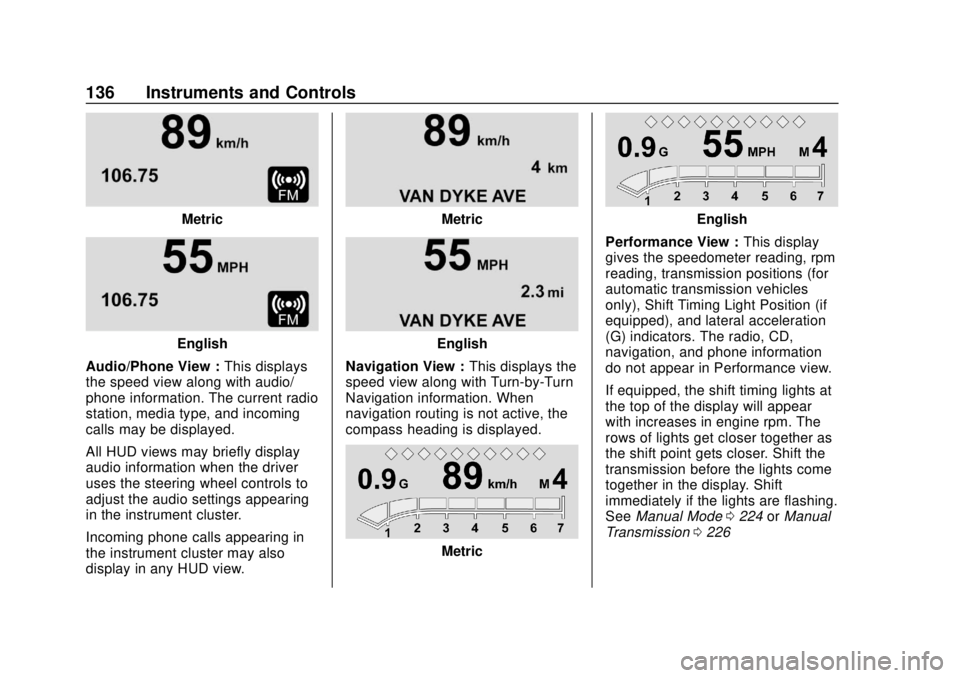
the HUD image harder to see. There are four views in the HUD.
Some vehicle information and
vehicle messages or alerts may be
displayed in any view.Metric
English
Speed View : This display gives the
speedometer reading, transmission
positions (for automatic
transmission vehicles only), and
speed alert.
Page 137 of 393
Chevrolet Camaro Owner Manual (GMNA-Localizing-U.S./Canada/Mexico-
11348325) - 2018 - CRC - 10/23/17
136 Instruments and Controls
Metric
English
Audio/Phone View : This displays
the speed view along with audio/
phone information. The current radio
station, media type, and incoming
calls may be displayed.
All HUD views may briefly display
audio information when the driver
uses the steering wheel controls to
adjust the audio settings appearing
in the instrument cluster.
Incoming phone calls appearing in
the instrument cluster may also
display in any HUD view.
Metric
English
Navigation View : This displays the
speed view along with Turn-by-Turn
Navigation information. When
navigation routing is not active, the
compass heading is displayed.
Metric
English
Performance View : This display
gives the speedometer reading, rpm
reading, transmission positions (for
automatic transmission vehicles
only), Shift Timing Light Position (if
equipped), and lateral acceleration
(G) indicators. The radio, CD,
navigation, and phone information
do not appear in Performance view.
If equipped, the shift timing lights at
the top of the display will appear
with increases in engine rpm. The
rows of lights get closer together as
the shift point gets closer. Shift the
transmission before the lights come
together in the display. Shift
immediately if the lights are flashing.
See Manual Mode 0224 orManual
Transmission 0226
Page 139 of 393

Chevrolet Camaro Owner Manual (GMNA-Localizing-U.S./Canada/Mexico-
11348325) - 2018 - CRC - 10/23/17
138 Instruments and Controls
.Brakes
. Ride Control Systems
. Driver Assistance Systems
. Cruise Control
. Lighting and Bulb Replacement
. Wiper/Washer Systems
. Doors and Windows
. Seat Belts
. Airbag Systems
. Engine and Transmission
. Tire Pressure
. Battery
Engine Power Messages
ENGINE POWER IS REDUCED
This message displays when the
vehicle's propulsion power is
reduced. Reduced propulsion power
can affect the vehicle's ability to
accelerate. If this message is on,
but there is no observed reduction in performance, proceed to your
destination. The performance may
be reduced the next time the vehicle
is driven. The vehicle may be driven
while this message is on, but
maximum acceleration and speed
may be reduced. Anytime this
message stays on, or displays
repeatedly, the vehicle should be
taken to your dealer for service as
soon as possible.
Vehicle Speed Messages
SPEED LIMITED TO
XXX KM/H (MPH)
This message shows that the
vehicle speed has been limited to
the speed displayed. The limited
speed is a protection for various
propulsion and vehicle systems,
such as lubrication, thermal,
suspension, Teen Driver if
equipped, or tires.
Vehicle
Personalization
Use the audio system controls to
access the personalization menus
for customizing vehicle features.
The following are all possible
personalization features. Depending
on the vehicle, some may not be
available.
Base Radio Audio System
Controls
{:
Press to access the Home
Page Menu.
QorR: Touch to scroll through the
menus or setup items.
0: Touch to exit or return to the
previous screen or menu.
Uplevel Radio Audio System
Controls
1. Touch the desired feature to display a list of available
options.
2. Select the desired feature setting.
Page 141 of 393

Chevrolet Camaro Owner Manual (GMNA-Localizing-U.S./Canada/Mexico-
11348325) - 2018 - CRC - 10/23/17
140 Instruments and Controls
3. Re-enter the four-digit code.
Touch Lock or Unlock to lock or
unlock the system. Touch Back to
go back to the previous menu.
Teen Driver
See “Teen Driver” under“Settings”
in the infotainment manual.
Radio
Select and the following may
display:
. Manage Favorites
. Number of Favorites Shown
. Audible Touch Feedback
. Text Scroll
. Tone Settings
. Auto Volume
. Maximum Startup Volume
. Audio Cue Volume
Manage Favorites
This allows favorites to be edited.
See “Storing a Station as a
Favorite” inAM-FM Radio 0162 or “Manage Favorites”
in“Settings”
under “Radio” in the infotainment
manual.
Number of Favorites Shown
Touch to set the number of favorites
to display.
Select the desired number or select
Auto and the infotainment system
will automatically adjust the number
of favorites shown.
Audible Touch Feedback
This allows Audible Touch
Feedback to be turned on or off.
Select Off or On.
Text Scroll
Select to see text scroll on the
screen.
Select Off or On.
Tone Settings
Select to adjust the radio tone. See
Operation 0160 or“Tone Settings”
under “AM-FM Radio” in the
infotainment manual. Auto Volume
This feature adjusts the volume
based on vehicle speed and
ambient noise.
Select Off, Low, Medium-Low,
Medium, Medium-High, or High.
Maximum Startup Volume
This feature sets the maximum
startup volume. If the vehicle is
started and the volume is greater
than this level, the volume is
adjusted to this level. To set the
maximum startup volume, turn the
MENU knob or touch + or
−to
increase or decrease.
Audio Cue Volume
This feature sets the volume of
audio files played at system startup
and shutdown.
Select On, then touch + or −to
increase or decrease the volume.
Vehicle
Select and the following may
display:
. Climate and Air Quality
Page 146 of 393

Chevrolet Camaro Owner Manual (GMNA-Localizing-U.S./Canada/Mexico-
11348325) - 2018 - CRC - 10/23/17
Instruments and Controls 145
Select Off or On.
Voice
Select and the following may
display:
.Confidence Threshold
. Prompt Length
. Audio Feedback Speed
. Display “What Can I Say?” Tips
Confidence Threshold
This feature allows the adjustment
of the sensitivity of the speech
recognition system.
Select Confirm More or
Confirm Less.
Prompt Length
This feature adjusts the voice
prompt length.
Select Short or Long.
Audio Feedback Speed
This feature adjusts the audio
feedback speed.
Select Slow, Medium, or Fast. Display
“What Can I Say?” Tips
This feature gives tips on what to
say when using voice recognition.
Select Off or On.
Display
Select and the following may
display:
. Calibrate Touchscreen
. Turn Display Off
Calibrate Touchscreen
Select to calibrate the touchscreen,
then follow the prompts.
Turn Display Off
Select to turn the display off. Touch
anywhere on the infotainment
display or press any infotainment
control on the center stack to turn
the display on.
Rear Camera
Select and the following may
display:
. Guidance Lines
. Rear Park Assist Symbols Guidance Lines
Select Off or On. See
Assistance
Systems for Parking or Backing
0 242.
Rear Park Assist Symbols
Select Off or On. See Assistance
Systems for Parking or Backing
0 242.
Return to Factory Settings
Select and the following may
display:
.
Restore Vehicle Settings
. Clear All Private Data
. Restore Radio Settings
Restore Vehicle Settings
This allows selection of restoring
vehicle settings.
Select Restore or Cancel.
Clear All Private Data
This allows selection to clear all
private information from the vehicle.
Select Delete or Cancel.
Page 158 of 393

Chevrolet Camaro Owner Manual (GMNA-Localizing-U.S./Canada/Mexico-
11348325) - 2018 - CRC - 10/23/17
Infotainment System 157
Infotainment
System
Introduction
Infotainment . . . . . . . . . . . . . . . . . . 157
Theft-Deterrent Feature . . . . . . 158
Overview . . . . . . . . . . . . . . . . . . . . . 159
Home Page . . . . . . . . . . . . . . . . . . 160
Operation . . . . . . . . . . . . . . . . . . . . . 160
Software Updates . . . . . . . . . . . . 161
Radio
AM-FM Radio . . . . . . . . . . . . . . . . 162
Satellite Radio . . . . . . . . . . . . . . . . 163
Radio Reception . . . . . . . . . . . . . . 164
Antenna (Convertible Only) . . . 165
Backglass Antenna(Coupe Only) . . . . . . . . . . . . . . . 165
Multi-Band Antenna . . . . . . . . . . 166
Audio Players
Avoiding Untrusted Media Devices . . . . . . . . . . . . . . . . . . . . . 166
USB Port . . . . . . . . . . . . . . . . . . . . . 166
Auxiliary Devices . . . . . . . . . . . . . 172
Performance Data
Recorder (PDR)
Performance Data Recorder (PDR) . . . . . . . . . . . . . 173
Phone
Bluetooth (Overview) . . . . . . . . . 178
Bluetooth (InfotainmentControls) . . . . . . . . . . . . . . . . . . . . 179
Apple CarPlay and Android Auto . . . . . . . . . . . . . . . . 183
Hands-Free Phone . . . . . . . . . . . 184
Trademarks and License
Agreements
Trademarks and License Agreements . . . . . . . . . . . . . . . . . 186
Introduction
Infotainment
Base radio information is included in
this manual. See the infotainment
manual for information on other
available infotainment systems.
Read the following pages to
become familiar with the features.
{Warning
Taking your eyes off the road for
too long or too often while using
any infotainment feature can
cause a crash. You or others
could be injured or killed. Do not
give extended attention to
infotainment tasks while driving.
Limit your glances at the vehicle
displays and focus your attention
on driving. Use voice commands
whenever possible.