2018 CHEVROLET BOLT EV infotainment
[x] Cancel search: infotainmentPage 249 of 370
Chevrolet BOLT EV Owner Manual (GMNA-Localizing-U.S./Canada/Mexico-
11434431) - 2018 - crc - 2/14/18
248 Driving and Operating
OPSymbol Fault/Condition/Event
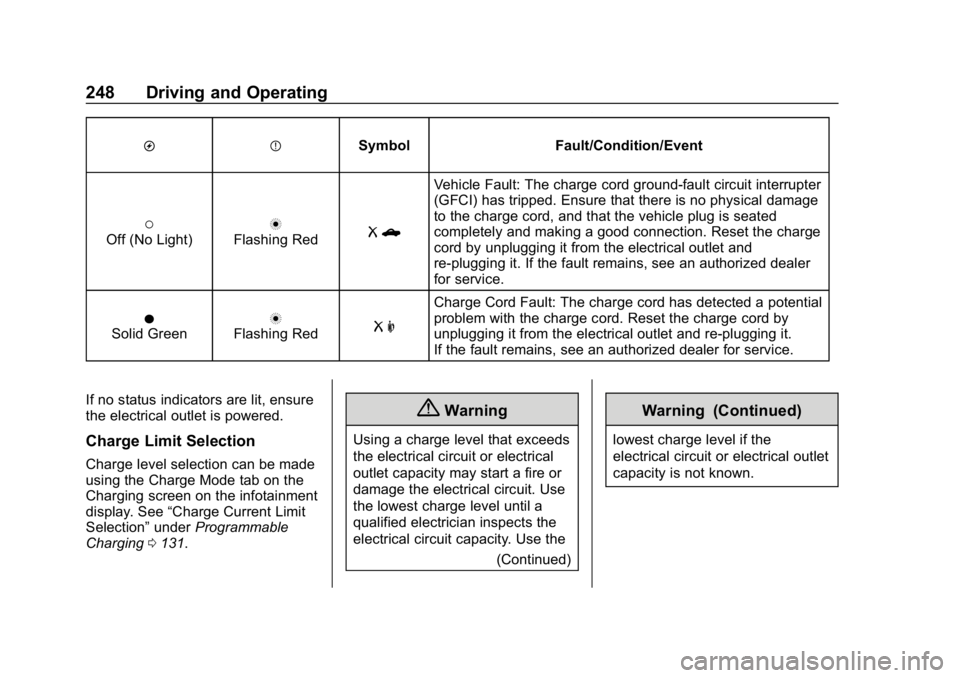
(Off (No Light)nFlashing RedRb
Vehicle Fault: The charge cord ground-fault circuit interrupter
(GFCI) has tripped. Ensure that there is no physical damage
to the charge cord, and that the vehicle plug is seated
completely and making a good connection. Reset the charge
cord by unplugging it from the electrical outlet and
re-plugging it. If the fault remains, see an authorized dealer
for service.
OSolid GreennFlashing RedR m
Charge Cord Fault: The charge cord has detected a potential
problem with the charge cord. Reset the charge cord by
unplugging it from the electrical outlet and re-plugging it.
If the fault remains, see an authorized dealer for service.
If no status indicators are lit, ensure
the electrical outlet is powered.
Charge Limit Selection
Charge level selection can be made
using the Charge Mode tab on the
Charging screen on the infotainment
display. See “Charge Current Limit
Selection” underProgrammable
Charging 0131.
{Warning
Using a charge level that exceeds
the electrical circuit or electrical
outlet capacity may start a fire or
damage the electrical circuit. Use
the lowest charge level until a
qualified electrician inspects the
electrical circuit capacity. Use the
(Continued)
Warning (Continued)
lowest charge level if the
electrical circuit or electrical outlet
capacity is not known.
Page 251 of 370
Chevrolet BOLT EV Owner Manual (GMNA-Localizing-U.S./Canada/Mexico-
11434431) - 2018 - crc - 2/14/18
250 Driving and Operating
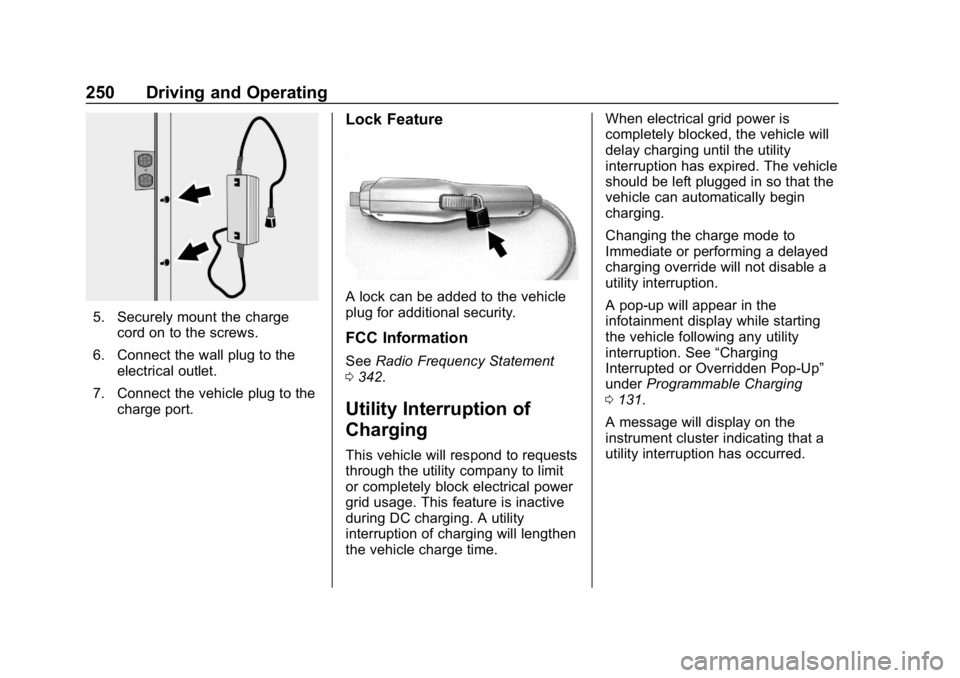
5. Securely mount the chargecord on to the screws.
6. Connect the wall plug to the electrical outlet.
7. Connect the vehicle plug to the charge port.
Lock Feature
A lock can be added to the vehicle
plug for additional security.
FCC Information
See Radio Frequency Statement
0 342.
Utility Interruption of
Charging
This vehicle will respond to requests
through the utility company to limit
or completely block electrical power
grid usage. This feature is inactive
during DC charging. A utility
interruption of charging will lengthen
the vehicle charge time. When electrical grid power is
completely blocked, the vehicle will
delay charging until the utility
interruption has expired. The vehicle
should be left plugged in so that the
vehicle can automatically begin
charging.
Changing the charge mode to
Immediate or performing a delayed
charging override will not disable a
utility interruption.
A pop-up will appear in the
infotainment display while starting
the vehicle following any utility
interruption. See
“Charging
Interrupted or Overridden Pop-Up”
under Programmable Charging
0 131.
A message will display on the
instrument cluster indicating that a
utility interruption has occurred.
Page 348 of 370

Chevrolet BOLT EV Owner Manual (GMNA-Localizing-U.S./Canada/Mexico-
11434431) - 2018 - crc - 2/14/18
OnStar 347
Press=to:
. Open the OnStar app on the
infotainment display. See the
infotainment manual for
information on how to use the
OnStar app.
Or
. Make a call, end a call,
or answer an incoming call.
. Give OnStar Hands-Free Calling
voice commands.
. Give OnStar Turn-by-Turn
Navigation voice commands.
. Obtain and customize the Wi-Fi
hotspot name or SSID and
password, if equipped.
Press
Qto connect to an
Advisor to:
. Verify account information or
update contact information.
. Get driving directions. .
Receive a Diagnostic check of
the vehicle's key operating
systems.
. Receive Roadside Assistance.
. Manage Wi-Fi Settings,
if equipped.
Press
>to get a priority connection
to an OnStar Advisor available 24/
7 to:
. Get help for an emergency.
. Be a Good Samaritan or
respond to an AMBER Alert.
. Get assistance in severe
weather or other crisis situations
and find evacuation routes.
OnStar Services
Emergency
Emergency Services require an
active, OnStar service plan
(excludes Basic Plan). With
Automatic Crash Response, built-in
sensors can automatically alert a
specially trained OnStar Advisor
who is immediately connected in to
the vehicle to help.
Press
>for a priority connection to
an OnStar Advisor who can contact
emergency service providers, direct
them to your exact location, and
relay important information.
With OnStar Crisis Assist, specially
trained Advisors are available
24 hours a day, 7 days a week, to
provide a central point of contact,
assistance, and information during a
crisis.
With Roadside Assistance, Advisors
can locate a nearby service provider
to help with a flat tire, a battery
jump, or an empty gas tank.
Page 349 of 370
Chevrolet BOLT EV Owner Manual (GMNA-Localizing-U.S./Canada/Mexico-
11434431) - 2018 - crc - 2/14/18
348 OnStar
Security
If equipped, OnStar provides these
services:
.With Stolen Vehicle Assistance,
OnStar Advisors can use GPS to
pinpoint the vehicle and help
authorities quickly recover it.
. With Remote Ignition Block,
if equipped, OnStar can block
the vehicle from being restarted.
. With Stolen Vehicle Slowdown,
if equipped, OnStar can work
with law enforcement to
gradually slow the vehicle down.
Theft Alarm Notification
If equipped, if the doors are locked
and the vehicle alarm sounds, a
notification by text, e-mail, or phone
call will be sent. If the vehicle is
stolen, an OnStar Advisor can work
with authorities to recover the
vehicle.
Navigation
OnStar navigation requires a
specific OnStar service plan.
Press
Qto receive Turn-by-Turn
directions or have them sent to the
vehicle’s navigation screen,
if equipped.
Turn-by-Turn Navigation
1. PressQto connect to an
Advisor.
2. Request directions to be downloaded to the vehicle.
3. Follow the voice-guided commands.
Using Voice Commands
During a Planned Route
Functionality of the Voice Command
button may vary by vehicle and
region. For some vehicles, press
=
to open the OnStar app on the
infotainment display. For other
vehicles press
=as follows. Cancel Route
1. Press
=. System responds:
“OnStar ready,” then a tone.
2. Say “Cancel route.” System
responds: “Do you want to
cancel directions?”
3. Say “Yes.”System responds:
“OK, request completed, thank
you, goodbye.”
Route Preview
1. Press
=. System responds:
“OnStar ready,” then a tone.
2. Say “Route preview.” System
responds with the next three
maneuvers.
Repeat
1. Press
=. System responds:
“OnStar ready,” then a tone.
2. Say “Repeat.” System
responds with the last direction
given, then responds with
“OnStar ready,” then a tone.
Page 350 of 370
Chevrolet BOLT EV Owner Manual (GMNA-Localizing-U.S./Canada/Mexico-
11434431) - 2018 - crc - 2/14/18
OnStar 349
Get My Destination1. Press
=. System responds:
“OnStar ready,” then a tone.
2. Say “Get my destination.”
System responds with the
address and distance to the
destination, then responds with
“OnStar ready,” then a tone.
Send Destination to Vehicle
Directions can be sent to the
vehicle’s navigation screen,
if equipped.
Press
Q, then ask the Advisor to
download directions to the vehicle’s
navigation system, if equipped. After
the call ends, the navigation screen
will provide prompts to begin driving
directions. Routes that are sent to
the navigation screen can only be
canceled through the navigation
system.
See www.onstar.com (U.S.) or
www.onstar.ca (Canada).
Connections
The following OnStar services help
with staying connected.
For coverage maps, see
www.onstar.com (U.S.) or
www.onstar.ca (Canada).
Ensuring Security
. Change the default passwords
for the Wi-Fi hotspot and
myChevrolet mobile app. Make
these passwords different from
each other and use a
combination of letters, numbers,
and symbols to increase the
security.
. Change the default name of the
SSID (Service Set Identifier).
This is your network’s name that
is visible to other wireless
devices. Choose a unique name
and avoid family names or
vehicle descriptions.
OnStar Wi-Fi Hotspot (If Equipped)
The vehicle may have a built-in
Wi-Fi hotspot that provides access
to the Internet and web content at 4G LTE speed. Up to seven mobile
devices can be connected. A data
plan is required. Use the in-vehicle
controls only when it is safe to
do so.
1. To retrieve Wi-Fi hotspot information, press
=to open
the OnStar app on the
infotainment display, then
select Wi-Fi Hotspot. On some
vehicles, touch Wi-Fi or
Settings on the screen.
2. The Wi-Fi settings will display the Wi-Fi hotspot name (SSID),
password, and on some
vehicles, the connection type
(no Internet connection, 3G,
4G, 4G LTE), and signal quality
(poor, good, excellent).
3. To change the SSID or password, press
Qor call
1-888-4ONSTAR to connect
with an Advisor. On some
vehicles, the SSID and
password can be changed in
the Wi-Fi Hotspot menu.
Page 351 of 370
Chevrolet BOLT EV Owner Manual (GMNA-Localizing-U.S./Canada/Mexico-
11434431) - 2018 - crc - 2/14/18
350 OnStar
After initial set-up, your vehicle’s
Wi-Fi hotspot will connect
automatically to your mobile
devices. Manage data usage by
turning Wi-Fi on or off on your
mobile device, using the
myChevrolet mobile app, or by
contacting an OnStar Advisor. On
some vehicles, Wi-Fi can also be
managed from the Wi-Fi
Hotspot menu.
myChevrolet Mobile App (If
Available)
Download the myChevrolet mobile
app to compatible Apple and
Android smartphones. Chevrolet
users can access the following
services from a smartphone:
.Remotely start/stop the vehicle,
if factory-equipped.
. Lock/unlock doors, if equipped
with automatic locks.
. Activate the horn and lamps.
. Check the vehicle’s energy level,
range or tire pressure,
if factory-equipped with the Tire
Pressure Monitor System. .
Send destinations to the vehicle.
. Locate the vehicle on a map
(U.S. market only).
. Turn the vehicle's Wi-Fi hotspot
on/off, manage settings, and
monitor data consumption,
if equipped.
. Locate a dealer and schedule
service.
. Request roadside assistance.
. Set a parking reminder with pin
drop, take a photo, make a note,
and set a timer.
. Connect with Chevrolet on social
media.
. Set the climate control settings.
For myChevrolet mobile app
information and compatibility, see
www.my.chevrolet.com.
An active OnStar service plan,
compatible device, factory-installed
remote start, and power locks are
required. Data rates apply. See
www.onstar.com for details and
system limitations.Remote Services
Contact an OnStar Advisor to
unlock the doors or sound the horn
and flash the lamps.
OnStar AtYourService
OnStar Advisors can provide offers
from restaurants and retailers on
your route, help locate hotels,
or book a room. These services
vary by market.
OnStar Hands-Free Calling
Make and receive calls with the
built-in wireless calling service,
which requires available minutes.
Functionality of the Voice Command
button may vary by vehicle and
region. For some vehicles, press
=
to open the OnStar app on the
infotainment display, then select
Hands-Free calling. For other
vehicles press
=as follows.
Page 352 of 370
Chevrolet BOLT EV Owner Manual (GMNA-Localizing-U.S./Canada/Mexico-
11434431) - 2018 - crc - 2/14/18
OnStar 351
Make a Call1. Press
=. System responds:
“OnStar ready.”
2. Say “Call.”System responds:
“Call. Please say the name or
number to call.”
3. Say the entire number without pausing, including a “1”and the
area code. System responds:
“OK, calling.”
Calling 911 Emergency
1. Press=. System responds:
“OnStar ready.”
2. Say “Call.”System responds:
“Call. Please say the name or
number to call.”
3. Say “911”without pausing.
System responds: “911.”
4. Say “Call.”System responds:
“OK, dialing 911.”
Retrieve My Number
1. Press=. System responds:
“OnStar ready.” 2. Say
“My number.” System
responds: “Your OnStar
Hands-Free Calling number is,”
then says the number.
End a Call
Press=. System responds: “Call
ended.”
Verify Minutes and Expiration
Press=and say “Minutes” then
“Verify” to check how many minutes
remain and their expiration date.
Diagnostics
By monitoring and reporting on the
vehicle’s key systems, OnStar
Advanced Diagnostics provides a
way to keep up on maintenance.
Capabilities vary by model. See
www.onstar.com for details and
system limitations. Message and
data rates may apply.
Advanced Diagnostics requires an
active OnStar paid service plan,
e-mail address on file, and
enrollment in Advanced Diagnostics. Includes:
.
Diagnostic Alerts: Set
preferences to receive real-time
e-mails, texts, or monthly reports
of the vehicle’s health. Or
press
Qto have an Advisor
initiate a remote diagnostic
report.
. Proactive Alerts: Receive a
real-time e-mail or text message
regarding potential issues with
key vehicle components, such
as the battery, fuel system,
or starter system. Alerts for
potential issues appear on the
infotainment display. Proactive
Alerts are designed to help
predict specific types of issues
based on information collected
from the vehicle. Other factors
may affect vehicle performance.
Not all issues will deliver alerts.
In some cases, a dealer service
check may be required to
confirm the accuracy of the
alerts.
Page 365 of 370

Chevrolet BOLT EV Owner Manual (GMNA-Localizing-U.S./Canada/Mexico-
11434431) - 2018 - crc - 2/14/18
364 Index
N
NavigationOnStar . . . . . . . . . . . . . . . . . . . . . . . 348
New Vehicle Break-In . . . . . . . . . . . 203
O
Odometer . . . . . . . . . . . . . . . . . . . . . . . 121 Trip . . . . . . . . . . . . . . . . . . . . . . . . . . . 121
Off-Road Recovery . . . . . . . . . . . . . . . . . . . . . 196
Older Children, Restraints . . . . . . . 83
Online Owner Center . . . . . . . . . . . 335
OnStar . . . . . . . . . . . . . . . . . . . . . . . . . 345
OnStar Additional Information . . . . . . . . . . . . . . . . . . . . 352
OnStar Connections . . . . . . . . . . . . 349
OnStar Diagnostics . . . . . . . . . . . . . 351
OnStar Emergency . . . . . . . . . . . . . 347
OnStar Navigation . . . . . . . . . . . . . . 348
OnStar Overview . . . . . . . . . . . . . . . 346
OnStar Security . . . . . . . . . . . . . . . . 348
OnStar System . . . . . . . . . . . . . . . . . 175
Operation Infotainment System . . . . . . . . . . 159
Ordering Service Publications . . . . . . . . . . 341
Outlets Power . . . . . . . . . . . . . . . . . . . . . . . . .114 Overview . . . . . . . . . . . . . . . . . . . . . . . 158
Underhood Compartment . . . . . 259
Owner Checks and Services . . . . 324
P
Park Shifting Into . . . . . . . . . . . . . . . . . . . 206
Shifting Out of . . . . . . . . . . . . . . . . 207
Parking Extended . . . . . . . . . . . . . . . . . . . . . 207
Parking Assist . . . . . . . . . . . . . . . . . . 222
Parking or Backing Assistance Systems . . . . . . . . . . 222
Passenger Airbag Status Indicator . . . . . . . . . . . . . . . . . . . . . . 125
Passenger Compartment Air Filter . . . . . . . . . . . . . . . . . . . . . . . . . . 191
Passenger Sensing System . . . . . 77
Pedestrian Ahead Indicator . . . . . 128
Pedestrian Safety Signal . . . . . . . 110
Perchlorate Materials Requirements, California . . . . . . 256
Personalization Vehicle . . . . . . . . . . . . . . . . . . . . . . . 143
Phone Apple CarPlay and
Android Auto . . . . . . . . . . . . . . . . 177
Bluetooth . . . . . . . . . . . . . . . . . . . . . 175 Phone (cont'd)
Hands-Free . . . . . . . . . . . . . . . . . . . 178
Plug-In Charging . . . . . . . . . . . . . . . 235
Port USB . . . . . . . . . . . . . . . . . . . . . . . . . . 166
Power Button . . . . . . . . . . . . . . . . . . . . . . . . 204
Door Locks . . . . . . . . . . . . . . . . . . . . . 43
Flows . . . . . . . . . . . . . . . . . . . . . . . . . 131
Indicator Gauge . . . . . . . . . . . . . . 123
Mirrors . . . . . . . . . . . . . . . . . . . . . . . . . . 50
Outlets . . . . . . . . . . . . . . . . . . . . . . . .114
Protection, Battery . . . . . . . . . . . . 156
Retained Accessory (RAP) . . . 206
Windows . . . . . . . . . . . . . . . . . . . . . . . 53
Pregnancy, Using Seat Belts . . . . 69
Privacy Vehicle Data Recording . . . . . . . 344
Program Courtesy Transportation . . . . . . 338
Programmable Charging . . . . . . . . 131
Proposition 65 Warning,
California . . . . . . . . . . . .255, 264, 304,
Back Cover
Propulsion Power Messages . . . 143