2018 CHEVROLET BOLT EV key
[x] Cancel search: keyPage 139 of 370
Chevrolet BOLT EV Owner Manual (GMNA-Localizing-U.S./Canada/Mexico-
11434431) - 2018 - crc - 2/14/18
138 Instruments and Controls
3. Touch Set Home Location[.
4. Touch OK.
5. Touch On to enable Location Based Charging.
To change the stored home location:
1. Touch Update Home Location
[on the Location Based
Charging screen.
2. Touch Update, then OK to set the new home location.
.Touch Cancel to make no
changes.
. Touch Remove to clear the
location and turn Location
Based Charging off.
Charging Interrupted or
Overridden Pop-Up
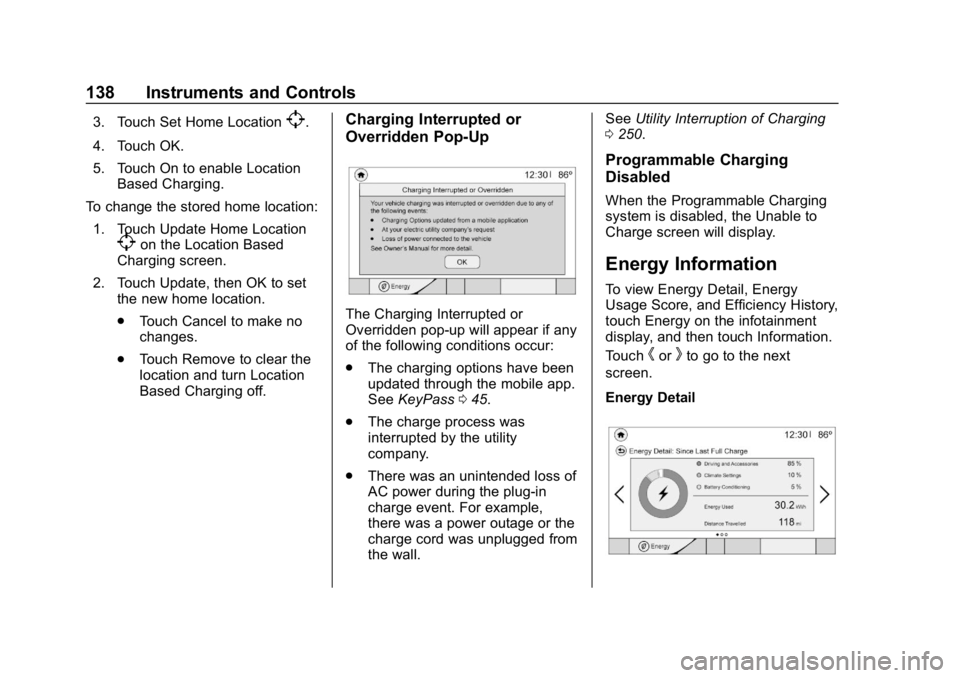
The Charging Interrupted or
Overridden pop-up will appear if any
of the following conditions occur:
.The charging options have been
updated through the mobile app.
See KeyPass 045.
. The charge process was
interrupted by the utility
company.
. There was an unintended loss of
AC power during the plug-in
charge event. For example,
there was a power outage or the
charge cord was unplugged from
the wall. See
Utility Interruption of Charging
0 250.
Programmable Charging
Disabled
When the Programmable Charging
system is disabled, the Unable to
Charge screen will display.
Energy Information
To view Energy Detail, Energy
Usage Score, and Efficiency History,
touch Energy on the infotainment
display, and then touch Information.
Touch
horkto go to the next
screen.
Energy Detail
Page 145 of 370
Chevrolet BOLT EV Owner Manual (GMNA-Localizing-U.S./Canada/Mexico-
11434431) - 2018 - crc - 2/14/18
144 Instruments and Controls
Personalization Menu
The following list of menu items may
be available:
.Time and Date
. Rear Seat Reminder
. Language (Language)
. Teen Driver
. Radio Settings
. Vehicle
. Devices
. Device Remote Access
. Bluetooth Phone
. Apple CarPlay
. Android Auto
. KeyPass
. USB Auto Launch
. Wi-Fi
. Display Settings
. Rear Camera
. Return to Factory Settings
. Audible Touch Feedback .
Text Scroll
. Software Information
Each menu is detailed in the
following information.
Time and Date
Manually set the time and date. See
Clock 0114.
Rear Seat Reminder
This message displays under
certain conditions indicating there
may be an item or passenger in the
rear seat. Check before exiting the
vehicle.
This feature allows for a chime and
a message when the rear door has
been opened before or during
operation of the vehicle.
Select Off or On.
Language (Language)
Select Language, then select from
the available language(s).
Teen Driver
See Teen Driver 0181.
Radio Settings
To manage the radio features, see
“Radio Settings” underSettings
0 180.
Vehicle
Select and the following may
display:
.
Climate and Air Quality
. Comfort and Convenience
. Collision / Detection Systems
. Lighting
. Power Door Locks
. Remote Lock / Unlock / Start
Climate and Air Quality
Select and the following may
display:
. Auto Fan Speed
. Auto Heated Seats
. Auto Defog
Auto Fan Speed
This feature will set the maximum
auto fan speed.
Page 147 of 370
Chevrolet BOLT EV Owner Manual (GMNA-Localizing-U.S./Canada/Mexico-
11434431) - 2018 - crc - 2/14/18
146 Instruments and Controls
.Exit Lighting
Vehicle Locator Lights
This feature will flash the exterior
lamps and allows some of the
exterior lamps and most of the
interior lamps to turn on briefly
when
Kon the Remote Keyless
Entry (RKE) transmitter is pressed
to locate the vehicle.
Select Off or On.
Exit Lighting
This allows the selection of how
long the exterior lamps stay on
when leaving the vehicle when it is
dark outside.
Select Off, 30 Seconds, 60
Seconds, or 120 Seconds.
Power Door Locks
Select and the following may
display:
. Unlocked Door Anti Lock Out
. Auto Door Unlock
. Delayed Door Lock Unlocked Door Anti Lock Out
When on, this feature will keep the
driver door from locking when the
door is open. If Off is selected, the
Delayed Door Lock menu will be
available.
Select Off or On.
Auto Door Unlock
This allows selection of which of the
doors will automatically unlock when
the vehicle is shifted into P (Park).
Select Off, All Doors, or Driver Door.
Delayed Door Lock
When on, this feature will delay the
locking of the doors. To override the
delay, press the power door lock
switch on the door.
Select Off or On.
Remote Lock / Unlock / Start
Select and the following may
display:
.
Remote Unlock Light Feedback
. Remote Lock Feedback
. Remote Door Unlock .
Remote Start Auto Heat Seats
. Passive Door Unlock
. Passive Door Lock
. Remote Left in Vehicle Alert
Remote Unlock Light Feedback
When on, the exterior lamps will
flash when unlocking the vehicle
with the RKE transmitter.
Select Off or Flash Lights.
Remote Lock Feedback
This allows selection of what type of
feedback is given when locking the
vehicle with the RKE transmitter.
Select Off, Lights and Horn, Lights
Only, or Horn Only.
Remote Door Unlock
This allows selection of which doors
will unlock when pressing
Kon the
RKE transmitter.
Select All Doors or Driver Door.
Page 148 of 370
Chevrolet BOLT EV Owner Manual (GMNA-Localizing-U.S./Canada/Mexico-
11434431) - 2018 - crc - 2/14/18
Instruments and Controls 147
Remote Start Auto Heat Seats
If equipped and turned on, this
feature will turn the heated seats on
when using remote start on
cold days.
Select Off or On.
Passive Door Unlock
This allows the selection of what
doors will unlock when using the
button on the outside driver door
handle to unlock the vehicle.
Select All Doors or Driver
Door Only.
Passive Door Lock
This allows passive locking to be
turned on or off and selects
feedback.
Select Off, On with Horn
Chirp, or On.
Remote Left in Vehicle Alert
This feature sounds an alert when
the RKE transmitter is left in the
vehicle. This menu also enables
Remote No Longer in Vehicle Alert.
Select Off or On.Devices
This shows status of the connected
device.
Touch Add Device if a device needs
to be added.
Device Remote Access
This will allow devices to control
system functionality and
access data.
Select Off or On.
Bluetooth Phone
This allows the connected Bluetooth
phone to be configured. See
“Bluetooth Phone”inSettings 0180.
. My Number
. Privacy
. Sort Contacts
. Resync Device Contacts
My Number
This displays the phone number of
the connected Bluetooth device. Privacy
This allows call alerts to appear on
the infotainment display.
Select Off or On.
Sort Contacts
Touch to sort by first or last name.
Resync Device Contacts
This resyncs the contacts on the
phone.
Apple CarPlay
This feature allows Apple devices to
be connected to the infotainment
system through a USB port.
Select Off or On.
Android Auto
This feature allows Android devices
to be connected to the infotainment
system through a USB port.
Select Off or On.
KeyPass
Select and the following may
display:
.
KeyPass
Page 149 of 370
Chevrolet BOLT EV Owner Manual (GMNA-Localizing-U.S./Canada/Mexico-
11434431) - 2018 - crc - 2/14/18
148 Instruments and Controls
.Manage KeyPass Devices
KeyPass
This feature allows smartphones to
be connected to the vehicle. See
KeyPass 045.
Select to turn Off or On.
Manage KeyPass Devices
Select to manage smartphones.
Smartphones must be on for this
feature to be accessed.
USB Auto Launch
This allows Android and Apple
CarPlay devices to automatically
connect when plugged into the
USB port.
Select Off or On.
Wi-Fi
Select and the following may
display:
. Wi-Fi
. Manage Wi-Fi Networks Wi-Fi
This feature allows for a connection
to available protected Wi-Fi
networks in range of the vehicle to
be turned off or on.
Select Off or On.
Manage Wi-Fi Networks
Select to manage a list of available
protected networks. Wi-Fi must be
set to On for this feature to be
accessed.
Display Settings
Select and the following choices will
display:
.
Blue Sky
. Sunset Orange
. Black Eclipse
Choose one of these options to
change the display settings.
Rear Camera
Select and the following may
display:
. Symbols .
Guidelines
Symbols
Select to turn Off or On.
Guidelines
Select to turn Off or On.
Return to Factory Settings
Select and the following may
display:
. Reset Vehicle Settings
. Clear All Private Data
. Restore Radio Settings
Reset Vehicle Settings
This allows vehicle settings to be
reset.
Select Continue or Cancel.
Clear All Private Data
This allows all private information
from the vehicle to be cleared.
Select Continue or Cancel.
Page 157 of 370
Chevrolet BOLT EV Owner Manual (GMNA-Localizing-U.S./Canada/Mexico-
11434431) - 2018 - crc - 2/14/18
156 Lighting
Lighting Features
Entry Lighting
Some exterior lamps and the interior
lamps turn on briefly at night when
the Remote Keyless Entry (RKE)
transmitter
Kis pressed. See
Remote Keyless Entry (RKE)
System Operation 033. The lights
turn off immediately when the
vehicle is started or automatically
after a brief period.
This feature can be turned on or off.
See “Vehicle Locator Lights” under
Vehicle Personalization 0143.
Exit Lighting
Some exterior lamps come on at
night when the vehicle is turned off
and the driver door is opened.
Some interior lamps also come on
when the vehicle is turned off. The
exterior lamps and interior lamps
remain on after the door is closed
for a brief period and then turn off.
This feature can be turned on or off.
See Vehicle Personalization 0143.
Battery Power Protection
The battery saver feature is
designed to protect the vehicle's
12-volt battery.
If some interior lamps and/or the
headlamps are left on and the
vehicle is turned off, the battery
rundown protection system
automatically turns the lamp off after
some time.
Exterior Lighting Battery
Saver
The exterior lamps turn off about
10 minutes after the ignition is
turned off, if the parking lamps or
headlamps have been manually left
on. This protects against draining
the battery. To restart the 10-minute
timer, turn the exterior lamp control
to the off position and then back to
the parking lamp or headlamp
position.
To keep the lamps on for more than
10 minutes, the ignition must be on
or in ACC/ACCESSORY.
Page 163 of 370
Chevrolet BOLT EV Owner Manual (GMNA-Localizing-U.S./Canada/Mexico-
11434431) - 2018 - crc - 2/14/18
162 Infotainment System
Radio
AM-FM Radio
Listening to AM-FM Radio
1. TouchT.
2. Touch Audio, then Source.
3. Touch FM or AM. The most recently listened to AM or FM
radio station is displayed.
RDS (Radio Data System) function
is only available in countries that
support this function.
Searching for Stations
Automatically
Pressgordto automatically
search for an available station with
good reception.
If RDS is supported, it will tune to
the station and may include
additional information such as time,
station identification, and program
information.
Searching for Stations Directly
1. Touch Tune. 2. Using the keypad, enter the
desired station number.
Touching the period between digits
is not necessary. The radio will add
it automatically at the correct
location.
Favorite Preset Operation
Saving Favorites 1. Select the band.
2. Select the desired station.
3. Touch
qor touch and hold the
favorite in the Favorites list to
overwrite.
4. To delete it from the Favorites list, touch
q, or swipe the
station from the list on the right.
Up to 15 radio stations can be
saved in the Favorites list.
Listening to Favorites Directly 1. Touch Favorites to see the list of favorites.
2. Touch the desired station. The steering wheel controls can
also be used to select favorites. See
Steering Wheel Controls
0109.
Using the AM or FM
Radio Menu
General Operation of the Menu
1. Select the desired band.
2. Touch Menu.
3. Touch the desired menu to select the item or to display the
item’s detailed menu.
4. Touch
qNow Playing to return
to the previous menu.
Current Station Information 1. From the FM Menu, touch Browse Audio.
2. Touch Current Station Information to display the
station information.
AM or FM Stations 1. From the AM or FM Menu, touch Browse Audio.
Page 165 of 370
Chevrolet BOLT EV Owner Manual (GMNA-Localizing-U.S./Canada/Mexico-
11434431) - 2018 - crc - 2/14/18
164 Infotainment System
3. Select the desired option: Off,Low, Medium-Low, Medium,
Medium-High, or High.
RDS
The RDS function can be set
for FM. 1. From the FM Menu, touch Audio Settings.
2. Set RDS to On or Off.
Satellite Radio
Vehicles equipped with a SiriusXM®
satellite radio tuner and a valid
SiriusXM satellite radio subscription
can receive SiriusXM programming.
SiriusXM Satellite Radio
Service
SiriusXM is a satellite radio service
based in the 48 contiguous United
States and 10 Canadian provinces.
SiriusXM satellite radio has a wide
variety of programming and
commercial-free music, coast to
coast, and in digital-quality sound.
A fee is required to receive the
SiriusXM service. Refer to:
.
www.siriusxm.com or call
1-888-601-6296 (U.S.).
. www.siriusxm.ca or call
1-877-438-9677 (Canada).
Listening to SXM Radio
1. TouchT.
2. Touch Audio, then Source.
3. Touch SXM. The most recently listened to SXM channel is
displayed.
Searching for Channels
Automatically
Pressgordto automatically
search for available channels.
Searching for Channels
Directly
1. Touch Tune.
2. Using the keypad, enter the desired channel.
Searching for Channels Using
Favorites
Saving Favorites
1. Select the desired channel.
2. Touch
qor touch and hold the
favorite in the list to overwrite.
3. To delete a channel from Favorites, touch
q, or swipe
the channel from the list on the
right.
Up to 15 channels can be
saved in the Favorites list.
Listening to Favorites Directly 1. Touch Favorites to see the list of favorites.
2. Touch the desired channel.
Using the SXM Radio Menu
General Operation of the Menu 1. Touch Menu on the SXM radio screen.
2. Touch Browse Audio or Audio Settings to select and display
the item’ s detailed menu.