2018 CHEVROLET BOLT EV radio controls
[x] Cancel search: radio controlsPage 141 of 370
Chevrolet BOLT EV Owner Manual (GMNA-Localizing-U.S./Canada/Mexico-
11434431) - 2018 - crc - 2/14/18
140 Instruments and Controls
Energy Settings
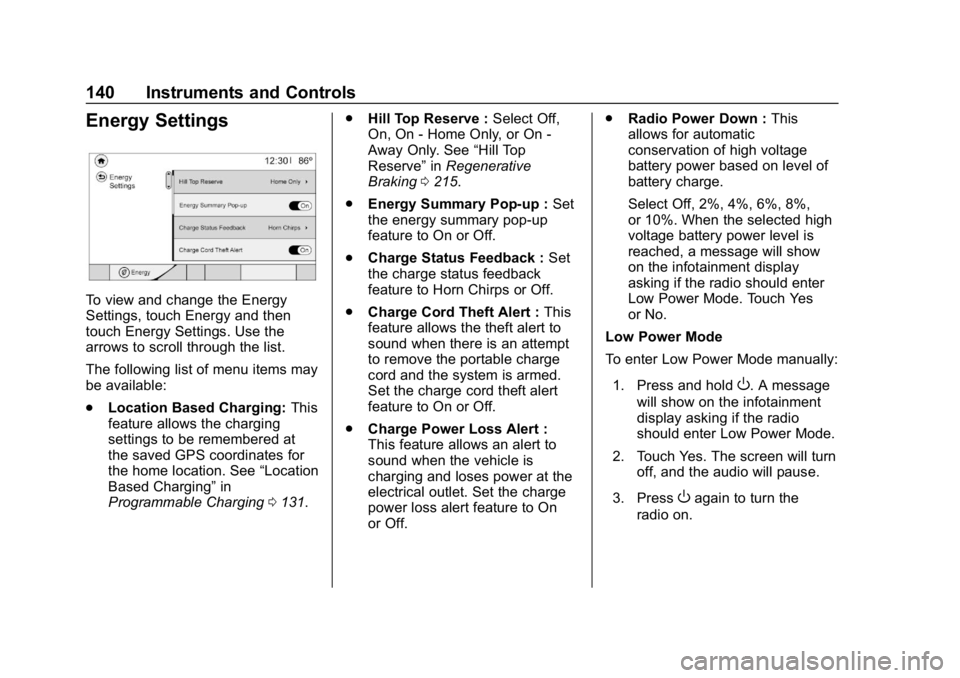
To view and change the Energy
Settings, touch Energy and then
touch Energy Settings. Use the
arrows to scroll through the list.
The following list of menu items may
be available:
.Location Based Charging: This
feature allows the charging
settings to be remembered at
the saved GPS coordinates for
the home location. See “Location
Based Charging” in
Programmable Charging 0131. .
Hill Top Reserve : Select Off,
On, On - Home Only, or On -
Away Only. See “Hill Top
Reserve” inRegenerative
Braking 0215.
. Energy Summary Pop-up : Set
the energy summary pop-up
feature to On or Off.
. Charge Status Feedback : Set
the charge status feedback
feature to Horn Chirps or Off.
. Charge Cord Theft Alert : This
feature allows the theft alert to
sound when there is an attempt
to remove the portable charge
cord and the system is armed.
Set the charge cord theft alert
feature to On or Off.
. Charge Power Loss Alert :
This feature allows an alert to
sound when the vehicle is
charging and loses power at the
electrical outlet. Set the charge
power loss alert feature to On
or Off. .
Radio Power Down : This
allows for automatic
conservation of high voltage
battery power based on level of
battery charge.
Select Off, 2%, 4%, 6%, 8%,
or 10%. When the selected high
voltage battery power level is
reached, a message will show
on the infotainment display
asking if the radio should enter
Low Power Mode. Touch Yes
or No.
Low Power Mode
To enter Low Power Mode manually:
1. Press and hold
O. A message
will show on the infotainment
display asking if the radio
should enter Low Power Mode.
2. Touch Yes. The screen will turn off, and the audio will pause.
3. Press
Oagain to turn the
radio on.
Page 145 of 370
Chevrolet BOLT EV Owner Manual (GMNA-Localizing-U.S./Canada/Mexico-
11434431) - 2018 - crc - 2/14/18
144 Instruments and Controls
Personalization Menu
The following list of menu items may
be available:
.Time and Date
. Rear Seat Reminder
. Language (Language)
. Teen Driver
. Radio Settings
. Vehicle
. Devices
. Device Remote Access
. Bluetooth Phone
. Apple CarPlay
. Android Auto
. KeyPass
. USB Auto Launch
. Wi-Fi
. Display Settings
. Rear Camera
. Return to Factory Settings
. Audible Touch Feedback .
Text Scroll
. Software Information
Each menu is detailed in the
following information.
Time and Date
Manually set the time and date. See
Clock 0114.
Rear Seat Reminder
This message displays under
certain conditions indicating there
may be an item or passenger in the
rear seat. Check before exiting the
vehicle.
This feature allows for a chime and
a message when the rear door has
been opened before or during
operation of the vehicle.
Select Off or On.
Language (Language)
Select Language, then select from
the available language(s).
Teen Driver
See Teen Driver 0181.
Radio Settings
To manage the radio features, see
“Radio Settings” underSettings
0 180.
Vehicle
Select and the following may
display:
.
Climate and Air Quality
. Comfort and Convenience
. Collision / Detection Systems
. Lighting
. Power Door Locks
. Remote Lock / Unlock / Start
Climate and Air Quality
Select and the following may
display:
. Auto Fan Speed
. Auto Heated Seats
. Auto Defog
Auto Fan Speed
This feature will set the maximum
auto fan speed.
Page 149 of 370
Chevrolet BOLT EV Owner Manual (GMNA-Localizing-U.S./Canada/Mexico-
11434431) - 2018 - crc - 2/14/18
148 Instruments and Controls
.Manage KeyPass Devices
KeyPass
This feature allows smartphones to
be connected to the vehicle. See
KeyPass 045.
Select to turn Off or On.
Manage KeyPass Devices
Select to manage smartphones.
Smartphones must be on for this
feature to be accessed.
USB Auto Launch
This allows Android and Apple
CarPlay devices to automatically
connect when plugged into the
USB port.
Select Off or On.
Wi-Fi
Select and the following may
display:
. Wi-Fi
. Manage Wi-Fi Networks Wi-Fi
This feature allows for a connection
to available protected Wi-Fi
networks in range of the vehicle to
be turned off or on.
Select Off or On.
Manage Wi-Fi Networks
Select to manage a list of available
protected networks. Wi-Fi must be
set to On for this feature to be
accessed.
Display Settings
Select and the following choices will
display:
.
Blue Sky
. Sunset Orange
. Black Eclipse
Choose one of these options to
change the display settings.
Rear Camera
Select and the following may
display:
. Symbols .
Guidelines
Symbols
Select to turn Off or On.
Guidelines
Select to turn Off or On.
Return to Factory Settings
Select and the following may
display:
. Reset Vehicle Settings
. Clear All Private Data
. Restore Radio Settings
Reset Vehicle Settings
This allows vehicle settings to be
reset.
Select Continue or Cancel.
Clear All Private Data
This allows all private information
from the vehicle to be cleared.
Select Continue or Cancel.
Page 150 of 370
Chevrolet BOLT EV Owner Manual (GMNA-Localizing-U.S./Canada/Mexico-
11434431) - 2018 - crc - 2/14/18
Instruments and Controls 149
Restore Radio Settings
This allows radio settings
preferences to be restored to the
default.
Select Continue or Cancel.
Audible Touch Feedback
Select to turn Off or On.
Text Scroll
Select to turn Off or On.
Software Information
Select and the following may
display:
.Open Source
. Software Update
. Update Preference
Open Source
Select to view the infotainment
system current software information.
Software Update
This allows the ability to search for
available vehicle software updates
when Internet connectivity is
available through the vehicle’ s builtin OnStar connection, if equipped,
or a secure Wi-Fi hotspot, such as a
mobile hotspot, home or public
network. Applicable data rates may
apply.
Update Preference
Select to download new vehicle
software updates in the background.
Select Off or On. Software
downloads require Internet
connectivity through the vehicle’s
built-in OnStar connection,
if equipped, or a secure Wi-Fi
hotspot, such as a mobile hotspot,
home or public network. Applicable
data rates may apply.
Page 158 of 370
Chevrolet BOLT EV Owner Manual (GMNA-Localizing-U.S./Canada/Mexico-
11434431) - 2018 - crc - 2/14/18
Infotainment System 157
Infotainment
System
Introduction
Introduction . . . . . . . . . . . . . . . . . . . 157
Theft-Deterrent Feature . . . . . . 158
Overview . . . . . . . . . . . . . . . . . . . . . 158
Operation . . . . . . . . . . . . . . . . . . . . . 159
Software Updates . . . . . . . . . . . . 161
Radio
AM-FM Radio . . . . . . . . . . . . . . . . 162
Satellite Radio . . . . . . . . . . . . . . . . 164
Multi-Band Antenna . . . . . . . . . . 165
Audio Players
USB Port . . . . . . . . . . . . . . . . . . . . . 166
Auxiliary Devices . . . . . . . . . . . . . 172
Bluetooth Audio . . . . . . . . . . . . . . 172
OnStar System
OnStar System . . . . . . . . . . . . . . . 175
Phone
Bluetooth . . . . . . . . . . . . . . . . . . . . . 175
Apple CarPlay andAndroid Auto . . . . . . . . . . . . . . . . 177
Hands-Free Phone . . . . . . . . . . . 178
Settings
Settings . . . . . . . . . . . . . . . . . . . . . . 180
Teen Driver . . . . . . . . . . . . . . . . . . . 181
Trademarks and License
Agreements
Trademarks and License Agreements . . . . . . . . . . . . . . . . . 184
Introduction
Read the following pages to
become familiar with the features.
{Warning
Taking your eyes off the road for
too long or too often while using
any infotainment feature can
cause a crash. You or others
could be injured or killed. Do not
give extended attention to
infotainment tasks while driving.
Limit your glances at the vehicle
displays and focus your attention
on driving. Use voice commands
whenever possible.
The infotainment system has built-in
features intended to help avoid
distraction by disabling some
functions when driving. These
functions may gray out when they
are unavailable. Many infotainment
features are also available through
the instrument cluster and steering
wheel controls.
Page 159 of 370
Chevrolet BOLT EV Owner Manual (GMNA-Localizing-U.S./Canada/Mexico-
11434431) - 2018 - crc - 2/14/18
158 Infotainment System
Before driving:
.Become familiar with the
operation of the center stack
controls and the infotainment
system.
. Set up the audio by presetting
favorite stations, setting the
tone, and adjusting the
speakers.
. Set up phone numbers in
advance so they can be called
easily by pressing a single
control or by using a single voice
command if equipped with
Bluetooth phone capability.
See Defensive Driving 0194.
To play the infotainment system with
the vehicle off, see Retained
Accessory Power (RAP) 0206.
Theft-Deterrent Feature
The infotainment system has an
electronic security system installed
to prevent theft. The infotainment system only works
in the vehicle in which it was first
installed, and cannot be used in
another vehicle.
Overview
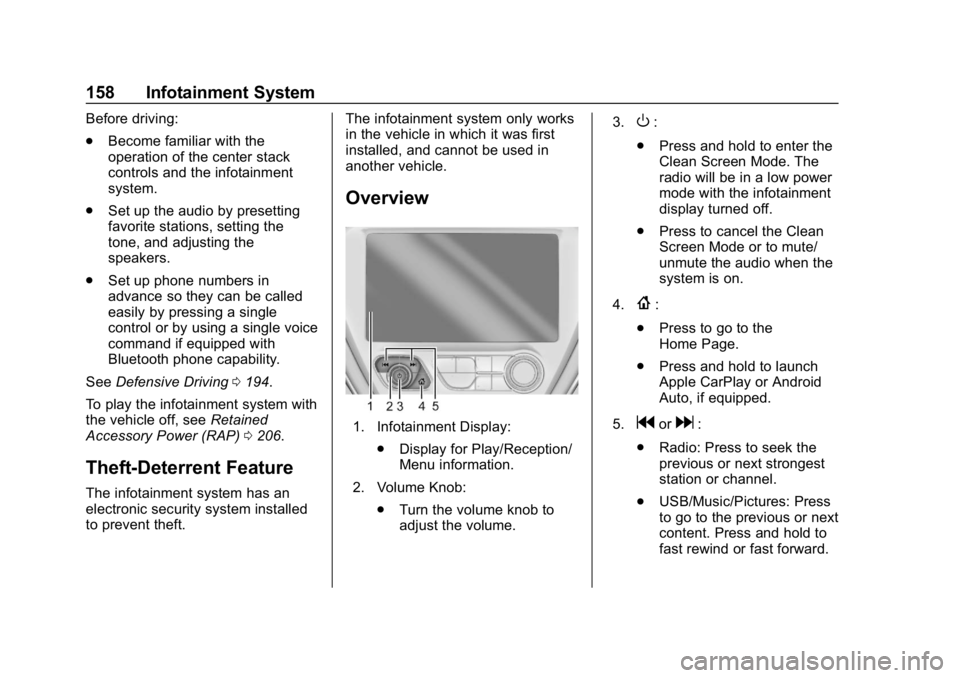
1. Infotainment Display:
.Display for Play/Reception/
Menu information.
2. Volume Knob: .Turn the volume knob to
adjust the volume. 3.
O:
. Press and hold to enter the
Clean Screen Mode. The
radio will be in a low power
mode with the infotainment
display turned off.
. Press to cancel the Clean
Screen Mode or to mute/
unmute the audio when the
system is on.
4.
{:
. Press to go to the
Home Page.
. Press and hold to launch
Apple CarPlay or Android
Auto, if equipped.
5.
gord:
. Radio: Press to seek the
previous or next strongest
station or channel.
. USB/Music/Pictures: Press
to go to the previous or next
content. Press and hold to
fast rewind or fast forward.
Page 163 of 370
Chevrolet BOLT EV Owner Manual (GMNA-Localizing-U.S./Canada/Mexico-
11434431) - 2018 - crc - 2/14/18
162 Infotainment System
Radio
AM-FM Radio
Listening to AM-FM Radio
1. TouchT.
2. Touch Audio, then Source.
3. Touch FM or AM. The most recently listened to AM or FM
radio station is displayed.
RDS (Radio Data System) function
is only available in countries that
support this function.
Searching for Stations
Automatically
Pressgordto automatically
search for an available station with
good reception.
If RDS is supported, it will tune to
the station and may include
additional information such as time,
station identification, and program
information.
Searching for Stations Directly
1. Touch Tune. 2. Using the keypad, enter the
desired station number.
Touching the period between digits
is not necessary. The radio will add
it automatically at the correct
location.
Favorite Preset Operation
Saving Favorites 1. Select the band.
2. Select the desired station.
3. Touch
qor touch and hold the
favorite in the Favorites list to
overwrite.
4. To delete it from the Favorites list, touch
q, or swipe the
station from the list on the right.
Up to 15 radio stations can be
saved in the Favorites list.
Listening to Favorites Directly 1. Touch Favorites to see the list of favorites.
2. Touch the desired station. The steering wheel controls can
also be used to select favorites. See
Steering Wheel Controls
0109.
Using the AM or FM
Radio Menu
General Operation of the Menu
1. Select the desired band.
2. Touch Menu.
3. Touch the desired menu to select the item or to display the
item’s detailed menu.
4. Touch
qNow Playing to return
to the previous menu.
Current Station Information 1. From the FM Menu, touch Browse Audio.
2. Touch Current Station Information to display the
station information.
AM or FM Stations 1. From the AM or FM Menu, touch Browse Audio.
Page 190 of 370

Chevrolet BOLT EV Owner Manual (GMNA-Localizing-U.S./Canada/Mexico-
11434431) - 2018 - crc - 2/14/18
Climate Controls 189
Caution
Do not try to clear frost or other
material from the inside of the
front windshield and rear window
with a razor blade or anything
else that is sharp. This may
damage the rear window
defogger grid and affect the
radio's ability to pick up stations
clearly. The repairs would not be
covered by the vehicle warranty.
Remote Start : The climate control
system may be started by using the
Remote Keyless Entry (RKE)
transmitter. The climate control
system will default to an appropriate
heating or cooling mode. See
Remote Start 039.
The rear window defogger turns on
if it is cold outside. Mobile Application Feature
If equipped, this feature allows a
smartphone to set the start-up
climate control settings. The
following features can be set:
.
Temperature
. Fan Speed
. Air Delivery Mode
. Climate Mode
. Recirculation
Once the settings are saved through
the application, the vehicle will use
these settings when turned on. After
the vehicle is turned on, use the
climate controls if additional
adjustments are desired.
Sensors
Indicator Light and Solar
Sensor (ILSS)
The ILSS is on top of the instrument
panel, near the windshield, where it
monitors solar intensity. The climate control system uses the
sensor information to adjust the
temperature, fan speed,
recirculation, and air delivery mode
for best comfort.
Do not cover the sensor; otherwise
the automatic climate control system
may not work properly.
Humidity Sensor
The humidity sensor is near the
base of the inside rearview mirror.
The climate control system uses the
sensor information to adjust the
temperature and recirculation for
best comfort.
Outside Air Temperature Sensor
The outside air temperature sensor
is behind the front grille of the
vehicle. The vehicle uses the sensor
information to display outside air
temperature. The climate control
system uses the information to
adjust the climate system operation.