2018 AUDI TT ROADSTER ESP
[x] Cancel search: ESPPage 133 of 310

Cl 00 .-< N r-N .-< 0 r-Vl 00
Audi conn ect (MMI)
W it h this f unct ion, you c an Allow or Deny the use
of Audi connect services if the connection is set
to
No reque st or With reque st .
Conn ection setting s
The connection is configured automatically based
on the S IM ca rd bei ng used. These va lues can be
changed . You can obta in more informa tion from
your cell phone service provider.
- APN : the access po int depends on the cell
phone service prov ider and is ass igned auto
matically.
- User nam e: your cell phone service p rovider as
s igns the user name for yo ur on line profi le.
- Pa ssword : your cell phone se rvice prov ider as-
s igns the passwo rd for yo ur on line profi le.
Storing chang ed Conn ection s etting s: press the
I BACK I button.
Reset configur ation
An online profile is saved and configured auto
mat ically. The
Conn ectio n sett ings that you
changed manually are reset to the default set
tings .
A WARNING
-As the dr iver, do not allow usage of the Wi
Fi hotspot to dis tract you from d riving, as
t h is could inc re ase the risk of an acc ident.
- It is only safe to use tab lets, laptops, mo
bile devices and othe r similar dev ices w hen
t he vehi cle is st ation ary be cause, like all
loose objects, they cou ld be th rown aro und
the inside of the vehicle in a crash and cause
serious injuries . Store these types of devices
sec urely whi le driving.
- Do not use any Wi- Fi devices within range of
the a irbags while driving. Also read the
warnings in the
chapter ¢ page 194.
@ Note
You are responsib le for a ll preca utions taken
for data protection, anti-virus protection and
protection against loss of data on mobile de
vices that are used to access the Internet through the Wi-Fi hotspot.
Audi c onn ect
(D Tips
- For more information on roaming fees, con
tact Audi connect customer serv ice at (877)
SOS -AUDI (2834).
- The speed of the data connection may vary
depending on the veh icle location, the cov
erage area of your cell phone serv ice prov id
er and if the recommended provider is used
or not.
- A data connection cannot be established if
incorrect data is entered in the connection
sett ings.
- For more informat io n on roaming charges,
contact your cell phone serv ice prov ider.
- The W i-F i hotspot recept ion quality depends
on the signal strengt h and the availab ility of
the mobile network. For more informat ion,
contact yo ur current network p rovider .
- For add itiona l information, v is it
www.aud iusa.com.
About Audi connect
Audi connect services
Applies to: vehicles with Audi connect
{!) Tips
- Audi connect services are on ly availab le w ith
an ex isting or separate cell phone contract
and only within the mobile network cover
age area. Depending on your cell phone
rates, there may be add it io nal costs w hen
connect ing to the Internet using data pack
e ts, p articular ly with inte rn a tiona l serv ice.
Based o n the hig h data vo lume, using a fl at
rate data plan is h ighly recommended.
- Yo u ca n only use serv ices sup po rt ed by Au di
connec t if you have t he op tional MM I Navi
gation pl us eq uipment with M MI touch and
Audi connect .
- Use of the L T E* mobile network s tandard is
not avai lab le in every country . Contact an
authorized A udi dealer o r autho rized Audi
Service Facility or your cell phone se rvice
prov ider for add itiona l information.
131
Page 134 of 310

Audi connect
-Using Audi connect services requires a mini
SIM card with data options and, when using L TE*, it also requires L TE options.
-Usage of Audi connect services depends on
the availability of services through third par
ty providers .
-Also read the information in the chapter
¢page 111, Telephone.
-Audi connect is designed for use only with
the provided SIM card. Receiving data pack
ets from the Internet will quickly increase
the volume of data used. For more informa
tion, contact Audi connect customer service
at 1 (877) SOS -AUDI (2834) .
-The Audi connect services are available in
the USA. Audi connect services are currently not available in Canada or in Mexico.
-Availability, scope, providers, screen display
and costs of services may vary depending on
the country, model, model year, end device
and rates . For additional information, visit
www.audiusa.com.
-An initial registration/activation on the
myAudi platform at www.audiusa.com/
myaudi is required to use individual serv
ices. You can contact an authorized Audi
dealer or Audi connect customer service at
877-SOS-AUDI (2834) to receive informa
tion on options for expanding your usage
and any costs that may result.
-It is only possible to use Audi connect serv
ices with a valid Audi connect SIM card.
- To ensure all of the Audi connect features
work correctly, Audi recommends setting up
data service and a Wi-Fi package with your
network service provider. Your network
service provider can be authorized by law,
through a judicial order or other lawful in
structions, to disclose the position of your
vehicle. Additional information on your cell phone service provider's privacy policies can
be found in their Terms of Use.
-The Audi connect services are a Wi-Fi/lnter
net-based system. If the system does not
function correctly even though all of the re
quirements are met, please try again later
or contact Audi connect customer service at
877-SOS-AUDI (2834).
132
-Additional information for Audi connect and
the applicable terms of use are found at
www.audiusa.com.
Data protection
App lies to : vehicles wit h Aud i connect
(D Tips
- You can find additional information in your
MMI in the options menu
¢ page 94 for the
selected Audi connect service and also on
line at www.audiusa .com.
- Your privacy is important to us.
- AUDI AG collects, processes, shares and
transmits your personal information in ac
cordance with legal regulations in order to
ensure proper function and availability of
the individual Audi connect services. You
can view the complete, current and valid
Audi connect data protection policy in your
MMI. The myAudi website is available for to
you to activate additional Audi connect serv
ices and to transfer data with your vehicle,
among other services. A one-time registra
tion is required to establish a connection to
your vehicle . For this purpose, AUDI AG col
lects, processes, transmits and uses your re
quired personal information as required for
you to use the services provided by AUDI
AG. Your information is not distributed to
third parties. Using your cell phone with the
help of your myAudi platform, you can
transfer information for Audi connect serv
ices functions to your vehicle and allow spe
cific information to be transmitted from
your vehicle .
- By activating special information services
that are part of your Audi connect portfolio,
you can use these functions directly in your
vehicle by entering data to confirm your
identity (to use social networks, for exam
ple). To do this, the identification informa
tion you provided is forwarded with the re
quest to the respective service provider.
Then you can access your personal content using a secure connection. This content is
displayed in the vehicle for your use. Your
personal content is not stored within Audi
.,..
Page 149 of 310

Cl 00 ... N r-N ... 0 r-Vl 00
You can also display the o nline traffic info rma
tion
in the sate llite map*1
) ¢ page 145 or the
standard map
¢ pag e 142, fig . 127
(D Tips
-Online traff ic information is not available in
Canada .
- Always read the chapter
~ page 131, About
Audi connect .
-Havi ng the Online tr affic data fu nction
switched on provides t he most accu rate re
ports of traffic situations as we ll as traffic
forecasting. Yo ur vehicle transmits and
processes its anonymous, encrypted posi
tion information at regular intervals to the
traffic data provider . If yo u do not want to
use this, you can switch off the
on line traf
fic information
function at any time .
-The online traffic informat ion network is
curre ntly not ava ilable i n all countr ies, and
the coverage is not nat io nwide . For add i
tiona l information, v is it www.aud iusa.com.
Traffic information (TMC)
Applies to: vehicles with navigation system
~ Press the I NAV /MAPI button repeated ly un til
the map is disp layed.
~ Se lect : left control button > Traffic me ssage s.
TMC t raffic mess ages are switched o n at the fac
tory.
Multip le traffic messages a re summarized in the
overview unde r th e correspondi ng street names
or h ighway names.
-Di spla ying all traffic messages for a street /
highwa y:
select and confirm the [ill symbol. A
l ist of a ll the traffic messages for the sele cted
st ree t/ hi ghway is displayed.
-Opening the detailed view of a tr affic me s
s age :
if you se lect an ent ry from the list, the
t raff ic information will be shown as a map p re
view ®¢
page 146, fig. 130 . Select and con-
l) AU DI AG prov ides acces s to serv ices from third pa rty pro
v iders . Pe rman ent availa bili ty c anno t be g uara nteed , be
c a use that dep ends on th e th ird party provid er.
Na vigation
firm a traff ic message to d isplay the details for
that message.
-Displ aying th e sele cted traffic me ssage on the
map :
select the right control button > Sh ow on
map .
-Displaying the ne xt traffic mes sage on the
map :
press the control knob .
Traffic information display
Colored warning symbol s:
traffic incidents o n
yo ur r oute are shown in the upper sect io n of the
li st and are sorted ac cording to d istance .
Warning symbol s with~: avo ided traff ic inci
dents.
Grayed out warning s ymbol s: traffic incidents
that are not on your route . T hey are sorted ac
cording to road type (expressway, h ighway, other
r oad), cou ntry and name.
Shaded markings indicate the length of the area
with congest ion .
(D Tips
Critical traffic information, such as war nings
abo ut wrong-way drivers, is a utomat ica lly dis
played . To hide t he traffic informat ion, press
the
IBACK ! button or the contro l knob .
-TMC traffic reports are not available in Can
ada . For more info rmat io n, p lease contact
S irius Canada.
Better route
Applies to: vehicles with navigation system
By receiving traffic information through TMC,
your MMI calculates a better route -if available -
and the possible time saved for the current route
guidance. You can decide yourself which route
you would like to use.
~ Press the ! NAV/MAPI button repeatedly unti l
t he map is displayed.
Requirement: route guidance must be active .
147
Page 156 of 310

Media
Media
Introduction
There are various media d rives and connections
ava ilab le in the MMI. You can play, for example,
au dio/video files f rom the Jukebox * or connect
your mob ile dev ice to the Audi m usic interface *
and operate it through the MMI.
Notes
General
Media and format restrictions :
the MMI (in cl ud
i n g the S D card reade r and the USB storage de
vice co nnect ion *) was tested w ith a var iety of
products and media on the market. However,
there may be cases where ind iv idual devices or
media and audio/video files" may not be recog
n ized, may play o nly w ith restr ictions, o r may no t
p lay a t all.
Digital Rights Management : please note that
the audio/v ideo files are sub ject to copyright pro
tect ion .
The media drives do not p lay f iles that a re pro
tected by OR M and that are ident ified with the
symbo l~ -
Data security : never store im portant data on SD
cards, the Ju kebox*, CDs/DVDs o r mobile devices.
Aud i AG is not responsib le for damaged or lost
fi les and media .
Loading times : th e mo re files/fo lde rs/p lay lists
that a re on a sto rage medium, the longer it will
take to loa d the audio/video* fi les . Audi recom
mends using storage med ia that on ly conta in a u
d io/video files* . T o decrease the t ime it takes to
load audio/v ideo f iles*, crea te subfo lde rs (fo r ex
a m ple, fo r th e a rtist o r album). The loading time
w ill als o incre as e whe n importing fi les.
Additional information : when playing, audio
f il es are automatically displayed with any add i
tional infor mat io n that is s to red (such as the ar
tis t, tra ck and al bum cover).
If this info rm ation is
no t a vai lable on the storage mediu m, t he M MI
w ill check the Gr ace no te metadata d atabase .
154
Howeve r, in some cases, the addi tional informa
tion may not be dis played .
Restri cted functionality : reset the Media set
tings
t o the fac to ry defa ult se ttings i f func tional
i ty is res tric ted
c::> page 1 74.
If func tionali ty is restr icte d, reset the Jukebo x*
to t he fa ctory defa ult se tt in gs
<=:> page 17 4.
Fo r informa tion abo ut the propert ies of s upport
ed med ia and fi le formats, see
<=:>page 168 .
@ Note
Always fo llow the informa tion fo und in c::> @ in
Wi- Fi hotspot on pag e 130.
CD/DVD operation
CD /DVD and format restrictions :
th e f unct iona li
ty o f indivi dual sto rage med ia m ay be limi ted due
to t he v ariety of b lank C Ds/DV Ds av a ila b le and
t h e va rious cap acities. Audio CDs or video DV Ds
with copy p rotection, CDs/DVDs that do not con
fo rm to the standard and mult isess ion CDs may
hav e limit ed playback or may not play at all. A udi
recommends finaliz ing the recording process
whe n creat ing mult isess ion CDs . Mult isess ion is
not supported for DVDs .
Using CDs/DVDs, the CD dr ive or the DVD drive :
to ensure correct, hig h-q ua lity playback and to
prevent damage to the dr ive or disc read ing e r
r ors, always store CDs/DVDs in a protec tive
s leeve and do no t expose them to direct s unligh t.
Do
not u se :
- Damaged, dirty or sc ratched CDs/DVDs
- Single CDs/DVDs with 3 in (8 cm) d iameter
- CD/DVDs that a re not roun d
- CDs/DV Ds w ith labe ls
- Protec tive rings
- Clean ing CDs
Thermal protection switch : CD/DVD playback
may be tempora rily unavailab le if o utside tem
peratures a re ex tremely hot or co ld. A t hermal
pro tect io n sw itch is inst alled t o protec t th e C D/
DVD a nd the laser.
Laser devi ces : lase r devices a re divided i nto safe -
ty classes 1 to 4 in accordance with DI N IE C 76
.,.
Page 162 of 310

Media
CD Note
Always follow the information found in ~CD in
Wi-Fi hotspot on page 130.
@ Tips
- Depending on the Internet connection and
network traffic, a connection loss can occur
d uring p layback of on line media services.
- Onli ne med ia and Inte rn et r adi o usage de
pends on the service availability of the third
party provider .
- Audi AG simply makes the access to online
media services possible through the MMI
and does not take any respons ibility for the
contents of the online media services.
- Always read the chapter ¢
page 131, About
Audi connect .
-Depending on the mobile device used, there
may be interruptions during media playback
and when using the
Au di MM I connect app.
To avoid interruptions when using a mobile
device, do not lock the screen on your mo
bile device and keep the
A udi MMI c onn ect
app in the foreground.
- Contact an authorized Audi dea ler or au
thorized Audi Service Facility for additional
i nformat io n about on line media.
160
Multimedia connections
USB adapter for Audi music interface or
USB charging port
Depending on the vehicle equipment, you can
connect your mobile devices (such as a smart
phone or MP3 player) to the Audi music interface
or a USB charging port using a special USB
adapter.
"'
I
Fig. 139 A ud i Ge nuin e Acce sso ries : USB a dapter
@ USB adapter for devices with a micro USB con
nect ion
@ USB adapter for devices with an Apple Light
ning connection
@ USB adapter for dev ices with USB type C con
nection
@ USB adapter for devices with an Apple Dock
connector
You can purchase the USB adapter from an au
thorized Audi dea ler or at specialty sto res.
CD Note
Hand le the USB adapter carefully . Do not al
l ow it to be pinched.
Page 163 of 310
Cl co ..... N ,....
N ..... 0 ,....
Vl co
Audi music interface
Applies to: ve hicles with Audi m usic in terface
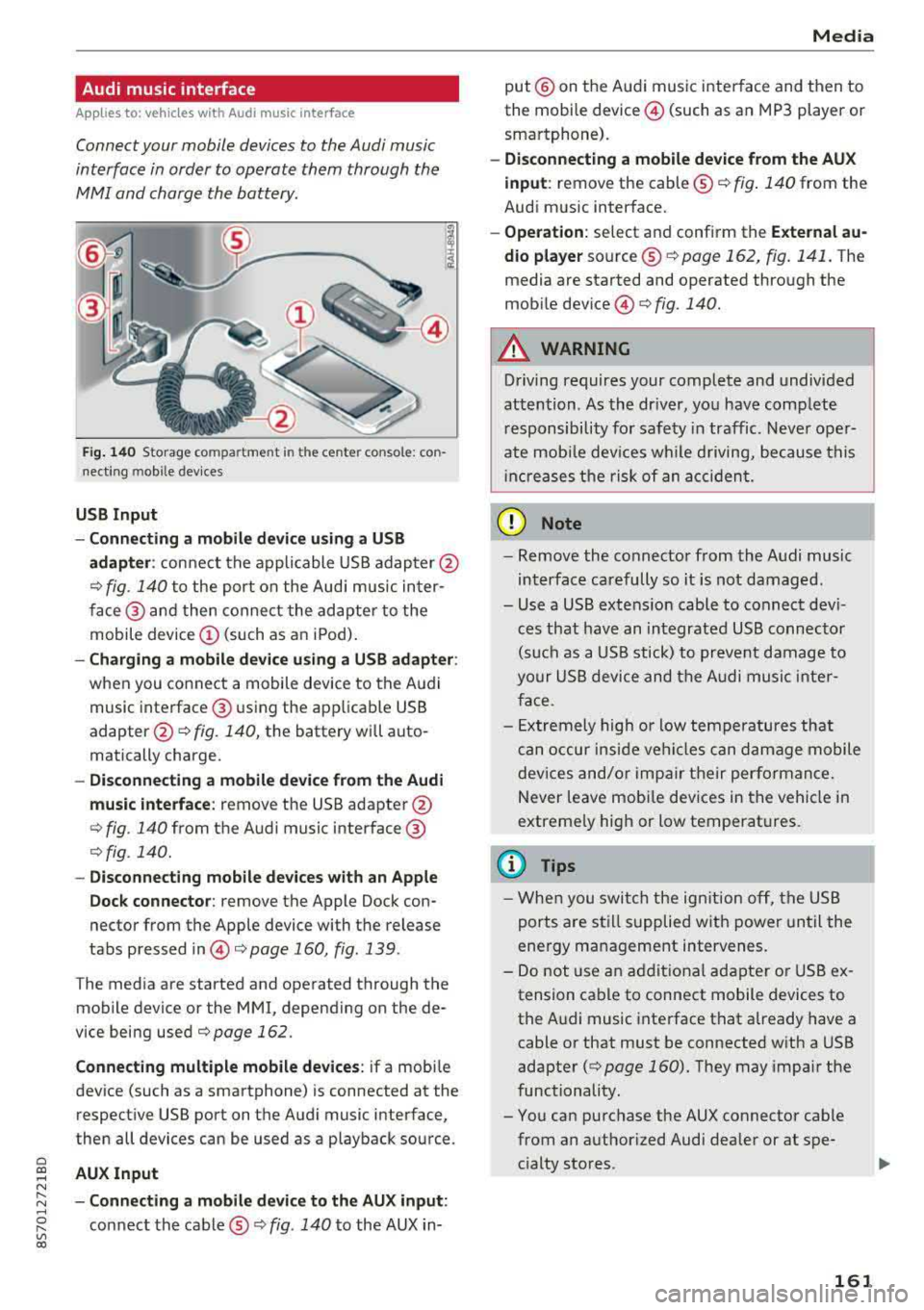
Connect your mobile devices to the Audi music
interface in order to operate them through the
MMI and charge the battery.
'" •.I 'I'
1 .
Fig. 140 S torage co mpa rtment in the ce nte r conso le: co n
nect ing m ob ile dev ices
USB Input
- Connecting a mobile device using a
USB
adapter : connect the applicable USB adap ter @
¢ fig. 140 to the port on the Audi music inter
face @ and then connect the adapter to the
mobile device
(D (such as an iPod).
-Charging a mobile device using a USB adapter :
when you connect a mobile device to the Audi
music interface @ using the app licab le USB
adapter @¢ fig. 140, the battery will auto
matically charge .
-Disconnecting a mobile device from the Audi
music interface :
remove the USB adapter @
¢ fig. 140 from the Audi music interface @
¢fig . 140.
-Disconnecting mobile devices with an Apple
Dock connector:
remove the Apple Dock con
nector from the Apple device with the release
tabs pressed
in @ ¢page 160, fig .139 .
The media are started and operated through the
mobile device or the MMI , depending on the de
vice being used
¢page 162 .
Connecting multiple mobile devices: if a mobile
device (such as a smartphone) is connected at the respect ive USB port on the Audi music interface,
then all devices can be used as a playback source .
AUX Input
-Connecting a mobile device to the AUX input:
connect the cable®¢ fig. 140 to the AUX in-
Media
put @ on the Audi music interface and then to
the mobile
device @ (such as an MP3 player or
smartphone).
- Disconnecting a mobile device from the AUX
input :
remove the cable ®¢ fig. 140 from the
Audi music interface.
- Operation : select and confirm the External au
dio player
source ®¢ page 162, fig . 141. The
media are started and operated through the
mob ile
device @) ¢fig. 140.
A WARNING
-
Driving requires your complete and undivided
attention . As the driver, you have complete
responsibility for safety in traffic. Never oper
ate mobile devices wh ile d riving, because this
i nc reases the risk of an accident.
(D Note
-Remove the connector from the Audi music
interface carefully so it is not damaged.
- Use a USB extens ion cable to connect devi
ces that have an integrated USB connector
(such as a USB stick) to prevent damage to
your USB device and the Audi music inter
face .
- E xtremely high or low temperatures that
can occur inside vehi cles can damage mobile
devices and/or impair their performance.
Never leave mobi le dev ices in the vehicle in
extreme ly high or low temperat ures.
@ Tips
- When you switch the ignitio n off, the USB
ports are still supplied with power until the
energy management intervenes.
- Do not u se an additional adapter or USB ex
tension cable to connect mobile devices to
the Audi music interface that already have a
cable or that must be connected with a USB
adapter
( ¢ page 160). They may impair the
functionality.
- You can purchase the AUX connector cable from an authorized Audi dealer or at spe
cialty stores .
161
Page 175 of 310
Cl 00 .-< N r-N .-< 0 r-Vl 00
System settings
Setting the date and
time
You can set the clock time manually or using the
CPS .
.. Select : IMENUI button> Settings> left control
button >
MMI settings > Date & time.
.. Or : select: IMENUI button> Vehicle> left con-
trol button >
Vehicle settings > Date & time .
Automatic setting
When this function is switched on~. the time
and date are automatically set.
Time
Requirement: the Automatic setting must be
switched
off .
Press the control knob. You can set the Time
manually by turning and pressing the control
knob.
Date
Requirement: the Automatic setting must be
switched
off.
Press the control knob . You can set the Date
manually by turning and press ing the control
knob.
Time zone
When selecting the appropriate time zone, a
sampling of countries in this zone will be listed .
Automatic time zone*
When this function is switched on~. the time
will automatically adjust to the corresponding
time zone.
Time format
If you select 24h , the clock will display, for ex
ample,
13:00. If you se lect AM/PM, the clock
will disp lay, for examp le,
1:00 PM.
Date format
I f you select DD.MM.YYYY , the date display will
show, for example,
31.08.2017 . If you select
MM/DD/YYYY , the date disp lay wi ll show, for ex-
System settings
ample, 08/31/2017. If you select YYYY-MM
DD ,
the date display will show, for example,
2017-08-31.
MMI settings
.. Select: IMENUI button> Settings > left control
button >
MMI settings .
Language
You can change the display language as well as
t h e la nguage for the voice guidance* and voice
recognition system*.
T he number of languages available depends on
the market .
Measurement units
The following measurement un its can be set de
pend ing on ava ilab ility:
Speed , Distance , Tem
perature , Fuel consumption , Volume , Pressure.
Tool tips
When this funct ion is switched on~. your MMI
shows you tips for input. The frequency of how
often it displays decreases w ith time . You can
switch
off the operating tips at any time .
Speech dialog system
Applies to: vehicles with voice recognition system
Command display: when this function is switch
ed
on~. the MMI will show you the possible
commands for voice input in the respective
menu. You can sw itch the funct ion
off at any
t ime .
Short dialog : when this function is sw itched on
~. a shorter form of the prompts is used . You
can switch the function
off at any time .
Speech dialog system volume: you can adjust
the volume of the prompts by turning the contro l
knob.
Individual speech training (only when the vehi
cle is stationary): you can adapt the voice recog
nition system to your voice or pronunciation in
order to improve the system's ability to recogn ize
your speech. Ind iv idual speech tra ining is com
prised of 20 speech entr ies that consist of com-
mands and sequences of numbers . You can
.,,_
173
Page 176 of 310

System settings
delete the programmed voice training with the
Reset individual speech training function .
Factory settings
The follo wing funct ions can be reset to the facto
ry default settings :
-Sound settings
- Radio
- Media settings
- Jukebox*
- Directory*
- Telephone *
- Bluetooth and Wi-Fi*
- Navigation settings *
- Navigation and online memory *
- Voice recognition system*
- Message settings *
-Apps*
-Tool tips
-Audi connect *
You can select the desired functions individually
or all at once with the option
Select all entries .
Select and confirm Restore factory settings.
(D Tips
-Make sure that not only t he settings were
deleted but also the stored data, if appl ica
ble.
- Please note that the
voice recognit ion sys
tem* is not available in Cabriolets that do
not have a factory- insta lled safety belt mi
crophone .
174
Connection manager
Introduction
The connection manager gives you an overview
of your connected devices and their network sta
tus.
Settings Connection manager
I • Prima hone : M_Phone C,
t MyPhone ~
• Secondary phone : Not connected
• Data connect,on: Not connected
• MMI connect App: Not connected
• w,- F, aud ,o player: Not connected
Fig . 147 Co nnect ion manager
.,.. Select: !MENUI button> Settings > left control
button
> MMI settings > Connection manager.
.,.. Select and confirm a menu it em.
If a mobile device was already connected and you
select and co nfirm the corresponding menu item,
the device name and connect ion status are dis
played under the menu item.
You can individually
Connect(~) or Disconnect
(0) a pa ired device.
Requirement:
- Th e vehicle m ust be stationary and the ignition
m ust be switched on .
- Th e Bluetooth settings will open on your mo
bile device during the connection setup .
- Th e Bluetooth function and visibility of the MMI
c::> page 175 and mobile device must be switch
ed on.
- Th e mobile device to be connected m ust not be
connected to any other B luetooth dev ice .
Primary phone
App lies to: vehicles wi th telepho ne
- Connect new device: search for and connect a
cell phone.
- List of devices already paired: select your cell
phone from the list of all the devices that are
already paired.