2018 AUDI S3 SEDAN reset
[x] Cancel search: resetPage 223 of 404

LL co .... N
" N .... 0 N > co
Radio text is availab le for the selected station .
See
q page 219.
@ iTunes tagging
The Tag this song for iTunes option is available
for the set station . See
Q page 219, Additional
options.
® FM HD Radio technology
T he station is received through FM HD Radio
technology .
@ Screen view
Display Cover art or Station logo. See
c:> page 222, Preferred picture view *.
Displaying the station list:
Turn the control knob. Or: press the I BACK! but
ton .
Radio menu
Fig. 201 Example: Radio menu
• Select: I RADIO ! button > left control button .
Setting the frequency band : select and confirm
the desired frequency band in the radio menu
q fig . 201 . Or: press the I RADIO I button repeat
ed ly until the desired frequency band is set . The
station list is disp layed.
(!) Presets
The presets list is dis played q page 221, Pre
sets .
@SiriusXM alerts
Applies to: vehicles with SiriusXM alerts
After you have stored a SiriusXM alert for your fa
vorite tracks or artists
c:> page 220, an overview
of your favorite tracks or artists currently being received on SiriusXM is displayed .
Radio
@ SiriusXM
Appl ies to: veh icles w ith SiriusXM alerts
The SiriusXM* station list is displayed.
Additional frequency bands
Depending on the vehicle equipment, you may al
so be able to select add itiona l frequency bands
@ l@ c:> fig. 201 in the selection menu.
Presets
You can store your favorite stations from every
frequency band in the presets list.
• Select: the I RADIO I button > left control button
> Presets .
Requireme nt: the presets list must be displayed.
- Storing presets: select and confirm a free pre
set space.
Follow the system instructions.
- Select and confirm
a station from the list if
necessary.
Requirement: a station list must be displayed.
-Storing presets: select: an entry from the list>
right control button > Store as preset. Or :
press and hold the control knob for several sec
onds .
-Displaying the presets list : select: I RADIO I but-
ton
> Presets .
Requirement: the favorites list must be dis
played .
-Listening to presets : select and confirm a pre
set from the list.
-Move favorite : select a favorite from the list>
right control button > Move favorite. Or : press
and hold the control knob for several seconds.
Select and confirm the location of the selected
preset .
-Deleting presets : select a preset from the list >
right control button > Delete preset > Delete
this preset or Delete all presets .
Additional settings
Radio settings
• Select: I RADIO I button > rig ht control button >
Radio settings. ""
221
Page 224 of 404

Radio
The following settings can be se lected, depend
ing on the band that is se lected :
Station names (FM )
Variabl e:
scrolling text tra nsmi tted by the FM
s tat ions is shown in the Infotainment system d is
p lay .
Fixed : scrolling text transm itted by the FM sta
tions is not s hown in the Infota inment system
d isp lay. O nly the cu rrent sect io n of the scro lling
text is d isplayed.
FM /AM HD Radio*
You can sw itch HD Rad io recept ion on o r off .
Channel sorting (Sirius XM *)
You can set the station so rting for SiriusXM sta
tion lists* by:
- Channel number: the channe ls are sorted in as
cending order according to their channel num
ber.
- Channel name : the channels are listed in alpha
betica l order.
- First categor y, then channel number : the
c h annels are sorted by their category and then
by the ir channe l numbers .
-First categor y, then channel name : the sta
tions are sorted by th eir cat egory and then by
their channe l names.
Categor y filter (SiriusXM *)
The stations s hown in t he s ta tion lis t can be fi l
tered by your pe rsonal prefe rences and by pro
gram type. The program categories that yo u can
select depend on what is offered by yo ur provid
er. Select the
All categor ie s option to deactivate
all filter options and display all ava ilable stations
in the satellite station list .
Troubleshooting
Problem Solution Show "Now Playing" screen
When
the functi on is swi tched on~ and the st a
tions o r presets list is open, the disp lay w ill
switch to the
Show "Now Playing " sc reen view
after approximate ly five seconds
¢ page 220 . De
pending on availab ility, information about the
set stat ion (such as stat ion name, artist and sta
tion logo) may be d isplayed in this view.
Pr efe rred picture vi ew*
You can set your preferred screen view for the
Show "Now Pla ying " screen ¢ page 220.
-Station logo : the station logo is displayed, de
pending on availability .
-Cov er art : the album cove r is d isplayed if availa
ble.
Gracenote online database *
Requirement: the MMI must be connected to the
Internet. The
Cover art opt ion must be selected
¢ page 222, Pr eferred picture vi ew *.
When the funct io n is switched on~, the album
cover or genre cover for the so ng that is p lay ing
i s loaded from t he Gracenote online database,
depend ing on ava ilability.
Subscription status (SiriusXM )*
This opt io n is available when your subscr ipt ion is
about to expire or has already expired . The expi
r ation date fo r your license is displayed .
Call to SiriusXM *: the contact information for
your sate llite rad io provider is displayed . To call
your sate llite rad io provider using the MMI, press
Call to Siriu sXM*.
A station with poor reception is no longer Store the stat io n as a preset in advance . Access the pre-
displayed in the station l ist once you sets using the presets list
¢ page 221 .
switch to a d ifferen t sta tion.
222
Page 225 of 404

u. 00 .-< N l' N .-< 0 N > 00
Media
Introduction
There are various media drives and connections
avai lab le in the MMI. For example, you can play
audio/video* fi les from t he Jukebox* or connect
your mobi le device to the Audi mus ic interface*
and operate it through the MMI.
Notes
General
Media and format re strictions :
the MM I (includ
ing the SD card reader and the USB storage de
vice connection *) was tested wit h a variety of
products and media on the market. However,
there may be cases where ind ividual devices or
media and audio/video files* may not be recog
n ized, may play on ly w ith restrictions, or may not
play at all.
Digital Rights Management : please note that
the audio/video* files are subjec t to copyright
protection .
The med ia drives do not play f iles that are pro
tected by
ORM and that are ident ified with the
symbol
rfl.
Data secu rity : never store important data on SD
cards, the Jukebox*, CDs/DVDs or mobile devices .
Aud i AG is not responsib le for damaged or lost
f il es and media .
Loading times : th e more files/fo lders/p lay lists
that are on a storage medium, the longer it will
take to load the audio/v ideo* files . Audi recom
mends using storage med ia tha t on ly conta in au
d io/video files* . To decrease the t ime it takes to
l oad audio/v ideo f iles*, create subfolders (fo r ex
ample, fo r th e a rt ist o r album). The loading time
will also increase when importing fi les.
Additional information : when playing, audio
f iles are automatically displayed with any add i
tional informat ion that is sto red (such as the ar
tis t, trac k and albu m cover). If this informa tion is
n o t availa ble o n the sto rage med ium, t he
M MI
will check the Grace note metadata database .
Media
However, in some cases, the additional in fo rma
tion may not be displayed.
Re stri cted functionality : reset the Media set
tings
t o the fac to ry defau lt settings if func tional
ity is restr icted
¢ page 244.
If fu nctionali ty is rest ricted, reset the Jukebox *
to the fa ctory default se tt ings ¢ page 244.
For information about the propert ies of s upport
ed med ia and fi le formats , see
¢ page 237 .
@ Note
Always fo llow the information fo und in ¢ @ in
Wi-Fi hotspot on page 195 .
CD/DVD operation
CD /DVD and format restrictions :
the funct iona li
ty of individ ua l st orage media may be limited due
to the v ariety of b lank CDs/DVDs avai lab le and
t h e various capacities. Audio C Ds or video DV Ds
with copy p rotection, CDs/DVDs that do not con
fo rm to the standard and multi session CDs may
have limit ed playback or may not play at a ll. Audi
recommends finaliz ing the recording process
whe n creat ing mult isess io n CDs . Mult isess ion is
not supported for DVDs .
Using CDs/DVDs , the CD dr ive or the DVD drive :
to ensure correct, hig h-quality playback and to
prevent damage to the dr ive or d isc read ing er
rors, always store CDs/DVDs in a protective
sleeve and do not expose t hem to direct sunlight .
Do
not u se:
- Damaged, dirty or scratched CDs/DVDs
- Sing le CDs/DVDs with 3 in (8 cm) d iameter
- CD/DVDs that a re not round
- CDs/DVDs w it h labe ls
- Protec tive rings
- Clea ning CDs
Thermal protection switch : CD/DVD playback
may be temporarily unavailab le if outs ide tem
peratures a re extremely hot or co ld . A thermal
pro tect io n sw itch is insta lled to p rotect the C D/
D VD and the laser.
La ser devi ce s: lase r devices a re divided i nto safe -
ty classes 1 to 4 in acco rdance w ith DIN I EC 76
.,.
223
Page 228 of 404

Media
When importing, the audio files a re au tomatica l
ly sorted into the media center categories based
on the stored addit iona l info rmation
¢ page 233. The copied video files a re stored in
the media center under the
Videos category.
Playing the Jukebo x
Req uiremen t: the J ukebox must con tain audio/
video
fi les ¢ page 225, Adding files to the Juke
box.
T he Jukebox is accessed an d ope ra ted t hrough
the
MMI (D ¢ page 232, fig . 2 08.
Displaying Jukebox memory capacity
Select : righ t control button > Juk ebo x memory
capacity .
Info rmation abou t the J ukebo x memo ry
c a pacity and the numbe r of s to red tracks is dis
p layed .
Deleting tracks from the Jukebox1
)
Req uiremen t: the Jukebox must contain audio/
video fi les.
- Delet ing an ent ry : se lect an e ntry from the
Jukebox media center . Se lect: rig ht contro l but
ton
> Delete from jukebox > Thi s entry or En
tire list .
- The status of t he de leti ng p rocess is shown in
the MMI. J ukebox playback s tops d uring the de
l et ing p ro cess a nd s tarts again au toma tically
o nce the dele tion is comp lete .
(D) Note
Do not import aud io/video files when the en
gi ne is t urne d off because this will drain the
veh icle b attery.
(D Tips
- Tracks fro m audio C Ds cannot be im port ed
t o t he Ju ke box for legal reasons .
- Fil es that have a lready been importe d are
a utomat ica lly recogn ized and cannot be
cop ie d to the J ukebo x again.
- It i s no t possib le to play audio/v ideo* files
i n the C D/DVD* dr ive while importi ng the m.
1> Not i n the Pl ayba ck view .
226
- Th e Juk eb ox does not provi de a n ex port
function due to legal reasons .
- Files o r tra cks w ithou t addi tional store d in
formation a re listed as
Unknown. A ud i rec
ommends adding a dditiona l info rmation
(such as ID3 tags) to a udio f iles.
- Reset the
Jukebox to the facto ry defa ult
settings when sel ling yo ur vehicle
¢ page 244.
Bluetooth audio player
Appl ies to: vehicles with Bluetooth audio player
With the Bluetooth audio player, you can play
music wirelessly from your Bluetooth-capable
device (such as a cell phone) through the MMI.
Requirement: the vehicle must be stationary and
the ignit io n m ust be switched on. The B luetooth
settings w ill open on your mob ile dev ice d uring
t h e connection setup . The Blue tooth function
and vis ibili ty of the
MM I ¢ pag e 246 and mob ile
device must be sw itched on. The
Bluetooth audio
player ¢ page 246 must be switched on in t he
MM I.
-Connecting a Bluetooth player : press the
!MEDIA ! butto n. Press the left con trol b utton
un til the sources ove rview is d isp layed. Selec t
and confirm
Bluetooth audio player ®
¢page 232, fig . 209 .
-If n ecess ary, se lect and co nf ir m Not connected
> Connect Bluetooth audio player . The Bl ue
tooth device search starts. Follow the instruc
tions in the MMI.
- Select and confirm t he des ired Bl uetooth de
vice from the list . The
MMI generates a PIN fo r
the connection.
- Select and confirm
Yes.
- En ter the PI N for conne ct in g on your Bluetoo th
dev ice .
Or : if the P IN is already dis played on
your Bl uetooth device, confi rm it in the Bl ue
tooth device and in the
M MI. The time a llowed
for entering the PI N is lim ited to approx imately
30 seconds .
IJIJ,
Page 233 of 404

u. co ... N l' N
approximately 70% of the maximum vol
ume.
- Functionality is not guaranteed for mobile
devices that do not conform to the USB
2.0
specification.
- USB hubs are not supported.
- Some versions of the iPod such as the iPod
shuffle cannot be connected to the USB
adapter for devices with Apple Dock connec
tor. Connect these devices using a AUX con
nector cable.
- Changed content on a mobile device
l) that
is connected to the Audi music interface
may not be displayed in the media center.
In this case, reset the
Media settings back
to
Factory settings c> page 244.
- Video playback through the Audi music in
terface is only supported if the connected
device is recognized as a USB storage device
(for example a USB stick). Apple devices and
MTP devices (such as smartphones) are not
recognized as USB storage devices .
- iPod/iPhone malfunctions also affect the
operation of the MMI. Reset your iPod/
iPhone if this happens.
- For important information on operating
your iPod/iPhone, refer to the user guide for
the device. Audi recommends updating the
iPod/iPhone software to the latest version.
- For more information about the Audi music
interface and supported devices, check the
Audi database for mobile devices at
www.audiusa.com/mp3 or contact an au
thorized Audi dealer or authorized Audi
Service Facility.
8 l ) A pp lies o nly to MTP device s. Does not apply to App le dev i
"' &j ces and USB mass storage d ev ices.
Media
USB charging ports in the rear
App lies to : vehicles wit h USB charging ports in the rear
You can charge the battery on your mobile device
through a USB charging port.
Two USB charging ports* are located at the back
of the center console.
- USB adapter: refer to c> page 229, USB adopter
for Audi music interface.
- Charging a mobile device using the USB
adapter: connect your mobile device to a USB
charging port using a suitable USB adapter.
- Disconnecting a mobile device from the charg
ing port:
remove the USB adapter from the USB
charging port .
-Disconnecting mobile devices with an Apple
Dock connector :
remove the Apple Dock con
nector from the Apple device with the release
tabs pressed in.
A WARNING
-
Driving requires your complete and undivided
attention . As the driver, you have complete
responsibility for safety in traffic. Never oper
ate your mobile devices while driving, because
this increases the risk of an accident.
((D) Note
Extremely high or low temperatures that can
occur inside vehicles can damage mobile devi
ces and/or impair their performance . Never
leave mobile devices in the vehicle in ex
tremely high or low temperatures.
(D Tips
- Always follow the information found in
c>page 62 .
-When you switch the ignition off, the USB
ports are still supplied with power until the
energy management intervenes.
- Do not use any additional USB extension ca
bles or adapters to connect mobile devices
to the USB charging port that have already
liJo-
231
Page 239 of 404
u. 00 ... N l' N ... 0 N > 00
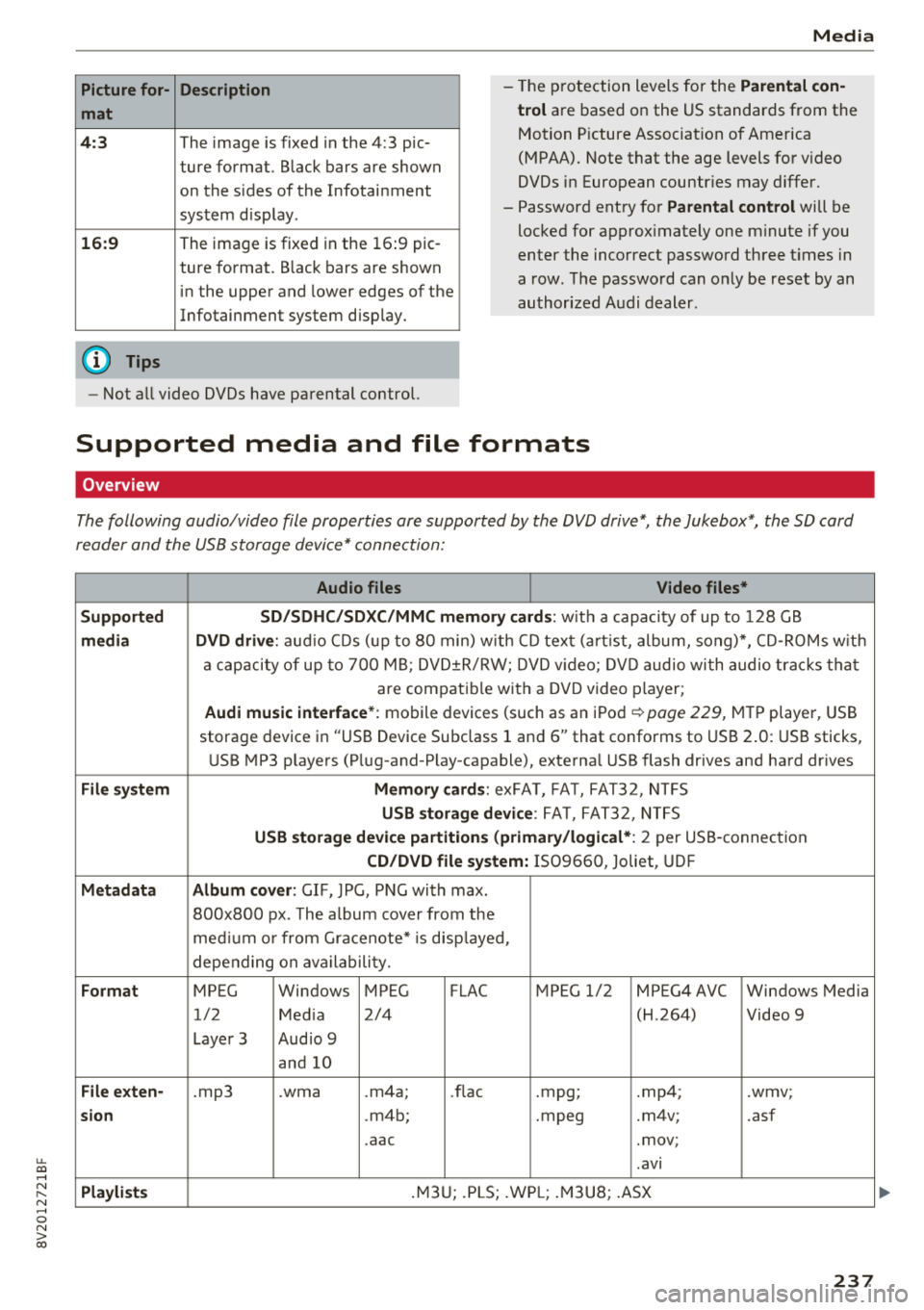
Picture for-
mat
4: 3
16 :9
(D Tips Description
The image is fixed
in the 4:3 pie-
ture format. Black bars are shown
on the sides of the Infotainment
system d isplay.
The image is fixed in the 16 :9 pie -
ture format . B lack bars are shown
in the upper and lower edges of the
Infotainment system disp lay.
Media
-T he p rotection levels for the Parental con
t rol
are based on the US standards from the
Motion P icture Associat ion of America
(MPAA). Note that the age levels fo r video
DVDs in European countr ies may differ.
-Password ent ry fo r Parental control will be
locked for approx imately one m inute if you
enter the incorrect password three t imes in
a row. The password can o nly be reset by an
au thori zed A udi dealer.
-Not a ll video DVDs have parental control.
Supported media and file formats
Overview
The following audio/video file properties are supported by the DVD drive*, the Jukebox*, the SD card
reader and the USB storage device* connection:
Audio files Video files*
Supported SD/SDHC /SDXC /MMC m emory cards :
with a capacity of up to 128 GB
media DVD drive : audi o CDs ( up to 80 min) w ith CD tex t (a rt ist, album, so ng)*, CD -R O Ms w ith
a ca pacity of up to 70 0 M B; D V D± R/RW; DVD video; DV D audio wi th audio t ra ck s tha t
are compatible with a DVD video p layer;
Audi music interface *: mobile devices (such as an i Pod i::> page 229, M TP playe r, USB
storage device in "USB Device Subclass 1 and
6" that conforms to USB 2 .0: USB sticks,
U SB MP3 p laye rs (P lug-and-P lay-capable), external USB flash drives and ha rd dr ives
File system Memory cards : exFA T, FA T, FAT32, NTFS
USB storage device : FA T, FA T32 , NTFS
USB storage device partition s (primary/logical* : 2 per USS-connec tion
CD/DVD file sy stem: IS09660, Joliet, UDF
Metadata Album cover : GIF, )PG, P NG with max.
800x800 px . The album cover from the
me diu m o r from Gracenote* is disp layed,
depe nding on ava ilabili ty.
Format MPEG Windows MPEG FLAC MPEG 1/2 MPEG4 AVC Windows Media
1/2 Med ia 2/4 (H
.264)
Video 9
Laye r 3 Aud io 9
and 10
File e xten-.mp3 .wma .m4a; .nae .mpg; .mp4; .wmv;
sion .m4b; .mpeg .m4v; .asf
.aac .mov;
.avi
Pla ylists .M3 U; .PLS; .WP L; .M3 U8; .ASX
237
Page 241 of 404
u. 00 .-< N l' N .-< 0 N > 00
Media
-Specia l characte rs (such as those in 10 3 tag
i nformat ion) d isp lay different ly depending o
n the sys tem lan guage an d cannot always
be guaranteed.
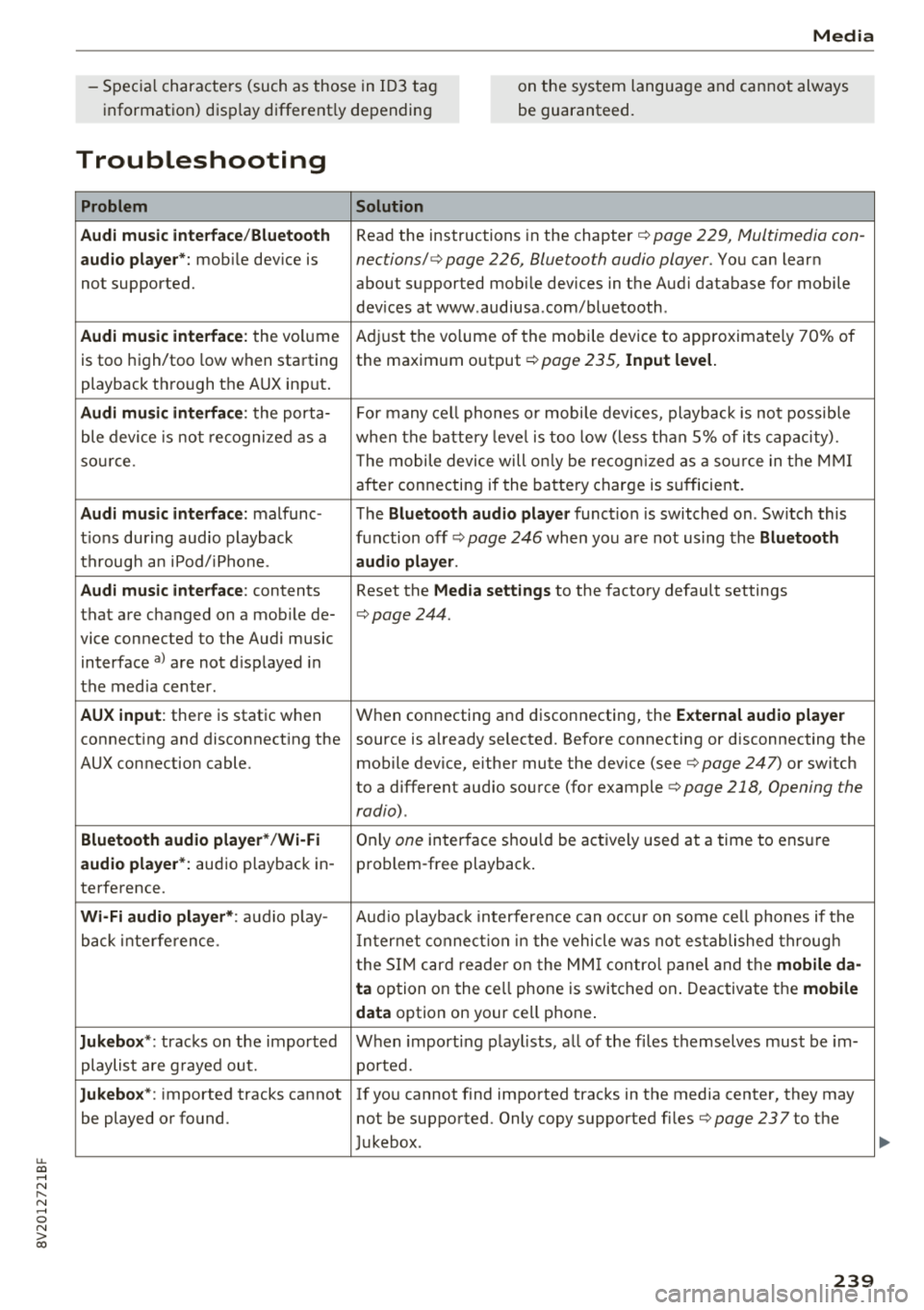
Troubleshooting
Problem Solution
Audi music interface /Bluetooth
Read the instructions in the chapter ¢ page 229, Multimedia con -
audio player*: mobile dev ice is nections/ ¢ page 226, Bluetooth audio player. You can lear n
not supported. about supported mobile devices in the Aud i database for mobile
dev ices at www .audiusa .com/bluetooth .
Audi music interface : the volume A
dju st the volume of the mobile device to approximate ly 70% of
is too high/too low when sta rt ing the maxim um output ¢
page 235, Input level.
playback th rough the AUX inp ut.
Audi music interface : the porta- For many ce ll phones o r mobi le devices, playback is not possib le
ble device is no t recogni ze d a s a when t he batt ery leve l is to o low (less th an 5% of its cap aci ty).
so urce . The mobile de·vice will on ly be recog nized as a so urce in t he MM I
afte r con necting if the ba tte ry charge is s ufficient.
Audi music interface : malfunc-The Bluetooth audio player function is switched on . Sw itch this
t ions during audio playback function off
ca> page 246 when yo u are not using the Bluetooth
t h rough an iPod/ iPhone. audio player .
Audi music interface :
contents Reset the Media settings to the factory defau lt settings
that are c hanged on a mob ile de-
¢page 244.
vice connected to the Audi music
interface
a ) a re not d isp layed in
t he med ia center .
AUX input : there is stat ic when W
hen connecting a nd disconnecting, the External audio player
connect ing and disconnect ing the source is a lready selected. Before connecting or disconnecting the
AUX connection cable. mobile device, eithe r mute the dev ice (see
¢ page 247) or switch
to a different audio so urce (fo r example
<=> page 218 , Opening the
radio) .
Bluetooth audio player * /Wi-Fi On ly one interface s hou ld be ac tively used at a time to ens ure
audio player *: audio playback in- p ro blem -free playback .
te rfe rence.
Wi -Fi audio player* : audio p lay- Aud io playb ac k i nterfe re nce can o ccur on some ce ll phones if the
back inte rference . In ter net connect ion in t he vehicle was not es tablished throug h
t he S IM ca rd reade r on the MM I contro l pane l and the
mobile da-
ta
option on the ce ll phone is swi tc h ed on . Deactiva te t he mobile
data
option on your cell p hone .
Jukebox *: tracks on the impo rted W hen import ing p lay lists, a ll of the fi les themse lves mus t be im-
playlist are g raye d ou t. ported.
Jukebox*: imported tracks cannot I f yo u cannot find imported trac ks in the media center, they may
be played o r found. not be supported . Only copy supported fi les
¢ page 237to the
J ukebox .
239
Page 248 of 404

System settings
Delete Bluetooth device*
The se lecte d cell p ho ne/mo bile dev ice is dis con
nected from t he M MI and is removed from the
list of all devices that are alrea dy paire d.
Show Bluetooth profiles*
You can Connect or Disconnect the Handsfree ,
Me ssages *, Dire ctory /contacts
an d Bluetooth
audio player
pro files sep arately.
Bluetooth settings*
- Bluetooth :
select and confirm a set ting for the
B luetoot h connec tion v is ibility . Select
Visible
fo r th e MM I to be vis ib le to o ther dev ices. Se
l ec t
Invisible fo r th e M MI to not be v is ible t o
othe r devi ce s. H oweve r, it is still possib le to es
tab lish a Bl uetoo th con nection with pai red de
vices when the v is ibi lity is switched off. Se lect
Off to t urn visibi lity off . Then a B luetooth con
nect ion is not possible .
-Bluetooth audio player : when this function is
switc hed
on ~' the Bluetooth audio player is
available as a so urce in t he
Media menu .
-Bluetooth name : the MMI B luetooth name (for
example "AUDI MMI") is d isp layed and ca n be
c h anged.
Online settings*
- Data usage counter :
the amount of data pack
ets that a re sent a nd received throug h the MMI
is d isp layed. You can reset the data usage infor
mation to zero using the
Reset data counter
option.
- Network status : the mobile netwo rk p rovider
fo r data se rvice as well as the netwo rk status
are disp layed .
Wi-Fi settings*
See ¢ page 195, Wi -Fi hotspot.
Storing as a default telephone
Applies to: vehicles with telephone
Requir emen t: a cell phone must be connected to
t he MM I
¢page 17 7.
As soon as t he cell phone is i n range and the
B lue tooth func tion on the ce ll phone and in the
MM I is swi tched o n, this ce ll phone is g iven pr io r
ity ove r th e ot her Blue tooth devices and is c on-
246
necte d dir ectly to the M MI. The connec ted ce ll
p hone is d is pl ayed first in t he dev ice li st .
Network settings*
- Login :
you can chose an automatic log in to
your cell p ho ne servi ce pro vider 's ne twor k, or
you can ch oose a
manual log in from t he list of
avai la bl e netwo rks .
-Network selection : availabl e netwo rks in t he
presen t loca tion can be sele cte d unde r network
select io n. This f unction is on ly avai la bl e for the
Manual log in setting.
Apple CarPlay sound settings/ Android Auto
sound settings
Applies to: vehicles with Audi smartphone interface
See q page 24 7.
About Apple CarPlay/ About Android Auto
Applies to: vehicles with Audi smartphone interface
Here you w ill find l ega l informa tion regarding
t h e use o f A pple Car Play o r And ro id Aut o and in
fo rmat ion a bout device -s p eci fic d ata exch ange.
Delete Apple CarPlay device/Delete Android
Auto device
Applies to: vehicles with Audi smartphone interface
Require ment: yo ur cell phone must not be con
n ect ed to the Au di music interf ace wi th a USB
adap ter.
Se lec t:
Audi smartphone > a dev ice from t he lis t
> r igh t con trol b utto n.
To remove your cell p ho ne from the list, se lect
and co nfirm
Delete Apple CarPlay device or De
lete Android Auto device .
System update
"'Select : !ME NUI bu tton> Settings > left control
bu tton >
System maintenance.
- System update :
slide the storage device with
t he update da ta into the a pprop ria te drive
¢ page 224 . Selec t and conf irm the dr ive>
Start update . The length of the p rocess de
pe nds on the s ize of the upd ate.
- Reset driver installation: the selected media
dr iver p ackage is rese t to t he se ttings a t the
t im e of delivery .