2018 AUDI S3 SEDAN rim
[x] Cancel search: rimPage 120 of 404

Trail er to wing
Trailer towing
Driving with a trailer
General information
Your veh icle is primari ly intended for transport
ing peop le and luggage. Howeve r, if you dr ive
with a tra iler , follow the techn ica l requirements ,
the operation and driving tips, and the lega l reg
ulations.
Dr iving w ith a trailer affects the vehicle 's fuel
consumpt ion, performance and wear. It a lso re
quires higher concentration from the driver .
A WARNING
Do not transport any people in a trailer due to
the risk of fatal injury .
Technical requirements
Certain requirements must be met when towing
a trailer.
Trailer hitch
Only use a trailer hitch with a removab le ball
h itch mount and ball h itch. The tra ile r hitc h must
be pe rm it t ed for the vehicle, the tra iler and the
permitted tota l weight of the trailer being
pu lled . Above all, it must be secure ly and safe ly
attached to the vehicle trailer.
Never mo unt a t rai ler hitch on the bumper. The
trai ler hitc h must be mounted in a way that does
not impair the function of the bumper. Do not
make any changes to the exhaust system and the
brake system.
Check regu larly if the trai ler hitc h is securely
mounted . A lways follow the instructions given by
the trai ler hitch manufacturer .
Trailer brakes
If t he tra ile r has its own bra ke system, then fol
low the manufacturer specifica tions. Howeve r,
the brake system on the trai ler must never be
connected to the vehicle brake system.
118
Engine cooling system
D riving w ith a tra ile r means a higher load on t he
engine and the cooling sys tem. The coo ling sys
tem must be designed for additiona l load and
contain enoug h
coolant ¢@ .
@ Note
Longer incl ines cannot be driven wi tho ut a
suitab le cooling system, especia lly if the out
side temperatures are high . ot herwise, this
i ncreases the risk of eng ine damage.
Operating instructions
Several things must be noted when towing a
trailer.
Towing capacity
Yo ur vehicle can only be ope ra ted with class 1 or
class 2 trai le rs.
Load distribution
Poor cargo load and distr ib ution can negatively
i mpact vehicle handling . T o have the lowest im
pact as poss ible, load the tra ile r according to
t h ese cr ite ria :
- Store objects preferably in the vehicle luggage
compartment . The vehicle should a lways carry
the heaviest poss ib le load and the trailer
should have t he lig htest poss ible load .
- Dist ribute the load in the t railer so that the
heavy objects a re as close to the axle as poss i
ble.
- Secu re objects from s lid ing o ut of place.
- Ut il ize the maximum permitted tongue we ight
if poss ible .
Tire s
Set the tire pressure on your vehicle for a "full
load"; see the tire pressure
st icker ¢ page 341.
If necessary, also adjust the t ire pressure on the
trailer acco rding to the manufactu rer's recom
mendat ion.
Winter tires should be mounted on the vehicle and on the trailer during w inter temperatures .
Page 145 of 404

LL co .... N
" N .... 0 N > co
Parking aid
General information
Ap plies to: vehicles with pa rk in g system plus/rearview cam
era
Depending on your vehicle's equipment, various
parking aids will help you when parking and ma
neuvering.
The
parking system plus assists you when park
in g by aud ibly and visua lly indicating objects de
tected
in front of and behind the veh icle
¢ page 143.
The rearview camera shows the area beh ind the
veh icle in the Infotainment system d isplay. The
l ines in the rearview camera image help you to
park or
maneuver ¢ page 145.
& WARNING
-Always look for traffic and check the area
around your vehicle by looking at it directly
as well. The parking system cannot replace
the driver's attent ion. The driver is always
responsible when enter ing or leaving a park
ing space and during similar maneuvers.
-Please note that some surfaces, such as
clothing, are not detected by the system.
-Sensors and cameras have blind spots in
which people and objects cannot be detect
ed . Be especially cautious of small children
and animals.
- Always pay attention to the area around the
vehicle -using the rearview mirror, too .
-The sensors can be displaced by impacts or
damage to the radiator gr ille, bumper,
wheel housing and the underbody . The park
ing system may be impa ired as a result.
Have an authorized Audi dealer or author
ized Audi Serv ice Facility check their func
tion.
(D Note
-Some objects are not detected or displayed by the system under certain circumstances:
-objects such as barrier chains, trailer draw
bars, vert ical poles or fences
-objects above the sensors such as wall ex
tensions
Parking aid
-objects with certain s urfaces or structures
such as chain link fences or powder snow
-If you continue driving closer to a low ob
ject, it may disappear from the sensor
range . Note that you will no longer be
warned about th is obstacle.
-Keep enough distance from the curb to re
duce the risk of damage to th e rims.
(I} Tips
-The system may provide a warning even
though there are no obstacles in the cover
age area in some situations, such as:
-certa in road surfaces or when there is tall
grass
- external ultrasonic sources such as from clean ing vehicles
-in heavy rain, snow, or thick vehicle ex
haust
-We recommend that you practice parking in
a traff ic -free location or parking lot to be
come fam iliar with the system . When doing
this , there shou ld be good light and weath
er conditions .
-You can change the volume and pitch of the
signa ls as well as the display ¢
page 147.
-What appears in the infotainment display is
somewhat time-delayed .
-The sensors must be kept clean and free of
snow and ice for the parking aid to operate .
Parking system plus
Description
Applies to : vehicles wit h parking system plus
Parking system plus provides audio and visual
s ignals when parking .
Fig. 14S Illust ratio n:
143
Page 174 of 404

Voice recognition s ystem
Function
Calling the last number dialed
Dialing a phone numbe r
Correcting the phone number that
was entered
Showing contact information
L isten ing to messages
Entering the PIN (SIM)
Co rrect ing the P IN entry
Correcting data input
C los ing the full-sc reen command
list
(D Tips
Say :
R edi al
Enter number
> when prompted, say the telephone number in
groups of individual numbers,
for example. 888 555 1212 > Di -
al
C orr ect ion / Delet e numb er
Di rector y
> say the desired contact when prompted,
for example John Sm ith
C all voic emai l
Ente r PIN
> when prompted , say the P IN in individual numbers
> S av e
Corr ection
I Delete PIN
No I meant ( XV)
Clos e
-Please note tha t commands can on ly be giv
en for the primary
phone*¢ page 177 .
-Contacts in the directory can selected using
the full name ("first name last name" and "last name, first name") as well as with only
the first or last name . This applies to cell
phones that transmit names separated into
first and last names. -
For more informat ion on s upported cell
phones, visit www.a udiusa.com/ bluetoo th
or contact an authorized Audi dealer or au
thorized Audi Service Facility .
Audi connect (Infotainment)
Applies to: vehicles with voice recognition system and Audi connect (Infotainment)
Requirement: the requirements for Audi connect
(Infotainment) must be met
¢ page 190 .
Function Say:
Accessing Audi connect Infota in -Audi connect > follow the system prompts
ment services
Audi connect Infotainment services
Weather / Online news / Fuel p rice s/ Parking info rmation /
T rav el info rmat ion / Tw itte r/ Online traffic info rmation / City
e v ents / Fl ight informat ion
Search areas for Aud i connect Info-N ear de stination / Nearb y/ In a new city
tainment serv ices
Correcting data input
No I m eant (XV)
(D Tips
Always read the chapter ¢ page 196, Audi
connect (Infotainment) general information.
172
Page 181 of 404

u. 00 .-< N l' N .-< 0 N > 00
Operating two telephones through the
MMI
You can connect two cell phones to the MMI, for
example your business cell phone as the primary
phone and your private cell phone as the secon
dary phone . You can be reached in your vehicle
through both cell phones.
The first con nected cell phone is disp layed as the
primary phone in the MMI. The second cell phone
is connected as the secondary phone.
The directory from the connected pr imary p ho ne
w ill always be disp layed. If yo u wou ld like to use
the directory from the secondary phone, yo u
must switch the primary and secondary phone
c:> page 179.
Connecting a cell phone as the primary
phon e
Connect yo ur ce ll phone to the M MI via Blue
tooth . The first connected cell p hone is displayed
as the
Prima ry phone in the MMI.
See
¢ page 177, Connecting a cell phone using
Bluetooth .
Connecting a cell phone as the secondary
phon e
Requirement: a cell phone must be connec ted to
the M MI as the prima ry phone.
Select:
IM ENU ! button> Telephone > right con
tro l button >
Conn ect secondary tel ephon e.
See c:> page 177, Connecting a cell phone using
Bluetooth .
Example: you have connec ted your business ce ll
phone to the MMI as the primary phone and your
private cell phone as the secondary phone . To be
ab le to call contacts from you r private cell p hone
d irecto ry, you m ust swit ch the pr ima ry and sec
onda ry phone, s ince the di rectory from the p ri
mary phone is always displayed.
Switching the primary and secondary phone
Requ irement: a primary phone and a seconda ry
phone must be connected .
Tele ph on e
Switch primary and second. phone : select:
IMENU I button> Telephone > right contro l but
ton >
Switch primary and second. phone .
(D Tips
-Please note that on ly the directory from the
pr imary phone is always disp layed .
-To view if your ce ll phone is co nne cte d as
the primary or secondary p hone, go to the
Connection manager c:> page 244 . Or: the
device name of the connected p rima ry
phone is shown in the
Telephone menu
(suc h as myPhone).
-If the pr imary phone does not connect a uto
matically to the MMI when the ignit ion is
switched on, for example because it is out
of the ve hicle range o r the Blue tooth func
tion is sw itched off, then a p reviously pa ired
se condary p ho ne is automa tic ally connected
as t he p rim ary phone .
-You can send and rece ive messages on your
pr ima ry phone as we ll as on your secon dary
phone
c:> page 180, fig. 174 . You do not
need to sw itch your pr im ary phone and sec
ondary phone fo r thi s.
-Yo u ca n a lso make you r co nne cted ce ll
phone the defau lt phone by se lecting
Set as
default telephone
i n the Connection man
ager
c:> page 246 .
179
Page 182 of 404

Telephone
Using the telephone
Opening the telephone
Applies to: vehicles with telephone
Fig. 1 74 Example: te lep ho ne fu nct ions in se lec tion menu
Fig . 175 Example: add it ional te lephone funct ions in se lec
t io n m enu
Re qui remen t: a cell phone m ust be connec ted to
the MMI
c> page 1 77.
~ Se lect : I MENU I but ton> T elephone > left con
t rol button.
The fo llow ing phone funct ions are available
¢ fig . 174/ c>fig . 175:
CD
@
Call list
F avo rites .. .. .. .. .. ... ... ... .
Directory
Enter number .. .. .. .... .... . .
®
©
® Text mess age (myP hone) */ T ext
message (seco ndary phone)* ....
® E-ma il (myP hone)*/E-mail (secon-
da ry phone)* . .. ... ....... ... .
180
18 2
186
1 80
183
184
T he dev ice name for your cell pho ne is d isplayed
in the
Telephone men u, for examp le text mes
sage (myPhone)
c> fig. 175.
180
Dialing a phone number
Applies to: vehicles with telephone
Fig. 176 N umber s pell er
Fi g. 1 7 7 D ialing a ph one numb er from t he c all list
~ Select: ! M EN UI button> Telephone > left con-
t rol b utton .
Call list
Requ irement : th e call list must contain a phone
numbe r.
Turn the cont rol knob to disp lay the ca ll li st.
Se lect and confirm the desired te lephone num
b er from the recen t calls list.
Call list symbo ls
c> fig . 177:
CD Missed ca lls
@ Dialed n umbers
@ Acce pted calls
Se lec t:
a con tac t from the lis t> right control but
ton .
-Call : ca ll t he se lected contact .
-Connect secondary telephone * /Switch primary
and second . phone *:
see r::!) page 179 .
-Edit phone number before calling : edit a
phone number befo re dialing i t. S elec t and con
firm
OK to edit. Or : pre ss t he left contro l but
t on to re turn w it h out edi ting.
- Send text mes sage : write a text message to
t he sele cted conta ct.
Page 188 of 404

Telephone
Directory
Opening the directory
Applies to: vehicles w ith telep hone
After connecting the cell phone, the contacts in
it are automatically imported into the
MMI.
Fig. 178 Directory
Requirement: you must have at least one contact
stored in your cell phone .
.. Select: I MENU I button >Telephone > left con
trol button >
Directory .
- Calling a contact:
select and confirm a contact
from the directory. The phone numbers for the
selected contact are displayed. To make the call, select and confirm a phone number.
- Free text search for a contact: see ¢ page 162.
Contacts are displayed in alphabetical order and
can be sorted by first or last name ¢
page 188,
Sort order.
The directory can be opened through the Tele
phone
menu as well as through the Navigation *
menu.
(D Tips
-Additional information on free text searches
can be found under
¢ page 162.
-Check for a possible request to synchronize
on your cell phone. Requests to synchronize
the directory must be confirmed so that
your cell phone contacts can be loaded into
the MMI.
- The contact display in the MMI depends on
the cell phone used . For more information
on supported cell phones, visit
www.audiusa .com/bluetooth or contact an
authorized Audi dea ler or authorized Audi
Service Fac ility.
186
- Please note that only the directory from the
primary phone* is always displayed.
- Th e contacts from the cell phone may not
be transferred in alphabetical order. If there
are too many entries, contacts with differ
ent first letters may be miss ing in the MMI.
- The contacts in the local MMI memory are
always visible and can be accessed by other
users.
' Free text search for a contact
App lies to: vehicles wit h telepho ne
.. Select: !MENUI button> Telephone> left con
trol button >
Directory .
.,,. To limit the search, enter the initials of the con
tact being searched with each initial separated
by a space in the input field . Enter additional
letters if necessary .
.. Select and confirm a contact from the directo
ry . The phone numbers for the se lected contact
are displayed.
.. To make the call, select and confirm a phone
number.
(D Tips
- You can scroll through long lists quickly by
turning the control knob quickly. The scroll ing speed depends on the number of list en
tries.
- Additional information on free text searches
can be found under¢
page 162.
Showing contact details*
Applies to: vehicles with telephone
You can show contact details depending on the
vehicle equipment.
Fig. 179 Sh owing contact detail s
Page 239 of 404
u. 00 ... N l' N ... 0 N > 00
Picture for-
mat
4: 3
16 :9
(D Tips Description
The image is fixed
in the 4:3 pie-
ture format. Black bars are shown
on the sides of the Infotainment
system d isplay.
The image is fixed in the 16 :9 pie -
ture format . B lack bars are shown
in the upper and lower edges of the
Infotainment system disp lay.
Media
-T he p rotection levels for the Parental con
t rol
are based on the US standards from the
Motion P icture Associat ion of America
(MPAA). Note that the age levels fo r video
DVDs in European countr ies may differ.
-Password ent ry fo r Parental control will be
locked for approx imately one m inute if you
enter the incorrect password three t imes in
a row. The password can o nly be reset by an
au thori zed A udi dealer.
-Not a ll video DVDs have parental control.
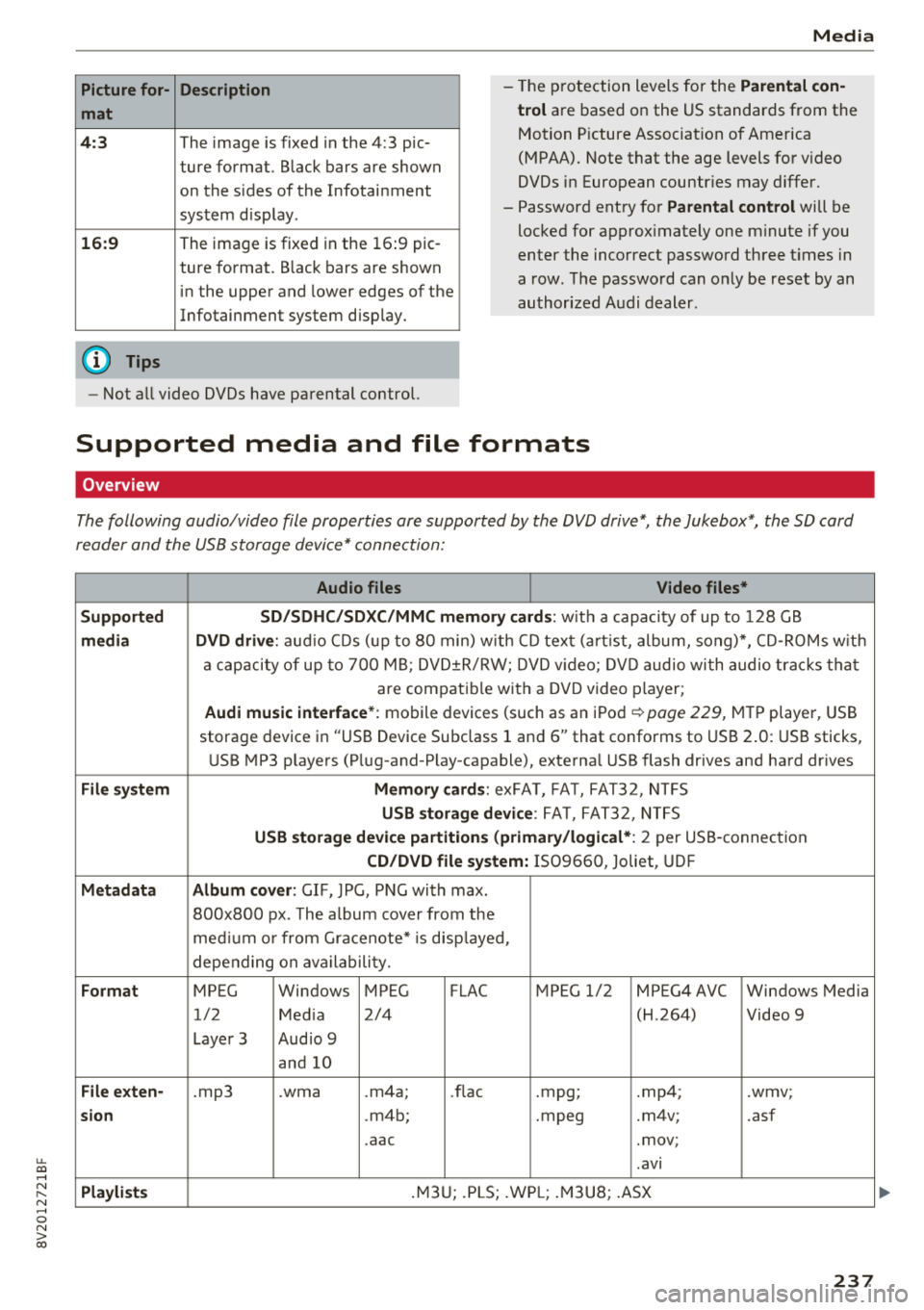
Supported media and file formats
Overview
The following audio/video file properties are supported by the DVD drive*, the Jukebox*, the SD card
reader and the USB storage device* connection:
Audio files Video files*
Supported SD/SDHC /SDXC /MMC m emory cards :
with a capacity of up to 128 GB
media DVD drive : audi o CDs ( up to 80 min) w ith CD tex t (a rt ist, album, so ng)*, CD -R O Ms w ith
a ca pacity of up to 70 0 M B; D V D± R/RW; DVD video; DV D audio wi th audio t ra ck s tha t
are compatible with a DVD video p layer;
Audi music interface *: mobile devices (such as an i Pod i::> page 229, M TP playe r, USB
storage device in "USB Device Subclass 1 and
6" that conforms to USB 2 .0: USB sticks,
U SB MP3 p laye rs (P lug-and-P lay-capable), external USB flash drives and ha rd dr ives
File system Memory cards : exFA T, FA T, FAT32, NTFS
USB storage device : FA T, FA T32 , NTFS
USB storage device partition s (primary/logical* : 2 per USS-connec tion
CD/DVD file sy stem: IS09660, Joliet, UDF
Metadata Album cover : GIF, )PG, P NG with max.
800x800 px . The album cover from the
me diu m o r from Gracenote* is disp layed,
depe nding on ava ilabili ty.
Format MPEG Windows MPEG FLAC MPEG 1/2 MPEG4 AVC Windows Media
1/2 Med ia 2/4 (H
.264)
Video 9
Laye r 3 Aud io 9
and 10
File e xten-.mp3 .wma .m4a; .nae .mpg; .mp4; .wmv;
sion .m4b; .mpeg .m4v; .asf
.aac .mov;
.avi
Pla ylists .M3 U; .PLS; .WP L; .M3 U8; .ASX
237
Page 246 of 404

System settings
wait for the sig nal t one (bee p) to say a new
command.
Volume : you can a djust th e vol ume of th e
p romp ts by turning the con tro l k no b.
Individual speech training (on ly when the v ehi
cle is s ta ti onary): yo u ca n ad apt the vo ice recog
ni tion sy ste m to your voic e or pro nunciati on in
or der to im prove the sys tem's a bili ty to re co gni ze
your speec h. Indivi dua l speech train ing is com
p rised of 20 s peech ent ries t hat consist o f com
mands and sequences of numbers . You can de
lete the p rogrammed voice t rain ing with the
Re
set individual speech training
function.
Display brightness
You can a djust the brigh tness o f the Info tain
ment system disp lay by t urning the cont ro l knob.
Factory settings
D epe ndi ng on t he ve hicle eq uipme nt, th e fo llow
i ng fu nctio ns ca n b e rese t to factory se ttings :
-Sound settings
- Radio
- Media settings
- Jukebox *
- Directory
-Telephone
- Bluetooth and Wi-Fi*
- Navigation settings*
- Navigation and online memory *
- Speech dialog system*
- Message settings *
-Apps*
- Tool tips
- Audi connect*
- Audi smartphone interface *
You can select the des ired functions individually
or all at once with the option
Select all entries .
Select and confirm Restore factory settings .
(D Tips
-Make s ure that n ot on ly t he settings we re
d eleted but also the stored data, if ap plica
b le.
- Pleas e note t hat the vo ice reco gnit io n sys
te m* is not availab le in Cabr io lets .
244
Connection manager
Introduction
The connection manager gives you an overview
of your conn ected devic es and th eir network sta
tus .
Settings Conne -ction manager I
-====- ,.· • Prima hone: MyPhone .,.
c M yPhone
• Second ary phone :
• Data conn ection :
• MM I connect App :
• Audi smartphone:
Fig. 214 Co nnec tion man ag er
Ii'!
Not connected
Not
conn.,ct.,d
Not connected
Not
conn..cted
"' Select : !ME NUI bu tton> Settings > left con trol
bu tton >
MMI settings > Connection manager .
"'Sele ct a nd confirm a menu item.
If a mobile device was already connected and you
select and co nfirm the co rresponding menu item,
t h e dev ice name and co nnect ion mode a re dis
p layed under the menu i tem
r:!;> fig. 214 .
You can indiv id ually Connect (~ ) or Disconnect
(0) a pa ired device .
Requirement:
- The ve hicl e m ust be statio na ry and the ignit io n
m ust be switc hed on .
- Th e Bluetooth sett ings will open on yo ur mo
bi le device dur ing the connection setup .
- T he Blue tooth func tion and v is ibili ty of the MMI
c:!;> page 24 6 and mobile device must be switc h
ed on.
- T he mo bile device to be con nected m ust not be
connected to any othe r Bluetoot h dev ice .
Primary phone
App lies to: vehicles wit h telepho ne
- Connect new device: search for and connect a
cell p hone.
- List of devices already paired : select yo ur cell
phone from the list of all the dev ices that a re
already paired.