2018 AUDI S3 SEDAN individual
[x] Cancel search: individualPage 183 of 404

u. 00 ... N l' N ... 0 N > 00
-Delete call list : select and confirm if you would
li ke to
Delete this entry or Delete all entries.
- Store a s favorite :
store t he selec ted contac t as
a favorite.
- Show contact details : see c:> page 186.
-Connection manager : see c:> page 244.
-Bluetooth setting s: see c:> page 246 .
-Online settings : see c:> page 246.
-Wi -Fi sett ings : see c:> page 195, Wi-Fi hotspot.
-Telephone setting s: see c:> page 187.
Favorites
Requi reme nt: a pho ne n umber or con tact must
b e s to red as a favori te
c:> page 182 .
Select and confi rm a favor ite in the favo rites list .
Directory
Requirement: you must have at least one contact
stored in your cell phone.
Select and confirm a phone num ber from the di
rectory
c:> page 186.
Enter number
- Entering a phone number as a sequence of
numbers :
enter th e n umber usi ng the num ber
spelle r
c:> fig. 176 .
-Entering the phone number a s a sequence of
letters:
select an d confi rm !ABC ! above the
numbe r speller. Ente r a seq uence of lette rs us
ing the letter speller, for examp le AUD/SER
VICE.
-Dialing a phone number : select and confirm~
Or: push the control knob down. Select and
confirm
OK .
-Deleting individual characters : select and con
f irm
<& l
- Deleting all characters entered at once : tur n
the control knob wit h the character se lection to
<&I and p ress and ho ld the contro l knob . Or: se
lect the right contro l button
> Clear input field .
Accepting/ending a call
Applies to: vehicles with telephone
-Ac cepting a call : select and confirm Answer.
- Declining a call :
select and confirm Decline. Telephone
- Muting the active call :
select and confirm
Mute.
- Ending a phone call/ cancel dialing :
select and
confirm
End call .
Caller information :
the name, phone number or
Unknown app ea rs in the Infot ain ment system
display depen ding on if the ca ll er has been stored
in the di recto ry and if the p hone n umber has
been transmitte d. A pict ure may also be d is
played, depending on whether you have assigned
a p icture to a contact in yo ur directory and if it
was transferred to your MMI. You can f ind out if
you r ce ll phone s upports t his fu nction from your
ce ll phone network prov ider, your cell p hone
owner 's ma nual or at www.audiusa .com/
bl uetoo th .
(D Tips
- Th e radio or media playback is mut ed dur ing
a phone c all.
- Mi ssed calls are d isplayed with a symbol in
t he status line of the Infotai nment syste m
display @ c:>page 163 , fig. 1 68.
During a phone call
Applies to: vehicles with telephone
Req uirement: there m ust be a c all in pr ogress.
.,. End call: you can e nd a p ho ne call.
.,. Send tone sequence: you can e nte r tone se
quences
( DTMF ) direct ly using t he num ber
speller and send t o the o ther pe rso n on the
ca ll.
.,. Other call option s: press the r ight control but -
ton .
T he following op tions are poss ible d uring a call
depen ding on the cell p hone being used and t he
type of connect ion :
- An swer ing an ad ditional call: if the re is an in
coming call whi le ano ther call is active, you can
select
Answer t o put t he exist ing ca ll on ho ld
and answer the incoming call. If you select
De
cline ,
the incoming ca ll w ill be declined.
- Accepting an incoming call when there is an ac
tive ca ll and a ca ll on h old: select
Replace . The
act ive ca ll is replaced with the incoming cal l.
..,.
181
Page 199 of 404

u. 00 .-< N l' N .-< 0 N > 00
myaudi is required to use individual serv
ices . You can contact an authorized Audi
dealer or Audi connect (Infotainment) cus
tomer service at (877) SOS-AUDI (2834) to receive information on options for expand
i ng your usage and any costs that may re
sult .
- The Audi connect Infotainment services are
a W i-F i/lnternet-based system . If the sys
tem does not function co rrectly even
though all of the requirements a re met,
please try again later or contact Audi con
ne ct (Infota inment) customer service a t
(8 77) SOS -AU DI (2834) .
- Fo r detailed information on Audi connect
(Infotainment) and the Terms of Use, refer
to www .audiusa .com .
Data protection
Applies to vehicles with Aud i connect (Infotainment)
(D Tips
- Your privacy is important to us.
-AUDI AG collects, processes, shares and
transmits your persona l information in ac
cordance with legal regulations in order to
ensure proper function and availability of
the individual Audi connect Infota inment
services . You can view the complete, current
and val id Audi connect (Infotainment) data
prote ction poli cy in your MMI. The myAudi
platfo rm is available fo r to yo u to activate
additional Audi connect Infotainment serv
ices and to transfer data to your vehicle,
among other services. A one-time registra
tion is required to establish a connection to
your vehicle. For this purpose, AUDI AG col
l ects, processes, transmits and uses your re
quired personal informat ion as requ ired for
you to use the services provided by AUDI
AG. Your information is not dist ributed to
th ird parties. Us ing you r ce ll phone with Audi conn
ect (Inf otainment )
your myAudi p latform allows you to trans
mit data for your Audi connect Infotain
ment serv ices functions to your vehicle and
you can allow specific vehicle data to be transmitted from your vehicle.
- By activating special information services that are part of your Aud i connect (Infotain
ment) portfolio, you can use these functions
directly in your vehicle by entering data to
confirm you r identity (to use soc ial net
works, for example). To do this, the ident ifi
cat ion info rmation you provided is forward
ed with the request to the respec tive service
prov ider. Then you can access yo ur persona l
content using a sec ure connection . This con
tent is displayed in the vehicle for your use .
Your personal content is not stored w ith in
Audi AG. The necessary connection informa tion is processed and used for prov iding
serv ices and the proper funct ion of the serv
ices in accordance with applicable legal
guide lines.
- You can find additional info rmation in your
MMI in the options menu for the selected
Audi connect Infotainment service and a lso
online at www.a udiusa.com.
- By p roviding Aud i connect Infotainment
serv ices, Audi of Ameri ca is au thori zed to
c ollec t, p rocess, transmi t and transfer info r
mation about you and your vehicle . Addi
tional information can also be found in your
MMI in the options menu for the selected
Audi connect Infotainment service.
- Information on o ur data protection meas
ures in conjunct ion with the mob ile Audi
connect (Infotainment) app lication can be
found in the applicat ion's privacy policy. For
add itiona l information about the
www.aud iusa.com/myaudi webs ite or other
applications, websites or on line services
connected to Audi, v is it www.aud iusa.com/
pr ivacy.
197
Page 200 of 404
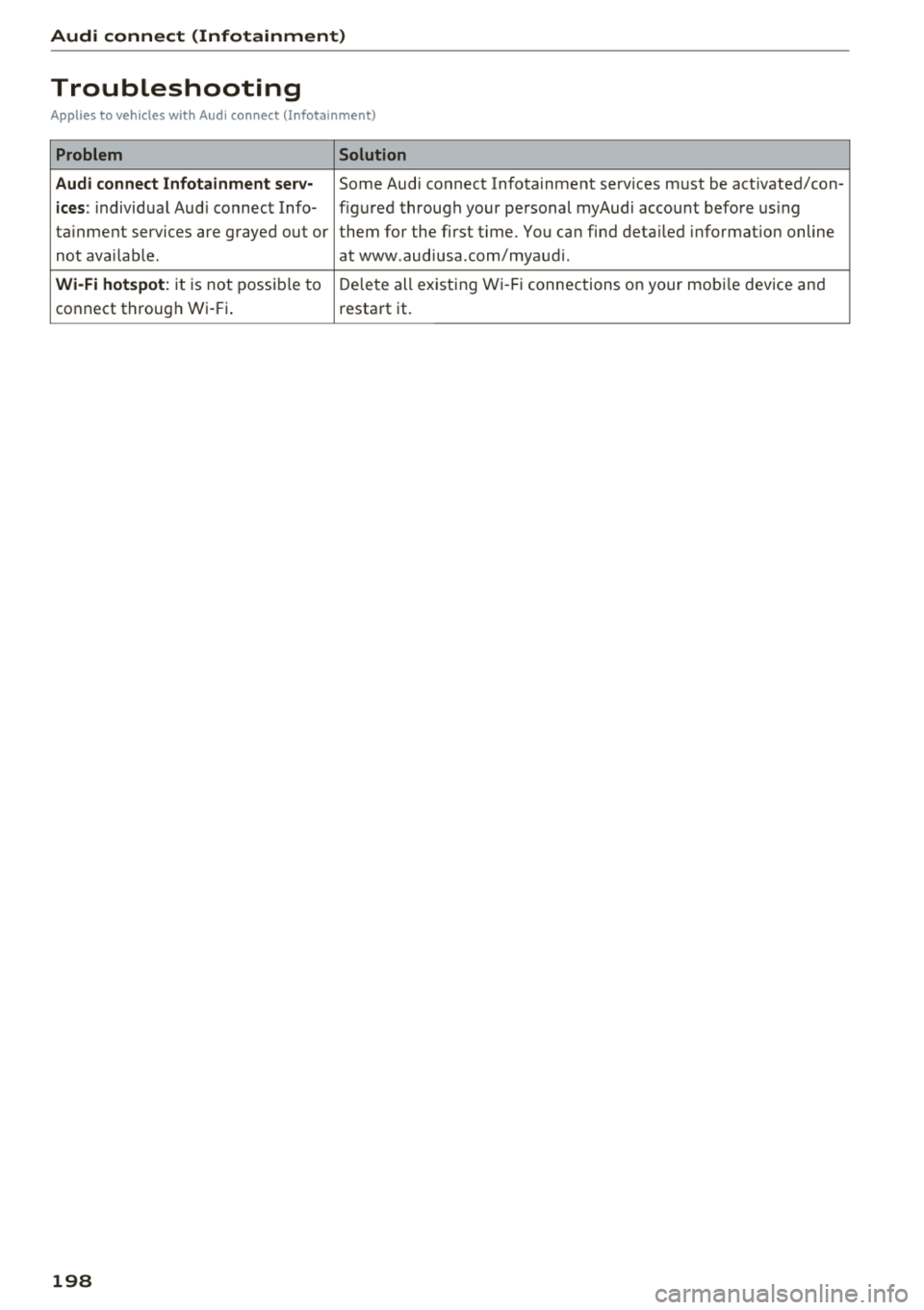
Audi connect (Infotainment)
Troubleshooting
Applies to vehicles with Audi connect (Infotainment)
Problem Solution
Audi connect Infotainment serv·
Some Audi connect Infotainment services must be activated/con-
ices: individual Audi connect Info- figured through your personal myAudi account before using
ta inment serv ices are grayed out or them for the first time. You can find deta iled information on line
not available . atwww.audiusa.com/myaudi.
Wi-Fi hotspot : it is not possible to Delete all existing Wi-Fi connections on your mobi le device and
connect through Wi-Fi. restart it.
198
Page 201 of 404

u. 00 .-< N l' N .-< 0 N > 00
Audi connect e-tron services
Introduction
Applies to: vehicles with Audi connect e-tron services
With Audi connect e-tron services l), you can ac
cess various information or control individual
functions remotely using mob ile dev ices (such as
a smartphone) or a web portal.
- Trip
data¢ page 199.
- Doors and lights ¢page 199.
-Vehicle status report ¢ page 200.
- Car
Finder ¢ page 200.
- Charging
¢ page 200.
- Climate
control¢ page 200 .
A WARNING
Also read and follow the instructions regard
ing traffic safety
¢ page 154.
Setup
Applies to: vehicles with Audi connect e-tron services
To use Audi connect e-tron services 1), please
note the following:
Requirements
-An authorized Audi dealer must complete a
one-time activation of Audi connect e-tron serv
i ces for your veh icle before you can reg ister on
line .
- Then register at etron.audiusa .com . You can
use and manage the Audi connect e-tron serv
ices there .
- If you require assistance w ith your Aud i connect
e-tron services, please contact an authorized
Audi dealer or authorized Audi Service Facility.
- Your mobile devices must be compatible .
1> The mob ile network service is offered by a serv ice provid
e r. Yo u can obtain more informa tion abou t your mobile
network provider at an au th or ized Aud i dealer. Connected
dev ices are not always 4G-compatible. Th e ava ilability o f a
high -speed network may be red uced dur ing pea k usage or
b y your location, the reception, and other factors . Ne t
wo rk coverage ca nnot be guaranteed everywhere. Fo r
mo re info rmation on mobile cove rage, see the Audi con
n ect overv iew from your mobile network provider.
Audi connect e-tron services
Trip data
Applies to: vehicles with Audi connect e-tron services
The Driver Information System collects data un
der certain conditions and sends it to a server.
When data is stored, you can access values such
as these using the service:
- driving durat ion,
- average speed driven,
- distance driven,
- average electric consumption.
Doors and lights
Applies to: vehicles with Audi connect e-tron services
You can access and disp lay the current status of
the following vehicle data on your mobile devices
without having to be inside the vehicle.
- If the vehicle doors and lids are open/closed,
- Parking lights are on/off.
For additional information on opening and clos
i ng the doors or for the vehicle lighting, refer to
¢ page 31, Opening and closing or to ¢ page 49,
Exterior lighting.
(D Tips
-If the high-voltage battery is not charged,
the amount of access requests is limited to
15 after switching off the ignition. This
helps conserve the 12 vo lt vehicle battery.
You cannot contro l functions or access in
formation if the charge leve l of the 12 volt
vehicle battery is too low.
- If at least two minutes have passed after
the last time the ignition was switched off,
you can reset the access counter back to "O" as needed after switch ing the ignit ion on/
off again.
199
Page 207 of 404

LL co ..... N
" N ..... 0 N > co
(D Tips
Always read the chapter¢ page 196, Audi
connect (Infotainment) general information .
Accessing destinations from myAudi
account
Applies to: veh icles with a navigation system and Audi con
nect (Infotainment)
Import individual destinations from your myAudi
account into the
MMI.
Req uirement:
The requ iremen ts for Aud i connect (Infotain
ment) must be met
¢ page 190 .
You must have a registered myAudi account at
www .audiusa .com/myaudi . You must have
ave
hicle assigned to your myAudi account and yo u
must have sto red one or mo re destinations .
... Press the I NAV/MAPI button repeatedly until
the
Ent er destination menu is displayed
¢ page 201, fig . 182 .
... Select: left cont rol button > myAudi contacts .
... If necessary, enter your myAudi user data o r
yo ur myAud i PIN¢
page 190 . The contacts
stored in myAudi are d isp layed.
- Se lect and confir m a conta ct.
- Se lect and confirm a priva te or b usiness desti-
nation .
- Select and co nfirm
Start route guidance .
(D Tips
-You only need to enter the myAud i user data
one time.
- You can receive your myA udi PIN if you have
set up a myAudi account.
- Fo r additional informat ion, visit
www.audiusa.com .
Entering a destination using geo
coordinates
App lies to: vehicles with navigation system
... Press the I N AV/MAPI but ton repeated ly un til
t h e
Enter de stination menu is dis played
¢page 201 , fig . 182.
Na viga tion
... Sele ct: left control button > Geographi cal coor
dinates .
-Sele ct Latitude /Longitude .
-Press the cont ro l knob to set the individ ual va l-
ue s.
- Tur n the control knob to the left/ right to
change the selected va lue.
- Select and confirm
Start route guidance .
Adding a stopover
Applies to: vehicles with navigation system
You can enter an additional destination when
route guidance is active .
Fig. 184 Example: act ive route gu ida nce w it h stopover
Requireme nt: route guidance must already be ac
t ive.
... Press the ! NAV/MAP I button repeatedly unti l
the
Enter destination menu is displayed
¢ page 201 , fig.182 .
Entering a destination as a stopove r
-Enter a destination in the input line
¢ page 201 .
-Select an d confirm a destinat ion from the re -
sults list .
- Select and confirm
Add as stopover.
Deleting a stopover
- Push the contro l knob up. Fre e tex t sea rc h and
ac tive route g uidance are disp laye d.
Or : turn
t he co ntro l knob to t he left un til the act ive
route guid ance is shown.
- Sele ct and confirm
Delete stopover @
¢ fig. 184 .
-The stopove r is deleted .
205
Page 246 of 404

System settings
wait for the sig nal t one (bee p) to say a new
command.
Volume : you can a djust th e vol ume of th e
p romp ts by turning the con tro l k no b.
Individual speech training (on ly when the v ehi
cle is s ta ti onary): yo u ca n ad apt the vo ice recog
ni tion sy ste m to your voic e or pro nunciati on in
or der to im prove the sys tem's a bili ty to re co gni ze
your speec h. Indivi dua l speech train ing is com
p rised of 20 s peech ent ries t hat consist o f com
mands and sequences of numbers . You can de
lete the p rogrammed voice t rain ing with the
Re
set individual speech training
function.
Display brightness
You can a djust the brigh tness o f the Info tain
ment system disp lay by t urning the cont ro l knob.
Factory settings
D epe ndi ng on t he ve hicle eq uipme nt, th e fo llow
i ng fu nctio ns ca n b e rese t to factory se ttings :
-Sound settings
- Radio
- Media settings
- Jukebox *
- Directory
-Telephone
- Bluetooth and Wi-Fi*
- Navigation settings*
- Navigation and online memory *
- Speech dialog system*
- Message settings *
-Apps*
- Tool tips
- Audi connect*
- Audi smartphone interface *
You can select the des ired functions individually
or all at once with the option
Select all entries .
Select and confirm Restore factory settings .
(D Tips
-Make s ure that n ot on ly t he settings we re
d eleted but also the stored data, if ap plica
b le.
- Pleas e note t hat the vo ice reco gnit io n sys
te m* is not availab le in Cabr io lets .
244
Connection manager
Introduction
The connection manager gives you an overview
of your conn ected devic es and th eir network sta
tus .
Settings Conne -ction manager I
-====- ,.· • Prima hone: MyPhone .,.
c M yPhone
• Second ary phone :
• Data conn ection :
• MM I connect App :
• Audi smartphone:
Fig. 214 Co nnec tion man ag er
Ii'!
Not connected
Not
conn.,ct.,d
Not connected
Not
conn..cted
"' Select : !ME NUI bu tton> Settings > left con trol
bu tton >
MMI settings > Connection manager .
"'Sele ct a nd confirm a menu item.
If a mobile device was already connected and you
select and co nfirm the co rresponding menu item,
t h e dev ice name and co nnect ion mode a re dis
p layed under the menu i tem
r:!;> fig. 214 .
You can indiv id ually Connect (~ ) or Disconnect
(0) a pa ired device .
Requirement:
- The ve hicl e m ust be statio na ry and the ignit io n
m ust be switc hed on .
- Th e Bluetooth sett ings will open on yo ur mo
bi le device dur ing the connection setup .
- T he Blue tooth func tion and v is ibili ty of the MMI
c:!;> page 24 6 and mobile device must be switc h
ed on.
- T he mo bile device to be con nected m ust not be
connected to any othe r Bluetoot h dev ice .
Primary phone
App lies to: vehicles wit h telepho ne
- Connect new device: search for and connect a
cell p hone.
- List of devices already paired : select yo ur cell
phone from the list of all the dev ices that a re
already paired.
Page 249 of 404

-Ver sio n inf ormation : information on the MMI
software version and the navigation database*
software vers ion is displayed . T he
Softwa re in
form atio n
function a lso provides information
on the softwa re con tained in the MMI and the
l icensing agreement .
Sound settings
The sound distribution and volume of the MMI
can be adjusted individually . The settings depend
on vehicle equipment.
---- 1
J .-.6 . ·,
I
Fi g. 215 Adju sting the balan ce /fade r
.,. Select: I M ENU I button> Sound > left contro l
button
> Ent ertainm ent .
Treb le /Ba ss
You can adjust the Treble and Ba ss settings by
turning the control knob . The changed settings
only apply for the audio source that is act ive at
the t ime. This allows you to ad just the sound set
tings for each audio source separately .
Bal ance /fader (Sound focu s)
- Ad justing th e sou nd d ist ribut ion to the l eft or
right :
press the control k nob . Turn the control
knob to the left or right to the desired position .
-Adju sting t he sou nd d istribution to the fron t
or rear :
press the control knob again . T urn the
contro l knob to the left or right to the desired
pos ition.
- Adju sting the sound d istribution u sing th e
MMI t ouch* :
move your finger on the MM I
touch cont ro l panel* in the desi red direction.
Sound effects
LL Select and confirm a Fo cus setting: co ....
~ - All : all speakers in the vehicle a re a ctive (sym-
~ metr ica l sound dist ribution) . 0 N > co
Sys tem settings
-Front : only the speakers in the front of the ve
hicle are active.
- Rear *: on ly the speakers in the rear of the vehi
cle are active .
Surround level
Turn the cont rol knob to adjust the surround
sound level.
Subwoofer
Turn the control knob to adjust the subwoofer .
Speed dep end ent v olum e cont rol *
Turn the control knob to adjust the p layback vol
u me to the noise ins ide the veh icle.
Volume settings
Adjusting the volume
T he volume of an audio source or a system mes
sage (for example, from the voice recognition
system*) can be adjusted directly while the
sound is playing using the On/Off knob .
-Incr easing or decreas ing the volume : turn the
On/Off
knob @~ page 154, fig . 155 to the
r ight or left .
-Mu ting or pau sin g: press the On/Off knob
briefly .
Or: turn the On/Off knob to the left un
til the
symbo l@ ~ page 163 appea rs . An ac
tive a udio/v ideo source is stopped.
- Unmuting or re suming : press the On/Off knob
briefly .
Or: turn the On/Off knob to the rig ht.
.&_ WARNING
To reduce the risk of an accident, adj ust the
volume of the audio system so that audible
signals from o utside the vehicle, such as po
lice and fire sirens, can be heard easily at all
times.
(D Tips
Volumes that are too high or too low are au
tomatically adjusted to a set level when the
MMI is switched on.
.
247
Page 250 of 404

System settings
Adjusting the system volume
.,. Select : I MENU I button> Sound> left control
button.
Telephone
Applies to: vehicles with telephone
Mute telephone: messages and ringtones are set
to mute.
Ringtone : see c::> page 188, Ringtone and volume
settings .
Ringtone volume:
you can adjust the volume of
the selected ringtone by turning the contro l
knob.
Message volume: you can adjust the volume of
the notification for an incoming text message by
turning the control knob.
Microphone input level : you can adjust the call
volume during a phone call by turning the control
knob.
Navigation
Applies to: vehicles with navigation system
Voice guidance: see c::>page 210.
Voice guidance during phone call: see
c::> page 210.
Voice guidance volume: you can adjust the vo ice
gu idance volume by turning the control knob.
Or:
you can adjust the vo ice guidance volume during
active route guidance by turning the On/Off
knob .
Entertainment fader : the volume of audio play
back can be temporarily lowered when the park
ing system or vo ice gu idance is active .
Voice recognition system
Applies to: vehicles with voice recognition system
Command display : see c::> page 243.
Short dialog : see c::> page 243.
Volume : see c::> page 243 .
Individual speech training : see c::> page 243.
1> Not availa ble in all vehicl es.
248
Parking aid*
You can adjust the volum e of the signal tone by
turning the control knob.
-Adjusting the Front volume: select and con
firm
High , Medium or Low .
- Adjusting
the Rear volume : select and confirm
High , Medium or Low .
MMI touch*
Turn the control knob to adjus t the volume of the
spoken prompts from the
MMI touch* .
Restarting the MMI
Fig. 216 Button co mbinatio n t o restar t th e sys te m
.,. Briefly press the control knob and both buttons
at the same time to immediately open the
menu upward
c::> fig. 216.
Software license
information
Information on MMI software and licensing
agreements
- Select: ~
I M~E=N~U~ I button >Settings > left control
button>
System maintenance > Version infor
mation.
- Or : online at www.audiusa.com/softwareinfo.
Information on instrument cluster software and
licensing agreements
Press the reset button twice within five seconds
after switching the ignition on
ll.