Page 188 of 453

187
Features
This chapter describes how to operate technology features.
Audio System*
About Your Audio System ................ 188
USB Port .......................................... 189
Auxiliary Input Jack .......................... 189
Audio System Theft Protection ......... 190
Audio Remote Controls .................... 191
Audio System Basic Operation
*....... 192
Audio/Information Screen ................ 193
Wallpaper Setup .............................. 196
Display Setup ................................... 198
Adjusting the Sound ........................ 199
Playing the AM/FM Radio ................. 200
Playing the SiriusXM ® Radio ............. 202 Playing a CD .................................... 204
Playing an iPod ................................ 207
Playing Pandora
®............................. 210
Playing a USB Flash Drive ................. 212
Playing Bluetooth ® Audio................. 215
Audio Error Messages
*..................... 217
General Information on the Audio System
*............................................ 220
HomeLink ® Universal Transceiver
Training HomeLink ........................... 224
Bluetooth® HandsFreeLink®
Using HFL ........................................ 226
HFL Menus....................................... 228 Compass
*.......................................... 255
* Not available on all models
Page 225 of 453

224
Features
HomeLink® Universal Transceiver
The HomeLink ® Universal Transceiver can be pr ogrammed to operate up to three
remote controlled devices around your home, such as garage doors, lighting, or
home security systems.
Refer to the safety information that came wi th your garage door opener to test that
the safety features are functioning properly. If you do not have the safety
information, contact the manufacturer.
Before programming HomeLink, make sure that people and objects are out of the
way of the garage or gate to prevent potential injury or damage.
When programming a garage door opener, park just outside the garage door’s
path.
Training HomeLink
If you have not trained any of the buttons in
HomeLink before, you should erase any
previously learned codes. To do this:
• Press and hold the two outside buttons for
about 20 seconds, until the red indicator
blinks. Release the bu ttons, and proceed to
step 1.
• If you are training the second or third
button, go directly to step 1.
■Important Safety Precautions
1HomeLink ® Universal Transceiver
HomeLink® is a registered tra demark of Gentex
Corporation.
Before programming HomeLi nk to operate a garage
door opener, confirm that the opener has an external
entrapment protection system, such as an “electronic
eye,” or other safety and reverse stop features. If it
does not, HomeLink may not be able to operate it.
Red Indicator
Page 226 of 453

225
uuHomeLink ® Universal Transceiver uTraining HomeLink
Features
■Training a Button1Training HomeLink
Retraining a Button
If you want to retrain a programmed button for a
new device, you do not ha ve to erase all button
memory. You can replace the existing memory code
using this procedure:
1. Press and hold the desired HomeLink button
until the HomeLink indi cator begins to blink.
2.
Continue to hold the HomeLink button and
follow steps 1 - 3 unde r “Training a Button.”
Indicator remains on
for about 25 secs.
Standard transmitter
Indicator blinks rapidly for
2 secs, then remains on for
about 23 secs.
Rolling code transmitter
Erasing Codes
To erase all the codes, press and hold the two outside
buttons until the HomeLink i ndicator begins to blink
(about 10 to 20 secs). You should erase all codes
before selling the vehicle.
If you have any problems, see the device’s
instructions, visit www.homelink.com , or call
HomeLink at (800) 355-3515.
4.
a.3.
2.
5.a.
b.
1. Position the remote transmitter you wish to link 1 to 3 inches (3 - 8 cm) from the
HomeLink button you want to program.
Press and hold the desired HomeLink button and the button on
the remote transmitter. Does the HomeLink indicator (LED)
blink after 10 secs?
Press and hold the
programmed HomeLink
button for about a sec.
Does the device (garage
door opener) work? Press and hold the remote and the HomeLink
button at the same time. Then, while
continuing to hold the HomeLink button,
press and release the button on the remote
every 2 secs.
Does the LED blink within 20 secs?
Training
Complete Press and hold the HomeLink button again.
Press and hold the HomeLink
button again.
The remote-controlled device
should operate.
Training Complete The remote has a ro
lling code. Press the
“learn” button on the remote-controlled
device (e.g. garage door opener).
Within 30 secs, press and hold the
programmed HomeLink button for 2 secs.
HomeLink indicator blinks for 2 secs, then remains on.HomeLink LED is on.
YESNO
YES
YESNONO
Page 233 of 453
232
uuBluetooth ® HandsFreeLink ®u HFL Menus
Features
*1: Appears only when a phone is connected to HFL.
Passcode*1
Auto Transfer
Caller ID InfoName Priority
Number Priority
Text Message Notice
System Clear
Set calls to automatically transfer from your phone to HFL when you
enter the vehicle.
Prioritize the caller’s name as the
caller ID.
Prioritize the caller’s phone number as
the caller ID.
Create a security PIN for a paired phone.
Turn incoming text message notifications on or off.
Clear the system of all paired phone s, phonebook entries, and security
codes.
Page 241 of 453
uuBluetooth ® HandsFreeLink ®u HFL Menus
240
Features
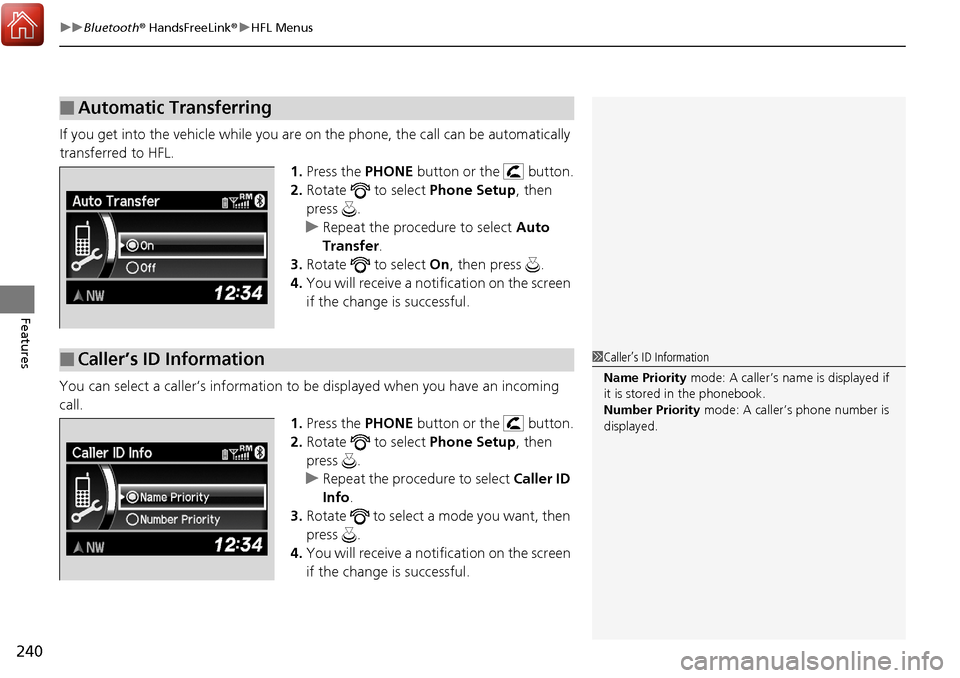
If you get into the vehicle while you are on the phone, the call can be automatically
transferred to HFL. 1.Press the PHONE button or the button.
2. Rotate to select Phone Setup, then
press .
u Repeat the procedure to select Auto
Transfer .
3. Rotate to select On, then press .
4. You will receive a notifi cation on the screen
if the change is successful.
You can select a caller’s information to be displayed when you have an incoming
call. 1.Press the PHONE button or the button.
2. Rotate to select Phone Setup, then
press .
u Repeat the procedure to select Caller ID
Info .
3. Rotate to select a mode you want, then
press .
4. You will receive a notifi cation on the screen
if the change is successful.
■Automatic Transferring
■Caller’s ID Information1 Caller’s ID Information
Name Priority mode: A caller’s name is displayed if
it is stored in the phonebook.
Number Priority mode: A caller’s phone number is
displayed.
Page 250 of 453
Continued249
uuBluetooth ® HandsFreeLink ®u HFL Menus
Features
The following options are available during a call.
Mute: Mute your voice.
Transfer Call : Transfer a call from HFL to your phone.
Touch Tones : Send numbers during a call. This is useful when you call a menu-
driven phone system.
1.To view the availabl e options, press the
PHONE button.
2. Rotate to select the option, then press
.
u The check box is checked when Mute is
selected. Select Mute again to turn it off.
■Options During a Call1Options During a Call
Touch Tones: Available on some phones.
Page 258 of 453

257
Driving
This chapter discusses driving, refueling, and information on items such as accessories.
Before Driving................................... 258
Towing a Trailer ................................ 263
Off-Highway Driving Guidelines ..... 268
When Driving Starting the Engine .......................... 270
Precautions While Driving................. 275
Automatic Transmission ................... 276
Shifting ............................................ 277
Cruise Control
*................................ 281
Front Sensor Camera*...................... 284
Adaptive Cruise Control (ACC)*....... 286
Lane Departure Warning (LDW)*...... 299Lane Keeping Assist System (LKAS)*..... 303 Vehicle Stability Assist (VSA
®), aka Electronic
Stability Control (ESC), System ........... 311
Blind spot information (BSI) System
*.... 313All-Wheel Drive (AWD) with Intelligent Control System*..................................................... 316Tire Pressure Monitoring System (TPMS) ... 316Tire Pressure Monitoring System (TPMS) - Required Federal Explanation ......... 318
Braking Brake System ................................... 320
Anti-lock Brake System (ABS) ........... 322
Brake Assist System.......................... 323 Collision Mitigation Braking System
TM
(CMBSTM)*..................................... 324
Parking Your Vehicle When Stopped ................................ 332
Parking Sensor System
*................... 333
Cross Traffic Monitor*..................... 337
Multi-View Rear Camera .................. 340
Refueling Fuel Information .............................. 341
How to Refuel ................................. 342
Fuel Economy and CO
2 Emissions .... 343
* Not available on all models
Page 263 of 453
262
uuBefore Driving uMaximum Load Limit
Driving
(5) Determine the combined weight of luggage and cargo being
loaded on the vehicle. That we ight may not safely exceed the
available cargo and luggage load capacity calculated in step 4.
(6) If your vehicle will be towing a tra iler, load from your trailer will
be transferred to your vehicl e. Consult this manual to
determine how this reduces th e available cargo and luggage
load capacity of your vehicle.
In addition, the total weight of the vehicle, all occupants,
accessories, cargo, and trailer tongue load must not exceed the
Gross Vehicle Weight Rating (GVW R) or the Gross Axle Weight
Rating (GAWR). Both are on a label on the driver’s doorjamb.
Load Limits Example
Example1
Max Load 870 lbs
(395 kg) Passenger Weight
150 lbs x 2 = 300 lbs (68 kg x 2 = 136 kg) Cargo Weight
570 lbs (259 kg)
Example2 Max Load 870 lbs
(395 kg) Passenger Weight
150 lbs x 5 = 750 lbs (68 kg x 5 = 340 kg) Cargo Weight
120 lbs (55 kg)