Page 5 of 271

Introduction3Vehicle specific dataPlease enter your vehicle's data on
the previous page to keep it easily
accessible. This information is
available in the sections "Service and
maintenance" and "Technical data"
as well as on the identification plate.
Introduction
Your vehicle is a designed
combination of advanced technology, safety, environmental friendliness
and economy.
This Owner's Manual provides you
with all the necessary information to
enable you to drive your vehicle
safely and efficiently.
Make sure your passengers are
aware of the possible risk of accident
and injury which may result from
improper use of the vehicle.
You must always comply with the
specific laws and regulations of the
country that you are in. These laws
may differ from the information in this Owner's Manual.
Disregarding the description given in
this manual may affect your warranty.When this Owner's Manual refers to a
workshop visit, we recommend your
Vauxhall Authorised Repairer.
All Vauxhall Authorised Repairers
provide first-class service at
reasonable prices. Experienced
mechanics trained by Vauxhall work according to specific Vauxhall
instructions.
The customer literature pack should
always be kept ready to hand in the
vehicle.
Using this manual ● This manual describes all options
and features available for this
model. Certain descriptions,
including those for display and
menu functions, may not apply to
your vehicle due to model
variant, country specifications,
special equipment or
accessories.
● The "In brief" section will give you
an initial overview.● The table of contents at the beginning of this manual and
within each section shows where the information is located.
● The index will enable you to search for specific information.
● This Owner's Manual depicts left-
hand drive vehicles. Operation is similar for right-hand drive
vehicles.
● The Owner's Manual uses the engine identifier code. The
corresponding sales designation
and engineering code can be
found in the section "Technical
data".
● Directional data, e.g. left or right, or front or back, always relate to
the direction of travel.
● Displays may not support your specific language.
● Display messages and interior labelling are written in bold
letters.
Page 6 of 271
4IntroductionDanger, Warnings andCautions9 Danger
Text marked 9 Danger provides
information on risk of fatal injury.
Disregarding this information may
endanger life.
9 Warning
Text marked 9 Warning provides
information on risk of accident or
injury. Disregarding this
information may lead to injury.
Caution
Text marked Caution provides
information on possible damage to
the vehicle. Disregarding this
information may lead to vehicle
damage.
Symbols
Page references are indicated with 3.
3 means "see page".
Page references and index entries
refer to the indented headings given
in the section table of content.
Thank you for choosing a Vauxhall.
We wish you many hours of
pleasurable driving.
Your Vauxhall Team
Page 75 of 271
Storage73Lashing eyes
The lashing eyes are designed to
secure items against slippage, e.g.
using lashing straps or luggage net.
Safety net The safety net can be installed behind
the rear seats or, if the rear seat
backrests are folded, behind the front seats.
Passengers must not be transported
behind the safety net.
Installation
Behind the rear seats
● There are installation openings on both sides in the roof frame
above the rear seats: suspend
and engage rod of net at one side, compress rod and suspendand engage at the other side.
● Attach the hooks of safety net straps in the lashing eyes behindthe rear seats.
● Tension both straps by pulling at the loose end.
● Rear seat backrests must be raised up.
Page 85 of 271

Instruments and controls839Warning
The road surface may already be
icy even though the display
indicates a few degrees above 0
°C.
Clock
Date and time are shown in the Info
Display.
Info Display 3 102.
Graphic Info Display Press MENU to open the menu page.
Select ˆ.
Select Display configuration .
Select Date and time adjustment .
Set successively the respective
values for date and time by using the
four way switch. Confirm with OK.
7'' Colour Info Display
Press ; and then select Settings.
Select Time and Date to display the
respective submenu.
Set Time Format
To select the desired time format,
touch 12 h or 24 h .
Set Date Format
To select the desired date format,
select Set Date Format and choose
between the available options in the
submenu.
Auto Set
To choose whether time and date are to be set automatically or manually,
select Auto Set .
For time and date to be set
automatically, select On - RDS.
For time and date to be set manually,
select Off - Manual . If Auto Set is set
to Off - Manual , the submenu items
Set Time and Set Date become
available.
Set time and date
To adjust the time and date settings,
select Set Time or Set Date .
Touch + and - to adjust the settings.
8'' Colour Info Display
Press SET and then select the
OPTIONS .
Page 92 of 271
90Instruments and controlsOdometerThe total recorded distance is
displayed in miles.
Driver Information CentreTrip odometer
The recorded distance since the last
reset is displayed in the Driver
Information Centre.
Trip odometer counts up to
9,999 miles and then restarts at 0.
Press L for 2 s to reset trip
odometer.
Two trip odometer pages are
selectable in the trip / fuel information menu for different trips 3 100.
Tachometer
Displays the engine speed.
Drive in a low engine speed range for each gear as much as possible.
Caution
If the needle is in the red warning
zone, the maximum permitted
engine speed is exceeded. Engine at risk.
Page 102 of 271

100Instruments and controlsFlashes
The system is actively engaged. Depending on the situation, the
vehicle may automatically brake
moderately or hard.
Forward collision alert 3 168.
Front pedestrian protection 3 173.
Speed limiter
ß illuminates in the Driver
Information Centre when speed
limiter is active. Set speed is indicated alongside ß symbol.
Speed limiter 3 160.
Door open
h illuminates red.
A door or the tailgate is open.Displays
Driver Information Centre
The Driver Information Centre is
located in the instrument cluster.
Driver Information Centre indicates: ● overall and trip odometer
● digital speed indication
● trip / fuel information menu
● gear shift indication
● service information
● vehicle and warning messages ● driver assistance messages
● pop-up messages
Selecting menus and functions The menus and functions can be
selected via the buttons on the left
steering wheel stalk.
Turn the adjuster wheel to select a
page in the trip / fuel information
menu.
Press SET / CLR to confirm or reset
a function.
Vehicle and service messages are
popped up in the Driver Information
Centre if required. Scroll messages
by turning the adjuster wheel.
Confirm messages by pressing
SET / CLR .
Vehicle messages 3 104.
Page 103 of 271
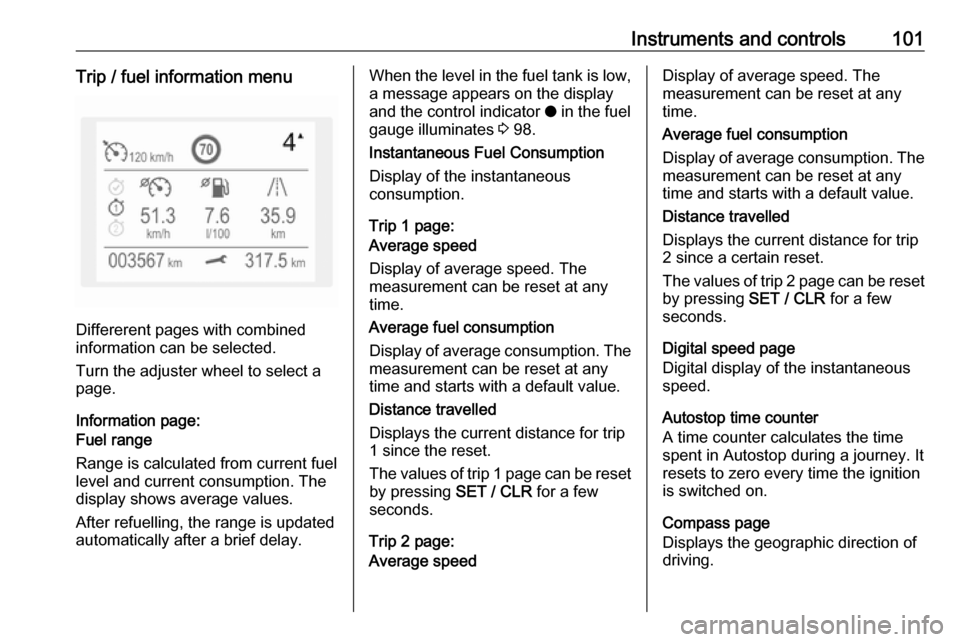
Instruments and controls101Trip / fuel information menu
Differerent pages with combined
information can be selected.
Turn the adjuster wheel to select a
page.
Information page:
Fuel range
Range is calculated from current fuel
level and current consumption. The
display shows average values.
After refuelling, the range is updated
automatically after a brief delay.
When the level in the fuel tank is low,
a message appears on the display
and the control indicator o in the fuel
gauge illuminates 3 98.
Instantaneous Fuel Consumption
Display of the instantaneous
consumption.
Trip 1 page:
Average speed
Display of average speed. The
measurement can be reset at any
time.
Average fuel consumption
Display of average consumption. The measurement can be reset at any
time and starts with a default value.
Distance travelled
Displays the current distance for trip
1 since the reset.
The values of trip 1 page can be reset
by pressing SET / CLR for a few
seconds.
Trip 2 page:
Average speedDisplay of average speed. The
measurement can be reset at any
time.
Average fuel consumption
Display of average consumption. The measurement can be reset at any
time and starts with a default value.
Distance travelled
Displays the current distance for trip
2 since a certain reset.
The values of trip 2 page can be reset
by pressing SET / CLR for a few
seconds.
Digital speed page
Digital display of the instantaneous
speed.
Autostop time counter
A time counter calculates the time
spent in Autostop during a journey. It
resets to zero every time the ignition
is switched on.
Compass page
Displays the geographic direction of
driving.
Page 104 of 271

102Instruments and controlsBlank page
No trip / fuel information is displayed.
Info Display The Info Display is located in theinstrument panel near the instrument
cluster.
Depending on the vehicle
configuration the vehicle has a
● Graphic Info Display
or
● 7'' Colour Info Display with
touchscreen functionality
or
● 8'' Colour Info Display with
touchscreen functionality
The Info Displays can indicate: ● time 3 83
● outside temperature 3 82
● date 3 83
● Infotainment system, see description in the Infotainment
manual
● indication of rear view camera 3 183● indication of panoramic view
system 3 185
● indication of parking assist instructions 3 174
● navigation, see description in the
Infotainment manual
● vehicle and system messages 3 104
● settings for vehicle personalisation 3 105
Graphic Info Display
Press X to switch on the display.
Press MENU to select main menu
page.
Press èäåé to select a menu page.
Press OK to confirm a selection.
Press BACK to exit a menu without
changing a setting.
7'' Colour Info Display
Selecting menus and settings
Menus and settings are accessed via
the display.
Press X to switch on the display.
Press ; to display the homepage.
Touch required menu display icon
with the finger.
Touch a respective icon to confirm a
selection.


