2017 VOLVO XC90 TWIN ENGINE HYBRID lock
[x] Cancel search: lockPage 5 of 584

3
Top tether anchors92
Integrated booster cushion*93
Raising the integrated booster cushion*94
Stowing the integrated booster cushion*96
INSTRUMENTS AND CONTROLS
Instruments and controls100
Trip computer101
Displaying trip computer information102
Displaying trip statistics104
HomeLink® Wireless Control System*104
Programming the HomeLink® Wire-less Control System*105
Adjusting the power door mirrors108
Laminated panoramic roof*110
Operating the laminated panoramic roof*111
Power windows113
Operating the power windows113
Rearview mirror114
Using sun shades115
Settings view115
Categories in Settings view116
Changing system settings in Set-tings view118
Changing settings in apps119
Resetting the settings view119
Resetting user data when the vehiclechanges owners120
Ambient temperature sensor120
Clock121
Head-up display (HUD)*122
Voice control125
Using voice commands125
Voice control for cell phones126
Voice control for radio and media127
Climate system voice commands128
Navigation system voice commands129
Voice control settings130
Indicator symbols in the instrument panel130
Instrument panel132
Hybrid-related information in theinstrument panel134
Instrument panel licenses136
Warning symbols in the instrument panel141
Compass142
Calibrating the compass143
Lighting panel and controls144
Parking lights146
Daytime Running Lights (DRL)146
Low beam headlights147
High and low beam headlights148
Active Bending Lights*149
Rear fog lights (certain models only)150
Brake lights151
Hazard warning flashers151
Using turn signals151
Page 7 of 584

5
Defrosting windows and mirrors206
Turning steering wheel heating* onand off208
Air conditioning209
Turning seat heating* on and off210
Turning front seat ventilation* on and off211
Air distribution212
Opening/closing/directing air vents213
Adjusting air distribution213
Air distribution table215
LOADING AND STORAGE
Cargo space218
Loading218
Passenger compartment storage spaces220
Using the glove compartment221
Tunnel console222
Grocery bag holder223
Cargo net223
Steel cargo grid*225
Load anchoring eyelets226
Cargo compartment cover*227
Sun visors229
Electrical sockets230
LOCKS AND ALARM
Locks and remote keys234
Immobilizer234
Changing the remote key's battery235
Remote key238
Remote key's range240
Red Key*240
Detachable key blade242
Foot movement tailgate operation*243
Locking/unlocking from outside thevehicle244
Locking/unlocking from inside thevehicle246
Antenna locations for the start andlock system247
Locking and unlocking confirmation248
Locking/unlocking the tailgate249
Power tailgate*251
Private (valet) locking253
Locking/unlocking with the detacha-ble key blade254
Automatically arming/disarming thealarm255
Alarm256
Deactivating the alarm without afunctioning remote key257
Child safety locks257
Page 8 of 584

6
Start and lock system type designations259
DRIVER SUPPORT
Driver support systems262
Adjustable steering force262
Electronic Stability Control (ESC)263
Electronic Stability Control (ESC)sport mode264
Electronic Stability Control (ESC)symbols and messages265
Roll stability control (RSC)267
Speed limiter (SL)*267
Starting and activating the SpeedLimiter (SL)*268
Changing a Speed Limiter (SL)*maximum speed269
Automatic Speed Limiter (ASL)*269
Activating/deactivating theAutomatic Speed Limiter (ASL)*271
Changing tolerance for theAutomatic Speed Limiter271
Deactivating/reactivating the SpeedLimiter*272
Turning the Speed Limiter* off273
Cruise Control (CC)274
Starting and activating Cruise Control274
Changing Cruise Control speed275
Deactivating/resuming CruiseControl (CC)276
Turning Cruise Control off277
Switching between Cruise Controland Adaptive Cruise Control*278
Distance Alert*279
Using Distance Alert*280
Distance Alert* limitations281
Adaptive Cruise Control (ACC)*281
Starting and activating AdaptiveCruise Control (ACC)*284
Deactivating/resuming AdaptiveCruise Control (ACC)285
Changing Adaptive Cruise Control(ACC) speed287
Setting an Adaptive Cruise Controltime interval288
Passing Assistance with AdaptiveCruise Control or Pilot Assist-2289
Changing target vehicles and auto-matic braking with Adaptive CruiseControl (ACC)
289
Adaptive Cruise Control (ACC) -troubleshooting291
Adaptive Cruise Control (ACC) - limi-tations292
Adaptive Cruise Control (ACC) sym-bols and messages293
Pilot Assist*295
Pilot Assist-1*295
Starting and activating Pilot Assist-1*298
Page 10 of 584

8
STARTING AND DRIVING
Starting and driving376
Brakes376
Brake functions378
Auto-hold brake function379
Brake assist system379
Braking effect after a collision380
Emergency brake lights380
Hill Descent Control (HDC)380
Hill Start Assist381
Parking brake382
Using the parking brake382
Parking brake malfunctions384
Before a long distance trip385
Driving economically385
Driving through standing water387
Overheating the engine and transmission387
Winter driving388
Towing eyelet389
Towing recommendations389
Fuel391
Octane rating392
Opening/closing the fuel filler door393
Emission controls394
Jump starting395
Driving with a trailer397
Detachable trailer hitch398
Trailer Stability Assist (TSA)399
Ignition modes400
Battery drain402
Starting the engine402
Turning the engine off404
Driving systems405
Hybrid battery charging cable405
Hybrid charging cable circuit breaker407
Hybrid-related symbols and messages408
Preparations for charging the hybridbattery410
Stopping hybrid battery charging411
Initiating hybrid battery charging412
Charging the hybrid battery413
Hybrid battery charge status415
Charger status indicators417
Hybrid battery charging current417
Long-term storage of a vehicle witha hybrid battery418
Using the electric motor in city driving419
Maintaining/increasing the hybridbattery's charge while driving420
Drive modes420
Automatic transmission424
Shiftlock424
Gear shift indicator425
Gear selector positions425
Steering wheel paddles*427
Low Speed Control (LSC)428
All Wheel Drive (AWD)429
Suspension and leveling control*429
Page 36 of 584

||
INTRODUCTION
* Option/accessory, for more information, see Introduction.34
Function view: vehicle functions can be acti-vated/deactivated by tapping. Certain func-tions are called "trigger functions", whichopen settings windows, e.g., Camera andparking functions. Settings for the head-updisplay* are also started from Function viewbut the actual interaction is controlled fromthe steering wheel keypad buttons and theinstrument panel.
Home view: the initial view shown when thecenter display is started.
App (Application) view: shows apps that havebeen downloaded (third-party apps) as wellas ones for integrated functions such as FMradio. Tap an icon to open the app.
Status bar: vehicle activities are shown at thetop of the screen. Network/connection infor-mation is shown on the left side of the bar.Media-related information, the clock andinformation about background activities areshown to the right.
Top view: pull down the tab to open Top view.From here, you can access Settings,Owner's manual and stored messages.
Navigation: leads to map navigation. Tap thesub-view to expand it.
Media: the most recently used media-relatedapps. Tap the sub-view to expand it.
Phone: used to access phone-related func-tions. Tap the sub-view to expand it.
The extra sub-view: the most recently usedapps/vehicle functions that do not belong inany of the other sub-views are listed here.Tap the sub-view to expand it.
Climate bar: information and direct access tosettings such as temperature, seat heating*and blower speed. Tap the symbol at thecenter of the Climate bar to open Climateview for additional settings.
Related information
•Using the center display (p. 50)
•Function view buttons (p. 41)
•Symbols in the center display status bar(p. 48)
•Settings view (p. 115)
•Media player (p. 455)
•Phone (p. 448)
•Climate system controls in the center display(p. 199)
•Cleaning the center display (p. 552)
Page 40 of 584

||
INTRODUCTION
38
Several buttons (depending on the contextfor which the keyboard is being used) will bedisplayed here. In certain cases, it can beused to enter @, .com or to start a new line.
Press to hide the keyboard. In cases wherethis is not possible, the button will not be dis-played.
Tap once to enter one uppercase letter.Double-tap for Caps lock (tap again toreturn to lowercase letters). Letters enteredafter the !, . and ? characters will automati-cally be uppercase. The first letter in the textfield or in text fields intended for names,addresses or company names will also auto-matically be uppercase. The first letter in textfields intended for passwords, webaddresses or email addresses will automati-cally be lowercase unless upper case ischosen.
Press to display the numbers that can beentered. When numbers are displayed, tap
to resume entering text or toenter special characters.
Tap to change the keyboard language (in thisexample, UK English is the selected lan-guage). The characters available will changeaccording to the selected language (2). Thisbutton will only be displayed if several key-board languages have been selected (seethe section "Changing keyboard languages"
below). Tap to display a list of possible lan-guages and tap a language to use it.
Tap to enter blank spaces.
Tap to erase one character at a time.
Tap to enable handwriting. See the section"Handwritten text" below.
Entering text and performing searches using thekeyboard are done somewhat differently in thenavigation system. See the section "Filtering des-tination search results" below.
Tap the button above the keyboard to confirm thetext that has been entered (not shown in theillustration). This button's appearance differsdepending on the context.
Changing keyboard languages
In order to change keyboard languages, theymust first be selected under Settings.
The keyboard language can be changed withoutchanging the language used for the other sys-tems/menus in the vehicle.
1.Pull down the center display's Top view andtap Settings.
2.Tap SystemKeyboard Layouts.
3. Select and one or more of the languages inthe list.
> The makes it possible to change the key-board layout and characters availabledepending on the language(s) selected.
When more than one languagehas been selected, this button
(7)3 will appear on the key-board.
To shift between keyboard languages:
1.Press and hold the button (7).
> A list will be displayed.
2. Tap the desired language. If more than fourlanguages have been selected in Settings,scroll in the list.
>The keyboard layout and characters avail-able will change to the selected language.
3In the example illustration, the button shows "UK".
Page 47 of 584

INTRODUCTION
}}
45
tive app's basic functions. When a sub-viewis expanded, the Home view's fourth sub-view will temporarily not be displayed.
•To minimize a sub-view, tap anywhere on thescreen.
Opening/closing a sub-view in full-screen
mode
The extra sub-view and the Navigation sub-viewcan be opened in full-screen mode to show addi-tional information and possible settings.
In expanded mode, open theapp in full-screen mode by tap-ping the symbol.
Tap on the symbol or the Homebutton below the screen toreturn to the expanded view.
It is always possible to return to Home view bypressing the Home button. Press the Home but-ton twice to return to Home view's standard viewfrom full-screen.
Home button for the center display
Status bar
Current vehicle activities are shown in the statusbar at the top of the screen. Network and con-nection information is shown to the left. Briefinformation about currently running apps and theclock are shown to the right.
Top view
The top view has a tab at the center of the statusbar. Pull down (expand) the Top view by swipingthe tab downward.
Top view when expanded
Top view provides access to:
•Settings
•Owner's manual
•The vehicle's stored messages
To leave (minimize) Top view, tap the screen out-side of this view or tap at the bottom of Top viewand swipe upward. The views behind will becomevisible again. Top view is not available when the
Page 50 of 584
INTRODUCTION
48
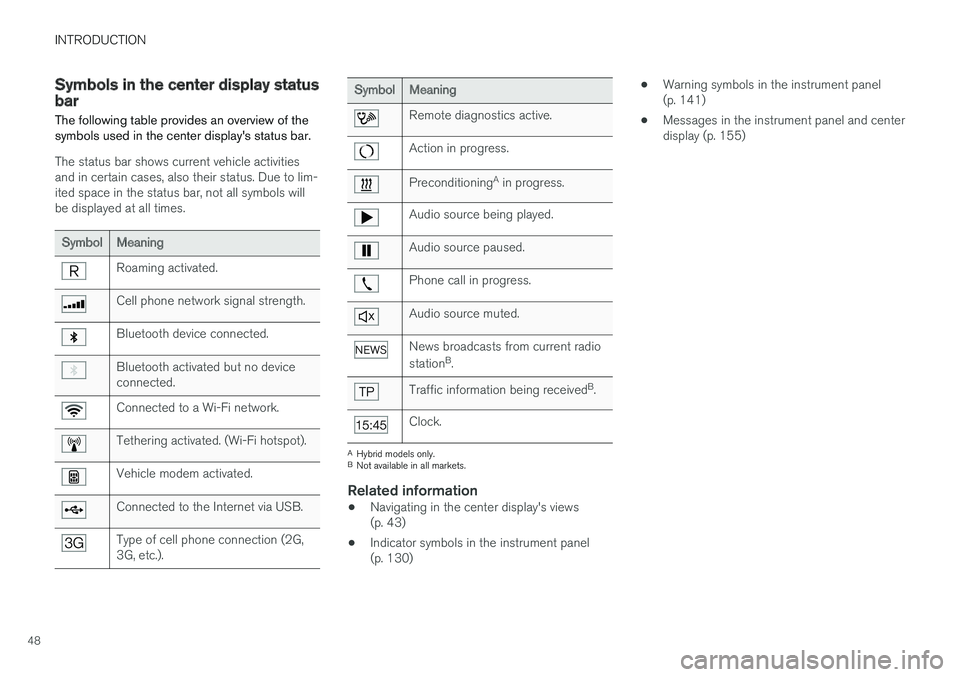
Symbols in the center display statusbar
The following table provides an overview of thesymbols used in the center display's status bar.
The status bar shows current vehicle activitiesand in certain cases, also their status. Due to lim-ited space in the status bar, not all symbols willbe displayed at all times.
SymbolMeaning
Roaming activated.
Cell phone network signal strength.
Bluetooth device connected.
Bluetooth activated but no deviceconnected.
Connected to a Wi-Fi network.
Tethering activated. (Wi-Fi hotspot).
Vehicle modem activated.
Connected to the Internet via USB.
Type of cell phone connection (2G,3G, etc.).
SymbolMeaning
Remote diagnostics active.
Action in progress.
PreconditioningA in progress.
Audio source being played.
Audio source paused.
Phone call in progress.
Audio source muted.
News broadcasts from current radio
stationB.
Traffic information being receivedB.
Clock.
AHybrid models only.BNot available in all markets.
Related information
•Navigating in the center display's views(p. 43)
•Indicator symbols in the instrument panel(p. 130)
•Warning symbols in the instrument panel(p. 141)
•Messages in the instrument panel and centerdisplay (p. 155)