2017 VOLVO S90 reset
[x] Cancel search: resetPage 168 of 548

INSTRUMENTS AND CONTROLS
* Option/accessory.
166
Adjusting function settings in the multifunctional front seats *
The multifunction controls on the side of the seat as well as the center display can be used tomake seat adjustments. The adjustment settings are shown in the center display *.
Multifunction control on the side of the seat
Turn the control up or down to activate.
Front seat massage settings *The front seat backrests have a massage func- tion. Air-filled cushions provide the massagingaction and a number of settings are available. The massage function can only be used when the engine is running.
Massage view in the center display
1. Activate the multifunction control by turning
it up or down. Seat settings will be displayed in the center display.
2. Tap
Massage in the seat settings view. 3. Select massage settings by tapping the cen-
ter display or by moving the cursor up/down using the multifunction control's upper/lowerbuttons. Change a setting in the selectedfunction by tapping the arrows on the centerdisplay or by using the multifunction control'sfront/rear buttons.
Massage settings
The following massage settings are available:
•
On/Off.
•
Program 1-5: There are 5 preset massage
programs. Select Swell, Tread, Advanced,Lumbar or Shoulder.
•
Intensity: Select Low, Normal or High.
•
Speed: Select Slow, Normal or Fast.
Page 175 of 548
INSTRUMENTS AND CONTROLS
173
4.
Tap
Confirm.
> The new driver profile has now been selected and the system will load the set- tings stored in that profile.
Related information
• Driver profiles (p. 172)
• Editing a driver profile (p. 173)
• Linking a remote key to a driver profile(p. 174)
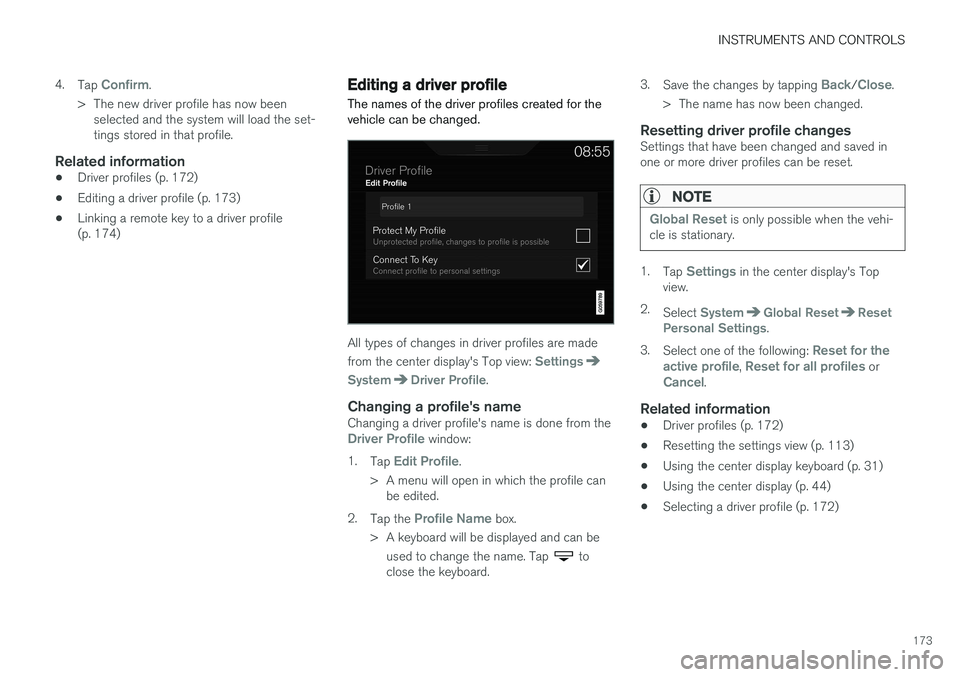
Editing a driver profile
The names of the driver profiles created for the vehicle can be changed.
All types of changes in driver profiles are made from the center display's Top view:
Settings
SystemDriver Profile.
Changing a profile's nameChanging a driver profile's name is done from theDriver Profile window:
1. Tap
Edit Profile.
> A menu will open in which the profile can be edited.
2. Tap the
Profile Name box.
> A keyboard will be displayed and can be used to change the name. Tap
to
close the keyboard. 3.
Save the changes by tapping
Back/Close.
> The name has now been changed.
Resetting driver profile changesSettings that have been changed and saved in one or more driver profiles can be reset.
NOTE
Global Reset is only possible when the vehi-
cle is stationary.
1. Tap Settings in the center display's Top
view.
2. Select
SystemGlobal ResetReset
Personal Settings.
3. Select one of the following:
Reset for the
active profile, Reset for all profiles orCancel.
Related information
• Driver profiles (p. 172)
• Resetting the settings view (p. 113)
• Using the center display keyboard (p. 31)
• Using the center display (p. 44)
• Selecting a driver profile (p. 172)
Page 261 of 548

DRIVER SUPPORT
* Option/accessory.259
Distance Alert *
Distance Alert is a function that alerts the driver if the time interval to the vehicle ahead is too short.
Distance Alert is active at speeds above approxi- mately 20 mph (30 km/h) and only reacts to avehicle ahead that is driving in the same direc-tion. No information is provided for vehicles driv-ing toward you, moving very slowly, or at a stand-still.
NOTE
Distance Alert only monitors distance to the vehicle ahead while Adaptive Cruise Control isin standby mode or off.
WARNING
Distance Alert only indicates the distance to the vehicle ahead. It does not affect thespeed of your vehicle.
Head-up-display *
Distance Alert symbol in the windshield (generic illustra- tion)
In vehicle is equipped with the head-up display *,
the symbol in the windshield will only appear if the distance to the vehicle ahead is shorter than the preset value. However, the
Show Driver
Support In Head-Up Display function has to
be activated in the Settings menu. See the article "Head-up display" for additional information.
NOTE
Strong sunlight, reflections, extreme light con- trasts, the use of sunglasses, or if the driver isnot looking straight ahead may make the vis-ual warning signal in the windshield difficult tosee.
Related information
• Distance Alert
* limitations (p. 260)
• Using Distance Alert
* (p. 260)
• Head-up display (HUD)
* (p. 116)
• Adaptive Cruise Control (ACC)
* (p. 261)
Page 278 of 548

||
DRIVER SUPPORT
276sensor, the system may apply the brakes in your vehicle suddenly or not at all. Pilot Assist is designed to follow a vehicle ahead in the same traffic lane at a preset time intervalset by the driver. If the radar sensor does notdetect a vehicle ahead, the vehicle will insteadmaintain the speed set by the driver. This will alsobe the case if a vehicle ahead accelerates andexceeds the set speed.
• Pilot Assist can follow another vehicle from astandstill up to a speed of approx. 125 mph(200 km/h)
• Pilot Assist can provide steering assistancefrom very low speeds up to approx. 87 mph(140 km/h).
Never exceed posted speed limits.
WARNING
• Pilot Assist is not a collision avoidance system. The driver must react if the sys-tem does not detect another vehicle.
• Pilot Assist does not react to people, ani-mals, stationary objects, small vehicles(such as bicycles and motorcycles), lowtrailers and slow moving, parked orapproaching vehicles.
• Do not use Pilot Assist in demandingdriving conditions such as city driving orother heavy traffic situations, in areas withintersections, in slippery conditions, whenthere is a great deal of water or slush onthe road, during heavy rain or snow, inpoor visibility, on winding roads, on high-way on- or off-ramps or if the vehicle istowing a trailer, boat, etc.
NOTE
•Pilot Assist maintenance should only be carried out by a trained and qualifiedVolvo service technician.
• Pilot Assist regulates your vehicle'sspeed using the accelerator pedal andthe brakes. Please be aware that theremay be a faint sound from the brakeswhen the system is using them.
Pilot Assist overview
Controls
Function buttons and symbols (generic illustration)
Increase set speed or resume Pilot Assist set speed and distance (time interval) to thevehicle ahead
Press to activate Pilot Assist or put it in standby mode
Change from Pilot Assist to Adaptive Cruise Control
Reduce set speed
Increase the distance (time interval) to the vehicle ahead
Change from Adaptive Cruise Control to Pilot Assist
Reduce the distance (time interval) to the vehicle ahead
Page 296 of 548

||
DRIVER SUPPORT
294
CauseAction
Water or snow on the surface of the road swirl up and block radar signals or the camera's view. No action. The driver should be extra alert in conditions of this type.
There is dirt between the inside of the windshield and the camera/radar sensor. Have the area of the windshield cleaned by a trained and qualified Volvo service technician.
Strong backlighting No action required. The came will reset automatically when lightingconditions improve.
High temperaturesIf the temperature in the passenger compartment is very high, the camera and radar sensor may betemporarily turned off for approx. 15 minutesafter the engine has been started to protect theirelectronic components. When the temperaturehas cooled sufficiently, the camera and radarsensor will restart automatically.
Damaged windshield
CAUTION
•Service and maintenance on City Safety may only be carried out by a trained andqualified Volvo service technician.
• If a crack, scratch or stone chip shouldoccur in the section of the windshield infront the camera/radar sensor, contact atrained and qualified Volvo service techni-cian to repair or replace the windshield.Failing to do so may result in reducedCity Safety functionality.
• This can also result in certain functionsbeing reduced or disabled, or they mayrespond incorrectly.
To help avoid the risk of incorrect, reduced ordisabled functionality for driver support sys-tems using the camera or radar sensors:
• Volvo recommends that cracks, scratchesor stone chips on the windshield in front of the camera/radar sensor should
not
be repaired; in such cases, the entire windshield should be replaced.
• Before the windshield is replaced, con-tact a Volvo retailer to ensure that thecorrect windshield is ordered and instal-led. If the wrong type of windshield isused, this may cause City Safety to func-tion improperly or not at all.
• Volvo recommends the use of only Genu-ine Volvo Replacement Windshields.
• When replacing windshield wipers, usethe same type or ones approved by Volvo.
After the windshield has been replaced, thecamera/radar sensor will have to be recalibra-ted by a trained and qualified Volvo servicetechnician to help ensure proper function ofall of the vehicle's camera-/radar-based sys-tems.
Page 378 of 548

||
STARTING AND DRIVING
* Option/accessory.
376
INDIVIDUAL
This setting allows you to adapt a drive mode to your personal preferences. Select one of the other drive modes as a basis and change the settings to provide the drivingcharacteristics that you prefer. These settings willbe stored in a driver profile. INDIVIDUAL is only available if it has been acti- vated in the center display.
Settings view 4
for INDIVIDUAL drive mode
1. Tap Settings in the center display's Top
view.
2. Tap
My CarIndividual Drive Mode and
tap Individual Drive Mode. 3.
Under
Preset, select: Eco, Comfort orDynamic.
The following settings can be modified: •
Driver Display
•Steering force
•Powertrain Characteristics
•Brake Characteristics
•Suspension Control
•ECO Climate
•Start/Stop.
Related information
• Adjustable steering force
* (p. 242)
• Loading (p. 202)
• Driver profiles (p. 172)
• Start/Stop (p. 379)
• All Wheel Drive (AWD) (p. 387)
4
Generic illustration.
Page 399 of 548

INFOTAINMENT
397
Selecting sub-channels
To listen to a station's sub-channel(s), tap the station on the screen or press the forward/backarrow keys on the right-side steering wheel key-pad or below the screen. Sub-channels can also be stored as favorites, see the article "Changing and searching for radio sta-tions". If you tap a sub-channel favorite, it may take up to 6 seconds before the channel becomes audi-
ble. If you tap a station while you are out of digital range of the transmitter,
No reception will be
displayed.
Related information
• HD Radio
™reception (p. 394)
• Switching HD Radio on and off (p. 396)
• Changing and searching for radio stations (p. 393)
HD Radio limitations
Limitations
•
Main channel vs. sub-channels (FM only)
:
The main channel is the only channel that can receive in hybrid mode (both digital andanalogue). If a frequency has sub-channels,they are broadcast in digital mode only. Themain FM channel will be displayed as, forexample, "WRIF-FM HD1". The sub-FMchannels will be displayed as"WRIF-FMHD2", "WRIF-FM HD3", etc.
• Reception coverage area
: Due to current
IBOC transmitter power limitations, thereception coverage area in digital mode issomewhat more limited than the station'sanalogue coverage area. Please be awarethat as with any radio broadcast technology,terrain, time of day, foliage level and buildinglocation can have positive or negative effectson radio reception.
• Analogue to digital/digital to analogueblending
: Analogue to digital blending will
occur as the signal strength reaches a presetthreshold in the receiver. This will be noticea-ble in fringe areas (areas with weak recep-tion) and is normal.
NOTE
There may be a noticeable difference in sound quality when a change from analogueto digital or digital to analogue occurs, suchas:
• Volume increase or decrease
• Equalizer settings, i.e., Bass/ Midrange/Treble cut or boost
• Time alignment (Digital program materialin extreme cases can be as much as 8seconds behind the analogue). This willnoticeable as a "stuttering" effect.
The above items are dependant on thebroadcaster's equipment settings and donot indicate a fault in the vehicle's radioreceiver or antenna systems .
Related information
•HD Radio sub-channels (p. 396)
• HD Radio
™reception (p. 394)
Page 419 of 548

INFOTAINMENT
}}
417
From a previously connected iPhone
1. Connect the iPhone to the USB socket in
the tunnel console. If there are two USB sockets, connect to the one with the whiteframe. >If the automatic start setting has been
activated, the Apple CarPlay sub-view will open and compatible apps will be dis-played.
2. If the automatic start setting has not been
activated, open the
Apple CarPlay app from
the center display's App view.
> The Apple CarPlay sub-view will open and compatible apps will be displayed.
3. Tap the desired app. > The app will start.
Apple CarPlay will run in the background if another app is started in the same sub-view. Toreturn to Apple CarPlay, tap the Apple CarPlayicon in App view.
Toggling between Apple CarPlay and iPod
Apple CarPlay to iPod
1.
Tap Settings in the center display's Top
view.
2. Tap
CommunicationApple CarPlay. 3. Deselect the Apple device's box that will no
longer start Apple CarPlay when it is con- nected.
4. Disconnect and reconnect the Apple device to the USB socket.
5. Open the
iPod app from App view.
iPod to Apple CarPlay
1.
Tap Apple CarPlay in the center display's
App view.
2. Read the conditions in the pop-up window that appears and tap
OK.
3. Disconnect and reconnect the Apple device to the USB socket.
> The Apple CarPlay sub-view will open.
Related information
• Media player (p. 415)
• Playing media (p. 420)
• Connecting a device via the AUX/USB socket (p. 414)
• Apple CarPlay settings (p. 417)
Apple CarPlay settings This article explains settings for a cell phone connected through Apple CarPlay.
Automatic start1.
Tap Settings in the center display's Top
view.
2. Tap
CommunicationApple CarPlay and
select the following settings:
• Select the Apple CarPlay box for auto- matic start when the device's USB cableis connected.
• Deselect the Apple CarPlay box to
disa-
ble automatic start when the device's
USB cable is connected.
A maximum of 20 Apple devices can be stored inthe list. When the list is full, the first (oldest)device stored will be deleted. To erase the entire list, a factory reset has to be performed. See the article "Resetting the set-tings view."
System volume levels1. Tap Settings in the center display's Top
view.