2017 VOLVO S90 change time
[x] Cancel search: change timePage 151 of 548

INSTRUMENTS AND CONTROLS
* Option/accessory.149
Brightness
1. In the center display's Top view, select
SettingsMy CarLightsInterior
Mood Lighting.
2. Press
Interior Mood Light Intensity and
choose Off, Low or High.
Change the color of the light
1. In the center display's Top view, select
SettingsMy CarLightsInterior
Mood Lighting.
2. Choose
By Temperature, By Theme orTheme Colors.
The intensity of the mood lighting can also be fine-tuned using the thumb wheel (on the dashboard to the left ofthe steering wheel)
Lighting in the door storage compartments
This lighting is illuminated when the engine is running. Adjust brightness with the thumb wheelon the lighting panel.
Lighting in the front tunnel console cup
holders
This lighting is switched on or off when the vehi-cle is unlocked or locked. Adjust brightness withthe thumb wheel on the lighting panel.
Related information
• Lighting panel and controls (p. 138)
• Ignition modes (p. 370)
• Settings view (p. 109)
Home safe lighting
The home safe lighting function illuminates the area in front of the vehicle in dark conditions.
This function turns on the headlights, parking lights, outer door handle lights * and license plate
lights for a set amount of time. The length of time that these lights remain illumi- nated can be set in the center display. Thedefault setting is 30 seconds. To activate home safe lighting:1. Switch off the ignition (mode 0).
2. Push the turn signal lever as far as possible towards the dashboard and release it.
3. Exit the vehicle and lock the doors.
Related information
• Using the center display (p. 44)
• Settings view (p. 109)
• Ignition modes (p. 370)
Page 165 of 548
INSTRUMENTS AND CONTROLS
}}
* Option/accessory.163
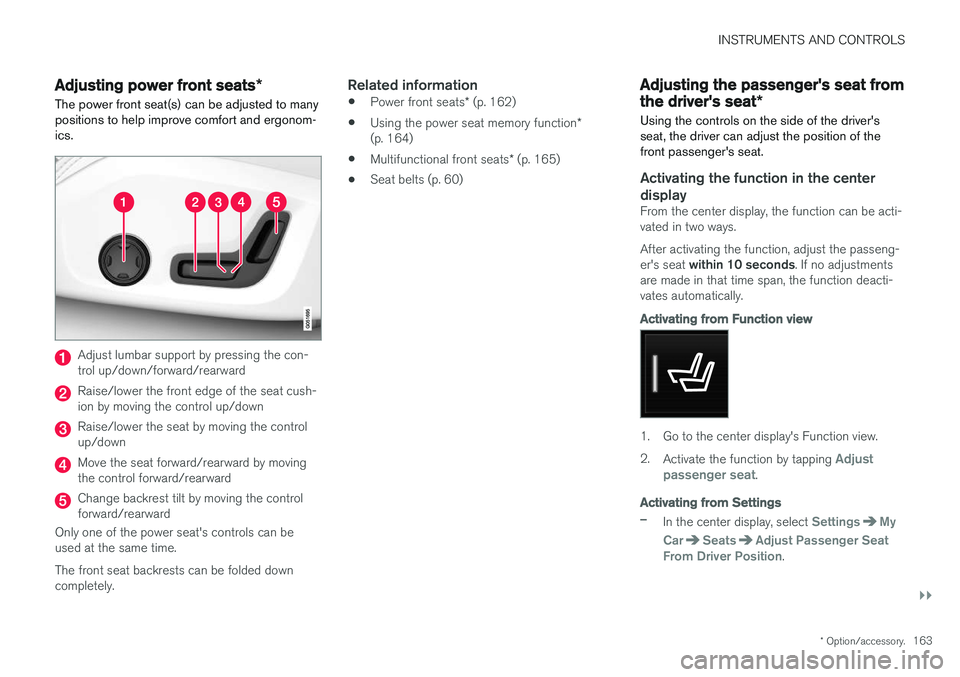
Adjusting power front seats *
The power front seat(s) can be adjusted to many positions to help improve comfort and ergonom-ics.
Adjust lumbar support by pressing the con- trol up/down/forward/rearward
Raise/lower the front edge of the seat cush- ion by moving the control up/down
Raise/lower the seat by moving the control up/down
Move the seat forward/rearward by moving the control forward/rearward
Change backrest tilt by moving the control forward/rearward
Only one of the power seat's controls can beused at the same time. The front seat backrests can be folded down completely.
Related information
• Power front seats
* (p. 162)
• Using the power seat memory function
*
(p. 164)
• Multifunctional front seats
* (p. 165)
• Seat belts (p. 60)
Adjusting the passenger's seat from the driver's seat
*
Using the controls on the side of the driver's seat, the driver can adjust the position of thefront passenger's seat.
Activating the function in the center
display
From the center display, the function can be acti- vated in two ways. After activating the function, adjust the passeng- er's seat within 10 seconds . If no adjustments
are made in that time span, the function deacti- vates automatically.
Activating from Function view
1. Go to the center display's Function view. 2. Activate the function by tapping
Adjust
passenger seat.
Activating from Settings
–In the center display, select SettingsMy
Car
SeatsAdjust Passenger Seat
From Driver Position.
Page 174 of 548

INSTRUMENTS AND CONTROLS
172
Driver profiles
Many of the vehicle's settings can be adapted to the driver's personal preferences and saved inone or more driver profiles.
The personal settings made are automatically saved in the active driver profile. Each remote keyis linked to a driver profile and when this key isused, the vehicle's settings are adapted accord-ing to the specific ones saved in that profile.
Which settings are saved in driver
profiles?
The settings that can be changed in the vehicle are either personal or global .
Changes made to personal settings are saved automatically in the active (current) driver profile,assuming that this profile is not locked. See thearticle "Editing a driver profile" for additionalinformation. Changes to global settings are not saved in a specific driver profile but instead affect all driverprofiles.
Global settings
Global settings and parameters remain the same regardless of which driver profile is currentlyactive. Keyboard layout is an example of a global setting. If driver profile X is used to add additional key-board languages, these languages will also beavailable even if driver profile Y is used. This type of global change is not specific to a single driverprofile.
Personal settings
If driver profile X has been used to e.g., set the brightness for the center display, driver profile Ywill not be affected by this setting since it is spe-cific (personal) to driver profile X. See also the article "Categories in Settings view" for an overview of global and personal settings.
Related information
•
Editing a driver profile (p. 173)
• Categories in Settings view (p. 110)
Selecting a driver profile The most recently selected driver profile will be used automatically the next time the vehicle isstarted. However, a different driver profile can beselected after the vehicle has started.
When the vehicle is started, the most recently selected driver profile will be shown at the top ofthe center display. There are two alternatives forchanging to another driver profile. Alternative1:
1. Tap the name of the drive profile shown at
the top of the center display when the vehi- cle has been started.
> A list of driver profiles that can beselected will be displayed.
2. Select the desired profile. 3. Tap
Confirm.
> The new driver profile has now been selected and the system will load the set- tings stored in that profile.
Alternative 2:
1. Pull down the center display's Top view.2. Tap
Profile.
> A list of driver profiles that can be selected will be displayed.
3. Select the desired profile.
Page 182 of 548

||
CLIMATE
* Option/accessory.
180
The indicator is shown in center display's Cli- mate view.
The indicator is shown in the climate bar when the Climate view is not open.
If the air quality conditions are not met, the text
Clean Zone will be white. When the conditions
are met, the text will change to blue.
The conditions monitored are:
• All side windows, doors and trunk are closed
• The Interior Air Quality System
* is activated
• The air conditioning is activated
• Recirculation is deactivated
NOTE
Please be aware that the Clean Zone function does not indicate that the air quality in thepassenger is good, only that the conditionsfor good air quality have been met.
Related information
•
Passenger compartment air filter (p. 181)
• Interior Air Quality System (IAQS)
* (p. 181)
• Clean Zone Interior Package (CZIP)
*
(p. 180)
• Cleaning the interior (p. 513)
• Climate system controls in the center display (p. 183)
Clean Zone Interior Package (CZIP)
*
The Clean Zone Interior Package includes a number of features that help further reduce aller-genic substances in the passenger compart-ment.
CZIP includes the following:
• An enhanced blower function that starts the blower when the vehicle is unlocked with theremote key to fill the passenger compart-ment with fresh air. This function starts auto-matically when required and shuts off auto-matically after a short period or if one thedoors is opened. The time for which theblower operates decreases gradually due toreduced need until the vehicle is four yearsold.
• The Interior Air Quality System (IAQS).
Related information
•
Air quality (p. 179)
• Interior Air Quality System (IAQS)
* (p. 181)
Page 225 of 548

LOCKS AND ALARM
}}
* Option/accessory.223
Locking/unlocking from outside the vehicle The buttons on the remote key can be used to lock or unlock all doors and the trunk at thesame time. This can also be done without press-ing the remote key buttons on models equippedwith the optional keyless Passive Entry system. The power trunk* can also be opened/closed by
moving your foot under a sensor beneath the rear bumper.
Locking and unlockingThe lock/unlock settings can be changed in the center display's Top view. Go to:
SettingsMy CarRemote Unlockand select Unlock All Doors or Driver Door
Only.
In order to lock the vehicle, the driver's door must be closed. If the trunk or any of the other doorsare open, they will be locked and the alarm will bearmed when they are closed.
NOTE
Be sure the remote key is outside of the vehi- cle before the other doors/trunk are closed tohelp avoid locking the remote inside the vehi-cle.
The settings made for the Remote Unlock func-
tion also affect the central locking system when a door is opened from inside the vehicle using a door handle. See also the article "Locking/unlocking from inside the vehicle" for additionalinformation. If the locks repeatedly do not react when the unlock button is pressed, begin by moving closerto the vehicle. However, it may be necessary toreplace the battery in the remote. In this case, thedriver's door can be unlocked with the detacha-ble key blade. See also the article "Detachablekey blade" for additional information.
Keyless Passive Entry
*If the vehicle is equipped with this system, it isonly necessary to have a remote key in your pos-session to operate the central locking system. Models with Passive Entry have an indentation on the outside of the handle for locking the vehicleand a pressure sensitive surface on the inside ofthe handle for unlocking. The trunk has a rubberized button used only for unlocking.
Outer indentation for locking, the pressure sensitive sur- face on the inside of the handle is for unlocking
Pressure sensitive indentation for locking
Pressure sensitive surface for unlocking
Rubberized button on the trunk used only for unlocking
Page 226 of 548

||
LOCKS AND ALARM
* Option/accessory.
224
Locking
All of the doors have to be closed before the vehicle can be locked but the trunk can be open. Lock the doors and trunk by pressing the pres- sure sensitive indentation on the outside of anyof the door handles. The lock indicator light onthe dashboard will begin to flash to show that thevehicle is locked and the alarm has been armed.
NOTE
Only one of a door handle's lock/unlock sur- faces should be pressed at a time. If bothareas are pressed simultaneously, the desiredlocking/unlocking action may not occur ormay be delayed.
To close windows or the moonroof * when locking
the vehicle, hold the pressure sensitive surface on the outside of a door handle until the win-dow(s)/moonroof have closed completely. Thewindows/moonroof will stop if the button isreleased before they are fully closed.
Unlocking
Pull a door handle to unlock and open the door or press the rubberized button under the trunkopening control. The lock indicator light on thedashboard will go out to show that the vehicle isunlocked and the alarm has been disarmed. The lock/unlock settings can be changed in the center display's Top view: Go to:
SettingsMy CarKeyless Unlockand select All Doors or Single Door.
Automatic relockingIf no door or the trunk is opened within two minutes after being unlocked, the vehicle willautomatically relock.
Remote door unlockThe vehicle can be unlocked using the Volvo OnCall app.
Related information
•
Remote key (p. 217)
• Remote key's range (p. 219)
• Detachable key blade (p. 221)
• Alarm (p. 236)
• Locking/unlocking from inside the vehicle(p. 224)
• Foot movement trunk operation
* (p. 232)
• Locking/unlocking the trunk (p. 228)
Locking/unlocking from inside the vehicle The lock buttons on either of the front doors can be used to lock or unlock all doors and the trunkat the same time. The rear doors can be locked using their respective lock buttons
*.
The central locking system
Central locking/unlocking buttons and indicator lights on the front doors
–Press the button to lock the vehicle.
Press
to unlock.
Page 251 of 548

DRIVER SUPPORT
}}
* Option/accessory.249
Changing a Speed Limiter (SL) *
maximum speed
Function buttons and symbols
–Change a set maximum speed by pressing the
(1) or — (3) buttons briefly or by
pressing and holding them: • Press briefly
: changes the maximum
speed in +/– 5 mph (+/– 5 km/h) incre- ments. Each press changes the maximumspeed by +/– 5 mph (+/– 5 km/h).
• Press and hold
: changes the maximum
speed +/– 1 mph (+/– 1 km/h) at a time.Release the button when the indicator (4)has moved to the desired maximumspeed.
LimitationsWhen driving down steep hills, the SpeedLimiter's braking effect may not be adequate andthe set maximum speed may be exceeded. The message
Speed limit exceeded will appear in
the instrument panel to alert the driver.
NOTE
This message will appear if the maximum speed is exceeded by more than approx.2 mph (3 km/h).
Related information
• Speed limiter (SL)
* (p. 247)
Automatic Speed Limiter (ASL) *
Automatic Speed Limiter (ASL) helps the driver adapt the vehicle's maximum speed to the pos-ted speed limits.
The Speed Limiter (SL) function can be switched to Automatic Speed Limiter.
Where applicable, ASL uses speed information from the Road Sign Information * system to auto-
matically adapt the vehicle's maximum speed.
WARNING
• ASL is a supplemental aid to the driver and does not function in all driving situa-tions or in all traffic, weather or road con-ditions. It can never replace the driver
Page 257 of 548

DRIVER SUPPORT
* Option/accessory.255
NOTE
Before CC can be activated, the vehicle's speed must be at least 20 mph (30 km/h).This is also the lowest speed that can be set.
Activating CC (putting it in active mode and setting a speed)
–With the symbol displayed (CC is in
standby mode), press the
button (2) on
the left-side steering wheel keypad.
> This puts CC in active mode and will maintain the vehicle's current speed.
Related information
• Cruise Control (CC) (p. 254)
• Switching between Cruise Control and Adaptive Cruise Control
* (p. 258)
• Deactivating/resuming Cruise Control (CC) (p. 256)
• Turning Cruise Control off (p. 257)
Changing Cruise Control speed
Changing a set speed
Function buttons and symbols (generic illustration)
–Change a set speed by pressing the (1)
or — (3) buttons briefly or by pressing and
holding them:
• Press briefly
: changes speed in
+/– 5 mph (+/– 5 km/h) increments. Each press changes the vehicle's speedby +/– 5 mph (+/– 5 km/h).
• Press and hold
: changes the speed
+/– 1 mph (+/– 1 km/h) at a time.Release the button when the set speedindicator (4)/(6) has moved to the desiredspeed.
If speed is increased by pressing the accelerator pedal before the
button is pressed, the vehi-
cle's speed when the button is pressed will become the set speed assuming that the accel- erator pedal is still depressed when the button ispressed. A temporary increase in speed, such as when passing another vehicle, does not affect the CCset speed. The vehicle will return to the set speedwhen the accelerator pedal is released. Alwaysobserve posted speed limits.
Engine braking instead of applying the
brakes
CC regulates speed by applying the brakeslightly. To avoid a loss of speed when drivingdown hills, use the engine braking functioninstead of letting the CC apply the brakes. In thissituation, the driver can temporarily deactivate theCC braking function. To do so:
–Press the accelerator pedal approx. halfway down and release it.
> CC will automatically deactivate the auto- matic brake function and will then only use the engine braking function.
Related information
• Cruise Control (CC) (p. 254)