2017 VOLVO S90 internet
[x] Cancel search: internetPage 393 of 548

INFOTAINMENT
391
Some apps are only available if the vehicle is connected to the Internet.
–In the center display's App view, tap an app to start it.
Related information
•
Internet connected vehicle (p. 427)
• Downloading, updating and uninstalling apps(p. 429)
• Changing settings in different types of apps(p. 43)
Sound settings
The infotainment system is precalibrated for opti- mal sound reproduction but these settings canbe changed to suit your personal preferences.
The system's volume is normally adjusted using the right-side steering wheel keypad or the vol-ume control below the center display.
Optimal sound reproduction settingsThe audio system is precalibrated for optimalsound reproduction using digital signal process-ing. This calibration takes into account the speak-ers, amplifier, cabin acoustics, listener position,etc., for each combination of vehicle and infotain-ment system. Dynamic calibration is also available, which moni- tors the setting of the volume control, radioreception and the vehicle's speed. Specific sound settings are described in the respective articles/sections of this owner's infor-mation. To change a setting, pull down the center dis- play's Top view and tap
SettingsSound.
Active noise suppression 1The vehicle can be equipped with an active noise suppression function that reduces engine noisein the passenger compartment by utilizing theinfotainment system. The microphone(s) in the ceiling liner react to engine noise and the info-tainment system produces signals (white noise)to counteract this.
Microphone in the ceiling liner. The number and position vary, depending on the vehicle
NOTE
Avoid covering or obstructing the noise sup- pression speakers because doing so couldresult in a rumbling noise.
Related information
•
Media sound settings (p. 424)
• Voice control settings (p. 124)
• Phone settings (p. 413)
1
Certain models only.
Page 409 of 548

INFOTAINMENT
407
Phone
A Bluetooth-enabled cell phone can be paired and connected to the vehicle's integrated hands-free system.
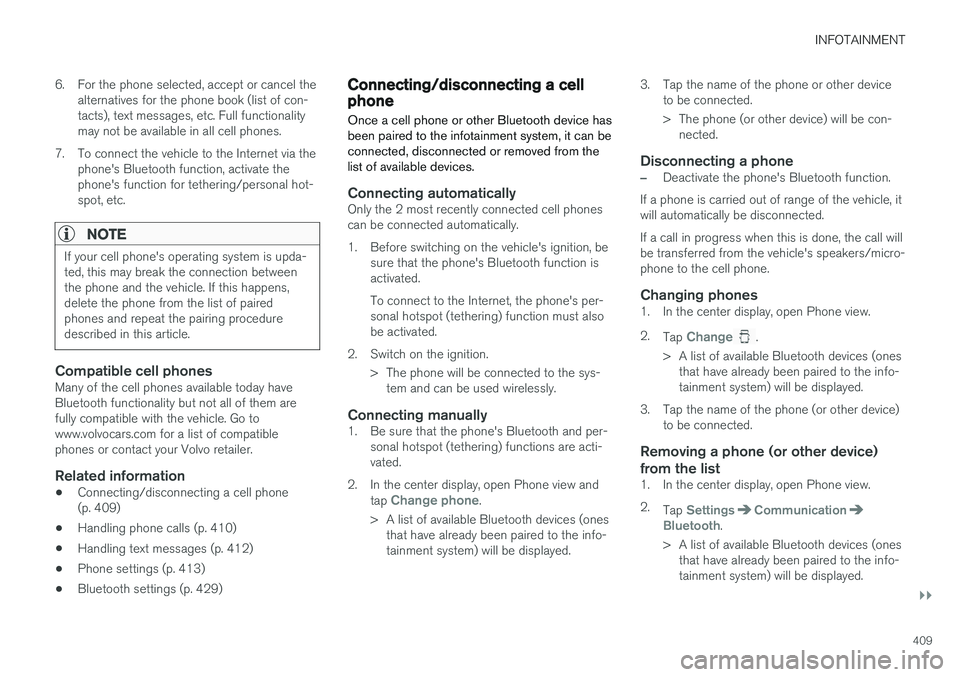
The infotainment system offers hands-free func- tionality for remote-controlling a number of a cellphone's features. The phone's integrated controlscan also be used, even when it is connected tothe vehicle. When the phone has been paired and connected to the infotainment system, it can be used tomake or receive calls, send or receive text mes-sages, to stream music, etc., or as an Internetconnection.
The phone is controlled fromthe center display but the Appmenu (accessed using theright-side steering wheel key-pad) and voice commands canalso be used to control certainfunctions.
Overview
Microphone
Cell phone
Center display
Keypad for controlling phone functions shown in the center display and voice com-mands
Instrument panel
Related information
•Connecting/disconnecting a cell phone (p. 409)
• Handling phone calls (p. 410)
• Handling text messages (p. 412)
• Pairing a cell phone (p. 408)
• Phone settings (p. 413) •
Text message settings (p. 414)
Page 410 of 548

INFOTAINMENT
408
Pairing a cell phone
A Bluetooth ®
-enabled cell phone or other device
can be paired and wirelessly connected to the infotainment system.
When a cell phone or other device is connected, audio can be streamed to the infotainment sys-tem. Toggle between the devices by pressing the TEL and MEDIA buttons to access the respective
sources' functions. Before a Bluetooth device can be used with the infotainment system, it has to be paired("registered"). This procedure only needs to be done once for each device (a maximum of 20 Bluetooth devicescan be paired to the system). Once a device hasbeen paired and its Bluetooth function is acti-vated, it can then be selected for use (wirelesslyconnected) to the vehicle's infotainment system. Two Bluetooth devices can be connected at the same time. However, if two cell phones are con-nected, only the most recently connected onecan be used as a phone. The other one can beused to e.g., to stream audio or video. To changewhat the phone will be used for, see the article"Bluetooth settings." A paired and connected cell phone can also be used to connect the vehicle to the Internet. To doso, its tethering/personal hotspot function mustbe activated. There are two ways of pairing a Bluetooth deviceto the infotainment system:
• Searching for the phone (or other device)from the vehicle
• Searching for the vehicle from the phone (orother device)
The following instructions assume that a cellphone is to be paired to the infotainment systembut the procedure is the same for any Bluetoothdevice.
Alternative 1: searching for the phone
from the vehicle
1. Make the phone discoverable/visible using its Bluetooth function. Refer to the phone'suser guide if necessary.
2. Open the Phone view on the center display. >
•If no phones have been paired to the vehicle, tap
Add phone.
• If a list of phones is displayed, tap
Change and tap Add phone in
the pop-up window.
3. Tap the name of the phone to be connected.
4. Check that the code displayed in the vehicle is the same as the one in the phone. Confirm in both places. 5. For the phone selected, accept or cancel the
alternatives for the phone book (list of con-tacts), text messages, etc. Full functionalitymay not be available in all cell phones.
6. To connect the vehicle to the Internet via the phone's Bluetooth function, activate thephone's function for tethering/personal hot-spot, etc.
Alternative 2: searching for the vehicle from the phone
1. Open the center display's Phone view.
•If no phones have been paired to the vehi- cle, tap
Add phoneMake vehicle
discoverable.
• If a phone has previously been paired to the vehicle, tap
Change and tap Add
phone
Make vehicle discoverable in
the pop-up window.
2. Activate the phone's Bluetooth function.
3. Search in the phone for Bluetooth devices. > A list of Bluetooth devices will be dis-played.
4. Select the vehicle's name in the list.
5. Check that the code displayed in the phone is the same as the one in the vehicle. Con- firm in both places.
Page 411 of 548
INFOTAINMENT
}}
409
6. For the phone selected, accept or cancel the
alternatives for the phone book (list of con- tacts), text messages, etc. Full functionalitymay not be available in all cell phones.
7. To connect the vehicle to the Internet via the phone's Bluetooth function, activate thephone's function for tethering/personal hot-spot, etc.
NOTE
If your cell phone's operating system is upda- ted, this may break the connection betweenthe phone and the vehicle. If this happens,delete the phone from the list of pairedphones and repeat the pairing proceduredescribed in this article.
Compatible cell phonesMany of the cell phones available today have Bluetooth functionality but not all of them arefully compatible with the vehicle. Go towww.volvocars.com for a list of compatiblephones or contact your Volvo retailer.
Related information
• Connecting/disconnecting a cell phone(p. 409)
• Handling phone calls (p. 410)
• Handling text messages (p. 412)
• Phone settings (p. 413)
• Bluetooth settings (p. 429)
Connecting/disconnecting a cell phone
Once a cell phone or other Bluetooth device has been paired to the infotainment system, it can beconnected, disconnected or removed from thelist of available devices.
Connecting automaticallyOnly the 2 most recently connected cell phones can be connected automatically.
1. Before switching on the vehicle's ignition, be sure that the phone's Bluetooth function is activated. To connect to the Internet, the phone's per- sonal hotspot (tethering) function must alsobe activated.
2. Switch on the ignition. > The phone will be connected to the sys-tem and can be used wirelessly.
Connecting manually1. Be sure that the phone's Bluetooth and per- sonal hotspot (tethering) functions are acti-vated.
2. In the center display, open Phone view and tap
Change phone.
> A list of available Bluetooth devices (ones that have already been paired to the info- tainment system) will be displayed. 3. Tap the name of the phone or other device
to be connected.
> The phone (or other device) will be con-nected.
Disconnecting a phone
–Deactivate the phone's Bluetooth function.
If a phone is carried out of range of the vehicle, it will automatically be disconnected. If a call in progress when this is done, the call will be transferred from the vehicle's speakers/micro-phone to the cell phone.
Changing phones1. In the center display, open Phone view. 2. Tap
Change.
> A list of available Bluetooth devices (ones that have already been paired to the info- tainment system) will be displayed.
3. Tap the name of the phone (or other device) to be connected.
Removing a phone (or other device) from the list
1. In the center display, open Phone view. 2.Tap
SettingsCommunicationBluetooth.
> A list of available Bluetooth devices (ones that have already been paired to the info- tainment system) will be displayed.
Page 417 of 548
INFOTAINMENT
* Option/accessory.415
Media player
The media player can play audio from a CD *,
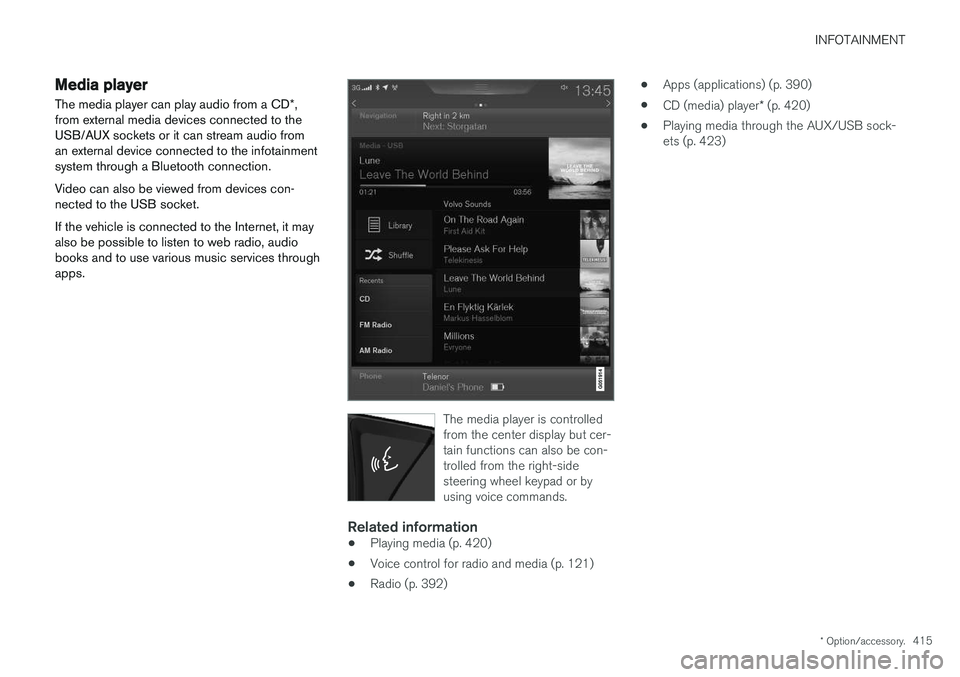
from external media devices connected to the USB/AUX sockets or it can stream audio froman external device connected to the infotainmentsystem through a Bluetooth connection. Video can also be viewed from devices con- nected to the USB socket. If the vehicle is connected to the Internet, it may also be possible to listen to web radio, audiobooks and to use various music services throughapps.
The media player is controlled from the center display but cer-tain functions can also be con-trolled from the right-sidesteering wheel keypad or byusing voice commands.
Related information
• Playing media (p. 420)
• Voice control for radio and media (p. 121)
• Radio (p. 392) •
Apps (applications) (p. 390)
• CD (media) player
* (p. 420)
• Playing media through the AUX/USB sock- ets (p. 423)
Page 418 of 548

INFOTAINMENT
* Option/accessory.
416
Apple CarPlay
Apple CarPlay helps make it possible to listen to music, make phone calls, get directions to adestination, send/receive text messages and useSiri while focusing on driving. Apple CarPlayfunctions with certain Apple devices.
If the vehicle is not already equipped with Apple CarPlay, it can be retro-fitted. Contact aVolvo retailer. Information about the apps supported and com- patible cell phones is available from Apple at:www.apple.com/ios/carplay/.
NOTE
• Using apps that are not compatible with Apple CarPlay may sometimes result in abroken connection between an iPhoneand the vehicle.
• Please be aware that Volvo has no con-trol over the content of the Apple CarPlayapp.
• Apple CarPlay can only be used ifBluetooth is disabled. Therefore, a cellphone or a media player connected viaBluetooth will not be accessible whileApple CarPlay is active.
• To connect the vehicle to the Internetwhile Apple CarPlay is active, use Wi-Fior the vehicle's integrated modem.
If navigation guidance is being provided by Apple CarPlay, this will only be shown on the center display (not on the head-up display
* or the
instrument panel). The Apple CarPlay apps can be controlled from the center display or voice-controlled using Siri(the same as for a cell phone). Certain functionscan also be controlled from the right-side steer- ing wheel keypad. Press and hold the
button
to activate Siri. If Siri cuts off too soon, press and hold the
button.
By using Apple CarPlay you acknowledge the following: Apple CarPlay is a service provided by Apple Inc. under its terms andconditions. Volvo Cars is thus notresponsible for Apple CarPlay or itsfeatures/applications. When using AppleCarPlay, certain information from your car(including its position) is transferred to youriPhone. In relation to Volvo Cars, you arefully responsible for your and any othersperson
Page 420 of 548
||
INFOTAINMENT
* Option/accessory.
418 2.
Tap
SoundSystem Volumes and select
the following settings: •
Voice Control
•Navigation
•Ringtone
Related information
• Apple CarPlay (p. 416)
• Resetting the settings view (p. 113)
Android auto
*
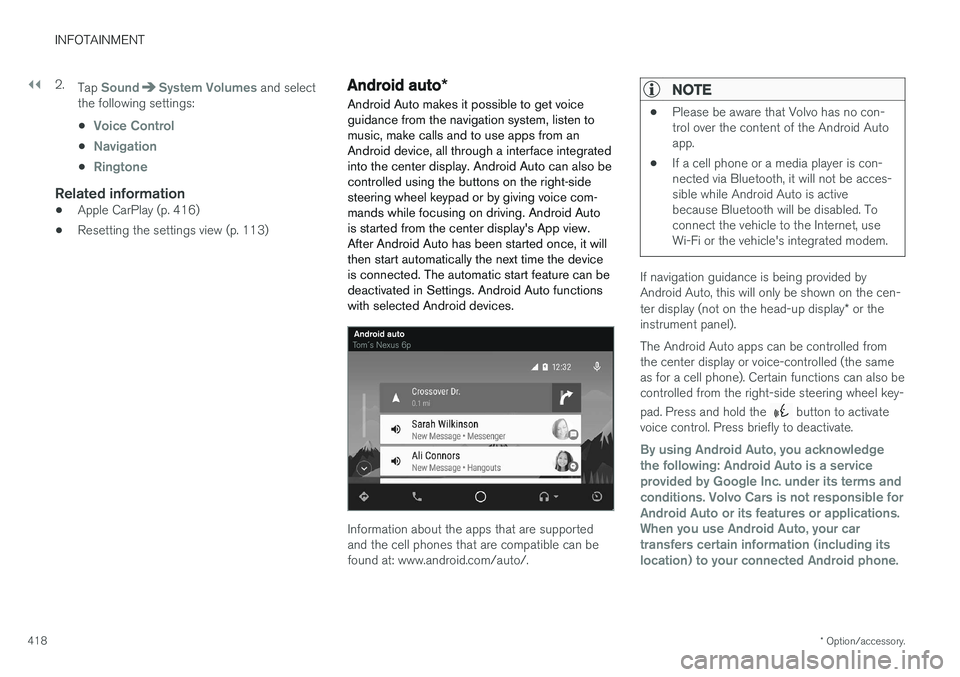
Android Auto makes it possible to get voice guidance from the navigation system, listen tomusic, make calls and to use apps from anAndroid device, all through a interface integratedinto the center display. Android Auto can also becontrolled using the buttons on the right-sidesteering wheel keypad or by giving voice com-mands while focusing on driving. Android Autois started from the center display's App view.After Android Auto has been started once, it willthen start automatically the next time the deviceis connected. The automatic start feature can bedeactivated in Settings. Android Auto functionswith selected Android devices.
Information about the apps that are supported and the cell phones that are compatible can befound at: www.android.com/auto/.
NOTE
• Please be aware that Volvo has no con- trol over the content of the Android Autoapp.
• If a cell phone or a media player is con-nected via Bluetooth, it will not be acces-sible while Android Auto is activebecause Bluetooth will be disabled. Toconnect the vehicle to the Internet, useWi-Fi or the vehicle's integrated modem.
If navigation guidance is being provided by Android Auto, this will only be shown on the cen- ter display (not on the head-up display
* or the
instrument panel). The Android Auto apps can be controlled from the center display or voice-controlled (the sameas for a cell phone). Certain functions can also becontrolled from the right-side steering wheel key- pad. Press and hold the
button to activate
voice control. Press briefly to deactivate.
By using Android Auto, you acknowledge the following: Android Auto is a serviceprovided by Google Inc. under its terms andconditions. Volvo Cars is not responsible forAndroid Auto or its features or applications.When you use Android Auto, your cartransfers certain information (including itslocation) to your connected Android phone.
Page 423 of 548

INFOTAINMENT
}}
421
CD
1. Insert a CD. 2.Open the
CD app in the center display's App
view.
3. Select a track. > Playback will begin.
USB flash drive
1. Insert the flash drive in the USB socket. 2. Open the
USB app in the center display's
App view.
3. Select a track. > Playback will begin.
Mp3 player and iPod®
NOTE
Use the iPod app ( not the USB app) to start playback. When an iPod is the media source, the info- tainment system will use a menu structuresimilar to the iPod's own menu structure.
1. Connect the device.
2. Start playback in the connected device.3.
Open the
iPod, USB, AUX) app in the cen-
ter display's App view.
> Playback will begin.
Bluetooth-connected device
1. Connect the device.
2. Activate Bluetooth in the device.
3. Start playback from the connected device.4. Open the
Bluetooth app in the center dis-
play's App view.
> Playback will begin.
Internet media
1. Connect the vehicle to the Internet.
2. Open the app in the center display's App view.
> Playback will begin.
Video
1. Connect the device. 2.Open the
USB app in the center display's
App view.
3. Tap the title of the video content to be played.
> Playback will begin.
Apple CarPlay
Apple CarPlay is described in a separate article.
Controlling and changing mediaThe media player can be con- trolled using voice commands,the right-side steering wheelkeypad or the center display.
Volume: use the buttons on the right-side
steering wheel keypad or turn the control under the center display to raise or lower the volume.