2017 VOLVO S90 AUX
[x] Cancel search: AUXPage 366 of 548

STARTING AND DRIVING
364
Emission controls
Three-way catalytic converter
•Keep your engine properly tuned. Certain engine malfunctions, particularly involving theelectrical, fuel or distributor ignition systems,may cause unusually high three-way catalyticconverter temperatures. Do not continue tooperate your vehicle if you detect enginemisfire, noticeable loss of power or otherunusual operating conditions, such as engineoverheating or backfiring. A properly tunedengine will help avoid malfunctions thatcould damage the three-way catalytic con-verter.
• Do not park your vehicle over combustiblematerials, such as grass or leaves, which cancome into contact with the hot exhaust sys-tem and cause such materials to ignite undercertain wind and weather conditions.
• Excessive starter cranking (in excess of oneminute), or an intermittently firing or floodedengine can cause three-way catalytic con-verter or exhaust system overheating.
• Remember that tampering or unauthorizedmodifications to the engine, the Engine Con-trol Module, or the vehicle may be illegal andcan cause three-way catalytic converter orexhaust system overheating. This includes:altering fuel injection settings or compo-nents, altering emission system components or location or removing components, and/orrepeated use of leaded fuel.NOTE
Unleaded fuel is required for vehicles with three-way catalytic converters.
Heated oxygen sensorsThe heated oxygen sensors monitor the oxygen content of the exhaust gases. Readings are fedinto a control module that continuously monitorsengine functions and controls fuel injection. Theratio of fuel to air into the engine is continuouslyadjusted for efficient combustion to help reduceharmful emissions.
Related information
•
Octane rating (p. 362)
Jump starting
Follow the instructions provided here to jump start your vehicle or to jump start another vehi-cle.
Jumper cable connecting points
If the 12-volt auxiliary battery to be used is in
another vehicle, check that the vehicles are not touching to prevent premature completion of acircuit. Be sure to follow jump starting instruc-tions provided for the other vehicle.
1. Switch off the ignition in your vehicle (set the
ignition to mode 0).
Page 367 of 548

STARTING AND DRIVING
365
2.
If the 12-volt auxiliary battery to be used is
in another vehicle, switch off that vehicle's ignition while the jumper cables are beingattached. Be sure to follow jump startinginstructions provided for the other vehicle.
CAUTION
Connect the jumper cables carefully to avoid short circuits with other components in theengine compartment.
3. Connect one of the red jumper cable's clamps to the auxiliary battery's positive (+) terminal (1)
4. Fold back the cover over the positive (+) jump start terminal on your vehicle's battery(2).
5. Connect the red jumper cable's other clamp to your vehicle's positive (+) jump start termi-nal (2).
6. Connect one of the black jumper cable's clamps to the auxiliary battery's negative (–)terminal (3).
7. Connect the black jumper cable's other clamp to your vehicle's negative ground point(4).
8. Check that the jumper cables are securely attached. 9. Start the engine in the assisting vehicle and
run it at approx. 1,500 rpm.
10. Start the engine in the vehicle with dead bat- tery.
11. After the engine has started, carefully remove the negative (–) terminal jumpercable (black). Then remove the positive (+)terminal jumper cable (red).
WARNING
PROPOSITION 65 WARNING! Battery posts, terminals, and related accesso- ries contain lead and lead compounds, chemi-cals known to the state of California to causecancer and reproductive harm. Wash handsafter handling.
WARNING
• Do not connect the jumper cable to any part of the fuel system or to any movingparts. Avoid touching hot manifolds.
• Batteries generate hydrogen gas, whichis flammable and explosive.
• Battery fluid contains sulfuric acid. Do notallow battery fluid to contact eyes, skin,fabrics or painted surfaces. If contactoccurs, flush the affected area immedi-ately with water. Obtain medical helpimmediately if eyes are affected.
• Never expose the battery to open flameor electric spark.
• Do not smoke near the battery.
• Failure to follow the instructions for jumpstarting can lead to injury.
Related information
•
Ignition modes (p. 370)
• Starting the engine (p. 372)
• Turning the engine off (p. 374)
• Start battery (p. 476)
• Opening and closing the hood (p. 503)
Page 402 of 548

||
INFOTAINMENT
* Option/accessory.
400
iTunes taggingFrom the center display's Top view, tapSiriusXM
Settings. Tap theiTunes Tagging menu. Tap
the iTunes Tagging box to activate/deactivate
this function and tap Close to return to Home
view. Tap List Of Tags to display a list of all tag-
ged songs. If the function is activated, the
iTunes tag button
will be displayed in Home view. If a song is played that you would like to buy in the iTunes store, tapthis button while the song is playing to tag it. If a song with
iTunes Tagging information is availa-
ble, the button will be selectable. Tap the button to tag the song. If you would like to buy a taggedsong via iTunes, Tap the iTunes tag button. To buy a song in iTunes, begin by connecting an iPhone/iPod/iPad to the USB socket in the tun-nel console. The iTunes tagging list will automati-cally be transferred to the device and removedfrom the list in the vehicle. If the device is con-nected when a song is tagged, the data will auto-matically be saved in the device. To purchase thesong, consult the iTunes support page.
Related information
• SiriusXM ®
Satellite radio * (p. 398)
• Using the center display keyboard (p. 31)
• SiriusXM ®
Satellite radio * settings (p. 400)
• Connecting a device via the AUX/USBsocket (p. 414)
SiriusXM ®
Satellite radio * settings
There are numerous settings that can be made to enhance your SiriusXM ®
Satellite radio listen-
ing experience.
SettingsTo access the settings menu from the center dis- play's Home view, pull down Top view and tap
SiriusXM Settings. The following alternatives
will be displayed:
Traffic Jump
Tap to display a list of cities from which you can choose to get traffic/weather information (or
Traffic jump off to deactivate the feature). Tap
to select a city (JUMP will be displayed on the
Home screen next to Library). Tap Back to
return to the list of settings or Close to return to
the Home screen. From the Home screen, tap
JUMP to activate the
function. When traffic/weather information is available from the selected city, the radio willautomatically tune to the channel providing theinformation. When the information/announce-ment is finished, the radio will automaticallyreturn to the channel that you were previously lis-tening to. During an announcement, tap
JUMP to interrupt
the message and return to the station that you were currently listening to.
Alert notifications
Tap the box to activate/deactivate. When acti- vated, you will be notified if a song, artist, etc. thatyou have selected is playing. You will be asked ifyou want to listen.
Alert notifications sound
Opt to receive an audible alert when one of your selected choices is being played.
iTunes tagging
Tap to display a menu with the options: iTunes
Tagging and List Of Tags. With this feature
activated, songs can be tagged for later purchase from the iTunes store.
Page 416 of 548
INFOTAINMENT
414
Text message settings
The following settings can be made for text mes- sages received through a paired and connectedcell phone.
Text message settings
–Pull down the center display's Top view and tap
SettingsCommunicationText
Messages and choose among the following
settings:
•
Notification in center display: shows
text messages in the center display's sta- tus bar.
•
Notification in driver display: shows
text messages in the instrument panel. With this alternative active, incoming mes-sages can be handled from the right-sidesteering wheel keypad.
•
Text message tone: select an audible
signal for incoming text messages.
Related information
• Connecting/disconnecting a cell phone (p. 409)
• Pairing a cell phone (p. 408)
• Handling text messages (p. 412)
Connecting a Bluetooth ®
device
Bluetooth ®
-enabled devices can be paired and
connected to the infotainment system to stream media and in some cases connect to the Inter-net.
Many cell phones and other devices currently on the market offer wireless Bluetooth ®
technology.
Consult your Volvo retailer or go to support.volvocars.com for any questions regar-ding a device's compatibility with the vehicle'sinfotainment system. The procedure for pairing and connecting a Bluetooth ®
-enabled device is the same as for a
cell phone. See the articles "Pairing a cell phone" and "Connecting/disconnecting a cell phone" fordetails.
Related information
• Pairing a cell phone (p. 408)
• Connecting/disconnecting a cell phone(p. 409)
Connecting a device via the AUX/USB socket
External audio sources such as an iPod ®
or mp3
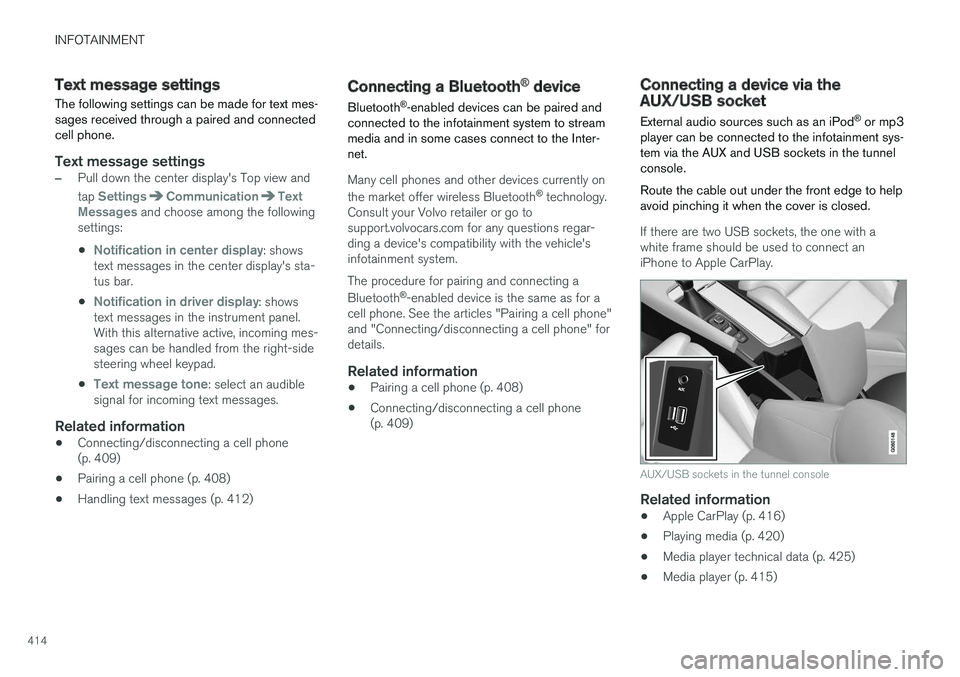
player can be connected to the infotainment sys- tem via the AUX and USB sockets in the tunnelconsole. Route the cable out under the front edge to help avoid pinching it when the cover is closed.
If there are two USB sockets, the one with a white frame should be used to connect aniPhone to Apple CarPlay.
AUX/USB sockets in the tunnel console
Related information
• Apple CarPlay (p. 416)
• Playing media (p. 420)
• Media player technical data (p. 425)
• Media player (p. 415)
Page 417 of 548
INFOTAINMENT
* Option/accessory.415
Media player
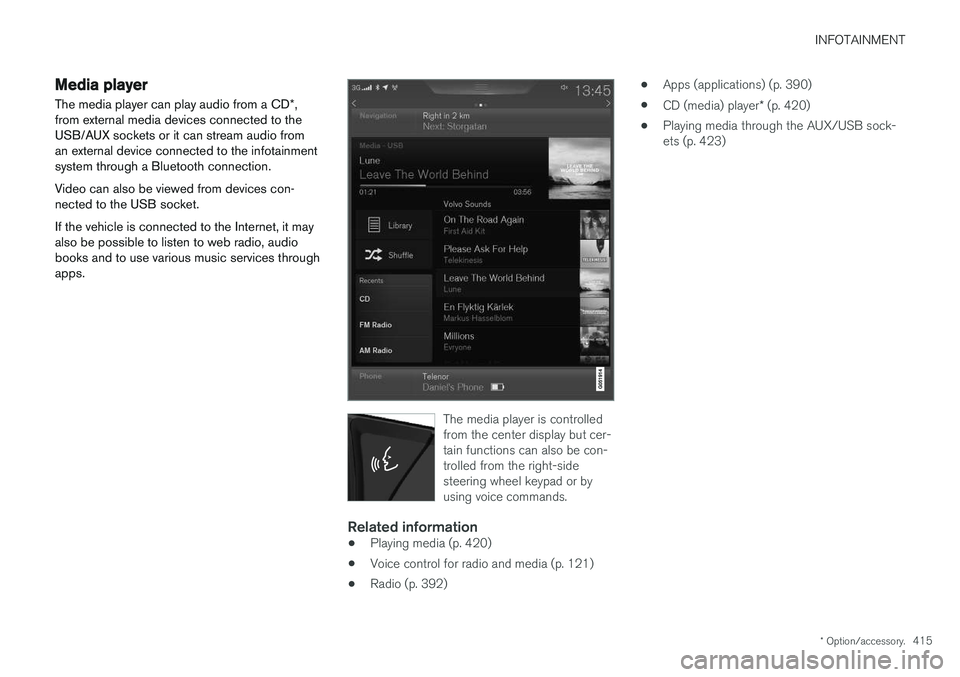
The media player can play audio from a CD *,
from external media devices connected to the USB/AUX sockets or it can stream audio froman external device connected to the infotainmentsystem through a Bluetooth connection. Video can also be viewed from devices con- nected to the USB socket. If the vehicle is connected to the Internet, it may also be possible to listen to web radio, audiobooks and to use various music services throughapps.
The media player is controlled from the center display but cer-tain functions can also be con-trolled from the right-sidesteering wheel keypad or byusing voice commands.
Related information
• Playing media (p. 420)
• Voice control for radio and media (p. 121)
• Radio (p. 392) •
Apps (applications) (p. 390)
• CD (media) player
* (p. 420)
• Playing media through the AUX/USB sock- ets (p. 423)
Page 419 of 548

INFOTAINMENT
}}
417
From a previously connected iPhone
1. Connect the iPhone to the USB socket in
the tunnel console. If there are two USB sockets, connect to the one with the whiteframe. >If the automatic start setting has been
activated, the Apple CarPlay sub-view will open and compatible apps will be dis-played.
2. If the automatic start setting has not been
activated, open the
Apple CarPlay app from
the center display's App view.
> The Apple CarPlay sub-view will open and compatible apps will be displayed.
3. Tap the desired app. > The app will start.
Apple CarPlay will run in the background if another app is started in the same sub-view. Toreturn to Apple CarPlay, tap the Apple CarPlayicon in App view.
Toggling between Apple CarPlay and iPod
Apple CarPlay to iPod
1.
Tap Settings in the center display's Top
view.
2. Tap
CommunicationApple CarPlay. 3. Deselect the Apple device's box that will no
longer start Apple CarPlay when it is con- nected.
4. Disconnect and reconnect the Apple device to the USB socket.
5. Open the
iPod app from App view.
iPod to Apple CarPlay
1.
Tap Apple CarPlay in the center display's
App view.
2. Read the conditions in the pop-up window that appears and tap
OK.
3. Disconnect and reconnect the Apple device to the USB socket.
> The Apple CarPlay sub-view will open.
Related information
• Media player (p. 415)
• Playing media (p. 420)
• Connecting a device via the AUX/USB socket (p. 414)
• Apple CarPlay settings (p. 417)
Apple CarPlay settings This article explains settings for a cell phone connected through Apple CarPlay.
Automatic start1.
Tap Settings in the center display's Top
view.
2. Tap
CommunicationApple CarPlay and
select the following settings:
• Select the Apple CarPlay box for auto- matic start when the device's USB cableis connected.
• Deselect the Apple CarPlay box to
disa-
ble automatic start when the device's
USB cable is connected.
A maximum of 20 Apple devices can be stored inthe list. When the list is full, the first (oldest)device stored will be deleted. To erase the entire list, a factory reset has to be performed. See the article "Resetting the set-tings view."
System volume levels1. Tap Settings in the center display's Top
view.
Page 423 of 548

INFOTAINMENT
}}
421
CD
1. Insert a CD. 2.Open the
CD app in the center display's App
view.
3. Select a track. > Playback will begin.
USB flash drive
1. Insert the flash drive in the USB socket. 2. Open the
USB app in the center display's
App view.
3. Select a track. > Playback will begin.
Mp3 player and iPod®
NOTE
Use the iPod app ( not the USB app) to start playback. When an iPod is the media source, the info- tainment system will use a menu structuresimilar to the iPod's own menu structure.
1. Connect the device.
2. Start playback in the connected device.3.
Open the
iPod, USB, AUX) app in the cen-
ter display's App view.
> Playback will begin.
Bluetooth-connected device
1. Connect the device.
2. Activate Bluetooth in the device.
3. Start playback from the connected device.4. Open the
Bluetooth app in the center dis-
play's App view.
> Playback will begin.
Internet media
1. Connect the vehicle to the Internet.
2. Open the app in the center display's App view.
> Playback will begin.
Video
1. Connect the device. 2.Open the
USB app in the center display's
App view.
3. Tap the title of the video content to be played.
> Playback will begin.
Apple CarPlay
Apple CarPlay is described in a separate article.
Controlling and changing mediaThe media player can be con- trolled using voice commands,the right-side steering wheelkeypad or the center display.
Volume: use the buttons on the right-side
steering wheel keypad or turn the control under the center display to raise or lower the volume.
Page 424 of 548

||
INFOTAINMENT
* Option/accessory.
422 Play/pause: tap the track's image, press the
symbol on the keypad or press the button under the center display. Change tracks: tap the desired track on the cen- ter display, press the
buttons under the
center display or on the right-side steering wheel keypad. Fast forward/reverse, move within a track: press the time axis on the center display and drag from side to side, press and hold the
buttons
under the center display or on the right-side steering wheel keypad. Change media source: Tap a media source under
Recents, tap the desired app in the center dis-
play's App view or use the
button on the
right-side steering wheel keypad.
Library: tap to play a track from the library.
Shuffle: tap to play tracks in random order.
Similar: tap to use Gracenote to search for simi-
lar music on the USB device and create a playlist based on the results. The playlist can contain upto 50 tracks.
Change device: tap to toggle between USB
devices if more than one is connected.
Video settings
The following can be adjusted with the video player in full screen or by opening the center dis- play's Top view and tapping
SettingsVideo:
Primary Audio Default Language, Subtitleand Primary Subtitle Default Language.
Play DivX®
This DivX device must be registered in order to play purchased DivX Video-on-Demand (VOD)movies.
1. Open the center display's Top view and tap
SettingsVideoDivX
® VOD to get a
registration code.
2. Go to vod.divx.com for additional information and to complete the registration process.
Related information
• CD (media) player
* (p. 420)
• Media player (p. 415)
• Voice control for radio and media (p. 121)
• Apps (applications) (p. 390)
• Connecting a Bluetooth ®
device (p. 414)
• Connecting a device via the AUX/USB socket (p. 414)
• Gracenote (p. 424)
• Connecting to the Internet (p. 427)
• Media searches (p. 422)
• Video (p. 425)
• Apple CarPlay (p. 416)
Media searches
Searches can be made for information such as artists, composers, song titles, albums, video,audio books, playlists and podcasts (digitalmedia on the Internet).
1. Tap .
> The center display's Search view opens and the keyboard will be displayed.
2. Enter a search word/phrase.