2017 VAUXHALL MOKKA X rds
[x] Cancel search: rdsPage 30 of 155

30RadioTouch the Direct Tune field and then
enter the desired frequency. Confirm your input.
Station lists In the station lists, all receivable radio stations within the current reception
area are available for selection.
To display the station list of the
waveband currently active, select
BROWSE in the interaction selector
bar.
The station list is displayed.
Notice
The currently received station is
highlighted.
Scroll through the list and select the
desired list item.
Category lists
Numerous RDS 3 30 and DAB
3 31 stations broadcast a PTY
code, which specifies the type of
programme transmitted (e.g. news).
Some stations also change the PTY
code depending on the content which is currently transmitted.
The Infotainment system stores these
stations, sorted by programme type in
the corresponding category list.
Notice
The Categories list item is only
available for the FM and the DAB wavebands.
Select MENU in the interaction
selector bar to display the respective waveband menu and select
Categories .
A list of programme type categories
currently available is displayed.
Select the desired category. A list of
stations is displayed transmitting a
programme of the selected type.
Select the desired station.Updating the station list
If the stations stored in a waveband-
specific station list can no longer be
received, select Update Station List .
Notice
If a waveband-specific station list is
updated, the corresponding
category list is also updated.
Updating Station List is displayed on
the screen until the search has been
completed.
Radio data system (RDS)
RDS is a service of FM stations that considerably improves the finding of
the desired station and its fault-free
reception.
Advantages of RDS ● On the display, the programme name of the station appears
instead of its frequency.
● During a station search, the Infotainment system tunes in to
RDS stations only.
Page 31 of 155
Radio31● The Infotainment system alwaystunes into the best receivable
broadcasting frequency of the set station by means of AF
(alternative frequency).
● Depending on the station received, the Infotainment
system displays radio text that
can contain e.g. information on the current programme.
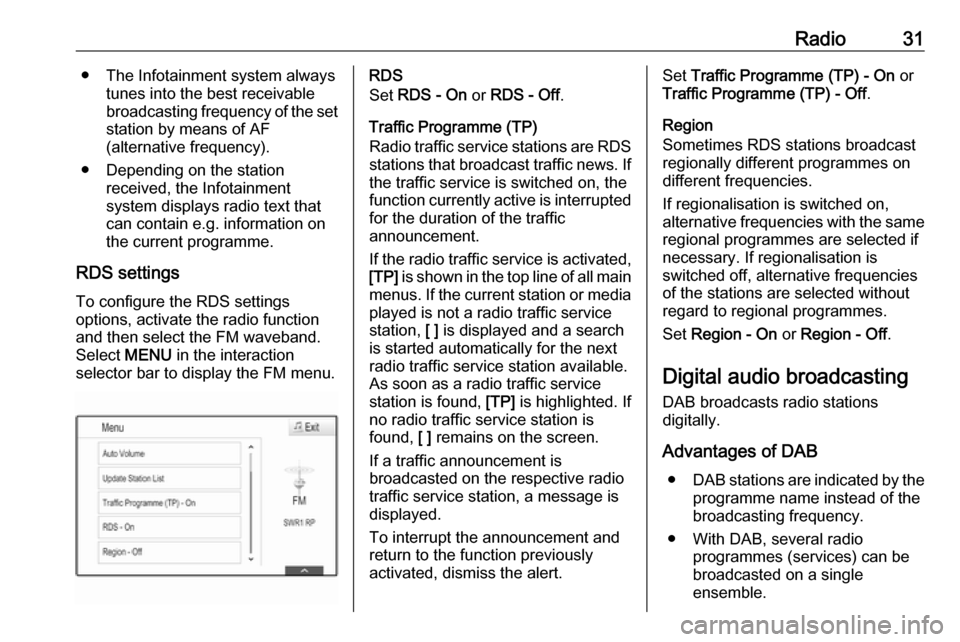
RDS settings To configure the RDS settings
options, activate the radio function
and then select the FM waveband.
Select MENU in the interaction
selector bar to display the FM menu.RDS
Set RDS - On or RDS - Off .
Traffic Programme (TP)
Radio traffic service stations are RDS
stations that broadcast traffic news. If the traffic service is switched on, the
function currently active is interrupted for the duration of the traffic
announcement.
If the radio traffic service is activated,
[TP] is shown in the top line of all main
menus. If the current station or media played is not a radio traffic service
station, [ ] is displayed and a search
is started automatically for the next
radio traffic service station available.
As soon as a radio traffic service
station is found, [TP] is highlighted. If
no radio traffic service station is
found, [ ] remains on the screen.
If a traffic announcement is
broadcasted on the respective radio
traffic service station, a message is
displayed.
To interrupt the announcement and
return to the function previously
activated, dismiss the alert.Set Traffic Programme (TP) - On or
Traffic Programme (TP) - Off .
Region
Sometimes RDS stations broadcast
regionally different programmes on
different frequencies.
If regionalisation is switched on,
alternative frequencies with the same
regional programmes are selected if
necessary. If regionalisation is
switched off, alternative frequencies
of the stations are selected without
regard to regional programmes.
Set Region - On or Region - Off .
Digital audio broadcasting
DAB broadcasts radio stations
digitally.
Advantages of DAB ● DAB stations are indicated by the
programme name instead of the
broadcasting frequency.
● With DAB, several radio programmes (services) can be
broadcasted on a single
ensemble.
Page 40 of 155

40NavigationNavigationGeneral information.....................40
Usage .......................................... 41
Destination input ..........................47
Guidance ..................................... 53General information
The navigation system will reliably guide you to your destination.
The current traffic situation is taken
into account in the route calculation.
For this purpose, the Infotainment
system receives traffic
announcements in the current
reception area via RDS-TMC.
The navigation system cannot,
however, take into account traffic
incidents, traffic regulations changed
at short notice and hazards or
problems that arise suddenly (e.g.
road works).Caution
The usage of the navigation
system does not release the driver
from the responsibility for a
correct, vigilant attitude in road
traffic. The relevant traffic
regulations must always be
followed. If a navigation instruction contradicts traffic regulations, the
traffic regulations always apply.
Functioning of the navigation
system
The position and movement of the
vehicle are detected by the navigation
system using sensors. The travelled
distance is determined by the
vehicle's speedometer signal, turning
movements on bends by a gyro
sensor. The position is determined by the GPS (Global Positioning System)
satellites.
By comparing the sensor signals with the digital maps, it is possible to
determine the position with an
accuracy of approx. 10 metres.
The system will also work with poor
GPS reception. However, the
accuracy of the determination of the
position will be reduced.
After the entry of the destination
address or point of interest (nearest
petrol station, hotel, etc.), the route is
calculated from the current location to
the destination selected.
Route guidance is provided by voice
output and an arrow, as well as with
the aid of a multi-colour map display.
Page 47 of 155

Navigation47Organising the POI data in several
subfolders
Optionally, you can organise the text
files in several randomly named
subfolders (max. depth of subfolder
structure: 2).
Examples: F:\myPOIs\AnnsPOIs or
F:\myPOIs\MyJourney\London,
where F:\ is the root directory of the
USB drive.
Notice
In a folder only subfolders or only POI files may be stored. A mixture of
both will not be imported correctly to the system.
After downloading individual POI data
organised in that way to the
Infotainment system (see download description further below), the My
POIs menu will show a list of
selectable submenus.
After selecting a submenu, further
submenus or the related list of
imported POI categories will be
displayed.Downloading the POI data to the
Infotainment system
Connect the USB device with your
user defined POI data to the USB port
3 34 of the Infotainment system.
A message is displayed that prompts
you to confirm the download.
After confirmation, the POI data will
be downloaded to the Infotainment system.
The downloaded POIs are then
selectable as destinations via the My
POIs menu, see "POIs entry" in
chapter "Destination input" 3 47.
Destination input The navigation application provides
different options to set a destination
for route guidance.
Press ; and select NAV on the Home
screen to display the navigation map.
Select DESTINATION in the
interaction selector bar and then
select one of the different address
entry options.
One-shot destination entry
Touch the entry field in the top line of
the menu. A keyboard is displayed.
For a detailed description on the
keyboards 3 15.
Enter an address or search term and
confirm your input.
Two lists with possible destinations
are created. To switch between the
list tabs, touch Address or POI in the
top line of the screen.
Address list:
Page 48 of 155

48Navigation
POI list:
For a detailed description on POIs,
see "POIs entry" below.
Select one of the destinations. The
destination details view is displayed.
To start route guidance, select Go.
Address entry screen
Select ADDRESS . The Address
Entry screen is displayed.
Touch one of the entry fields next to
the address part entries. A keyboard
is displayed.
For a detailed description on the
keyboards 3 15.
Enter the required destination
information.
Notice
The screen does not need to be filled out completely.
To confirm your input, select 9 in the
top right corner of the screen.
Page 49 of 155

Navigation49If there is more than one destination
possible according to the information
entered, a list of all matching
destinations found is displayed.
Select the desired address.
The destination details view is
displayed.
To start route guidance, select Go.
Crossroad entry screen
Select CROSSROADS . The
Crossroads Entry screen is
displayed.
Touch one of the entry fields next to
the address part entries. A keyboard
is displayed.
For a detailed description on the
keyboards 3 15.
Enter the required destination
information.
To confirm your input, select 9 in the
top right corner of the screen.
If there is more than one destination
possible according to the information
entered, a list of all matching
destinations found is displayed.
Select the desired address.
The destination details view is
displayed.
To start route guidance, select Go.
POIs entry
A point of interest (POI) is a specific
location that might be of general interest, e.g. a petrol station, a
parking area or a restaurant.
The data stored within the navigation
system contains a great number of
predefined POIs, which are indicated
on the map (if activated, 3 41).
You may also store individual POIs
within the system, see "Creating and downloading user defined POIs" inchapter "Usage" 3 41. Those POIs
are selectable as destinations via the
POI main category My POIs.
To select a POI as a destination for
route guidance, select
DESTINATION in the interaction
selector bar and then select POIs. A
list for search area selection is
displayed.
Setting a search location
Select one of the options.
Notice
The options POIs along Route and
POIs near Destination are only
available when route guidance is active.
Page 50 of 155

50NavigationIf POIs at Another Location is
selected, a keyboard is displayed.
For a detailed description on the
keyboards 3 15.
Enter the desired location and
confirm your entry.
A list of POI categories is displayed.
Searching POIs via categories
Select one of the main categories in
the list. A list with subcategories is
displayed.
To display all POIs available in the
respective main category, select List
All . Scroll through the list and select
the desired POI.
To display all POIs within one
subcategory, select the respective
subcategory. Scroll through the list
and select the desired POI.
The destination details view is
displayed.
For more information on the POI
selected, touch Info in the top right
corner of the screen.
To start route guidance, select Go.Searching POIs via name input
To search for a particular POI, a
category or a specific location, select
Spell Name in the POI main
categories list or in one of the
subcategory lists. A keyboard is
displayed.
For a detailed description on the keyboards 3 15.
Enter the desired name or category.
Select 9 to confirm your input. The
destination details view is displayed.
For more information on the POI
selected, touch Info in the top right
corner of the screen.
To start route guidance, select Go.
Recent destinations list Select RECENT .
A list of all recently entered
destinations is displayed.
Select one of the entries. The
destination details view is displayed.
To start route guidance, select Go.
Contacts list Select CONTACTS . The contacts list
is displayed.
Page 59 of 155

Speech recognition59Speech recognitionGeneral information.....................59
Usage .......................................... 61General information
Embedded speech recognition
The embedded speech recognition of
the Infotainment system enables you to operate various functions of the
Infotainment system via voice input. It recognises commands and numeric
sequences independently of the
relevant speaker. The commands
and numeric sequences can be
spoken without a voice pause
between the individual words.
In the event of incorrect operation or
commands, the speech recognition
gives visual and/or acoustic feedback
and requests you to re-enter the
desired command. Apart from this,
the speech recognition
acknowledges important commands
and will enquire if necessary.
In general, there are different ways to
speak commands for performing the
desired actions.
Notice
To ensure that conversations inside
the vehicle do not lead to
unintentional triggering of thesystem functions, the speech
recognition does not start until it has
been activated.
Important informationLanguage support ● Not all languages available for the display of the Infotainment
system are also available for the
speech recognition.
● If the display language currently selected is not supported by the
speech recognition, speech
recognition is not available.
In such a case, you need to select
another language for the display
if you want to control the
Infotainment system via voice
input. For changing the display
language, see "Language" in
chapter "System settings" 3 25.Address input of destinations in
foreign countries
In case you want to enter the address
of a destination located in a foreign
country via voice input, you need to
change the language of the Info-
Display to the language of the foreign country.