2017 TOYOTA RAV4 329
[x] Cancel search: 329Page 3 of 366

3
RAV4_RAV4 HV_Navi+MM_OM0R007U_(U)
16.06.10 19:05
The Navigation System is one of the most technologically advanced vehicle ac-
cessories ever developed. The system receives satellite signals from the Global
Positioning System (GPS) operated by the U.S. Department of Defense. Using
these signals and other vehicle sensors, the system indicates your present po-
sition and assists in locating a desired destination.
The navigation system is designed to select efficient routes from your present
starting location to your destination. The system is also designed to direct you
to a destination that is unfamiliar to you in an efficient manner. The system uses
AISIN AW maps. The calculated routes may not be the shortest nor the least
traffic congested. Your own personal local knowledge or “short cut” may at
times be faster than the calculated routes.
The navigation system’s database includes Point of Interest categories to allow
you to easily select destinations such as restaurants and hotels. If a destination
is not in the database, you can enter the street address or a major intersection
close to it and the system will guide you there.
The system will provide both a visual map and audio instructions. The audio in-
structions will announce the distance remaining and the direction to turn in when
approaching an intersection. These voice instructions will help you keep your
eyes on the road and are timed to provide enough time to allow you to maneu-
ver, change lanes or slow down.
Please be aware that all current vehicle navigation systems have certain limita-
tions that may affect their ability to perform properly. The accuracy of the vehi-
cle’s position depends on satellite conditions, road configuration, vehicle
condition or other circumstances. For more information on the limitations of the
system, refer to page 329.
NAVIGATION SYSTEM (ENTUNE PREMIUM AUDIO)
Page 10 of 366

TABLE OF CONTENTS
10
RAV4_RAV4 HV_Navi+MM_OM0R007U_(U)
16.06.10 19:05
1. PHONE OPERATION (HANDS-FREE SYSTEM
FOR CELLULAR PHONES) ........ 220
QUICK REFERENCE .......................... 220
SOME BASICS .................................... 221
CALLING ON THE Bluetooth
®
PHONE.............................................. 225
RECEIVING ON THE Bluetooth
®
PHONE.............................................. 231
TALKING ON THE Bluetooth
®
PHONE.............................................. 232
Bluetooth
® PHONE MESSAGE
FUNCTION ........................................ 235
2. SETUP ........................................... 240
PHONE/MESSAGE SETTINGS .......... 240
3. WHAT TO DO IF... ......................... 253
TROUBLESHOOTING ......................... 253
1. BASIC OPERATION ...................... 264
QUICK REFERENCE .......................... 264
MAP SCREEN OPERATION ............... 267
MAP SCREEN INFORMATION ........... 273
TRAFFIC INFORMATION.................... 277
2. DESTINATION SEARCH ............... 281
DESTINATION SEARCH SCREEN ..... 281
SEARCH OPERATION ........................ 283
STARTING ROUTE GUIDANCE ......... 293
3. ROUTE GUIDANCE ...................... 297
ROUTE GUIDANCE SCREEN ............. 297
TYPICAL VOICE GUIDANCE PROMPTS ......................................... 302
EDITING ROUTE ................................. 303
4. MEMORY POINTS ........................ 308
MEMORY POINTS SETTINGS ............ 308
5. SETUP ........................................... 318
DETAILED NAVIGATION SETTINGS ......................................... 318
TRAFFIC SETTINGS ........................... 322
6. TIPS FOR THE NAVIGATION SYSTEM ...................................... 329
GPS (GLOBAL POSITIONING
SYSTEM) ........................................... 329
MAP DATABASE VERSION AND COVERED AREA .............................. 332
1. Entune App Suite OVERVIEW .... 336
Entune App Suite SERVICE................. 336
2. Entune App Suite OPERATION ................................ 341
Entune App Suite ................................. 341
3. SETUP ........................................... 348
Entune App Suite SETTINGS .............. 348
ALPHABETICAL INDEX ................... 350
7PHONE
8NAVIGATION SYSTEM
9Entune App Suite
INDEX
Page 263 of 366

8
263
RAV4_RAV4 HV_Navi+MM_OM0R007U_(U)
16.06.10 19:05
1
2
3
4
5
6
7
8
9
1. ROUTE GUIDANCE SCREEN ..... 297
SCREEN FOR ROUTE GUIDANCE ... 297
ROUTE OVERVIEW............................ 298
DURING FREEWAY DRIVING............ 299
WHEN APPROACHING INTERSECTION ............................... 300
TURN LIST SCREEN .......................... 301
TURN-BY-TURN ARROW SCREEN ... 301
2. TYPICAL VOICE GUIDANCE PROMPTS.................................. 302
3. EDITING ROUTE ......................... 303
ADDING DESTINATIONS ................... 304
REORDERING DESTINATIONS ......... 304
DELETING DESTINATIONS ............... 304
SETTING ROUTE PREFERENCES ... 305
SELECTING ROUTE TYPE ................ 305
DETOUR SETTING ............................. 306
STARTING FROM ADJACENT ROAD ................................................ 307
1. MEMORY POINTS SETTINGS .... 308
SETTING UP HOME ........................... 309
SETTING UP PRESET DESTINATIONS................................ 310
SETTING UP ADDRESS BOOK ......... 312
SETTING UP AREAS TO AVOID ........ 315
DELETING PREVIOUS DESTINATIONS................................ 317
1. DETAILED NAVIGATION SETTINGS ................................. 318
SCREENS FOR NAVIGATION
SETTINGS ........................................ 318
2. TRAFFIC SETTINGS................... 322
SCREEN FOR TRAFFIC SETTINGS ........................................ 322
AUTO AVOID TRAFFIC....................... 323
MY TRAFFIC ROUTES ....................... 324
1. GPS (GLOBAL POSITIONING SYSTEM) ................................ ... 329
LIMITATIONS OF THE NAVIGATION
SYSTEM ............................................ 329
2. MAP DATABASE VERSION AND COVERED AREA ............. 332
MAP INFORMATION ........................... 332
ABOUT THE MAP DATA ..................... 333
3ROUTE GUIDANCE
4MEMORY POINTS
5SETUP
6TIPS FOR THE NAVIGATION
SYSTEM
NAVIGATION SYSTEM*
*: Entune Premium Audio only
Page 264 of 366

264
RAV4_RAV4 HV_Navi+MM_OM0R007U_(U)
16.06.10 19:05
1. BASIC OPERATION
1. QUICK REFERENCE
MAP SCREEN
To display this screen, press the “APPS” button, then select “Navigation” on the
“Apps” screen.
No.NameFunctionPage
2D North-up, 2D
heading-up or 3D
heading-up sym-
bolIndicates whether the map orientation is set to
north-up or heading-up. The letter(s) beside this
symbol indicate the vehicle’s heading direction
(e.g. N for north). In 3D map, only a heading-up
view is available.
268
Options buttonSelect to display the “Navigation Options” screen.266
“GPS” mark
(Global Position-
ing System)Shows that the vehicle is receiving signals from
the GPS.329
Page 320 of 366

320
5. SETUP
RAV4_RAV4 HV_Navi+MM_OM0R007U_(U)
16.06.10 19:05
1Display the “Detailed Navi. Settings”
screen. (→P.318)
2Select “Calibration” .
3Select the desired item.
■POSITION/DIRECTION CALIBRA-
TION
1Select “Position / Direction” .
2Scroll the map to the desired point
(→P.272) and select “OK”.
3Select an arrow to adjust the direction
of the current position mark and select
“OK”.
CURRENT POSITION/TIRE
CHANGE CALIBRATION
The current position mark can be ad-
justed manually. Miscalculation of the
distance caused by tire replacement
can also be adjusted.
For additional information on the accu-
racy of a current position: →P.329
When driving, the current position
mark will be automatically corrected by
GPS signals. If GPS reception is poor
due to location, the current position
mark can be adjusted manually.
Page 329 of 366
329
RAV4_RAV4 HV_Navi+MM_OM0R007U_(U)
16.06.10 19:05
NAVIGATION SYSTEM
8
6. TIPS FOR THE NAVIGATION SYSTEM
1. GPS (GLOBAL POSITIONING SYSTEM)
The Global Positioning System (GPS) de-
veloped and operated by the U.S. Depart-
ment of Defense provides an accurate
current position, normally using 4 or more
satellites, and in some case 3 satellites.
The GPS system has a certain level of in-
accuracy. While the navigation system
compensates for this most of the time, oc-
casional positioning errors of up to 300 ft.
(100 m) can and should be expected. Gen-
erally, position errors will be corrected
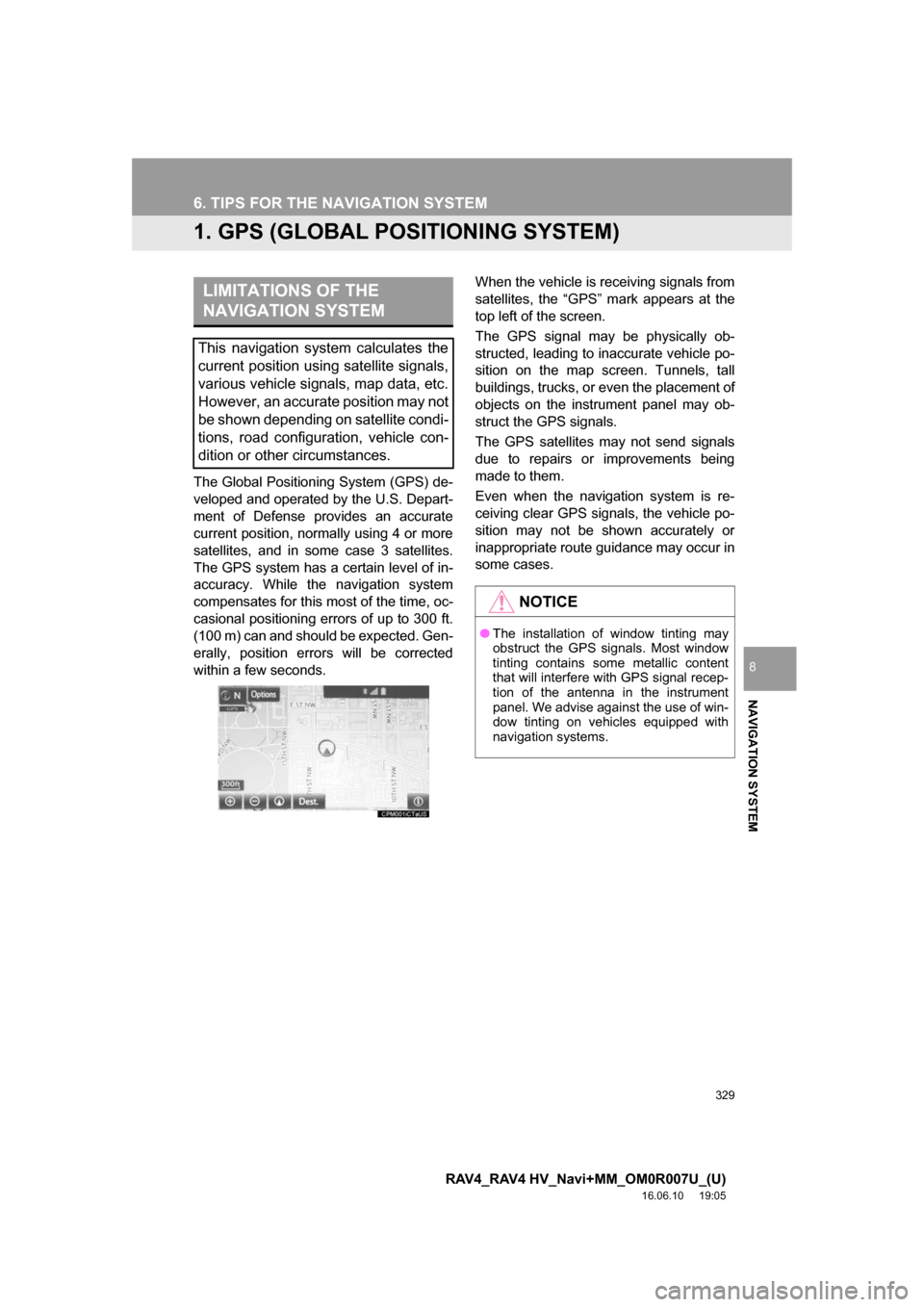
within a few seconds. When the vehicle is receiving signals from
satellites, the “GPS” mark appears at the
top left of the screen.
The GPS signal may be physically ob-
structed, leading to inaccurate vehicle po-
sition on the map screen. Tunnels, tall
buildings, trucks, or even the placement of
objects on the instrument panel may ob-
struct the GPS signals.
The GPS satellites may not send signals
due to repairs or improvements being
made to them.
Even when the navigation system is re-
ceiving clear GPS signals, the vehicle po-
sition may not be shown accurately or
inappropriate route guidance may occur in
some cases.
LIMITATIONS OF THE
NAVIGATION SYSTEM
This navigation system calculates the
current position using satellite signals,
various vehicle signals, map data, etc.
However, an accurate position may not
be shown depending on satellite condi-
tions, road configuration, vehicle con-
dition or other circumstances.
NOTICE
●
The installation of window tinting may
obstruct the GPS signals. Most window
tinting contains some metallic content
that will interfere with GPS signal recep-
tion of the antenna in the instrument
panel. We advise against the use of win-
dow tinting on vehicles equipped with
navigation systems.
Page 351 of 366

351
RAV4_RAV4 HV_Navi+MM_OM0R007U_(U)
16.06.10 19:05
E
Editing route............................................ 303Adding destinations ............................. 304
Deleting destinations ........................... 304
Detour setting ...................................... 306
Reordering destinations ...................... 304
Selecting route type ............................ 305
Setting route preferences .................... 305
Starting from adjacent road ................. 307
Entering letters and numbers/list screen operation ................................... 37
Entering letters and numbers ................ 37
List screen ............................................. 37
Entune App Suite ............................ 335, 341
Entune App Suite keyword operation.......................................... 346
Linking Entune App Suite and navigation function........................... 345
Using Entune App Suite ...................... 341
Entune App Suite operation .................... 341
Entune App Suite overview..................... 336
Entune App Suite service ....................... 336 Before using the function .................... 338
Preparation before using Entune App Suite............................. 339
Entune App Suite settings ...................... 348
Estimated course line display mode ....... 173 Parking ................................................ 174
Screen description .............................. 173
F
Function index........................................... 28
G
General settings ........................................ 56General settings screen ........................ 56
GPS (Global positioning system) ............ 329 Limitations of the navigation system .............. ............................... 329
H
Home screen............................................. 16
Status display ........................................ 18
Home screen operation............................. 36
I
Information .............................................. 151
Initial screen .............................................. 32
Internet radio ............................................. 98 Listening to internet radio ...................... 98
iPod ......................................................... 108 iPod audio ........................................... 112
iPod video............................................ 112
Overview ............................................. 108
L
Linking multi-information display and navigation system........ .......................... 42
Page 354 of 366

354
ALPHABETICAL INDEX
RAV4_RAV4 HV_Navi+MM_OM0R007U_(U)
16.06.10 19:05
Setting Bluetooth® details ......................... 48
“Bluetooth* Setup” screen ..................... 48
Connecting a Bluetooth
® device ........... 51
Deleting a Bluetooth® device ................ 50
Editing the Bluetooth® device
information ......................................... 53
Registering a Bluetooth
® device ........... 49
“System Settings” screen ...................... 54
Setting home as the destination................ 27
Setup............................... 124, 240, 318, 348
“Setup” screen .......................................... 20
Some basics ..................................... 74, 221 About the contacts in the contact list ........................................ 224
Disc slot ................................................. 76
Registering/connecting a Bluetooth
® phone ............................ 221
Selecting an audio source ..................... 75
Sound settings....................................... 77
Turning the system on and off ............... 75
USB/AUX port ....................................... 77
Using the phone switch/ microphone ...................................... 222
Voice command system ................ 79, 223
When selling or disposing of the vehicle.............................................. 224
Starting route guidance ........................... 293 Pausing guidance ................................ 296
Starting route guidance ....................... 293
Steering switches .................................... 121
T
Talking on the Bluetooth® phone ............232
Incoming call waiting ...........................234
Things you should know..........167, 182, 215
If you notice any symptoms.........................167, 182, 215
Product license ....................................217
Tips for operating the audio system ........126
Tips for the navigation system ................329
Touch screen gestures..............................34
Touch screen operation ............................35
Toyota parking assist monitor .................168 Driving precautions ..............................168
Screen display .....................................170
Using the system .................................171
Toyota parking assist monitor precautions ..........................................177
Area displayed on screen ....................177
Differences between the screen and the actual road ..............179
The camera .........................................178
When approaching three-dimensional objects ................180
Traffic information ...................................277 Displaying traffic information on the map .......................................279
Traffic settings .........................................322 Auto avoid traffic ..................................323
My traffic routes ...................................324
Screen for traffic settings .....................322
Troubleshooting ......................................253
Typical voice guidance prompts ..............302
*: Bluetooth is a registered trademark of Bluetooth SIG, Inc.