Page 99 of 612
992. Instrument cluster
2
Instrument cluster
COROLLA_TMMMS_TMMC_U (OM02494U)
Average vehicle speed
Elapsed time
Range
Previous fuel consumption
per minute
Current fuel consumption
Reset the trip information
data
“Past Record” screen appears
Vehicles without a smart key system:
Average fuel consumption for the past 15 minutes is divided by color
into past averages and averages attained since the engine switch was
last turned to the “ON” position. Use the displayed average fuel con-
sumption as a reference.
Vehicles with a smart key system:
Average fuel consumption for the past 15 minutes is divided by color
into past averages and averages attained since the engine switch was
last turned to IGNITION ON mode. Use the displayed average fuel
consumption as a reference.
This image is an example only.
1
2
3
4
5
6
7
Page 100 of 612

1002. Instrument cluster
COROLLA_TMMMS_TMMC_U (OM02494U)■
Past record
Entune Audio
Press the “CAR” button.
If the “Trip Information” screen is displayed, select “Past Record”.
Entune Audio Plus or Entune Premium Audio
Press the “APPS” button.
Touch “Eco” on the “Apps” screen.
If the “Trip Information” screen is displayed, select “Past Record”.
Previous fuel economy
record
Current fuel economy
Best recorded fuel econ-
omy
Update the past record
data
Reset the past record data
“Trip Information” screen appears
Average recorded fuel economy
These images are examples only, and may vary slightly from actual
conditions.
■Resetting the data
Selecting “Clear” on the “Trip Information” screen will reset the consumption
data.
Selecting “Clear” on the “Past Record” screen will reset the past record data.
■Updating the past record data
Selecting “Update” on the “Past Record” screen will update the past record
data.
■Cruising range
Displays the estimated maximum distance that can be driven with the quan-
tity of fuel remaining.
This distance is computed based on your average fuel consumption.
As a result, the actual distance that can be driven may differ from that dis-
played.
1
2
1
2
3
4
5
6
7
Page 275 of 612
2755-1. Basic Operations
5
Audio system
COROLLA_TMMMS_TMMC_U (OM02494U)
Vo l u m e s w i t c h
• Increases/decreases volume
• Press and hold: Continuously increases/decreases volume
Cursor switch
• Selects (radio stations/radio presets/tracks/files/songs)
• Moves cursor
• Press and hold: Seeks up/down (radio stations)
• Fast up/down (tracks/files)
“MODE/HOLD” switch:
• Changes audio source
• Press and hold: Mutes or pauses the current operation.
To cancel the mute or pause, press and hold again.
Steering wheel audio switches
Some audio features can be controlled using the switches on
the steering wheel.
Operation may differ depending on the type of audio system or
navigation system. For details, refer to the manual provided with
the audio system or navigation system.
Operating the audio system using the steering wheel switches
Ty p e AType B
WARNING
■To reduce the risk of an accident
Exercise care when operating the audio switches on the steering wheel.
1
2
3
Page 285 of 612
2855-2. Setup
5
Audio system
COROLLA_TMMMS_TMMC_U (OM02494U)
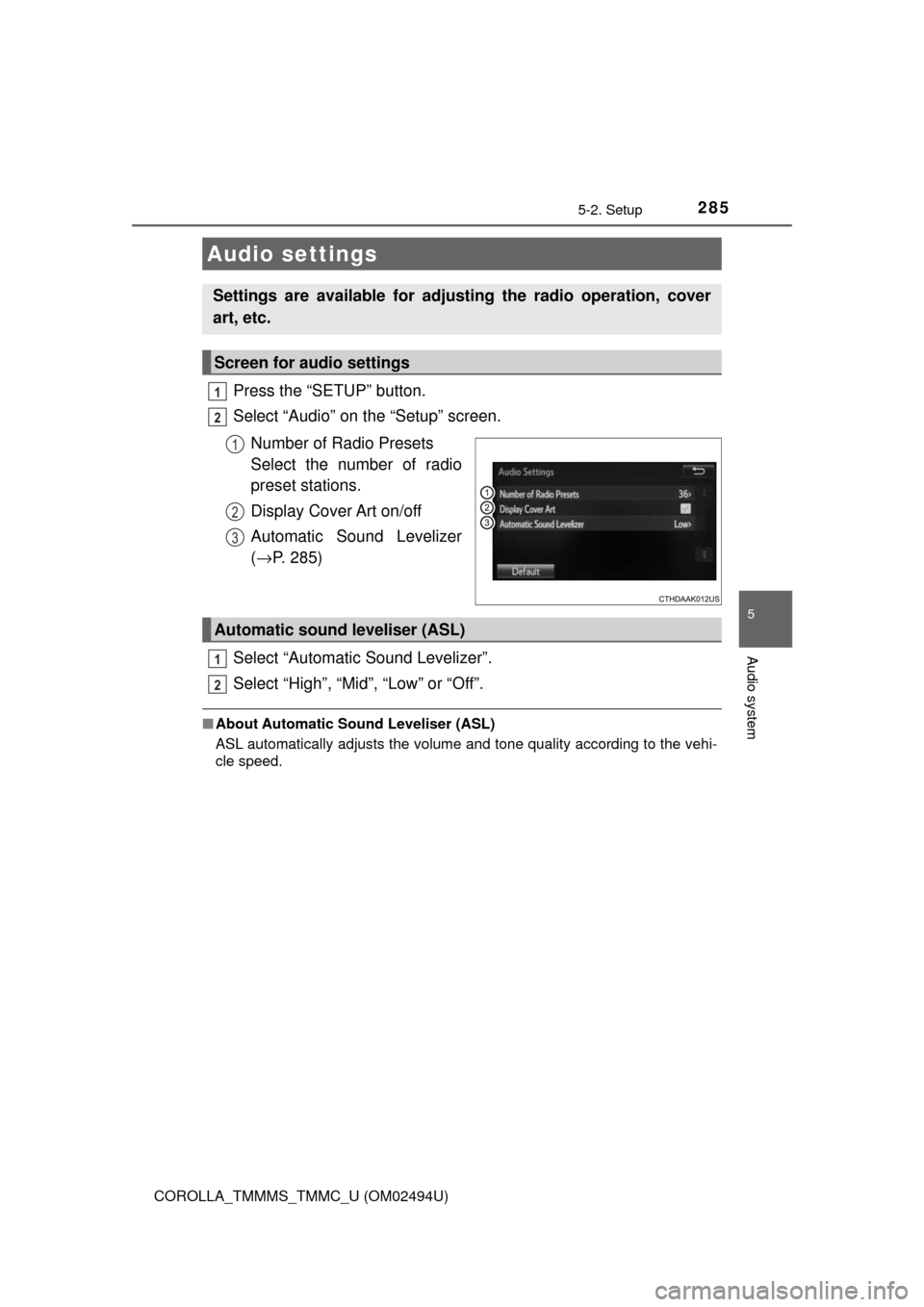
Press the “SETUP” button.
Select “Audio” on the “Setup” screen.
Number of Radio Presets
Select the number of radio
preset stations.
Display Cover Art on/off
Automatic Sound Levelizer
(→P. 285)
Select “Automatic Sound Levelizer”.
Select “High”, “Mid”, “Low” or “Off”.
■About Automatic Sound Leveliser (ASL)
ASL automatically adjusts the volume and tone quality according to the vehi-
cle speed.
Audio settings
Settings are available for adjusting the radio operation, cover
art, etc.
Screen for audio settings
1
2
1
2
3
Automatic sound leveliser (ASL)
1
2
Page 292 of 612
292
COROLLA_TMMMS_TMMC_U (OM02494U)
5-4. Using the radio
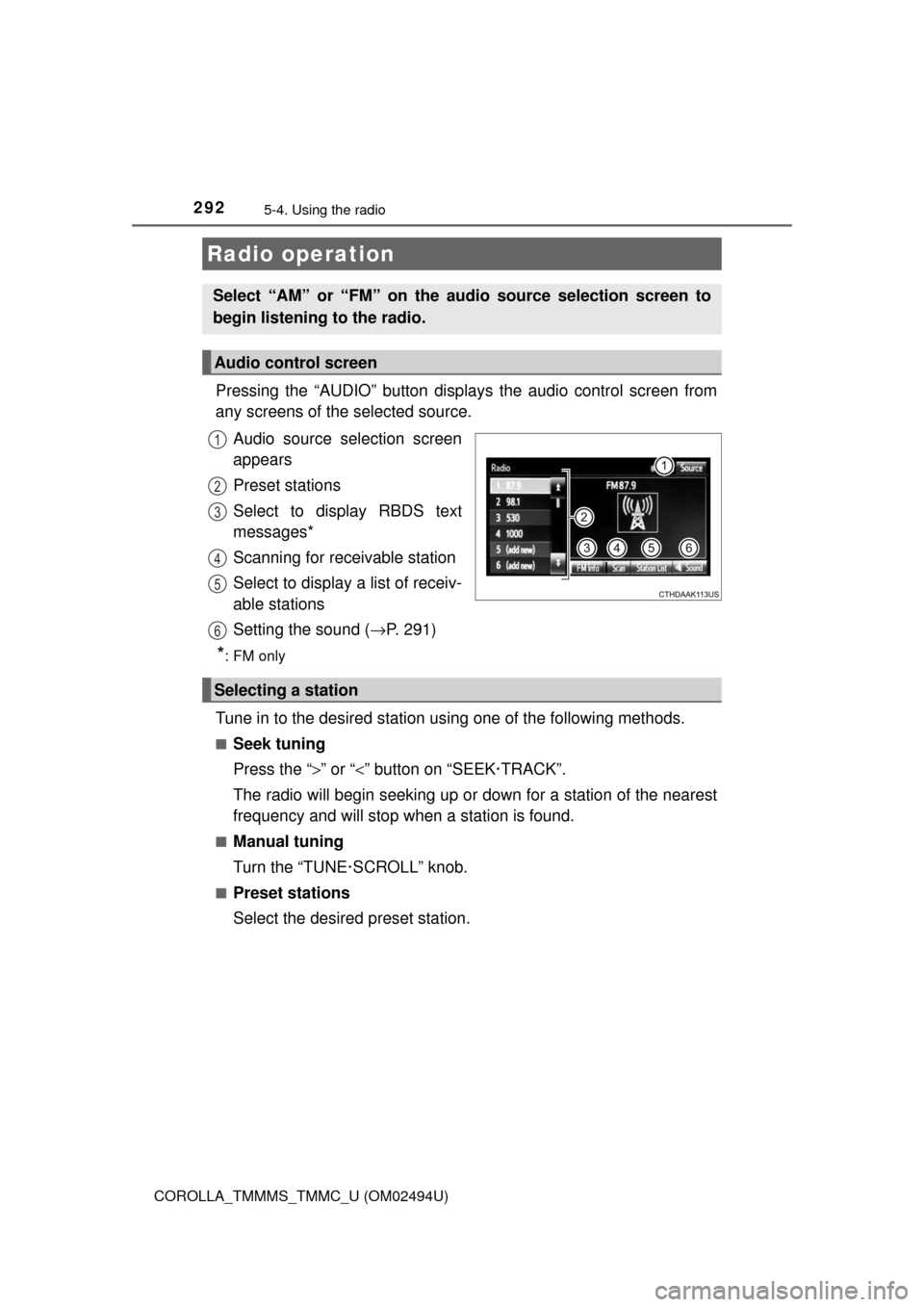
Pressing the “AUDIO” button displays the audio control screen from
any screens of the selected source.
Audio source selection screen
appears
Preset stations
Select to display RBDS text
messages*
Scanning for receivable station
Select to display a list of receiv-
able stations
Setting the sound (→P. 291)
*:FM only
Tune in to the desired station using one of the following methods.
■Seek tuning
Press the “>” or “<” button on “SEEK·TRACK”.
The radio will begin seeking up or down for a station of the nearest
frequency and will stop when a station is found.
■Manual tuning
Turn the “TUNE·SCROLL” knob.
■Preset stations
Select the desired preset station.
Radio operation
Select “AM” or “FM” on the audio source selection screen to
begin listening to the radio.
Audio control screen
1
2
3
4
5
6
Selecting a station
Page 293 of 612
2935-4. Using the radio
5
Audio system
COROLLA_TMMMS_TMMC_U (OM02494U)
Search for desired stations by turning the “TUNE·SCROLL” knob or
pressing the “>” or “<” button on “SEEK·TRACK”.
Select “(add new)”.
To change the preset station to a different one, select and hold the preset
station.
Select “Yes”.
Select “OK” after setting the new preset station.
■Refreshing the station list
Select “Refresh” on the “Station List” screen.
To cancel the refresh, select “Cancel Refresh”.
■Reception sensitivity
●Maintaining perfect radio reception at all times is difficult due to the continu-
ally changing position of the antenna, differences in signal strength and sur-
rounding objects, such as trains, transmitters, etc.
●The radio antenna is mounted inside the rear window. To maintain clear
radio reception, do not attach metallic window tinting or other metallic
objects to the antenna wire mounted inside the rear window.
Setting station presets
1
2
3
4
1
Page 303 of 612
3035-6. Using an external device
5
Audio system
COROLLA_TMMMS_TMMC_U (OM02494U)■iPod problems
To resolve most problems encountered when using your iPod, disconnect
your iPod from the vehicle iPod connection and reset it. For instructions on
how to reset your iPod, refer to your iPod Owner's Manual.
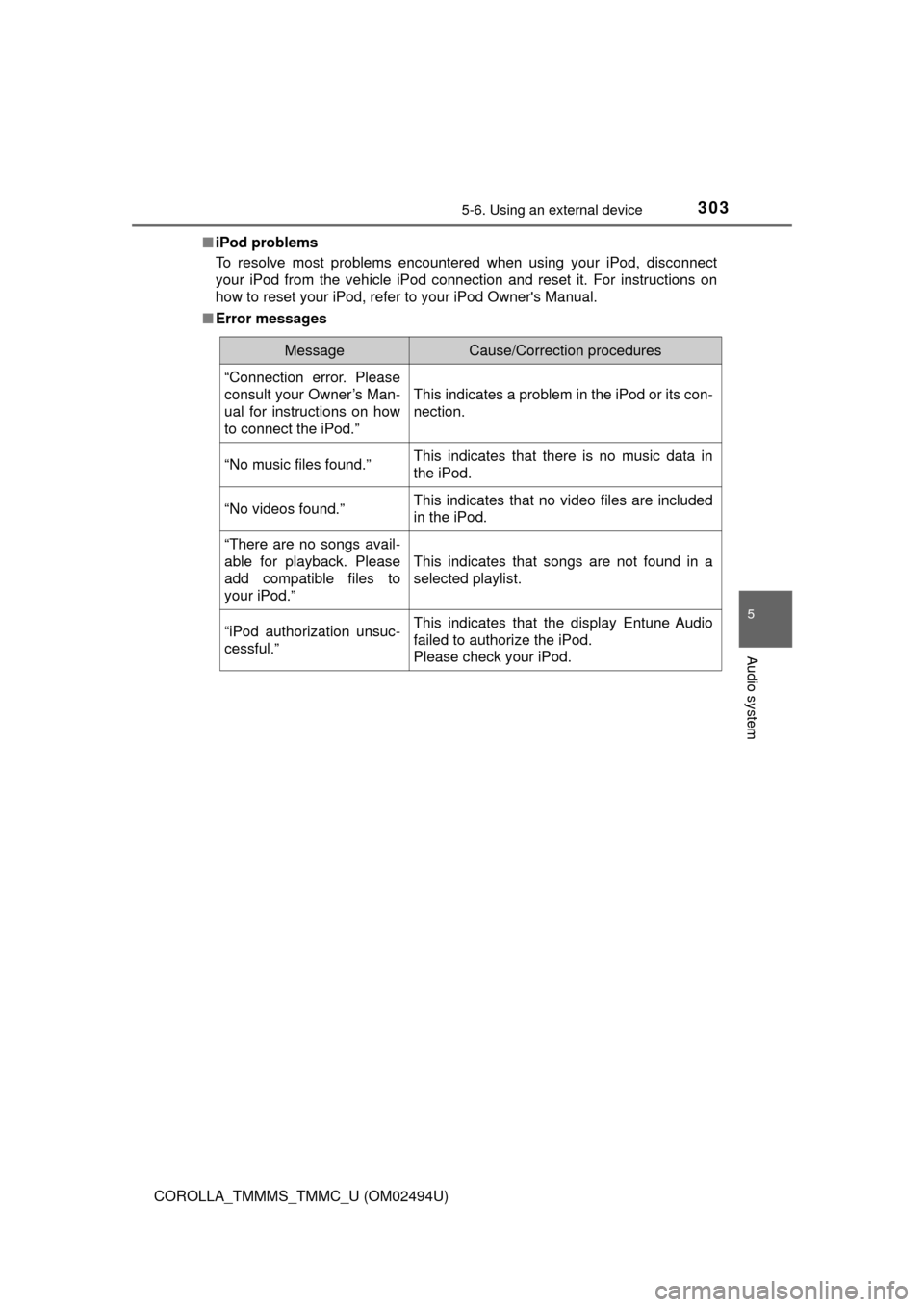
■Error messages
MessageCause/Correction procedures
“Connection error. Please
consult your Owner’s Man-
ual for instructions on how
to connect the iPod.”
This indicates a problem in the iPod or its con-
nection.
“No music files found.”This indicates that there is no music data in
the iPod.
“No videos found.”This indicates that no video files are included
in the iPod.
“There are no songs avail-
able for playback. Please
add compatible files to
your iPod.”
This indicates that songs are not found in a
selected playlist.
“iPod authorization unsuc-
cessful.”This indicates that the display Entune Audio
failed to authorize the iPod.
Please check your iPod.
Page 345 of 612
3455-9. Bluetooth® phone
5
Audio system
COROLLA_TMMMS_TMMC_U (OM02494U)
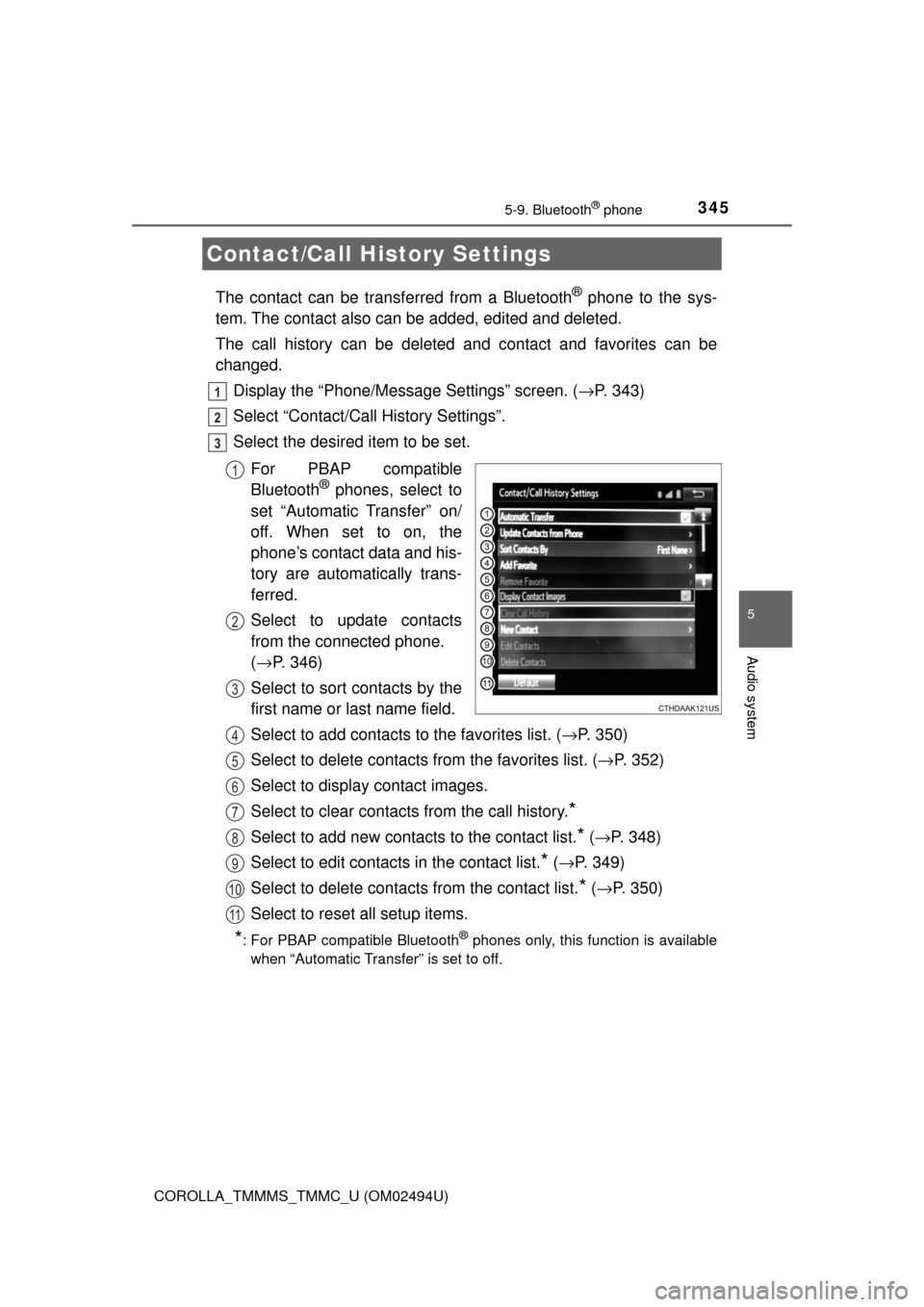
The contact can be transferred from a Bluetooth® phone to the sys-
tem. The contact also can be added, edited and deleted.
The call history can be deleted and contact and favorites can be
changed.
Display the “Phone/Message Settings” screen. (→P. 343)
Select “Contact/Call History Settings”.
Select the desired item to be set.
For PBAP compatible
Bluetooth
® phones, select to
set “Automatic Transfer” on/
off. When set to on, the
phone’s contact data and his-
tory are automatically trans-
ferred.
Select to update contacts
from the connected phone.
(→P. 346)
Select to sort contacts by the
first name or last name field.
Select to add contacts to the favorites list. (→P. 350)
Select to delete contacts from the favorites list. (→P. 352)
Select to display contact images.
Select to clear contacts from the call history.
*
Select to add new contacts to the contact list.* (→P. 348)
Select to edit contacts in the contact list.
* (→P. 349)
Select to delete contacts from the contact list.
* (→P. 350)
Select to reset all setup items.
*: For PBAP compatible Bluetooth® phones only, this function is available
when “Automatic Transfer” is set to off.
Contact/Call History Settings
1
2
3
1
2
3
4
5
6
7
8
9
10
11