Page 337 of 612
3375-9. Bluetooth® phone
5
Audio system
COROLLA_TMMMS_TMMC_U (OM02494U)
Press the “ ” button.
Select .
When an e-mail/SMS/MMS is received, the incoming message screen
pops up with sound and is ready to be operated on the screen.
Select to check the message.
Select to refuse the message.
Select to call the message
sender.
Bluetooth® phone message function
Received messages can be forwarded from the connected
Bluetooth® phone, enabling checking and replying using Entune
Audio.
Depending on the type of Bluetooth
® phone connected, received
messages may not be transferred to the message inbox.
If the phone does not support the message function, this func-
tion cannot be used.
Displaying message inbox screen
Receiving a message
1
2
1
2
3
Page 339 of 612
3395-9. Bluetooth® phone
5
Audio system
COROLLA_TMMMS_TMMC_U (OM02494U)
Display the message inbox screen. (→P. 337)
Select the desired message from the list.
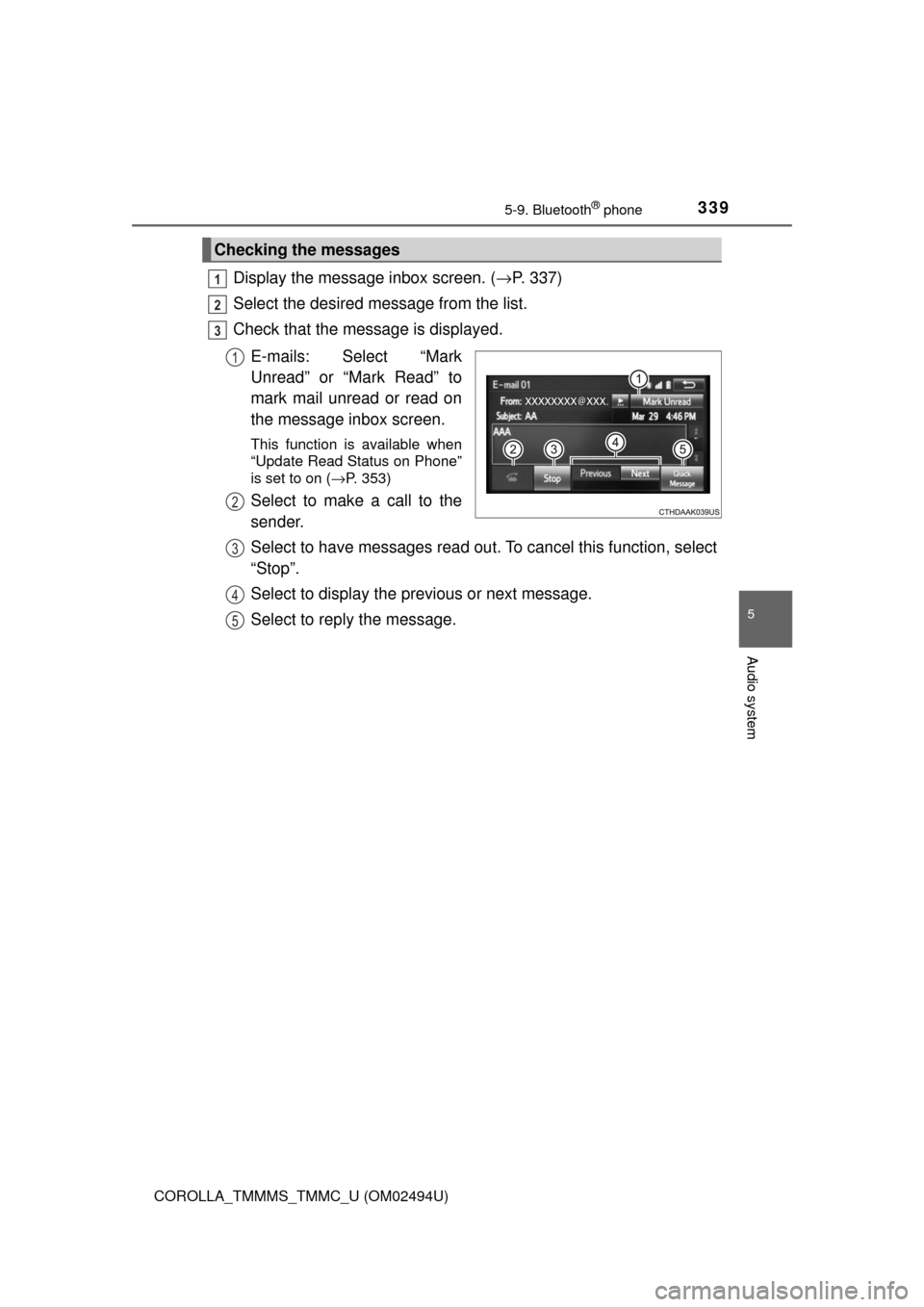
Check that the message is displayed.
E-mails: Select “Mark
Unread” or “Mark Read” to
mark mail unread or read on
the message inbox screen.
This function is available when
“Update Read Status on Phone”
is set to on (→P. 353)
Select to make a call to the
sender.
Select to have messages read out. To cancel this function, select
“Stop”.
Select to display the previous or next message.
Select to reply the message.
Checking the messages
1
2
3
1
2
3
4
5
Page 341 of 612
3415-9. Bluetooth® phone
5
Audio system
COROLLA_TMMMS_TMMC_U (OM02494U)
Calls can be made to an e-mail/SMS/MMS message sender's phone
number.
Display the message inbox screen. (→P. 337)
Select the desired message.
Select .
Check that the “Call” screen is displayed.
■Calling from a number within a message
Calls can be made to a number identified in a message's text area.
Display the message inbox screen. (→P. 337)
Select the desired message.
Select the text area.
Select corresponding to the desired number.
Check that the “Call” screen is displayed.
■Calling from the incoming message screen
→P. 335
Calling the message sender
1
2
3
4
1
2
3
4
5
Page 343 of 612
3435-9. Bluetooth® phone
5
Audio system
COROLLA_TMMMS_TMMC_U (OM02494U)
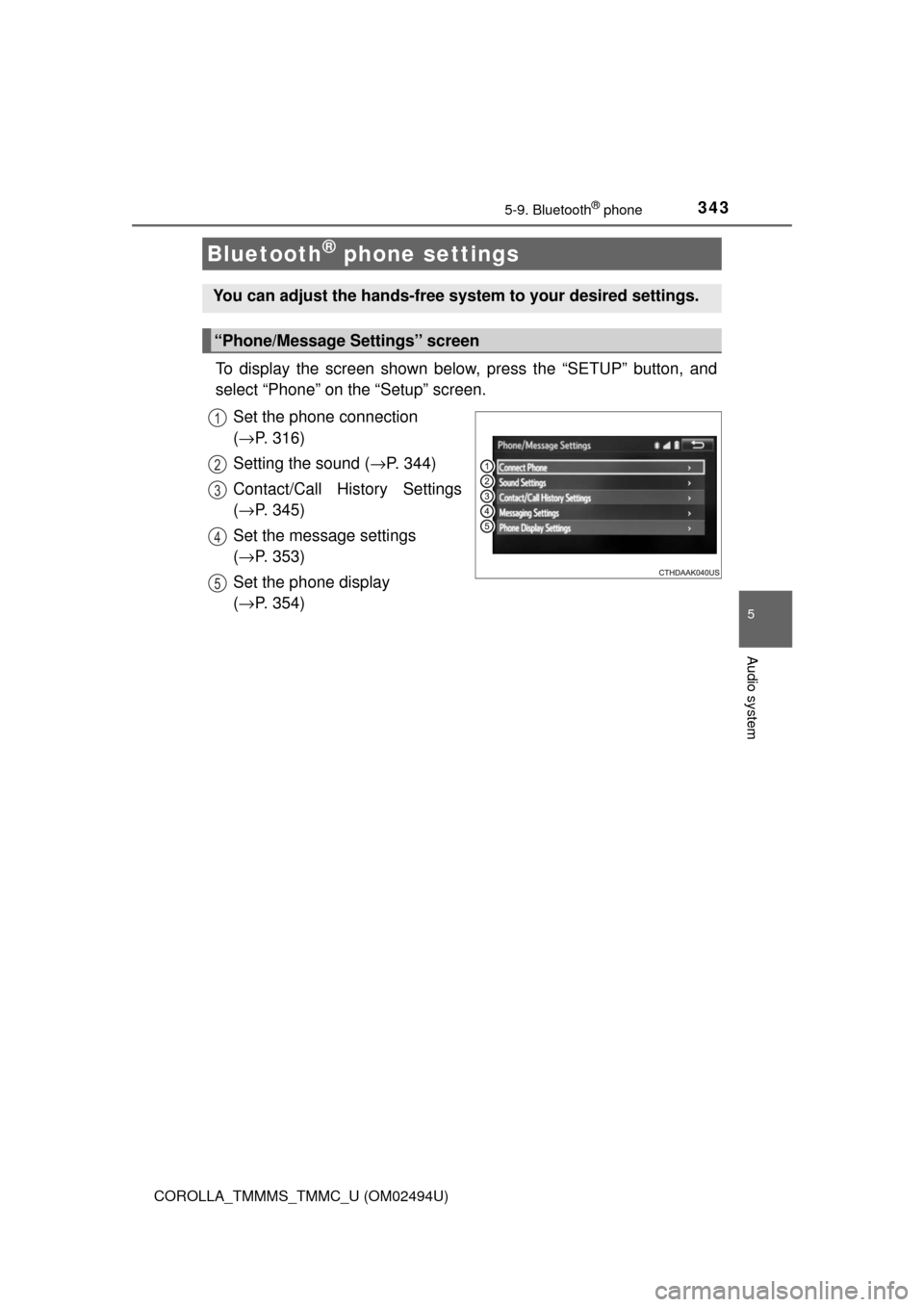
To display the screen shown below, press the “SETUP” button, and
select “Phone” on the “Setup” screen.
Set the phone connection
(→P. 316)
Setting the sound (→P. 344)
Contact/Call History Settings
(→P. 345)
Set the message settings
(→P. 353)
Set the phone display
(→P. 354)
Bluetooth® phone settings
You can adjust the hands-free system to your desired settings.
“Phone/Message Settings” screen
1
2
13
14
5
Page 345 of 612
3455-9. Bluetooth® phone
5
Audio system
COROLLA_TMMMS_TMMC_U (OM02494U)
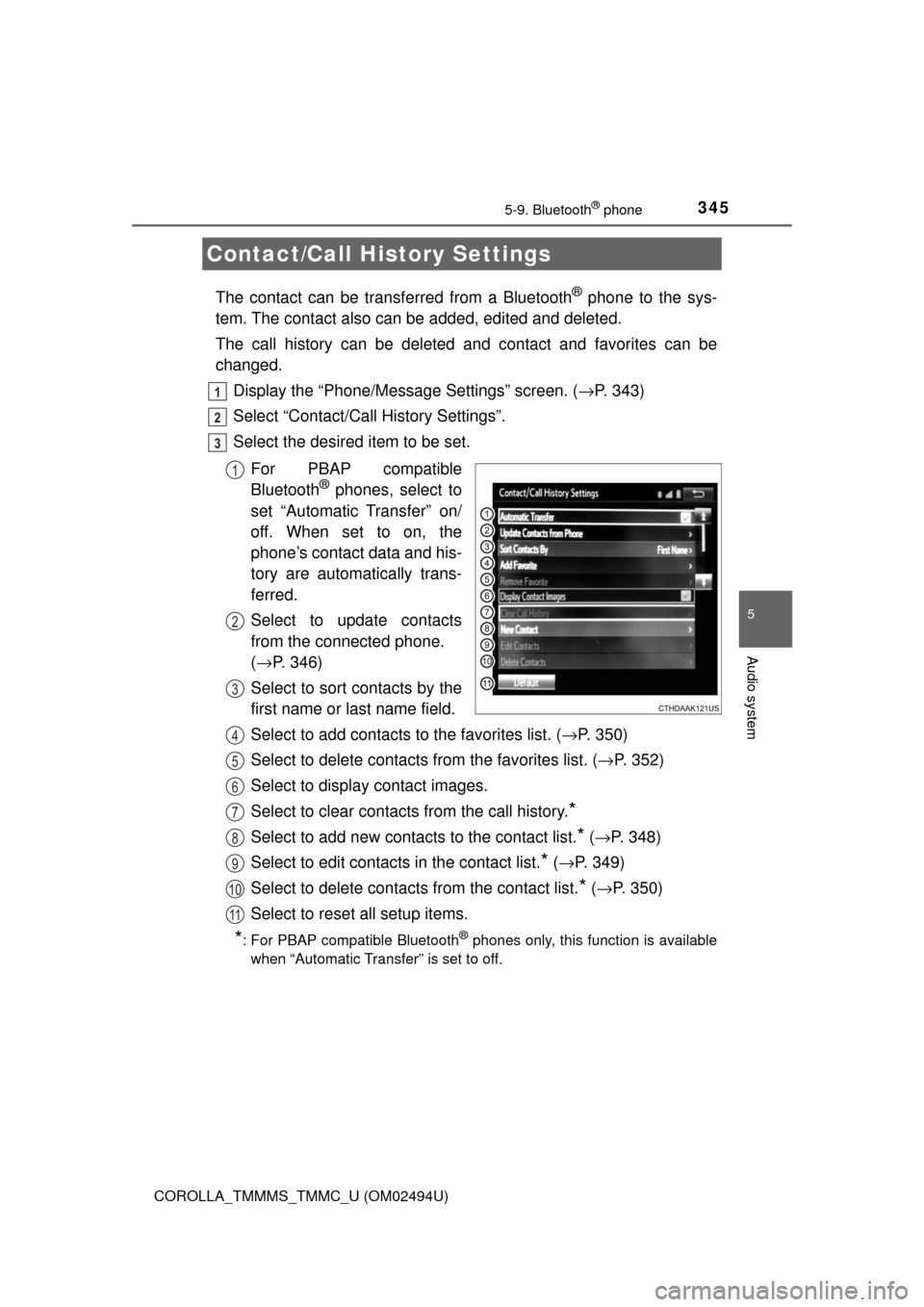
The contact can be transferred from a Bluetooth® phone to the sys-
tem. The contact also can be added, edited and deleted.
The call history can be deleted and contact and favorites can be
changed.
Display the “Phone/Message Settings” screen. (→P. 343)
Select “Contact/Call History Settings”.
Select the desired item to be set.
For PBAP compatible
Bluetooth
® phones, select to
set “Automatic Transfer” on/
off. When set to on, the
phone’s contact data and his-
tory are automatically trans-
ferred.
Select to update contacts
from the connected phone.
(→P. 346)
Select to sort contacts by the
first name or last name field.
Select to add contacts to the favorites list. (→P. 350)
Select to delete contacts from the favorites list. (→P. 352)
Select to display contact images.
Select to clear contacts from the call history.
*
Select to add new contacts to the contact list.* (→P. 348)
Select to edit contacts in the contact list.
* (→P. 349)
Select to delete contacts from the contact list.
* (→P. 350)
Select to reset all setup items.
*: For PBAP compatible Bluetooth® phones only, this function is available
when “Automatic Transfer” is set to off.
Contact/Call History Settings
1
2
3
1
2
3
4
5
6
7
8
9
10
11
Page 347 of 612
3475-9. Bluetooth® phone
5
Audio system
COROLLA_TMMMS_TMMC_U (OM02494U)■
For PBAP Incompatible but OPP compatible Bluetooth®
Phones
Select “Update Contacts from Phone”.
Transfer the contact data to the system using a Bluetooth
®
phone.
This operation may be unnecessary depending on the type of cellular
phone.
Depending on the type of cellular phone, OBEX authentication may be
required when transferring contact data. Enter “1234” into the
Bluetooth
® phone.
To cancel this function, select “Cancel”.
Select “Done” when it appears on the screen.
Check that a confirmation screen is displayed when the opera-
tion is complete.
■Updating the contacts in a different way (From the “Call His-
tory” screen)
For PBAP compatible Bluetooth
® phones, this function is available
when “Automatic Transfer” is set to off. (→P. 345)
Display the phone screen. (→P. 326)
Select the “Call History” tab and select a contact not yet regis-
tered in the contact list.
Select “Update Contact”.
Select the desired contact.
Select a phone type for the phone number.
1
2
3
4
1
2
3
4
5
Page 349 of 612
3495-9. Bluetooth® phone
5
Audio system
COROLLA_TMMMS_TMMC_U (OM02494U)
For PBAP compatible Bluetooth® phones, this function is available
when “Automatic Transfer” is set to off. (→P. 345)
Select “Edit Contact”.
Select the desired contact.
Select corresponding to the desired name or number.
For editing the name
Follow the steps in “Registering a new contact to the contacts list”
from step . (→P. 348)
For editing the number
Follow the steps in “Registering a new contact to the contacts list”
from step . (→P. 348)
■Editing the contacts in a different way (From the “Contact
Details” screen)
Display the phone screen. (→P. 326)
Select the “Contacts”, “Call History” tab or the “Favorites” tab and
select the desired contact.
Select “Edit Contact”.
“E-mail Addresses”: Select to display all registered e-mail addresses for
the contact.
Follow the steps in “Editing the contact data” from step .
(→P. 349)
Editing the contact data
1
2
3
4
3
4
4
1
2
3
44
Page 351 of 612
3515-9. Bluetooth® phone
5
Audio system
COROLLA_TMMMS_TMMC_U (OM02494U)
When 15 contacts have already been registered to the favorites list
When 15 contacts have already been registered to the favorites
list, a registered contact needs to be replaced.
Select “Yes” when the confirmation screen appears to replace a
contact.
Select the contact to be replaced.
Check that a confirmation screen is displayed when the opera-
tion is complete.
Registering contacts in the favorites list in a different way (from the
“Contacts” screen)
Display the phone screen. (→P. 326)
Select the “Contacts” tab.
Select at the beginning of the desired contact list name to be
registered in the favorites list.
When selected, is changed to , and the contact is registered in
the favorites list.
Registering contacts in the favorites list in a different way (from the
“Contact Details” screen)
Display the phone screen. (→P. 326)
Select the “Contacts” tab or the “Call History” tab and select the
desired contact.
Select “Add Favorite”.
Check that a confirmation screen is displayed when the opera-
tion is complete.
1
2
3
1
2
3
1
2
3
4