Page 190 of 300
190
2. SETUP
COROLLA_Navi_U_OM02496U
?REGISTERING A NEW CONTACT IN
A DIFFERENT WAY (FROM THE
“Call History” SCREEN)
1Display the phone top screen.
(→P.170)
2Select the “Call History” tab and se-
lect a contact not yet registered in the
contact list.
3Select “Add to Contacts” .
4Follow the steps in “REGISTERING A
NEW CONTACT TO THE CONTACT
LIST” from “STEP 2”. ( →P.189)
1Select “Edit Contacts” .
2Select the desired contact.
3Select corresponding to the de-
sired name or number.
For editing the name
4Follow the steps in “REGISTERING A
NEW CONTACT TO THE CONTACT
LIST” from “STEP 2”. ( →P.189)
For editing the number
4Follow the steps in “REGISTERING A
NEW CONTACT TO THE CONTACT
LIST” from “STEP 3”. ( →P.189)
EDITING THE CONTACT DATA
For PBAP compatible Bluetooth
®
phones, this function is available when
“Automatic Transfer” is set to off.
( →P.187)
Page 191 of 300
191
2. SETUP
COROLLA_Navi_U_OM02496U
PHONE
7
?EDITING THE CONTACT IN A DIF-
FERENT WAY (FROM THE “Contact
Details” SCREEN)
1Display the phone top screen.
(→P.170)
2Select the “Contacts” ,“Call History”
tab or the “Favorites” tab and select
the desired contact.
3Select “Edit Contact” .
“E-mail Addresses” : Select to display all
registered e-mail addresses for the con-
tact.
4Follow the steps in “EDITING THE
CONTACT DATA” from “STEP 3”.
(→P.190)
1Select “Delete Contacts” .
2Select the desired contact and select
“Delete”.
3Select“Yes” when the confirmation
screen appears.
DELETING THE CONTACT
DATA
For PBAP compatible Bluetooth
®
phones, this function is available when
“Automatic Transfer” is set to off.
( → P.187)
INFORMATION
?Multiple data can be selected and
deleted at the same time.
Page 192 of 300
192
2. SETUP
COROLLA_Navi_U_OM02496U
?DELETING THE CONTACT IN A DIF-
FERENT WAY (FROM THE “Contact
Details” SCREEN)
1Display the phone top screen.
(→P.170)
2Select the “Contacts” ,“Call History”
tab or the “Favorites” tab and select
the desired contact.
3Select “Delete Contact” .
4Select“Yes” when the confirmation
screen appears.
?REGISTERING THE CONTACTS IN
THE FAVORITES LIST
1Select “Add Favorite” .
2Select the desired contact to add to the
favorites list.
Dimmed contacts are already stored as a
favorite.
3Check that a confirmation screen is
displayed when the operation is com-
plete.
INFORMATION
?When a Bluetooth® phone is deleted,
the contact data will be deleted at the
same time.
FAVORITES LIST SETTING
Up to 15 contacts (maximum of 4 num-
bers per contact) can be registered in
the favorites list.
Page 197 of 300
197
COROLLA_Navi_U_OM02496U
PHONE
7
3. WHAT TO DO IF...
1. TROUBLESHOOTING
When using the hands-free system with a Bluetooth® device
If there is a problem with the hands-free system or a Bluetooth® device, first check
the table below.
SymptomLikely causeSolution
Page
Cellular
phoneThis
system
The hands-free sys-
tem or Bluetooth®
device does not
work.
The connected de-
vice may not be a
compatible
Bluetooth
® cellular
phone.
For a list of specific
devices which
operation has been
confirmed on this
system, check with
your Toyota dealer or
the following
website:
http://
www.toyota.com/entune/
∗⎯
The Bluetooth® ver-
sion of the connected
cellular phone may
be older than the
specified version.Use a cellular phone
with Bluetooth® ver-
sion 2.0 or higher
(recommended: Ver.
3.0 +EDR or higher).∗48
Page 199 of 300
199
3. WHAT TO DO IF...
COROLLA_Navi_U_OM02496U
PHONE
7
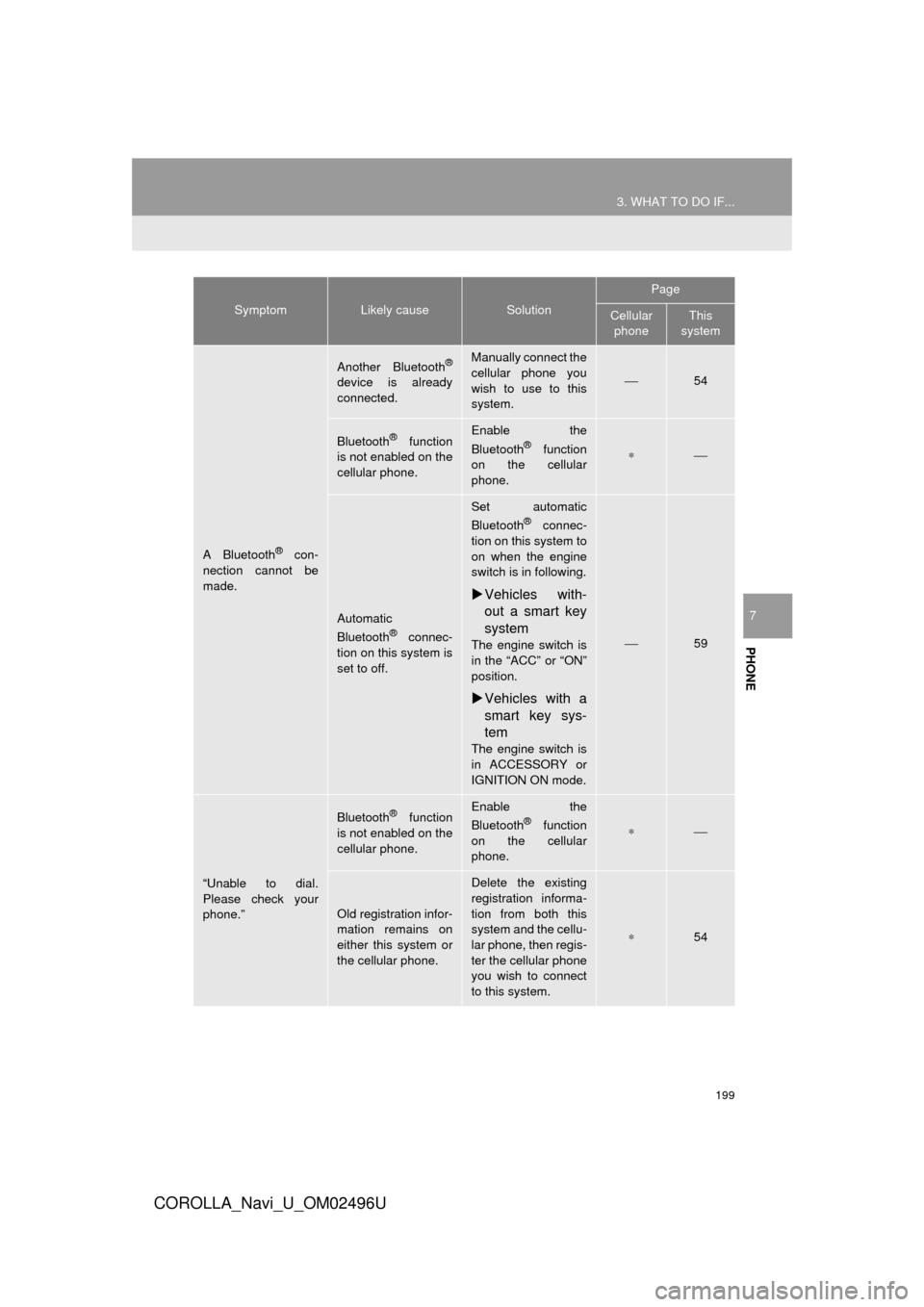
A Bluetooth® con-
nection cannot be
made.
Another Bluetooth®
device is already
connected.
Manually connect the
cellular phone you
wish to use to this
system.
⎯54
Bluetooth® function
is not enabled on the
cellular phone.Enable the
Bluetooth® function
on the cellular
phone.∗⎯
Automatic
Bluetooth® connec-
tion on this system is
set to off.
Set automatic
Bluetooth® connec-
tion on this system to
on when the engine
switch is in following.
Vehicles with-
out a smart key
system
The engine switch is
in the “ACC” or “ON”
position.
Vehicles with a
smart key sys-
tem
The engine switch is
in ACCESSORY or
IGNITION ON mode.
⎯59
“Unable to dial.
Please check your
phone.”
Bluetooth® function
is not enabled on the
cellular phone.Enable the
Bluetooth® function
on the cellular
phone.∗⎯
Old registration infor-
mation remains on
either this system or
the cellular phone.
Delete the existing
registration informa-
tion from both this
system and the cellu-
lar phone, then regis-
ter the cellular phone
you wish to connect
to this system.
∗54
SymptomLikely causeSolution
Page
Cellular phoneThis
system
Page 201 of 300
201
3. WHAT TO DO IF...
COROLLA_Navi_U_OM02496U
PHONE
7
When using the Bluetooth® message function
SymptomLikely causeSolution
Page
Cellular
phoneThis
system
Messages cannot be
viewed.
Message transfer is
not enabled on the
cellular phone.
Enable message
transfer on the cellu-
lar phone (approve
message transfer on
the phone).
∗⎯
Automatic transfer
function on this sys-
tem is set to off.Set automatic trans-
fer function on this
system to on.
⎯195
New message notifi-
cations are not dis-
played.
Notification of SMS/
MMS/E-mail recep-
tion on this system is
set to off.Set notification of
SMS/MMS/E-mail
reception on this sys-
tem to on.
∗195
Automatic message
transfer function is
not enabled on the
cellular phone.Enable automatic
transfer function on
the cellular phone.
∗⎯
Page 202 of 300
202
3. WHAT TO DO IF...
COROLLA_Navi_U_OM02496U
In other situations
SymptomLikely causeSolution
Page
Cellular
phoneThis
system
The Bluetooth® con-
nection status is dis-
played at the top of
the screen each time
the engine switch is
in following.
Vehicles with-
out a smart key
system
The engine switch is
in the “ACC” or “ON”
position.
Vehicles with a
smart key sys-
tem
The engine switch is
in ACCESSORY or
IGNITION ON mode.
Connection confir-
mation display on
this system is set to
on.To turn off the dis-
play, set connection
confirmation display
on this system to off.
⎯58
Page 203 of 300
203
3. WHAT TO DO IF...
COROLLA_Navi_U_OM02496U
PHONE
7
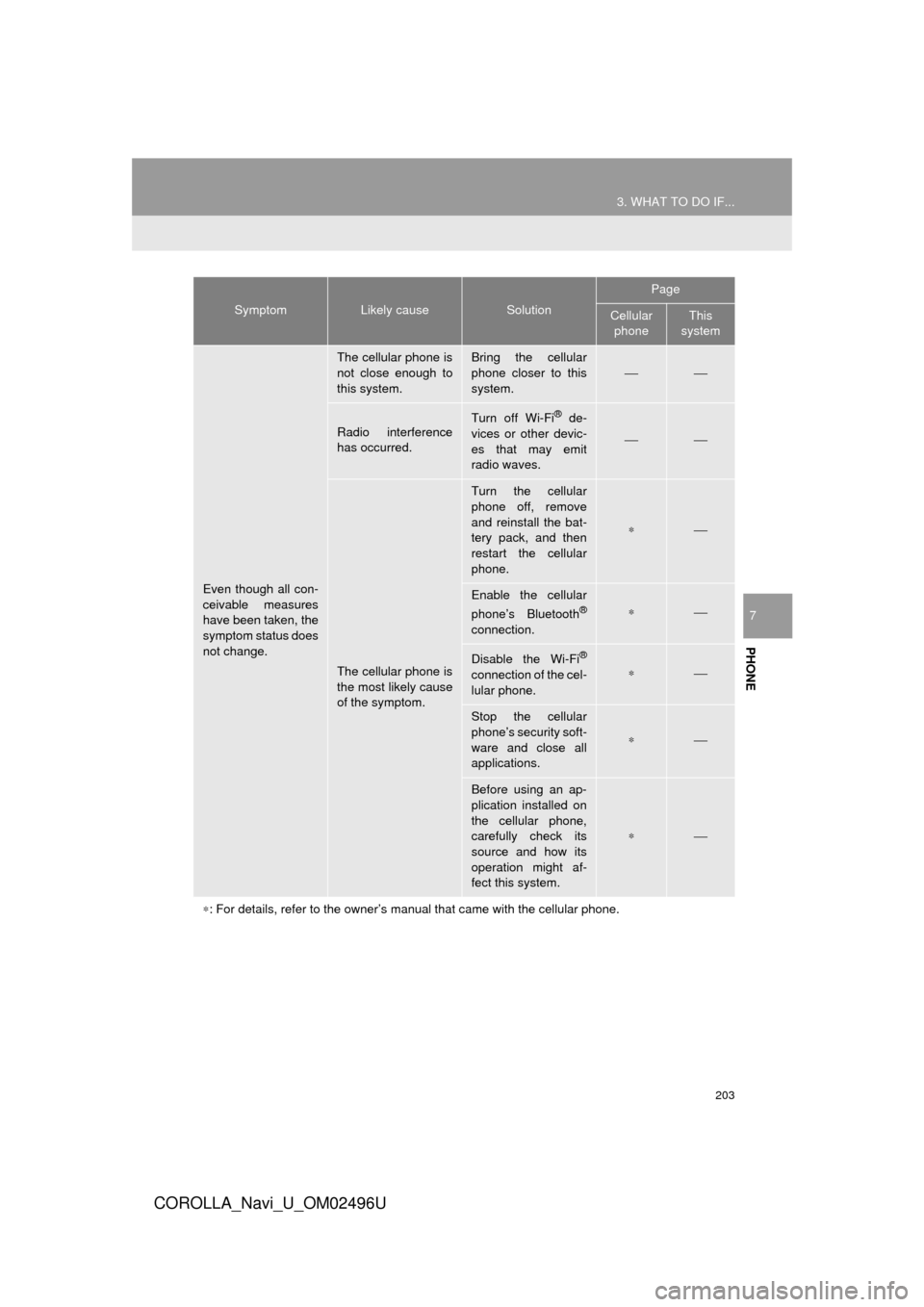
Even though all con-
ceivable measures
have been taken, the
symptom status does
not change.
The cellular phone is
not close enough to
this system.Bring the cellular
phone closer to this
system.⎯⎯
Radio interference
has occurred.Turn off Wi-Fi® de-
vices or other devic-
es that may emit
radio waves.
⎯⎯
The cellular phone is
the most likely cause
of the symptom.
Turn the cellular
phone off, remove
and reinstall the bat-
tery pack, and then
restart the cellular
phone.
∗⎯
Enable the cellular
phone’s Bluetooth®
connection.
∗⎯
Disable the Wi-Fi®
connection of the cel-
lular phone.∗⎯
Stop the cellular
phone’s security soft-
ware and close all
applications.
∗⎯
Before using an ap-
plication installed on
the cellular phone,
carefully check its
source and how its
operation might af-
fect this system.
∗⎯
∗ : For details, refer to the owner’s manual that came with the cellular phone.
SymptomLikely causeSolution
Page
Cellular
phoneThis
system


