Page 219 of 568

2194-5. Using the driving support systems
4
Driving
CAMRY_U (OM33C64U)
◆Pre-collision warning
When a high possibility of a
frontal collision is detected, a
buzzer sounds and a message
is shown on the multi-informa-
tion display to urge the driver to
take evasive action.
◆Pre-collision brake assist
When there is a high possibility of a frontal collision, the system
applies greater braking force in relation to how strongly the brake
pedal is depressed.
◆Pre-collision braking
When there is a high possibility of a frontal collision, the system
warns the driver using warning display and buzzer. If the system
determines that a collis ion is unavoidable, the brakes are automati-
cally applied to reduc e the collision speed.
PCS (Pre-Collision System)
: If equipped
When the radar sensor detects possibility of a frontal collision,
brakes are automatically engaged to lessen impact as well as
vehicle damage.
The alert timing for the pre-co llision system can be changed or
turned on/off, as necessary, by operating the switch. (P. 220)
Page 220 of 568
2204-5. Using the driving support systems
CAMRY_U (OM33C64U)■
Changing the alert timing of the pre-collision system
Each time the PCS switch is
pressed, the response to the
distance changes as follows.
Far
Middle
*
Near
*: Default setting
■
Turning off the pre-collision system
Press the PCS switch for 3 or
more seconds.
The PCS warning light turns on
and a message is shown on the
multi-information display.
To turn on the system, press the
PCS switch again. The system
is set to on each time the engine
switch is turned to IGNITION
ON mode.
The radar sensor detects vehi-
cles or other obstacles on or near
the road ahead and determines
whether a collision is imminent
based on the position, speed, and
heading of the obstacles.
Changing the pre-collision system
1
2
3
Radar sensor
Page 222 of 568

2224-5. Using the driving support systems
CAMRY_U (OM33C64U)■
Obstacles not detected
The sensor cannot detect plastic obstacles such as traffic cones. There may
also be occasions when the sensor cannot detect pedestrians, animals, bicy-
cles, motorcycles, trees, or snowdrifts.
■ Situations in which the pre-collis ion system does not function properly
The system may not function effectively in situations such as the following:
● On roads with sharp bends or uneven surfaces
● If a vehicle suddenly moves in front of your vehicle, such as at an intersec-
tion
● If a vehicle suddenly cuts in front of your vehicle, such as when overtaking
● In inclement weather such as heavy rain, fog, snow or sand storms
● When your vehicle is skidding with the VSC system off
● When an extreme change in vehicle height occurs
● When the radar sensor moves off position due to its surrounding area being
subjected to a strong impact
● Due to greatly turning the wheel when an obstacle suddenly appears ahead
■ Automatic cancelation of the pre-collision system
When a malfunction occurs due to sensor contamination, etc. that results in
the sensors being unable to detect obstacles, the pre-collision system will be
automatically disabled. In this case, the system will not activate even if there
is a collision possibility.
■ When there is a malfunction in the system, or if the system is temporar-
ily unavailable
The PCS warning light flashes and a warning message is shown on the multi-
information display. If a warning message is shown on the multi-information
display, read the message and follow the instructions. ( P. 447, 458)
■ When the TRAC and VSC are turned off
●When the TRAC and VSC operations are turned off ( P. 216), the pre-colli-
sion brake assist and pre-collision braking are also turned off. However, the
alert function operates.
● The PCS warning light turns on and a warning message is shown on the
multi-information display. ( P. 447, 462)
Page 227 of 568

2274-5. Using the driving support systems
4
Driving
CAMRY_U (OM33C64U)
■The outside rear view mirror indicators visibility
When under strong sunlight, the outside rear view mirror indicator may be dif-
ficult to see.
■ Rear Cross Traffic Alert buzzer hearing
Rear Cross Traffic Alert function may be difficult to hear over loud noises
such as high audio volume.
■ When there is a malfunction in the Blind Spot Monitor
If a system malfunction is detected due to any of the following reasons,\
warn-
ing message will be displayed: ( P. 457, 458)
● There is a malfunction with the sensors
● The sensors have become dirty
● The outside temperature is extremely high or low
● The sensor voltage has become abnormal
■ Certification for the Blind Spot Monitor
For vehicles sold in the U.S.A.
FCC ID: OAYSRR2A
This device complies with part 15 of the FCC Rules. Operation is subject to
the following two conditions:
(1)This device may not cause harmful interference.
(2)This device must accept any interference received, including interference that may cause undesired operation.
FCC WARNING
Changes or modifications not expressly approved by the party responsible for
compliance could void the user’s authority to operate the equipment.
For vehicles sold in Canada
Applicable law: Canada 310
This device complies with Industry Canada licence-exempt RSS standard(s).
Operation is subject to the following two conditions:
(1)this device may not cause interference, and
(2)this device must accept any interference, including interference that may cause undesired operation of the device.
Frequency bands: 24.05-24.25 GHz
Output power: less than 20 milliwatts
Rear Cross Traffic Alert buzzer (Rear Cross Traffic Alert function
only)
When a vehicle approaching from the right or left rear of the vehicle is
detected, a buzzer sounds from behind the rear seat.
3
Page 238 of 568
238
CAMRY_U (OM33C64U)5-1. Basic Operations
Audio system types ........... 240
Audio system .................... 242
Steering wheel audio switches .......................... 244
USB port/AUX port ............ 245
Basic audio operations...... 247
5-2. Setup Setup menu....................... 249
General settings ................ 250
Audio settings ................... 252
Display settings ................. 253
Voice settings.................... 254
5-3. Using the Multimedia system
Selecting the audio source ............................. 255
List screen operation......... 256
Optimal use of the multimedia system .......... 258
5-4. Using the radio Radio operation................. 259
5-5. Playing an audio CD and MP3/WMA/AAC discs
CD player operation .......... 261
5Audio system
Page 239 of 568
239
5Audio system
CAMRY_U (OM33C64U)5-6. Using an external
device
Listening to an iPod .......... 267
Listening to a USB memory device................ 271
Using the AUX port ........... 275
5-7. Connecting Bluetooth
®
Preparations to use wireless
communication ................ 276
Registering a Bluetooth
®
audio player for
the first time .................... 280
Registering a Bluetooth
®
phone for the
first time .......................... 281
Registering a Bluetooth
®
device.............................. 282
Connecting a Bluetooth
®
device.............................. 284
Displaying a Bluetooth
®
device details .................. 286
Detailed Bluetooth
®
system settings ............... 287 5-8. Bluetooth
® Audio
Listening to Bluetooth®
Audio............................... 288
5-9. Bluetooth
® phone
Using a Bluetooth®
Phone ............................. 289
Making a call ..................... 291
Receiving a call ................. 294
Speaking on the phone ..... 295
Bluetooth
® phone
message function ............ 298
Using the steering wheel switches ................ 301
Bluetooth
® phone
settings ........................... 302
Contact/Call History Settings ........................... 303
What to do if... (Troubleshooting) ............ 311
5-10. Bluetooth
®
Bluetooth®......................... 315
5-11. Using the voice command system
Voice command system ............................ 320
Page 242 of 568
2425-1. Basic Operations
CAMRY_U (OM33C64U)
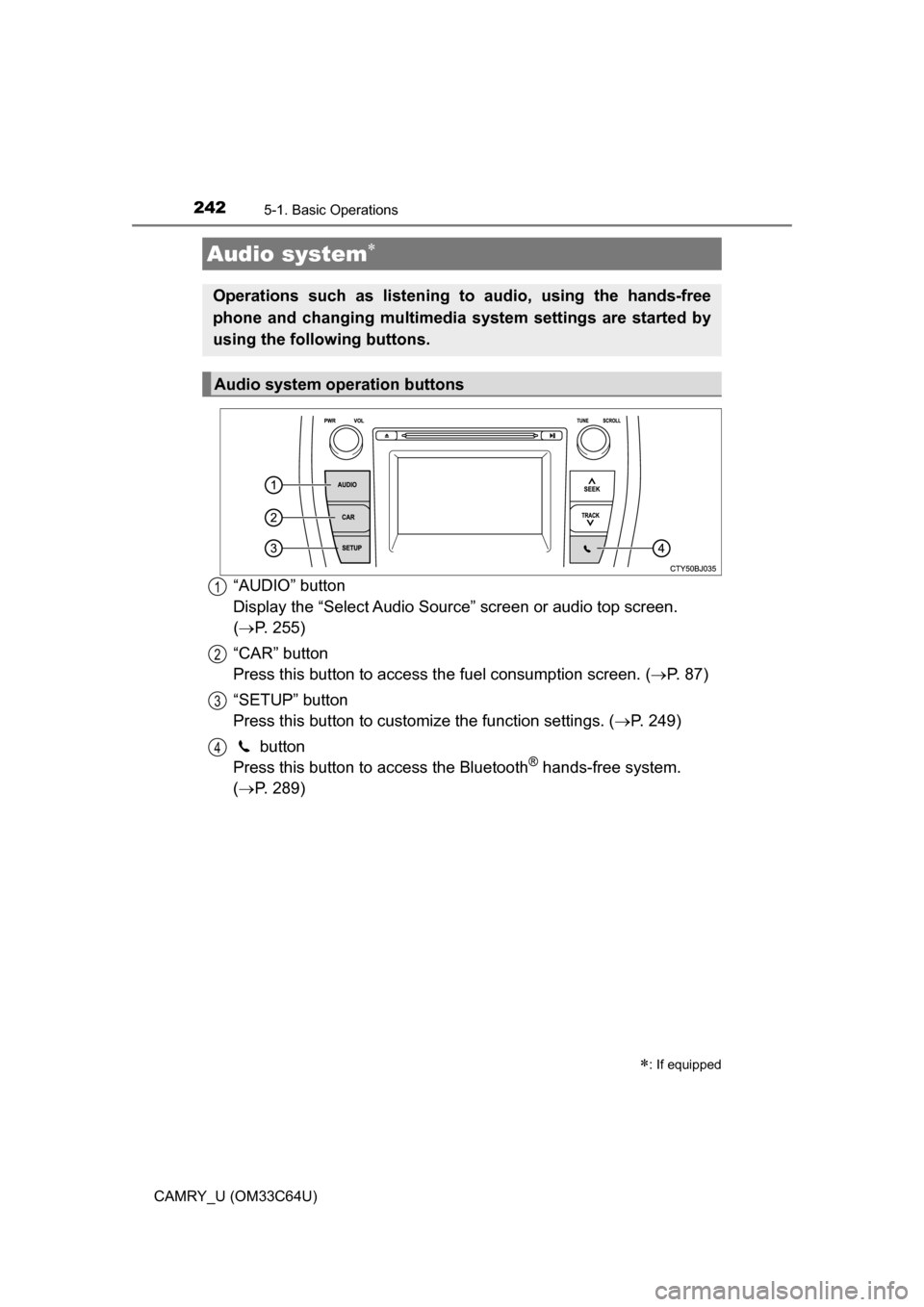
“AUDIO” button
Display the “Select Audio Source” screen or audio top screen.
( P. 255)
“CAR” button
Press this button to access the fuel consumption screen. ( P. 87)
“SETUP” button
Press this button to customize the function settings. ( P. 249)
button
Press this button to access the Bluetooth
® hands-free system.
( P. 289)
Audio system
: If equipped
Operations such as listening to audio, using the hands-free
phone and changing multimedia system settings are started by
using the following buttons.
Audio system operation buttons
1
2
3
4
Page 243 of 568
2435-1. Basic Operations
5
Audio system
CAMRY_U (OM33C64U)
By touching the screen with your finger, you can control the multime-
dia system, etc.
■Drag*
Touch the screen with your finger, and move the screen to the
desired position.
● Scrolling the lists
■Flick*
Touch the screen with your finger and quickly move the screen by
flicking your finger.
●Scrolling the main screen page
*: The above operations may not be performed on all screens.
■When using the touch screen
●If the screen is cold, the display may be dark, or the system may seem to be
operating slightly slower than normal.
● The screen may seem dark and hard to see when viewed through sun-
glasses. Change your angle of viewing, adjust the display on the “Display
Settings” screen ( P. 253) or remove your sunglasses.
● Flick operations may not be performed smoothly in high altitudes.
Operating the touch screen
NOTICE
■To avoid damaging the touch screen
● To prevent damaging the screen, lightly touch the screen buttons with your
finger.
● Do not use objects other than your finger to touch the screen.
● Wipe off fingerprints using a glass cleaning cloth. Do not use chemical
cleaners to clean the screen, as they may damage the touch screen.