Page 164 of 568

1644-2. Driving procedures
CAMRY_U (OM33C64U)
Right turn
Lane change to the right (move
the lever partway and release
it)
The right hand signals will flash 3
times.
Lane change to the left (move
the lever partway and release
it)
The left hand signals will flash 3
times.
Left turn
■Turn signals can be operated when
Vehicles without a smart key system:
The engine switch is in the “ON” position.
Vehicles with a smart key system:
The engine switch is in IGNITION ON mode.
■ If the indicator flashes faster than usual
Check that a light bulb in the front or rear turn signal lights has not burned
out.
■ If the turn signals stop flashing before a lane change has been per-
formed
Operate the lever again.
■ To discontinue flashing of the turn signals during a lane change
Operate the lever in the opposite direction.
■ Customization
The number of times the turn signals flash during a lane change can be
changed. (Customizable features P. 529)
Turn signal lever
Operating instructions
1
2
3
4
Page 172 of 568

1724-3. Operating the lights and wipers
CAMRY_U (OM33C64U)
■The Automatic High Beam can be operated when
The engine switch is in IGNITION ON mode.
■ Camera sensor detection information
●High beam may not be automatically turned off in the following situations:
• When oncoming vehicles suddenly appear from a curve
• When the vehicle is cut in front of by another
• When oncoming or preceding vehicles are hidden from sight due to
repeated curves, road dividers or roadside trees
• When oncoming vehicles appear from the faraway lane on wide road
• When oncoming or preceding vehicles have no lights
● High beam may be turned off if an oncoming vehicle that is using fog lights
without using the headlights is detected.
● House lights, street lights, red traf fic signals, and illuminated billboards or
signs may cause the high beam to turn off.
● The following factors may affect the amount of time taken to turn high beam
on or off:
• The brightness of headlights, fog lights, and tail lights of oncoming and
preceding vehicles
• The movement and direction of oncoming and preceding vehicles
• When a oncoming or preceding vehicle only has operational lights on one side
• When a oncoming or preceding vehicle is a two-wheeled vehicle
• The condition of the road (gradient, curve, condition of the road surface
etc.)
• The number of passengers and amount of luggage
● High beam may be turned on or off when unexpected by the driver.
Page 201 of 568

2014-5. Using the driving support systems
4
Driving
CAMRY_U (OM33C64U)
■Temporary cancelation of the LDA system functions
If any of the following occurs, the LDA system functions will be temporarily
canceled. The functions will resume after the necessary operating conditions
have returned.
●The turn signal lever is operated.
● The vehicle speed deviates from the operating range of the LDA system
functions.
● When the lane lines cannot be recognized while driving.
● When the lane departure warning function is activated.
The lane departure warning function will not operate again for a several sec-
onds after it has been activated, even if the vehicle leaves the lane again.
■ The lane departure warning
Depending on the audio system sound level or air conditioning fan noise
while the audio system or air conditioning system is in use, it may be difficult
to hear the warning sound.
■ After the vehicle has been parked in the sun
The LDA system may not be available and a warning message ( P. 457) will
be displayed for a while after driving has started. When the temperature in the
cabin decreases and the temperature around the camera sensor ( P. 199)
becomes suitable for its operation, the functions will begin to operate.
■ If there are lane markers on only one side of the vehicle
The lane departure warning will not operate for the side on which lane mark-
ers could not be recognized.
Page 226 of 568

2264-5. Using the driving support systems
CAMRY_U (OM33C64U)
The Blind Spot Monitor is a system that has 2 functions;
● The Blind Spot Monitor function
Assists the driver in making t he decision when changing lanes
● The Rear Cross Traffic Alert function
Assists the driver when backing up
These functions use same sensors.
BSM (Blind Spot Monitor)
: If equipped
Summary of the Blind Spot Monitor
BSM main switch
Pressing the switch turns the system on or off. When the switch is set to
on, the switch’s indicator illuminates and the buzzer sounds. Common
switch for Blind Spot Monitor functi on and Rear Cross Traffic Alert func-
tion.
Outside rear view mirror indicators
Blind Spot Monitor function:
When a vehicle is detected in the bli nd spot, the outside rear view mirror
indicator comes on while the turn signal lever is not operated and the out-
side rear view mirror indicator flashes while the turn signal lever is oper-
ated.
Rear Cross Traffic Alert function:
When a vehicle approaching from the right or left rear of the vehicle is
detected, the outside rear view mirror indicators flash.
1
2
Page 260 of 568
2605-4. Using the radio
CAMRY_U (OM33C64U)
Search for desired stations by turning the “TUNE/SCROLL” knob or
pressing the “ ” or “ ” button on “SEEK/TRACK”.
Select “(add new)”.
To change the preset station to a different one, select and hold the preset
station.
Select “Yes”.
Select “OK” after setting the new preset station.
■Refreshing the station list Select “Refresh” on the “Station List” screen.
To cancel the refresh, select “Cancel Refresh”.
■Reception sensitivity
●Maintaining perfect radio reception at all times is difficult due to the continu-
ally changing position of the antenna, differences in signal strength and sur-
rounding objects, such as trains, transmitters, etc.
● The radio antenna is mounted inside the rear window. To maintain clear
radio reception, do not attach metallic window tinting or other metallic
objects to the antenna wire mounted inside the rear window.
Setting station presets
1
2
3
4
1
Page 285 of 568
2855-7. Connecting Bluetooth®
5
Audio system
CAMRY_U (OM33C64U)
When auto connection has failed or “Bluetooth* Power” is turned off,
you must connect the Bluetooth® device manually.
Follow the steps in “Connecting a Bluetooth
® device” from step .
( P. 284)
*: Bluetooth is a registered trademark of Bluetooth SIG, Inc.
Registering an additional device
Select “Select Device” on the Bluetooth
® audio control screen.
For more information: P. 2 8 2
Selecting a registered device
Select “Select Device” on the Bluetooth
® audio control screen.
For more information: P. 2 8 4
■Reconnecting a Bluetooth® phone
If the system cannot connect due to poor signal strength with the engine
switch in the “ACC” or “ON” position (vehicles without a smart key system) or
ACCESSORY or IGNITION ON mode (vehicles with a smart key system), the
system will automatically attempt to reconnect.
If the system is attempting to connect to a Bluetooth
® phone and the
Bluetooth® phone is turned off and then back on, the system will attempt to
reconnect.
Manual connection
Connecting a Bluetooth® audio player
11
1
2
1
2
Page 288 of 568

288
CAMRY_U (OM33C64U)
5-8.Bluetooth® Audio
You can check such indicators as signal strength and battery charge
on the screen.
Connection status
Battery charge
Select or to Play/Pause.
For details on “Bluetooth
* Audio” screen operation methods, refer to
Basic Audio Operations. ( P. 247)
For details on how to select a track or album, refer to selecting, fast-
forwarding and reversing tracks/files/songs. ( P. 257)
*: Bluetooth is a registered trademark of Bluetooth SIG, Inc.
Listening to Bluetooth® Audio
The Bluetooth® audio system enables the user to enjoy music
played on a portable player from the vehicle speakers via wire-
less communication.
When a Bluetooth
® device cannot be connected, check the connec-
tion status on the “Bl uetooth* Audio” screen. If the device is not con-
nected, either register or reconnect the device. ( P. 284)
*: Bluetooth is a registered trademark of Bluetooth SIG, Inc.
Status display
1
2
IndicatorsConditions
Connection statusGood Not connected
Battery chargeFull Empty
Playing Bluetooth® audio
Page 289 of 568
289
5
Audio system
CAMRY_U (OM33C64U)
5-9.Bluetooth® phone
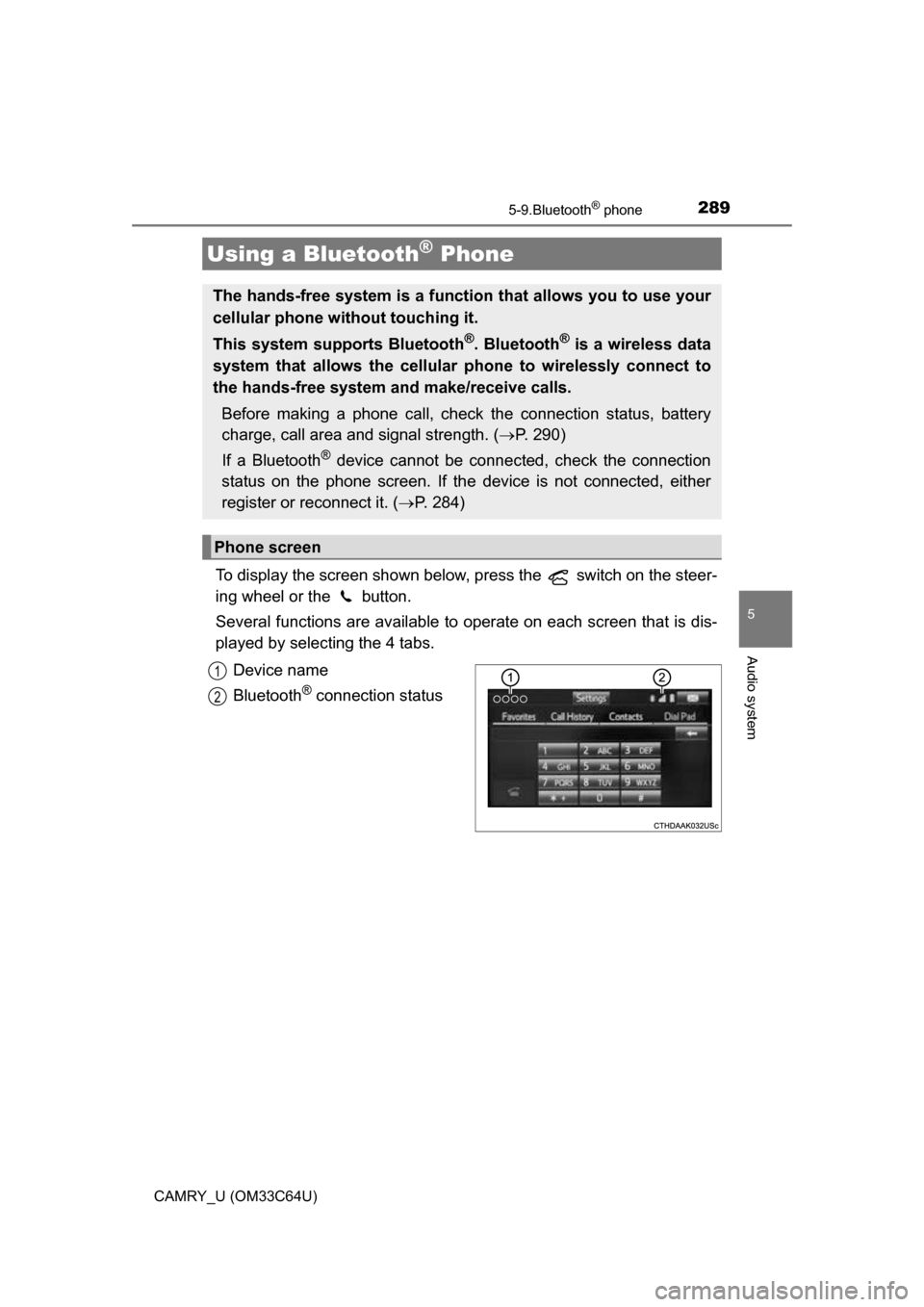
To display the screen shown below, press the switch on the steer-
ing wheel or the button.
Several functions are available to operate on each screen that is dis-
played by selecting the 4 tabs.
Device name
Bluetooth
® connection status
Using a Bluetooth® Phone
The hands-free system is a function that allows you to use your
cellular phone without touching it.
This system supports Bluetooth
®. Bluetooth® is a wireless data
system that allows the cellular phone to wirelessly connect to
the hands-free system and make/receive calls.
Before making a phone call, check the connection status, battery
charge, call area and signal strength. ( P. 290)
If a Bluetooth
® device cannot be connected, check the connection
status on the phone screen. If th e device is not connected, either
register or reconnect it. ( P. 284)
Phone screen
1
2