Page 224 of 568

2244-5. Using the driving support systems
CAMRY_U (OM33C64U)
WARNING
■Limitations of the pre-collision system
The driver is solely responsible for safe driving. Always drive safely, taking
care to observe your surroundings.
Do not use the pre-collision system instead of normal braking operations
under any circumstances. This system will not prevent collisions or lessen
damage or injuries in all cases. Do not overly rely on this system. Failure to
do so may cause an accident, resulting in death or serious injury.
This system has been designed to help avoid and reduce the impact of col-
lisions.
However, the system operates differently depending on the situation ( P.
221). As a result, the same level of performance may not be expected in all
cases. Also, the pre-collision brakes may not operate if the driver is
depressing the brake pedal or turning the steering wheel, as the system will
determine such conditions as collision avoidance operations.
■ Handling the radar sensor
Observe the following to ensure the pre-collision system can function effec-
tively.
Otherwise, the system may not function correctly and could result in an
accident.
● Keep the sensor and grille cover clean at all times.
Clean the sensor and grille cover with a soft cloth so you do not mark or
damage them.
● Do not subject the sensor or surrounding area to a strong impact.
If the sensor moves even slightly off position, the system may not work
normally or malfunction. If the sensor or surrounding area is subject to a
strong impact, always have the area inspected and adjusted by your
Toyota dealer.
● Do not disassemble the sensor.
● Do not attach accessories or stickers to the sensor, grille cover or sur-
rounding area.
● Do not modify or paint the sensor and grille cover.
● If the radar sensor needs to be replaced, contact your Toyota dealer.
Page 227 of 568

2274-5. Using the driving support systems
4
Driving
CAMRY_U (OM33C64U)
■The outside rear view mirror indicators visibility
When under strong sunlight, the outside rear view mirror indicator may be dif-
ficult to see.
■ Rear Cross Traffic Alert buzzer hearing
Rear Cross Traffic Alert function may be difficult to hear over loud noises
such as high audio volume.
■ When there is a malfunction in the Blind Spot Monitor
If a system malfunction is detected due to any of the following reasons,\
warn-
ing message will be displayed: ( P. 457, 458)
● There is a malfunction with the sensors
● The sensors have become dirty
● The outside temperature is extremely high or low
● The sensor voltage has become abnormal
■ Certification for the Blind Spot Monitor
For vehicles sold in the U.S.A.
FCC ID: OAYSRR2A
This device complies with part 15 of the FCC Rules. Operation is subject to
the following two conditions:
(1)This device may not cause harmful interference.
(2)This device must accept any interference received, including interference that may cause undesired operation.
FCC WARNING
Changes or modifications not expressly approved by the party responsible for
compliance could void the user’s authority to operate the equipment.
For vehicles sold in Canada
Applicable law: Canada 310
This device complies with Industry Canada licence-exempt RSS standard(s).
Operation is subject to the following two conditions:
(1)this device may not cause interference, and
(2)this device must accept any interference, including interference that may cause undesired operation of the device.
Frequency bands: 24.05-24.25 GHz
Output power: less than 20 milliwatts
Rear Cross Traffic Alert buzzer (Rear Cross Traffic Alert function
only)
When a vehicle approaching from the right or left rear of the vehicle is
detected, a buzzer sounds from behind the rear seat.
3
Page 228 of 568
2284-5. Using the driving support systems
CAMRY_U (OM33C64U)
WARNING
■Handling the radar sensor
One Blind Spot Monitor sensor is installed inside the left and right side of
the vehicle rear bumper respectively. Observe the following to ensure the
Blind Spot Monitor can function correctly.
● Do not subject the sensor or surrounding area on the bumper to a strong
impact. If the sensor moves even slightly off position, the system may mal-
function and vehicles that enter the detection area may not be detected. If
the sensor or surrounding area is subject to a strong impact, always have
the area inspected by your Toyota dealer.
● Do not disassemble the sensor.
● Do not attach accessories or stickers to the sensor or surrounding area on
the bumper.
● Do not modify the sensor or surrounding area on the bumper.
● Do not paint the rear bumper any color other than an official Toyota color.
●Keep the sensor and its surrounding
area on the bumper clean at all times.
Page 234 of 568

234
CAMRY_U (OM33C64U)
4-6. Driving tips
●Use fluids that are appropriate to the prevailing outside tempera-
tures. • Engine oil
• Engine coolant
• Washer fluid
● Have a service technician ins pect the condition of the battery.
● Have the vehicle fitted with four snow tires or purchase a set of tire
chains for the front tires.
Ensure that all tires are the same size and brand, and that chains match
the size of the tires.
Perform the following accordin g to the driving conditions:
● Do not try to forcibly open a window or move a wiper that is frozen.
Pour warm water over the frozen area to melt the ice. Wipe away
the water immediately to prevent it from freezing.
● To ensure proper operation of the climate control system fan,
remove any snow that has accumulated on the air inlet vents in
front of the windshield.
● Check for and remove any excess ice or snow that may have accu-
mulated on the exterior lights, vehicle’s roof, chassis, around the
tires or on the brakes.
● Remove any snow or mud from the bottom of your shoes before
getting in the vehicle.
Winter driving tips
Carry out the necessary preparations and inspections before
driving the vehicle in winter. Al ways drive the vehicle in a man-
ner appropriate to the prevailing weather conditions.
Preparation for winter
Before driving the vehicle
Page 243 of 568
2435-1. Basic Operations
5
Audio system
CAMRY_U (OM33C64U)
By touching the screen with your finger, you can control the multime-
dia system, etc.
■Drag*
Touch the screen with your finger, and move the screen to the
desired position.
● Scrolling the lists
■Flick*
Touch the screen with your finger and quickly move the screen by
flicking your finger.
●Scrolling the main screen page
*: The above operations may not be performed on all screens.
■When using the touch screen
●If the screen is cold, the display may be dark, or the system may seem to be
operating slightly slower than normal.
● The screen may seem dark and hard to see when viewed through sun-
glasses. Change your angle of viewing, adjust the display on the “Display
Settings” screen ( P. 253) or remove your sunglasses.
● Flick operations may not be performed smoothly in high altitudes.
Operating the touch screen
NOTICE
■To avoid damaging the touch screen
● To prevent damaging the screen, lightly touch the screen buttons with your
finger.
● Do not use objects other than your finger to touch the screen.
● Wipe off fingerprints using a glass cleaning cloth. Do not use chemical
cleaners to clean the screen, as they may damage the touch screen.
Page 253 of 568
2535-2. Setup
5
Audio system
CAMRY_U (OM33C64U)
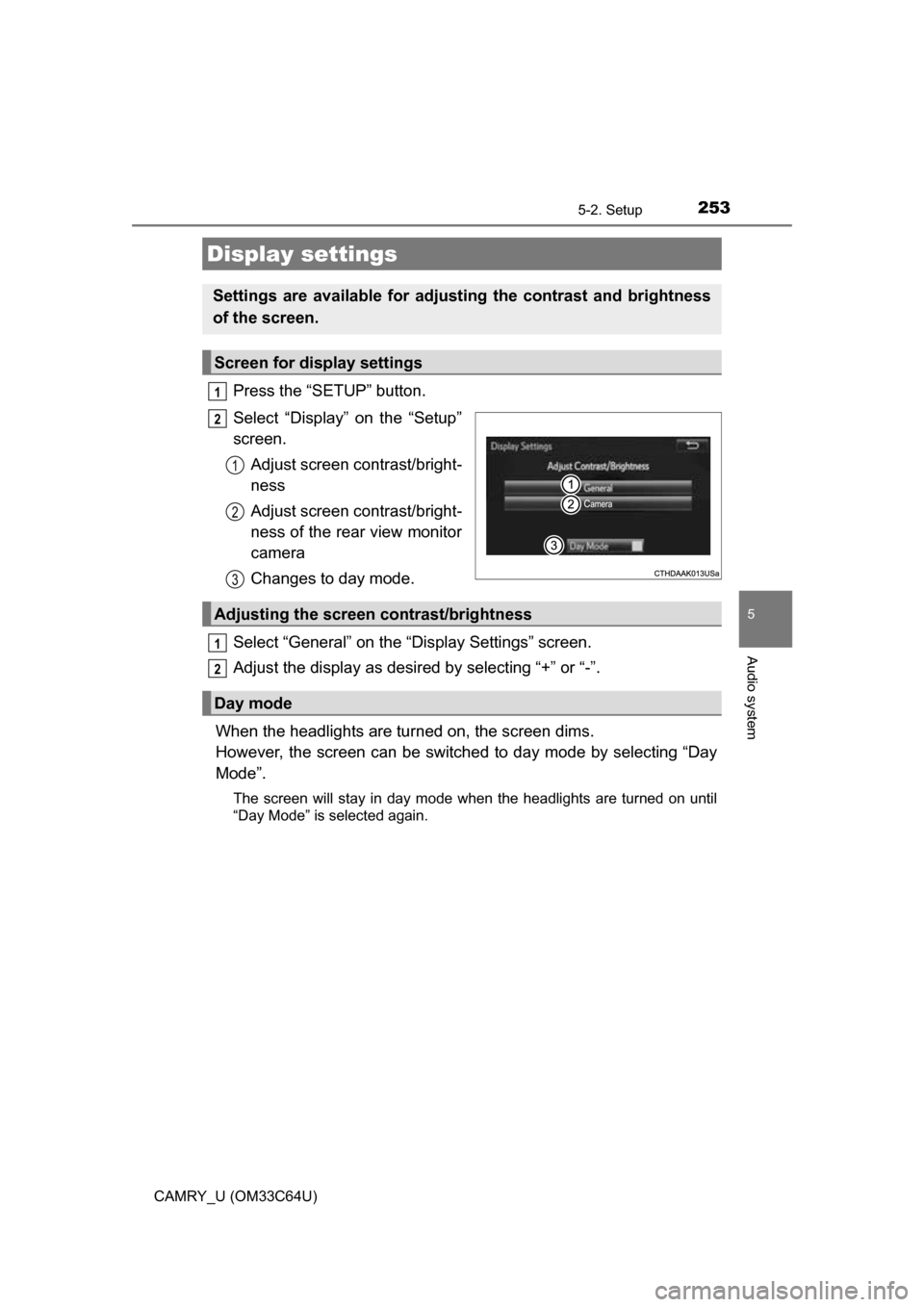
Press the “SETUP” button.
Select “Display” on the “Setup”
screen.Adjust screen contrast/bright-
ness
Adjust screen contrast/bright-
ness of the rear view monitor
camera
Changes to day mode.
Select “General” on the “Display Settings” screen.
Adjust the display as desired by selecting “+” or “-”.
When the headlights are tur ned on, the screen dims.
However, the screen can be switch ed to day mode by selecting “Day
Mode”.
The screen will stay in day mode when the headlights are turned on until
“Day Mode” is selected again.
Display settings
Settings are available for adjusting the contrast and brightness
of the screen.
Screen for display settings
1
2
1
2
3
Adjusting the screen contrast/brightness
Day mode
1
2
Page 256 of 568
2565-3. Using the Multimedia system
CAMRY_U (OM33C64U)
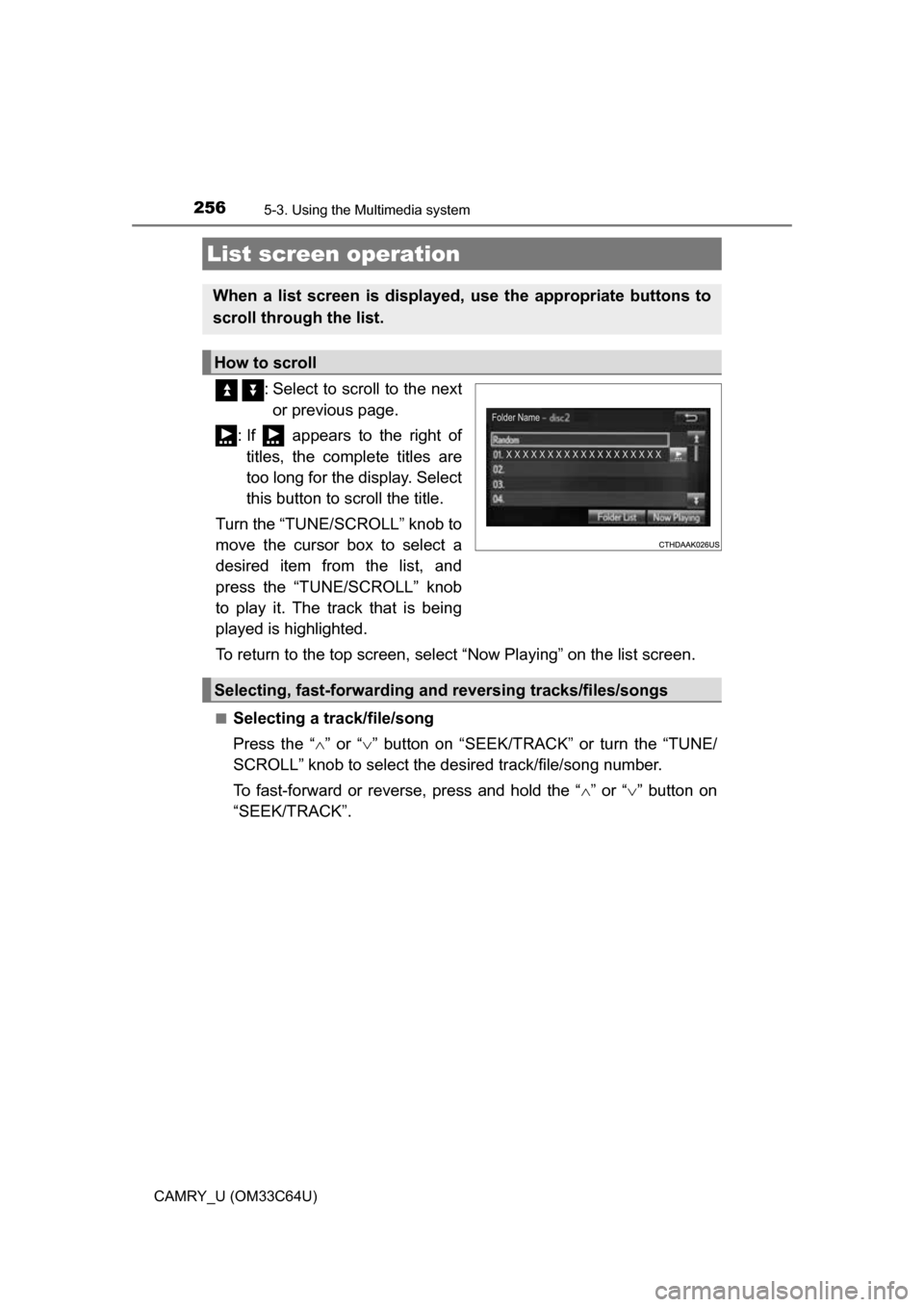
: Select to scroll to the nextor previous page.
: If appears to the right of titles, the complete titles are
too long for the display. Select
this button to scroll the title.
Turn the “TUNE/SCROLL” knob to
move the cursor box to select a
desired item from the list, and
press the “TUNE/SCROLL” knob
to play it. The track that is being
played is highlighted.
To return to the top screen, select “Now Playing” on the list screen.
■Selecting a track/file/song
Press the “” or “ ” button on “SEEK/TRAC K” or turn the “TUNE/
SCROLL” knob to select the desired track/file/song number.
To fast-forward or reverse, press and hold the “ ” or “ ” button on
“SEEK/TRACK”.
List screen operation
When a list screen is displayed, use the appropriate buttons to
scroll through the list.
How to scroll
Selecting, fast-forwarding a nd reversing tracks/files/songs
Page 266 of 568
2665-5. Playing an audio CD and MP3/WMA/AAC discs
CAMRY_U (OM33C64U)
NOTICE
■Discs and adapters that cannot be used
Do not use the following types of CDs.
Also, do not use 3 in. (8 cm) CD adapters, Dual Discs or printable discs.
Doing so may damage the CD player and/or the CD insert/eject function.
● Discs that have a diameter that is not 4.7 in. (12 cm).
● Low-quality or deformed discs.
● Discs with a transparent or translucent recording area.
● Discs that have tape, stickers or CD-R labels attached to them, or that
have had the label peeled off.
■ Player precautions
Failure to follow the precautions below may result in damage to the discs or
the player itself.
● Do not insert anything other than discs into the disc slot.
● Do not apply oil to the player.
● Store discs away from direct sunlight.
● Never try to disassemble any part of the player.