Page 278 of 294
278
2. Entune App Suite OPERATION
CAMRY_NAVI_U_OM33C67U
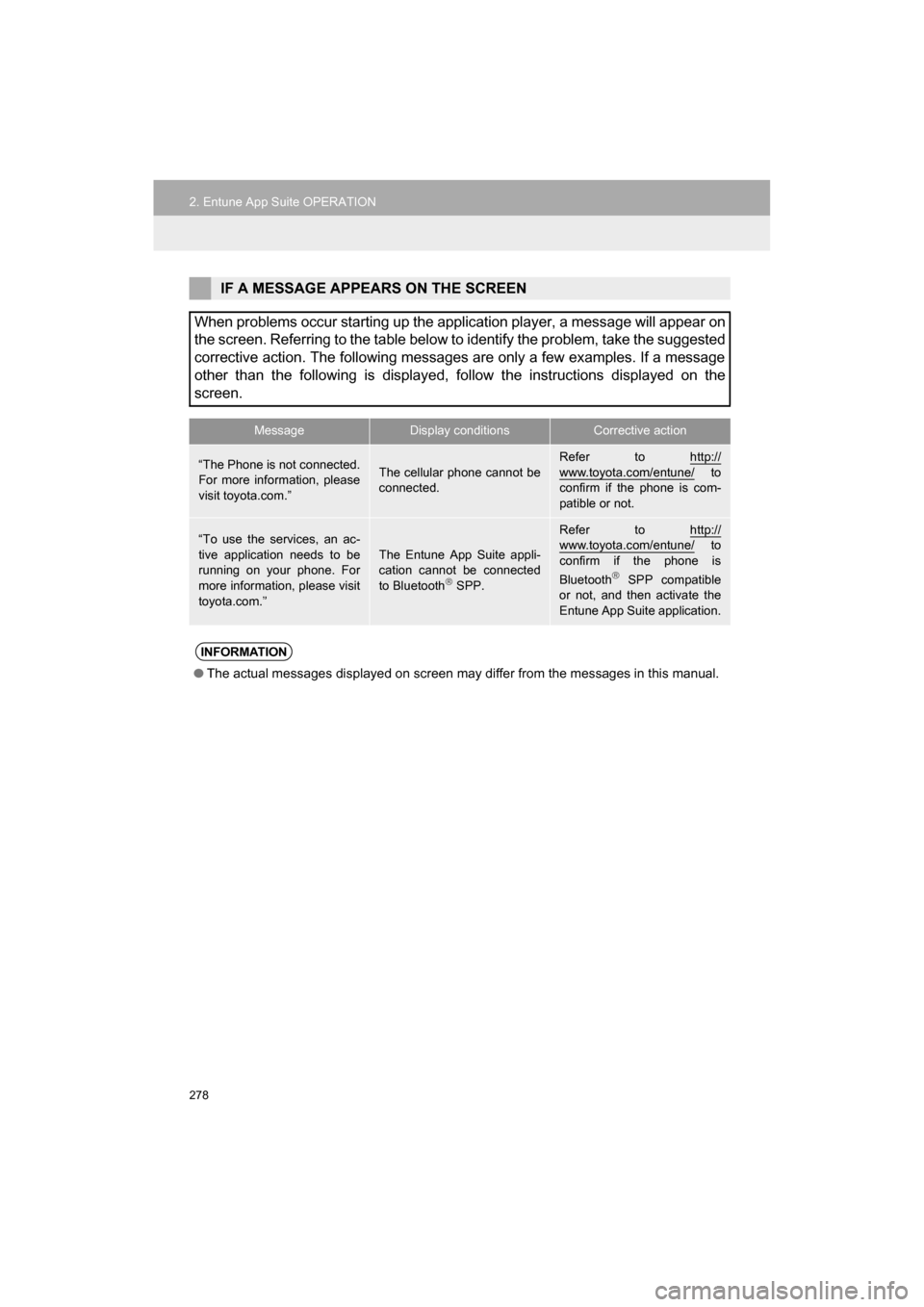
IF A MESSAGE APPEARS ON THE SCREEN
When problems occur starting up the application player, a message will appear on
the screen. Referring to the table below to identify the problem, take the suggested
corrective action. The following messages are only a few examples. If a message
other than the following is displayed, follow the instructions displayed on the
screen.
MessageDisplay conditionsCorrective action
“The Phone is not connected.
For more information, please
visit toyota.com.”The cellular phone cannot be
connected.
Refer to http://
www.toyota.com/entune/ to
confirm if the phone is com-
patible or not.
“To use the services, an ac-
tive application needs to be
running on your phone. For
more information, please visit
toyota.com.”The Entune App Suite appli-
cation cannot be connected
to Bluetooth
SPP.
Refer to http://www.toyota.com/entune/ to
confirm if the phone is
Bluetooth
SPP compatible
or not, and then activate the
Entune App Suite application.
INFORMATION
● The actual messages displayed on screen may differ from the messages in this manual.
Page 284 of 294
284
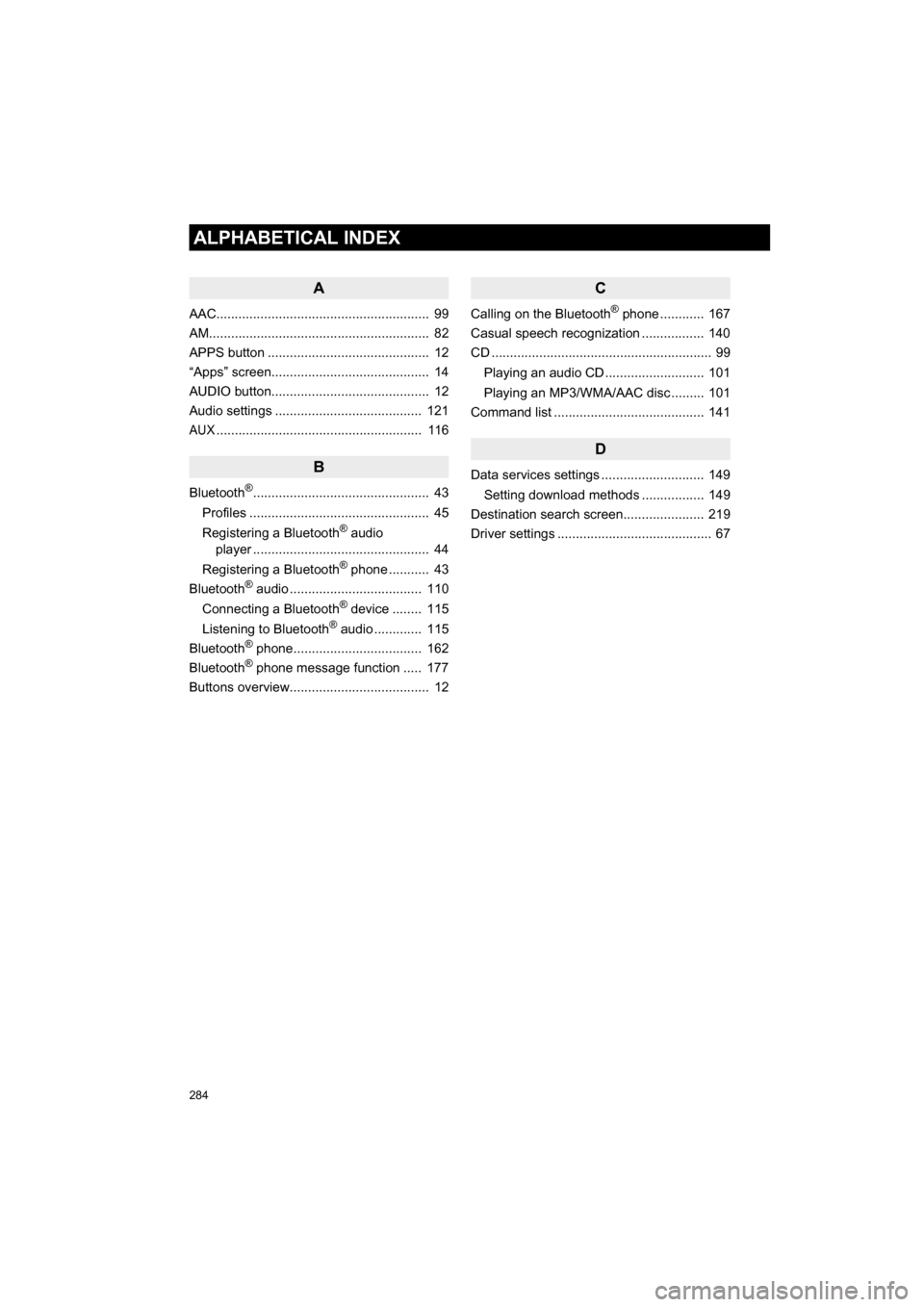
ALPHABETICAL INDEX
CAMRY_NAVI_U_OM33C67U
A
AAC.......................................................... 99
AM............................................................ 82
APPS button ............................................ 12
“Apps” screen........................................... 14
AUDIO button........................................... 12
Audio settings ........................................ 121
AUX........................................................ 116
B
Bluetooth®................................................ 43
Profiles ................................................. 45
Registering a Bluetooth
® audio
player ................................................ 44
Registering a Bluetooth
® phone ........... 43
Bluetooth® audio .................................... 110
Connecting a Bluetooth® device ........ 115
Listening to Bluetooth® audio ............. 115
Bluetooth® phone................................... 162
Bluetooth® phone message function ..... 177
Buttons overview...................................... 12
C
Calling on the Bluetooth® phone ............ 167
Casual speech recognization ................. 140
CD ............................................................ 99
Playing an audio CD ........................... 101
Playing an MP3/WMA/AAC disc ......... 101
Command list ......................................... 141
D
Data services settings ............................ 149
Setting download methods ................. 149
Destination search screen...................... 219
Driver settings .......................................... 67
Page 287 of 294
287
CAMRY_NAVI_U_OM33C67U
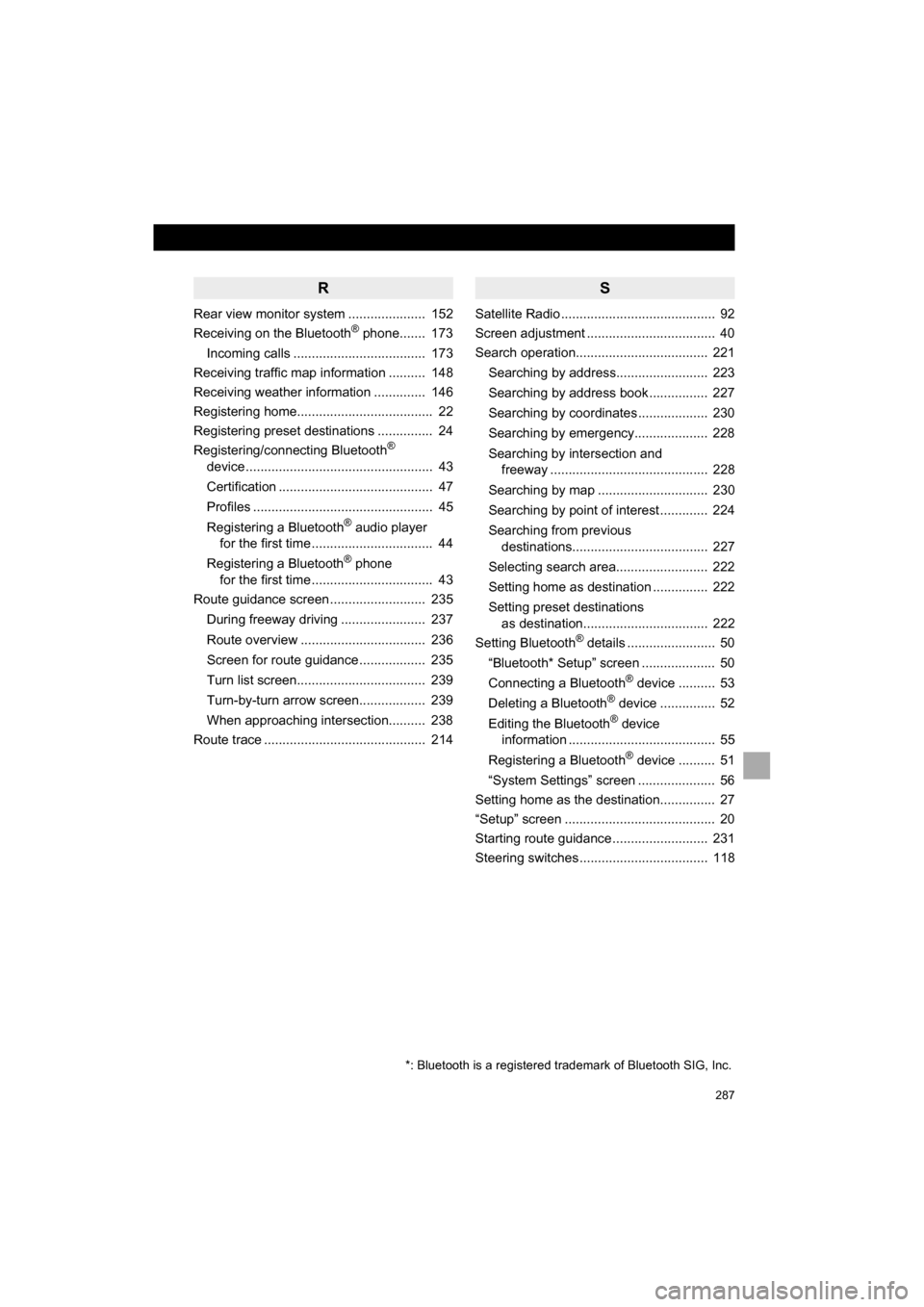
R
Rear view monitor system ..................... 152
Receiving on the Bluetooth® phone....... 173
Incoming calls .................................... 173
Receiving traffic map information .......... 148
Receiving weather information .............. 146
Registering home..................................... 22
Registering preset destinations ............... 24
Registering/connecting Bluetooth
®
device ................................................... 43
Certification .......................................... 47
Profiles ................................................. 45
Registering a Bluetooth
® audio player
for the first time ................................. 44
Registering a Bluetooth
® phone
for the first time ................................. 43
Route guidance screen .......................... 235
During freeway driving ....................... 237
Route overview .................................. 236
Screen for route guidance .................. 235
Turn list screen................................... 239
Turn-by-turn arrow screen.................. 239
When approaching intersection.......... 238
Route trace ............................................ 214
S
Satellite Radio .......................................... 92
Screen adjustment ................................... 40
Search operation.................................... 221
Searching by address......................... 223
Searching by address book ................ 227
Searching by coordinates ................... 230
Searching by emergency.................... 228
Searching by intersection and freeway ........................................... 228
Searching by map .............................. 230
Searching by point of interest ............. 224
Searching from previous destinations..................................... 227
Selecting search area......................... 222
Setting home as destination ............... 222
Setting preset destinations as destination.................................. 222
Setting Bluetooth
® details ........................ 50
“Bluetooth* Setup” screen .................... 50
Connecting a Bluetooth
® device .......... 53
Deleting a Bluetooth® device ............... 52
Editing the Bluetooth® device
information ........................................ 55
Registering a Bluetooth
® device .......... 51
“System Settings” screen ..................... 56
Setting home as the destination............... 27
“Setup” screen ......................................... 20
Starting route guidance .......................... 231
Steering switches ................................... 118
*: Bluetooth is a registered trademark of Bluetooth SIG, Inc.
Page 288 of 294
288
ALPHABETICAL INDEX
CAMRY_NAVI_U_OM33C67U
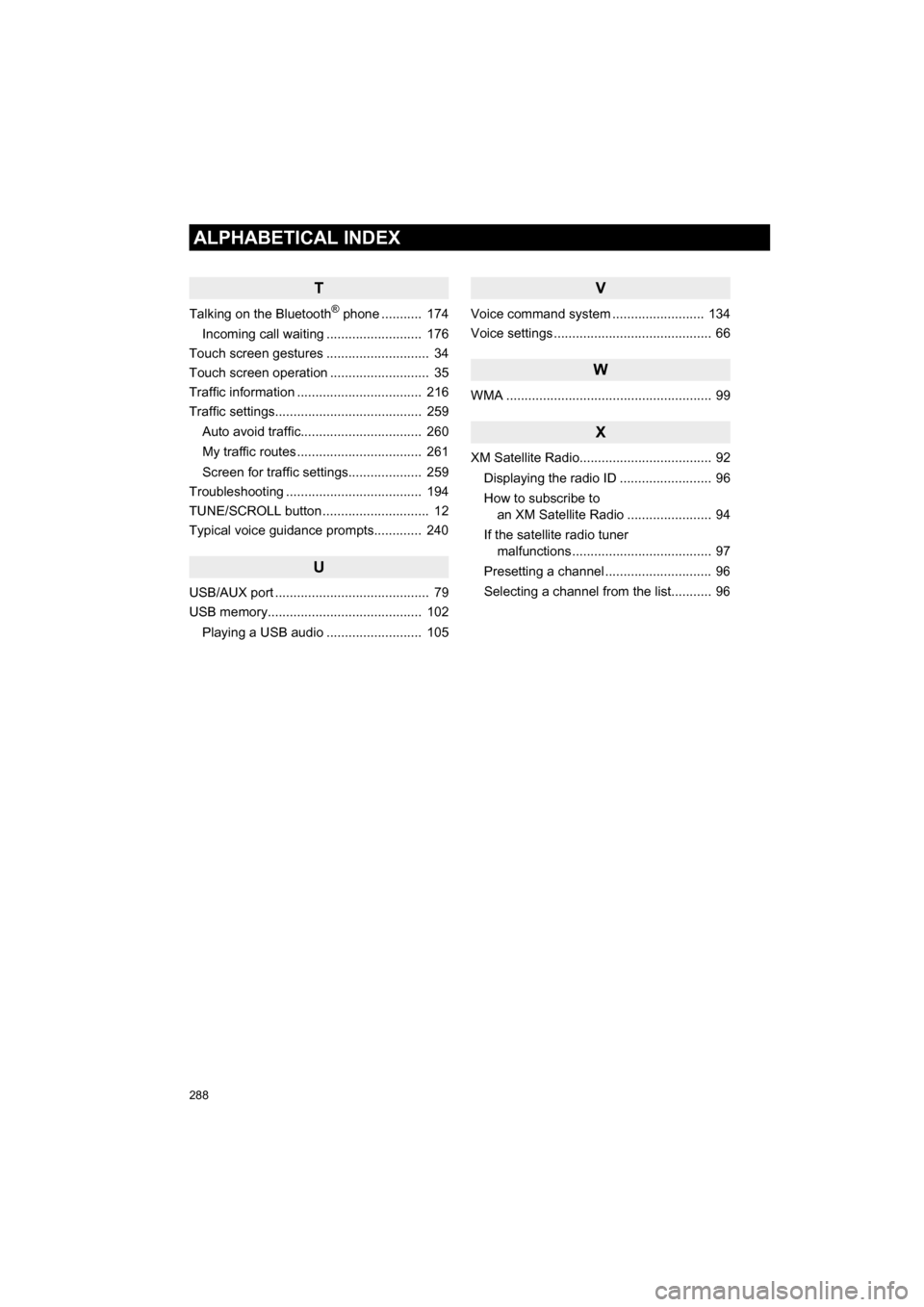
T
Talking on the Bluetooth® phone ........... 174
Incoming call waiting .......................... 176
Touch screen gestures ............................ 34
Touch screen operation ........................... 35
Traffic information .................................. 216
Traffic settings........................................ 259
Auto avoid traffic................................. 260
My traffic routes .................................. 261
Screen for traffic settings.................... 259
Troubleshooting ..................................... 194
TUNE/SCROLL button ............................. 12
Typical voice guidance prompts............. 240
U
USB/AUX port .......................................... 79
USB memory.......................................... 102
Playing a USB audio .......................... 105
V
Voice command system ...... ................... 134
Voice settings ........................................... 66
W
WMA ........................................................ 99
X
XM Satellite Radio.................................... 92
Displaying the radio ID ......................... 96
How to subscribe to an XM Satellite Radio ....................... 94
If the satellite radio tuner malfunctions ...................................... 97
Presetting a channel ............................. 96
Selecting a channel from the list........... 96