Page 28 of 224
BASIC FUNCTION
28
“Apps” SCREEN
List of usable
applications
ABOUT USING APPLICATIONS
In order to use an application on
this system, the corresponding
application must be installed on
your smartphone.
Apple CarPlay does not require
an application to be installed.
Pandora is free personalized
radio that offers effortless and
endless music enjoyment and
discovery.
Pandora*1
*1: Pandora is only available in certain countries. Please visit pandora.com/legal for more information.
The SUBARU STARLINK
function allows the system to
link with a smartphone.
SUBARU STARLINK*2
*2: 8-inch with Navi system/8-inch system only
ahaTM is a cloud-based applica-
tion that connects to the system
and gives you access to your
favorite web content safely and
easily.
ahaTM
P.106
P.94
P.102
P.97
Quick Guide_US.indd 282016/10/21 8:52:15
Page 29 of 224
BASIC FUNCTION
29
1
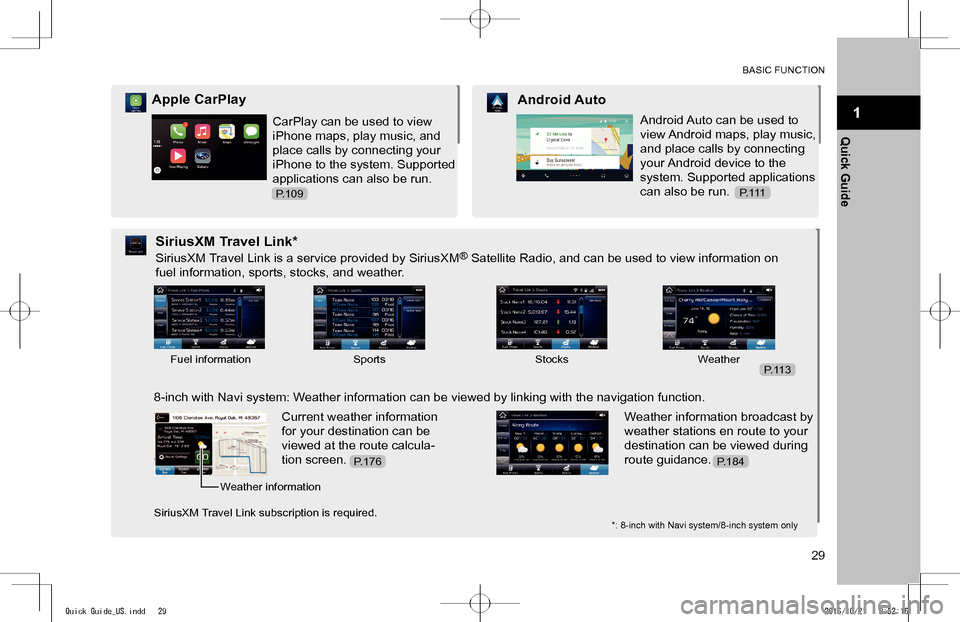
Quick GuideCarPlay can be used to view
iPhone maps, play music, and
place calls by connecting your
iPhone to the system. Supported
applications can also be run.
Apple CarPlay
Android Auto can be used to
view Android maps, play music,
and place calls by connecting
your Android device to the
system. Supported applications
can also be run.
Android Auto
SiriusXM Travel Link is a service provided by SiriusXM® Satellite Radio, and can be used to view information on
fuel information, sports, stocks, and weather.
SiriusXM Travel Link*
8-inch with Navi system: Weather information can be viewed by linking with the navigation function.
Current weather information
for your destination can be
viewed at the route calcula-
tion screen.
Weather information broadcast by
weather stations en route to your
destination can be viewed during
route guidance.
*: 8-inch with Navi system/8-inch system only
Fuel informationSportsStocksWeather
Weather information
SiriusXM Travel Link subscription is required.
P.109P. 1 1 1
P.113
P.184P.176
Quick Guide_US.indd 292016/10/21 8:52:16
Page 32 of 224
STEERING WHEEL CONTROLS
32
STEERING WHEEL CONTROLS
STEERING WHEEL CONTROLS
Some parts of the audio system
can be controlled using the
steering wheel controls.
RADIO
Press: Preset channel up/down
Press and hold: Seek up/down
continuously
MEDIA
Press: Select a track/
Page 42 of 224

No. NameConditions
The Bluetooth connection indicator
This icon is displayed when the Bluetooth connection is established.
Remaining battery charge
Low Full
The amount displayed does not always correspond with the amount displayed on the Bluetooth device.
Reception level
Poor Excellent
The level of reception does not always correspond with the level displayed on the cellular phone. The level of reception may not be displayed depending on the phone you have.
Active audio source
Select to display the active audio source information, radio frequency, and name of the artist and track currently playing, etc.
*: 8-inch with Navi system/8-inch system only
HOME SCREEN OPERATION
ADDING SHORTCUT ICONS TO THE HOME
SCREEN
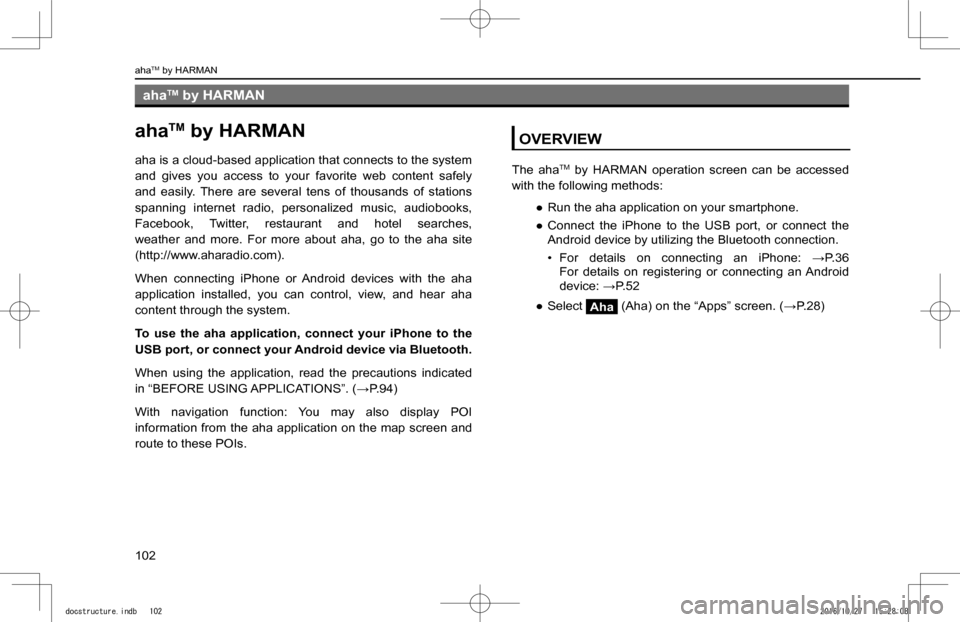
Shortcut icons for various functions can be added to the
home screen when the home screen shortcut function is
turned on. (�WP.62)
1. Press .
2. Select (Add Shortcut).
3. Select the desired function.
BASIC INFORMATION BEFORE OPERATION
42
docstructure.indb 422016/10/27 15:27:38
Page 102 of 224
ahaTM by HARMAN
ahaTM by HARMAN
aha is a cloud-based application that connects to the system
and gives you access to your favorite web content safely
and easily. There are several tens of thousands of stations
spanning internet radio, personalized music, audiobooks,
Facebook, Twitter, restaurant and hotel searches,
weather and more. For more about aha, go to the aha site
(http://www.aharadio.com).
When connecting iPhone or Android devices with the aha
application installed, you can control, view, and hear aha
content through the system.
To use the aha application, connect your iPhone to the
USB port, or connect your Android device via Bluetooth.
When using the application, read the precautions indicated
in “BEFORE USING APPLICATIONS”. (�:P.94)
With navigation function: You may also display POI
information from the aha application on the map screen and
route to these POIs.
OVERVIEW
The ahaTM by HARMAN operation screen can be accessed
with the following methods:
�
Page 106 of 224
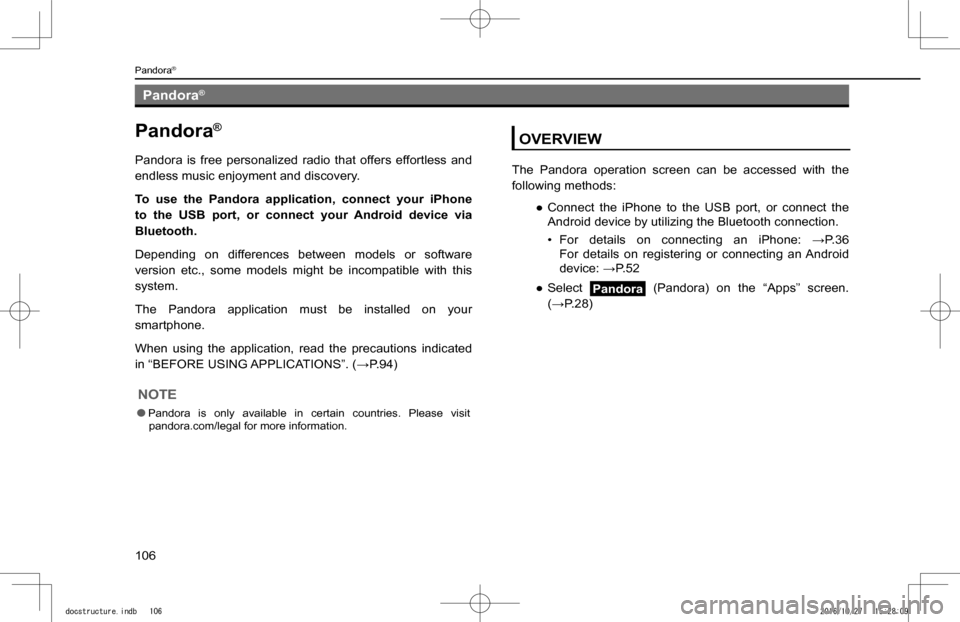
Pandora®
Pandora®
Pandora is free personalized radio that offers effortless and
endless music enjoyment and discovery.
To use the Pandora application, connect your iPhone
to the USB port, or connect your Android device via
Bluetooth.
Depending on differences between models or software
version etc., some models might be incompatible with this
system.
The Pandora application must be installed on your
smartphone.
When using the application, read the precautions indicated
in “BEFORE USING APPLICATIONS”. (�:P.94)
NOTE
lPandora is only available in certain countries. Please visit pandora.com/legal for more information.
OVERVIEW
The Pandora operation screen can be accessed with the
following methods:
�
Page 113 of 224

SiriusXM Travel Link (8-inch with Navi system/8-inch system only)
SiriusXM Travel Link*
*: SiriusXM U.S. satellite and data services are available only in the 48 contiguous USA and DC. SiriusXM satellite service is also available in Canada; see www.siriusxm.ca.
Data service information, which is comprised of sports
information, weather information, stock information and fuel
information, can be received via the SiriusXM® Radio.
To receive the data service information in the vehicle, a
subscription to the SiriusXM® Satellite Radio Service is
necessary following a free trial. (�:P.129)
Content that uses the SiriusXM® Satellite Radio Service is
reset when personal information is initialized by selecting
Factory Data Reset (Factory Data Reset) at the
“GENERAL SETTINGS SCREEN”. (�:P.62)
DISPLAYING SPORTS INFORMATION
By registering your favorite team, sports information such as
games and results, the status of games still in progress, and
future game schedules can be displayed.
1. Select Travel Link (Travel Link) on the “Apps” screen.
(�:P.28)
2. Select Sports (Sports).
3. Check that sports information is displayed.
No.Function
Select to change the displayed information.
Sports information is displayed.
Select to set which sports information is displayed.
Select to edit or register your favorite team.
SiriusXM Travel Link (8-inch with Navi system/8-inch system only)
113
Apps
5
docstructure.indb 1132016/10/27 15:28:12
Page 117 of 224
117
Audio
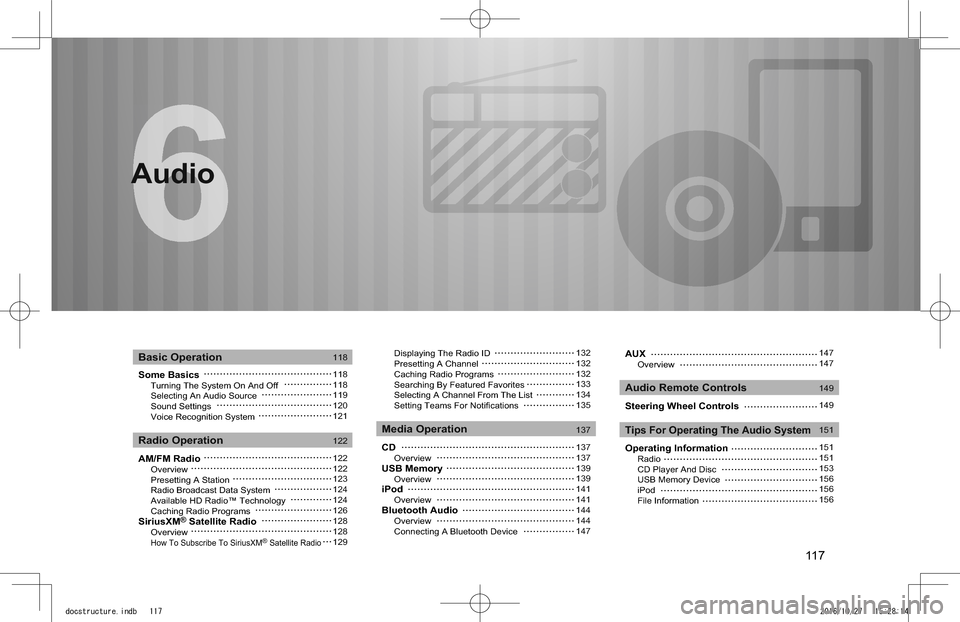
Some Basics Turning The System On And Off Selecting An Audio Source Sound Settings Voice Recognition System
AM/FM Radio Overview Presetting A Station Radio Broadcast Data System Available HD Radio™ Technology Caching Radio ProgramsSiriusXM® Satellite Radio Overview How To Subscribe To SiriusXM® Satellite Radio
Displaying The Radio ID Presetting A Channel Caching Radio Programs Searching By Featured Favorites Selecting A Channel From The List Setting Teams For Notifications
CD OverviewUSB Memory OverviewiPod OverviewBluetooth Audio Overview Connecting A Bluetooth Device
Basic Operation
Radio OperationMedia Operation
Audio Remote Controls
Tips For Operating The Audio System
118
118118119120121
122
122122123124124126128128129
132132132133134135
137
137137139139141141144144147
Audio
AUX Overview
Steering Wheel Controls
Operating Information Radio CD Player And Disc USB Memory Device iPod File Information
147147
149
149
151
151151153156156156
docstructure.indb 1172016/10/27 15:28:14