Page 22 of 224
BASIC FUNCTION
22
“Phone” SCREEN
Call or send a text message
to a registered favorite
Call or send a text message
to a recent contact
Call or send a text message to
a contact in the phonebook on
the Bluetooth connected phone
Check or reply to
messages/place calls from
received message list
Directly input a number
to place a call
Display the “Phone”
screen.
P.82,90
P.82,90
P.83,90
P.89,91
P.83
Operation Flow: Pairing the System with a Bluetooth Phone/Device
Prepare the
Bluetooth phone/
device to be
paired.
Operate the Bluetooth phone/device.
Turn the Bluetooth phone/device
Bluetooth function ON and select
“Subaru BT”. Hold NFC* compatible
devices near the audio system.
Register the
Bluetooth phone/
device.
If unable to pair, check
whether your Bluetooth
phone/device is compati-
ble with the system.*: 8-inch with Navi system/8-inch system only
Quick Guide_US.indd 222016/10/21 8:52:07
Page 23 of 224
BASIC FUNCTION
23
1
Quick Guide
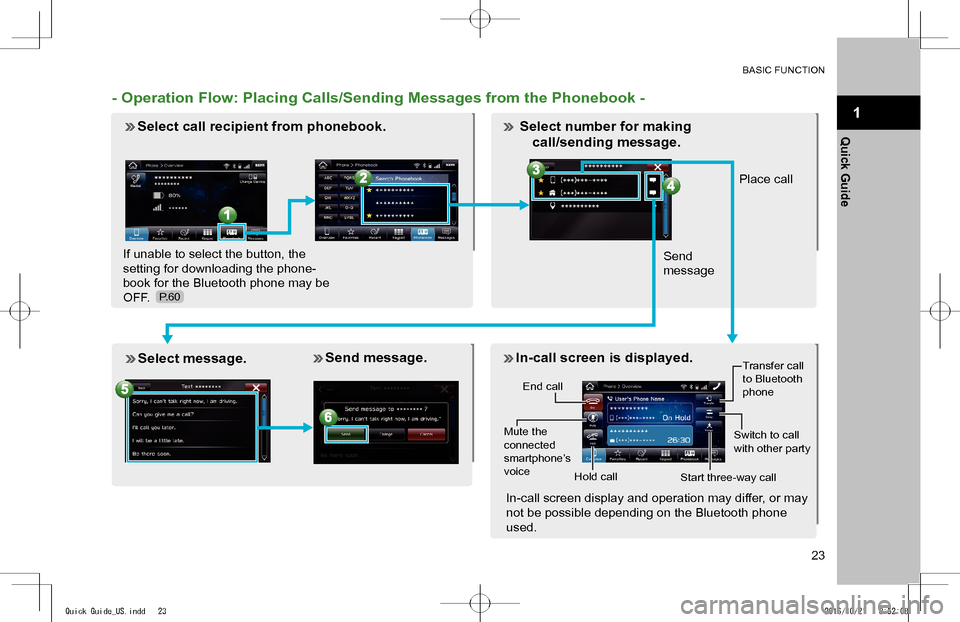
- Operation Flow: Placing Calls/Sending Messages from the Phonebook -
Select call recipient from phonebook.
If unable to select the button, the
setting for downloading the phone-
book for the Bluetooth phone may be
OFF.
Place call
Send
message
Select message. Send message. In-call screen is displayed.
End call
Mute the connected smartphone’s voice
Transfer call to Bluetooth phone
Hold call
Switch to call with other party
Start three-way call
In-call screen display and operation may differ, or may
not be possible depending on the Bluetooth phone
used.
P.60
Select number for making
call/sending message.
Quick Guide_US.indd 232016/10/21 8:52:08
Page 28 of 224
BASIC FUNCTION
28
“Apps” SCREEN
List of usable
applications
ABOUT USING APPLICATIONS
In order to use an application on
this system, the corresponding
application must be installed on
your smartphone.
Apple CarPlay does not require
an application to be installed.
Pandora is free personalized
radio that offers effortless and
endless music enjoyment and
discovery.
Pandora*1
*1: Pandora is only available in certain countries. Please visit pandora.com/legal for more information.
The SUBARU STARLINK
function allows the system to
link with a smartphone.
SUBARU STARLINK*2
*2: 8-inch with Navi system/8-inch system only
ahaTM is a cloud-based applica-
tion that connects to the system
and gives you access to your
favorite web content safely and
easily.
ahaTM
P.106
P.94
P.102
P.97
Quick Guide_US.indd 282016/10/21 8:52:15
Page 29 of 224
BASIC FUNCTION
29
1
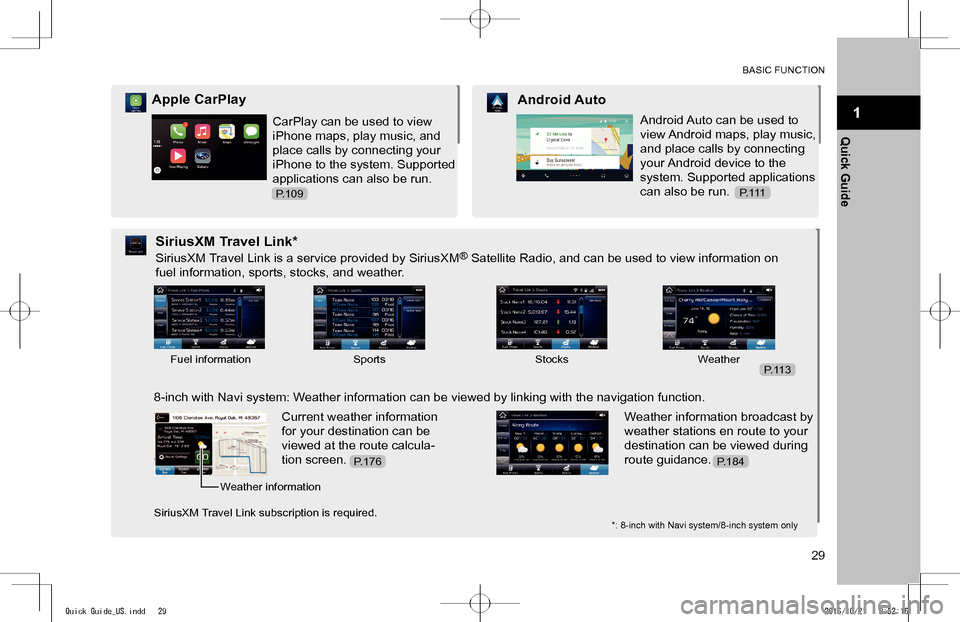
Quick GuideCarPlay can be used to view
iPhone maps, play music, and
place calls by connecting your
iPhone to the system. Supported
applications can also be run.
Apple CarPlay
Android Auto can be used to
view Android maps, play music,
and place calls by connecting
your Android device to the
system. Supported applications
can also be run.
Android Auto
SiriusXM Travel Link is a service provided by SiriusXM® Satellite Radio, and can be used to view information on
fuel information, sports, stocks, and weather.
SiriusXM Travel Link*
8-inch with Navi system: Weather information can be viewed by linking with the navigation function.
Current weather information
for your destination can be
viewed at the route calcula-
tion screen.
Weather information broadcast by
weather stations en route to your
destination can be viewed during
route guidance.
*: 8-inch with Navi system/8-inch system only
Fuel informationSportsStocksWeather
Weather information
SiriusXM Travel Link subscription is required.
P.109P. 1 1 1
P.113
P.184P.176
Quick Guide_US.indd 292016/10/21 8:52:16
Page 30 of 224
BASIC FUNCTION
30
“Settings” SCREEN
Phone
Sound
General
Navigation*
Vehicle
P.55
P.71
P.62
P.73
P.185
SCROLL
SCROLL
SCROLL
*: 8-inch with Navi system only
SCROLL
Quick Guide_US.indd 302016/10/21 8:52:18
Page 42 of 224

No. NameConditions
The Bluetooth connection indicator
This icon is displayed when the Bluetooth connection is established.
Remaining battery charge
Low Full
The amount displayed does not always correspond with the amount displayed on the Bluetooth device.
Reception level
Poor Excellent
The level of reception does not always correspond with the level displayed on the cellular phone. The level of reception may not be displayed depending on the phone you have.
Active audio source
Select to display the active audio source information, radio frequency, and name of the artist and track currently playing, etc.
*: 8-inch with Navi system/8-inch system only
HOME SCREEN OPERATION
ADDING SHORTCUT ICONS TO THE HOME
SCREEN
Shortcut icons for various functions can be added to the
home screen when the home screen shortcut function is
turned on. (�WP.62)
1. Press .
2. Select (Add Shortcut).
3. Select the desired function.
BASIC INFORMATION BEFORE OPERATION
42
docstructure.indb 422016/10/27 15:27:38
Page 51 of 224
51
Settings
Registering A Bluetooth Phone/Device For The First Time ProfilesBluetooth Settings Registering A Bluetooth Phone/Device Connecting Or Disconnecting Bluetooth Phone/Device Deleting Bluetooth Phones/Devices Setting Phonebook Download Setting The Automatic Connection Priority
General Settings General Settings Screen Setting The Driver Profile Setting Wi-Fi® Connection
Updating The SystemSound Settings Sound Settings ScreenVehicle Customization Vehicle Settings Screen
Bluetooth® Settings
Other Settings
52
52535556
58606061
62
62626468
7071727373
Settings
docstructure.indb 512016/10/27 15:27:40
Page 52 of 224
Bluetooth® SETTINGS
REGISTERING A Bluetooth PHONE/
DEVICE FOR THE FIRST TIME
The Bluetooth® word mark and logos are registered
trademarks owned by Bluetooth SIG, Inc.
To use the hands-free system or the Bluetooth audio
system, it is necessary to register a Bluetooth phone/device
with the system.
Once the Bluetooth phone/device has been registered, it is
possible to use the hands-free system and the Bluetooth
audio system.
This operation cannot be performed while driving.
For details on registering a Bluetooth phone/device:
�WP.56
1. Turn the Bluetooth connection setting of your Bluetooth
phone/device on.
�