2017 SUBARU CROSSTREK Battery
[x] Cancel search: BatteryPage 272 of 572

Audio/Audio set
only the first two connected devices
will be recognized.
&Basic operation
This section describes some of the basic
features of the audio/visual system. Some
information may not pertain to your sys-
tem.
Your audio/visual system works when the
ignition switch is turned to the“ACC”or
“ON”position.
CAUTION
To prevent the battery from being
discharged, do not leave the audio/
visual system on longer than neces-
sary when the engine is not running.
NOTE
Some functions can also be operated
by using the voice command system.
For details, refer to“Voice command
system”F5-80.!Turning the system on and off
Press the power/VOLUME knob to turn
the audio/visual system on and off. When
the system turns on, the mode that was in
use the last time the system was turned off
will be displayed. Press and hold the knob
to turn the display off.
Turn this knob to adjust the volume.!Selecting an audio source
1. Press the AUDIO/TUNE knob.
2. Select the desired source.
Example: Source select screen
5-18
Page 299 of 572

Audio panel
No. Function
&1Turn to adjust volume.
Press to turn the audio system on/off.
&2Press to display the sound setting
screen. Refer to“Unit settings”F5-19.
&3Press to display the station operation
screen.
Press to select an audio mode.
&4
Turn to display the next/previous con-
tent item.
Press to select an audio source. Refer
to“Selecting an audio source”F5-18.
&5Press to display the next/previous con-
tent item.
NOTE
.For safety reasons, certain func-
tions are not available while your
vehicle is in motion.
.In order to maximize signal recep-
tion, performance and precision of the
smartphone, please ensure the smart-
phone is placed as close to the system
as possible, while ensuring it is stowed
and secure while driving.
.When the ignition switch is in the
“ACC”or“ON”position, the battery of
the connected iPhone/iPod touch is
charged.
.iPhone/iPod touch may not be re-
cognized when the ignition switch is in
the“ACC”or“ON”position. In this
case, remove the iPhone/iPod touch
and reconnect it.
.The accuracy of the displayed in-
formation or the signal reception per-
formance depends on the smartphone
or the connected device, and it’s wire-
less connection.
.Since the aha application uses sig-
nals from GPS satellites and wireless
communication lines, it may not work
properly in the following locations.
–In a tunnel
–In underground parking lots
Audio/Audio set
–CONTINUED–5-45
Page 310 of 572

Audio/Audio set
!Control screen and audio panel
No. Function
&1Select to display the audio source
selection screen.
&2Select to display the play mode
currently selected. Refer to“Select
play mode”F5-57.
&3Select to display iPod List. Refer to
“iPod settings”F5-57.
&4Shows progress.
&5Turn to adjust volume.
Press to turn the audio system on/off.
&6Turn to select a track/file.
Press to select an audio source. Refer
to“Selecting an audio source”F5-18.
&7Press to display the sound setting
screen. Refer to“Unit settings”F5-19.No. Function
&8Press to select a track/file.
Press and hold to fast forward/rewind.
NOTE
.When an iPod is connected using a
genuine USB cable, the iPod starts
charging its battery.
.When an iPod is connected and the
audio source is changed to iPod mode,
the iPod will resume playing from the
same point it was last used.
.Depending on the iPod that is con-
nected to the system, certain functions
may not be available.
.Files/tracks selected by operating a
connected iPod may not be recognized
or displayed properly.
!Connecting the iPod
You can connect an iPod to the vehicle
USB port using the USB cable. Refer to
“Connecting and disconnecting a USB
memory/portable device”F5-17.
5-56
Page 313 of 572

NOTE
.Depending on the Bluetooth device
that is connected to the system, the
music may start playing when selecting
the
key while it is paused. Con-
versely, the music may pause when
selecting the
key while it is playing.
.In the following conditions, the sys-
tem may not function:
–The Bluetooth device is turned
off.
–The Bluetooth device is not con-
nected.
–The Bluetooth device has a low
battery.
.It may take time to connect the
phone when Bluetooth audio is being
played.
.For operating the portable player,
see the instruction manual that comes
with it.
.If the Bluetooth device is discon-
nected due to poor reception from the
Bluetooth network when the ignition
switch is in the“ACC”or“ON”posi-
tion, the system will automatically
reconnect to the portable player.
.If the Bluetooth device is discon-
nected on purpose, such as it was
turned off, this does not happen.
Reconnect the portable player manu-
ally..Bluetooth device information is re-
gistered when the Bluetooth device is
connected to the Bluetooth audio sys-
tem. When selling or disposing of the
vehicle, remove the Bluetooth audio
information from the system. Refer to
“Bluetooth®settings”F5-65.
!Connecting a Bluetooth device
To use the Bluetooth audio system, it is
necessary to register a Bluetooth device
with the system.
.Registering an additional device
1. Select the“Add”key on the Bluetooth
devices connection screen.
2. For more information: Refer to“Regis-
tering/connecting Bluetooth
®device”F5-
65.
.Selecting a registered device
1. Select the“Select”key on the Blue-
tooth devices connection screen.
2. For more information: Refer to“BT
Devices Connection screen”F5-68.!How to change the source
Select the“BT Audio”key on the source
select screen. Refer to“Selecting an audio
source”F5-18.
NOTE
Depending on the type of portable
player connected, some functions
may not be available and/or the screen
may look differently than shown in this
manual.
Audio/Audio set
–CONTINUED–5-59
Page 324 of 572

Audio/Hands–free phone system
Hands-free phone system
The hands-free system enables calls to be
made and received without having to take
your hands off the steering wheel.
This system supports Bluetooth. Bluetooth
is a wireless data system that enables cell
phones to be used without being con-
nected by a cable or placed in a cradle.
The operating procedure of the phone is
explained here.
WARNING
.While driving, do not use a cell
phone or connect the Bluetooth
phone. Doing so may result in
loss of control of your vehicle
and cause an accident or serious
injury.
.Your audio unit is fitted with
Bluetooth antennas. People with
implantable cardiac pacemakers,
cardiac resynchronization ther-
apy-pacemakers or implantable
cardioverter defibrillators should
maintain a reasonable distance
between themselves and the
Bluetooth antennas. The radio
waves may affect the operation
of such devices..Before using Bluetooth devices,
users of any electrical medical
device other than implantable
cardiac pacemakers, cardiac re-
synchronization therapy-pace-
makers or implantable cardiover-
ter defibrillators should consult
the manufacturer of the device
for information about its opera-
tion under the influence of radio
waves. Radio waves could have
unexpected effects on the opera-
tion of such medical devices.CAUTION
Do not leave your cell phone in the
vehicle. The temperature inside may
rise to a level that could damage the
phone.
NOTE
.If your cell phone does not support
Bluetooth, this system cannot function.
.In the following conditions, the sys-
tem may not function:
–The cell phone is turned off.
–The current position is outside
the communication area.
–The cell phone is not connected.
–The cell phone has a low battery..When using the hands free function
and other Bluetooth functions at the
same time, the following problems may
occur:
–The Bluetooth connection may
be cut.
–Noise may be heard when play-
ing back voice with the Bluetooth
function.
.The other party’s voice will be heard
from the front speakers. The audio/
visual system will be muted during
phone calls or when hands-free voice
commands are used.
.Talk alternately with the other party
on the phone. If both parties speak at
the same time, the other party may not
hear what has been said. (This is not a
malfunction.)
.Keep call volume down. Otherwise,
the other party’s voice may be audible
outside the vehicle and voice echo may
increase. When talking on the phone,
speak clearly towards the microphone.
.The other party may not hear you
clearly when:
–Drivingonanunpavedroad.
(Making excessive traffic noise.)
–Driving at high speeds.
–The moonroof or windows are
open.
–The air conditioning vents are
5-70
Page 345 of 572
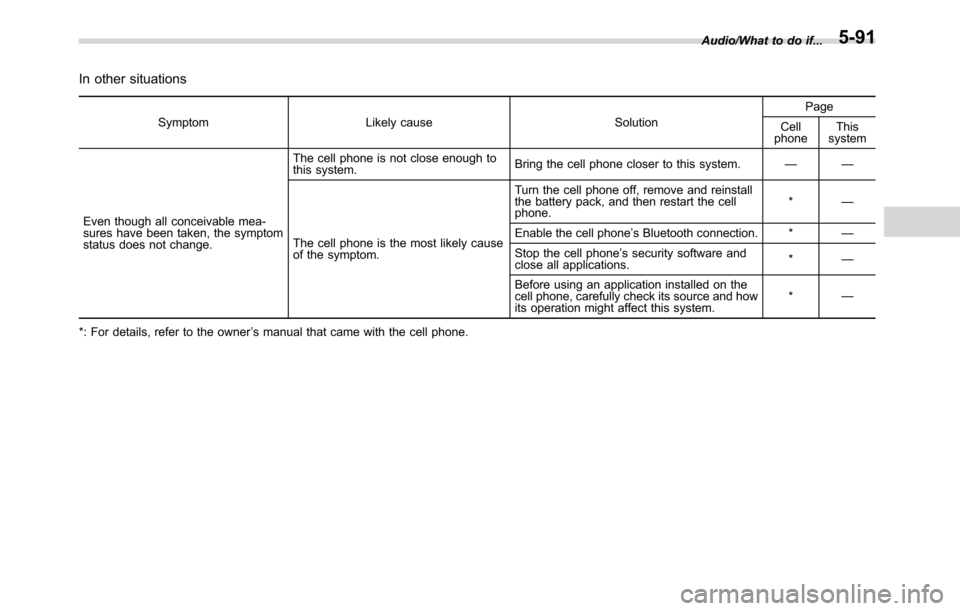
In other situations
Symptom Likely cause SolutionPage
Cell
phoneThis
system
Even though all conceivable mea-
sures have been taken, the symptom
status does not change.The cell phone is not close enough to
this system.Bring the cell phone closer to this system.——
The cell phone is the most likely cause
of the symptom.Turn the cell phone off, remove and reinstall
the battery pack, and then restart the cell
phone.*—
Enable the cell phone’s Bluetooth connection. *—
Stop the cell phone’s security software and
close all applications.*—
Before using an application installed on the
cell phone, carefully check its source and how
its operation might affect this system.*—
*: For details, refer to the owner’s manual that came with the cell phone.Audio/What to do if...
5-91
Page 350 of 572

Interior equipment/Interior lights
Interior lights
CAUTION
When leaving your vehicle, make
sure the lights are turned off to
avoid battery discharge.
&Dome light
1) ON
2) DOOR
3) OFF
The dome light switch has the following
positions.
ON:The light remains on continuously.
OFF:The light remains off.
DOOR:The dome light illuminates auto-
matically in the following cases.
.Any of the doors or the rear gate is
opened.
.The doors or the rear gate are un-
locked using the keyless access function
(if equipped). Refer to“Locking and
unlocking with“keyless access”entry
function”F2-13..The doors or the rear gate are un-
locked using the remote keyless entry
transmitter.
.The ignition switch is turned from the
“ACC”position to the“LOCK”/“OFF”posi-
tion.
&Cargo area light
1) DOOR
2) OFF
DOOR: The light illuminates when the rear
gate is opened. The light remains illumi-
nated for several seconds and gradually
turns off after the rear gate is closed.
OFF: The light remains off.
6-2
Page 351 of 572

&Map lights
Type A
Type B
To turn on the map light, push the switch.
To turn it off, push the switch again.
NOTE
For the type A map lights, although the
light switches are in the ON position,
the lights are automatically turned off
after approximately 30 seconds of
illumination to prevent the vehicle
battery from discharging. For details,
refer to“Battery drainage prevention
function”F2-7.
!Automatic illumination (models
with moonroof)
The map lights illuminate automatically in
the following cases.
.Any of the doors other than the rear
gate is opened. (The map lights do not
illuminate when only the rear gate is
opened.)
.The doors are unlocked using the
keyless access function (if equipped).
Refer to“Locking and unlocking with
“keyless access”entry function”F2-13.
.The doors are unlocked using the
remote keyless entry system. Refer to
“Remote keyless entry system”F2-22.
.The ignition switch is turned from the
“ACC”position to the“LOCK”/“OFF”posi-
tion.&OFF delay timer
The following lights have an automatic
illumination function.
.dome light
.map light (type A)
.cargo area light
After being illuminated automatically,
these lights remain on for several seconds
and then gradually turn off under the
following conditions.
.after all doors and the rear gate are
closed (dome light)
.after all doors are closed (type A map
light)
.after the rear gate is closed (cargo area
light)
While the lights are illuminated, if any of
the following operations are performed,
the lights turn off immediately.
.The ignition switch is turned from the
“LOCK”/“OFF”position to the“ACC”or
“ON”position.
.All doors and the rear gate are locked
using the keyless access function (if
equipped).
.All doors and the rear gate are locked
using the remote keyless entry system.
The setting for the period of time in which
the lights remain on (OFF delay timer) can
Interior equipment/Interior lights
–CONTINUED–6-3