2017 Seat Mii radio
[x] Cancel search: radioPage 12 of 28

Audio mode
Storing stations on the station but-
t on
s Fig. 8
Selecting the frequency band. Fig. 9
Station buttons display. When storing a station to a station button,
an
y
s
tation already stored to the same sta-
tion button in the same memory level will be
overwritten.
Assigning individual station buttons manual-
ly
● Select the frequency band.
● Select the station. ●
Switc
h to Station buttons.
● Press and hold the chosen s
tation button
until you hear a tone.
● The station currently playing ( RADIO 1)
wi
ll then be stored to that station button.
The station button to which the station cur-
rently playing is assigned is displayed high-
lighted on the screen ››› Fig. 8.
In the AM or DAB mode, it is possible to up-
date the station list by pressing down and
holding the function button ››› Fig. 8.
Tuning in to stored stations ●
Select the frequency band with the stored
s t
ation
you are looking for.
● Briefly press the station b
utton to which
the desired station is stored.
Depending on the settings it is possible to
switch between stations of a frequency band
with the arrow buttons and
(Buttons
with arrows: › ›
›
page 18).
A stored station can only be played if it can
be received at your current location. Digital radio mode (DAB, DAB+
and audio DMB)*
Introduction Some units are equipped with an additional
DAB r
a
dio receiver.
The DAB radio receiver supports the DAB,
DAB+ and DMB-Audio broadcasting stand-
ards.
In Europe, digital radio is transmitted via
Band III frequencies (174 MHz to 240 MHz)
and the L Band (1452 MHz to 1492 MHz).
The frequencies of the two bands are referred
to as “channels” and each has a channel
name e.g. 12 A .
Several DAB stations are combined into one
channel with the additional services availa-
ble in a “block”.
DAB is currently not available in all areas . In
areas without DAB, is displayed in DAB ra-
dio mode. The system and functions settings
allow in this case a change of FM station
››› page 18. In the system and functions
settings there is the configuration of other
settings for the tracking of stations and for
playing DAB notifications. Note
The radio stations are responsible for the
cont ent
of the information sent.10
Page 13 of 28

Audio mode
Operation Fig. 10
RADIO main menu: Selecting the fre-
quency b and. Fig. 11
RADIO main menu: Station buttons
di s
p
layed. Starting DAB radio mode
● Press the RADIO unit button.
● Press the D
AB
› ›
› Fig. 10
function button to
start the DAB Radio mode. After switching to DAB radio mode, the avail-
able fr
equency bands (FM, AM and DAB 1)
) are
displayed in the bottom line of the screen
››› Fig. 10. If the RADIO unit button is pressed
ag ain, mor
e f
eatures for the DAB radio receiv-
er will be displayed.
The last DAB radio station tuned in ( RADIO
21 ) is displayed in the centre line of the
screen and is played, if it can still be received
in the current location. The group of selected
stations is displayed in the upper bar of the
screen to the left ( DAB 3) ››› Fig. 11 .
Additional DAB stations
Some DAB stations temporarily or perma-
nently offer additional stations, (for example,
for broadcasting sports events).
If there is an additional station available, this
will also be indicated in the main display
next to the name of the station. In the list of
stations, additional stations are identified by
“2nd” on the right margin.
To move to an additional station, select the
station list with the right rotary knob
››› page 2 ››› Fig. 1 14 .
A lt
ern
atively, the selection is made by repeat-
edly pressing the station button correspond-
ing to the main station ››› page 10. The name of the additional available station
is di
splayed in the centre of the screen in the
main DAB menu.
The additional stations cannot be stored.
Changing DAB radio stations
The function and operation are analogous to
the description for FM and AM 1)
Radio mode.
Manually scrolling through the channels of
the DAB frequency band
● Press the function button Frequency
b and.
The s t
ation that you are currently listening to
is shown in the middle of the screen. If the
tuned channel broadcasts a DAB set, its
name will be displayed under the channel
number. If a new valid channel is selected,
the set received in it will play the first DAB
station. 1)
This depends on the country and unit in question.
11
Page 14 of 28
Audio mode
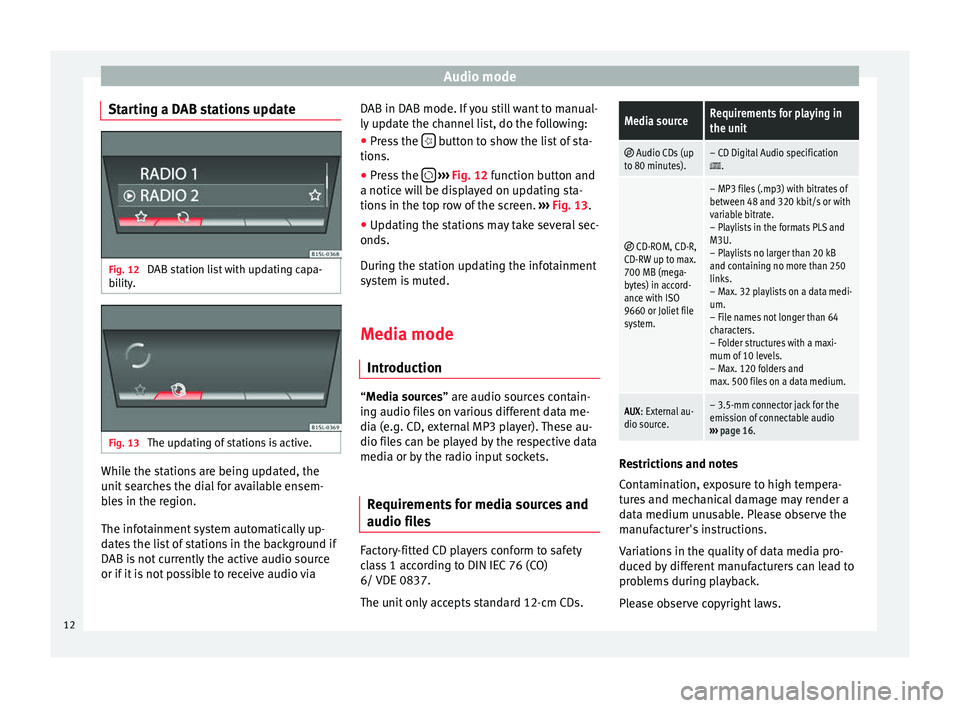
Starting a DAB stations update Fig. 12
DAB station list with updating capa-
bi lity
. Fig. 13
The updating of stations is active. While the stations are being updated, the
u
nit
se
arches the dial for available ensem-
bles in the region.
The infotainment system automatically up-
dates the list of stations in the background if
DAB is not currently the active audio source
or if it is not possible to receive audio via DAB in DAB mode. If you still want to manual-
ly updat
e the channel list, do the following:
● Press the button to show the list of sta-
tion s.
● Pr e
ss the
› ››
Fig. 12
f
unction button and
a notice will be displayed on updating sta-
tions in the top row of the screen. ››› Fig. 13.
● Updating the stations may take several sec-
onds.
Durin
g the station updating the infotainment
system is muted.
Media mode
Introduction “M
edia sources” are audio sources contain-
in g audio fi
les on various different data me-
dia (e.g. CD, external MP3 player). These au-
dio files can be played by the respective data
media or by the radio input sockets.
Requirements for media sources and
audio file
s Factory-fitted CD players conform to safety
c
l
a
ss 1 according to DIN IEC 76 (CO)
6/ VDE 0837.
The unit only accepts standard 12-cm CDs.
Media sourceRequirements for playing in
the unit
Audio CDs (up
to 80 minutes).– CD Digital Audio specification.
CD-ROM, CD-R,
CD-RW up to max.
700 MB (mega-
bytes) in accord-
ance with ISO
9660 or Joliet file
system.
– MP3 files (.mp3) with bitrates of
between 48 and 320 kbit/s or with
variable bitrate.
– Playlists in the formats PLS and
M3U.
– Playlists no larger than 20 kB
and containing no more than 250
links.
– Max. 32 playlists on a data medi-
um.
– File names not longer than 64
characters.
– Folder structures with a maxi-
mum of 10 levels.
– Max. 120 folders and
max. 500 files on a data medium.
AUX : External au-
dio source.– 3.5-mm connector jack for the
emission of connectable audio
››› page 16. Restrictions and notes
C
ont
amin
ation, exposure to high tempera-
tures and mechanical damage may render a
data medium unusable. Please observe the
manufacturer's instructions.
Variations in the quality of data media pro-
duced by different manufacturers can lead to
problems during playback.
Please observe copyright laws.
12
Page 18 of 28
Audio mode
The remaining operations for handling exter-
n al
d
ata media (change of track, track selec-
tion and activating playback modes) are per-
formed similarly to those of the other audio
sources (e.g “Playing SD card”) ››› page 15.
Instructions and restrictions
The number of USB ports as well as their
compatibility with Apple™ devices and other
media players depends on the unit.
The USB port supplies the usual USB volt-
age of 5 volts for a USB connection.
Due to the large number of different data me-
dia and various iPod™, iPad™ and iPhone™
generations available, it is not possible to
guarantee error-free operation of all func-
tions described here.
Take into account all other instructions and
limitations regarding requirements for media
sources ››› page 12.
Disconnecting
The connected data media must be prepared
for disconnection before it can be removed.
● Press the Infotainment button MENU , then
pr e
s
s System settings .
● Select Saf
ely
r
emove the source , then the
USB . After correctly ejecting the data stor-
ag e dev ic
e from the system, the function but-
ton becomes inactive (grey colour). ●
Now the dat
a storage device can be discon-
nected.
External audio source connected to
the AUX-IN mu
ltimedia socket Depending on the level of vehicle equipment,
there i
s
an AUX-IN multimedia socket on the
radio front ››› Fig. 1 5 in the stowage com-
par tment
on the front passenger side, in the
centre console, or in the armrest between the
two front seats.
The AUX-IN multimedia socket can only be
used with a 3.5 mm jack plug.
An external audio source connected to it can
only be played over the vehicle speakers, but
cannot be controlled via the radio.
The AUX-IN multimedia socket should be acti-
vated in the system setting ›››
page 18 in
order for it to appear in the Media selection
menu ›››
page 13.
Connecting an external audio source to the
AUX-IN multimedia socket
● Reduce the base volume on the radio.
● Connect the external audio source to the
AUX -IN mu
ltimedia socket.
● Start playback on the external audio
source. ●
In M
edia mode, pr
ess the MEDIA unit but-
t on t
o di
splay the selection menu for availa-
ble media sources ››› page 13.
● Press the function button .
The outp ut
volume of a connected external
audio source should be adjusted to that of
the other audio sources.
Adjusting the output volume
If you need to increase the output volume for
the external audio source, first lower the
base volume on the radio.
If the sound from the external audio source is
too low, increase the output volume on the
external audio source if possible. If this is not
enough, set the input volume in the system
settings to level 2 or level 3
››› page 18.
If the sound from the connected external au-
dio source is too loud or distorted, lower the
output volume on the external audio source if
possible. If this is not enough, change the in-
put volume to level 2 or level 1 . Note
● If p l
ayback of the external audio source fin-
ishes or if the connector of the AUX-IN multi-
media socket is unplugged, the radio will re-
main in the AUX menu.16
Page 20 of 28
Settings menu
Settings menu S y
s
tem and functions settings
(SETUP)
Change settings Sound settings
››› Fig. 1 7:
Volume
:
Maximum switch-on volume : Here you can set
the volume needed to turn on the unit. To set it, use
the +
and – buttons or the settings button.
Announcements
: Here you can set the volume of
the notifications from the traffic stations (TP). To set
it, use the +
and – buttons or the settings button.
Speed-dependent control
: The speed-depend-
ent volume regulation automatically increases the
volume as the vehicle speed increases ››› page 19.
AUX : Adjust the input volume of an external audio
source (AUX) to the output volume of the other audio
sources.
Balance - Fader : To adjust the distribution of the
sound.
Treble - Mid - Bass : To adjust the characteris-
tics of the sound. Displaying settings menus and changing set-
tin
g
s
● Pr
ess the SETUP unit button in Radio or Me-
di a mode.
● Sel ect
the desired setting with the settings
button and c
onfirm by pressing it slightly.
● Select the submenu with the settings but-
ton.
● Choose the de
sired setting with the set-
tings
button.
● Confirm changes by pressing the settings
button s
lightly.
● Press the SETUP or
B
A
CK unit buttons to
c lo
se the
SETUP menu.
While volume settings are being adjusted,
the currently active audio source is played at
the level of the setting as it changes.
Overview of available settings menus
The range of possible settings depends on
the country, the unit and the vehicle's equip-
ment specification.
Menu options: Submenus with repercussion
Radio :
Arrow buttons : Regulate the operation of the but-
tons with arrow and to change the station in ra-
dio mode ››› page 7.
Menu options: Submenus with repercussion
Preset list : All available stations on the selected
frequency band can be browsed with the arrow but-
tons.
Station list : The arrow buttons are used for
switching through all available radio stations one af-
ter another.
Traffic Program (TP)
: Traffic stations an-
nouncements ››› page 8
Radio text
: Radio text display
Delete presets : Deleting stored stations.
Delete all: All stored stations will be deleted.
By selecting a special memory only some stations
are deleted. Memories containing a station stand
out visibly, are identified with a frequency and have
a bin symbol at the end of the line.
Sorta)
:
Alphabetically :
Group:
FM Advanced settings :
Reg. RDSb)
: It is possible to switch off RDS-depend-
ent services for travel in areas where there is no RDS
coverage (automatic station tracking, traffic news TP)
››› page 7.
Automat. :
Fixed:18
Page 21 of 28

Settings menuMenu options: Submenus with repercussion
Frequency switching (AF)
: Automatic sta-
tion tracking ››› page 7.
If the function is active, while in motion it always
changes the frequency of the set radio station,
which at that time can be set better. This happens
even if it interrupts a set regional broadcast.
If the function is deactivated, there is no frequen-
cy change. The frequency tuned is active until re-
ception is interrupted.
DAB Advanced settings :
DAB traffic announcements
: If there are
announcements of a traffic radio station available,
they are played directly in the active DAB Radio
mode. The traffic announcements of FM traffic news
stations are ignored. If this feature is deactivated or
if the current DAB set does not offer a TP service,
traffic announcements of an FM traffic radio station
are reproduced directly in the active DAB Radio
mode ››› page 8.
Other DAB alerts
: DAB announcements
(news, sport, weather, etc.) will interrupt the current
DAB radio mode.
DAB-DAB station tracking
: Automatic sta-
tion tracking in DAB radio mode. If the current DAB
station is broadcast on another channel due to a
change in location, this channel is switched to auto-
matically (factory setting).
DAB-FM Automatic switching
: Switching to
FM frequency band is allowed for automatic station
tracking ››› page 19.
Media :
Menu options: Submenus with repercussion
Mix/Repeat including subfolders
: It estab-
lishes that random play and repeat play can include
any existing subfolders. The setting only affects the
playback of MP3/WMA files.
Screen :
Switch off screen (in 10 seconds)
: The
screen turns off automatically if during the set time no
operation is performed. As soon as one of the buttons
on the unit, function buttons or knobs is operated, the
display becomes active and displays the last active
dialogue.
Brightness : Selecting screen brightness from Maxi-
mum brightness to Maximum darkness .
Show clock in standby mode
: When the unit
is off, the display shows the current time.
Colour : Here you can select marking colours for the
screen.
Language : Here you can set the desired language for
the user interface. Alternatively you can also let it auto-
matically select the language of the instrument cluster.
Remove safely : With this option you can safely re-
move an SD card inserted in or connected to a USB de-
vice.
Factory settings : You can reset the Radio, Media ,
Sound and System factory settings individually or all
together.
System information : Display of unit technical data.
Menu options: Submenus with repercussion
Intellectual property rights : Details of the
software used.
a) Valid only for the FM frequency band.
b) This depends on the country and unit in question.
Functional description of speed-dependent
volume adjustment (GALA)
The speed-dependent volume regulation au-
tomatically increases the volume as the vehi-
cle speed increases.
You can set the degree to which the volume
increases with speed on a scale between 1
and 7.
If a low value is set, the volume increases on-
ly slightly as the speed of the vehicle increa-
ses. At a high setting the volume increases
further. At 0 speed-dependent volume ad-
justment is switched off.
DAB-FM LINKING Function
If reception of the currently selected DAB sta-
tion is lost (e.g. no DAB available), the unit
attempts to find the station on the FM fre-
quency band and tune to it.
Automatic station tracking between frequen-
cy bands only works if the DAB station and
the FM station transmit the same station
identifier or the DAB signal indicates a corre-
sponding station on the FM frequency band. »
19
Page 22 of 28
Settings menu
Once the corresponding FM station has been
f ou
nd,
(FM) is displayed after the station
name. When reception for the corresponding
DAB station returns, the unit will switch back
to DAB mode after a short time.
If the reception of the selected DAB station is
lost and the station cannot be found on the
FM frequency band, the radio will be muted. 20
Page 23 of 28
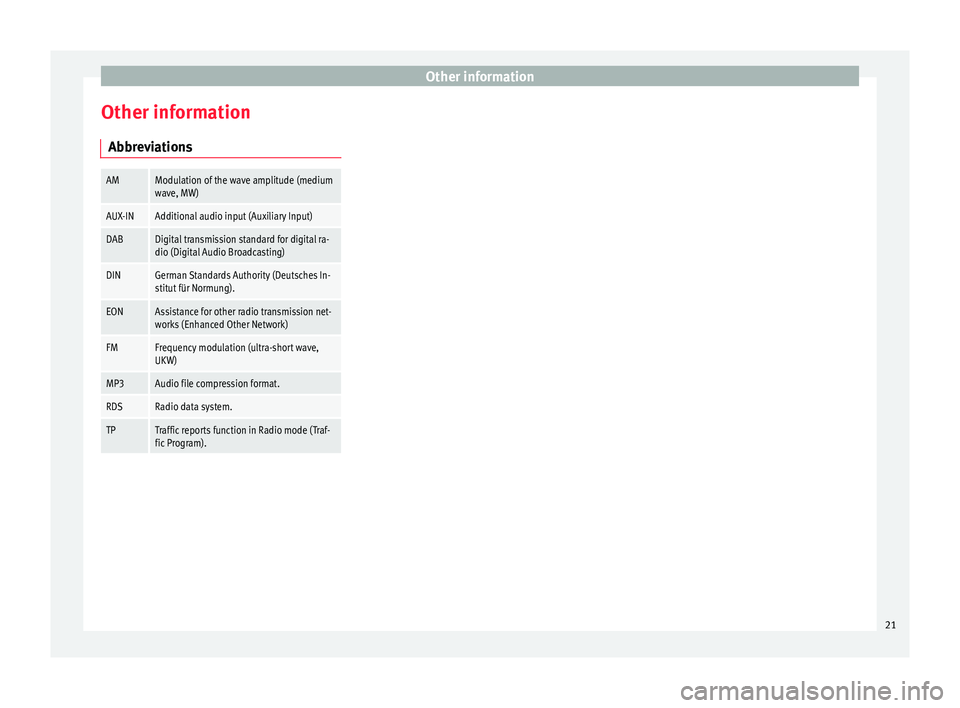
Other information
Other information Abbr ev
i
ations
AMModulation of the wave amplitude (medium
wave, MW)
AUX-INAdditional audio input (Auxiliary Input)
DABDigital transmission standard for digital ra-
dio (Digital Audio Broadcasting)
DINGerman Standards Authority (Deutsches In-
stitut für Normung).
EONAssistance for other radio transmission net-
works (Enhanced Other Network)
FMFrequency modulation (ultra-short wave,
UKW)
MP3Audio file compression format.
RDSRadio data system.
TPTraffic reports function in Radio mode (Traf-
fic Program). 21